
How to Duplicate an Existing Machine | Administration
Save time setting up new machines in Nayax Core by duplicating an existing machine copy its configuration, set the quantity, name each machine, and deploy across your operation in minutes.
Video Guide
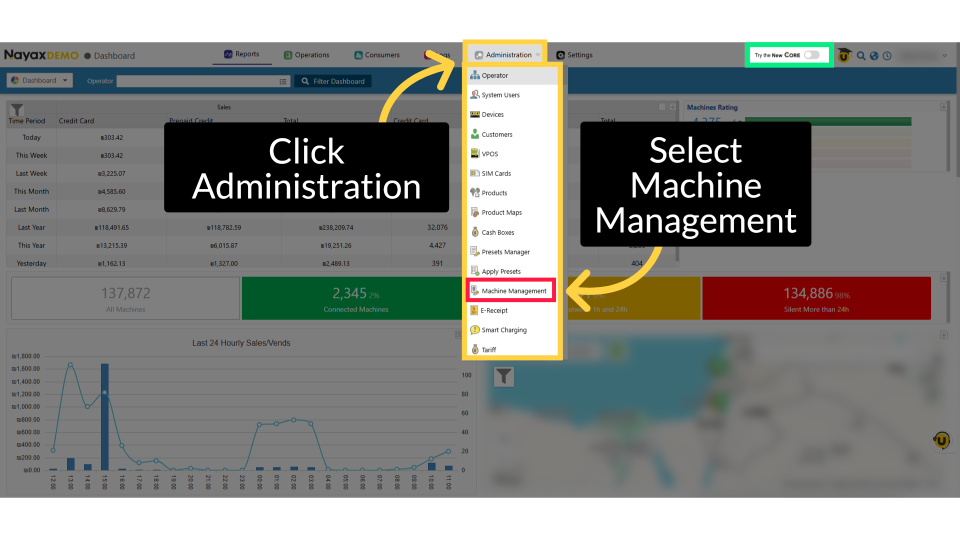
Click Administration
Image AttachedFrom the dashboard of your Nayax Classic Core platform, select the Administration tab. Next, click on Machine Management in the drop-down menu.
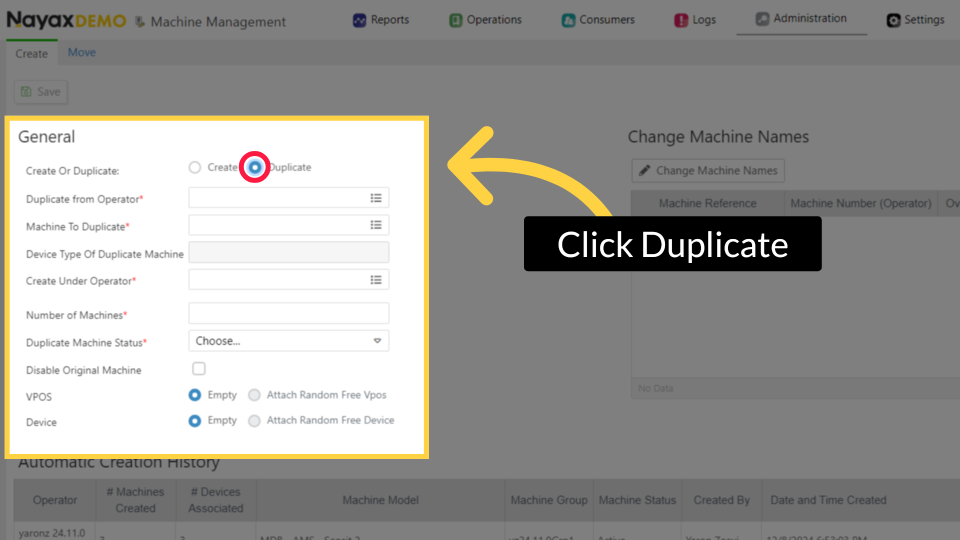
Click Duplicate
Image AttachedIn the general section, select the Duplicate option as highlighted.
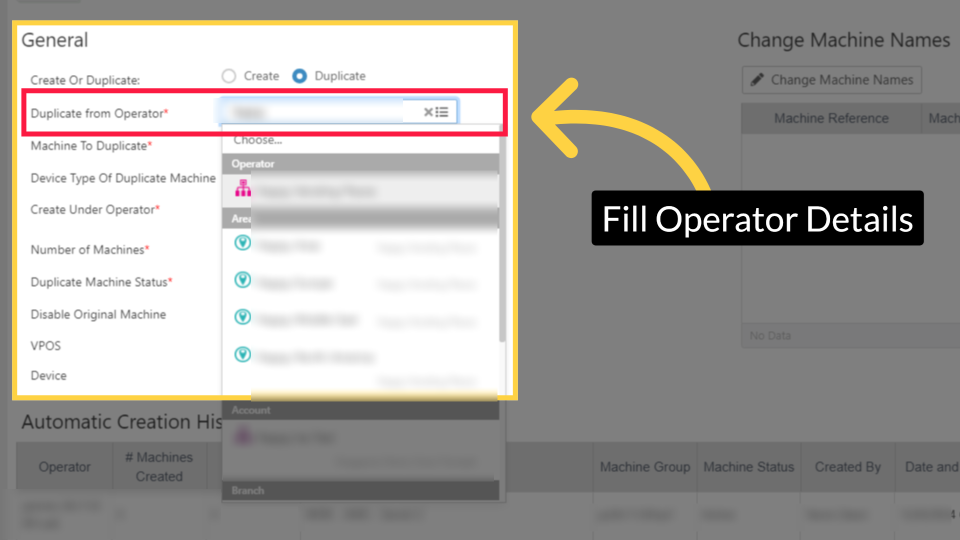
Fill Operator Details
Image AttachedSelect the Operator from whom you wish to duplicate the machine.
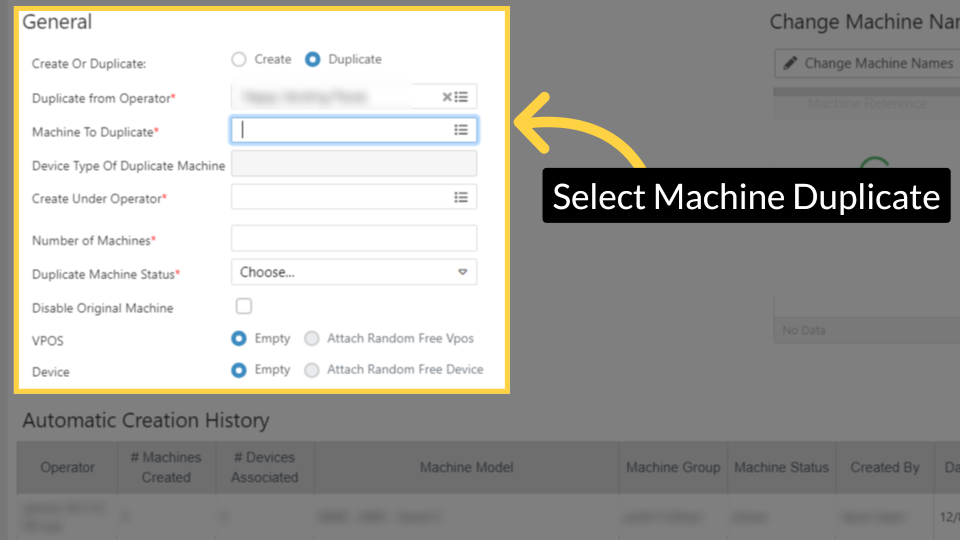
Select Machine Duplicate
Image AttachedSelect the machine you wish to duplicate.
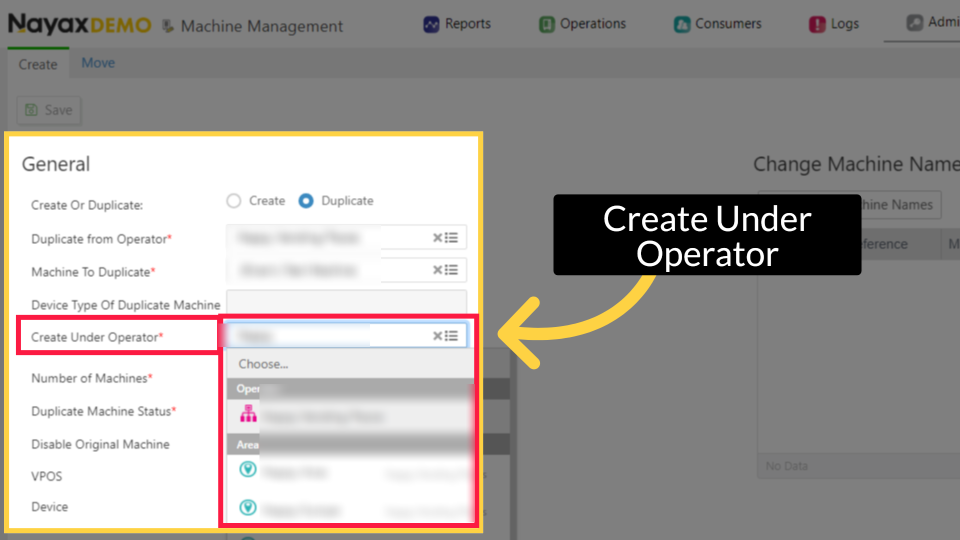
Create Under Operator
Image AttachedSelect the Operator under which you wish to create your machine, as highlighted in RED.
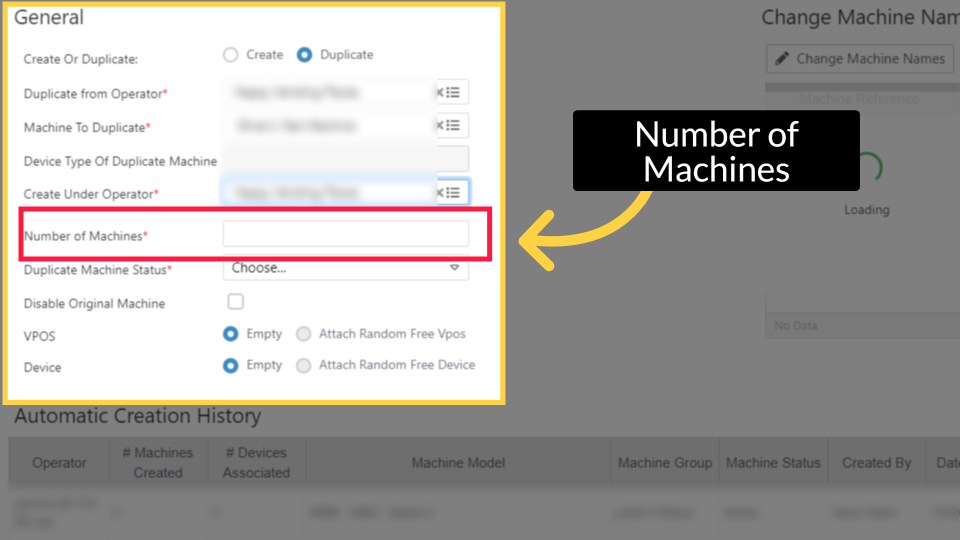
Number of Machines
Image AttachedSelect the number of machines you wish to create.
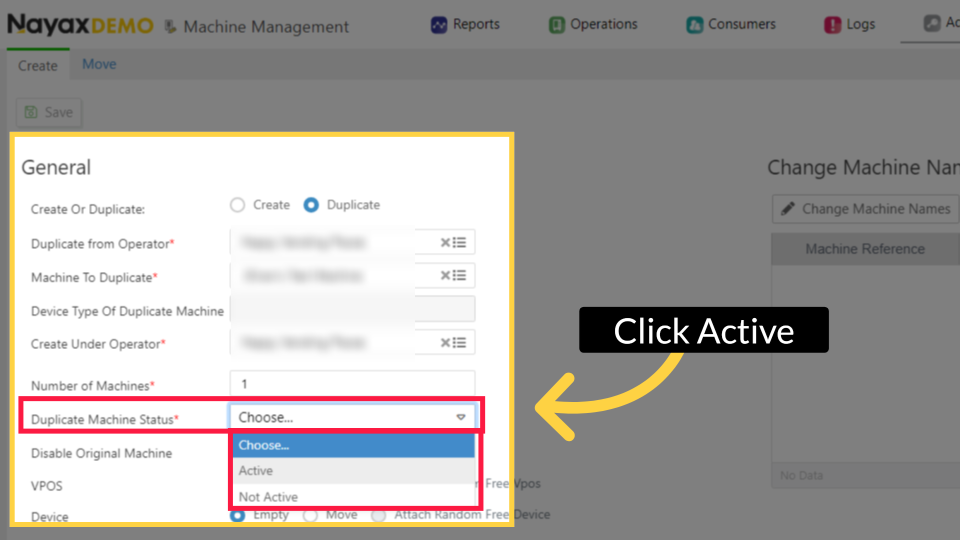
Machine Status
Image AttachedSelect the Machine Status.
Click Change Machine Names
Image Attached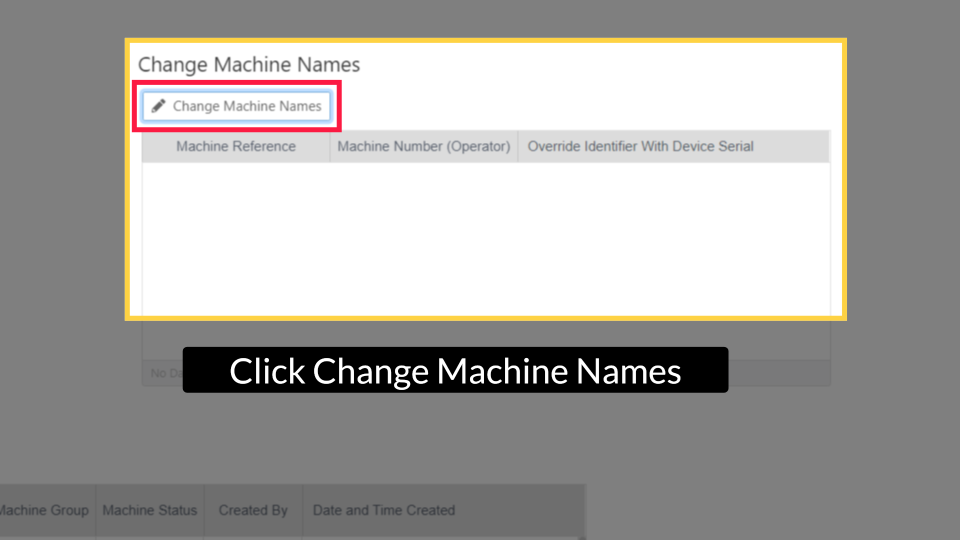
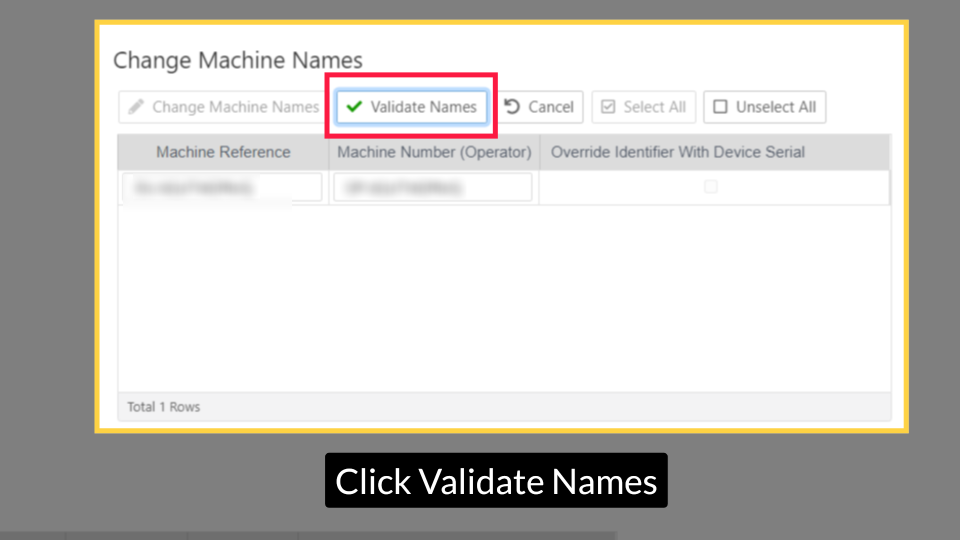
Click Validate Names
Image AttachedEnsure that the machine names are validated by clicking the "Validate Names" button highlighted in RED.
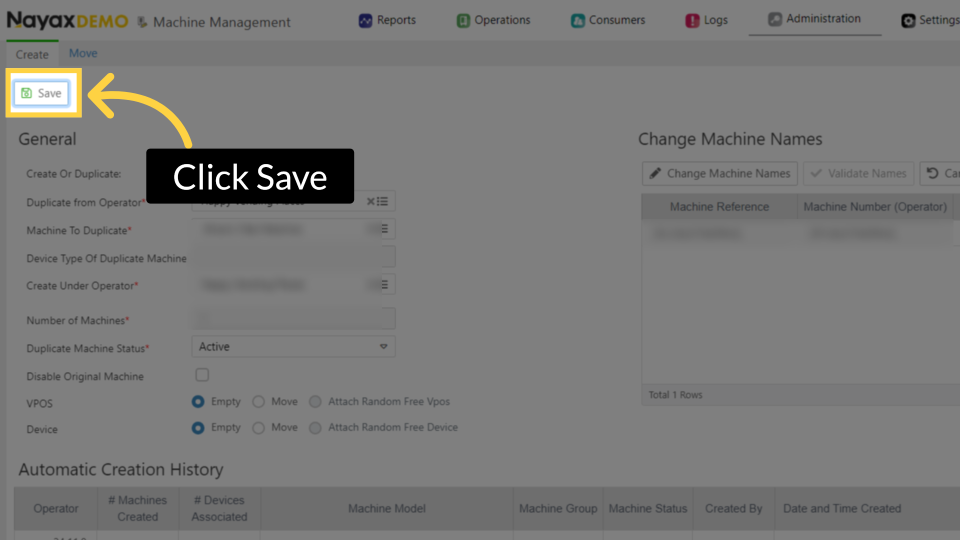
Click Save
Image AttachedClick "Save" to apply the changes made.
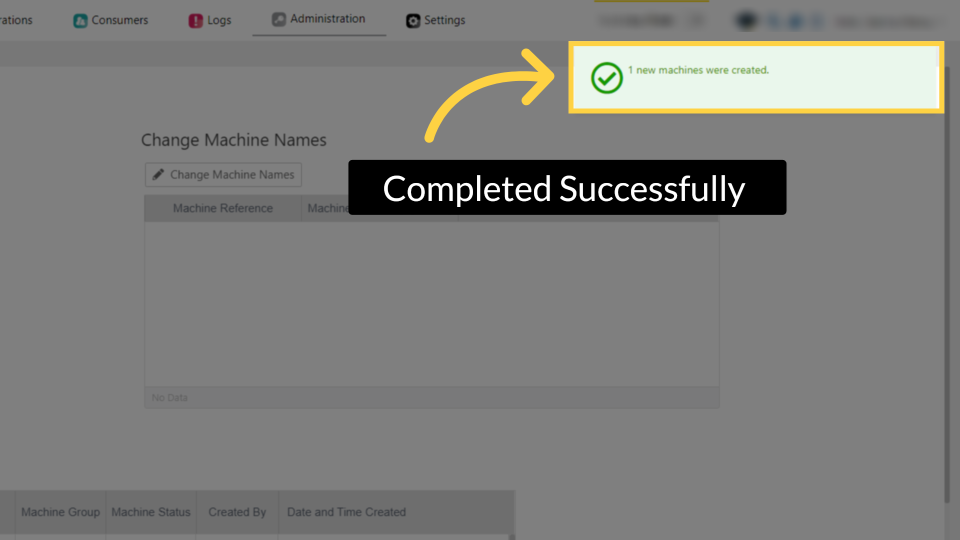
Completed Successfully
Image AttachedOnce saved, a green pop-up will appear. Your new machine is created, and you'll see "1 new machine was created" on the screen.
Thank you!
Did you find this article helpful?