
How to Create a Machine Group | Operations
Creating a machine group and associating machines to it will allow you to set limitations and perform actions in bulk on this group.
Video Guide
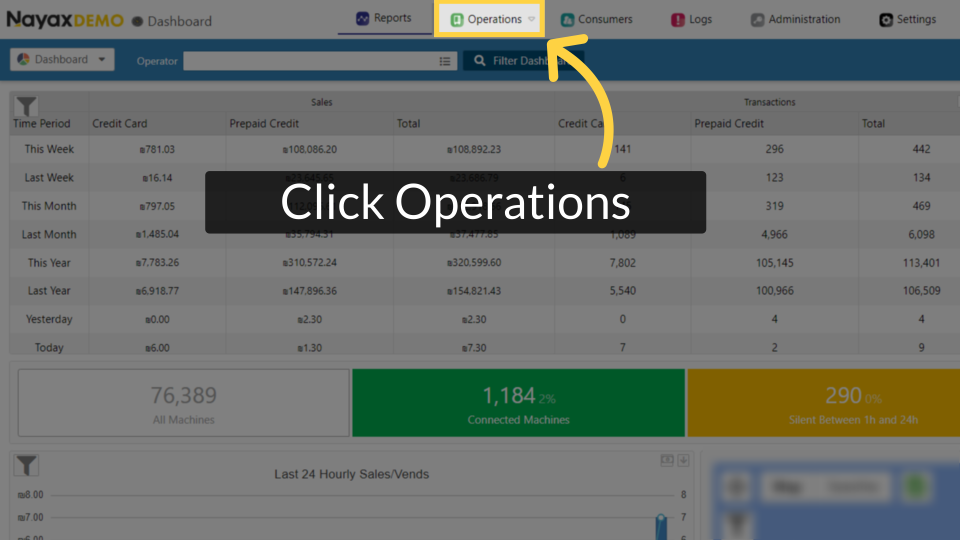
Click Operator Tab
Image AttachedOn the dashboard of your Nayax Core management suite click on the Operators tab.
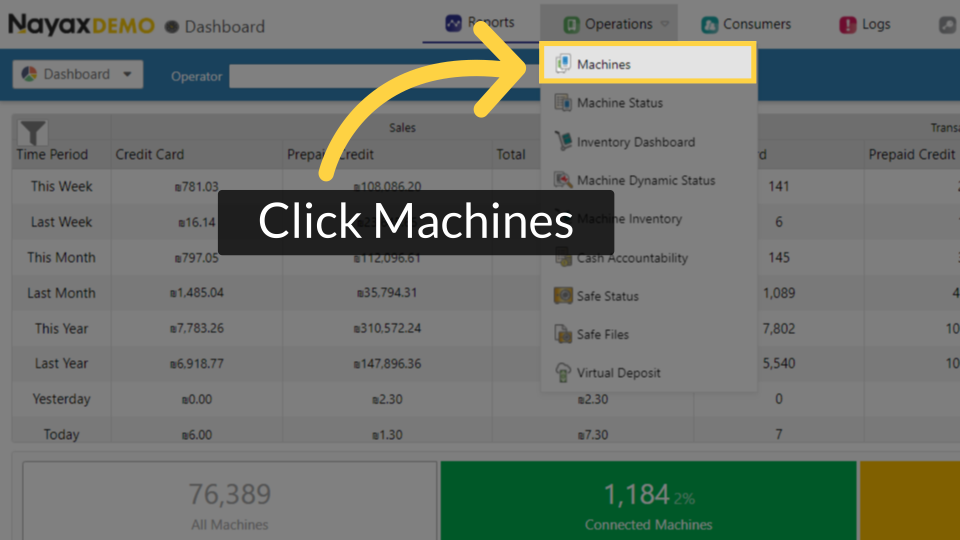
Click on Machines
Image AttachedClick on machines from the drop down menu
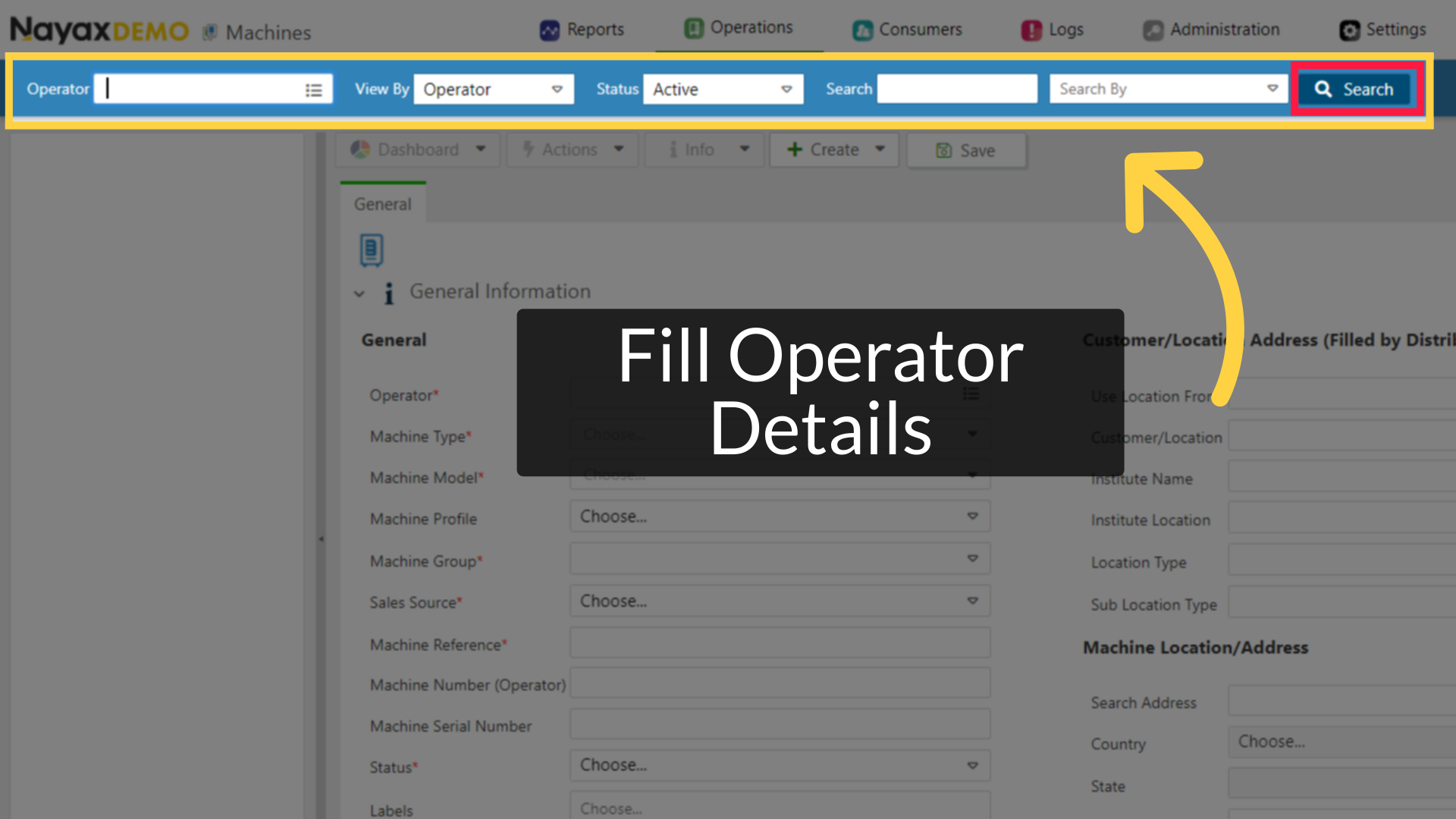
Fill in your operator's name and other fields
Image Attached
Fill in your operator name and click search as highlighted in RED on the visual.
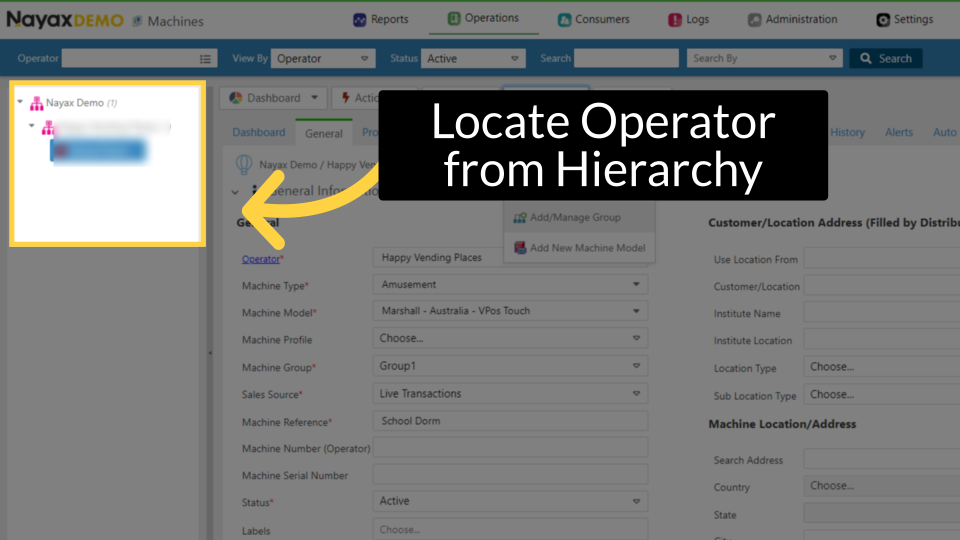
Locate Operator in Hierarchy
Image AttachedLocate and click on the operator from the hierarchy
Click on Create button
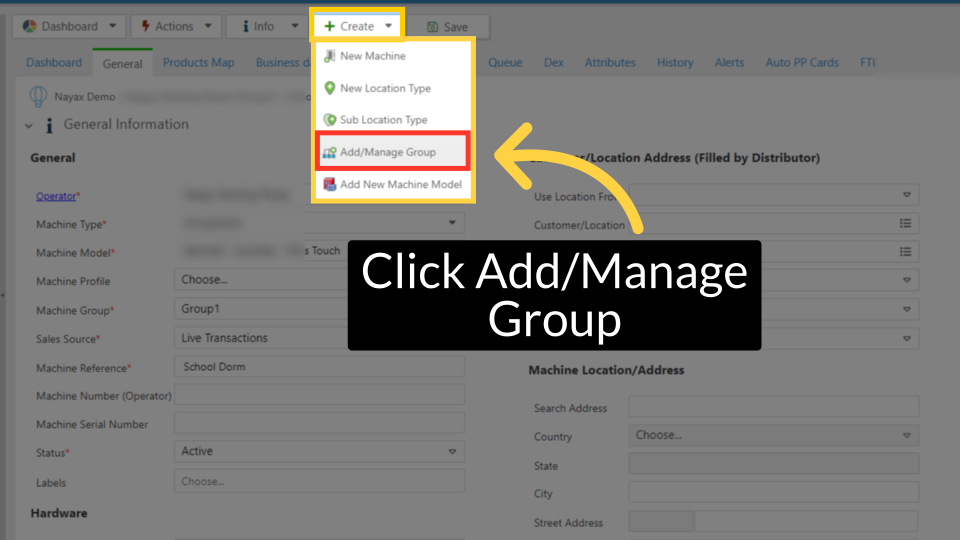
Image AttachedClick on the create tab and from the drop down menu click on add/manage group tab as highlighted in red on the visual.
Please note, if you do not have this feature, contact your local support team to add this permission for you!
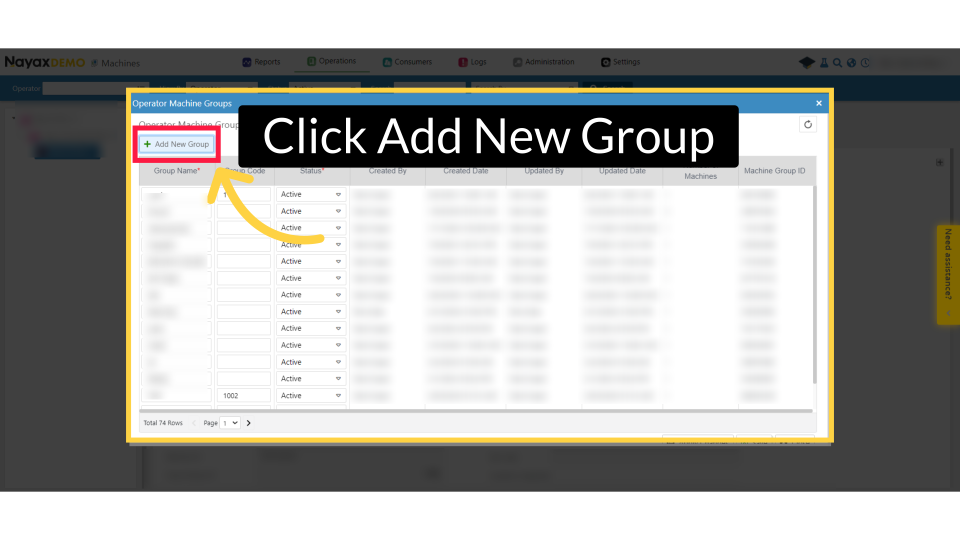
Add New Group Tab
Image AttachedThe Operator Machine Groups opens and click on the add new group tab.
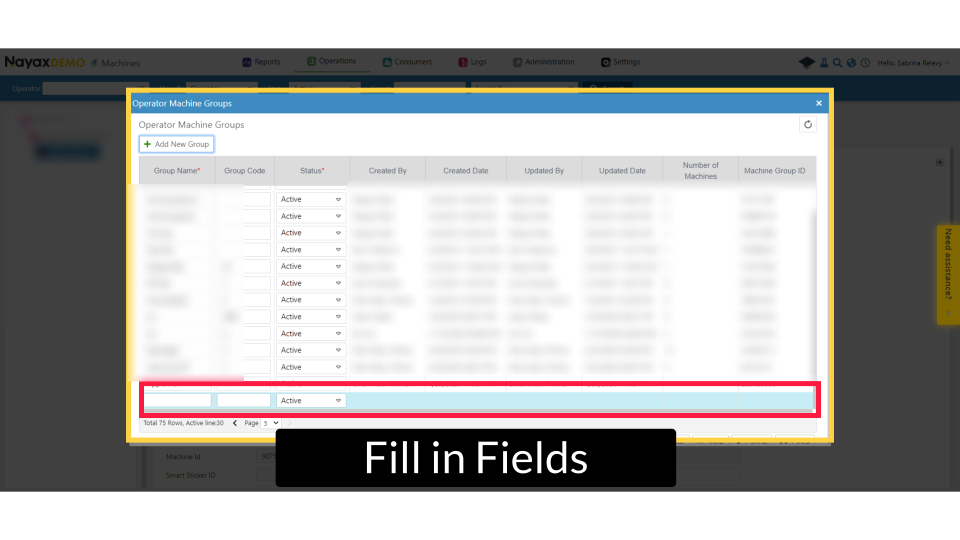
Fill in Fields
Image AttachedClick on Add New Group, and fill in the relevant information in each line:
Group Name - Choose the name for the new group.
Group Code - A numeric code for this group
Status - Choose the status for the machine(s) under this group
Click Save
Image AttachedFinalize and save the new group.
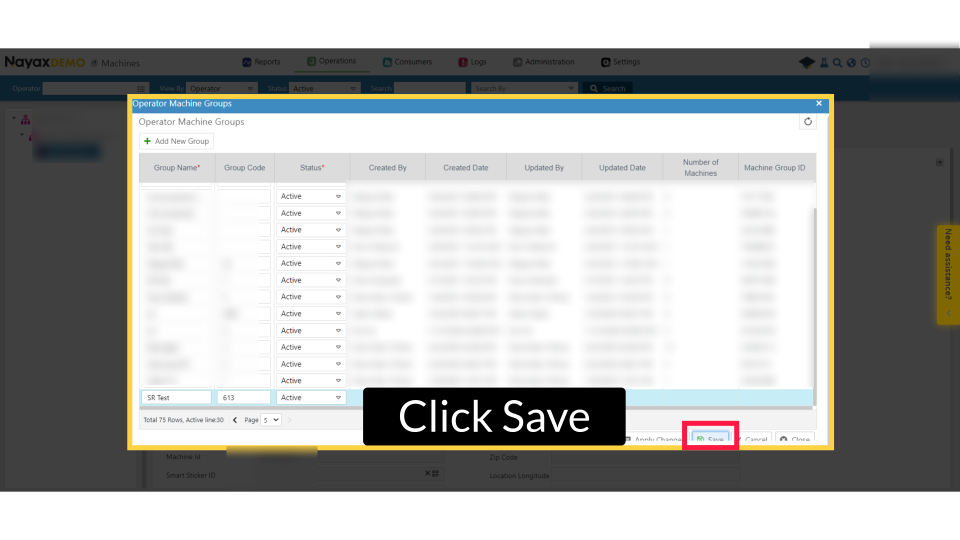
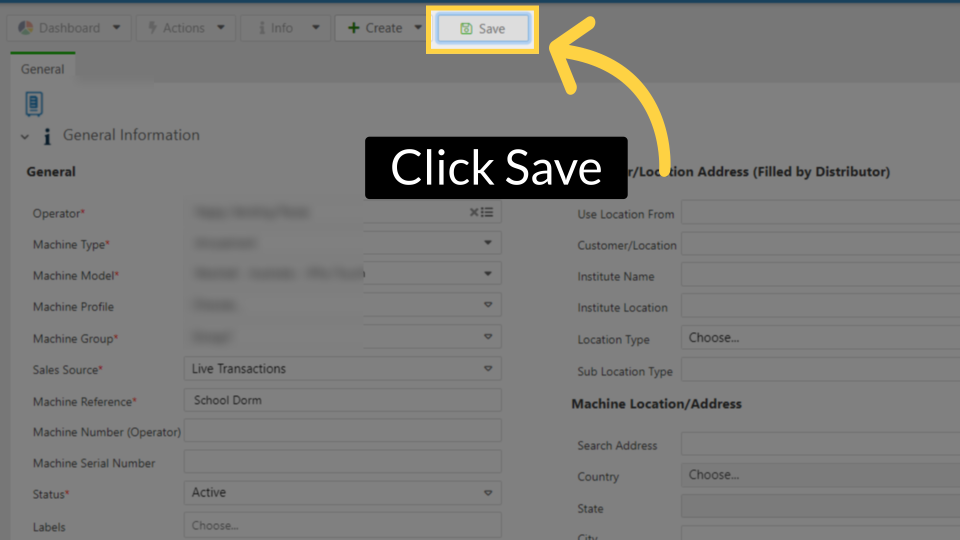
Click Save
Image AttachedClick on the save button to save your progress.
Thank you!
Did you find this article helpful?