How to Set Up System User Alerts and Notifications | Administration
This guide walks you through setting up system user alerts in Nayax Core, giving you a clear and accurate overview of your devices. You’ll learn how to schedule daily email reports and customize notification preferences to stay informed.
Video Guide: How to Set Up System User Alerts and Schedule Report Notifications | Administration
00:00: Discover how to schedule and dispatch daily reports to your email, and tailor
00:04: notification preferences in Nayax Core to ensure you receive the right information at
00:08: the right time.
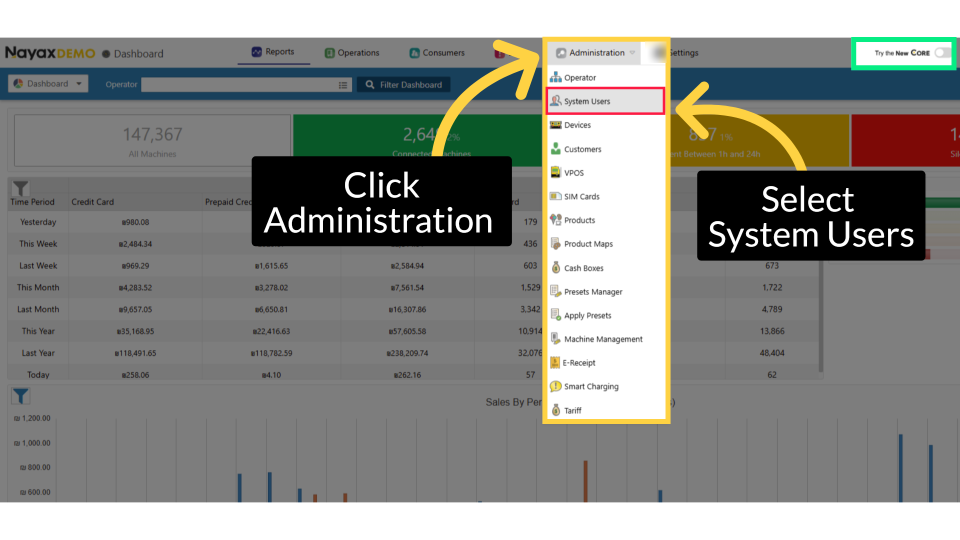
00:10: From the Nayax Classic Core dashboard, click the Consumers tab, then select System
00:14: Users from the dropdown to view and manage the system's user list.
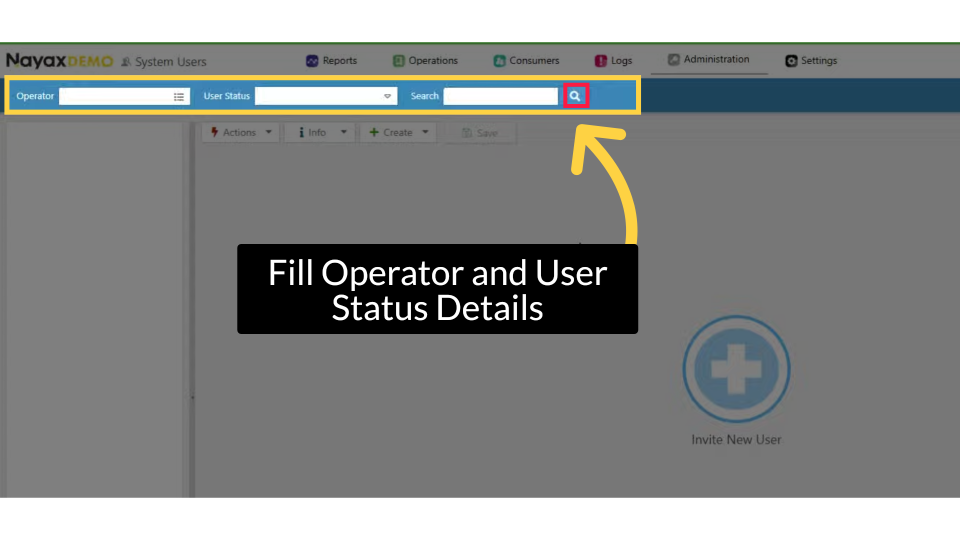
00:17: To find your operator, enter the Operator name and User Status Details. Then, click
00:22: the search button.
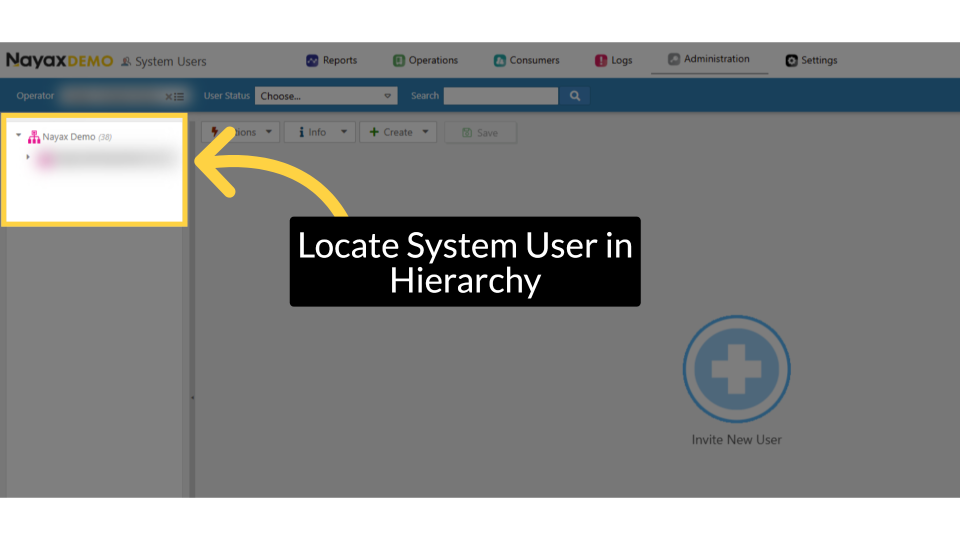
00:23: Locate and click on the system user within the hierarchy.
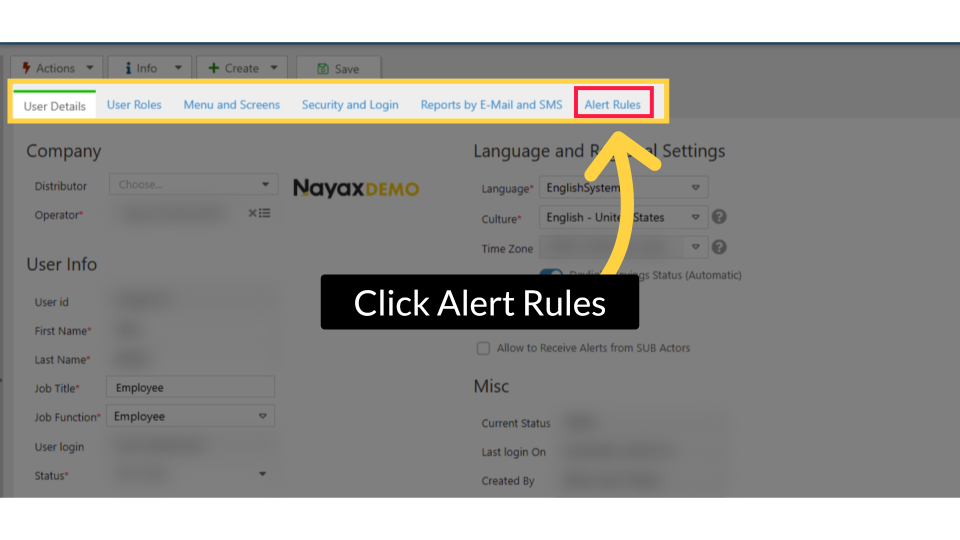
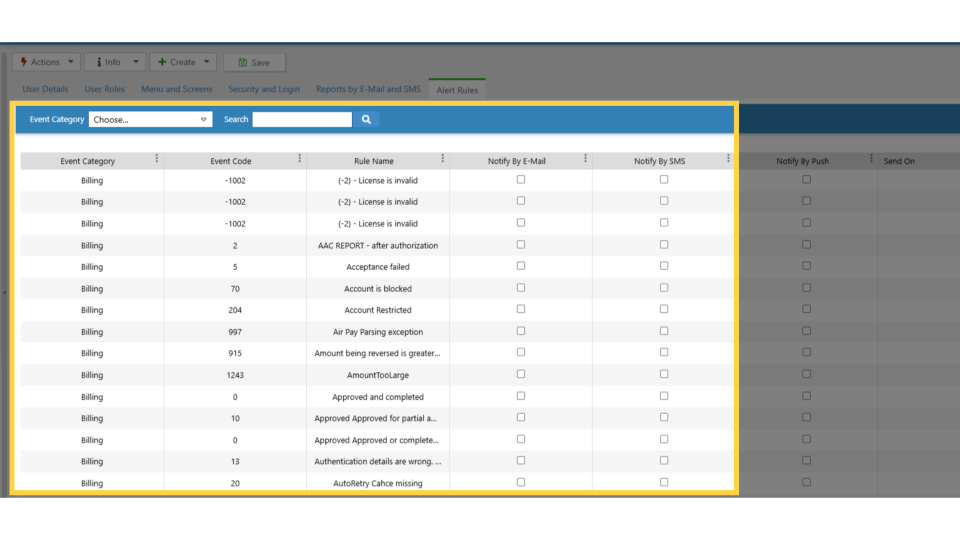
00:27: Click "Click the Alert Rules Tab" to set
00:29: the system alert user alerts.
00:31: The Alerts Page opens and displays the events for which you can select to receive
00:35: notifications.
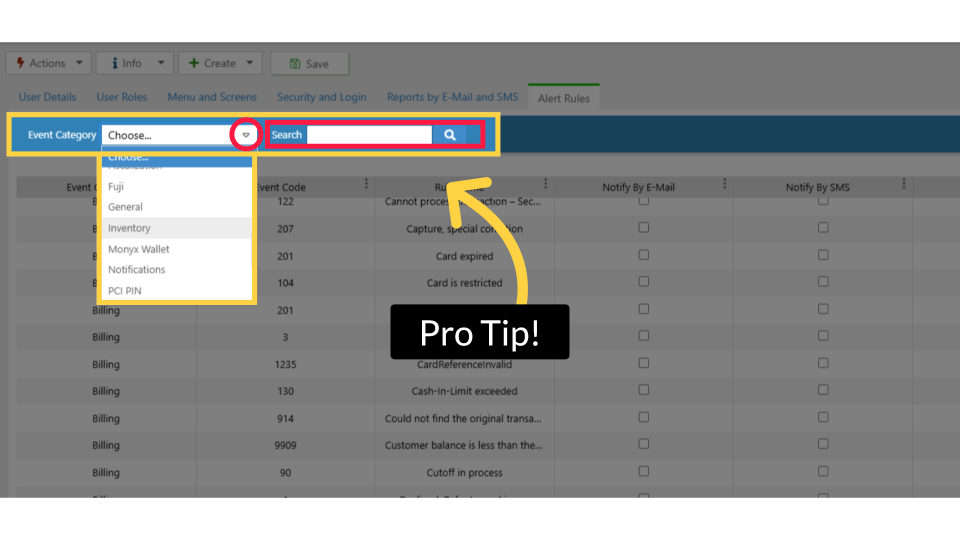
00:37: Pro tip: Use the Events category drop-down or the search fields to easily locate
00:41: events
00:41: you already know you want to configure.
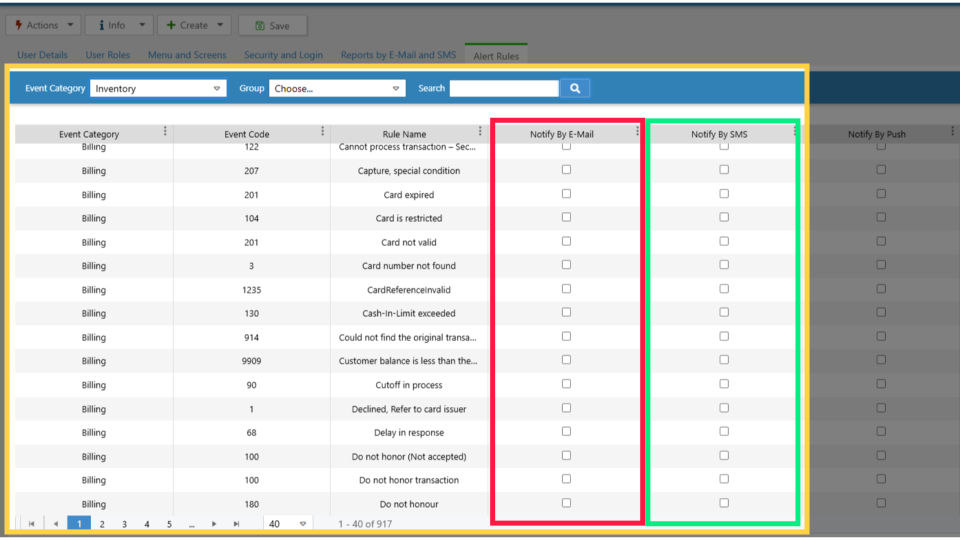
00:44: You can receive event notifications via email (indicated in red) or via SMS (indicated
00:49: in blue). Please check the boxes to customize your alert preferences and delivery
00:54: method.
00:55: Once ready to set the schedule, click the Actions menu again to proceed with report
00:59: notification
01:00: scheduling.
01:01: Click Schedule Report to open the scheduling report table.
01:05: In the schedule report window,
01:06: check the email, and click Send Test
01:08: Now to send a test version of your scheduled report and verify its settings.
01:13: The report will arrive in the recipient’s inbox within a few minutes. Review
01:16: the email to ensure all required information is included, then return to Nayax Core to
01:22: edit your preferences or set the notification schedule.
01:25: For each day of the week, click the Clock icon and select the hour to schedule your
01:29: report.
01:30: For any day you do not want to receive a report, leave the field blank. When you’re
01:34: ready, click Save Schedule to apply and save your report schedule.
01:38: A message to confirm
01:39: this has been Completed Successfully will appear and now this report will will be
01:42: sent as scheduled.
Click System Users
Image AttachedFill Operator and User Status Details
Image AttachedLocate System User in Hierarchy
Image AttachedLocate and click on the system user within the hierarchy.
Click Alert Rules
Image AttachedAccess Actions Menu Again
Image AttachedPro Tip!
Image AttachedPro tip: Use the Events category drop-down or the search fields to easily locate events you already know you want to configure.
Set up Event Notification
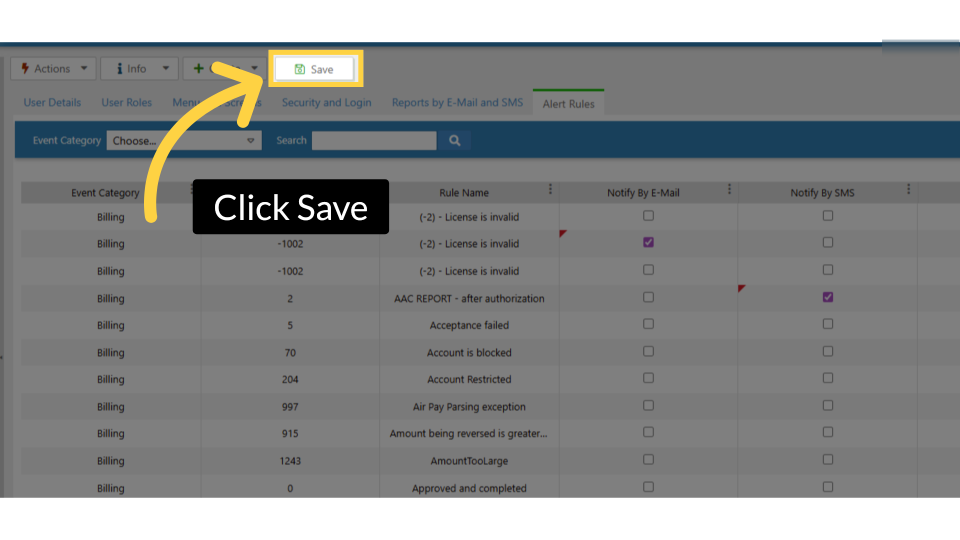
Image AttachedYou can receive event notifications via email (indicated in red) or via SMS (indicated in blue). Please check the boxes to customize your alert preferences and delivery method.
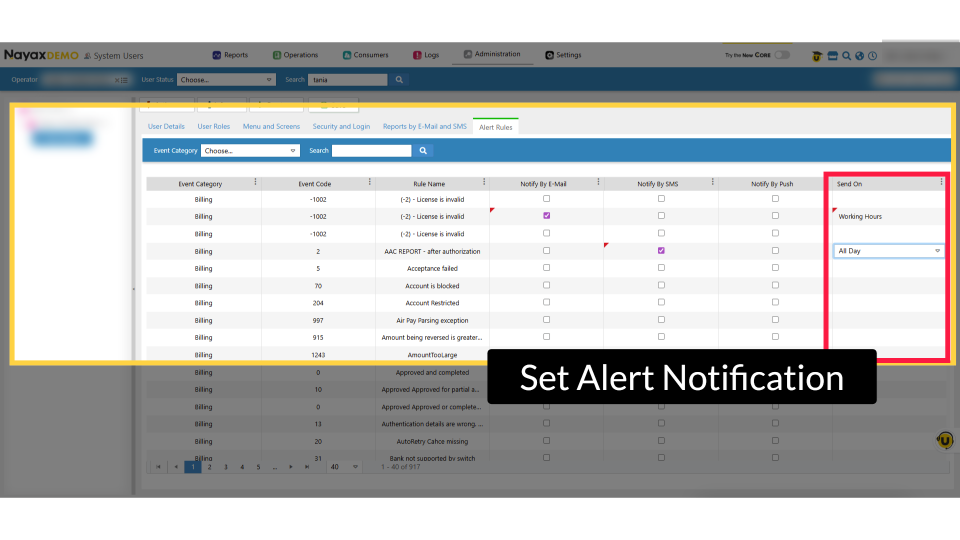
Set Alert Notification
Image AttachedSet preferred hours to apply the alert setting.
Thank you!
Did you find this article helpful?