How to Configure a Member Price for a Specific Product | Administration

This guide will walk you through a step-by-step process to configure a Product member price in Nayax Core. Member type prices for a product is a benefit you can provide and increase your consumers' loyalty to your business.

1

Transition Note

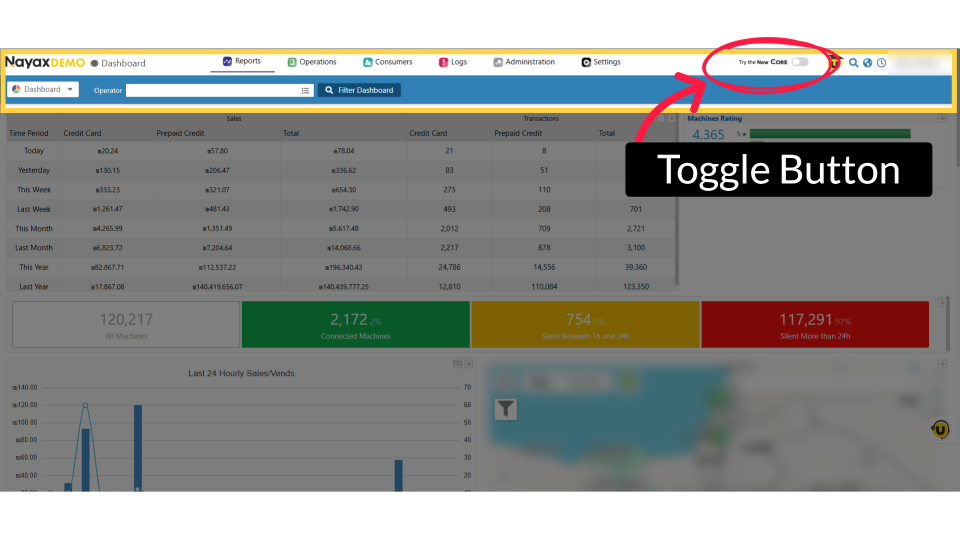
As we gradually transition from the classic Nayax Core to the new Nayax Core, you may find both guides useful depending on your current system usage.

For Classic Core: This guide covers the original core management system, which includes established processes and familiar features. It's essential for users who are still working with this version.

For the New Core: This guide introduces the new core management system, highlighting enhanced features and improved workflows. It's designed for users transitioning to the latest version, offering a more efficient and user-friendly experience.

Support is available to assist you during this change.
00:00: Learn how to assign member types and set up tiered product pricing with member-specific

00:04: prices or discounts.

00:06: On the dashboard of your Nayax New Core platform, select the Administration tab. Next,

00:11: click Products in the drop-down menu.

00:13: Type the operator name along with any additional fields and click Search.

00:18: Locate your product from the hierarchy list that you want to enable Member pricing

00:22: for.

00:24: Click "Member Type Prices" to view and edit pricing for the product based on member

00:28: types.

00:29: Check Enable Member Type Prices as highlighted.

00:31: The table shows each member type; with options to enter either a fixed price or a

00:36: discount percentage.

00:38: Fixed price:

00:39: the product costs exactly this amount for cardholders with this member type.

00:43: Discount percentage: the product’s standard price is reduced by this percentage for

00:47: cardholders with this member type.

00:50: For example, if on the Price column you typed 30, and checked the box under Is

00:55: percentage, your product will cost 30% of its original value to consumers with this

00:59: Membership type.

01:01: Click Save

01:01: when done to save your changes! Your Members will now benefit from special prices

01:06: based on their set level.

01:08: Once the update is complete, a confirmation message appears stating “Completed

01:12: Successfully.”

Did you find this article helpful?