
How to Set Machine Alerts and Thresholds | MoMa
Configure alerts and thresholds to monitor machine performance and maintain operational efficiency. With MoMa, you can set up notifications to stay informed about key activities and ensure your machines run smoothly.
Video Guide
00:01: Learn to configure alerts and notifications in MoMa to track activities and thresholds across your machines.
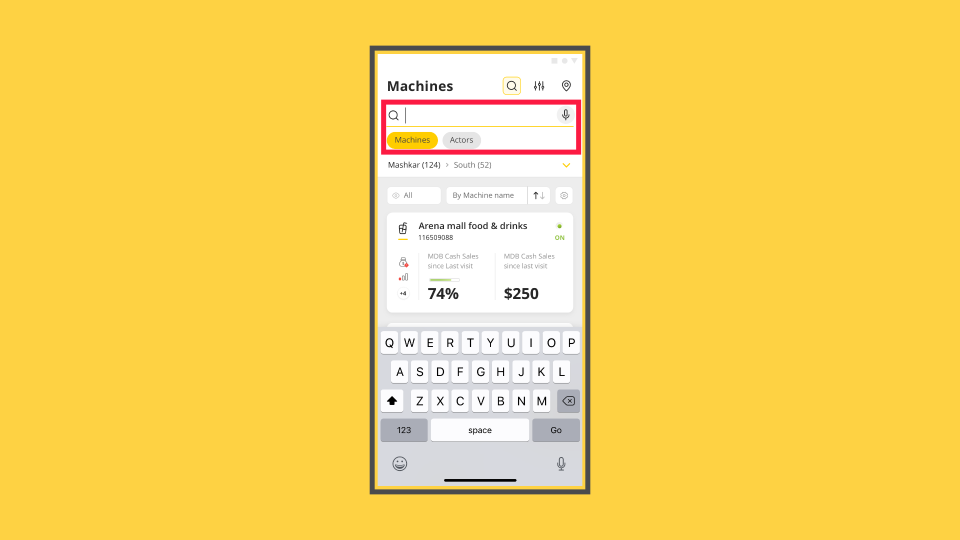
00:08: From your MoMa app, in the search field, search and select the specific machine to set alerts for.
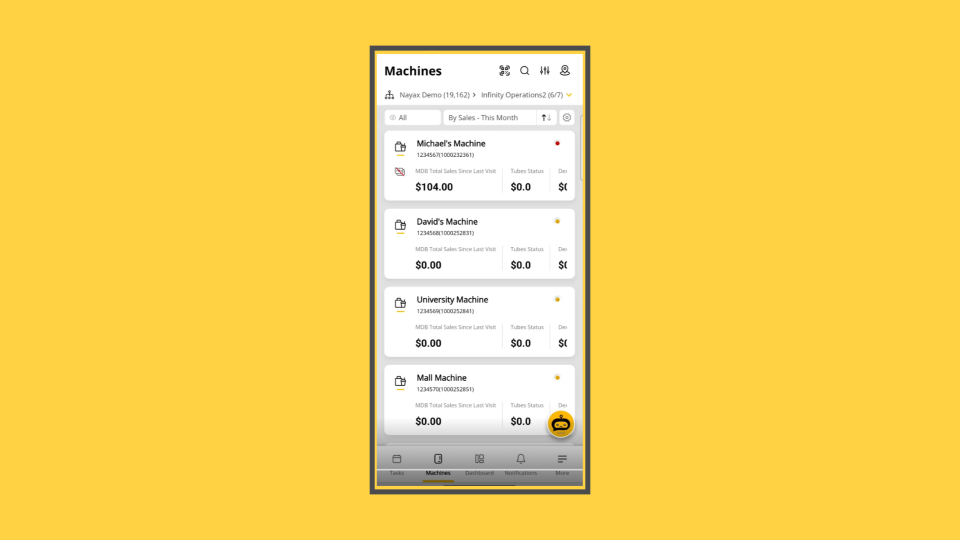
00:14: From the machines listed under your operator, select the Machine you want to set alerts for.
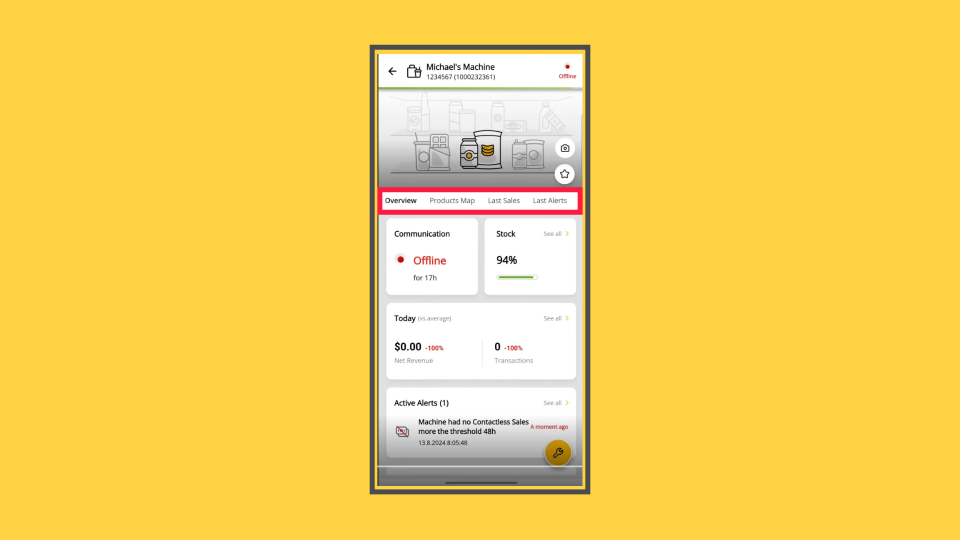
00:20: The selected machine page will open in the overview tab, swipe along the tabs to settings.
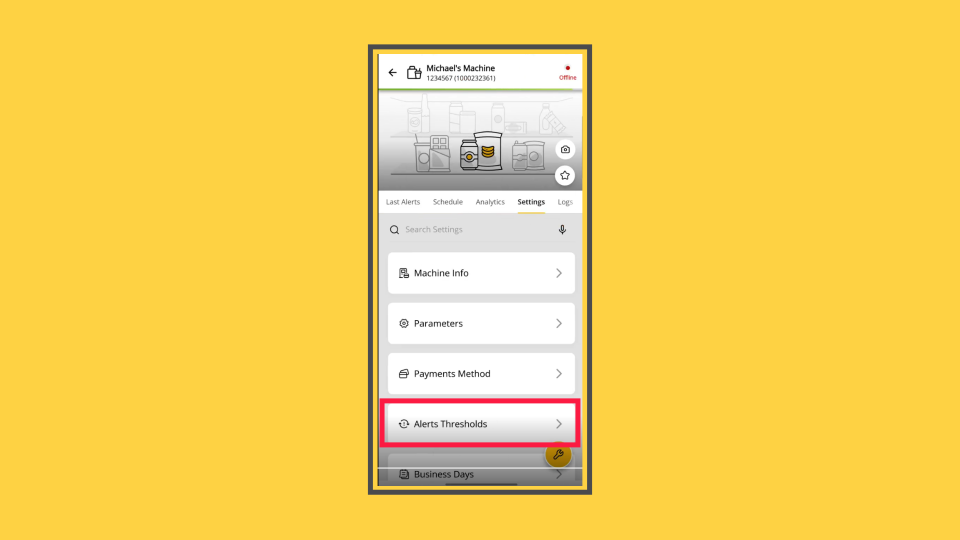
00:26: On the Settings page to set alerts, tap "Alerts Thresholds," as highlighted.
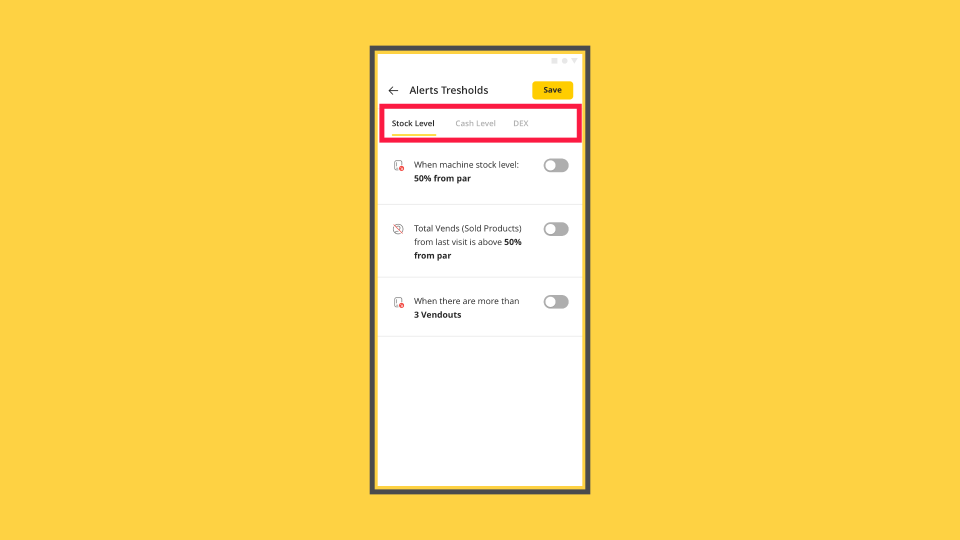
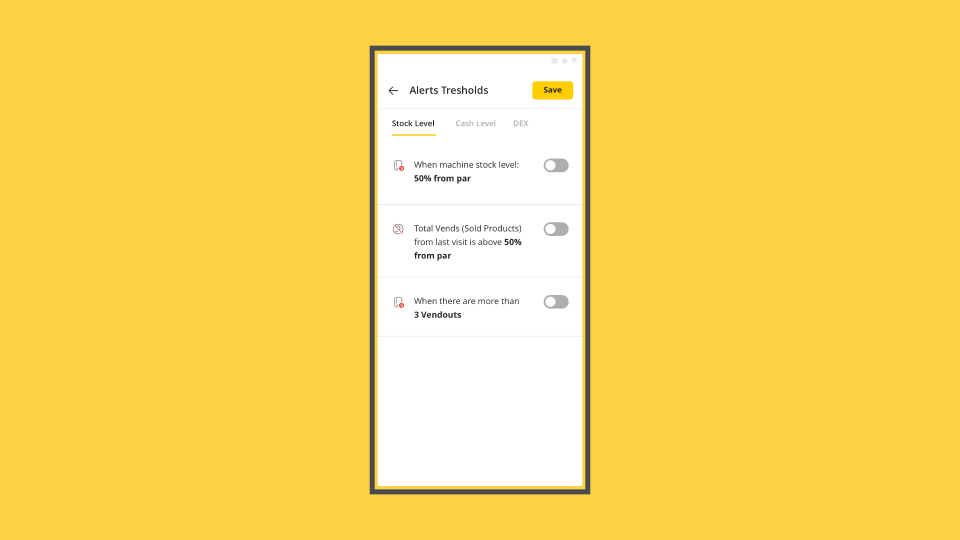
00:32: Select from the several alert categories: Stock Level, Cash Level, DEX, Communication, and other options depending on your settings.
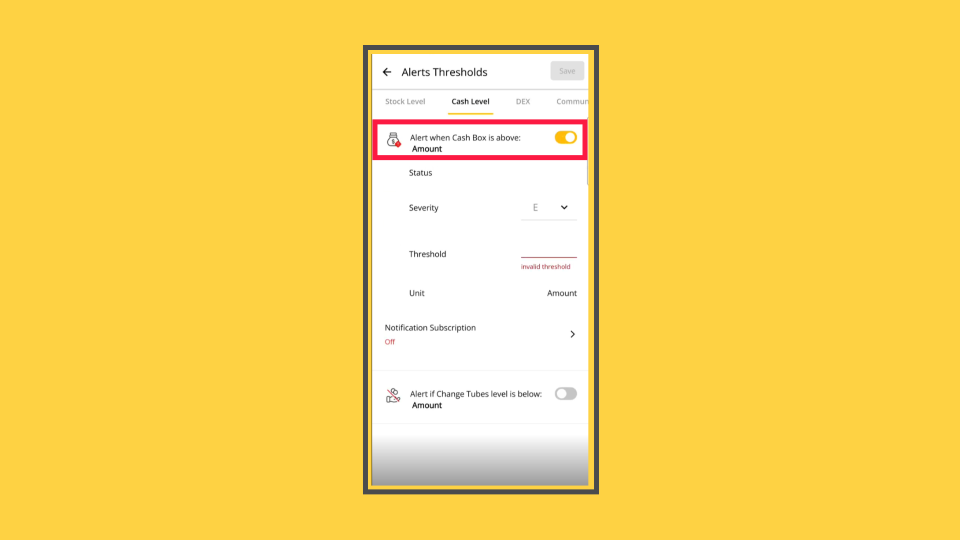
00:40: Selecting any of the options will give you several fields to set thresholds for receiving alerts. Toggle on to view threshold options and set alerts.
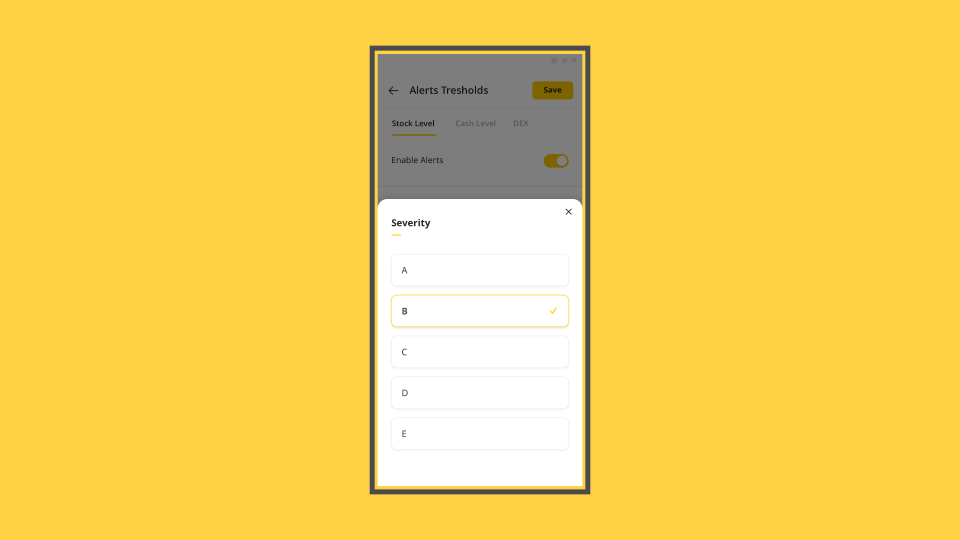
00:49: You can also set it based on the severity categories A to E.
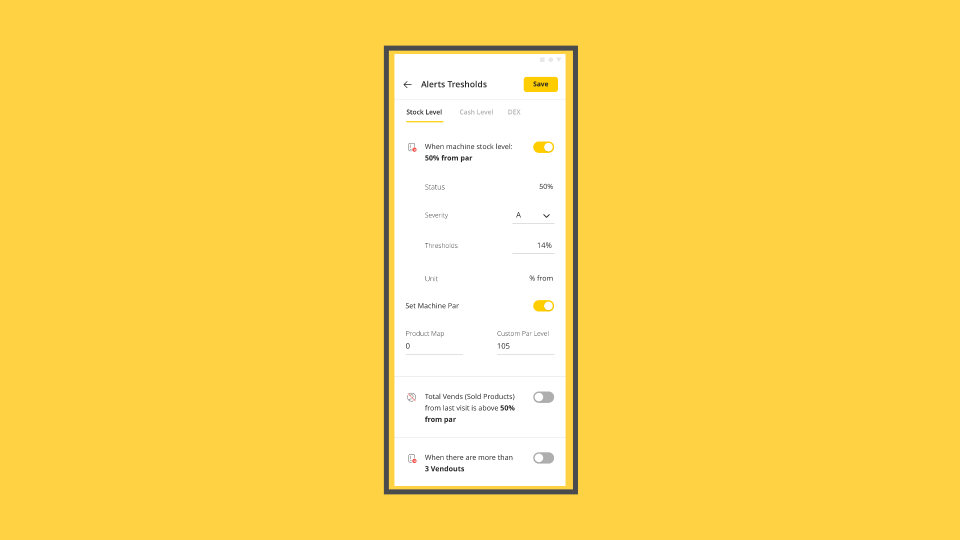
00:54: The threshold alerts can be set to a specific percentage level, ranging from 100% full to 0% empty.
01:02: Alternatively, set thresholds from the other available options, ensuring the value you enter uses the correct unit required for that alert, such as percentage from Par, Time in days/hours, or Amount.
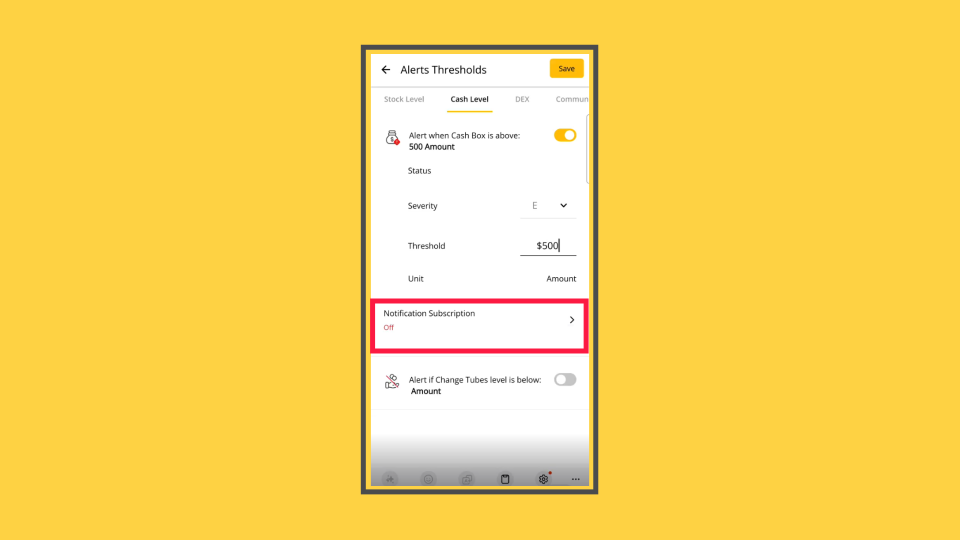
01:14: Once you have set your alerts, tap 'Notification Subscription' below category settings to set the alert communication.
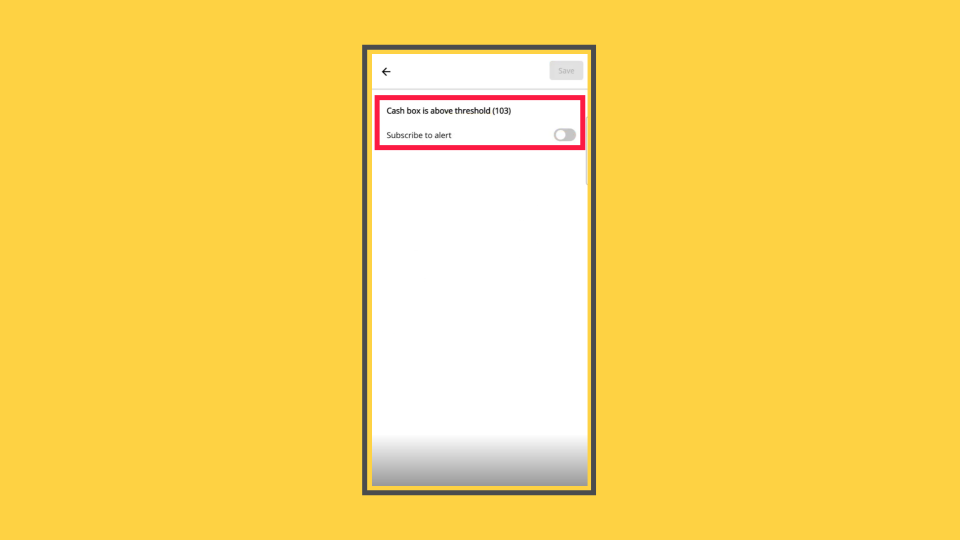
01:22: The subscription alert page will open. Toggle to subscribe and set the communication alert.
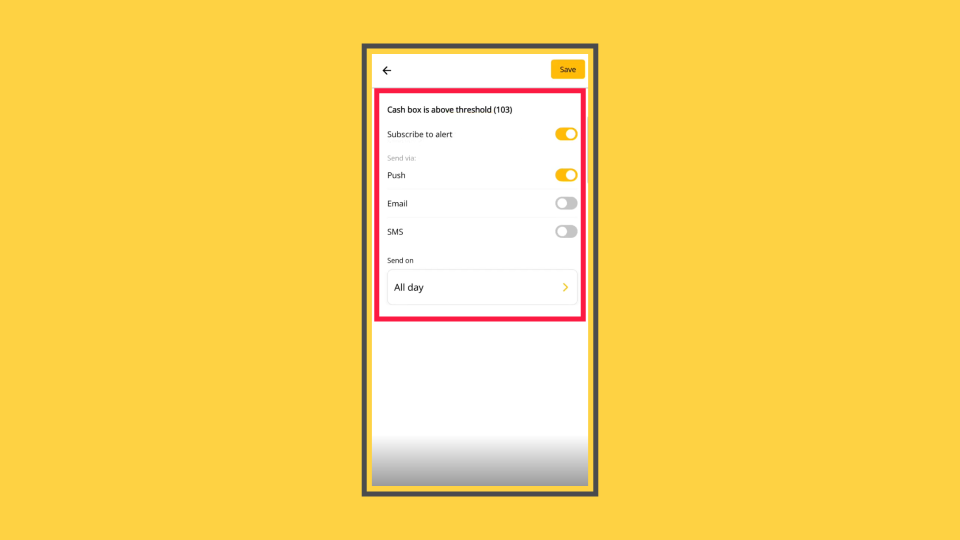
01:29: View the communication channels available. MoMA defaults to push notifications once subscribed, but email and SMS are also available options. Choose your preferred method.
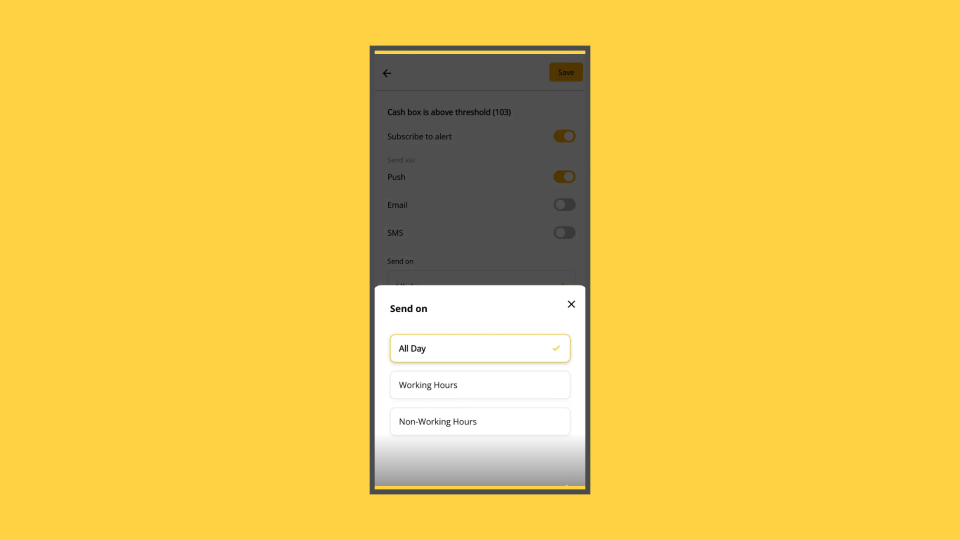
01:40: Set the 'Send On' option, which allows you to choose when you want notifications to arrive: 'all day', 'working hours', or 'non-working hours'. Please note: This option is only available if you have defined business days for the machine.
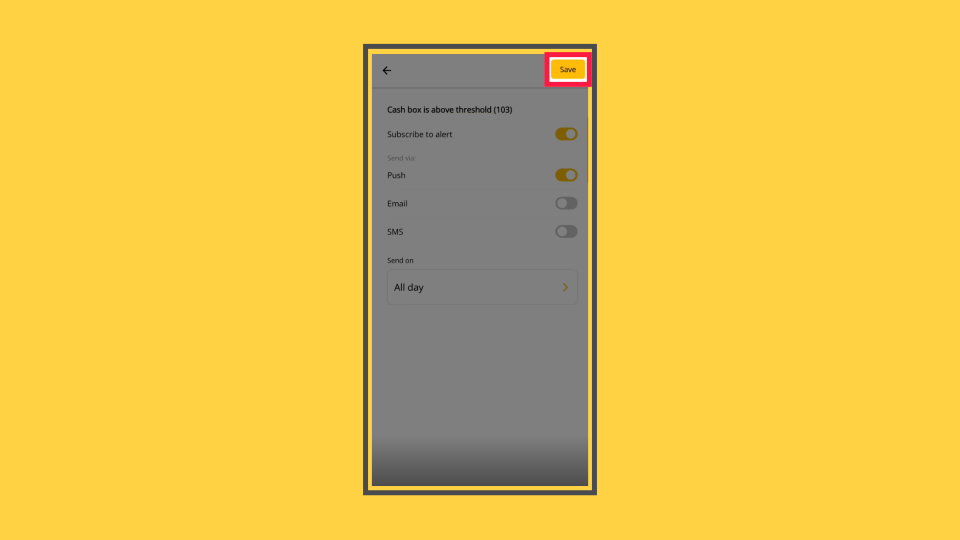
01:53: When set, tap 'Save' to save the communication notifications.
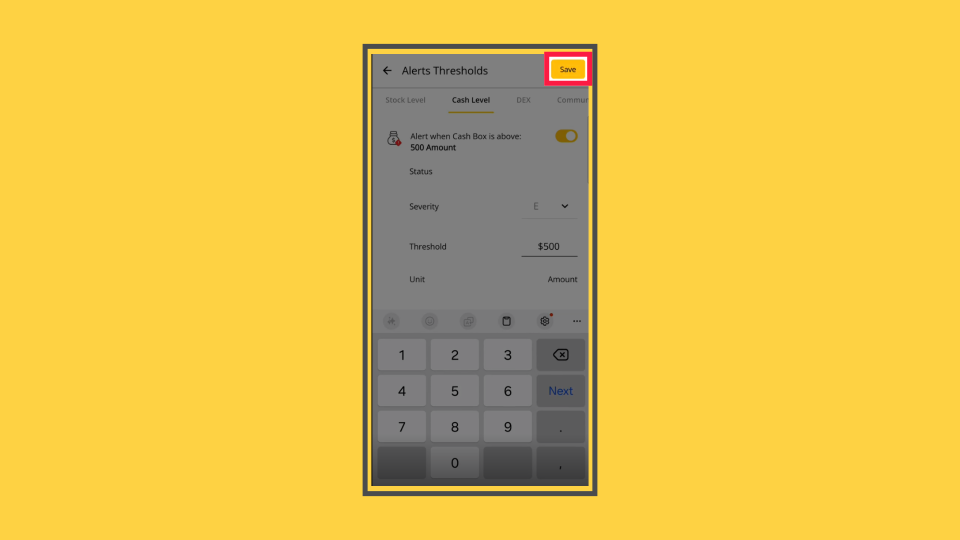
01:58: Returning to the previous screen, to save the alert thresholds, tap on 'Save'.
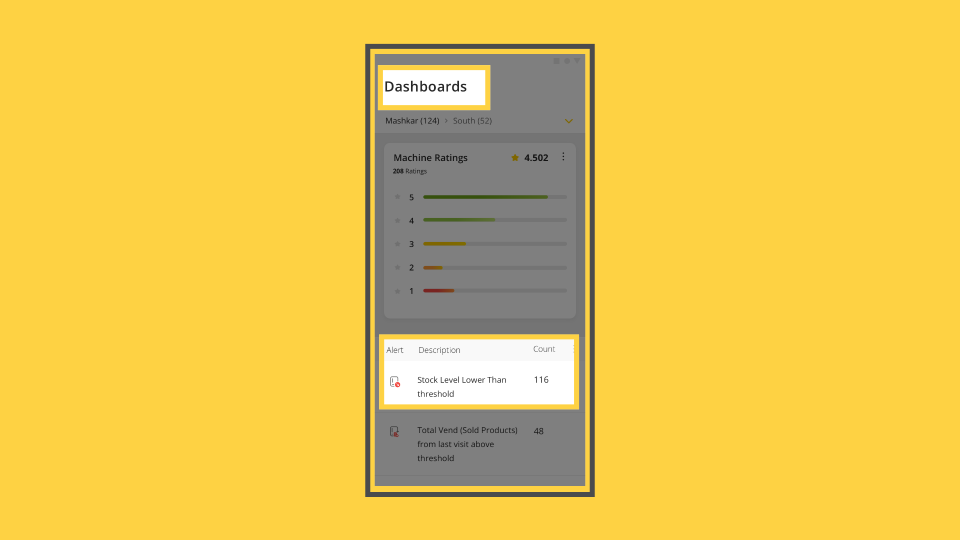
02:03: Now, when an alert threshold is met, a notification is sent. Alerts can also be viewed on the MoMa machines' overview screen and active alerts dashboard.
02:13: Explore MoMA's other notifications available to ensure you track your machines like a pro, or click on the link to view more MoMa guides in Nayax U!
Locate Machine
Image AttachedFrom your MoMa app, in the search field, search and select the specific machine to set alerts for.
Operator Machine List
Image AttachedFrom the machines listed under your operator, select the Machine you want to set alerts for.
Machine Overview
Image AttachedThe selected machine page will open in the overview tab, swipe along the tabs to settings.
Alert Thresholds
Image AttachedOn the Settings page to set alerts, tap "Alerts Thresholds," as highlighted.
Alert Categories
Image AttachedSelect from the several alert categories: Stock Level, Cash Level, DEX, Communication, and other options depending on your settings.
Setting Thresholds
Image AttachedSelecting any of the options will give you several fields to set thresholds for receiving alerts. Toggle on to view threshold options and set alerts.
Severity Categories
Image AttachedYou can also set it based on the severity categories A to E.
Thresholds Alerts
Image AttachedThe threshold alerts can be set to a specific percentage level, ranging from 100% full to 0% empty.
Other Stock Alerts
Image AttachedAlternatively, set thresholds from the other available options, ensuring the value you enter uses the correct unit required for that alert, such as percentage from Par, Time in days/hours, or Amount.
Notification Subscription
Image AttachedOnce you have set your alerts, tap 'Notification Subscription' below category settings to set the alert communication.
Subscribe to Alert
Image AttachedThe subscription alert page will open. Toggle to subscribe and set the communication alert.
Enable Alert Communication
Image AttachedView the communication channels available. MoMA defaults to push notifications once subscribed, but email and SMS are also available options. Choose your preferred method.
Send On Settings
Image AttachedSet the 'Send On' option, which allows you to choose when you want notifications to arrive: 'all day', 'working hours', or 'non-working hours'. Please note: This option is only available if you have defined business days for the machine.
Save Communication Notifications
Image AttachedWhen set, tap 'Save' to save the communication notifications.
Save Alerts Thresholds
Image AttachedReturning to the previous screen, to save the alert thresholds, tap on 'Save'.
Alerts Set
Image AttachedNow, when an alert threshold is met, a notification is sent. Alerts can also be viewed on the MoMa machines' overview screen and active alerts dashboard.
Thank you!
Did you find this article helpful?