
How to Set Bulk Update Attributes | MoMa
Push attribute updates to multiple machines at once from MoMa. Select your machines, choose an action, and apply in a single flow, no machine-by-machine repetition, no desktop portal required.
Prerequisites: Before You Start
- You have Operator access in MoMa.
- The MoMa app is installed and updated to version 1.0.1183 or later.
- The machines you want to update are active and linked to your operator account.
- For Update Attributes: you know the attribute numbers and values you want to push.
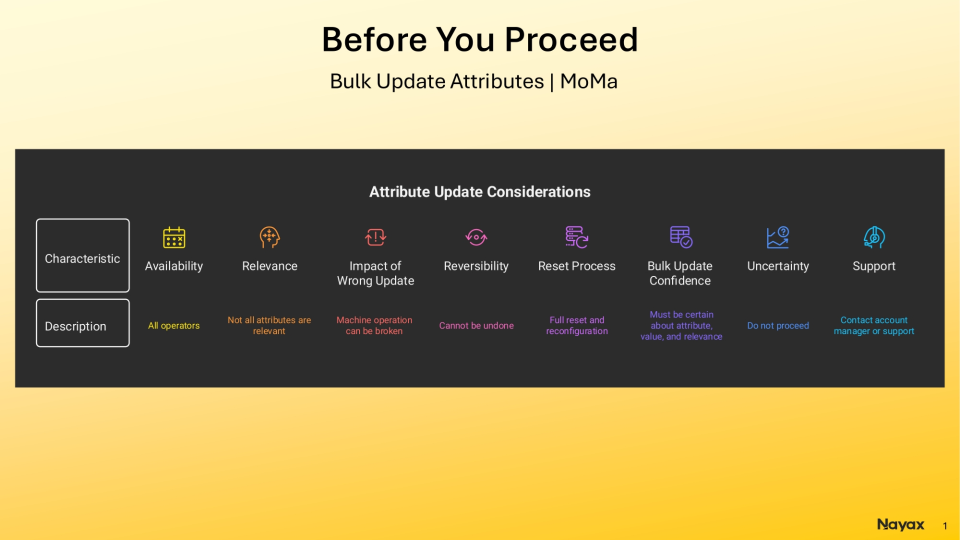
⛔ Read before you proceed - this action cannot be undone
Image AttachedUpdate Attributes is available to all operators, but not all attributes are relevant to every machine type. Applying an incorrect attribute number or value to a machine - or a group of machines - can disrupt how those machines operate.
This action is not reversible. Once an attribute update is sent and applied, it cannot be recalled or undone from MoMa. If a machine is misconfigured as a result, the device will need to be fully reset and reconfigured from scratch.
Before using Update Attributes in bulk, confirm all of the following:
- You know the exact attribute number you want to change.
- You know the correct value to apply and what it controls.
- The attribute is applicable to every machine in your selection - not just some of them.
- You have verified the change with your Nayax account manager or support team if you are unsure.
If you are not certain, do not proceed. Contact your Nayax account manager or the Nayax support team before making bulk attribute changes. It is always safer to test on a single machine first.
Video Guide: How to Set Bulk Attributes | MoMa
00:00: The default machine list may not display the metrics that matter most to you. By
00:03: customizing KPIs,
00:05: you can ensure that the data you need is readily visible.
00:07: Learn how to showcase KPI indicators for each machine in MoMa.
00:12: Open the MoMa app on your mobile device.
00:15: The dashboard of your MoMa app will open, displaying the Machines linked to your
00:19: operator. Tap the gear icon in the top-right corner.
00:23: The screen preferences panel opens, tap KPIs.
00:27: Customize your KPIs by dragging and dropping them to change the order,
00:31: unchecking any KPIs you want to remove, or tapping Add KPIs to select additional
00:36: indicators from the list.
00:39: Tap apply to close the panel and your changes apply immediately.
00:43: You can also change how machines are displayed.
00:46: Change
00:46: the machine view mode by selecting Full Size
00:48: for detailed monitoring with large cards, Compact for a balanced view of several
00:52: machines, or List view to quickly scan many machines at once.
00:55: Click Apply to save your preference.
00:58: Explore MoMA's other notifications available to ensure you track your machines like a pro, or click on the link to view more MoMa guides in Nayax U!
00:00: The default machine list may not display the metrics that matter most to you. By
00:03: customizing KPIs,
00:05: you can ensure that the data you need is readily visible.
00:07: Learn how to showcase KPI indicators for each machine in MoMa.
00:12: Open the MoMa app on your mobile device.
00:15: The dashboard of your MoMa app will open, displaying the Machines linked to your
00:19: operator. Tap the gear icon in the top-right corner.
00:23: The screen preferences panel opens, tap KPIs.
00:27: Customize your KPIs by dragging and dropping them to change the order,
00:31: unchecking any KPIs you want to remove, or tapping Add KPIs to select additional
00:36: indicators from the list.
00:39: Tap apply to close the panel and your changes apply immediately.
00:43: You can also change how machines are displayed.
00:46: Change
00:46: the machine view mode by selecting Full Size
00:48: for detailed monitoring with large cards, Compact for a balanced view of several
00:52: machines, or List view to quickly scan many machines at once.
00:55: Click Apply to save your preference.
00:58: Explore MoMA's other notifications available to ensure you track your machines like a pro, or click on the link to view more MoMa guides in Nayax U!
Open MoMa App
Image AttachedOpen the MoMa app on your mobile device.

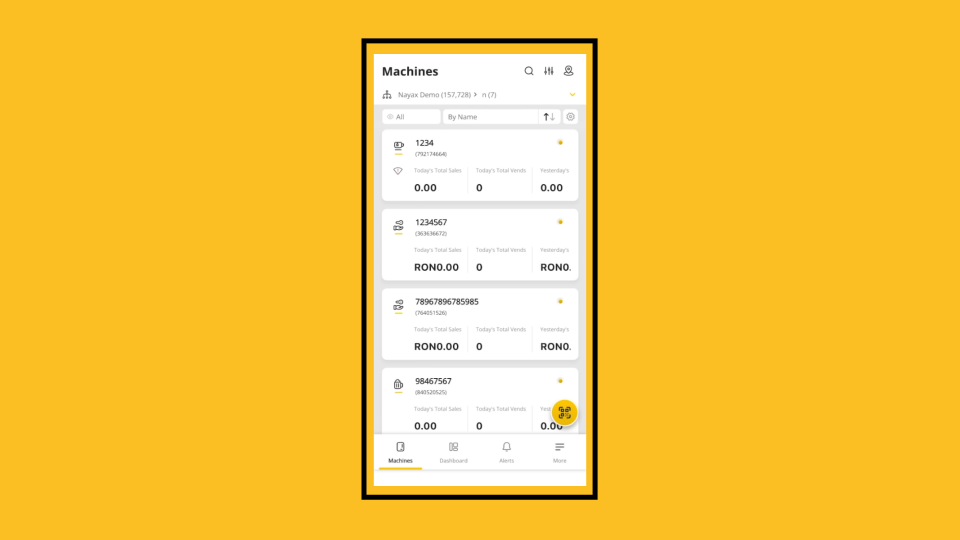
Machines List
Image AttachedThe Machines list opens by default, showing all machines linked to your operator account.
Select Multiple Machines
Image Attached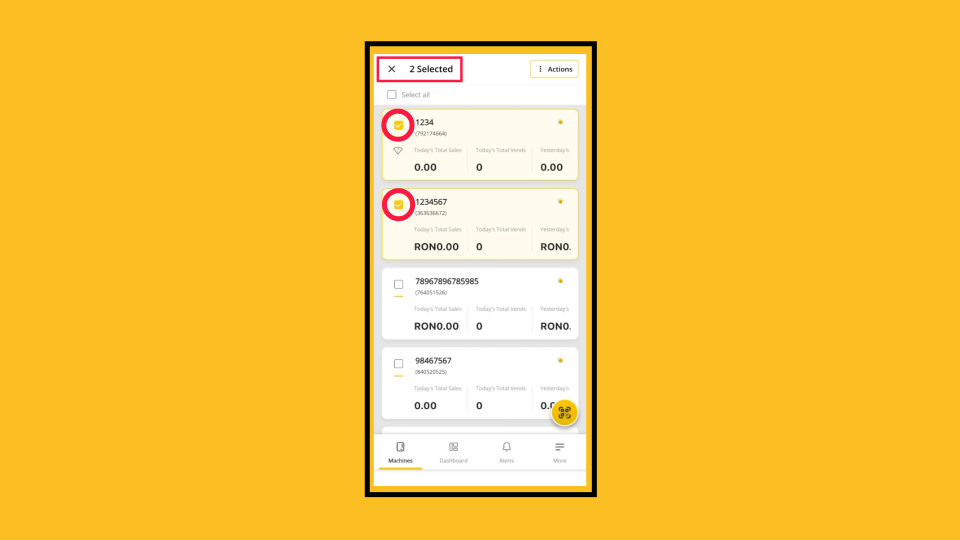
Select All Machines
Image Attached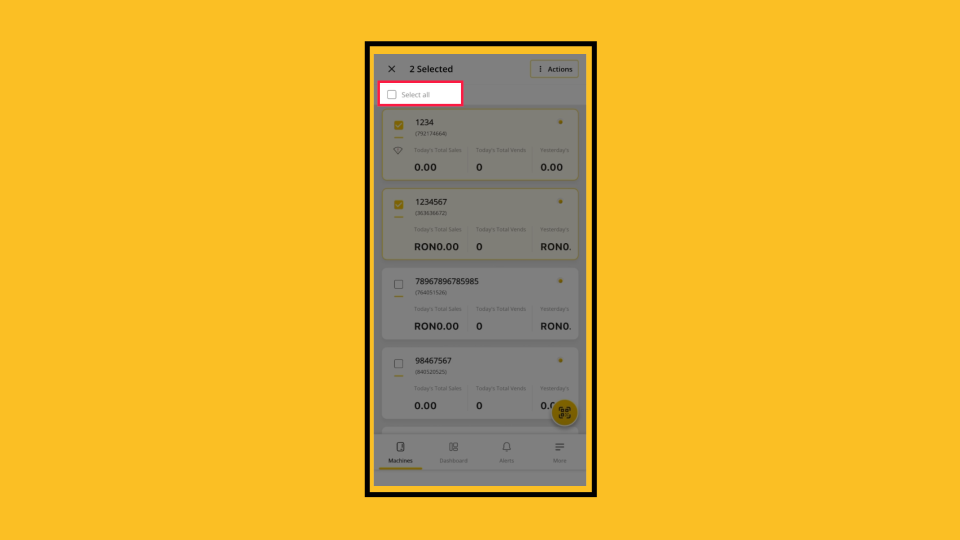
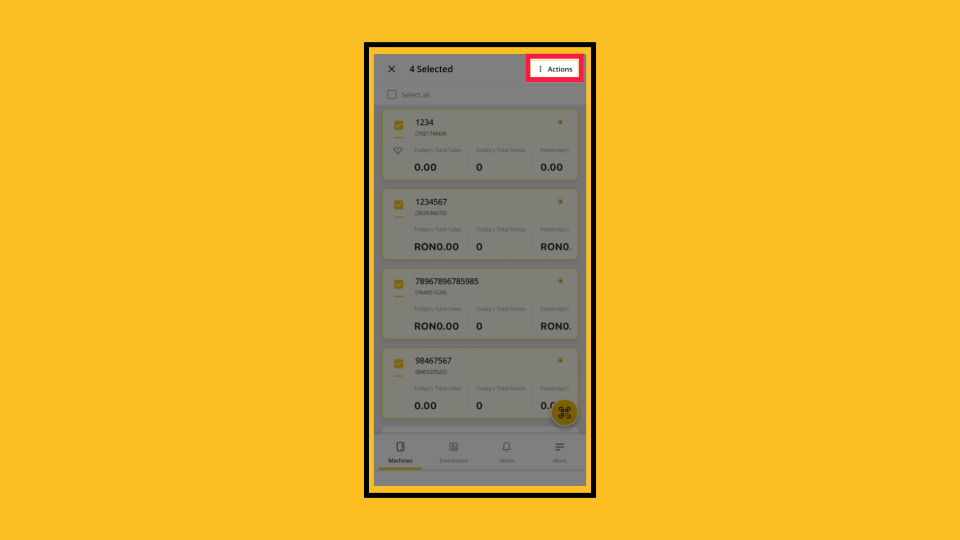
Tap Actions
Image AttachedWith your machines selected, tap the Actions button in the top right corner.
Available Bulk Actions
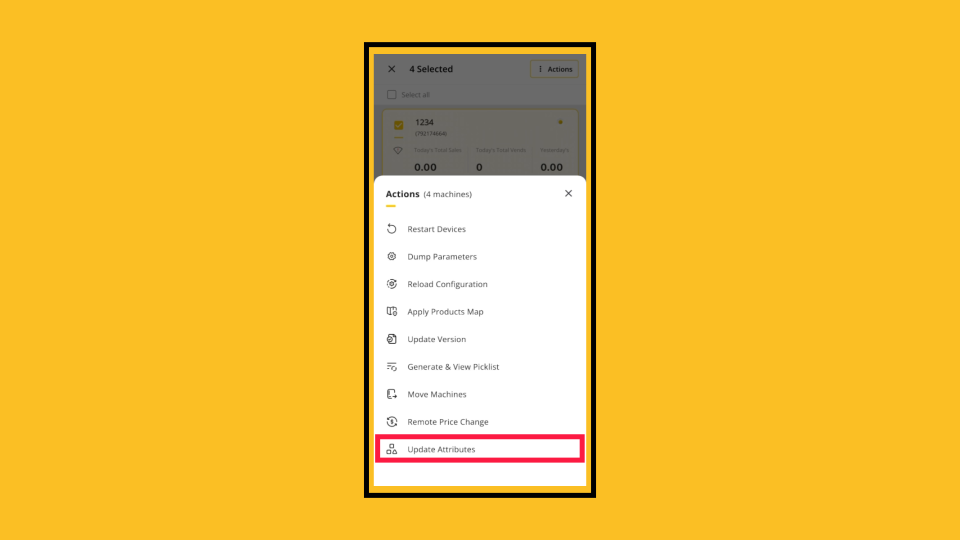
Image AttachedAvailable bulk actions
The Actions menu displays all available operations for your selected machines. From the Actions menu, select the operation you want to run. Follow the path for your chosen action.
This guide covers Update Attributes.
| Action | What it does |
|---|---|
| Restart Devices | Sends a restart command to all selected machines. |
| Dump Parameters | Exports current parameter values from all selected machines. |
| Reload Configuration | Forces machines to reload their current configuration from Nayax Core. |
| Apply Products Map | Pushes the current product map to all selected machines. |
| Update Version | Triggers a firmware or app version update on all selected machines. |
| Generate & View Picklist | Creates a restocking picklist based on the selected machines. |
| Move Machines | Reassigns selected machines to a different operator or location. |
| Remote Price Change | Updates retail prices across all selected machines. |
| Update Attributes | Pushes attribute value changes to all selected machines. Covered in this guide. |
Search Attributes
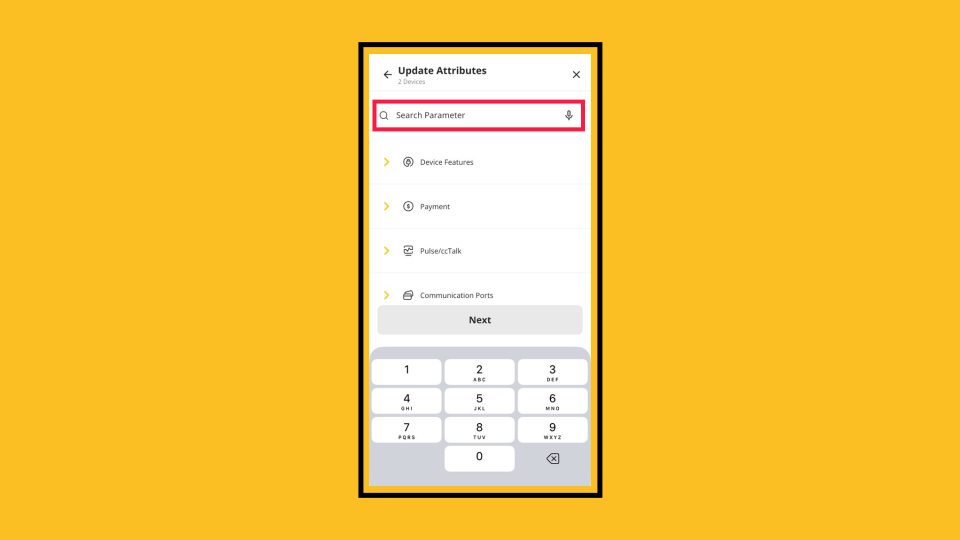
Image AttachedFrom the Actions menu, tap Update Attributes. The Update Attributes screen opens. Enter the attribute number(s) and the value(s) you want to apply across all selected machines.
Deep Search Attributes
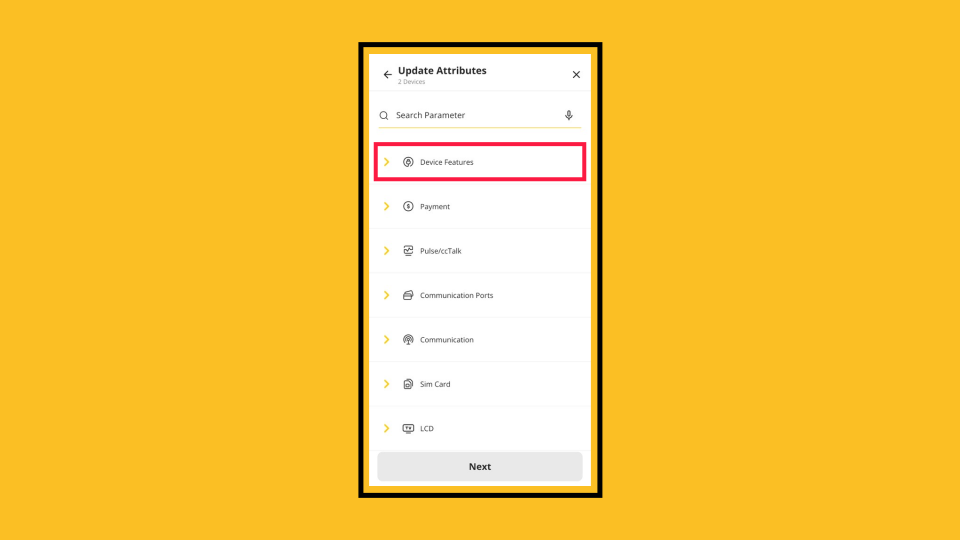
Image AttachedScroll through and expand the attribute group tabs to locate the parameter.
If you’re unsure which attribute to use, pause here and confirm with your Nayax account manager before continuing.
Attribute Group
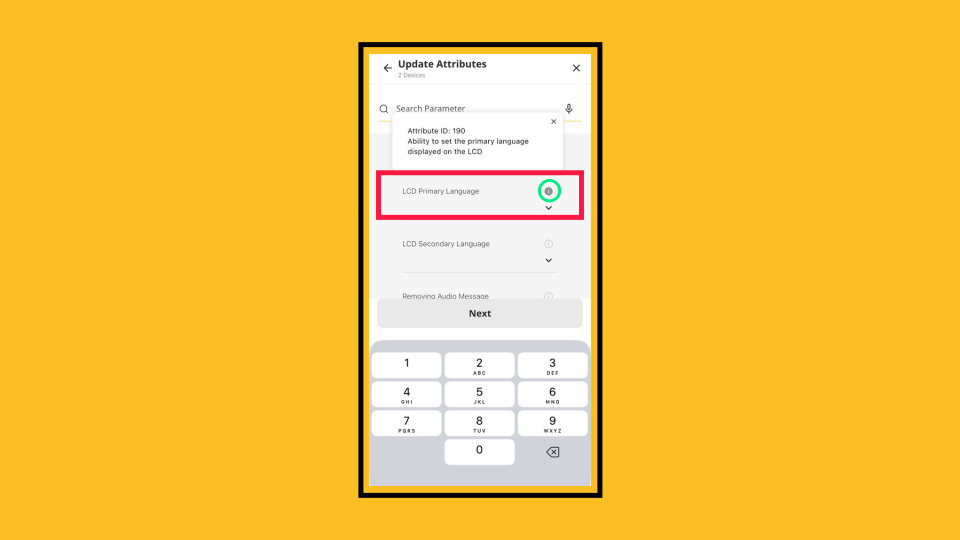
Image AttachedWhen searching using the attribute group, click the tooltip next to the field to verify the parameter. A message will appear so you can confirm it’s the correct attribute to update across your selected machines.
Once confirmed, enter the new value in the field to apply the update.
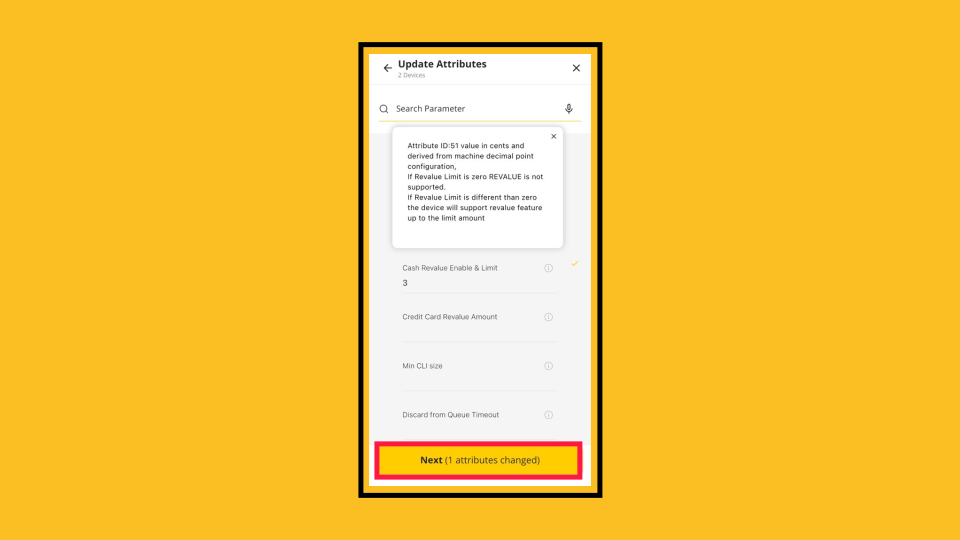
Attributes Changed
Image AttachedOnce you've made your selections and set the values, tap Next. The button tells you how many attributes will be changed, so confirm that the number is correct before you proceed.
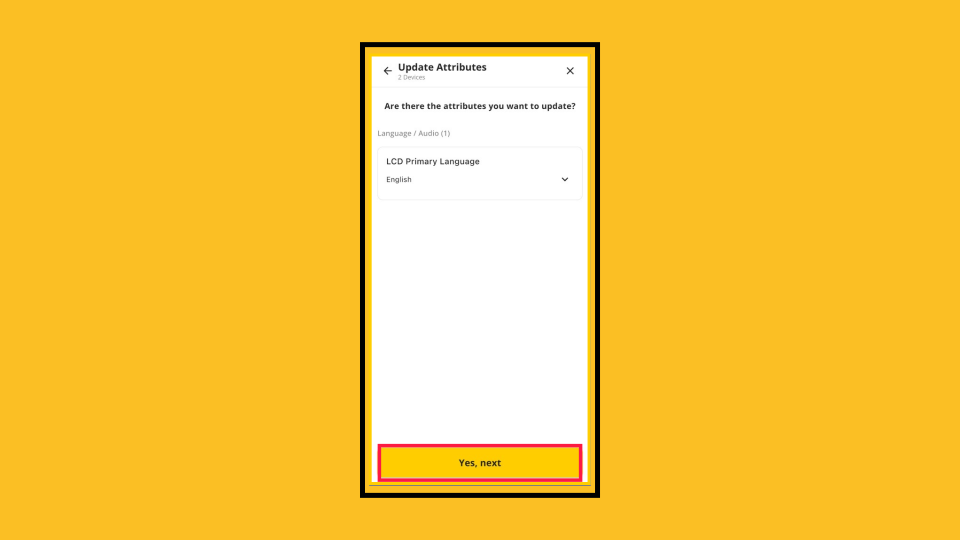
Review Changed Attributes
Image AttachedReview the page to see the attributes you’ve updated.
This is your final opportunity to check everything. Make sure the attribute number and value are correct, and that the update applies to all selected machines. Once you tap Apply, the change cannot be undone.
When everything looks correct, tap Yes, Next to confirm and proceed.
Choose Send Now or Schedule for Later
Image Attached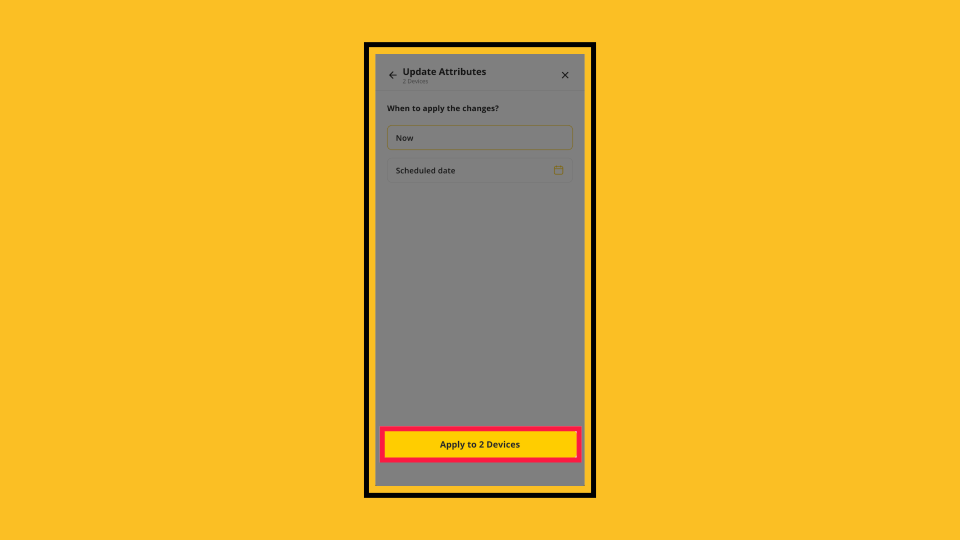
Apply to Devices
Image AttachedTap Apply to [N] Devices to confirm.
Confirmation Message & Result
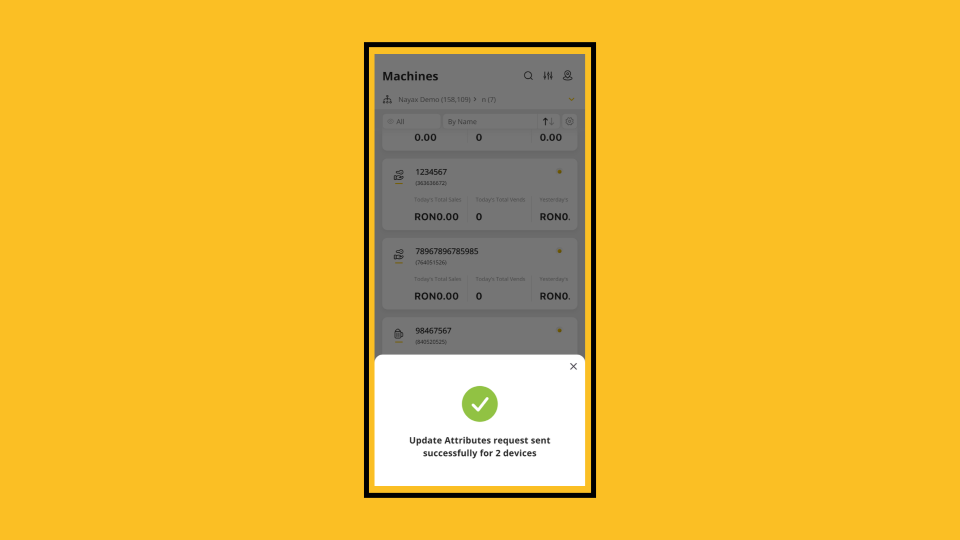
Image AttachedA confirmation screen appears over the Machines list. For Update Attributes, it confirms that requests were successfully sent for the specified number of devices.
You can close the confirmation and continue using MoMa normally. There is no further action required.
Thank you!
Did you find this article helpful?