
How to Set Bulk Remote Price Change | MoMa
Push price changes remotely to multiple machines at once from MoMa. Select your machines, choose an action, and apply in a single flow, no machine-by-machine repetition, no desktop portal required.
Prerequisites: Before You Start
- You have Operator access in MoMa.
- The MoMa app is installed and updated to version 1.0.1183 or later.
- The machines you want to update are active and linked to your operator account.
- For Remote Price Change: you know the new retail prices you want to apply.
Video Guide How to Set Bulk Remote Price Change | MoMa
00:00: The default machine list may not display the metrics that matter most to you. By
00:03: customizing KPIs,
00:05: you can ensure that the data you need is readily visible.
00:07: Learn how to showcase KPI indicators for each machine in MoMa.
00:12: Open the MoMa app on your mobile device.
00:15: The dashboard of your MoMa app will open, displaying the Machines linked to your
00:19: operator. Tap the gear icon in the top-right corner.
00:23: The screen preferences panel opens, tap KPIs.
00:27: Customize your KPIs by dragging and dropping them to change the order,
00:31: unchecking any KPIs you want to remove, or tapping Add KPIs to select additional
00:36: indicators from the list.
00:39: Tap apply to close the panel and your changes apply immediately.
00:43: You can also change how machines are displayed.
00:46: Change
00:46: the machine view mode by selecting Full Size
00:48: for detailed monitoring with large cards, Compact for a balanced view of several
00:52: machines, or List view to quickly scan many machines at once.
00:55: Click Apply to save your preference.
00:58: Explore MoMA's other notifications available to ensure you track your machines like a pro, or click on the link to view more MoMa guides in Nayax U!
Open MoMa App
Image AttachedOpen the MoMa app on your mobile device.
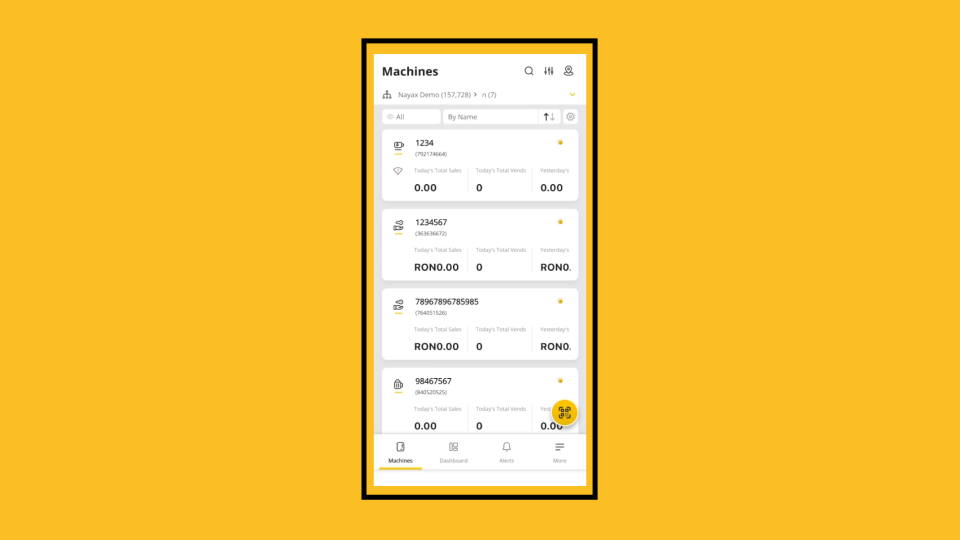
Machines List
Image AttachedThe Machines list opens by default, showing all machines linked to your operator account.
Select Multiple Machines
Image Attached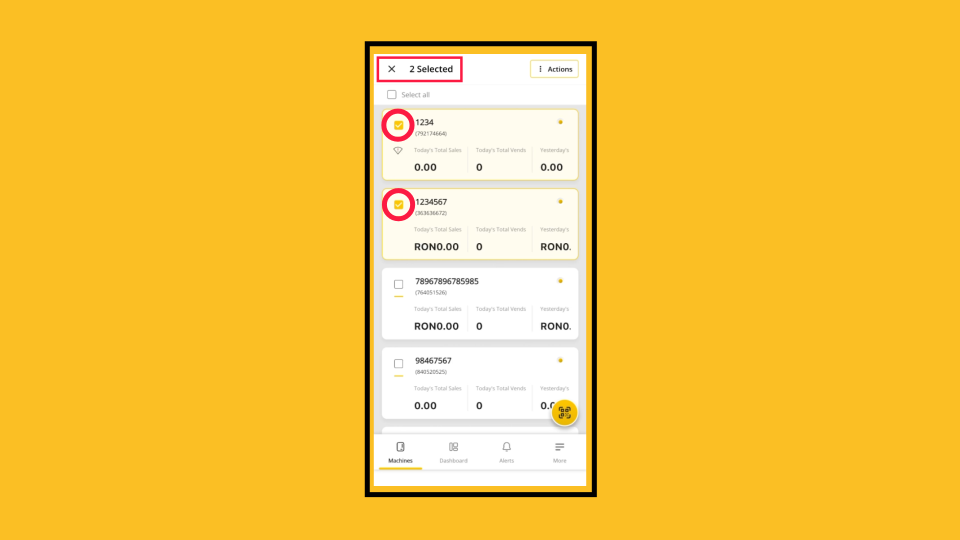
Select All Machines
Image Attached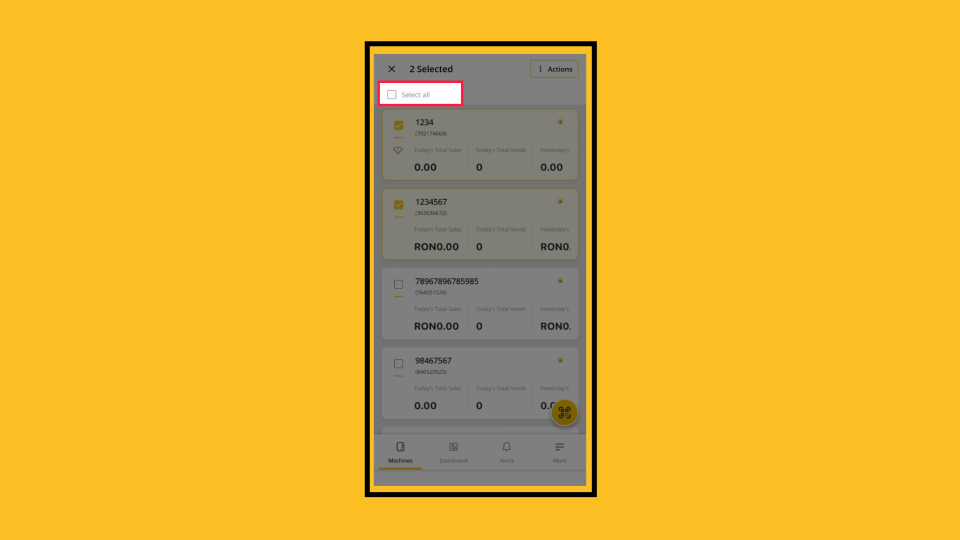
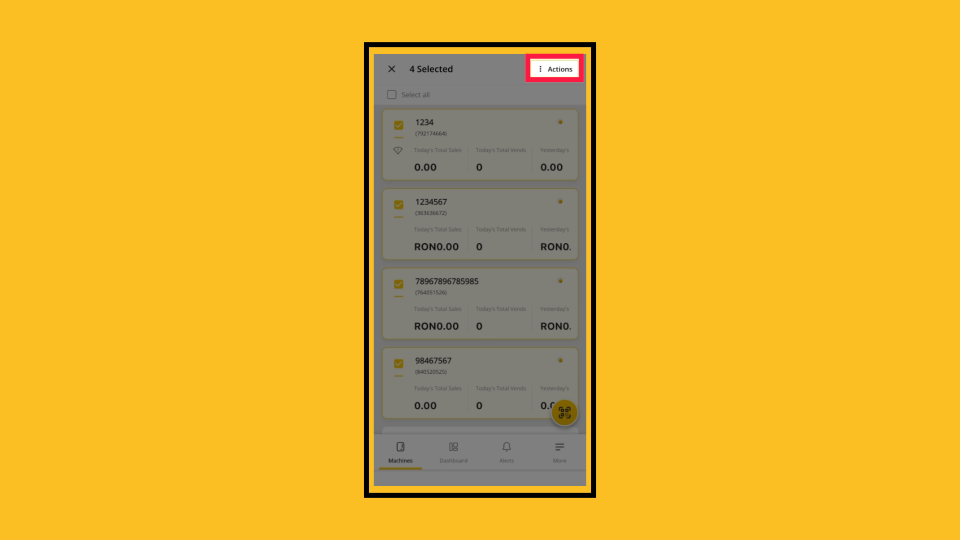
Tap Actions
Image AttachedWith your machines selected, tap the Actions button in the top right corner.
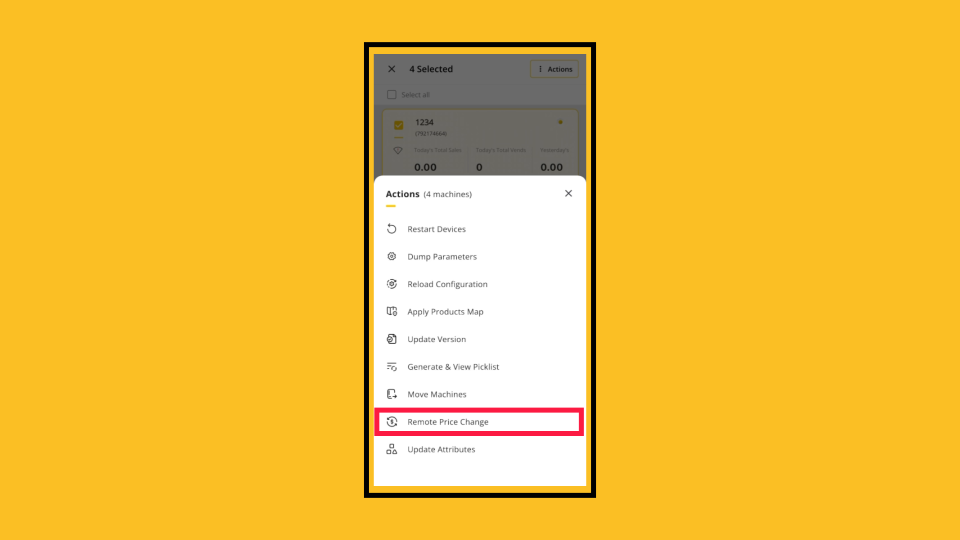
Remote Price Change
Image AttachedThe Actions menu opens, showing all available bulk operations for your selection. From the actions menu, select Remote Price Change.
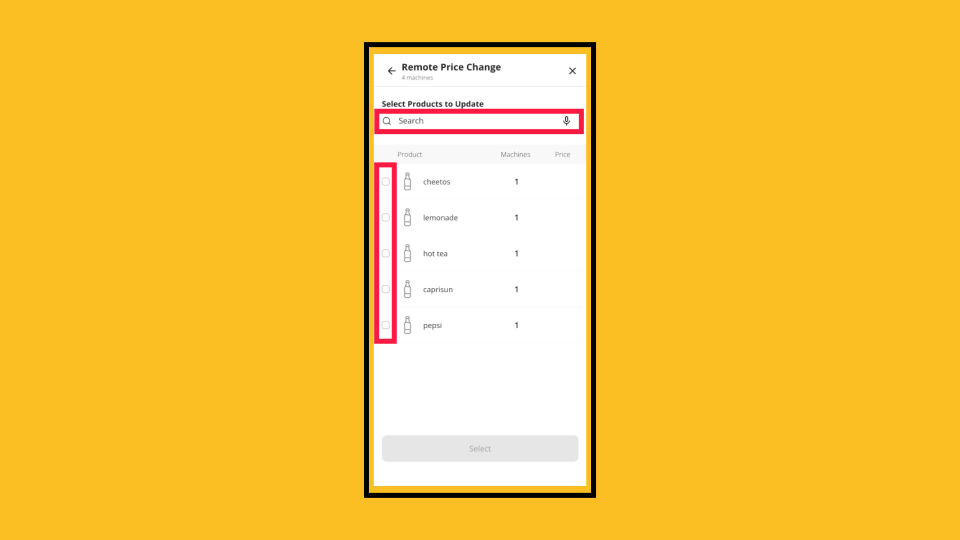
Search and Select Products
Image AttachedThe Select Products to Update screen lists all products on your machines. Use the search field to find a product, then check the box next to each one to update.
The system validates PC codes and flags any issues before proceeding.
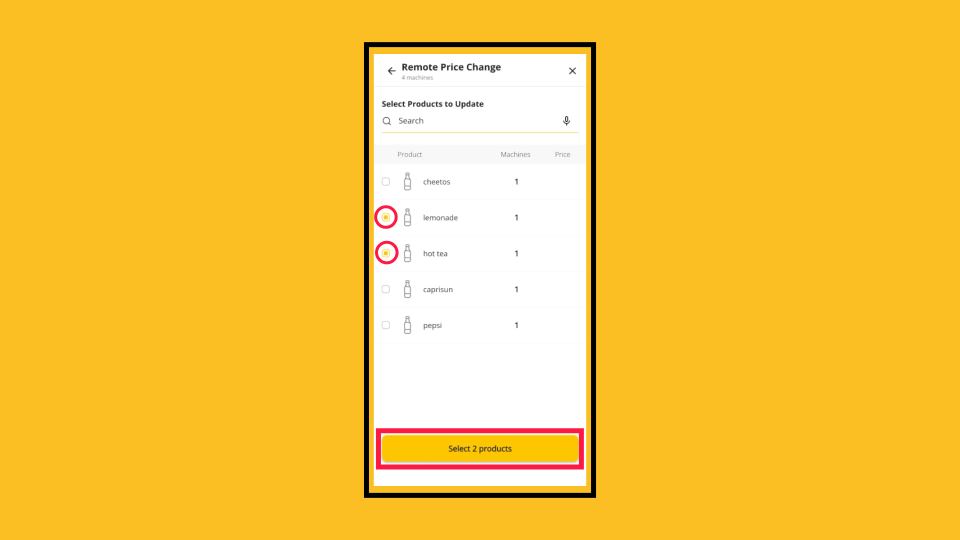
Select Products
Image AttachedOnce you've made your selections, tap Select Products.
Product Page
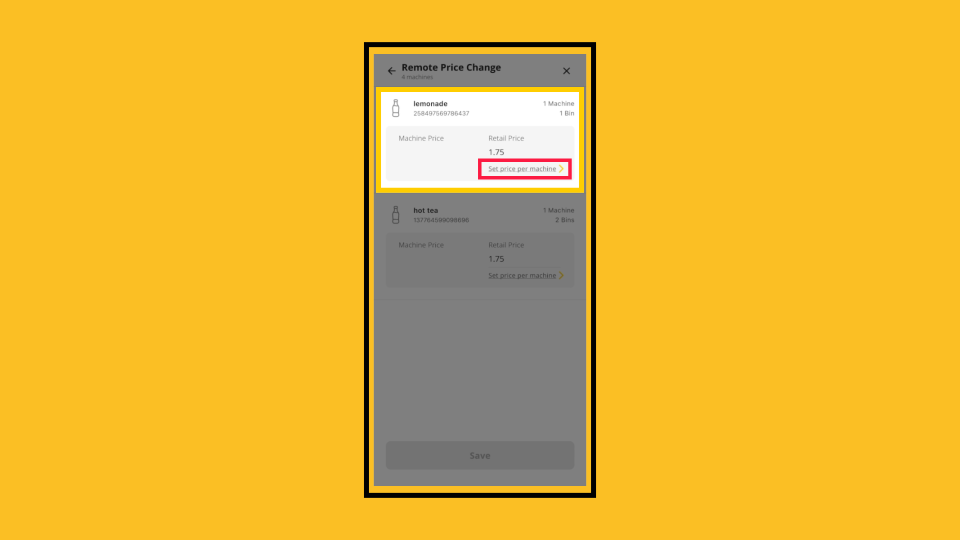
Image AttachedThe product page shows each selected product with its current price and the number of machines and bins it appears on. Tap the Retail Price field and enter the new price.
To set different prices per machine, tap Set price per machine to expand individual machine controls.
Set Prices
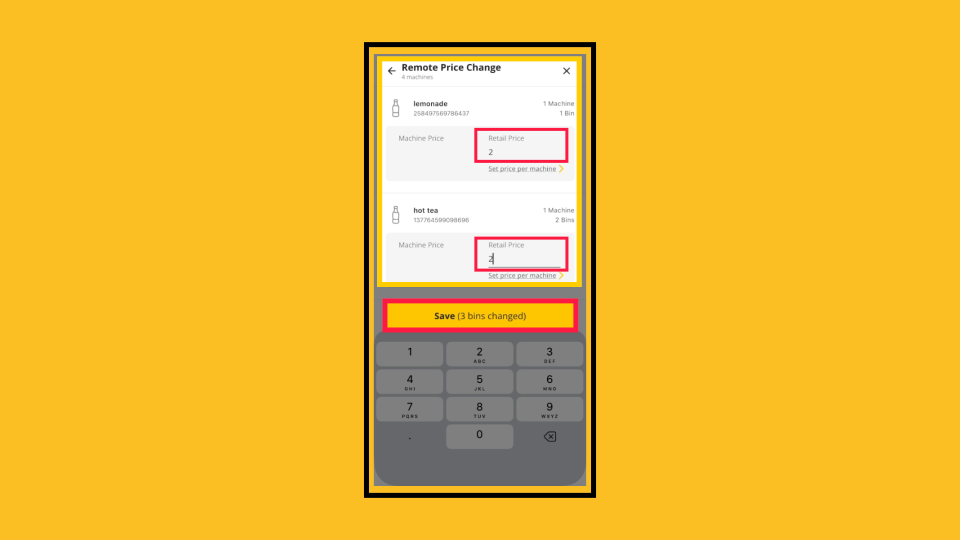
Image AttachedAfter entering all new prices, tap the Save ([N] bins changed) button at the bottom. The button label shows how many bin prices will be updated. Confirm that this number looks correct before saving.
Send Now or Schedule for Later
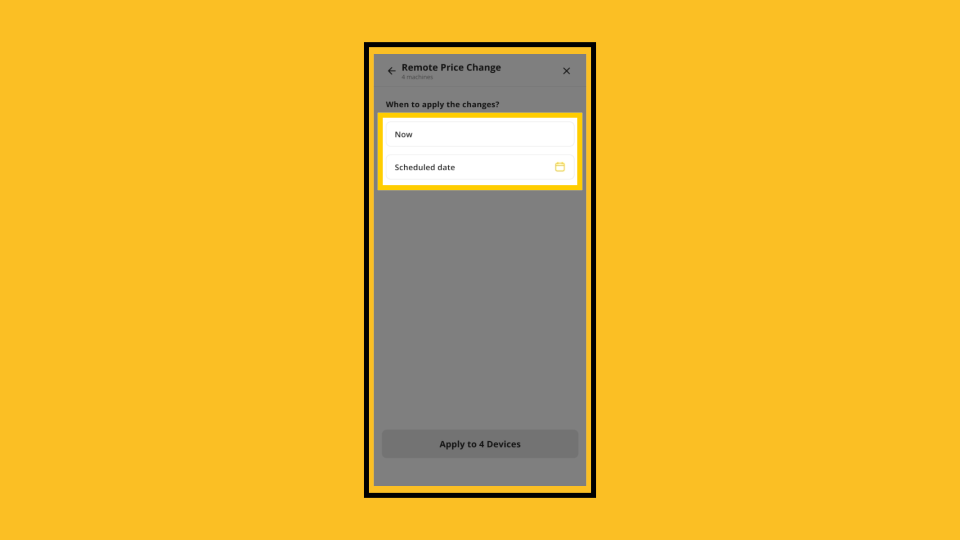
Image AttachedWhen to apply the changes? screen, select one option:
- Now, the price change is pushed to all selected machines immediately.
- Scheduled date - tap the calendar icon to choose a specific date and time for the change to take effect.
Apply to Devices
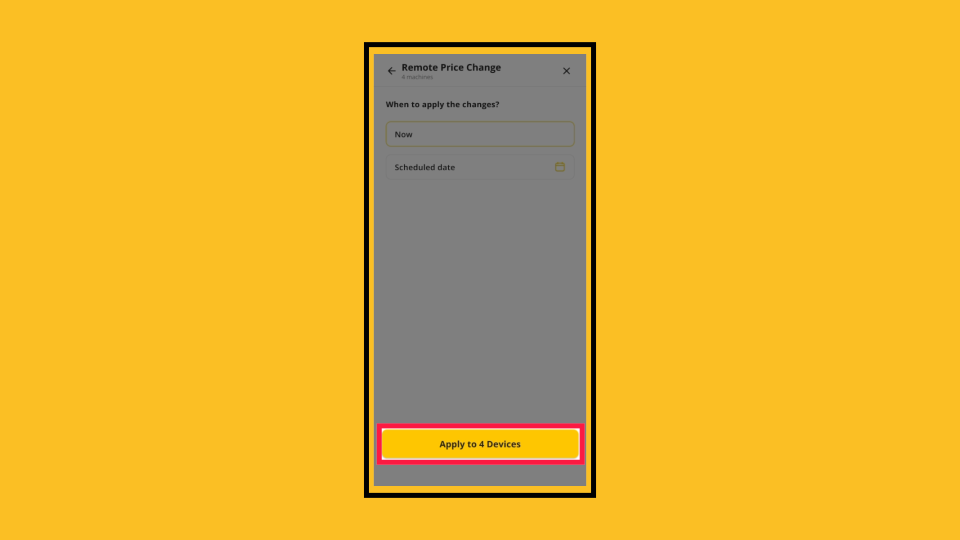
Image AttachedTap the Apply to [N] Devices button to confirm and send the price change to all selected machines.
Confirmation Message & Result
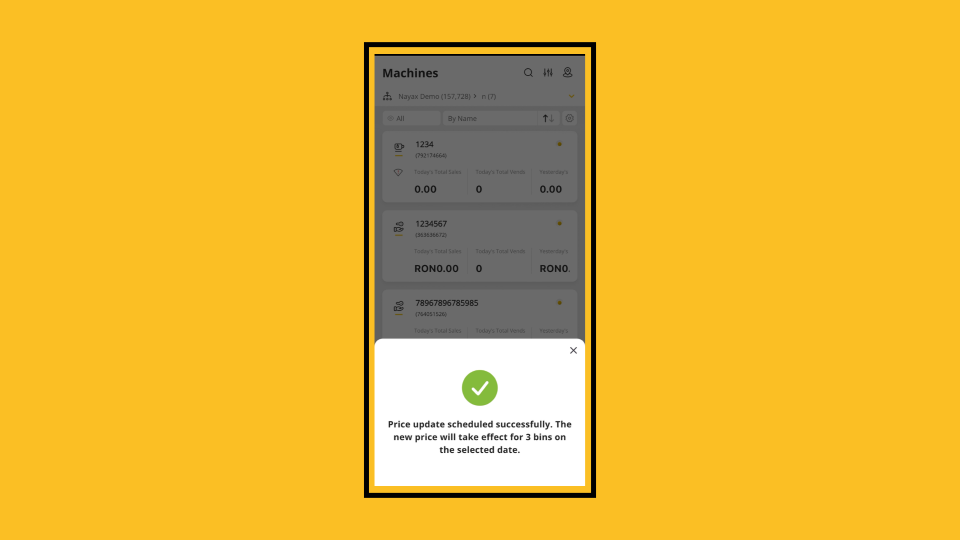
Image AttachedA confirmation screen appears over the Machines list. For Remote Price Change, it confirms how many bins were updated and when the new prices take effect.
You can close the confirmation and continue using MoMa normally. There is no further action required.
Thank you!
Did you find this article helpful?