
How to Set Daily and Weekday Amount Limits for Prepaid | Consumers
Learn how to set daily and weekday spending limits on Nayax Prepaid cards. Control card credit budgets in Nayax Core.
Video Guide
00:00: Learn how to set daily spending limits on Nayax Prepaid cards. Control card credit
00:04: budgets in Nayax Core.
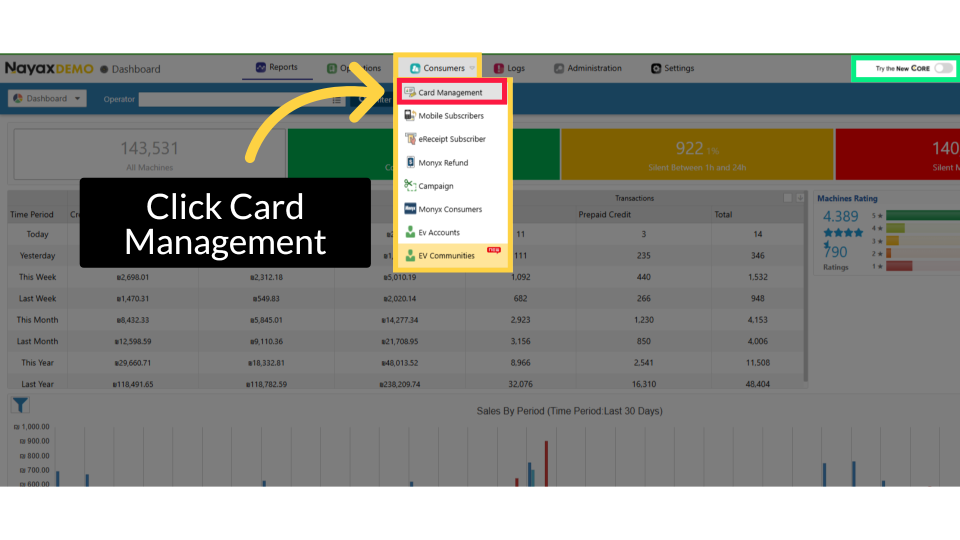
00:06: From the Nayax Classic Core dashboard, click on the Consumers tab, then select
00:10: Card Management from the dropdown.
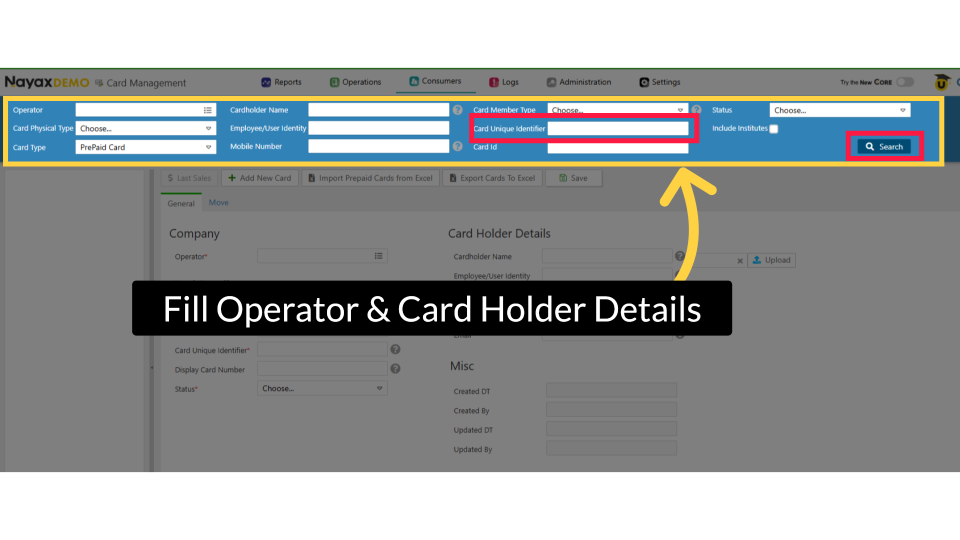
00:13: To find your operator, enter the Operator name, Card UID, and the relevant fields. Then, click the search button.
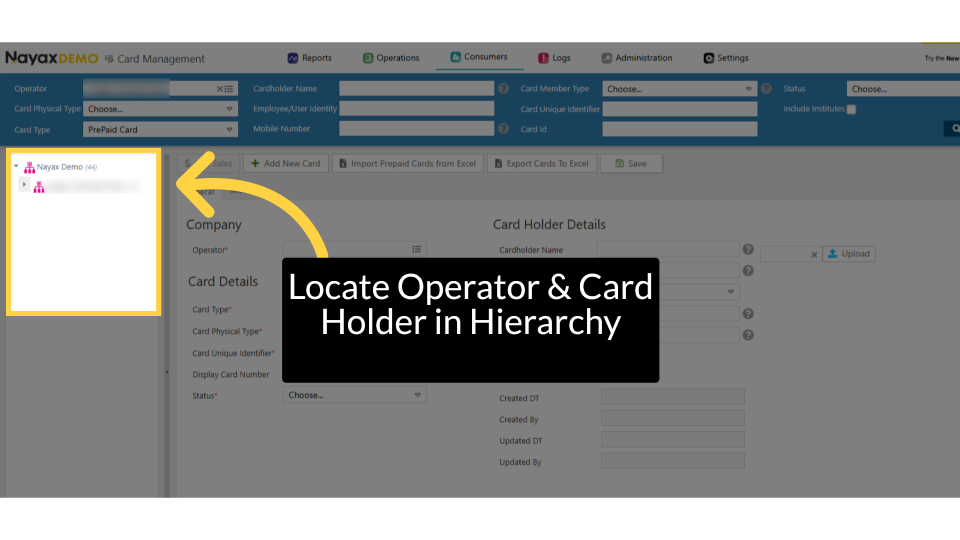
00:20: Locate and click on the operator and card details within the hierarchy.
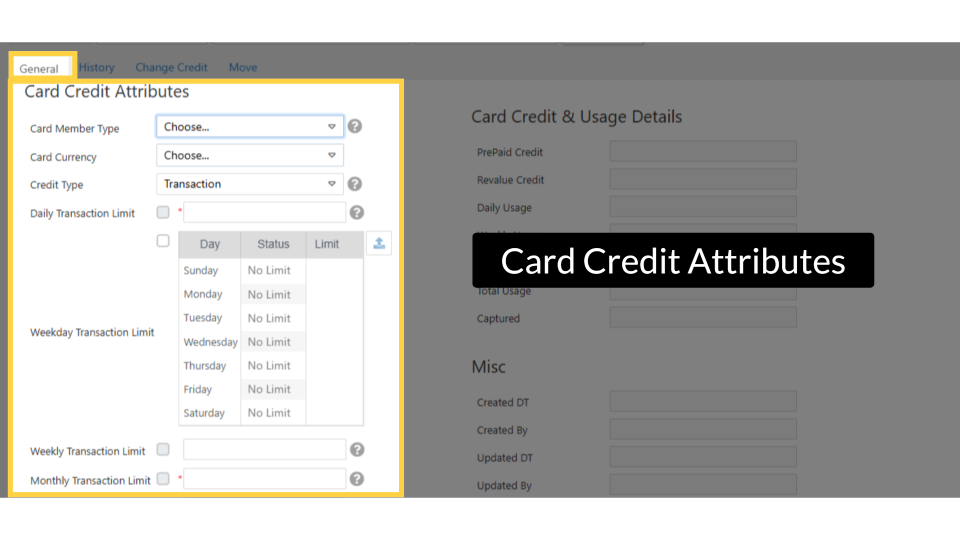
00:25: In the general tab, scroll down to credit card attributes.
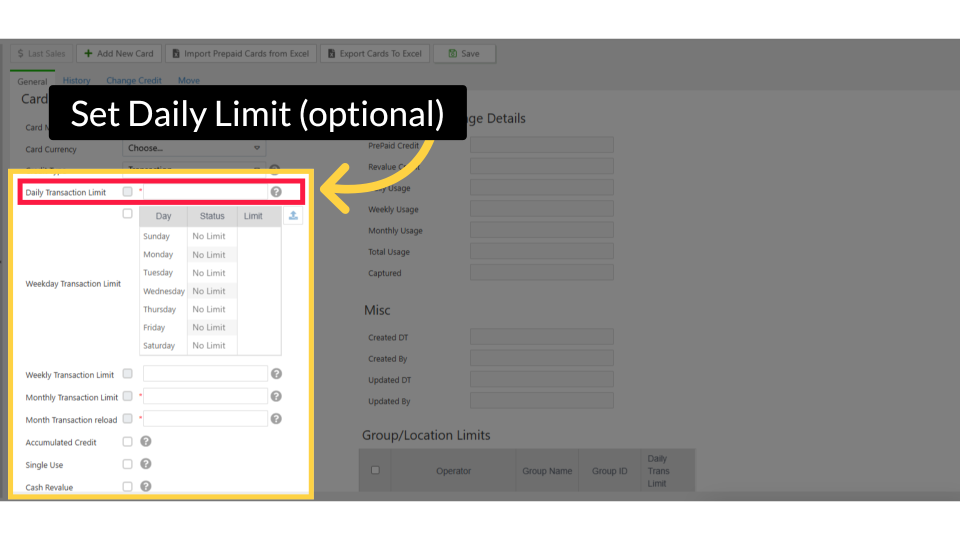
00:29: Check the Daily Transaction Limit (or Daily Amount Limit) checkbox and enter the
00:34: maximum amount or number of transactions allowed per day.
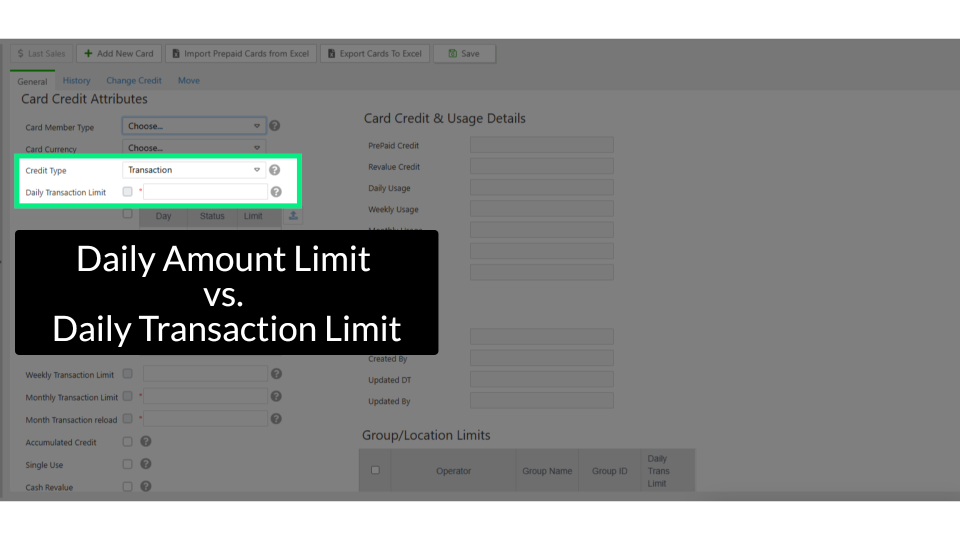
00:37: Only one of these can be checked at a time.
00:39: If Credit Type is Money, you’ll see the Daily Amount Limit.
00:43: If Credit Type is Transaction, you’ll see the Daily Transaction Limit.
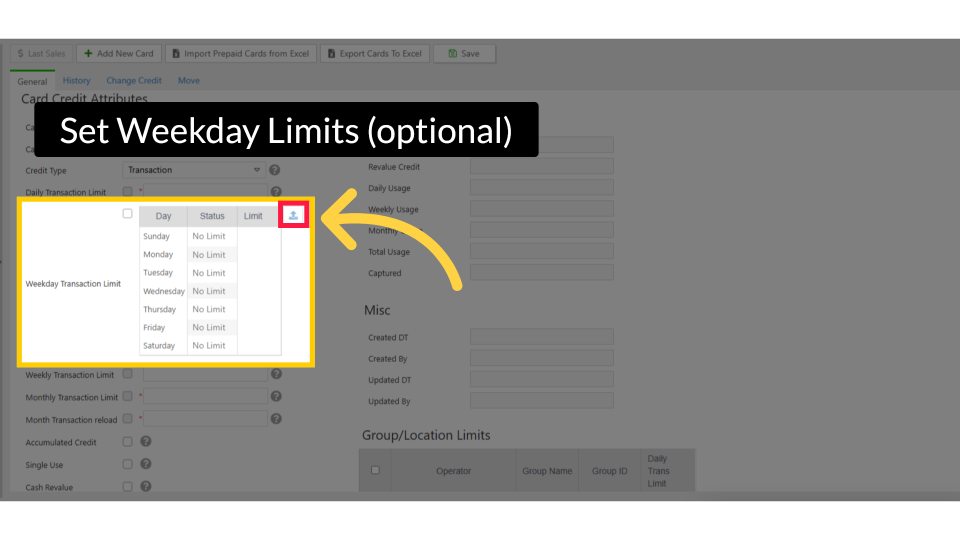
00:48: For per-day-of-week control, open the Weekday Transaction Limit table by clicking the expand icon.
00:52: Click on the highlighted RED icon to set a different limit for each day of the
00:57: week (Sunday through Saturday).
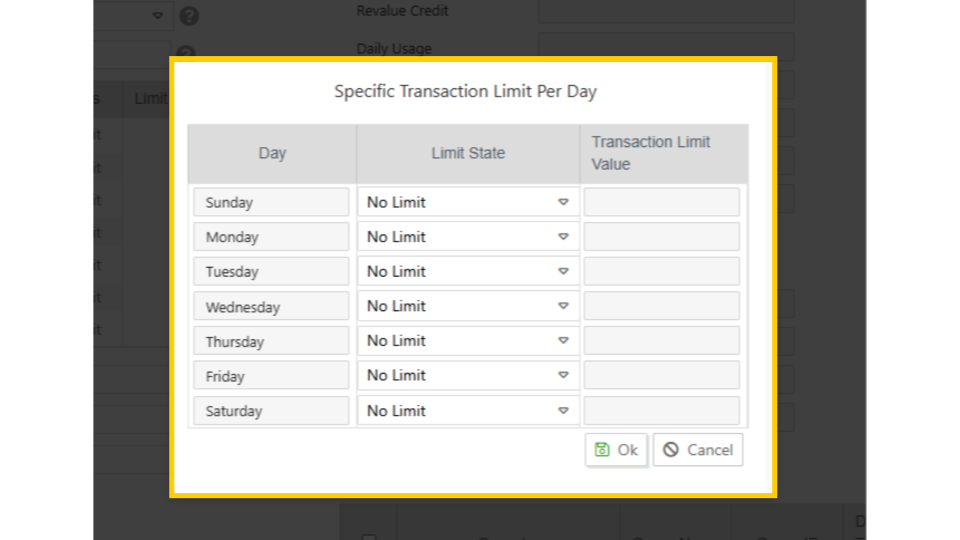
01:00: Each day shows limit status options. Limit value. No Limit means no cap.
01:04: If active, the cardholder can use the card up to the limit. “ Can’t use" means the
01:09: card is blocked.
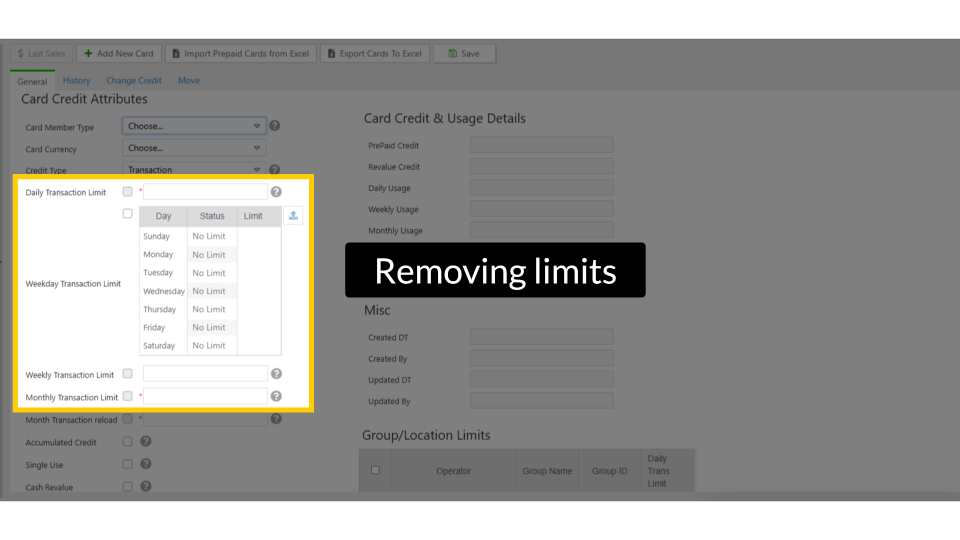
01:10: To remove any limit, enter 0 in the field. Limits apply only to time-based
01:15: restrictions and do not override the card’s
01:17: total credit balance.
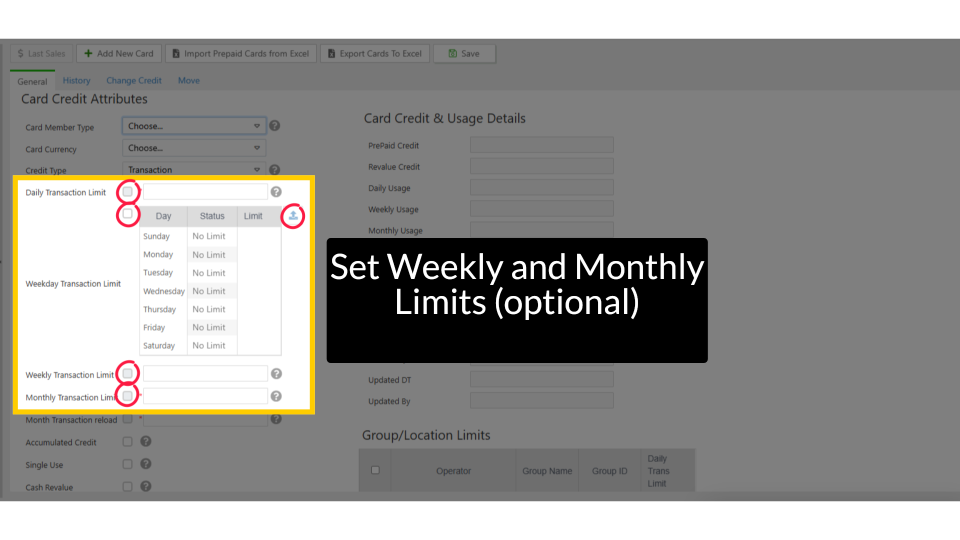
01:19: Click on the checkbox for Weekly Limit and or Monthly Limit and enter the cap.
01:24: These limits track cumulative usage within the period and reset automatically
01:28: (weekly on the configured start day, monthly on the configured reset day).
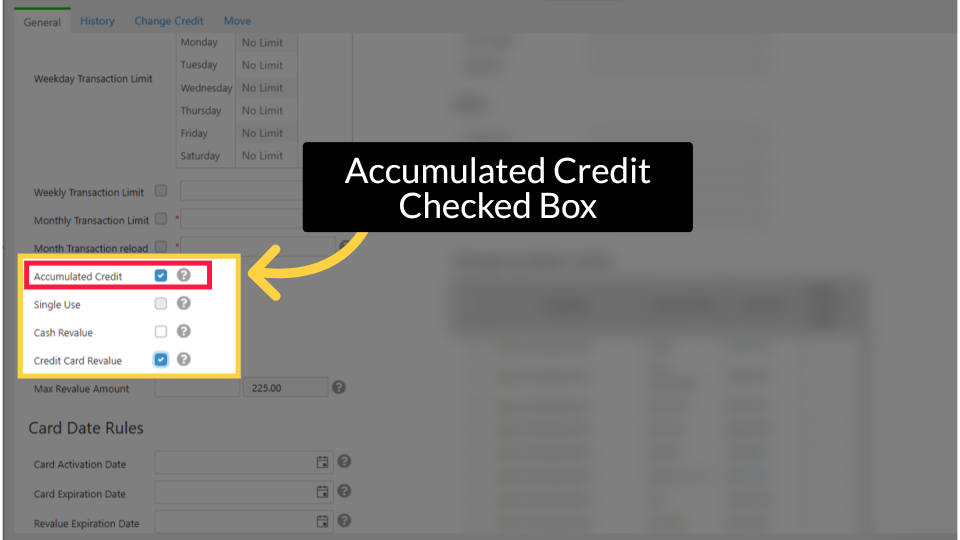
01:34: When the checkbox is checked: The Monthly Reload amount is ADDED to the card’s
01:38: current balance.
01:38: If the card has €30 remaining and a reload of €50, the new balance is €80.
01:44: Euros.
01:45: When the checkbox is UNchecked: The card’s balance is RESET to the Monthly Reload
01:49: amount.
01:49: If the card has €30 and a reload is €50, the new balance is €50 (not €80).
01:55: 80 Euros,
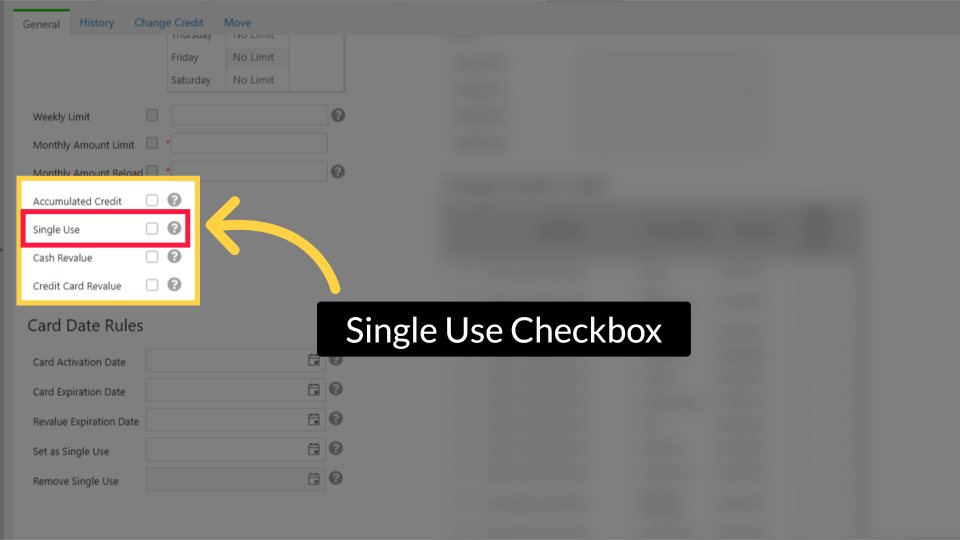
01:57: If this card is meant to be single‑use, check the Single-use box. When
02:00: enabled, the card will not be reloaded at the end of the month. The
02:04: cardholder can only use the remaining balance until it runs out.
02:08: The Cash or Credit Card Revalue feature lets cardholders add funds via cash or
02:13: credit cards on supported machines.
02:14: Uncheck boxes to disable top-ups. For more info,
02:18: click the link to the video for the full article on Nayax U.
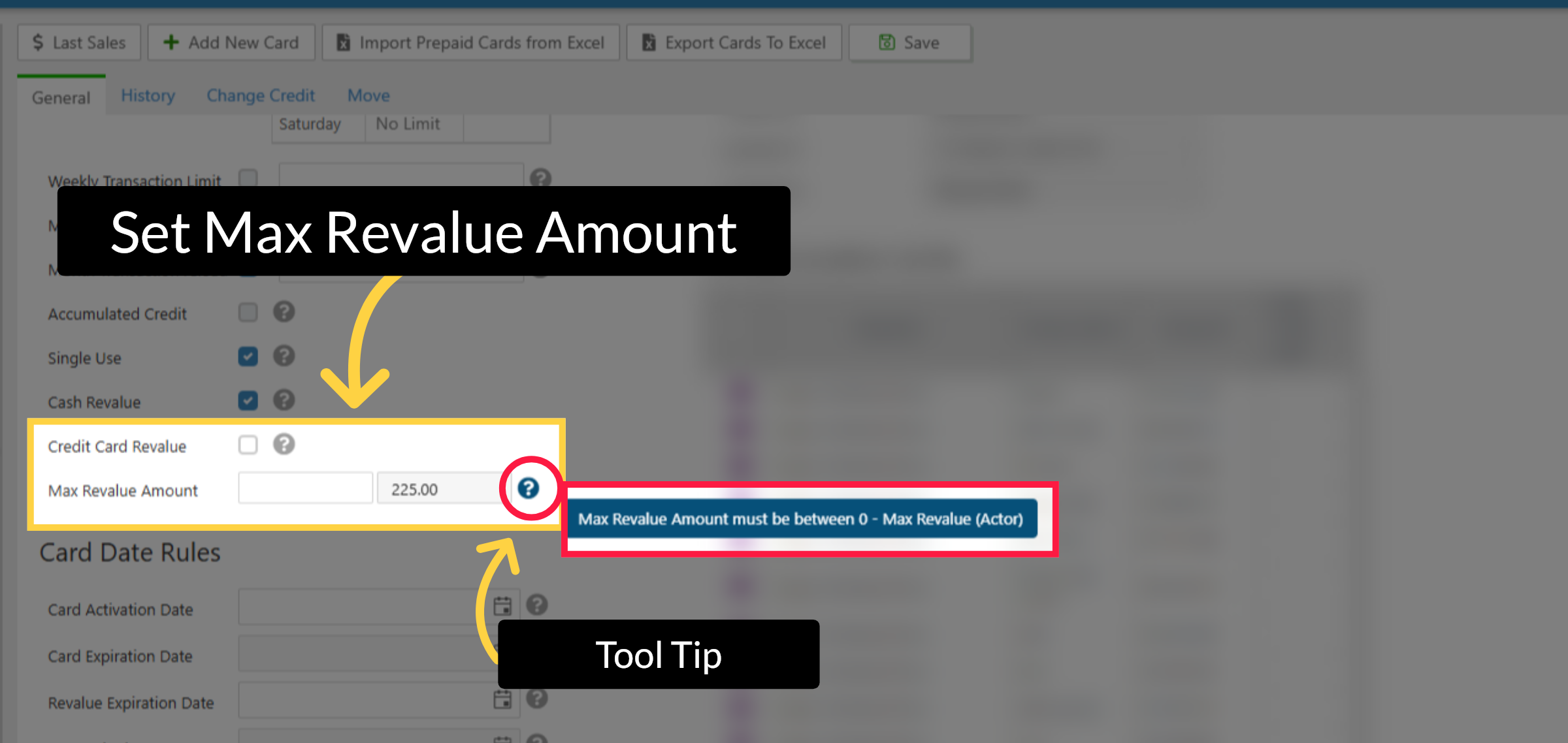
02:22: When revalue checkboxes are enabled, the Max Revalue Amount field appears. Enter the
02:28: maximum revalue credit for this card, not exceeding the distributor's limit. Tool
02:33: Tip: Hover over any question icon for glossary and recommendations related to the field.
02:39: Don't forget to save the changes.
02:41: Congratulations,
02:42: you have just created a new prepaid card!
02:46: A confirmation that your payment method will appear as a 'Completed Successfully' message.
Click Card Management
Image AttachedFrom the Nayax Classic Core dashboard, click on the Consumers tab, then select Card Management from the dropdown.
Fill Operator & Card Holder Details
Image AttachedTo find your operator, enter the Operator name, Card UID, and the relevant fields. Then, click the search button.
Locate Operator & Card Holder in Hierarchy
Image AttachedLocate and click on the operator and card details within the hierarchy.
Card Credit Attributes
Image AttachedIn the general tab, scroll down to credit card attributes.
Set Daily Limit (optional)
Image AttachedCheck the Daily Transaction Limit (or Daily Amount Limit) checkbox and enter the maximum amount or number of transactions allowed per day.
Daily Amount Limit vs. Daily Transaction Limit
Image Attached
|
Daily Amount Limit vs. Daily Transaction Limit Only one of these can be checked at a time. If Credit Type is Money, you’ll see Daily Amount Limit. If Credit Type is Transaction, you’ll see Daily Transaction Limit. |
Set Weekday Limits (optional)
Image AttachedFor per-day-of-week control, open the Weekday Transaction Limit table by clicking the expand icon. You can set a different limit for each day of the week (Sunday through Saturday).
Set Weekly and Monthly Limits (optional)
Image AttachedEach day shows a Status (No Limit, Active, or Can’t Use) and a Limit value.
- No Limit - no cap for that day.
- Active - the cardholder can use the card up to the specified limit on that day.
- Can’t Use - the card is blocked on that day entirely.
Removing Limits
Image Attached
|
Removing limits To remove any limit, enter 0 in the field. Limits apply only to time-based restrictions and do not override the card’s total credit balance. |
Set Daily and Weekday Limits (optional)
Image AttachedCheck the Daily Limit and/or Weekday Limit and enter the cap. These limits track cumulative usage within the period and reset automatically.
Accumulated Credit Checked Box
Image Attached|
Checkbox |
When Checked ✅ |
When Unchecked ⬜ |
|
Accumulated Credit |
The Monthly Reload amount is ADDED to the card’s current balance. If the card has €30 remaining and reload is €50, the new balance is €80. |
The card’s balance is RESET to the Monthly Reload amount. If the card has €30 and reload is €50, the new balance is €50 (not €80). |
Single Use Checkbox
Image Attached|
Checkbox |
When Checked ✅ |
When Unchecked ⬜ |
|
Single Use |
The card balance will NOT be reloaded at the end of the month. The cardholder uses only the remaining credit until it runs out. |
The card participates in the monthly reload cycle normally. |
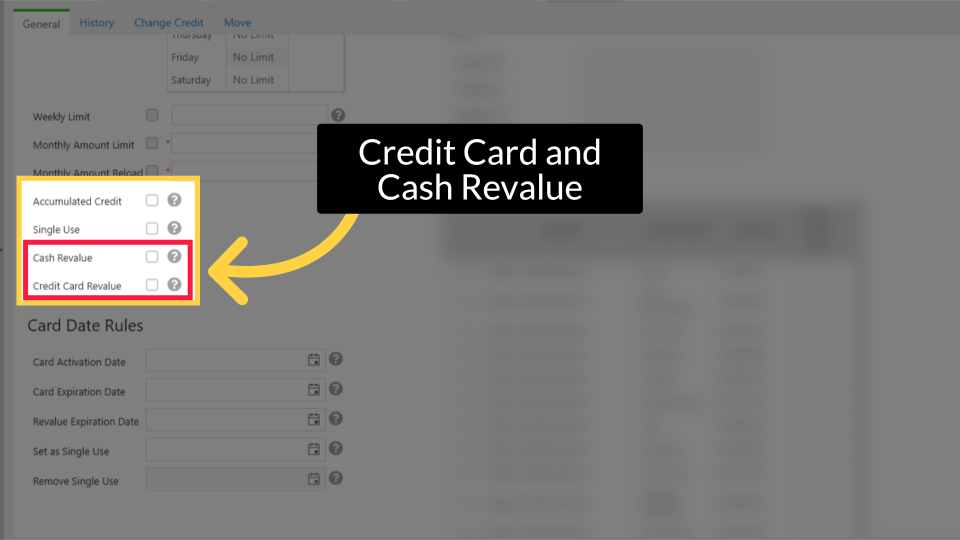
Credit Card and Cash Revalue
Image AttachedThese checkboxes allow cardholders to add their own funds to the card at a vending machine. Both are optional.
|
Checkbox |
When Checked ✅ |
When Unchecked ⬜ |
|
Cash Revalue |
The cardholder can insert cash at the machine to load funds onto the card. The machine must support this feature (bill acceptor required). |
Cash revalue is disabled. The cardholder cannot load funds with cash at the machine. |
|
Credit Card Revalue |
The cardholder can use a credit card at the machine’s payment terminal to load funds onto the Prepaid card. |
Credit card revalue at the machine is disabled. |
Set Max Revalue Amount
Image AttachedWhen either revalue checkbox is enabled, the Max Revalue Amount field appears. Enter the maximum total revalue credit allowed on this card. You cannot exceed the distributor-defined maximum.
|
Example A card currently holds €200.00. The Max Revalue Amount is set to €225.00. The cardholder can only add €25.00 more. Any revalue attempt above this is rejected. |
Click Save
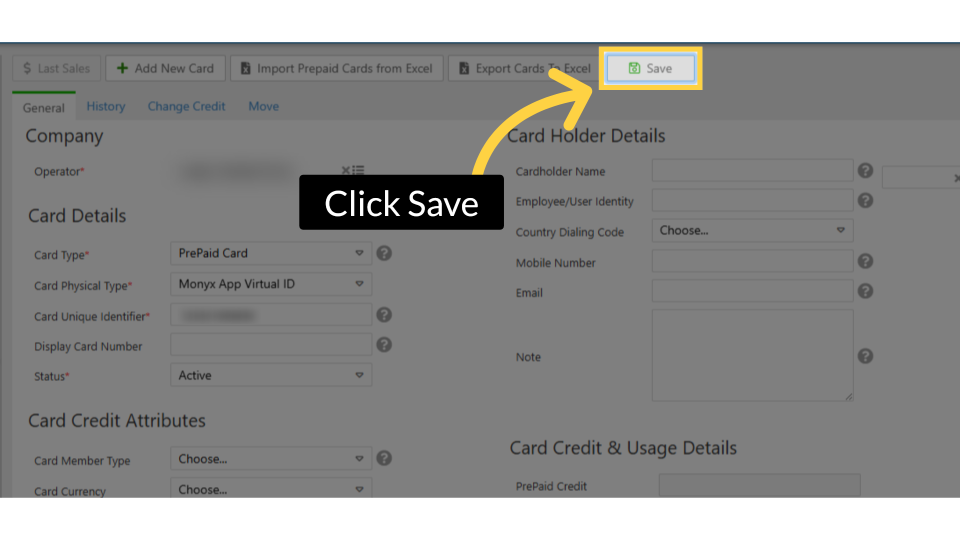
Image AttachedDon't forget to save the changes. Congratulations, you have just created a new prepaid card!
Thank you!
Did you find this article helpful?