
How to Create a Technician Card | Consumers
A Technician Card lets operator employees perform maintenance actions such as DEX, cash collection, and door access. It holds no balance and can’t test vends. Create and assign Technician Cards in Nayax Core for field maintenance.
Prerequisites
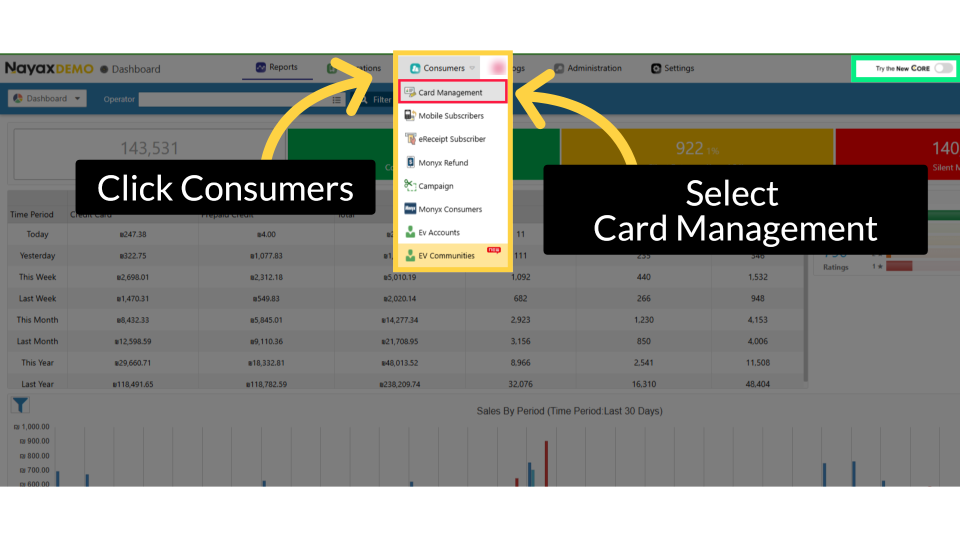
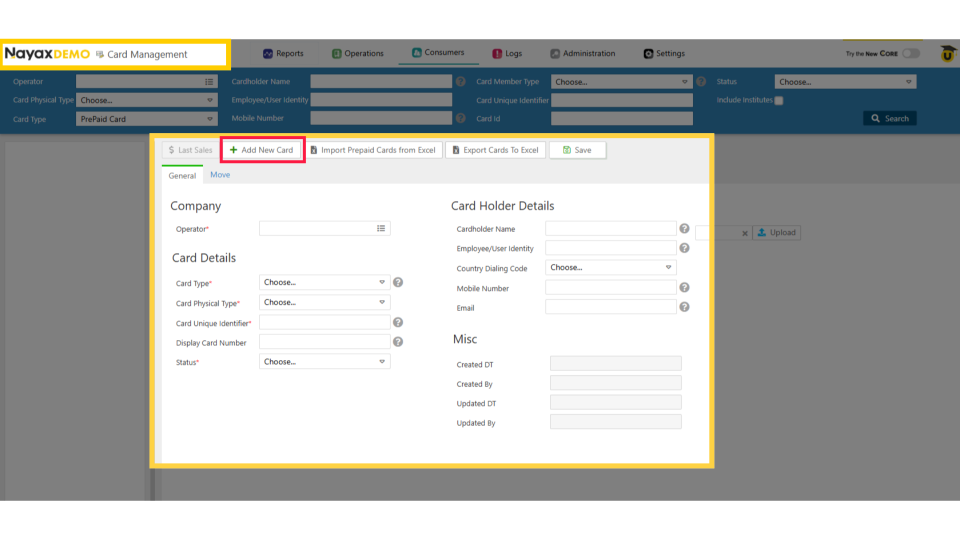
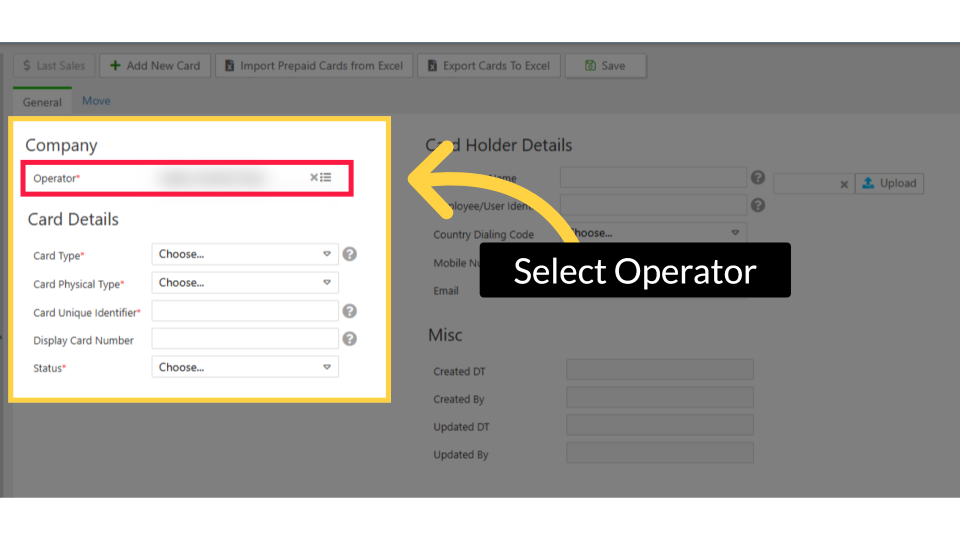
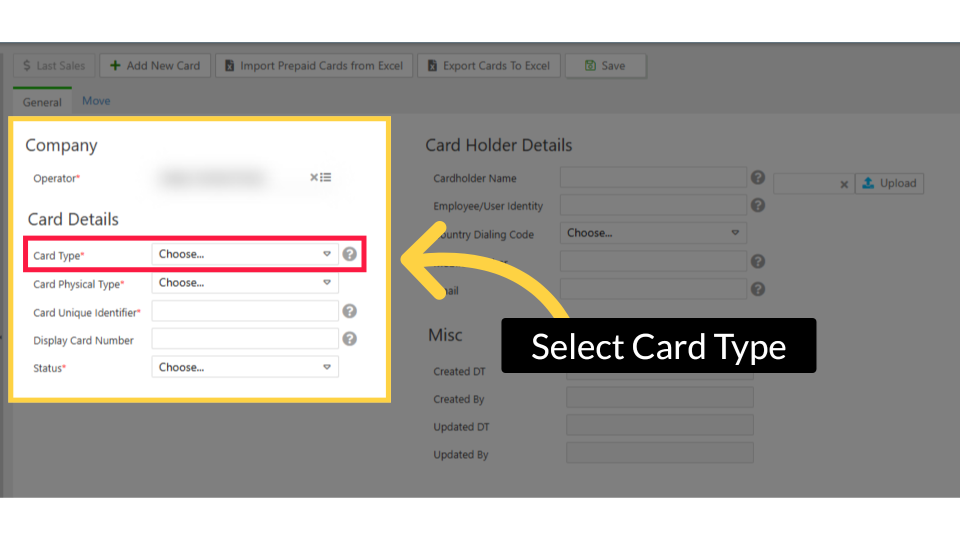
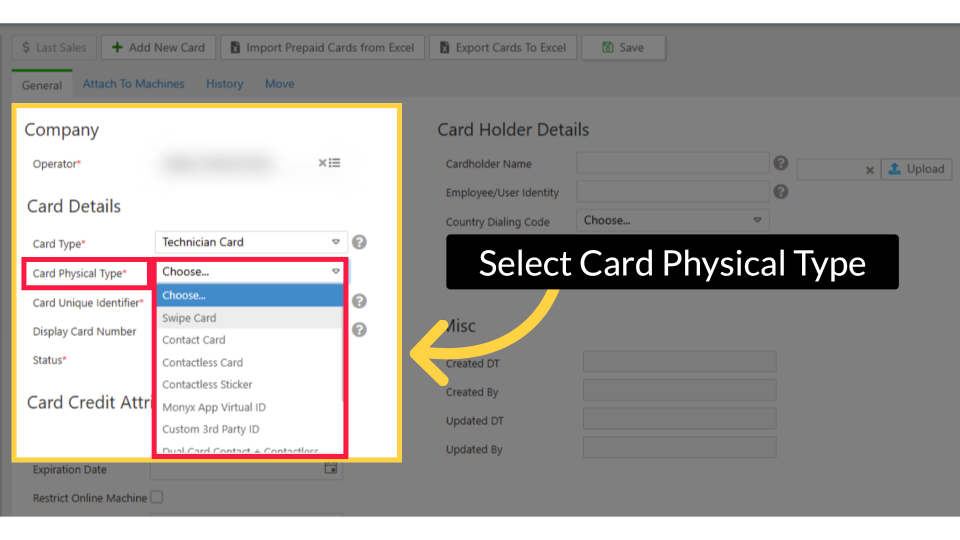
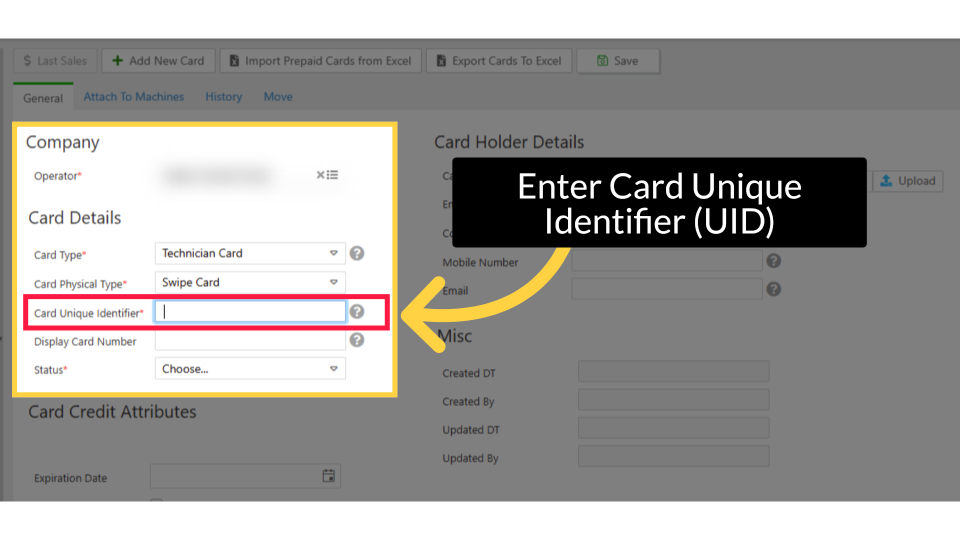
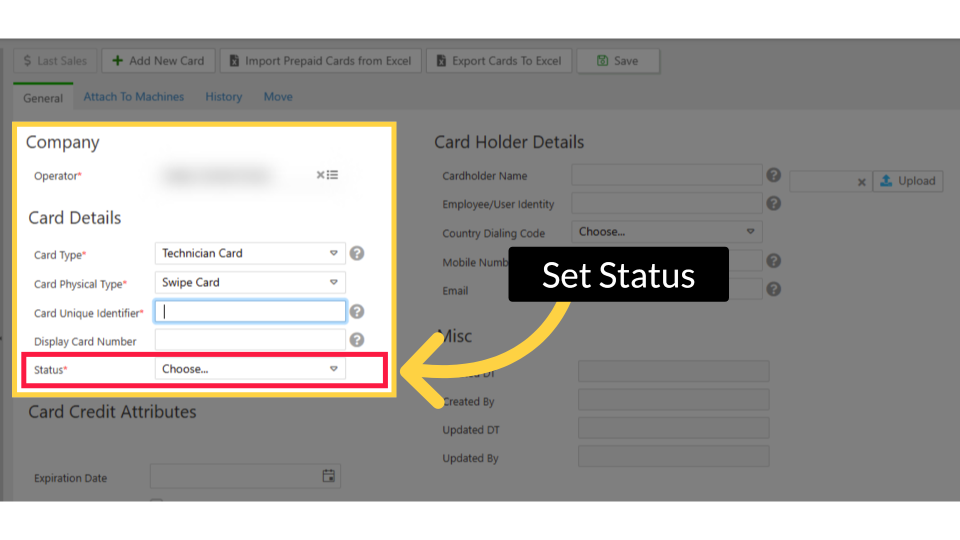
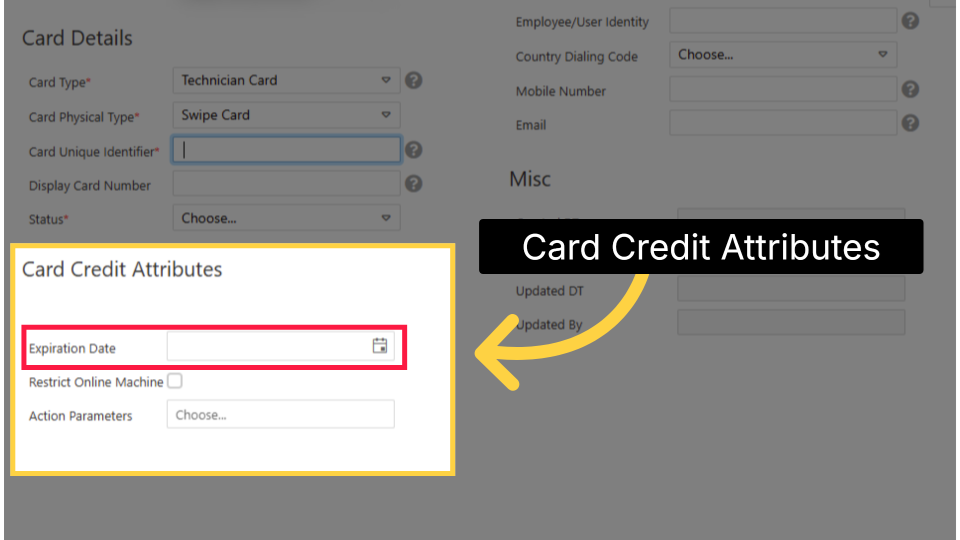
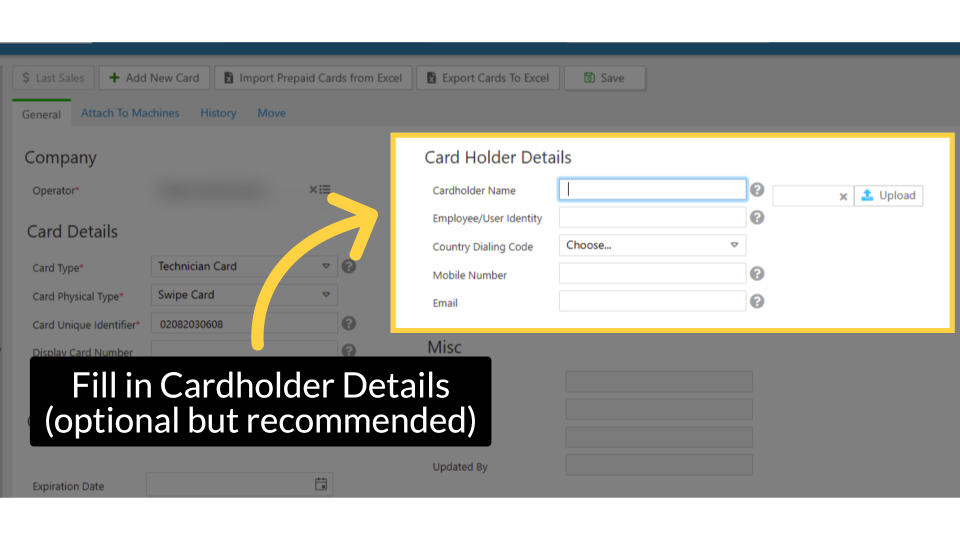
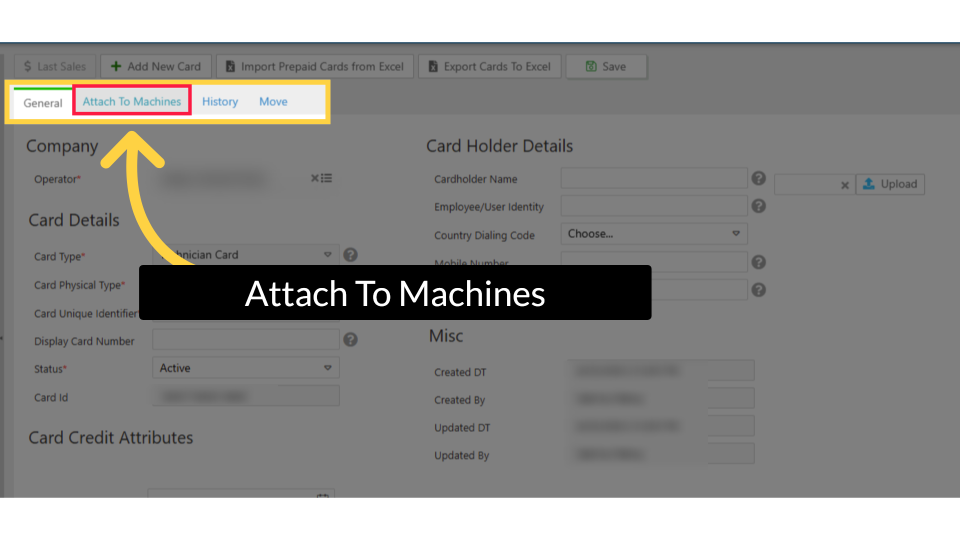
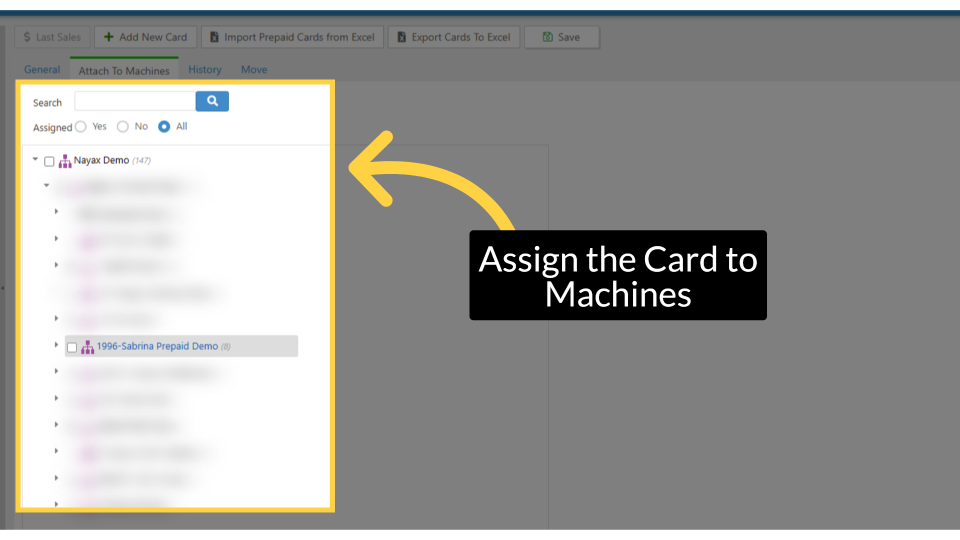
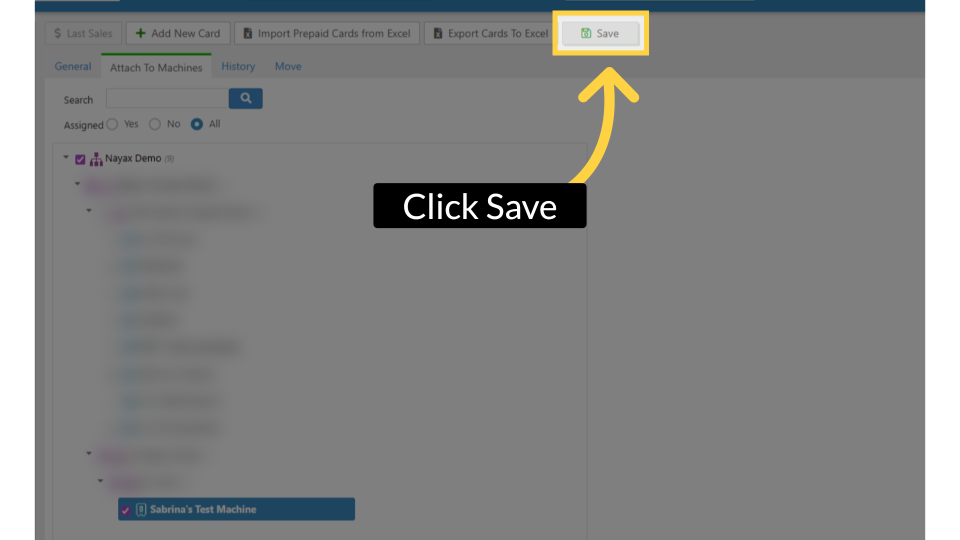
A Technician Card lets your field staff perform maintenance actions at machines - like sending DEX, opening the machine door, accessing the VPOS menu, or collecting cash - without needing the machine password. Create the card in Nayax Core, assign the actions it can perform, and attach it to the machines where your technician works.
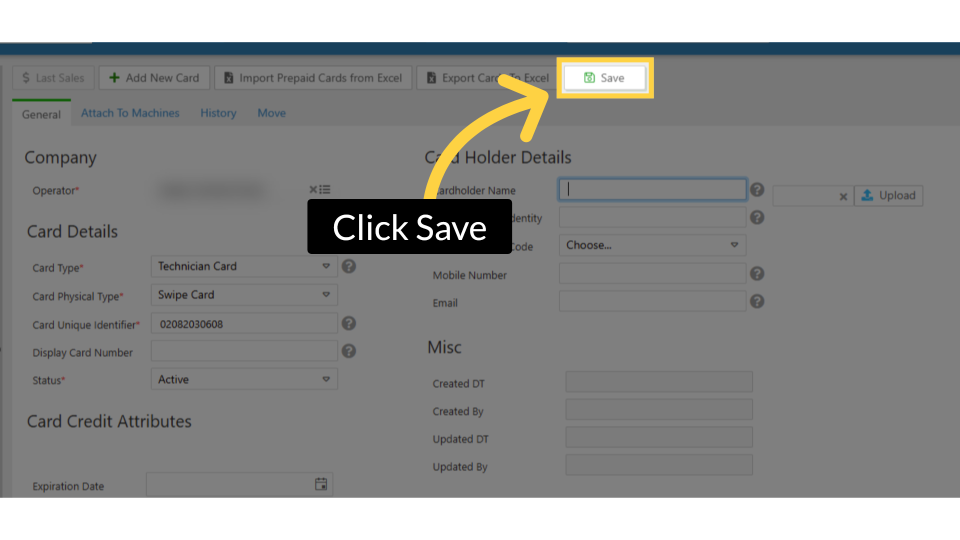
Create a Technician Card in Nayax Core and configure it with the correct actions and machine assignments so your field technician can perform maintenance tasks by tapping their card.
|
Prerequisites You need operator-level access to Nayax Core (Consumers > Card Management). You need a physical card (contactless, swipe, or dual) with its unique identifier ready. Technician Cards can only be created through Nayax Core. |
|
Technician Cards do not hold balances Unlike Prepaid Cards, Technician Cards have no credit balance and cannot be used to test vends or make purchases. They are strictly for maintenance actions. |
What Can a Technician Card Do?
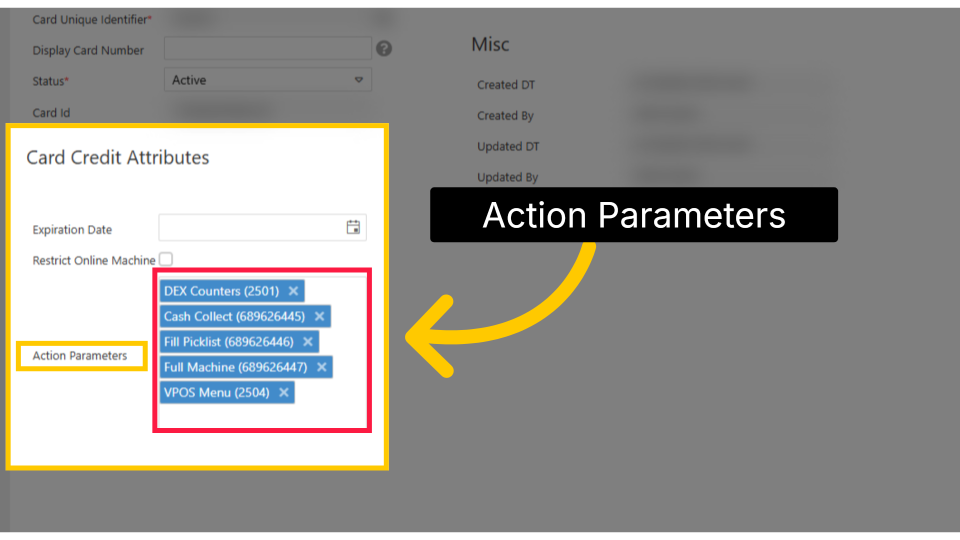
When a technician taps the card at a machine, the machine performs the assigned action automatically. Available actions include:
|
Action |
What It Does |
|
Cash Collect |
Initiates the cash collection process on the machine. |
|
Fill Picklist |
Records a restocking event for inventory tracking. |
|
DEX Counters |
Sends DEX (data exchange) counters from the machine for reporting. |
|
VPOS Menu |
Opens the VPOS configuration menu on the device screen. |
|
Open Door |
Unlocks the machine door remotely via the card tap. |
|
Open Cash Box |
Opens the cash box compartment on the machine. |
|
Fiscal Counts |
Retrieves fiscal counter data from the machine. |
Did you find this article helpful?