
How to Configure Pre-Authorization Buffers for EV Charging Sessions | Administration
Learn how to set up percentage buffer to prevents charging sessions from exceeding pre-authorized amounts, protecting both the operator from financial discrepancies and the driver from unexpected overcharging.
Video Guide
00:01: Learn how to set up percentage buffers to guarantee that charging sessions finish just before reaching the authorized limit.
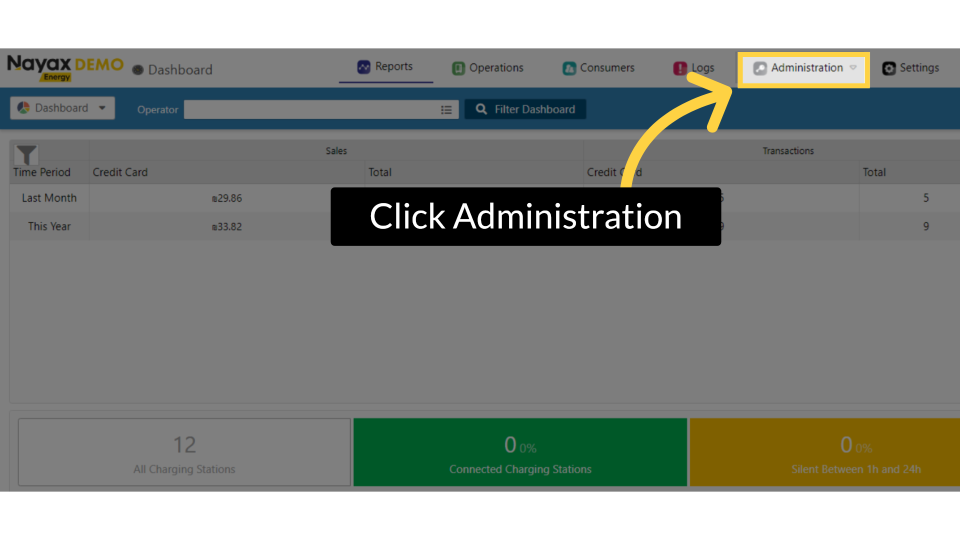
00:08: On the Dashboard of your Nayax Energy Core platform, click on the Administration tab.
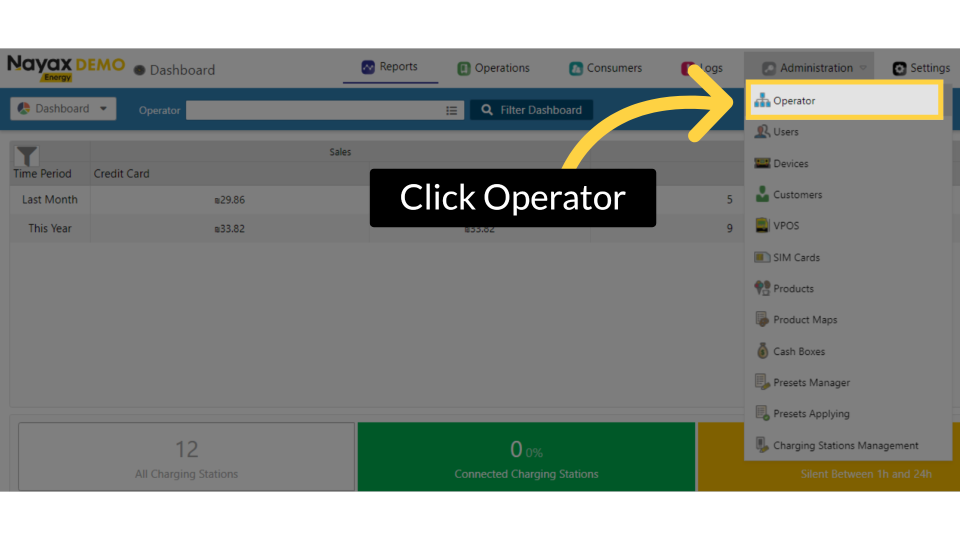
00:14: Click on the Operator tab from the drop-down menu.
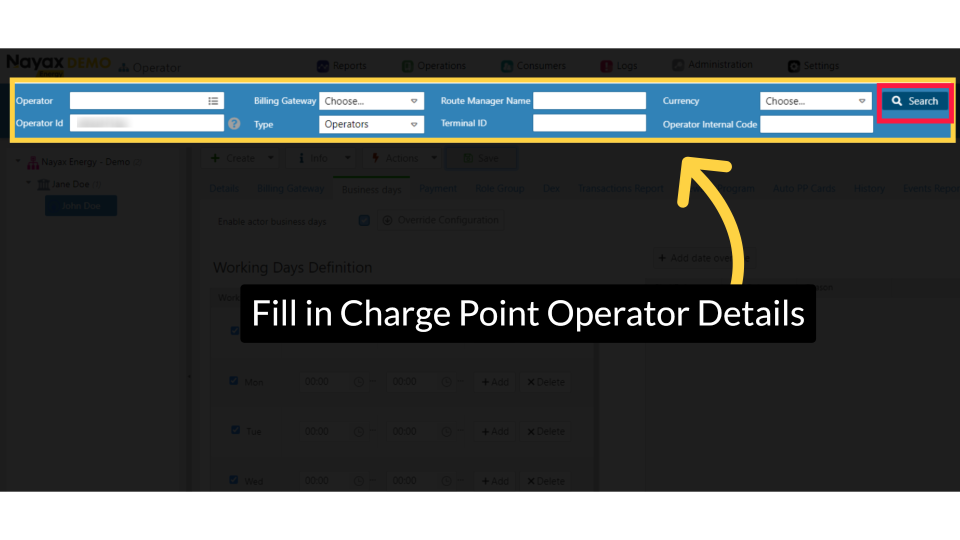
00:18: Type in your Charge Point Operator name and any other fields to locate your operator. Click the search button as highlighted.
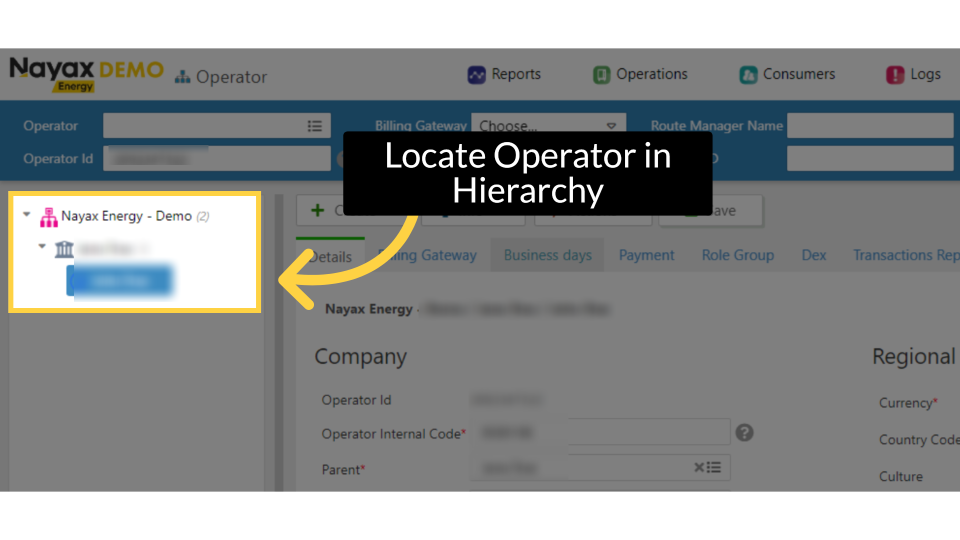
00:26: Locate and click on the Charging Point Operator from the hierarchy.
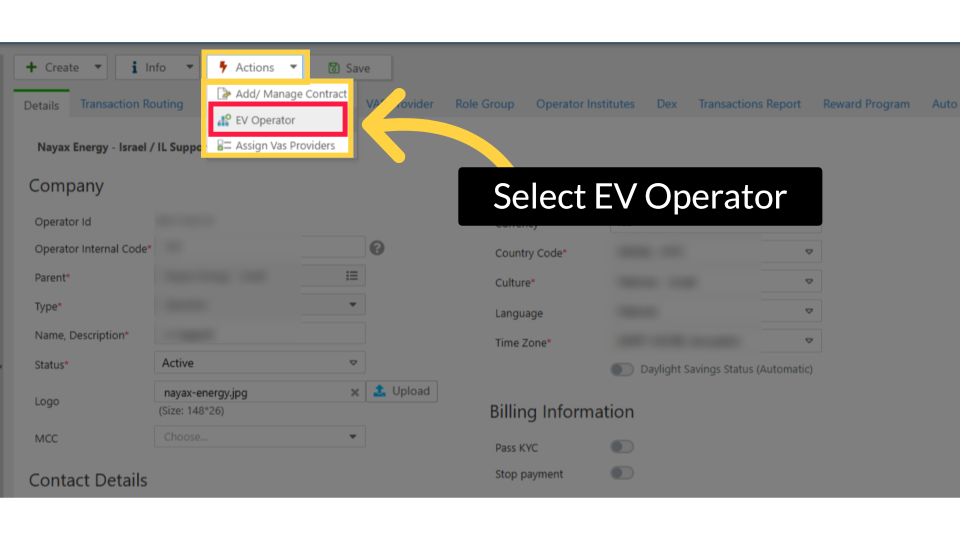
00:31: In the main General Operator section, click the Actions tab and then the EV Operator option from the drop-down menu.
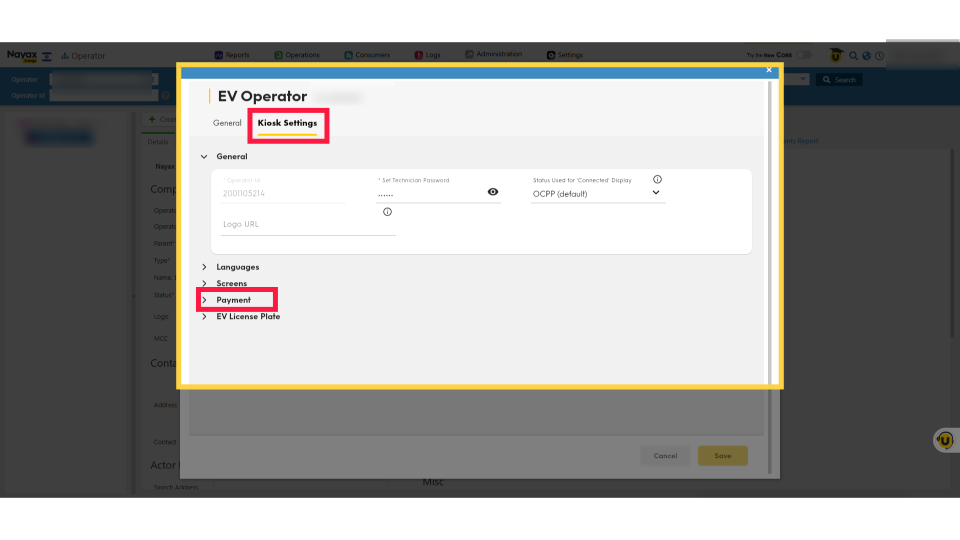
00:39: The EV Operator page will open. Select the Kiosk settings and click on the Payment tab to open.
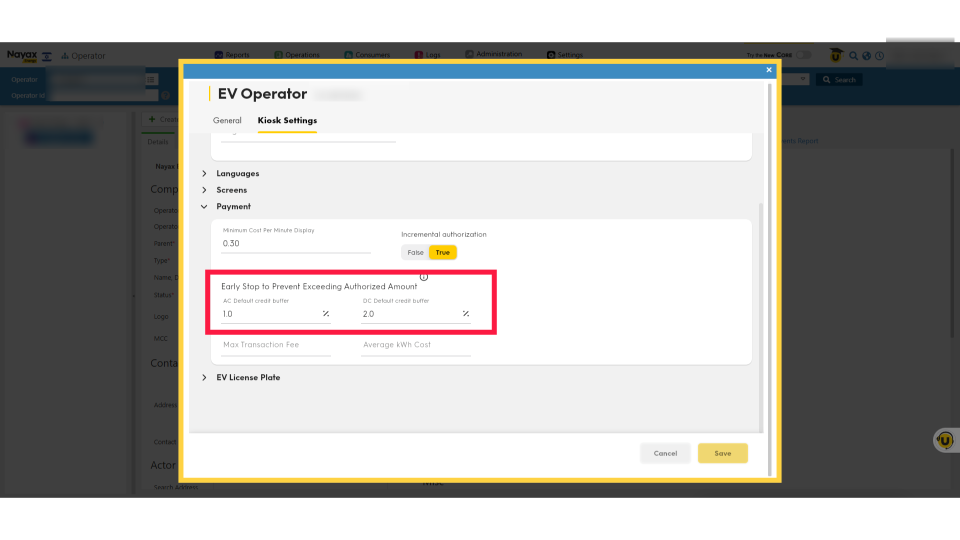
00:46: Click on the AC and DC fields to adjust the default credit buffer percentage. We recommend a default of 1% for AC and 2% for DC.
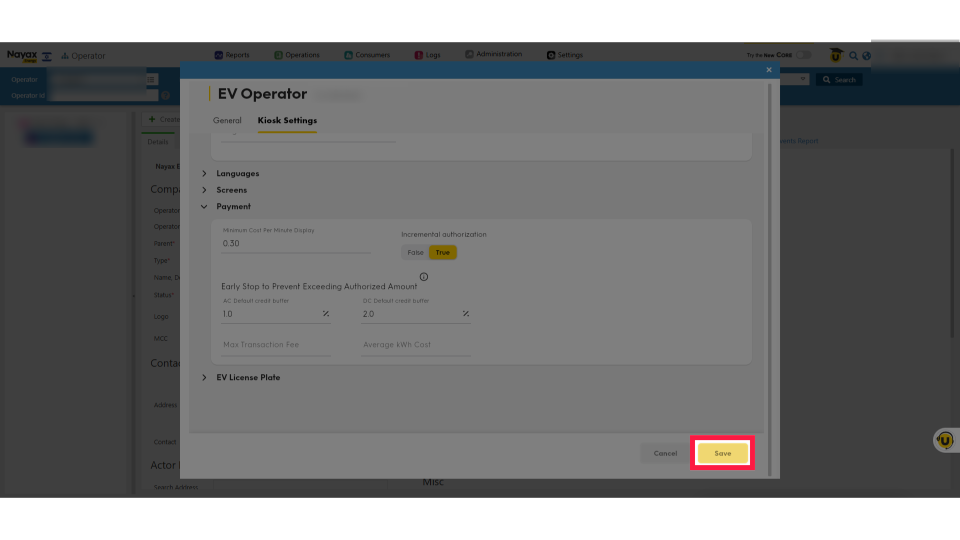
00:56: Click "Save" to apply your changes.
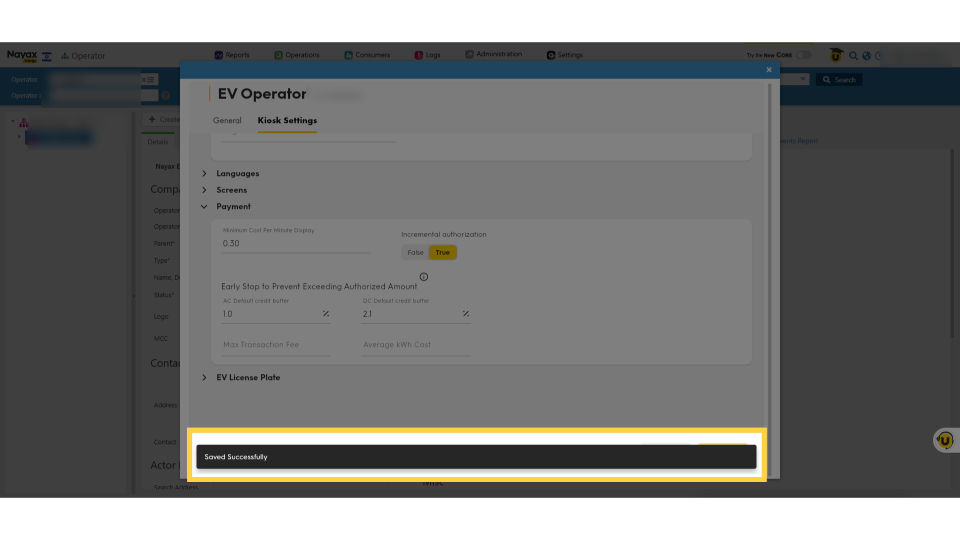
00:59: A successful save message will appear, confirming that your preferences have been saved.
Click Administration
Image AttachedOn the Dashboard of your Nayax Energy Core platform, click on the Administration tab.
Click Operator
Image AttachedClick on the Operator tab from the drop-down menu.
Fill in Charge Point Operator Details
Image AttachedType in your Charge Point Operator name and any other fields to locate your operator. Click the search button as highlighted.
Locate Charging Point in Hierarchy
Image AttachedLocate and click on the Charging Point Operator from the hierarchy.
Select EV Operator Option
Image AttachedIn the main General Operator section, click the Actions tab and then the EV Operator option from the drop-down menu.
Kiosk Settings
Image AttachedThe EV Operator page will open. Select the Kiosk settings and click on the Payment tab to open.
Add Percentage Buffer
Image AttachedClick on the AC and DC fields to adjust the default credit buffer percentage. We recommend a default of 1% for AC and 2% for DC.
Click Save
Image AttachedClick "Save" to apply your changes.
Saved Successfully
Image AttachedA successful save message will appear, confirming that your preferences have been saved.
Thank you!
Did you find this article helpful?