
How to Configure Idle Tariff Fees for EV Sessions | Administration
Discover how to set up an Idle Fee for EV charging sessions. These fees are applicable when vehicles remain connected after the charging session is complete.
Video Guide
00:01: Discover how to set up an Idle Fee for EV charging sessions. These fees are applicable when vehicles remain connected after the charging session is complete.
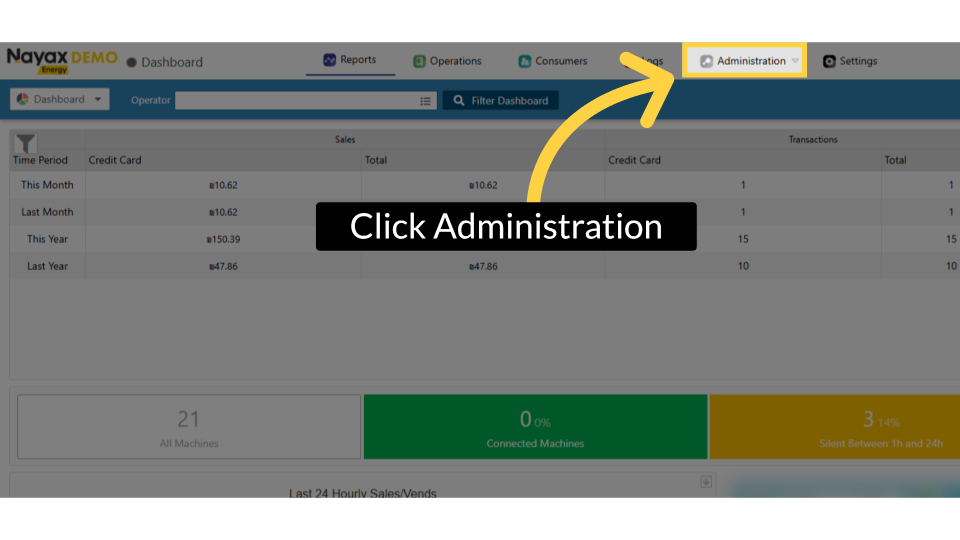
00:11: On the Dashboard of your Nayax Energy Core platform, click on the Administration tab.
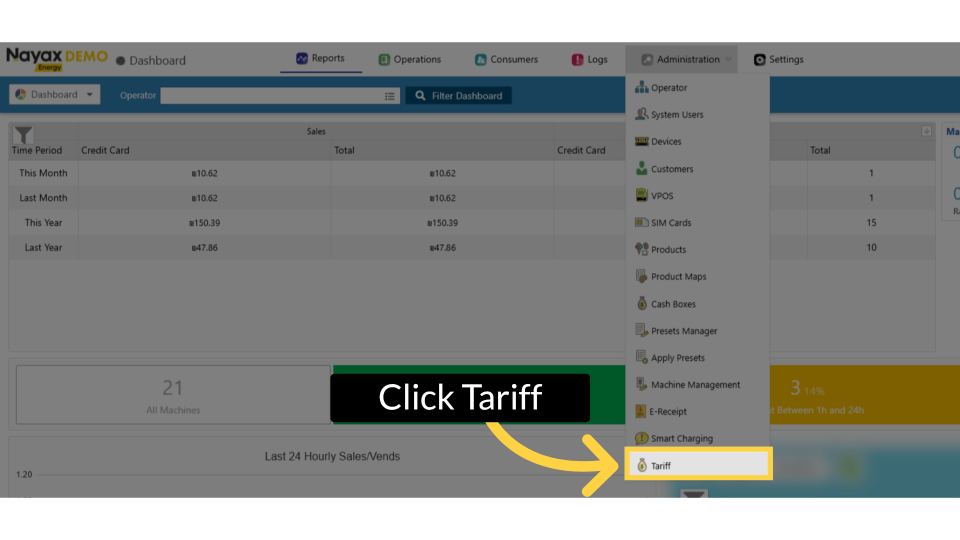
00:18: In the dropdown menu, locate and click on the Tariff tab.
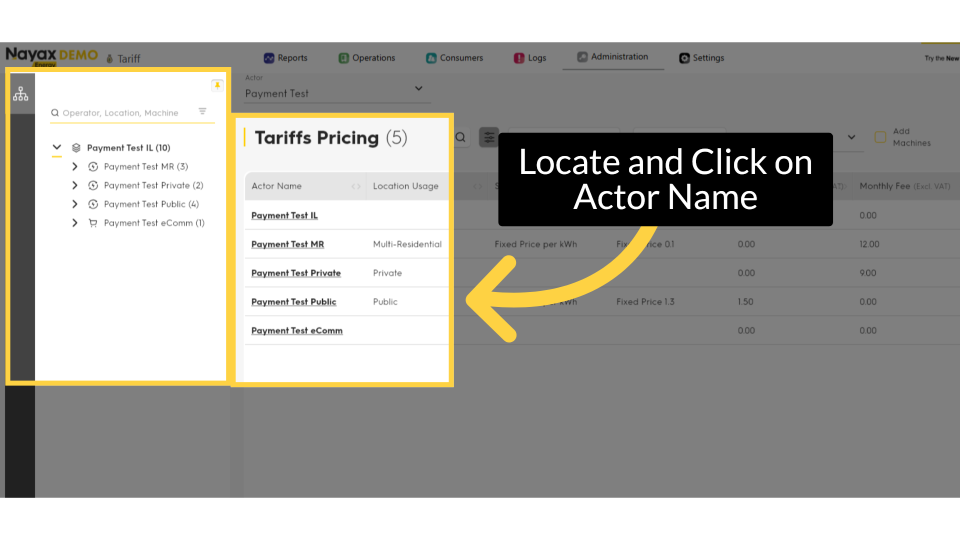
00:22: Find the Actor Name you want to configure tariffs for and click on it to proceed.
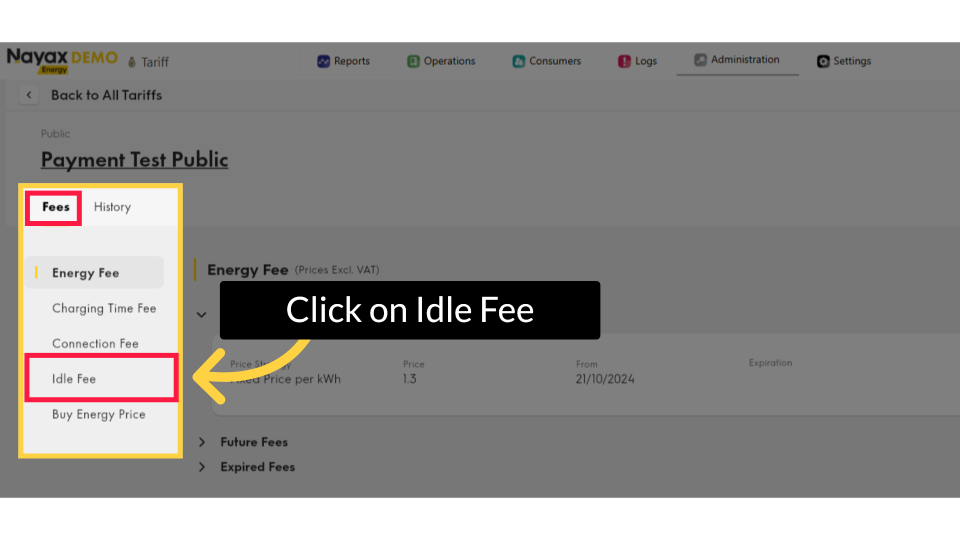
00:28: On the Machine Actors page, set Idle Fees from the Fees tab and click on "Idle Fee."
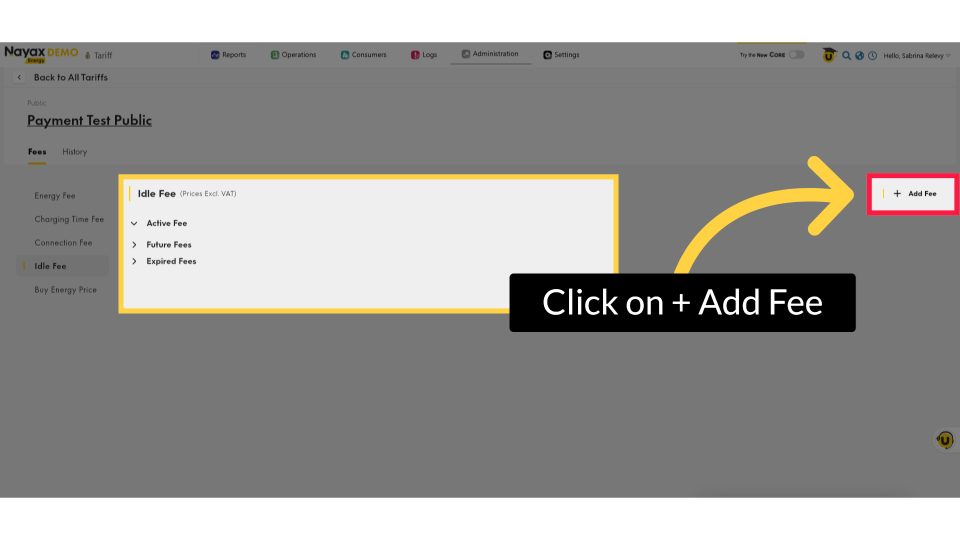
00:35: Click the "Add Fee" button, as highlighted.
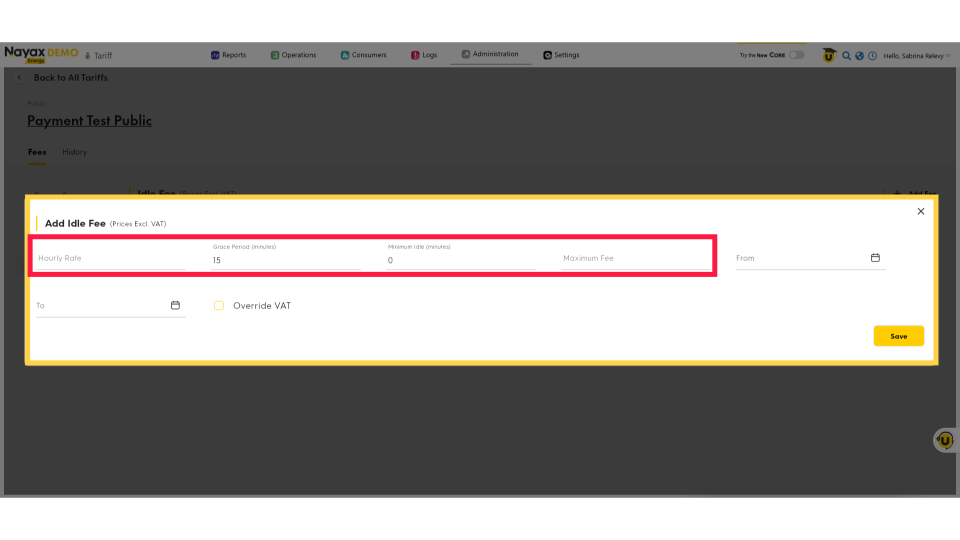
00:38: In the pop-up window, click on the hourly rate to set the idle hourly rate, specify the number of grace minutes, and define the maximum fee to be charged.
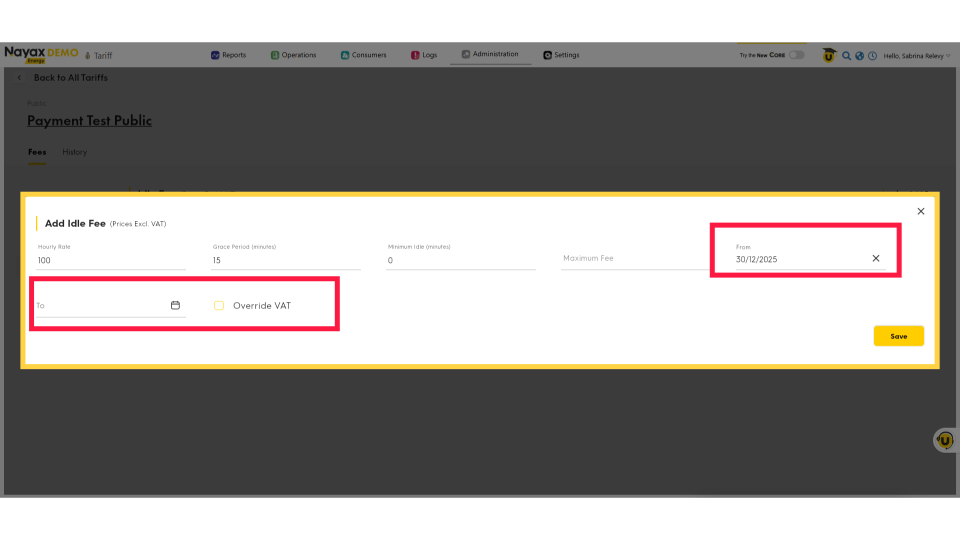
00:49: Define the start and end dates in advance for this fee to take effect. Additionally, you can opt to override VAT if you establish custom VAT rates at the tariff level for locations with specific tax regulations or billing situations.
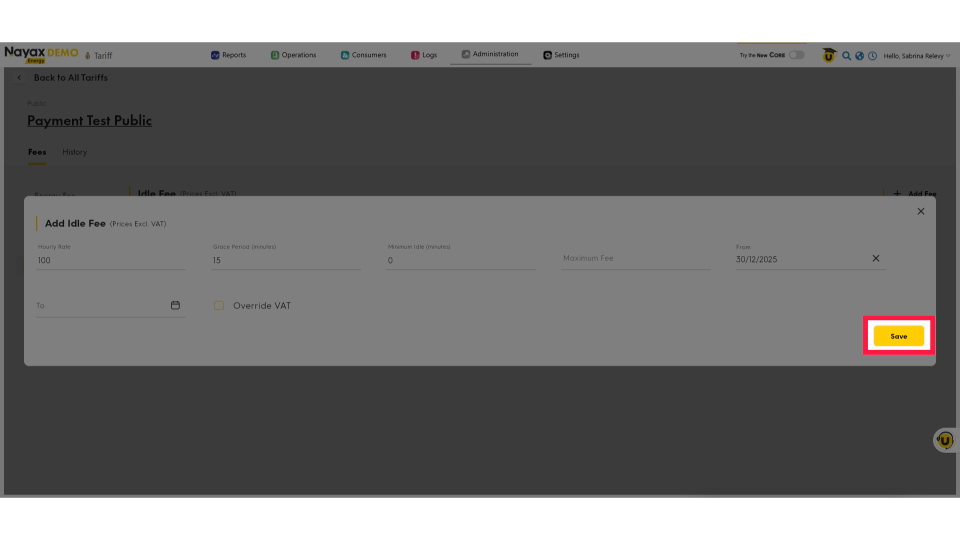
01:04: To continue, click the save button to save your progress!
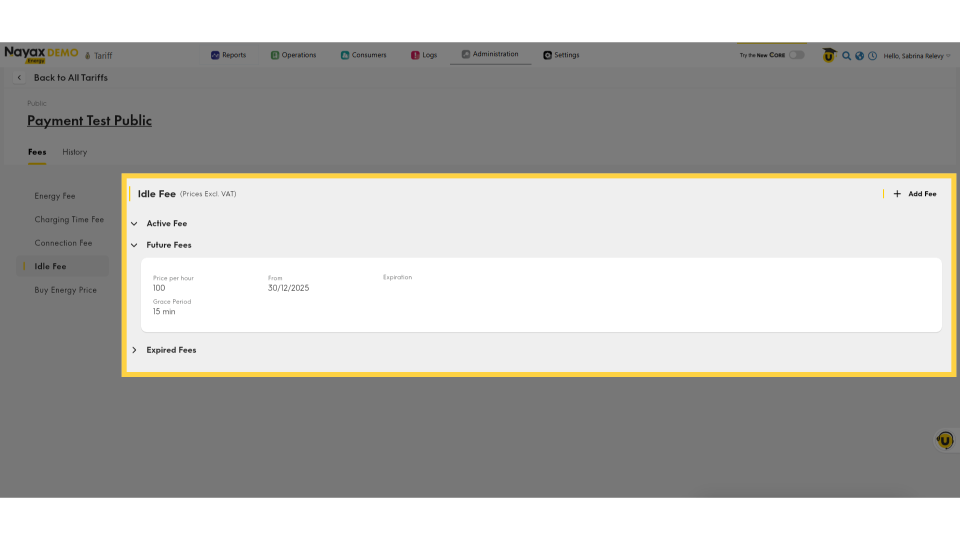
01:09: You will return to the main screen, where you’ll see that your idle fee has been added successfully.
Click Administration
Image AttachedOn the Dashboard of your Nayax Energy Core platform, click on the Administration tab.
Click Tariff
Image AttachedIn the dropdown menu, locate and click on the Tariff tab.
Locate and Click on Actor Name
Image AttachedFind the Actor Name you want to configure tariffs for and click on it to proceed.
Idle Fee
Image AttachedOn the Machine Actors page, set Idle Fees from the Fees tab and click on "Idle Fee."
Click + Add Fee
Image AttachedClick the "Add Fee" button, as highlighted.
Set Idle Fee
Image AttachedIn the pop-up window, click on the hourly rate field to set your idle fee. Enter the number of grace minutes permitted before charging commences, and specify a maximum fee cap for the session.
Please note that once the grace period ends, the idle fee will be calculated and charged on a pro-rata basis, according to the hourly rate.
Set Start Date
Image AttachedDefine the start and end dates in advance for this fee to take effect. Additionally, you can opt to override VAT if you establish custom VAT rates at the tariff level for locations with specific tax regulations or billing situations.
Click Save
Image AttachedTo continue, click the save button to save your progress!
Idle Fee Set
Image AttachedYou will return to the main screen, where you’ll see that your idle fee has been added successfully.
Thank you!
Did you find this article helpful?