
How to Configure Individual Charging Station Tariffs | Administration
Managing charging tariffs effectively is crucial for any EV charging operation. This guide will show you how to configure individual charging station rates in Nayax Energy Core.
Video Guide
00:01: Learn how to set pricing for individual chargers, rather than just at a single location. Tailor rates by charging station in Nayax Energy Core.
00:11: On the Dashboard of your Nayax Energy Core platform, click on the Administration tab.
00:17: In the dropdown menu, locate and click on the Tariff tab.
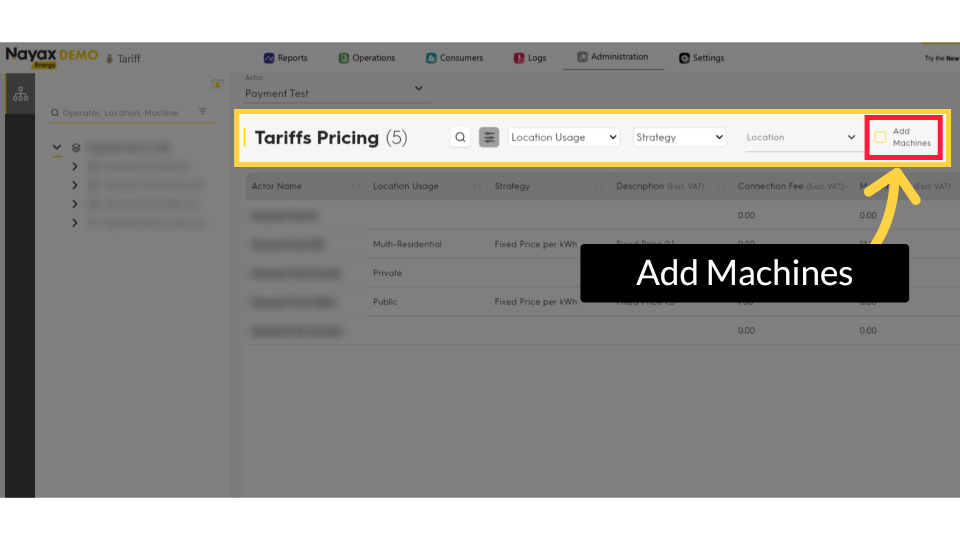
00:22: The Actors page will open at Tariff Pricing. To add tariffs for an individual machine, click on the 'Add machines' checkbox, as highlighted, to view individual charging stations.
00:34: Locate the machine you wish to configure tariffs for, and click on it to proceed. The highlighted lines indicate the configured and active charging stations.
00:44: On the Machine Tariff page, to set the charging station fees, click on the "Add Fee" tab as highlighted.
00:51: In the pop-up window: Click on Price Strategy to view available fee options, then select Fixed Price from the menu as highlighted in RED.
01:00: Enter the cost per kW (excluding VAT) in the designated field and set the date range for it to go active, as highlighted.
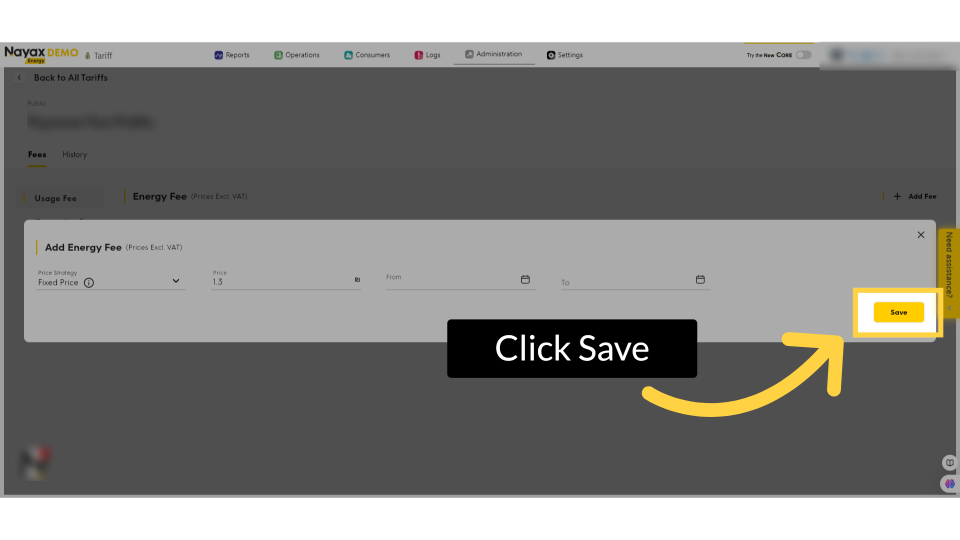
01:09: Click save, the changes made.
00:00: This guide will help you set up and configure charging tariffs for your charging station within Nayax Energy Core.
00:08: On the Dashboard of your Nayax Energy Core platform, click on the Administration tab.
00:14: In the dropdown menu, locate and click on the Tariff tab.
00:19: Find the Actor Name you want to configure tariffs for and click on it to proceed.
00:25: On the Machine Actors page, to set the charging session fees, click on "Add Fee" tab as highlighted.
00:31: In the pop-up window: Click on Price Strategy to view available options, then select Fixed Price from the menu as highlighted in RED.
00:39: Enter the cost per kW (excluding VAT) in the designated field, highlighted in red.
00:45: Click save, the changes made.
00:47: To add a connection fee, follow the same process and click on the Add Fee button as highlighted in RED.
00:53: A window will pop up and here you can set your connection fee by filling
00:57: the field with the amount you want to set.
01:02: Click on the save button to save your progress.
Click Administration
Image Attached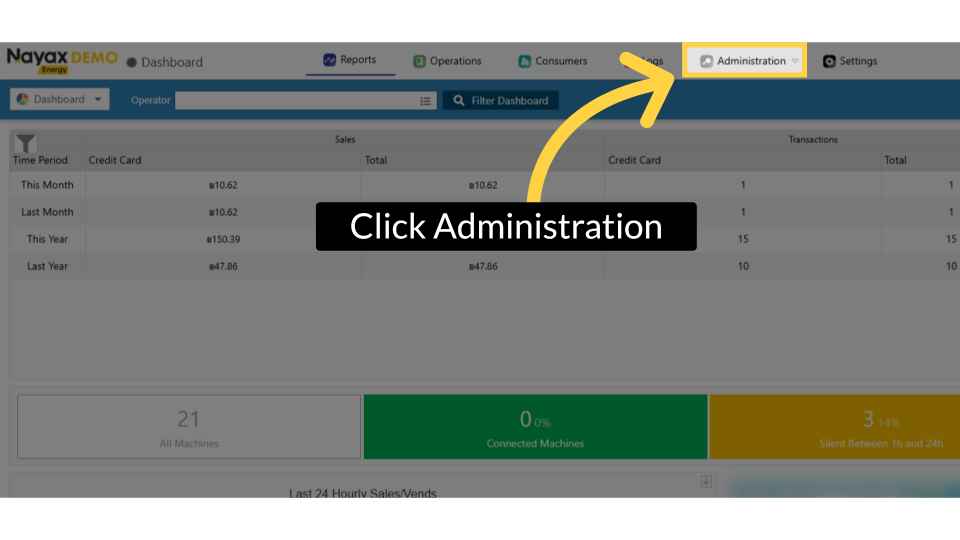
Click Tariff
Image Attached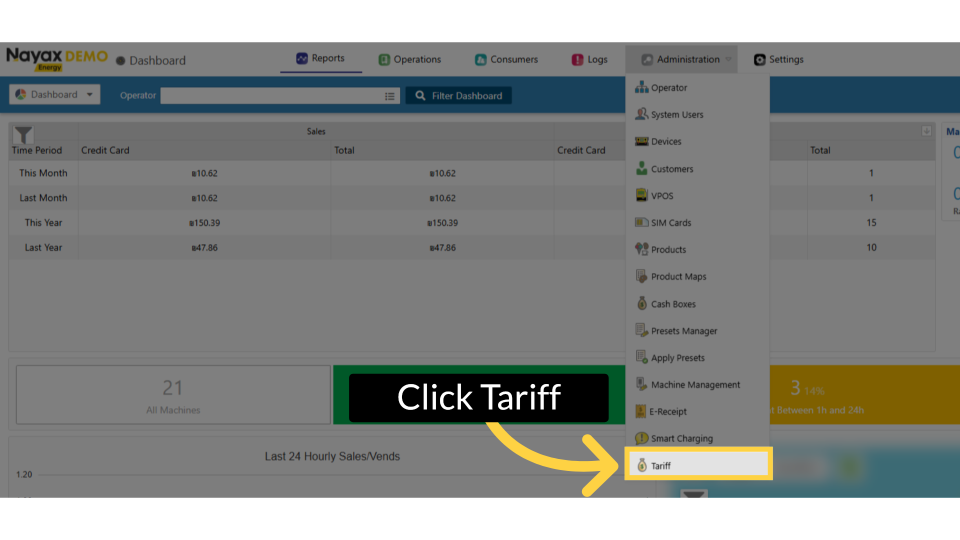
Add Machines
Image AttachedThe Actors page will open at Tariff Pricing. To add tariffs for an individual machine, click on the 'Add machines' checkbox, as highlighted, to view individual charging stations.
Locate and Click on Actor Name
Image Attached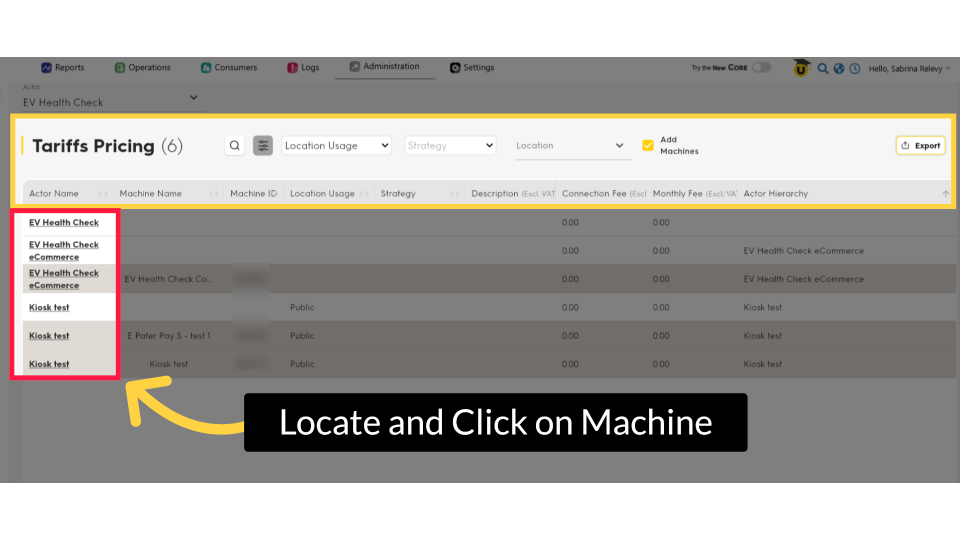
Click + Add Fee
Image Attached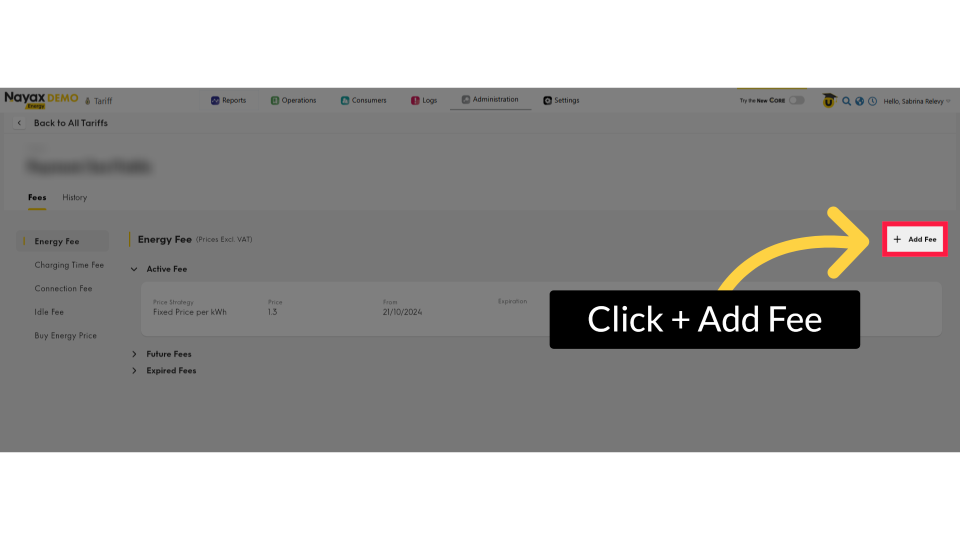
Set Tariff
Image Attached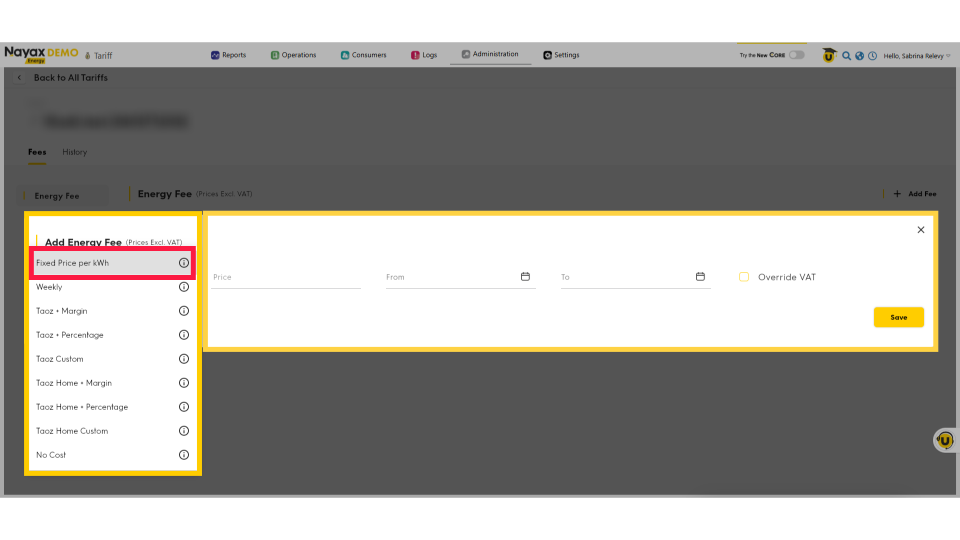
Set Price and Activation Date
Image Attached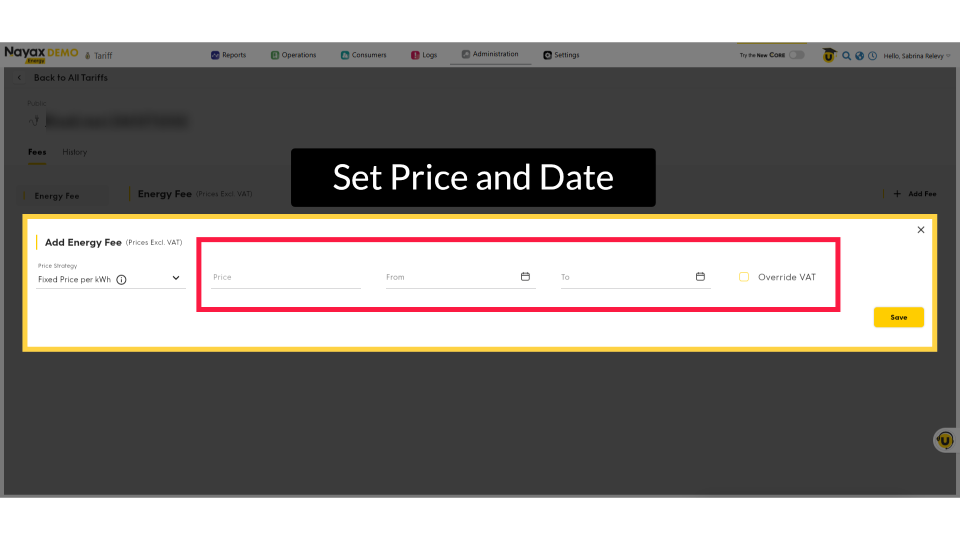
Click Save
Image AttachedClick save the changes made.
Thank you!
Did you find this article helpful?