
How to Change Card Credit & View Card Credit History for Prepaid | Consumers
The Card Credit History tab acts as the prepaid card ledger, showing all credit-related transactions since the card was created and allowing you to add, subtract, or manage card and revalue credit.
Video Guide: How to Change Card Credit & View Card Credit History for Prepaid | Consumers
00:00: Learn how to set the Card Credit History to track prepaid card transactions and
00:04: manage card or revalue credit in Nayax Core.
00:07: From the Nayax Classic Core dashboard, click on the Consumers tab, then select
00:11: Card Management from the dropdown.
00:14: To find your operator, enter the Operator name, Card UID, and the relevant fields. Then, click the search button.
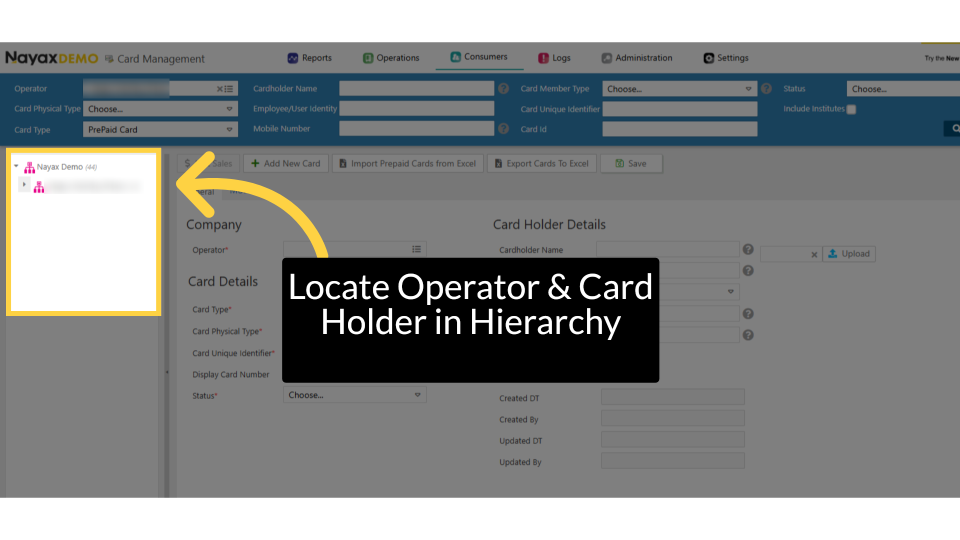
00:21: Locate and click on the operator and card details within the hierarchy.
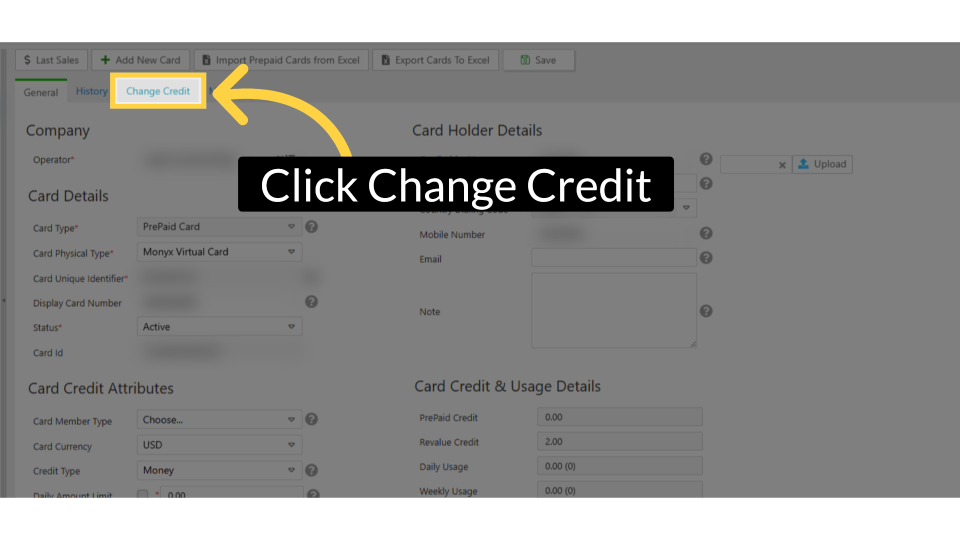
00:26: Click "Change Credit" to begin modifying credit details for a card.
00:30: Enter the amount in the Additional Credit field and add a note in the Remarks field.
00:34: The Remarks field is mandatory and must be completed before saving.
00:40: Enter the amount in the Additional Revalue Credit field and add a note in the
00:43: Remarks field.
00:44: The Remarks field is mandatory and must be completed before saving.
00:49: When the Revalue Credit field is not visible,
00:51: open the General page and scroll to the Cash Revalue and Credit Card Revalue
00:56: options.
00:57: Make sure the machine supports this feature. For additional information on these
01:01: revalue options,
01:02: click the "learn more" link to be redirected to the Nayax U article.
01:07: Click Change Credit to save these settings.
01:10: Under Credit History, use the checkbox to toggle vend data: Unchecked: view the card’s
01:16: credit history
01:16: without vends Checked: view the card’s credit history including vends
01:21: Don't forget to save the changes.
Click Card Management
Image Attached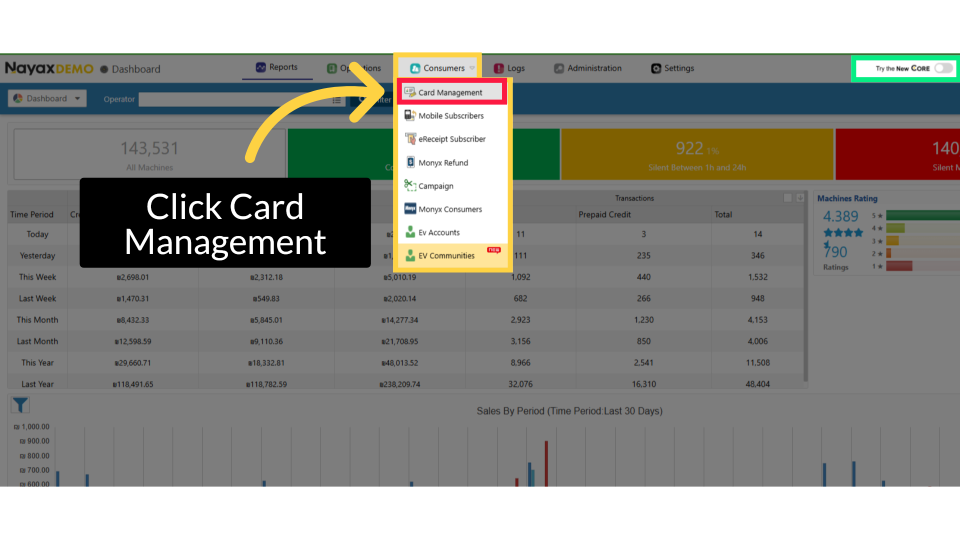
Fill Operator & Card Holder Details
Image Attached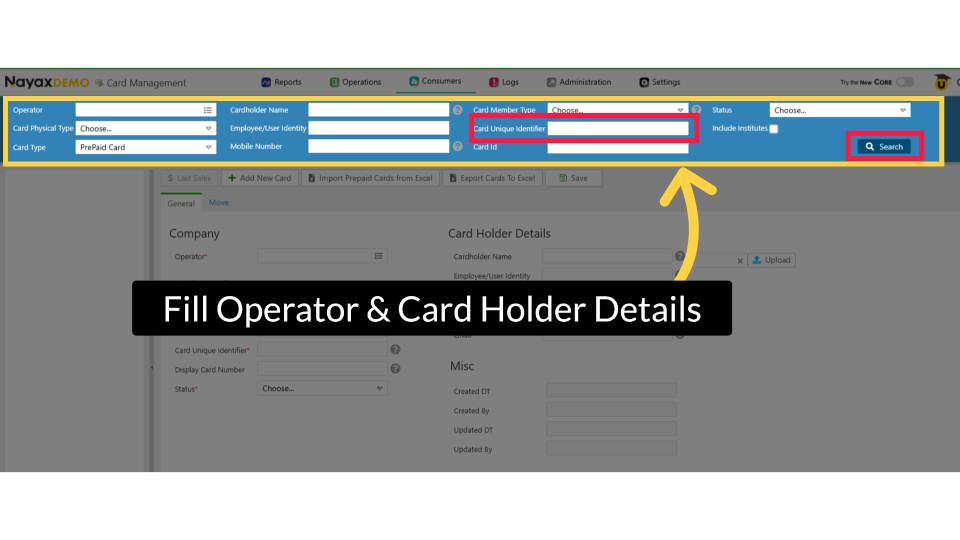
Locate Operator & Card Holder in Hierarchy
Image AttachedLocate and click on the operator and card details within the hierarchy.
Change Credit Tab
Image AttachedClick "Change Credit" to begin modifying credit details for a card.
Thank you!
Did you find this article helpful?