
How to Add a Machine Picture | Operations
Add a picture to your machine in Nayax Core to help consumers recognize it on the Monyx Wallet app and make it easier to identify across your fleet.
Prerequisites
📋
Before you start: Make sure your machine is already created and active in Nayax Core, and that you have an image file ready to upload. See the image requirements below.
Video Guide
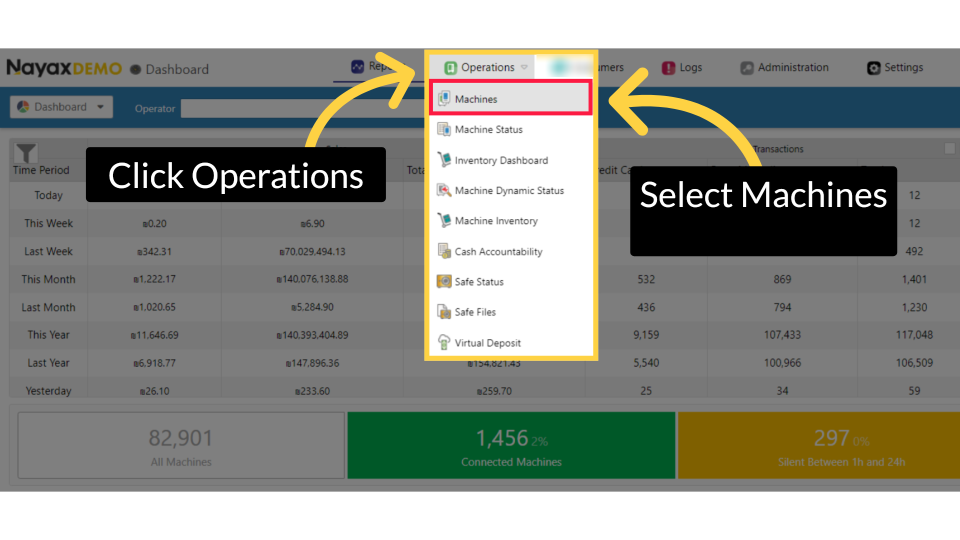
Click Operations
Image AttachedOn your Nayax Core dashboard, click the Operations tab in the top navigation. From the dropdown menu, select Machines.
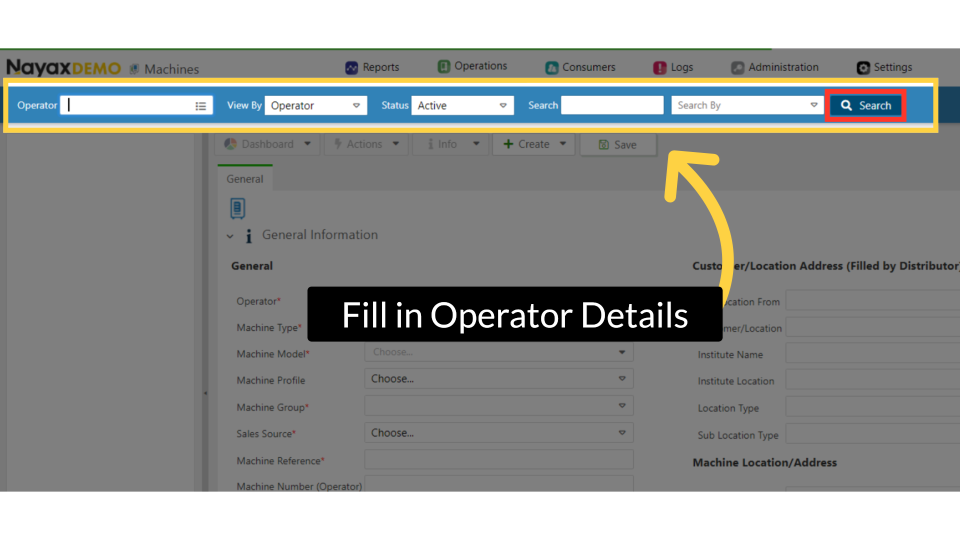
Fill in Operator Details
Image Attached
Type your operator name in the search field and fill in any additional filter fields to narrow down the results. Click the Search button to load your machine list.
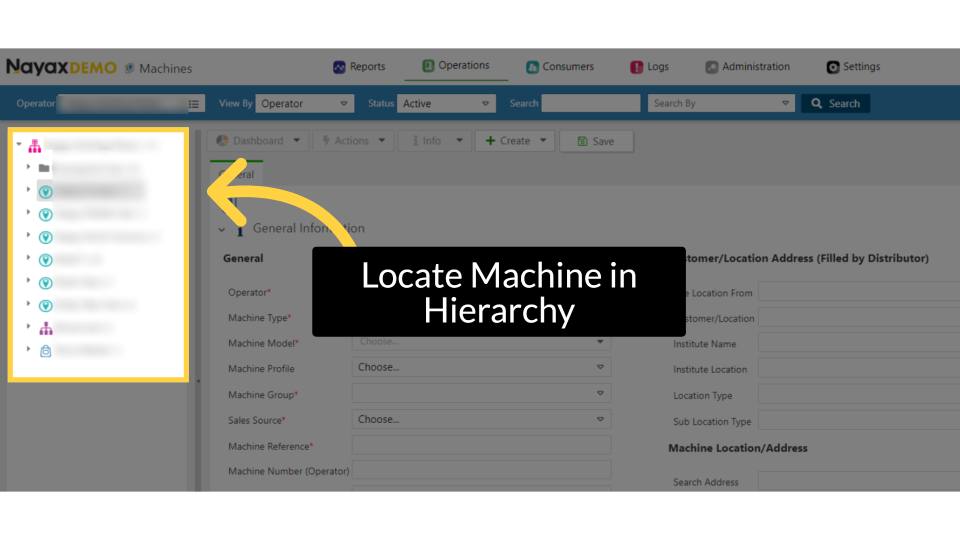
Locate Machine in Hierarchy
Image AttachedIn the hierarchy panel on the left, locate and click on the machine you want to update.
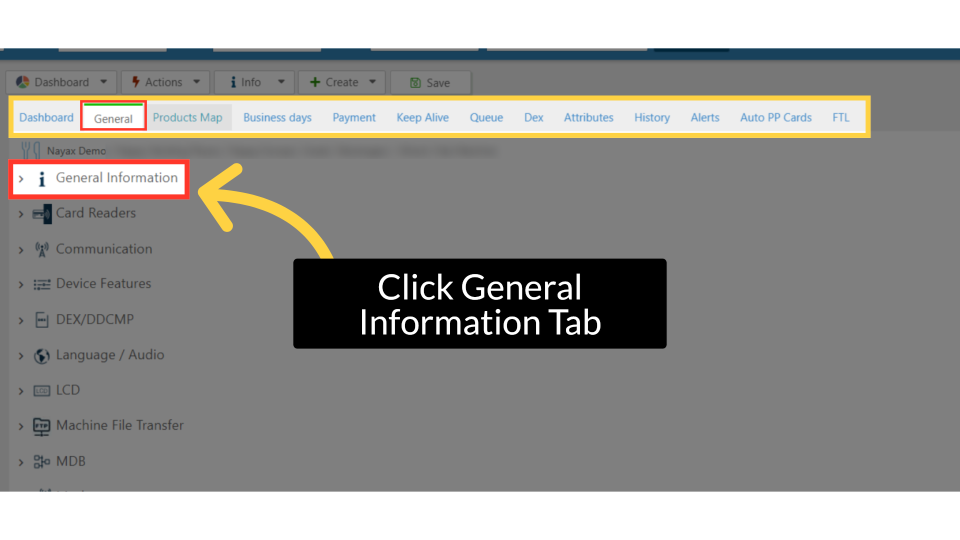
Click General Information Tab
Image AttachedOn the machine record page, click on the General Information tab to expand it.
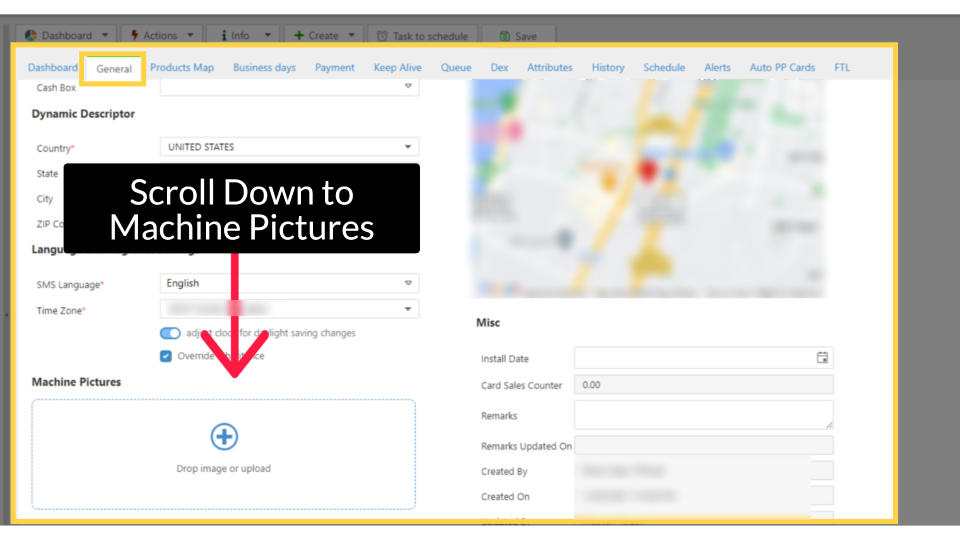
Scroll Down to Machine Pictures
Image AttachedScroll down to the Machine Pictures section.
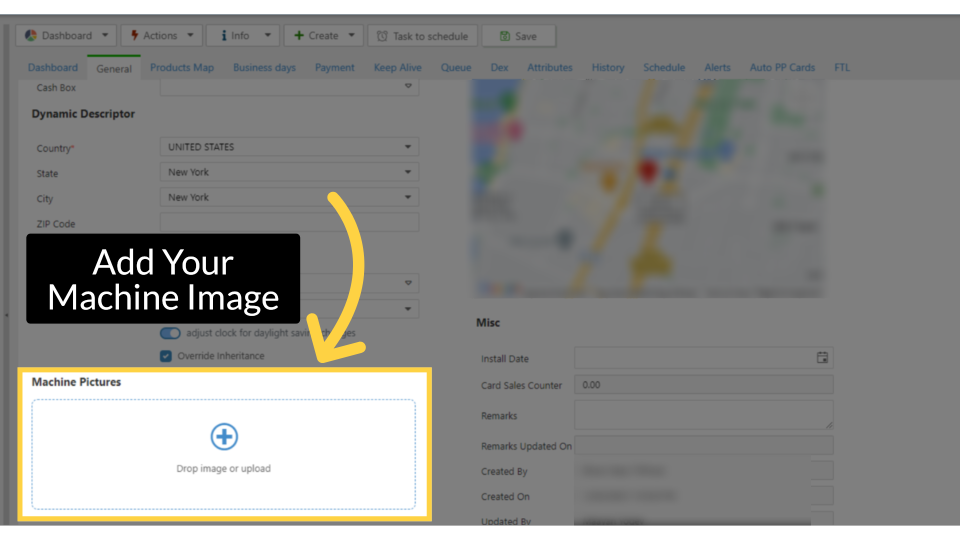
Add Your Machine Image
Image Attached
⚠️
Image requirements: Use the specifications below to avoid upload errors. Uploading the wrong format or an oversized file will prevent the image from saving.
| Specification | Requirement |
|---|---|
| File format | JPG PNG GIF |
| Recommended dimensions | 800 × 600 px or equivalent 4:3 ratio |
| Aspect ratio | 4:3 recommended for best display |
| Best practice | Use a clear, well-lit photo of the actual machine |
📸
Image tip: A clear, front-facing photo of the physical machine works best. This helps consumers spot it in the real world and gives your operators a reliable visual reference in the dashboard.
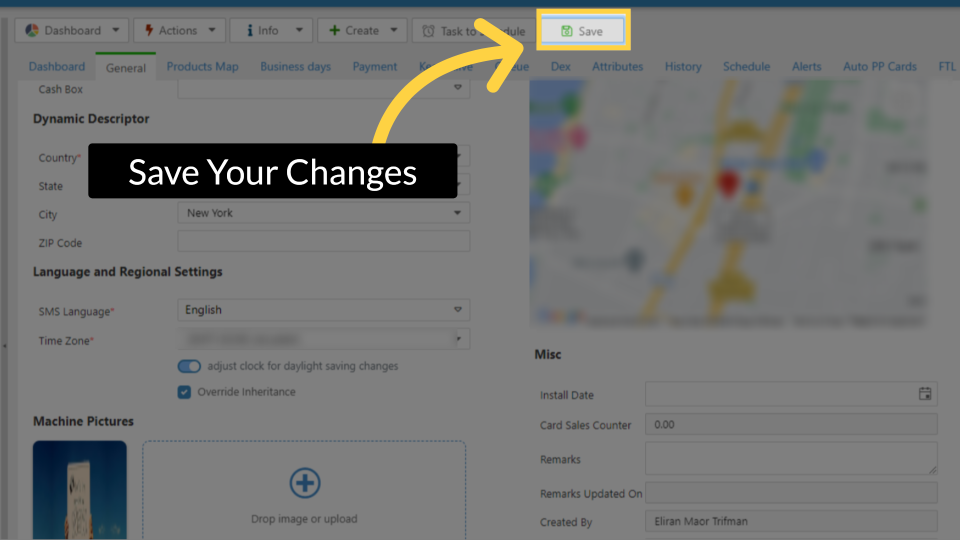
Save Your Changes
Image AttachedClick the Save button in the top action bar. Your machine picture is now saved.
Success: Once saved, your image will appear in the Machine Pictures section of the General Information tab. It will also become visible to consumers on the Monyx Wallet app and to you on the MoMa app.
Thank you!
Did you find this article helpful?