
How to Setup and Link Complimentary Products | Catalog
Various companies offer complimentary items with a purchase, like the case that comes with purchasing glasses. This guide explains how to configure and link a complimentary item in your catalog to help your manage stock.
Video Guide
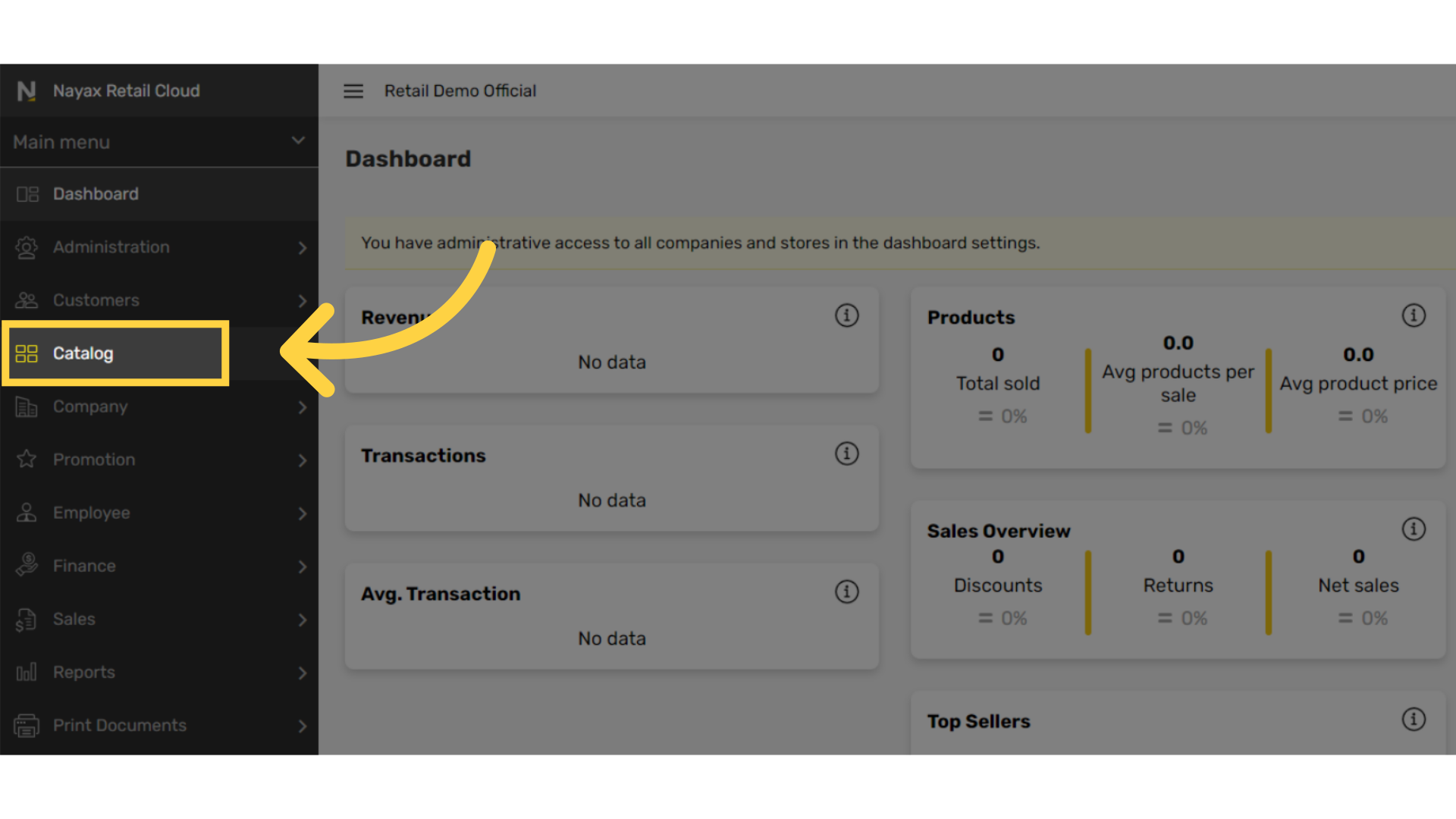
Click Catalog Tab
Image AttachedOn the dashboard of your Retail Core management suite click the Catalog tab from the side menu.
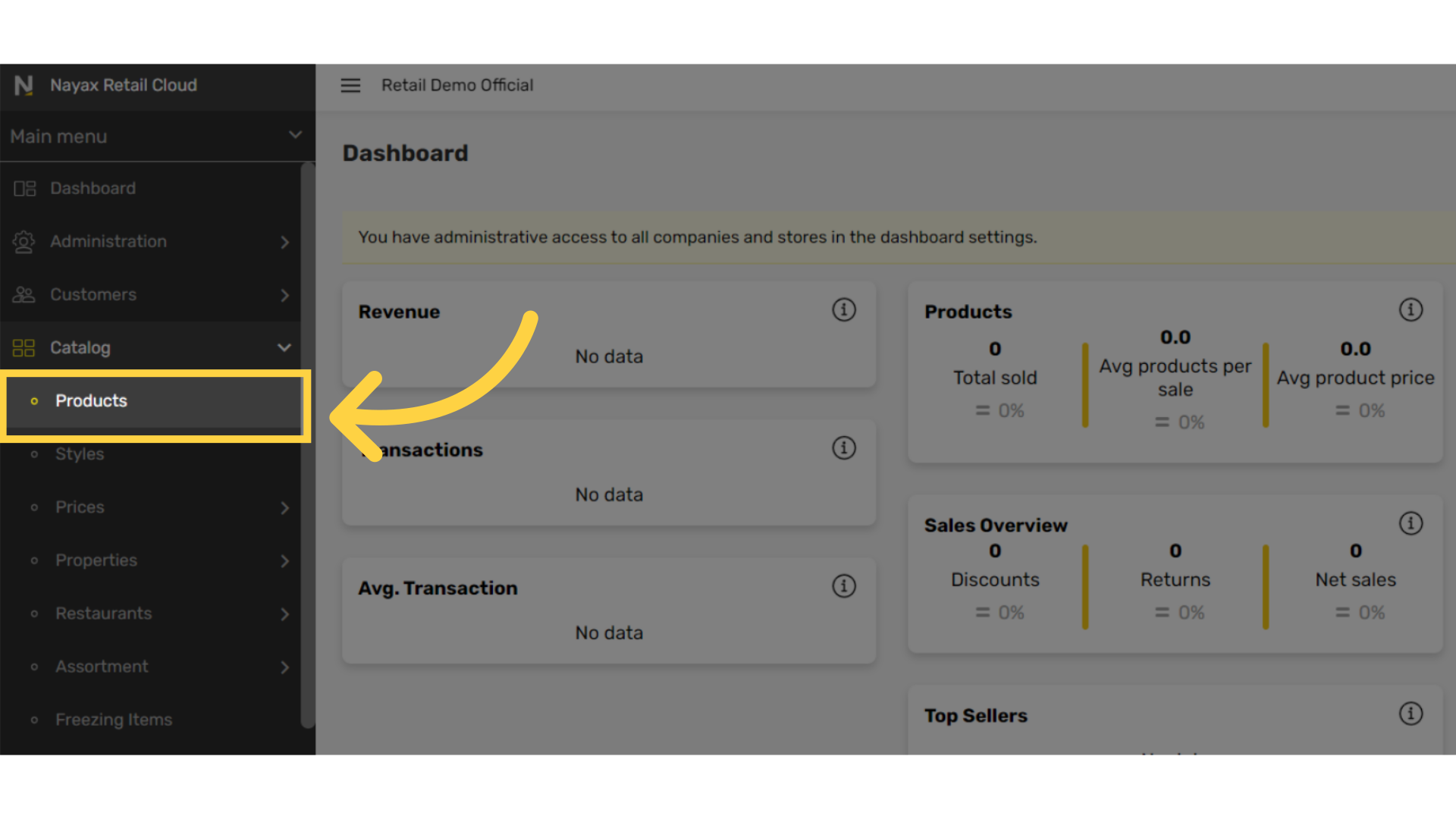
Click Products Tab
Image AttachedIn the sub-menu, click the products tab.
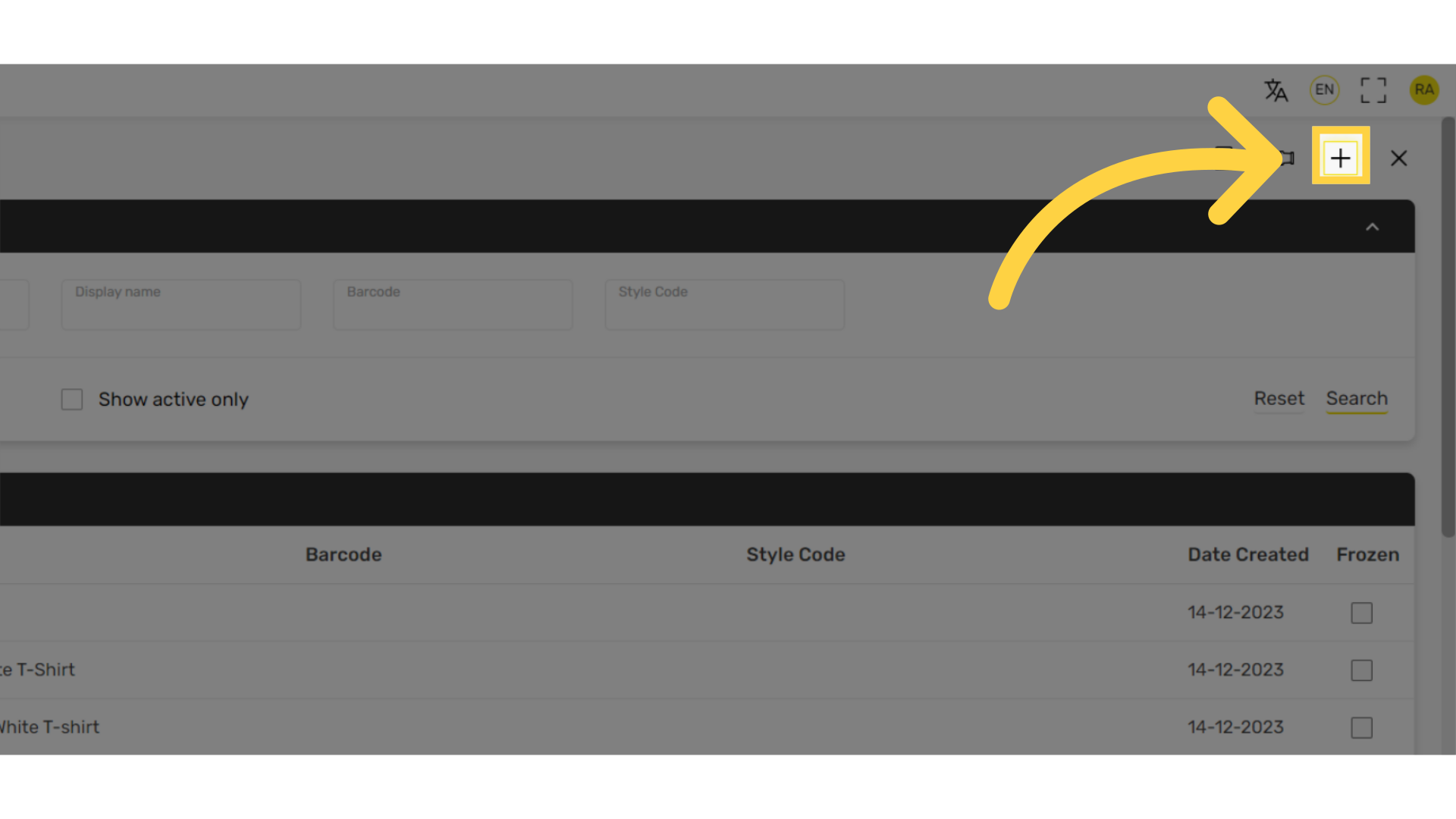
Click + Icon
Image AttachedClick + icon on the top right of the screen.
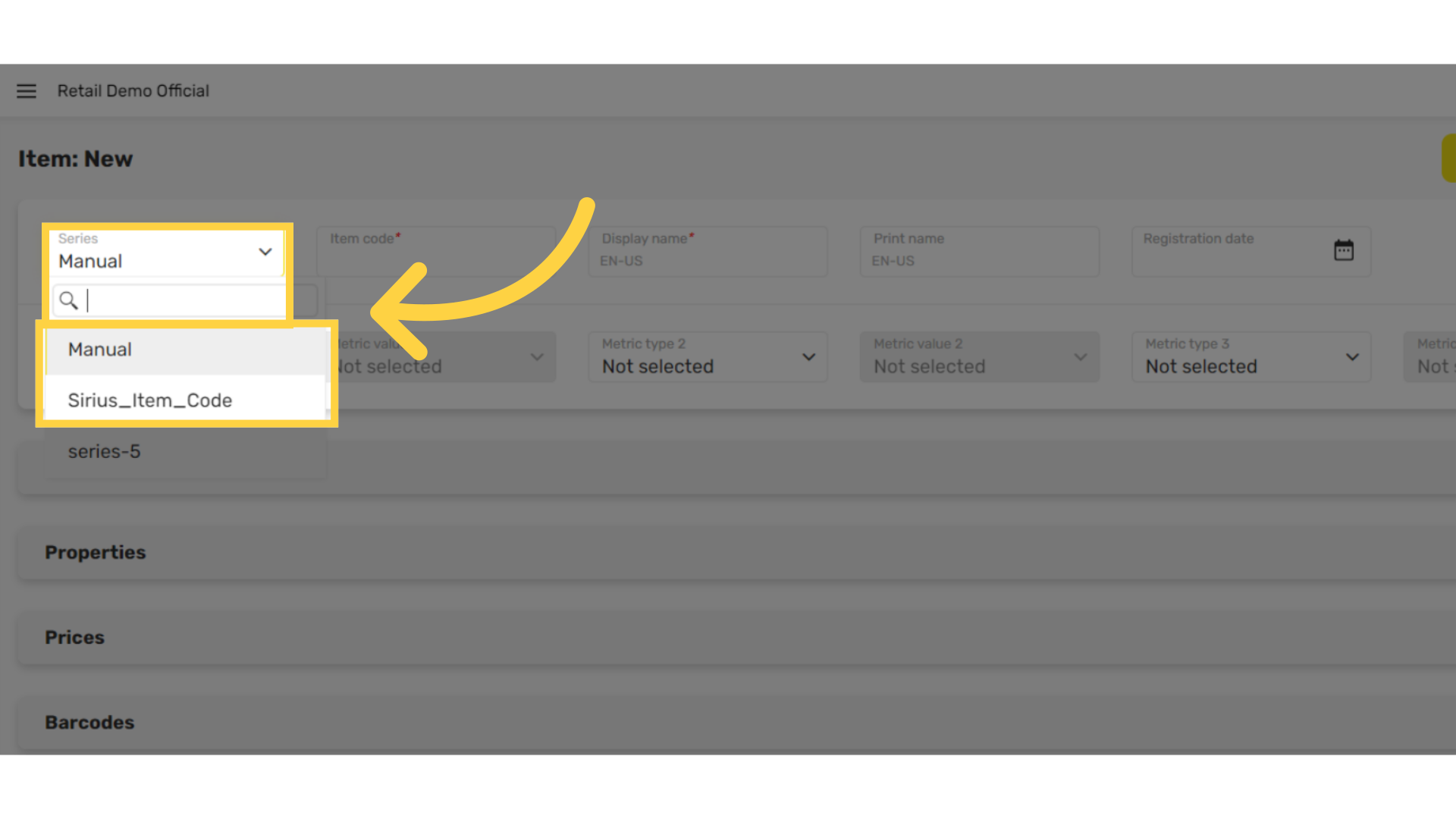
Select Series
Image AttachedSelect a number series.
Manual - Choose Item codes manually
Sirius - Allocates the Item codes automatically
Sirius - Allocates the Item codes automatically
Fill in the following fields:
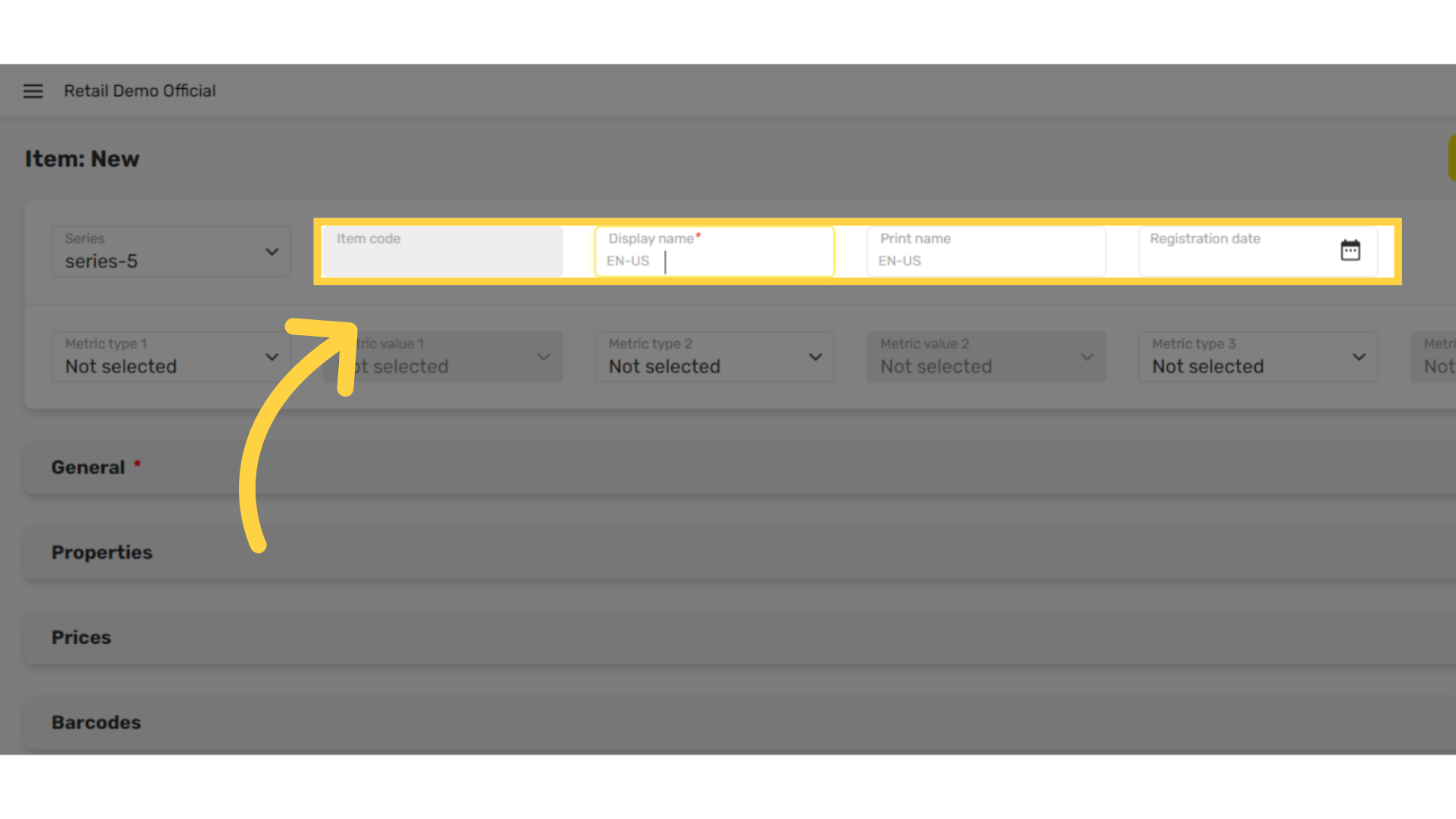
Image AttachedEnter product item code and display name for this item then click on the calendar icon to set the date.
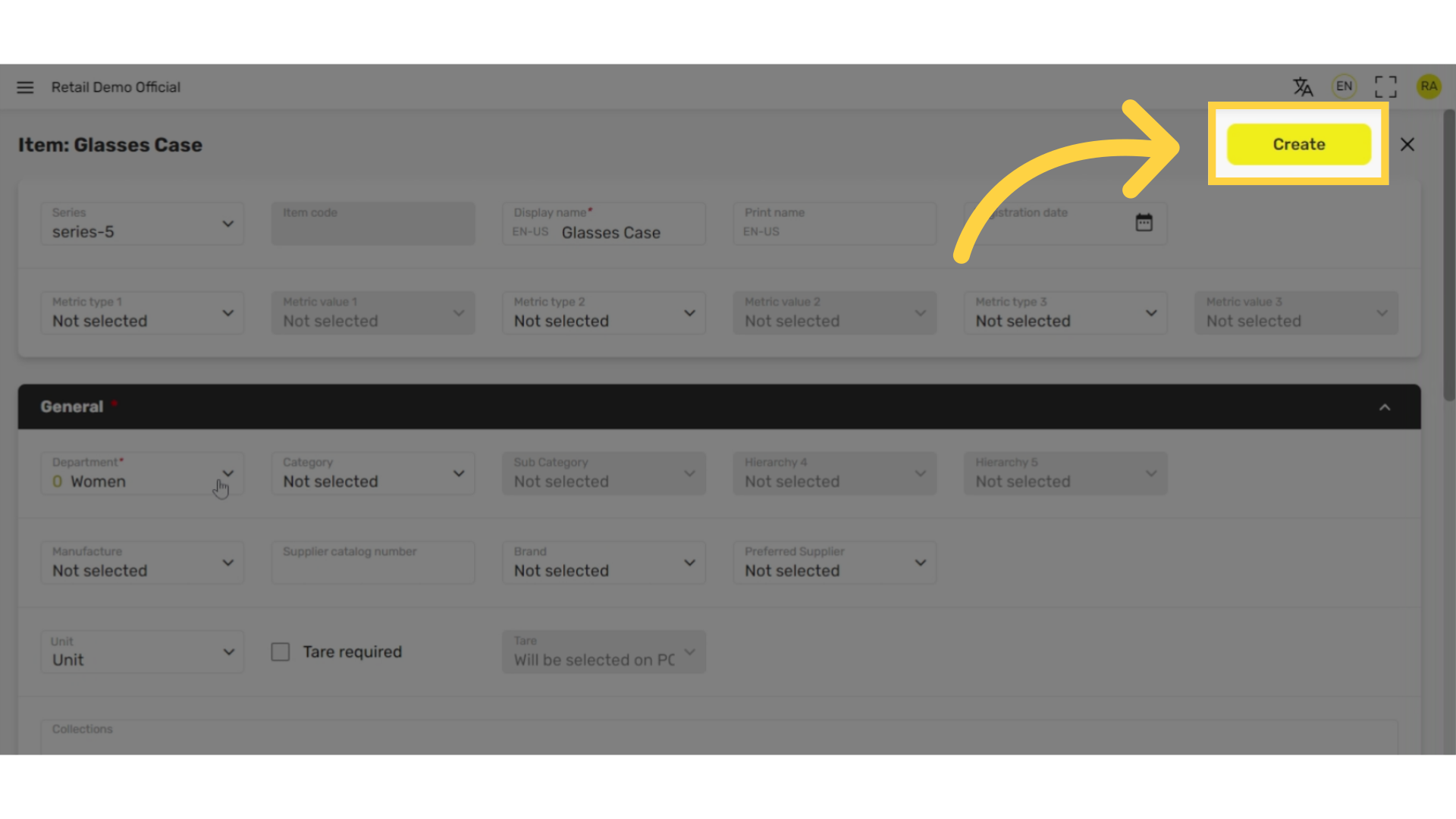
Tap Create
Image AttachedTap Create button at the top of the screen.
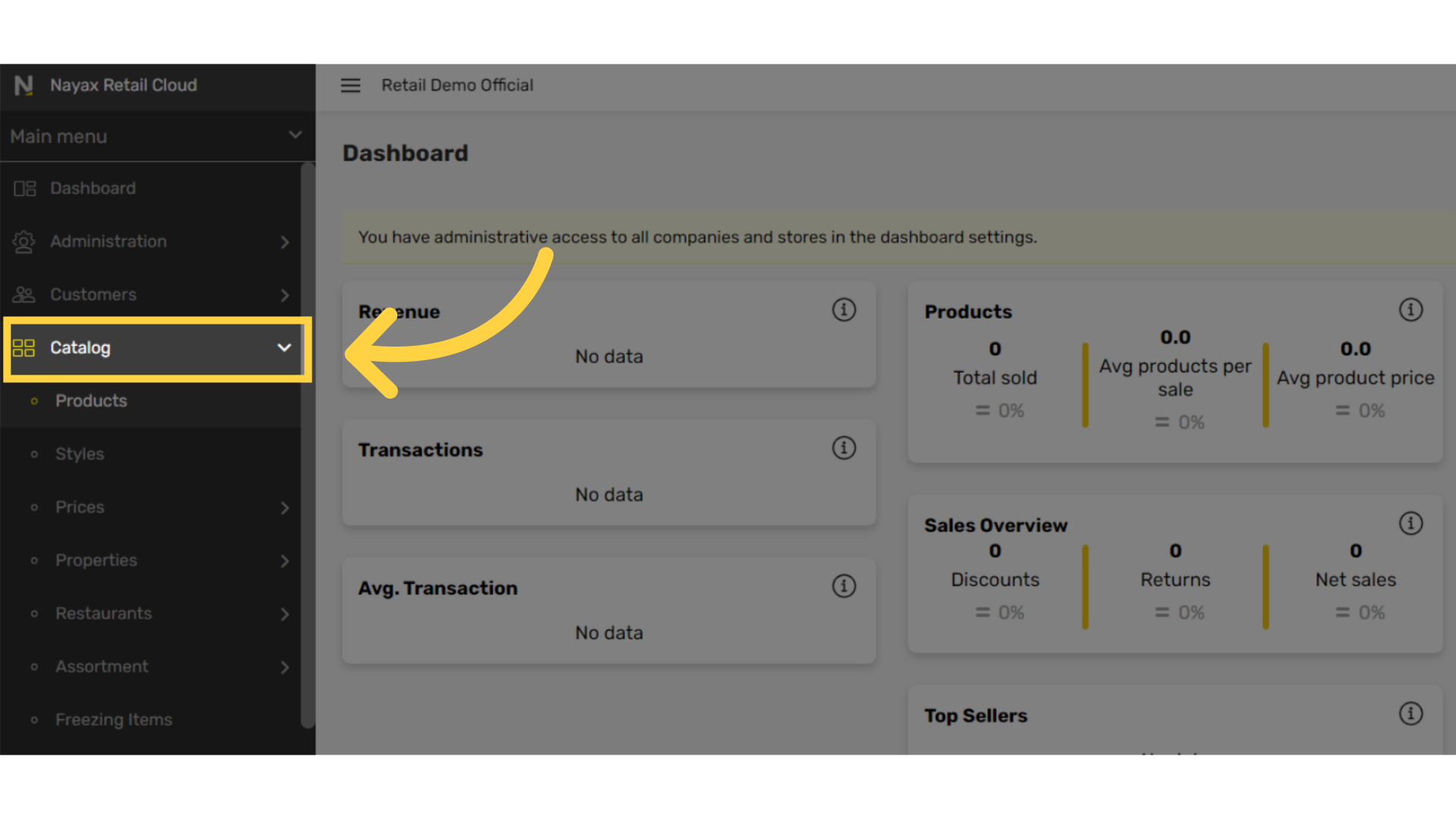
Click Catalog Tab
Image AttachedTo link the complimentary item to the product, click on the Catalog tab from the side menu.
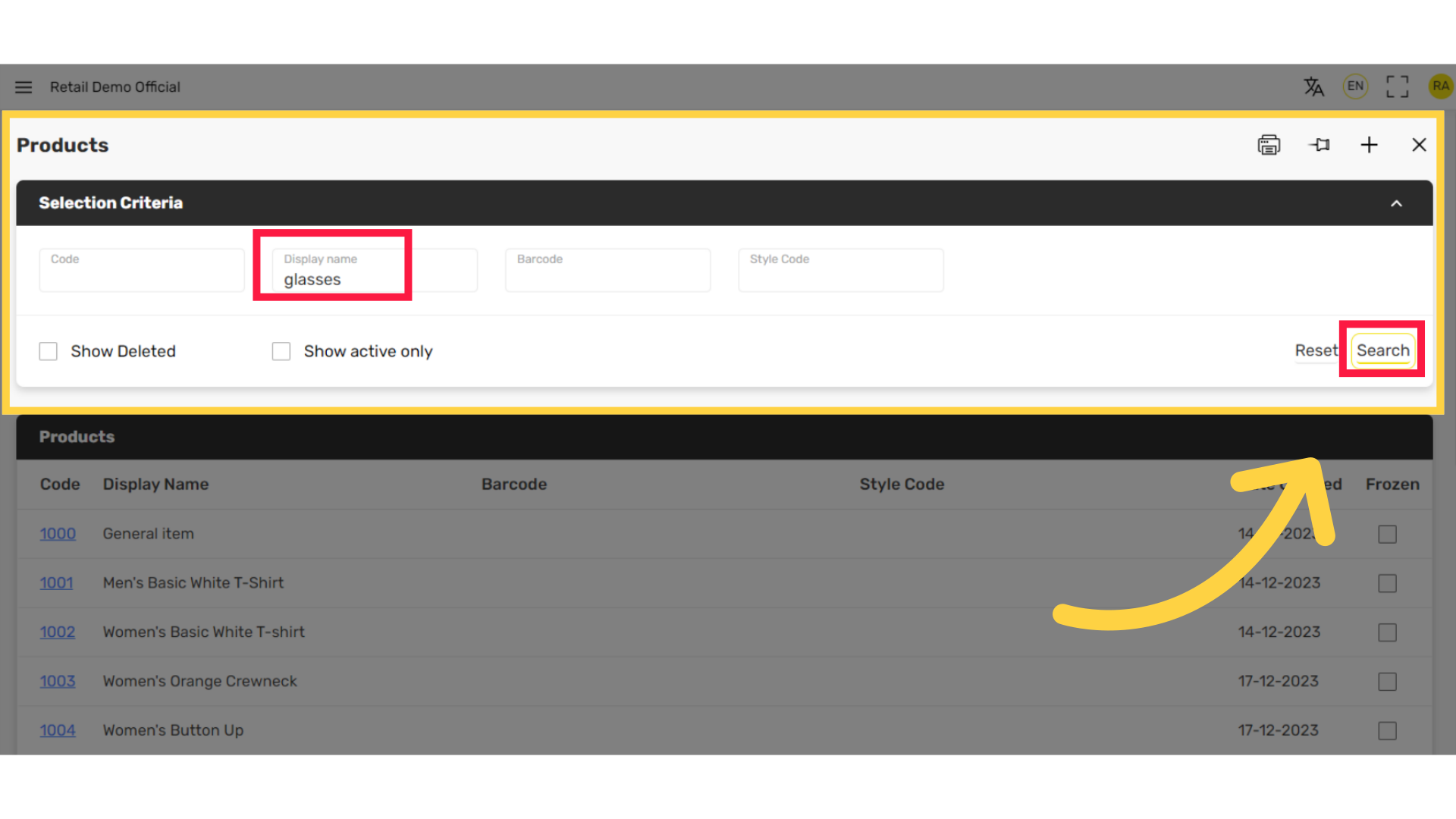
Search Item
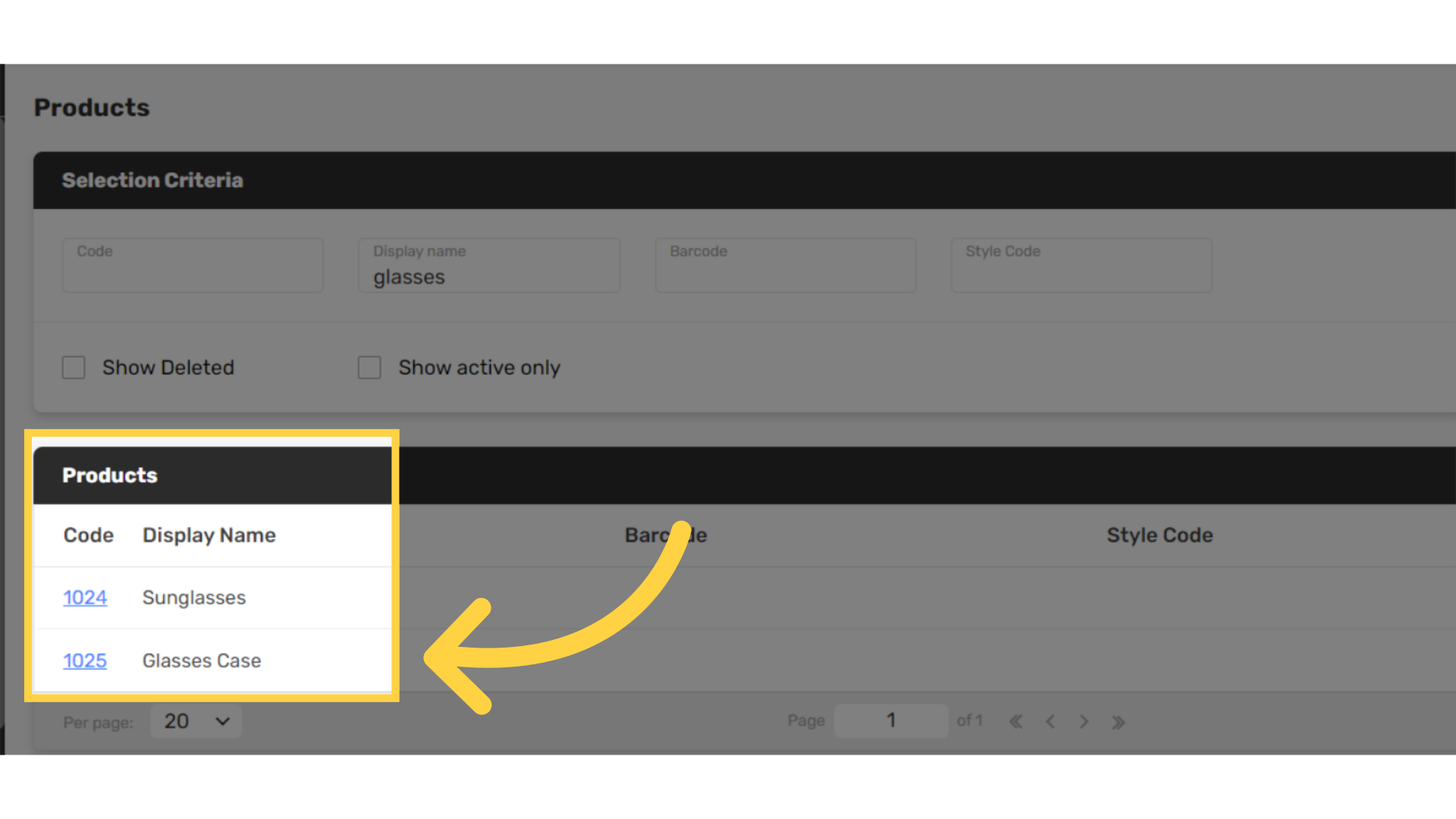
Image AttachedSearch for the item you want to link the complimentary item to. For this example glasses.
Click Item Code
Image AttachedClick the Item Code of the item you want to link the complimentary item to.
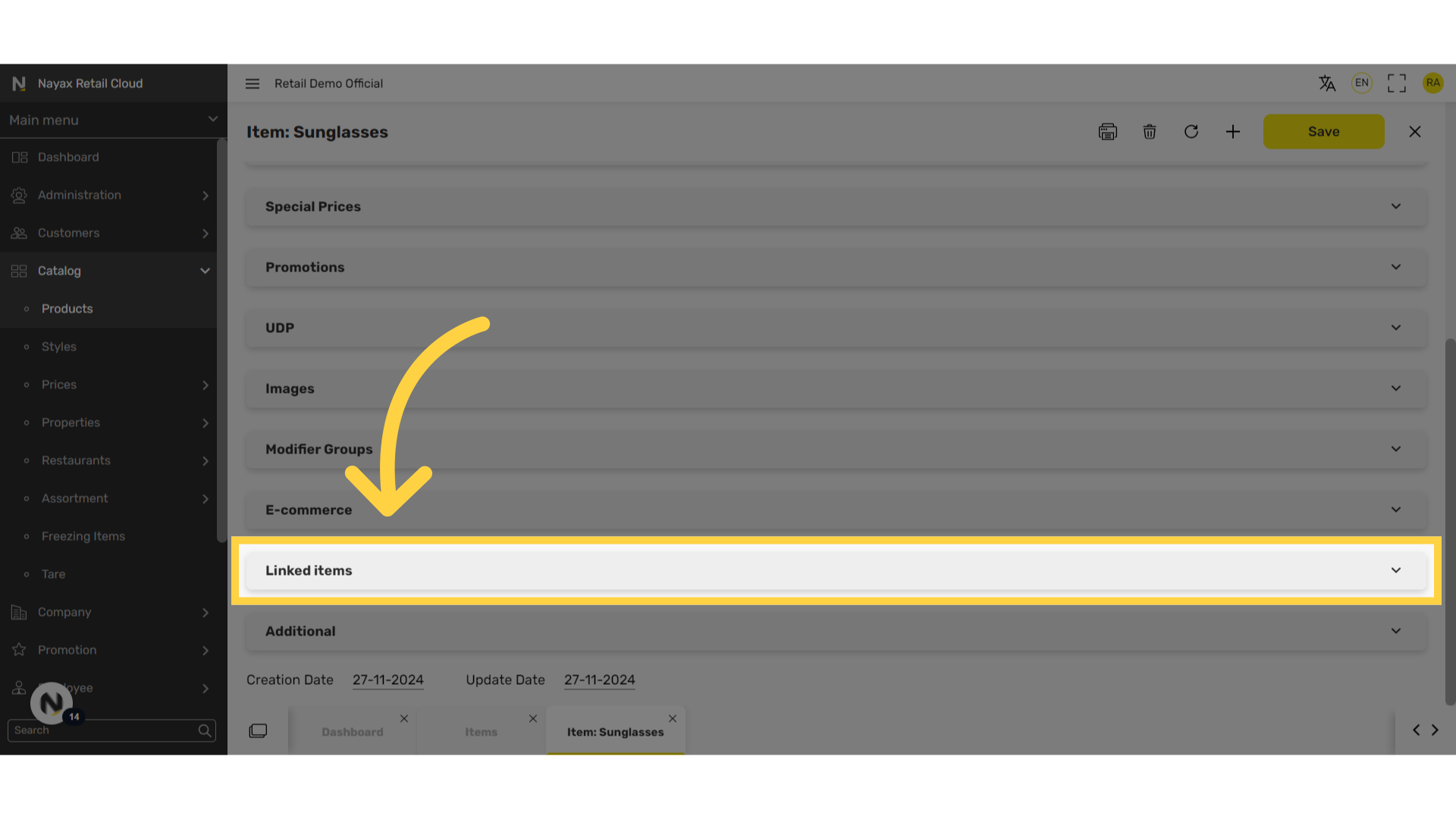
Click Linked Items Tab
Image AttachedScroll down to the Linked items section and click on it to open.
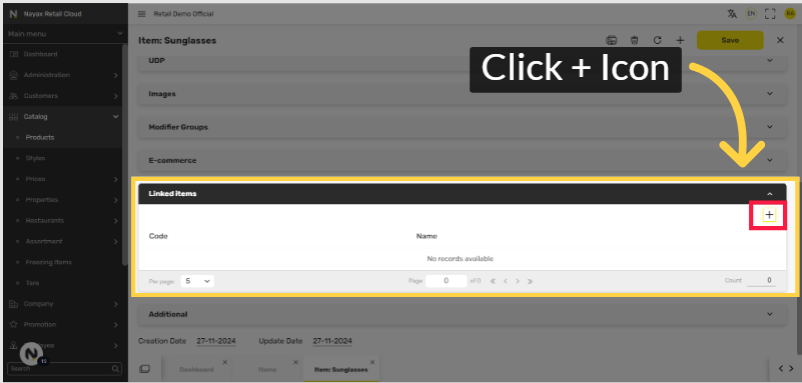
Click + Icon
Image Attached
Click on the plus Icon as highlighted in RED on the visual.
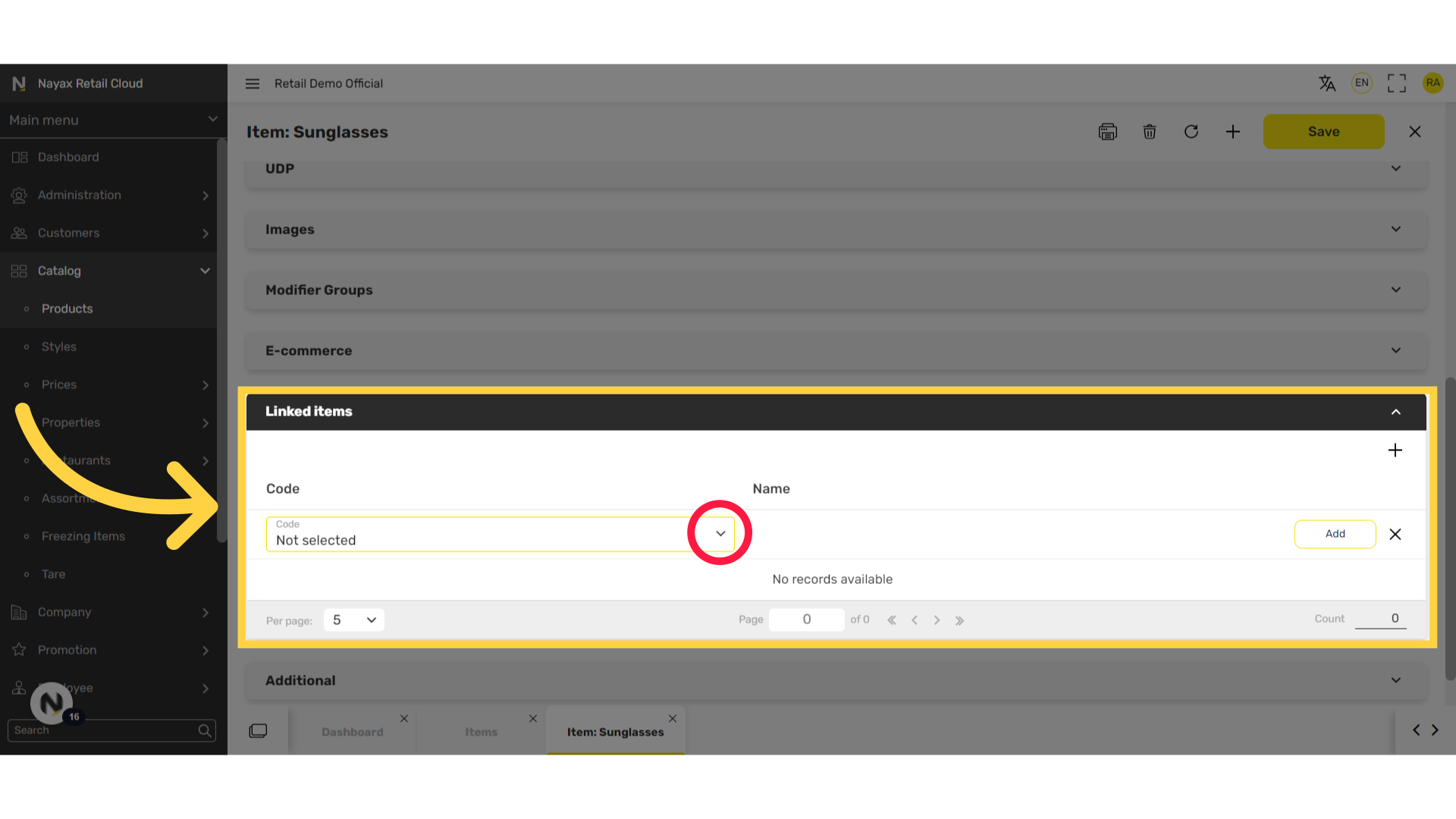
Click Arrow
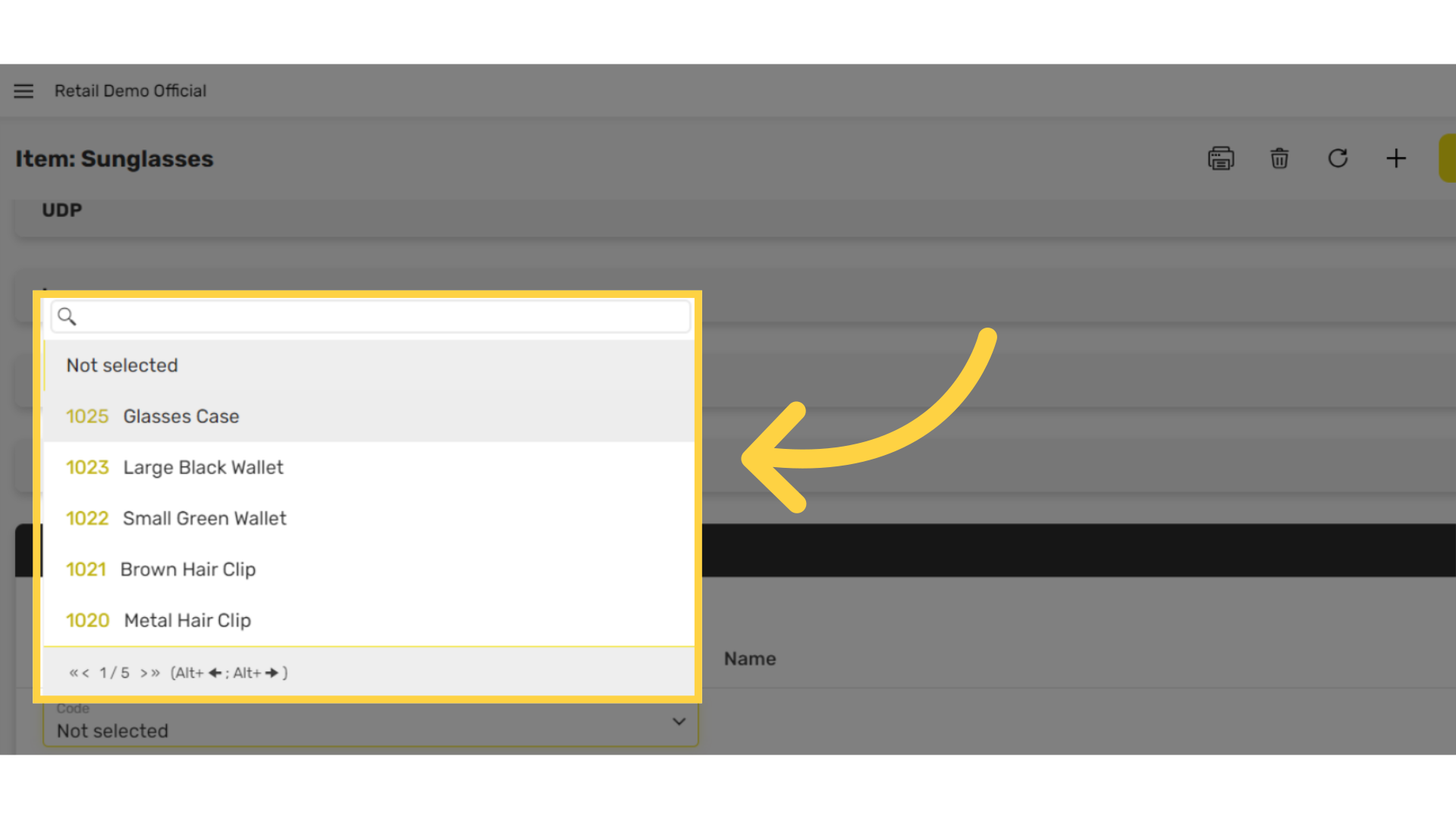
Image AttachedClick on the arrow for the drop down options.
Locate Item to Link
Image AttachedLocate the item you created to link, for this example: glasses case
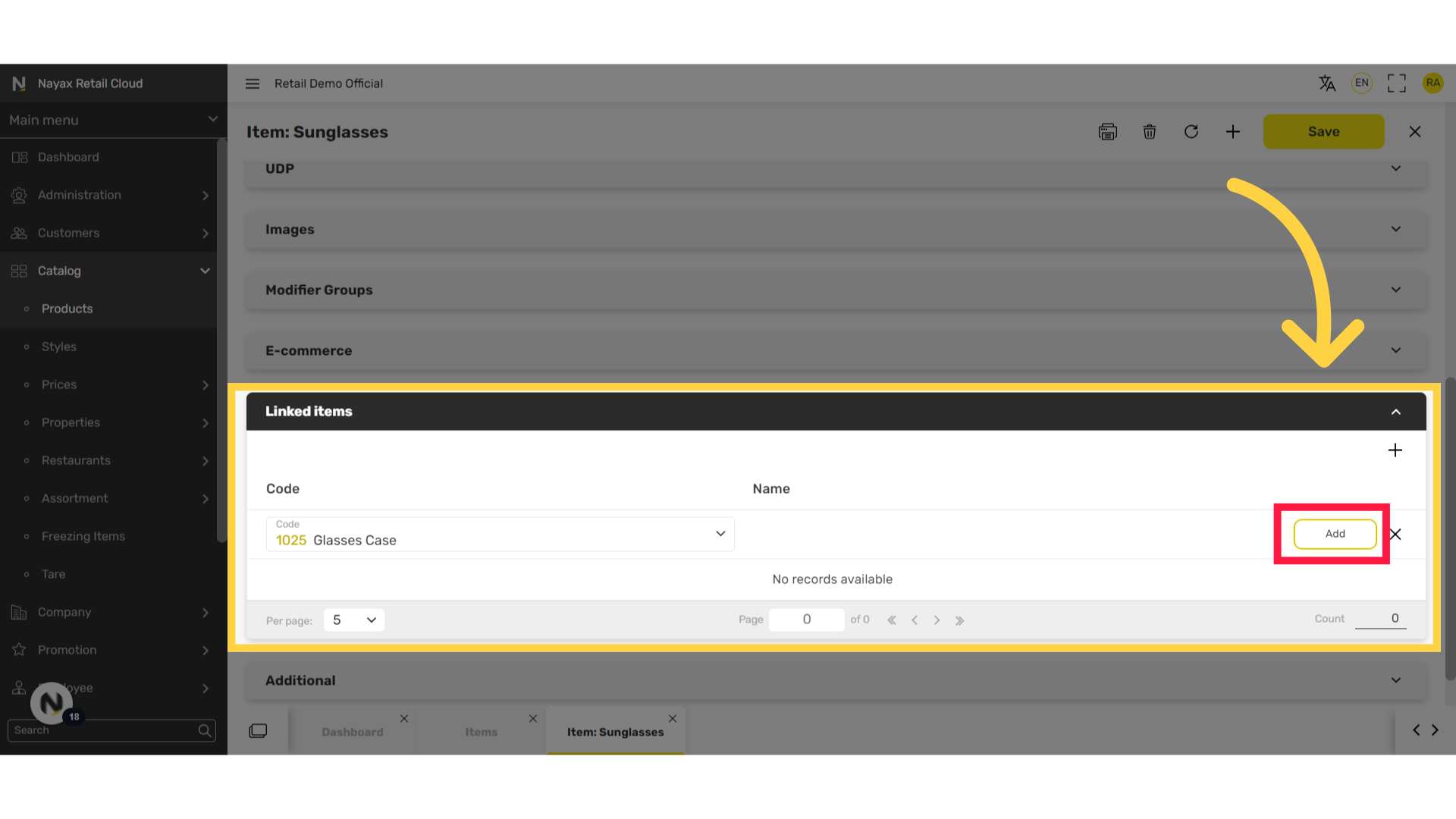
Click Add
Image Attached
Click Add button as highlighted in RED on the visual.
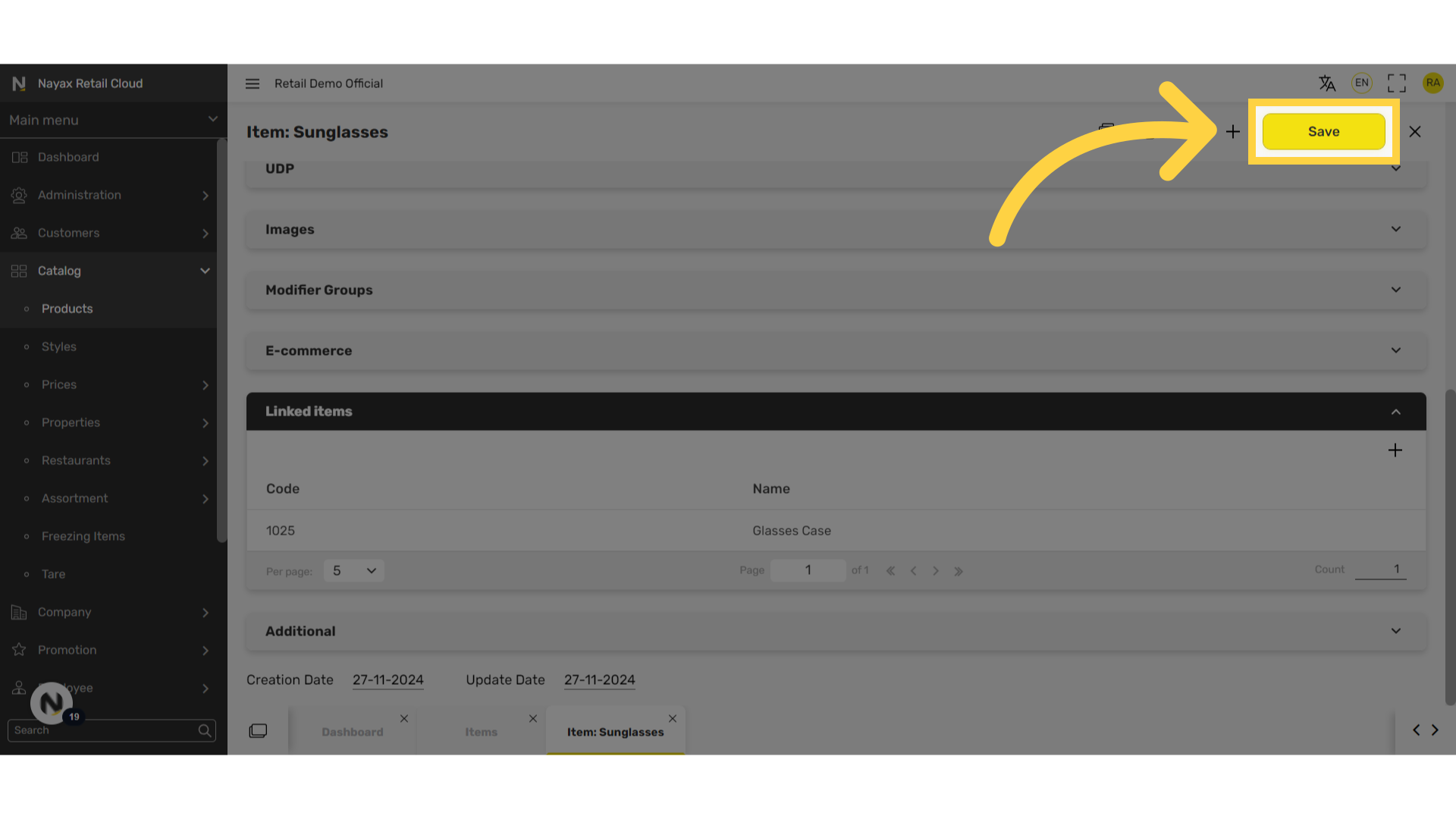
Click Save
Image AttachedClick save to save your progress!
Note: This will appear as a second item on the receipt with the charge set as zero.
We hope this guide was able to walk you through the process, we ask you to please help us help you by leaving feedback!
Thank you!
Did you find this article helpful?