
How to Create a Warehouse | Stock
This guide will walk you through creating a warehouse, properly managing stock, and linking warehouses that supply stock in the Retail Core.
Video Guide
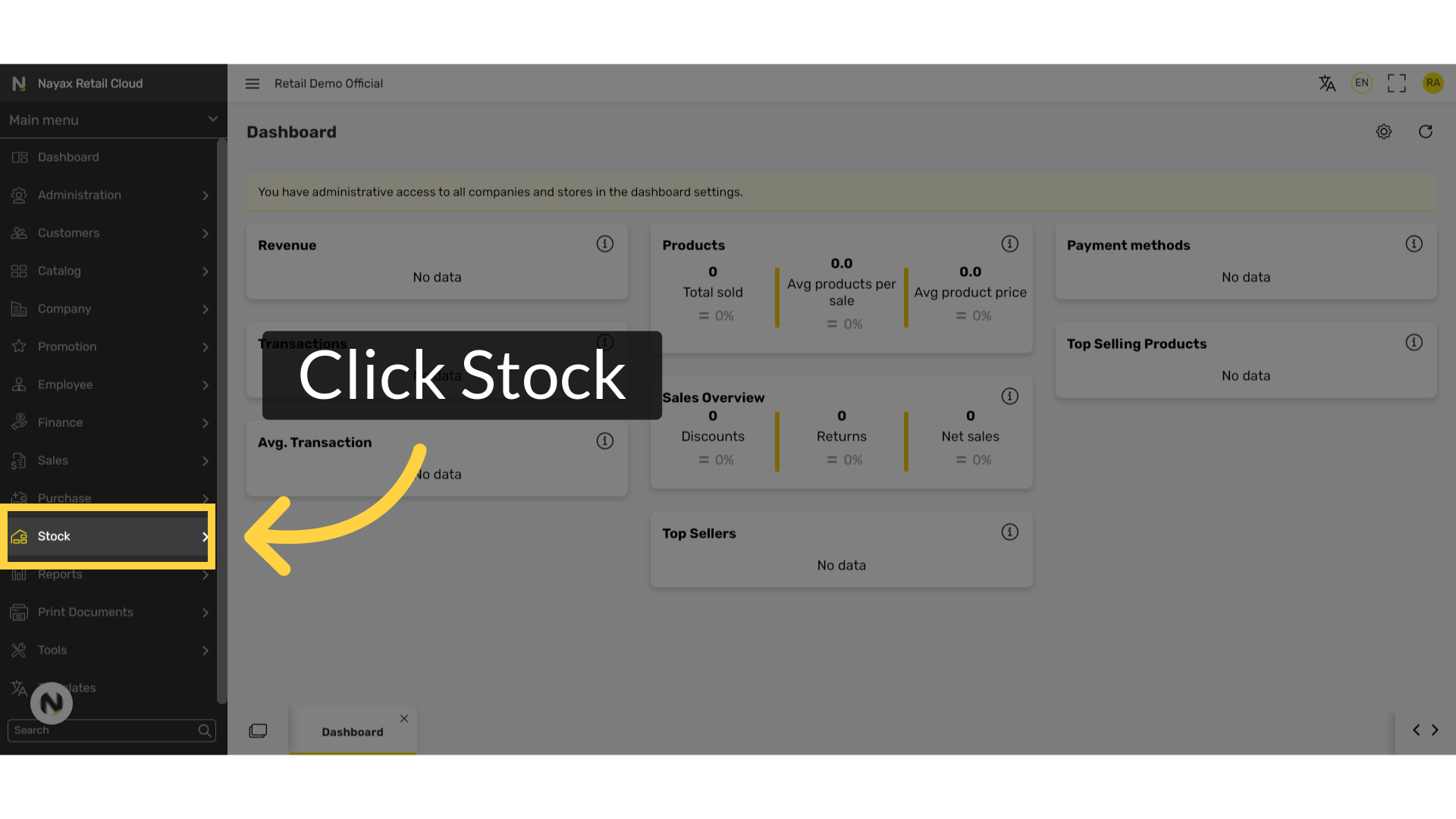
Click Stock Tab
Image AttachedFrom the dashboard of your Retail Core management suite click on the Employee tab from the side menu.
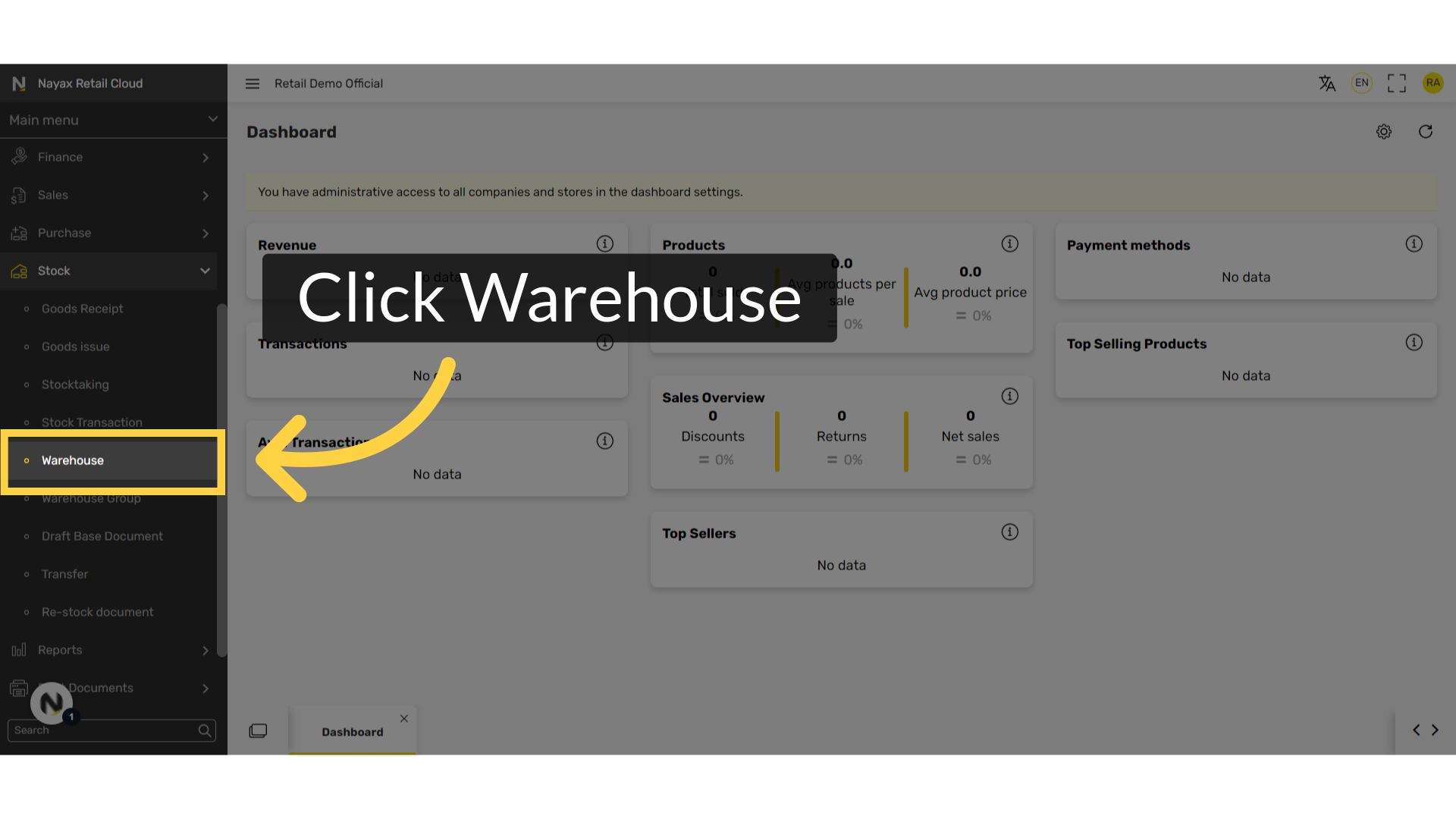
Click Warehouse Tab
Image AttachedFrom the sub-menu, click on Warehouse.
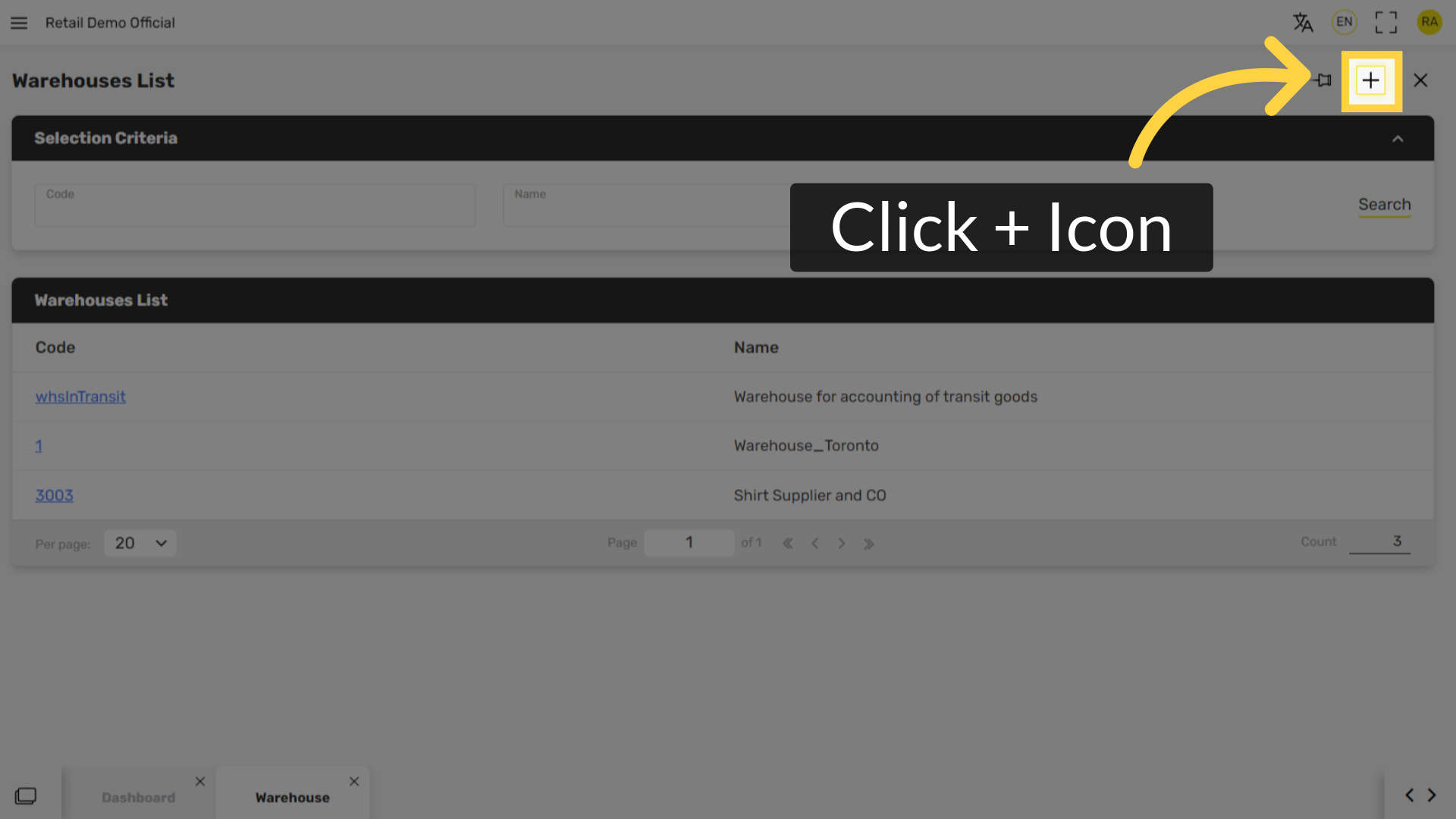
Click + Icon
Image AttachedClick + at the top right of the screen.
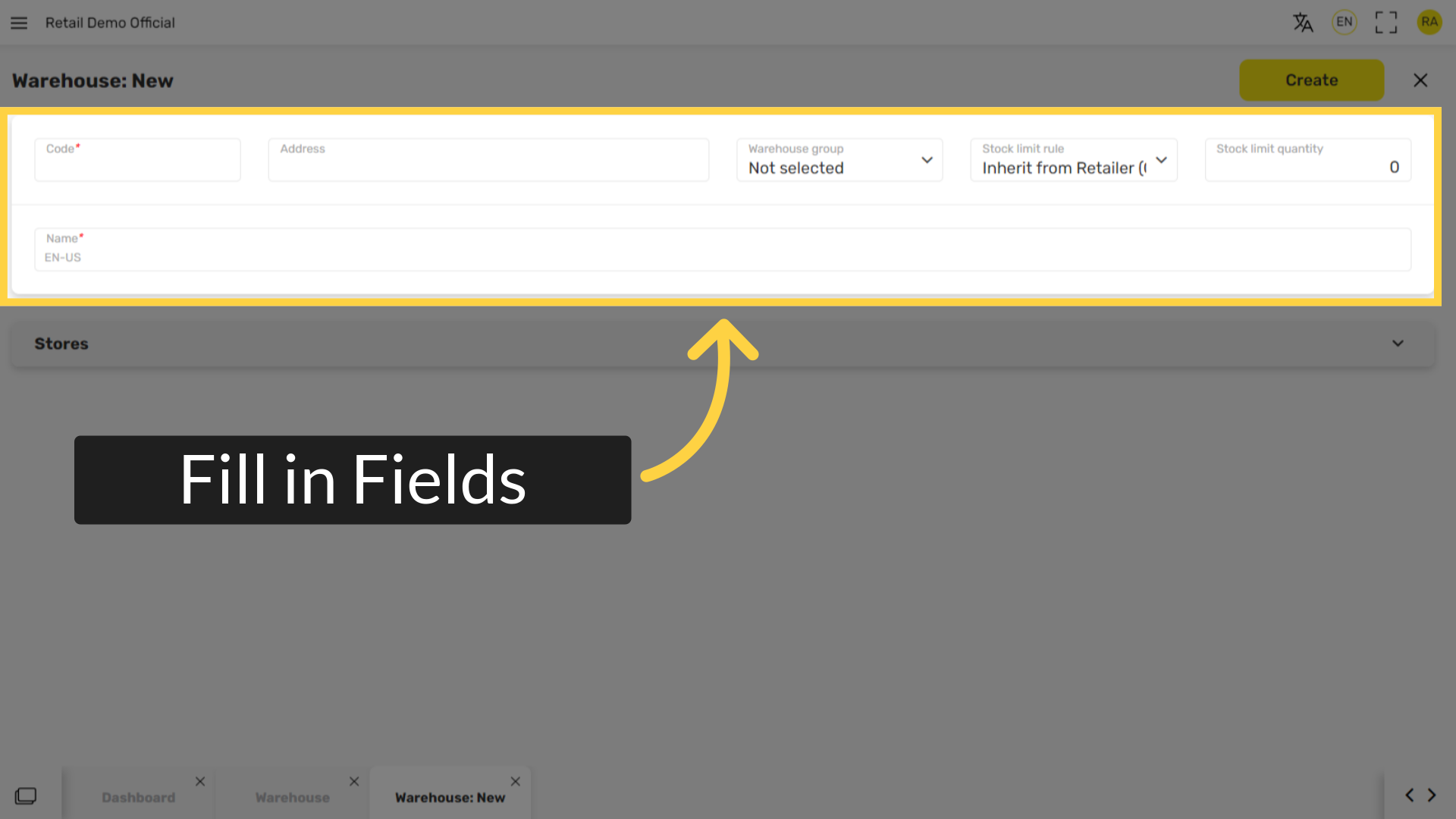
Fill in the following fields:
Image AttachedFill in the warehouse information in the following fields.
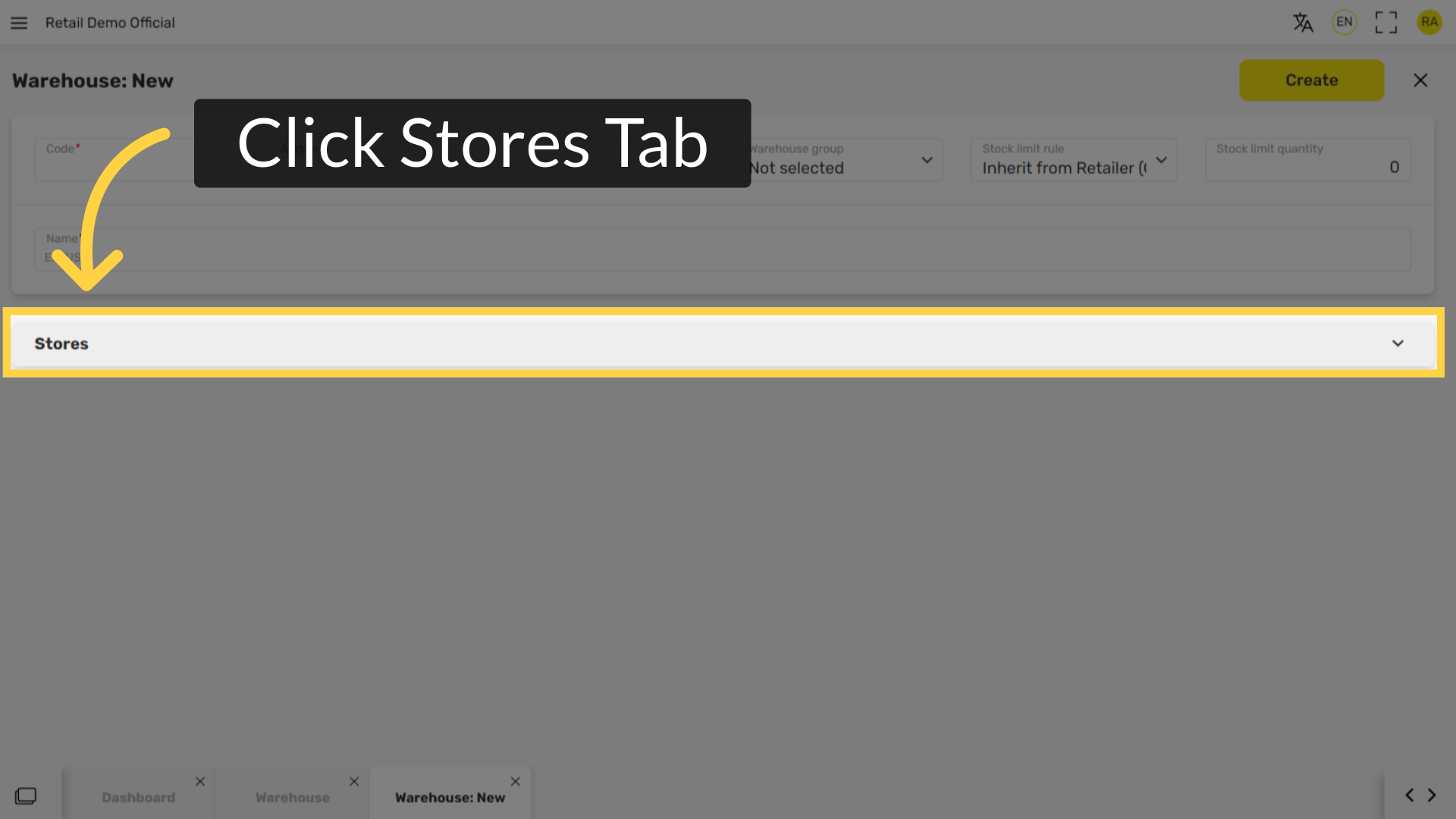
Click Stores Tab
Image AttachedClick on the Stores tab.
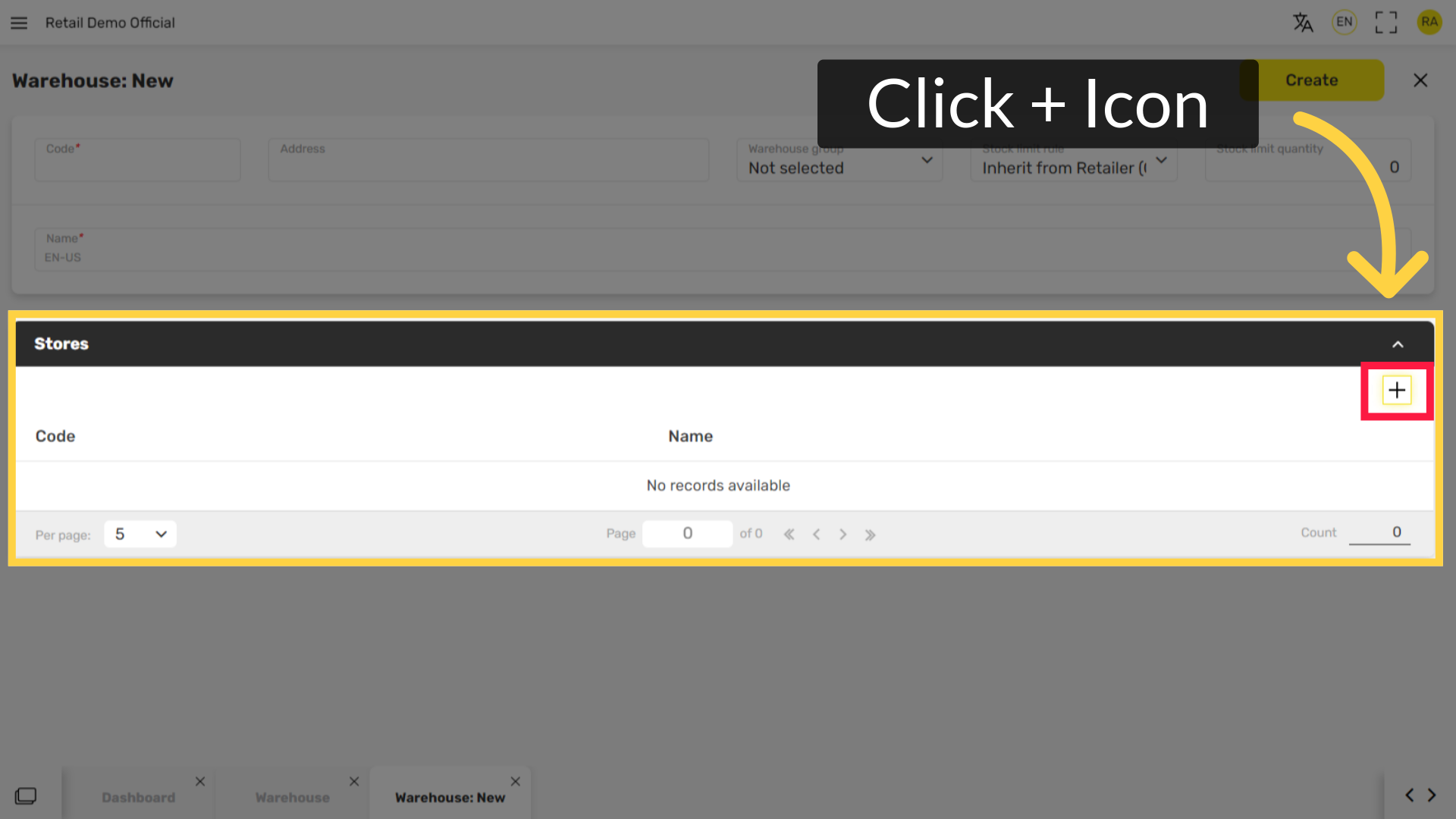
Click + Icon
Image AttachedClick + to the right of the screen.
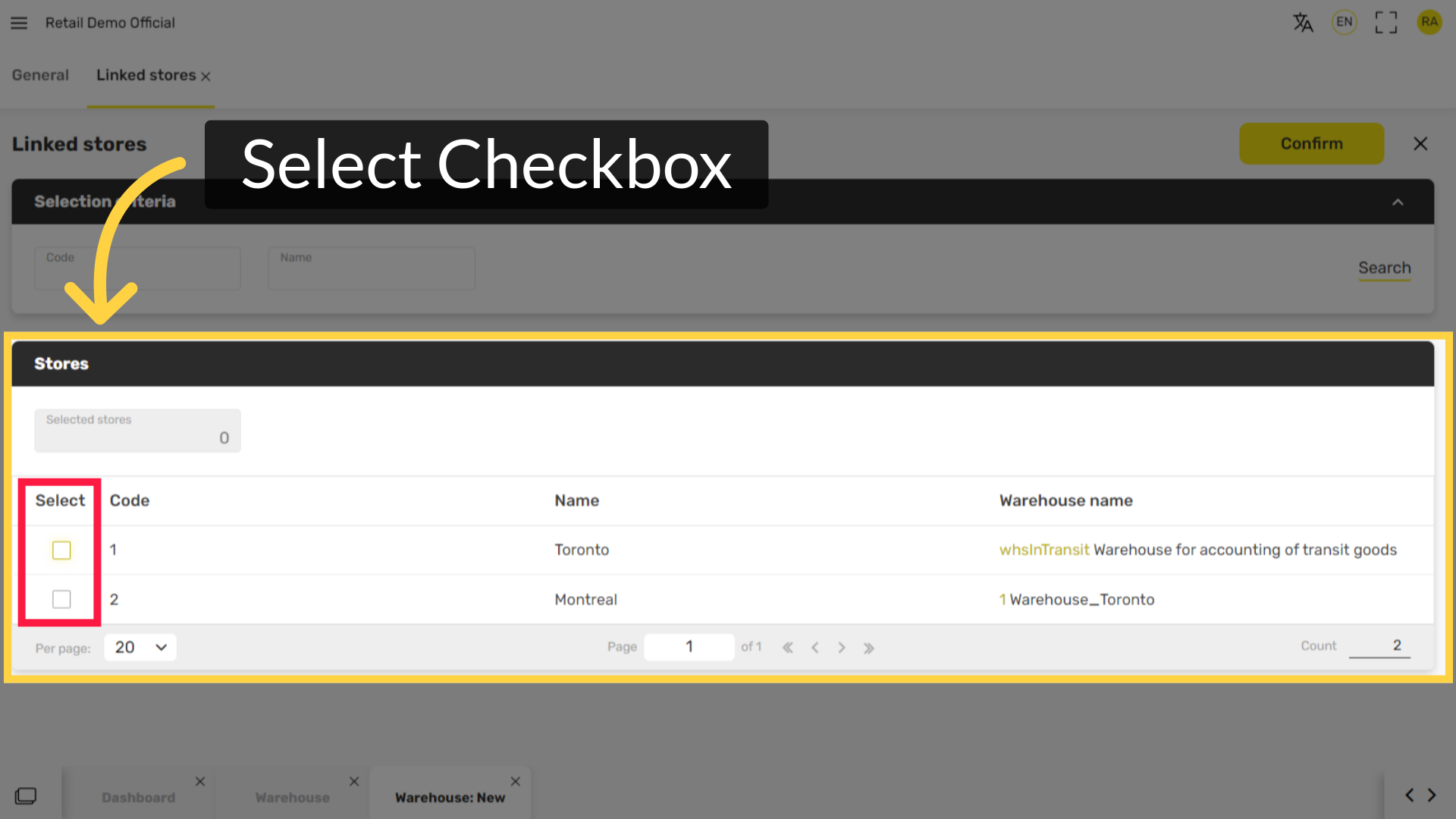
Select Checkbox
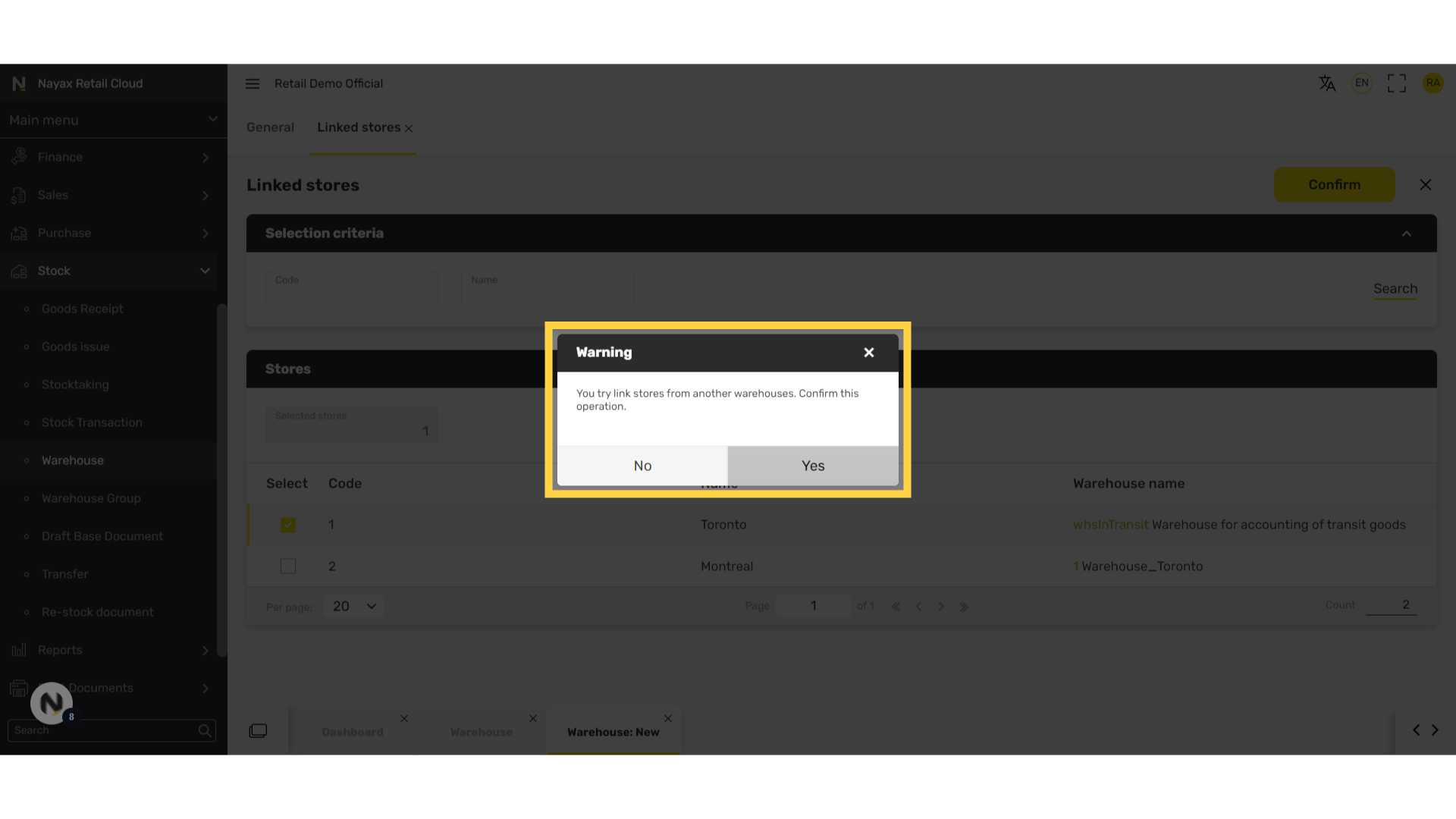
Image AttachedThis tab will reveal the stores associated to the warehouse. To associate more stores click the + icon and select the checkbox of the preferred store. If the store is already associated to another warehouse, there will be a pop up warning but it is possible to link two warehouses to a store.
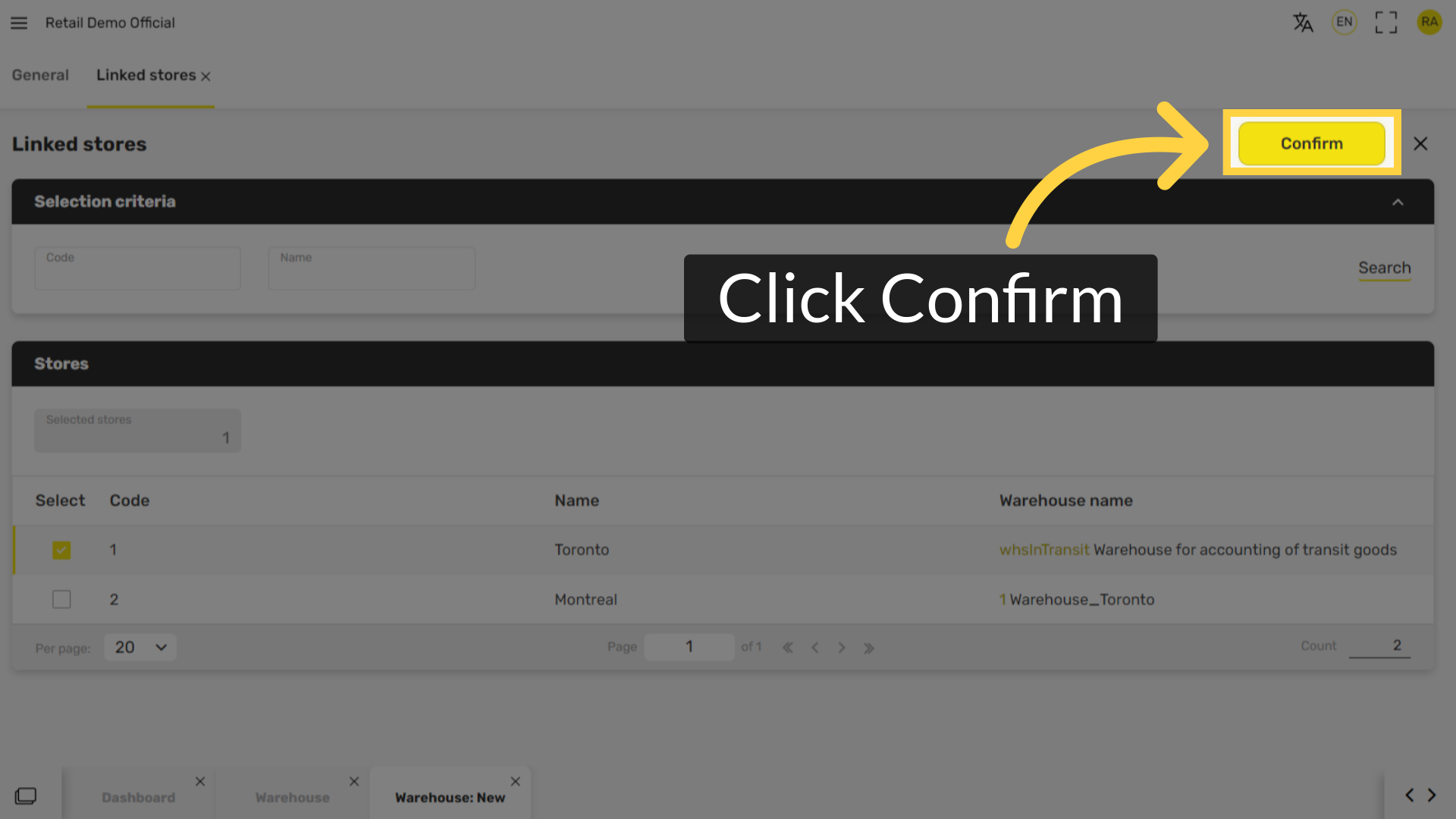
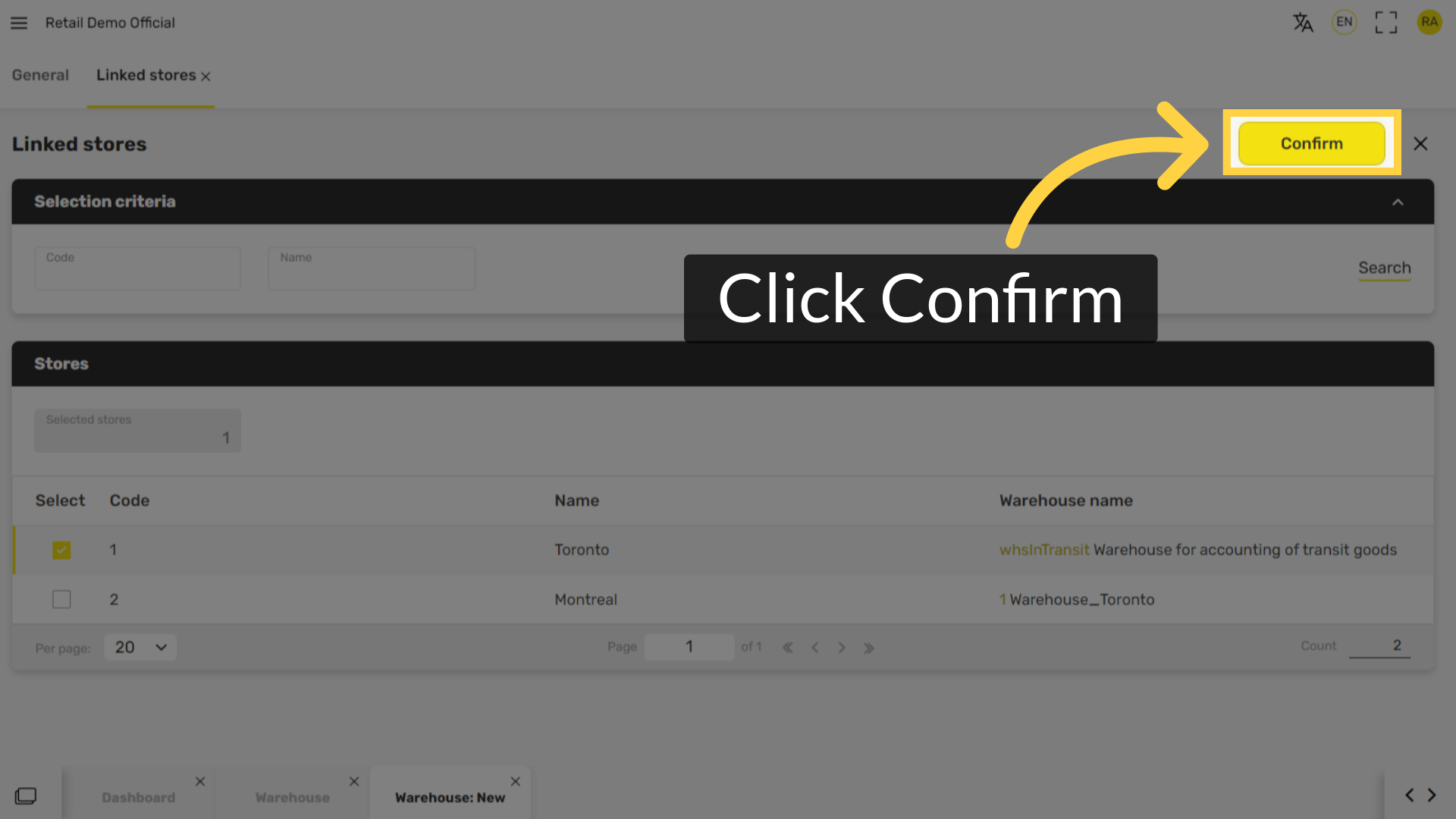
Click Confirm
Image AttachedClick Confirm.
Warning Window
Image AttachedIf the store is already associated to another warehouse, there will be a pop up warning but it is possible to link two warehouses to a store.
Click Confirm
Image AttachedClick Confirm
Click Save
Image AttachedClick Save.
Thank you!
Did you find this article helpful?