
Onyx | Getting Started
Install and configure your Nayax Onyx device: physical setup, Marshall cable connection, Nayax Core machine configuration, payment methods, and first-transaction verification.
Overview
Getting Started with Onyx
Install and configure your Nayax Onyx device: physical setup, Marshall cable connection, Nayax Core machine configuration, payment methods, and first-transaction verification.
Getting Started with Onyx
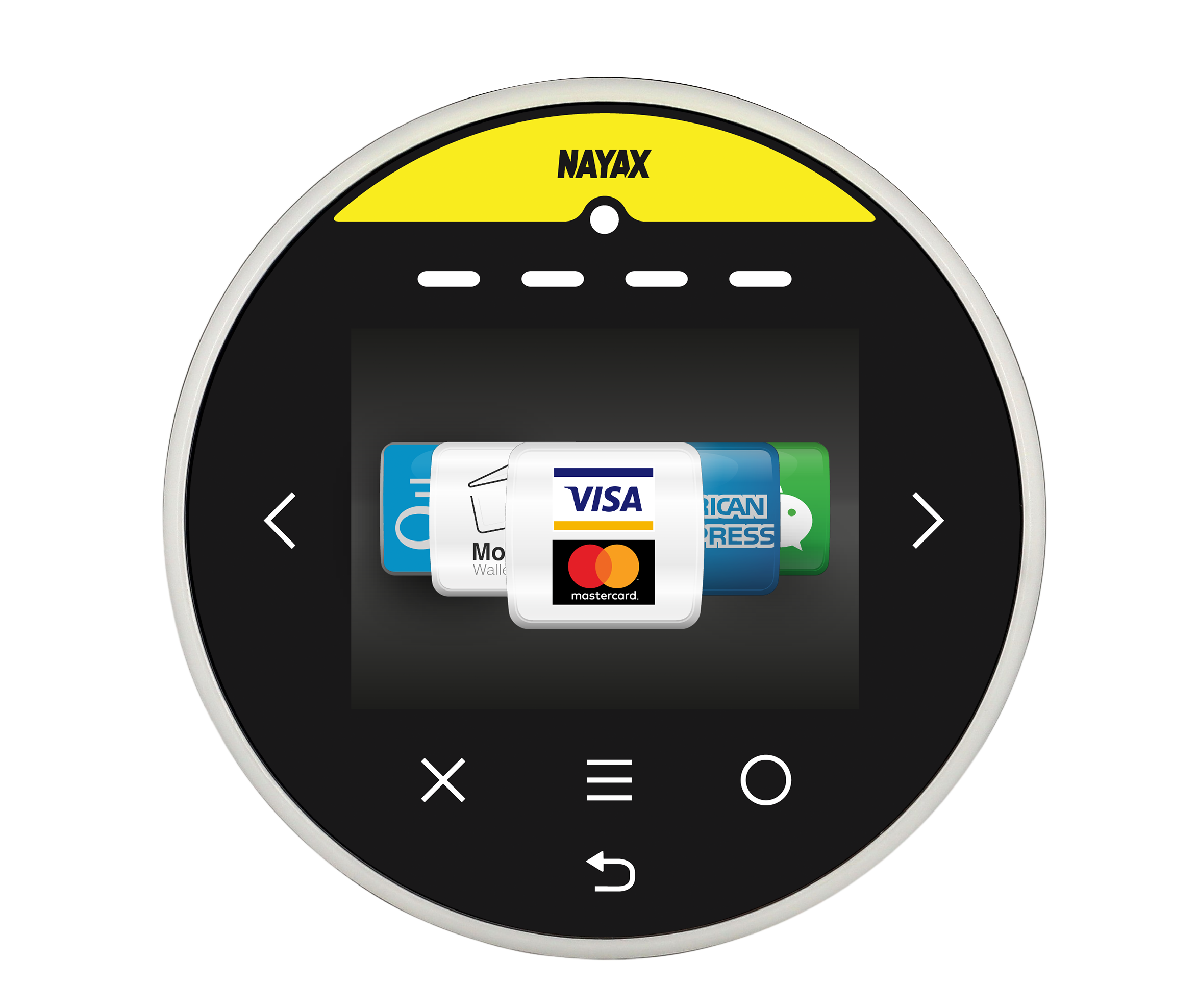
The Nayax Onyx is a touchscreen cashless payment device designed for unattended retail environments, vending machines, laundromats, arcade machines, coffee stations, and more. It accepts credit and debit cards via EMV contact, EMV contactless/NFC, and magnetic swipe, and supports Monyx Wallet app payments, Prepaid cards, QR codes, and a range of third-party payment methods.
This guide covers everything needed to get Onyx operational: physical installation, network setup, Nayax Core configuration, and your first transaction.
- 1You need an active Nayax Core operator account.
- 2Your Onyx device should be pre-configured by Nayax Support with standard machine parameters upon purchase, for specific machine types, additional parameters may need to be updated.
- 3If you need a new operator account or device provisioning, contact your Nayax distributor.
Setting Up the Onyx in Nayax Core
Once the device is physically installed and connected, configure it in Nayax Core. Your Nayax integrator will typically set up the virtual machine for you during onboarding.
Verify the Installation
Before going live, run through the following checks to confirm the device is correctly installed and configured.
| Check | How to Verify |
|---|---|
| Device is online | In Nayax Core, navigate to Operations > Machines. The machine status should show Online or Connected. If offline, check the SIM card, antenna connection, and power supply. |
| Payment method accepted | Run a test transaction using a credit card. Confirm the transaction appears in Last Sales on the machine page in Nayax Core. |
| Idle screen displaying correctly | Confirm the device shows the correct idle screen animation or welcome message between transactions. |
| Prepaid card working (if applicable) | Revalue a test Prepaid card and use it at the machine. Confirm the balance is deducted in Card Management. |
| Monyx Wallet working (if applicable) | Use the Monyx Wallet app to pay at the machine. Confirm the transaction appears in Last Sales. |
The Onyx and VPOS Touch are both Nayax touchscreen cashless payment devices in the same product family. They share the same Nayax Core configuration, Marshall integration, and supported payment methods. The Onyx is the current-generation device. Your Nayax distributor can advise on the correct device for your deployment.
The "Cash Only" message appears when the Onyx is in idle or disabled mode, and the Transaction Start Method is set to start with the machine (i.e., the machine initiates the session). This is the normal idle state for Marshall-connected devices.
The message clears automatically when a consumer selects a product or inserts a card, depending on your flow configuration. You can customize or remove this message in the LCD section on the machine page.
Configuration changes sync to the device on the next communication cycle. This typically takes under a minute when the device is online. The device will restart and apply the new settings automatically. If changes are not applied after 5 minutes, verify the device is showing Online in Nayax Core.
Yes. When both Ethernet and SIM are connected, the device automatically prioritizes Ethernet for communication with Nayax Core. If the Ethernet connection fails, the device falls back to the SIM automatically. Note that Marshall communication always runs over the serial connection, Ethernet is for Nayax Core communication only.
The Onyx supports Pre-Selection (single-session and multi-session), Always Idle (a Pre-Selection sub-flow), and Pre-Authorization. The correct flow depends on your machine type and vending setup. If you are unsure, use Marshall - Basic PreSelection and consult your Nayax distributor.
Firmware updates are pushed remotely by Nayax. The device downloads and applies the update automatically during a low-activity period. No action is required from the operator. You can view the current firmware version on the machine page in Nayax Core.
Did you find this article helpful?