
Onyx | Getting Started
Install and configure your Nayax Onyx device: physical setup, Marshall cable connection, Nayax Core machine configuration, payment methods, and first-transaction verification.
Overview
|
GENERAL ARTICLE Getting Started with Onyx Everything you need to install, connect, and configure your Nayax Onyx device from physical setup to your first transaction in Nayax Core. Audience: Operators | Distributors / Partners |
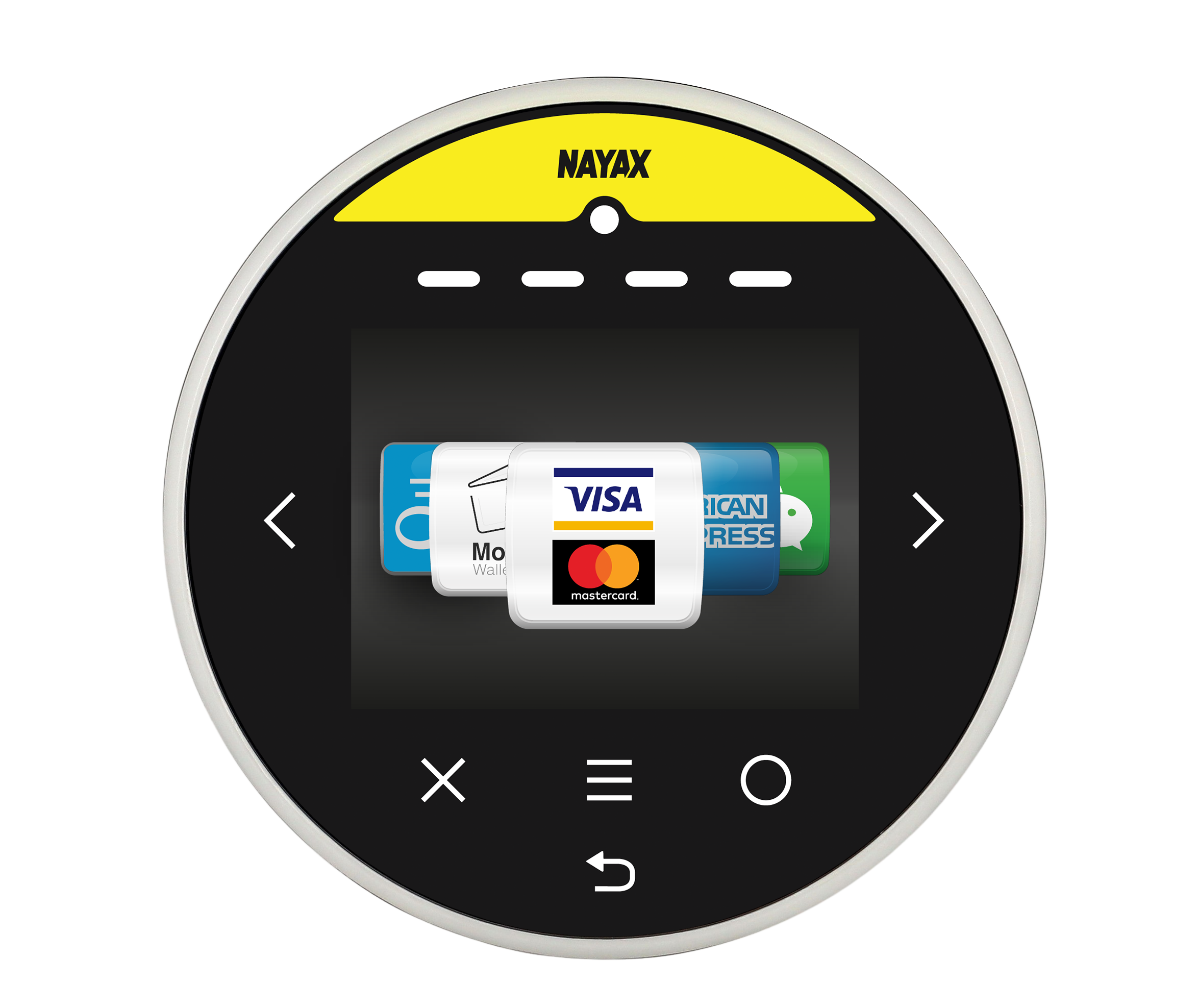
The Nayax Onyx is a touchscreen cashless payment device designed for unattended retail environments -- vending machines, laundromats, arcade machines, coffee stations, and more. It accepts credit and debit cards via EMV contact, EMV contactless/NFC, and magnetic swipe, and supports Monyx Wallet app payments, Prepaid cards, QR codes, and a range of third-party payment methods.
This guide covers everything needed to get Onyx operational: physical installation, network setup, Nayax Core configuration, and your first transaction.
After completing this guide, you will have your Onyx device physically installed and connected, registered and configured in Nayax Core, and ready to accept cashless payments.
|
Prerequisites You need an active Nayax Core operator account. Your Onyx device should be pre-configured by Nayax Support with standard machine parameters upon purchase - for specific machine types, additional parameters may need to be updated. If you need a new operator account or device provisioning, contact your Nayax distributor.
|
Setting Up the Onyx in Nayax Core
Once the device is physically installed and connected, configure it in Nayax Core. Your Nayax integrator will typically set up the virtual machine for you during onboarding.
Onyx User Manual
Locate the Serial Number of Your VPOS Touch / Onyx
Nayax Platforms Overview
Nayax Core | Getting Started
Vending Machine Protocols | Nayax Core
Machines and Devices | Nayax Core
Payment Configurations | Nayax Core
How to Work with Technician Mode in your VPOST/Onyx
Verify the Installation
Before going live, run through the following checks to confirm the device is correctly installed and configured.
|
Check |
How to verify |
|
Device is online |
In Nayax Core, navigate to Operations > Machines. The machine status should show Online or Connected. If offline, check the SIM card, antenna connection, and power supply. |
|
Payment method accepted |
Run a test transaction using a credit card. Confirm the transaction appears in Last Sales on the machine page in Nayax Core. |
|
Idle screen displaying correctly |
Confirm the device shows the correct idle screen animation or welcome message between transactions. |
|
Prepaid card working (if applicable) |
Revalue a test Prepaid card and use it at the machine. Confirm the balance is deducted in Card Management. |
|
Monyx Wallet working (if applicable) |
Use the Monyx Wallet app to pay at the machine. Confirm the transaction appears in Last Sales. |
Before going live: Nayax recommends running at least one test transaction per payment method before enabling the machine for consumer use.
FAQ
FAQ
Did you find this article helpful?