
Understanding Dynamic Transaction Monitor | Reports
Interpret DTM transaction reports, identify key fields & streamline your workflow. Learn what each category means, such as date/time, settlement amount, and item details, so you can confidently manage payment transactions & improve report accuracy.
Prerequisites: Before You Start
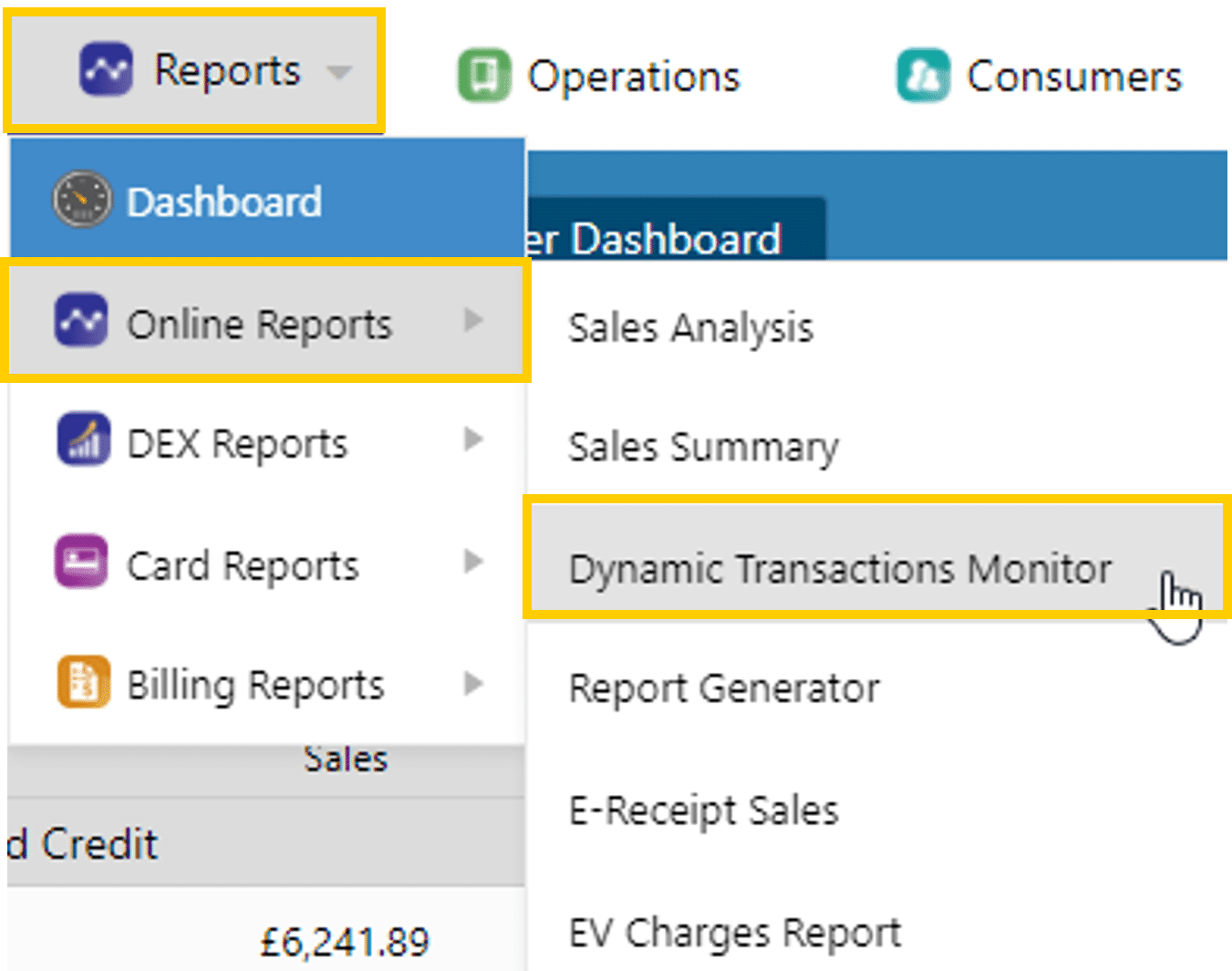
Reports › Dynamic Transaction Monitor
Dynamic Transaction Monitor (DTM) | Filters and Actions
Run targeted transaction reports in Nayax Core using DTM filters, then use the Action Menu to generate receipts, process refunds, and manage machines directly from your results.
Prerequisites
Before You Start
Permissions required: If the Dynamic Transaction Monitor tab is not visible in Nayax Core, your user role does not include the required permissions. Contact your Nayax Administrator to request access before proceeding.
- ✅ You have access to Reports in Nayax Core.
- ✅ The Dynamic Transaction Monitor tab is visible in the Reports menu.
- ✅ You know your company name (Actor) and the approximate date range of the transactions you are looking for.
Did you find this article helpful?