
Nayax UK & Ireland | How to Read Your Nayax Service & Reimbursement Statement
Understand every section of your Nayax UK & Ireland Service & Reimbursement Statement so you can confirm your payout, review fees, and spot discrepancies before the 30-day query window closes.
Prerequisites: Before You Start
- You have received your monthly Service & Reimbursement Statement from Nayax UK.
You have Operator access in Nayax Core to cross-reference transactions if needed.
Video Guide: How to Read Your Nayax Service & Reimbursement Statement | Nayax UK
00:01: Learn how to read your Nayax service and reimbursement statement detailing your
00:05: payout calculation,
00:06: from gross sales to the final deposit,
00:08: helping you verify earnings,
00:10: understand deductions,
00:12: and manage discrepancies.
00:15: Your Service and Reimbursement statement may vary from this demo,
00:18: but this is a general overview for Nayax UK.
00:22: Once you open the report,
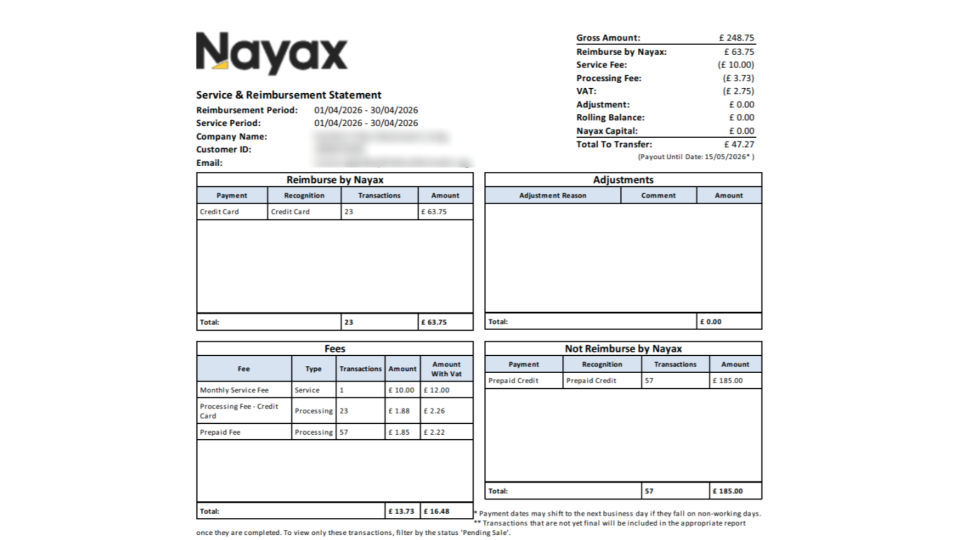
00:24: locate the Reimbursement statement period section at the top of the report to
00:28: confirm the service period covered.
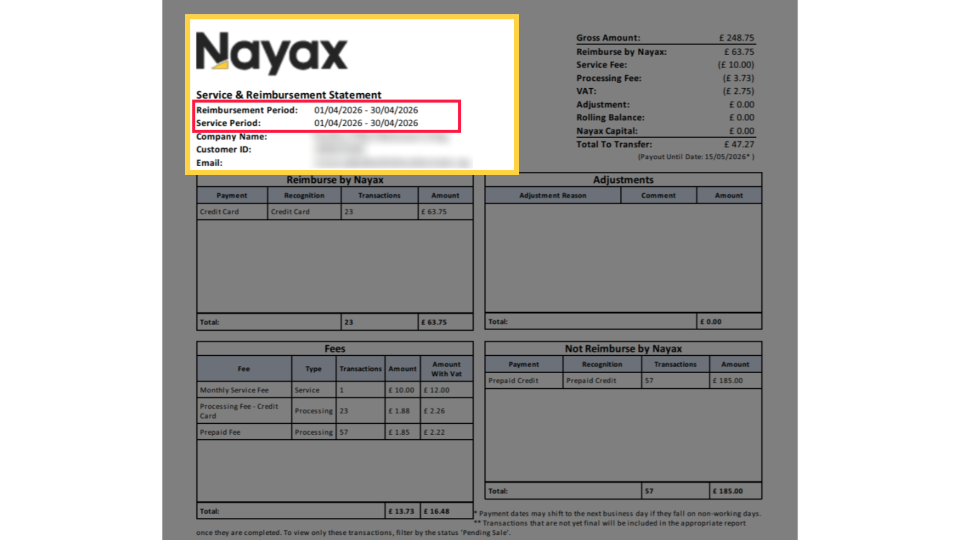
00:31: Review the summary table displaying the Gross Amount,
00:34: deductions, adjustments, reimbursements,
00:36: fees,
00:37: and VAT.
00:38: The Total to Transfer at the bottom is the final payout after calculations.
00:43: and below the expected payout date for this statement.
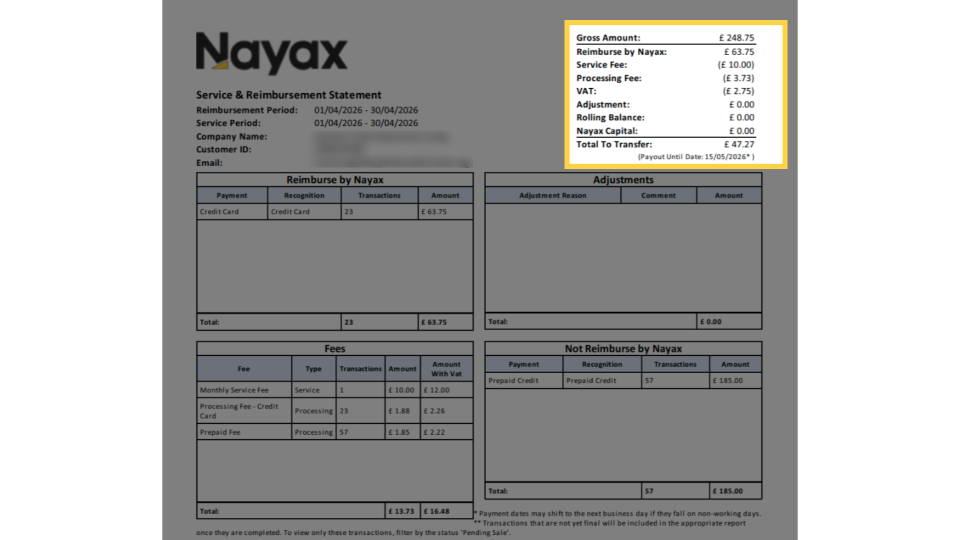
00:47: Scroll to the Reimburse by Nayax section to see the breakdown of sales that qualify
00:51: for reimbursement.
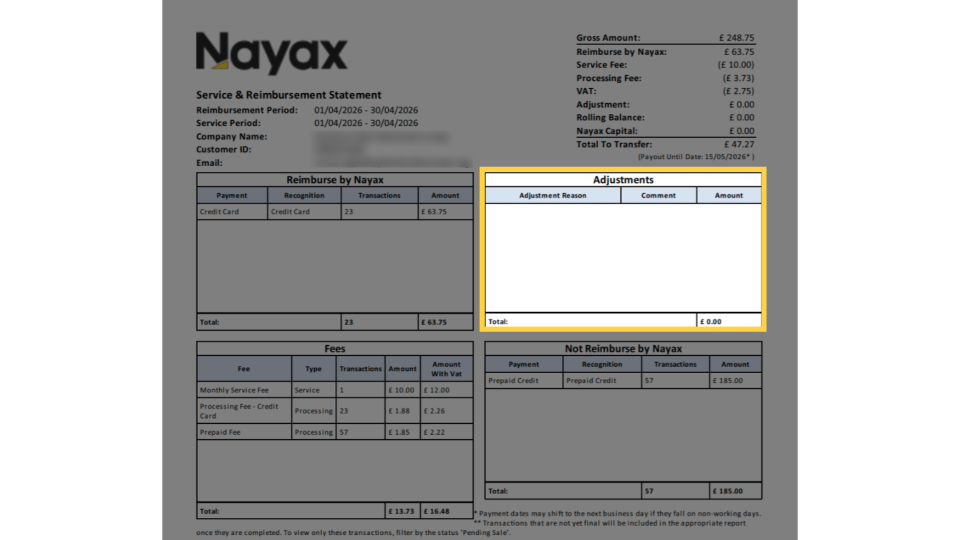
00:53: Check the Adjustments section for any refunds,
00:55: charge-backs,
00:56: rolling balance, or IOT funding amounts applied during the reporting period.
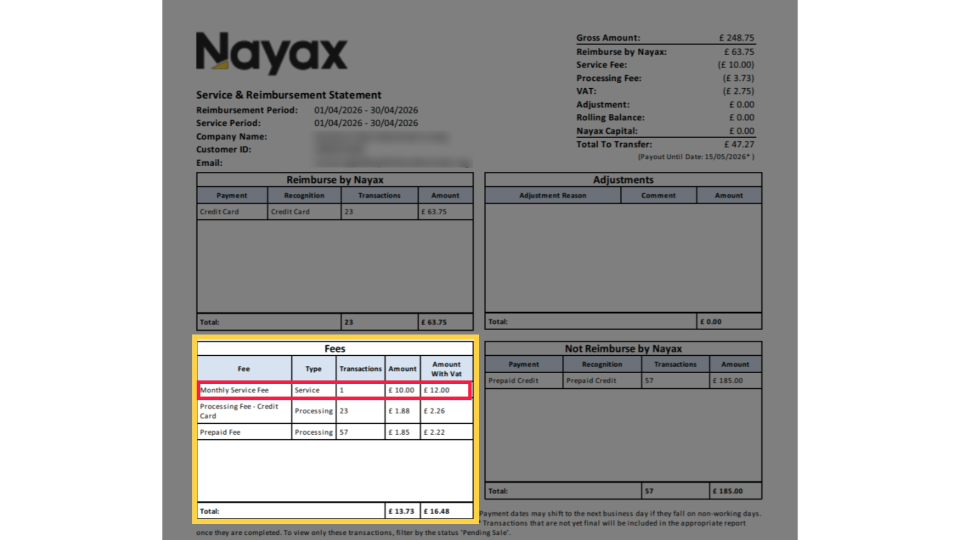
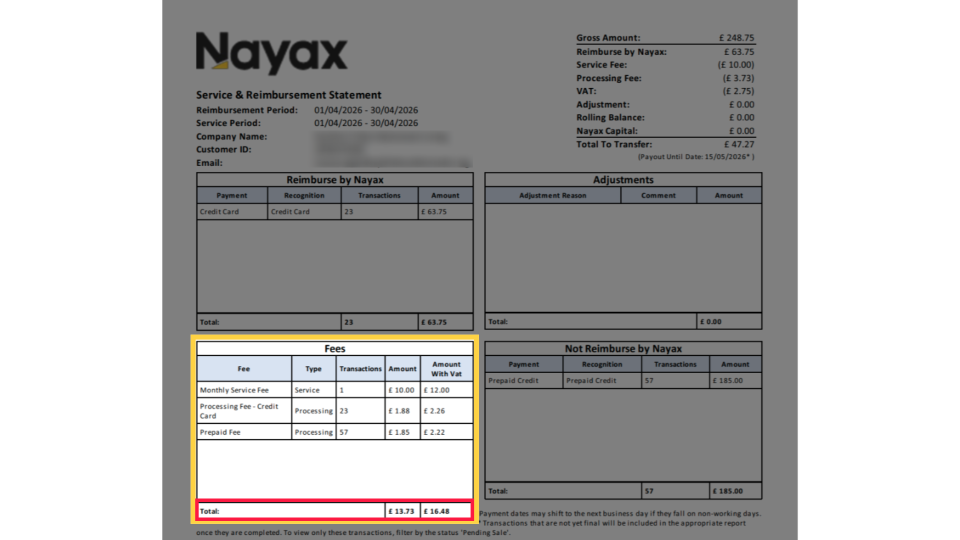
01:02: In the fees table, the monthly service fee applies to the prior month
01:05: and covers standard service charges.
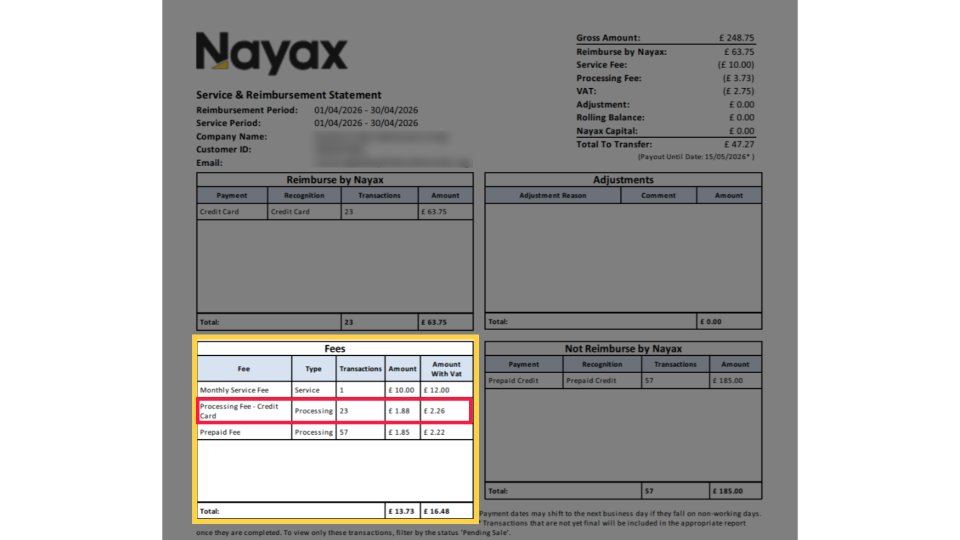
01:08: The Processing Fee summarises the credit card transaction processing fees from
01:13: your daily settlements throughout the statement period.
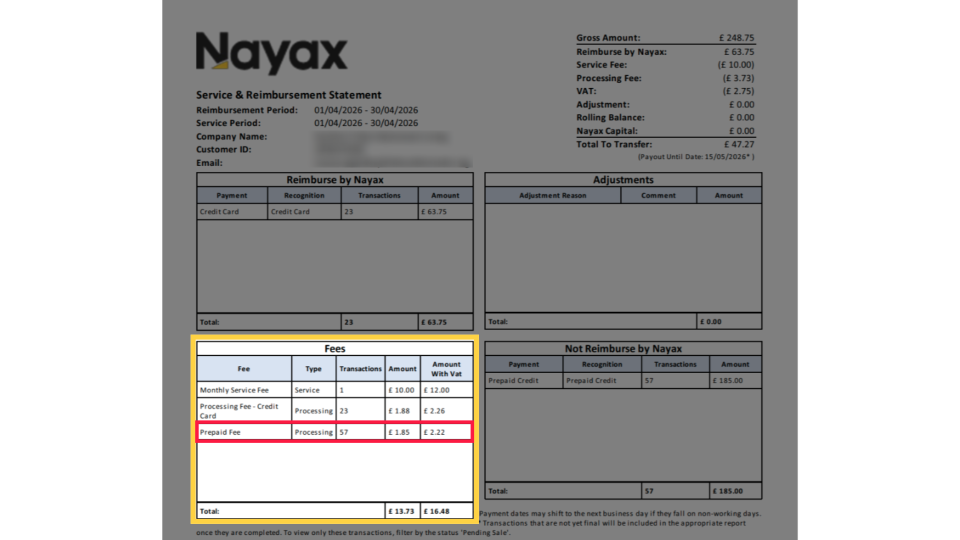
01:16: The prepaid card fee is a processing charge applied to the number of transactions in
01:21: a given statement period.
01:23: The Total Fee Balance is displayed before and after VAT.
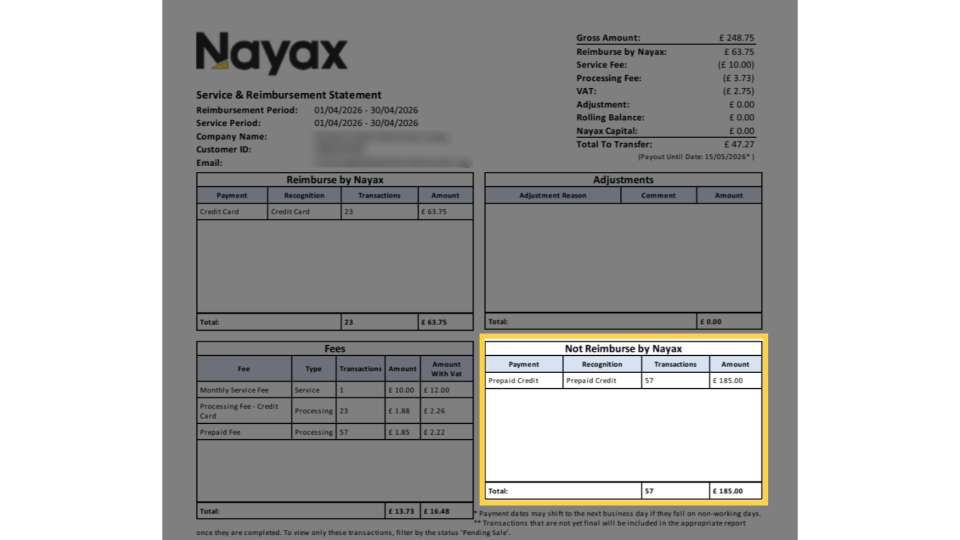
01:27: Review the Not Reimbursed by Nayax section to see which sales are excluded from your
01:32: payout.
01:33: Common non-reimbursed items include
01:35: Prepaid Cards,
01:37: External Prepaid, based on your contract settings.
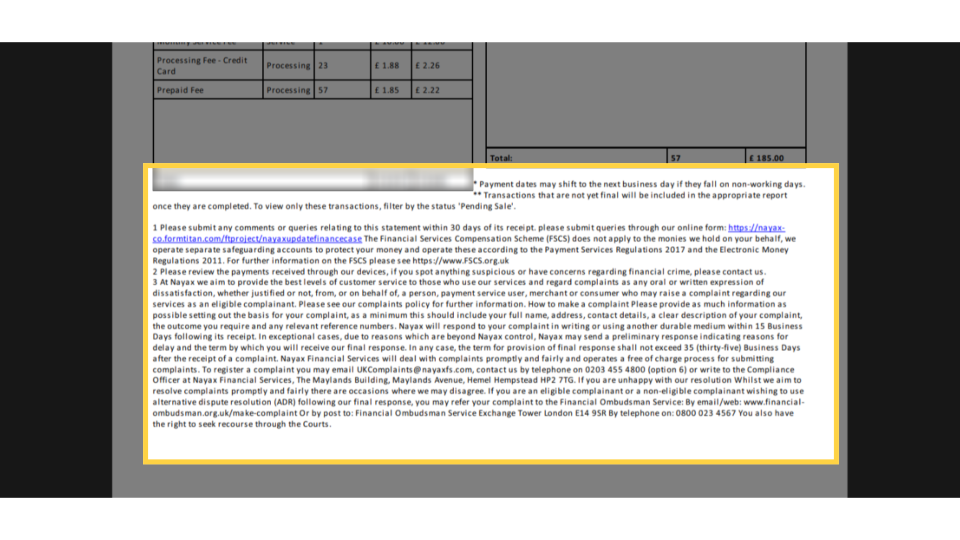
01:42: Payment dates may shift to the next business day
01:44: if on a non-working day.
01:47: Unfinalized transactions will appear in the report;
01:50: use the Pending Sale filter.
01:52: If your invoice seems incorrect,
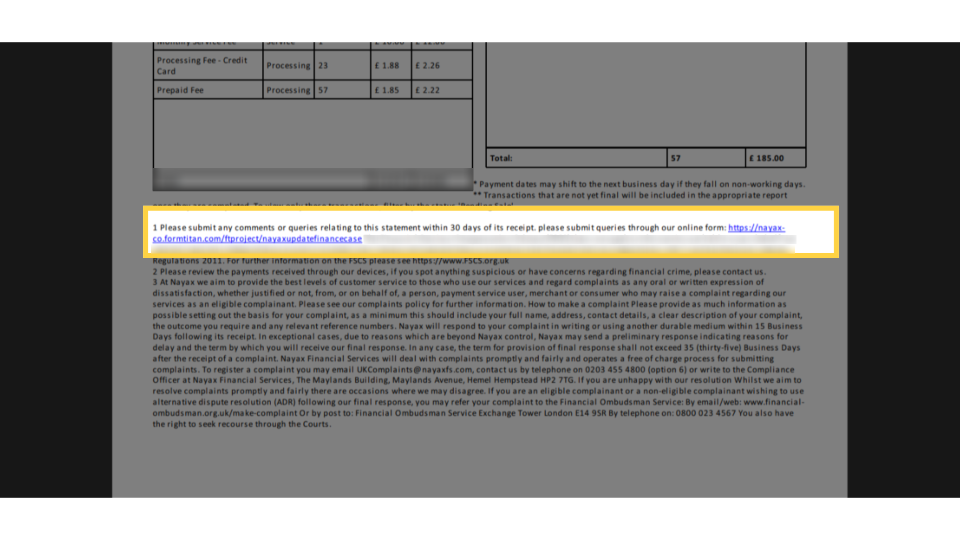
01:54: raise a query within 30 days via the Nayax form.
01:57: Click 'Learn More'
01:59: for details in Nayax U.
02:02: Scroll or view the attached page for the Billable Devices table of sales and fee
02:06: breakdowns for each Nayax device you own.
02:09: Understand your Nayax UK Service and Reimbursement Statement.
02:13: For questions or discrepancies,
02:15: use the Finance Query link at the bottom of the statement
02:18: to submit an inquiry within 30 days of receipt.
02:21: Click Learn More for the full explanation in Nayax U.
Service and Reimbursement Statement
Image AttachedYour Service and Reimbursement statement may vary from this demo, but this is a general overview for Nayax UK.
Review Statement Period
Image AttachedOnce you open the report, review the statement details: confirm the Reimbursement Period matches the expected month, verify that the Service Period aligns with it, and confirm that your Company Name, Customer ID, and Email are correct.
If any details are incorrect, contact Nayax UK support before querying the figures.
Summary Table
Image AttachedThe top-right column of the statement shows how your final payout is calculated. Each row is either an addition or a deduction.
| Field | What it means |
|---|---|
| Gross Amount | Total value of all transactions processed during the service period, before any deductions. |
| Reimburse by Nayax | The portion of your gross sales that Nayax pays back to you, typically for credit card transactions. |
| Service Fee | Deduction. Your monthly service charge. Shown in brackets. |
| Processing Fee | Deduction. Transaction processing fees for credit card and prepaid card sales. |
| VAT | Deduction. VAT applied to the fees charged by Nayax. |
| Adjustment | Any credits or debits applied during the period - refunds, chargebacks, or corrections. Zero if no adjustments were made. |
| Rolling Balance | Any outstanding balance carried forward from a previous period. |
| Nayax Capital | Please verify with the relevant PM before publishing. |
| Total To Transfer | Your final payout for this period. This is the amount Nayax transfers to your bank account. |
Reimburse by Nayax
Image AttachedThis section lists the sales that Nayax pays back to you. Each row shows the payment method, recognition method, number of transactions, and the total amount. The section total matches the Reimburse by Nayax figure in the summary column.
| Column | What it shows |
|---|---|
| Payment | How the customer paid, for example, by Credit Card. |
| Recognition | How Nayax categorised the transaction, for example, Credit Card. |
| Transactions | Number of transactions of this type in the period. |
| Amount | Total value of those transactions in GBP. |
Review Adjustments Section
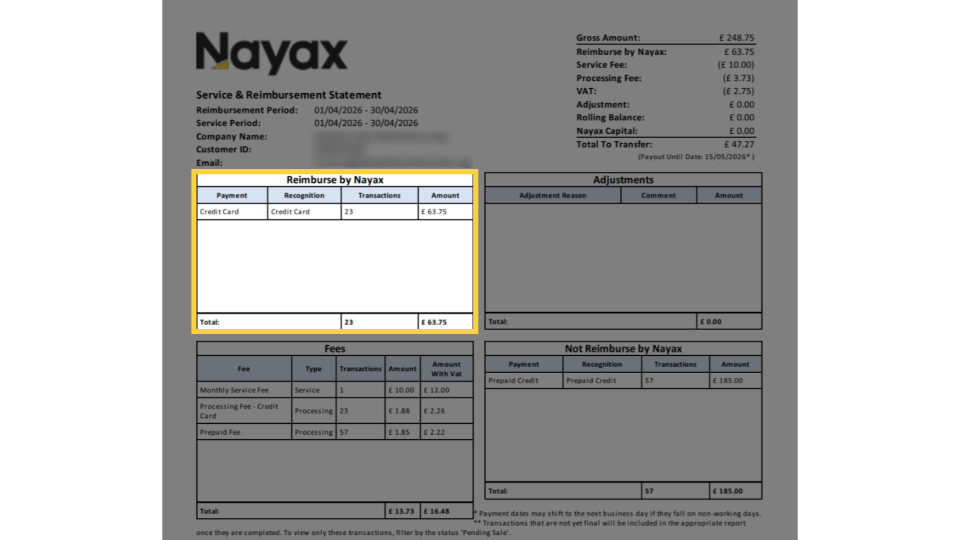
Image AttachedThis section shows any credits or debits applied to your account during the period. Typical adjustment reasons include refunds, chargebacks, rolling balance corrections, and IOT funding.
If no adjustments were made, this section shows a total of £0.00.
Monthly Service Fee
Image AttachedIn the fees table, the Monthly Service Fee row. This covers your standard monthly service charge for the statement period.
Processing Fee - Credit Card
Image AttachedThe Processing Fee - Credit Card row. This is the total processing charge across all credit card transactions settled during the period.
The number of transactions matches your credit card total in the Reimburse by Nayax section.
Prepaid Fee
Image AttachedThe Prepaid Fee row. This is the processing charge applied to prepaid card transactions during the period.
The number of transactions matches your prepaid total in the Not Reimburse by Nayax section.
Total Fee Balance
Image AttachedCheck the Total row at the bottom of the Fees section. Two totals are shown: the fee amount before VAT and the fee amount including VAT. The VAT-inclusive total is the amount deducted from your payout.
Check Not Reimburse by Nayax
Image AttachedThis section lists sales that are excluded from your payout. These transactions were processed through your devices, but are not transferred to you by Nayax, typically because the funds are managed separately under your contract. Common examples include Prepaid Credit and External Prepaid transactions.
Terms And Conditions
Image AttachedPayment dates may be shifted to the next business day if it falls on a non-working day. Unfinalized transactions will appear in the report; use the Pending Sale filter. If your invoice seems incorrect, raise a query within 30 days via the Nayax form.
Billable Devices
Image Attached-
Scroll or view the attached page for the Billable Devices table of sales and fee breakdowns for each Nayax device you own. Review the Transaction Count, Transaction Amount, Service Fee, and Processing Fee columns for each device to see how the totals in the main statement are made up.

Result
Image AttachedYou can now confirm your payout amount, understand each fee, and identify any transactions that need investigation.
If anything looks incorrect, use the Finance Query link at the bottom of your statement to submit a query within 30 days of receipt.
Thank you!
Did you find this article helpful?