
How to Process, Decline and Approve a Refund | MoMa
Process full or partial refunds remotely from MoMa. Find the transaction, submit a request, and approve or decline it all from your phone, no machine visit needed.
Prerequisites: Before You Start
- 1. You have the MoMa app installed and are logged in.
- 2. Your account has permission to submit and approve refund requests for the relevant machine.
- 3. The transaction you want to refund has a status of Settled. Pending or voided transactions cannot be refunded.
- 4. You have the customer's email address to send a refund confirmation, or have the last four digits of their card or product name ready to locate the transaction.
Video Guide
00:00: This guide provides instructions for processing, declining, and approving a refund in the MoMA app.
00:06: On this dashboard of your MoMa app, search for and select the Machine you wish to generate a receipt for.
00:12: To search, click on the Magnifying Glass Icon. You can search by operator name, machine ID, or machine name.
00:19: In the Machine Overview, tap the Last Sales Tab.
00:22: To find the relevant transaction, utilize the filters or the search icon. Please note that you can apply the filters at the top of the page to identify the transaction eligible for a refund. Alternatively, you may also search using the last four digits of the card used or by the product name.
00:40: Locate and tap on the relevant transaction to be refunded.
00:44: Once located, tap to access the transaction screen, then select the refund request to initiate a refund.
00:51: The Refund Request screen will open for the selected transaction.
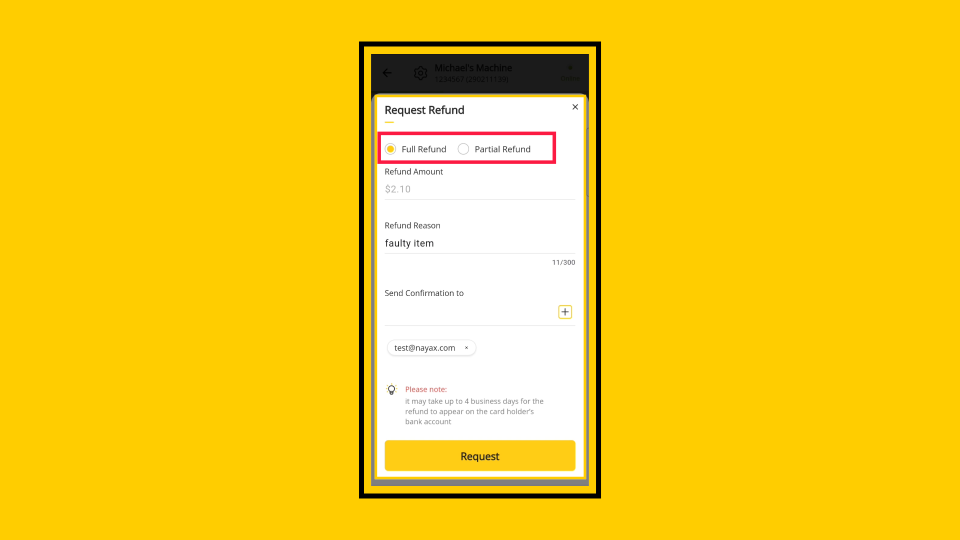
00:55: Select refund type: full or partial. A full refund returns the entire amount and cancels the transaction. A partial refund returns part of the payment, allowing the customer to keep the transaction active for the remaining balance.
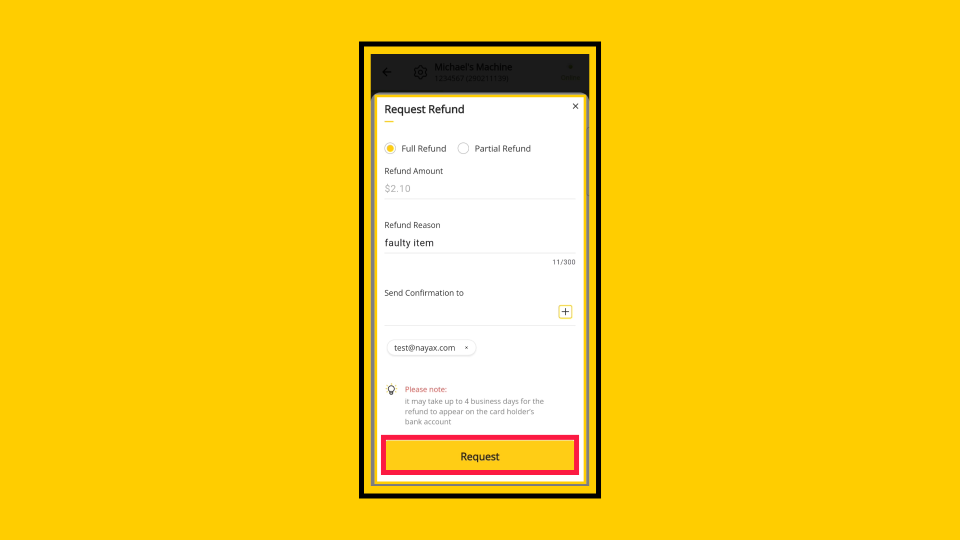
01:26: Once you are ready to proceed with the refund, tap the request button as highlighted.
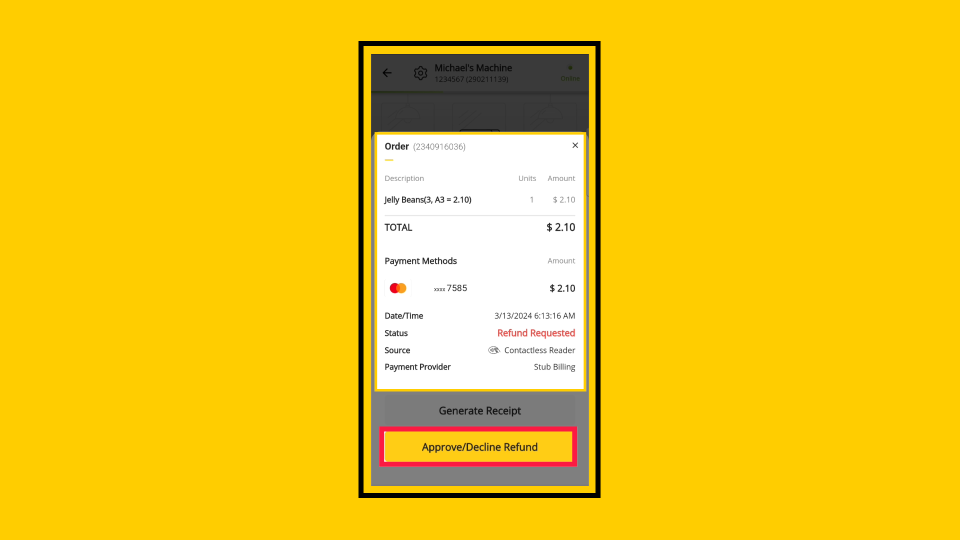
01:31: The next stage presents the transaction details, payment method, and additional information. Tap on "Approve / Decline refund."
01:39: Now tap on "Approve / Decline refund" to proceed.
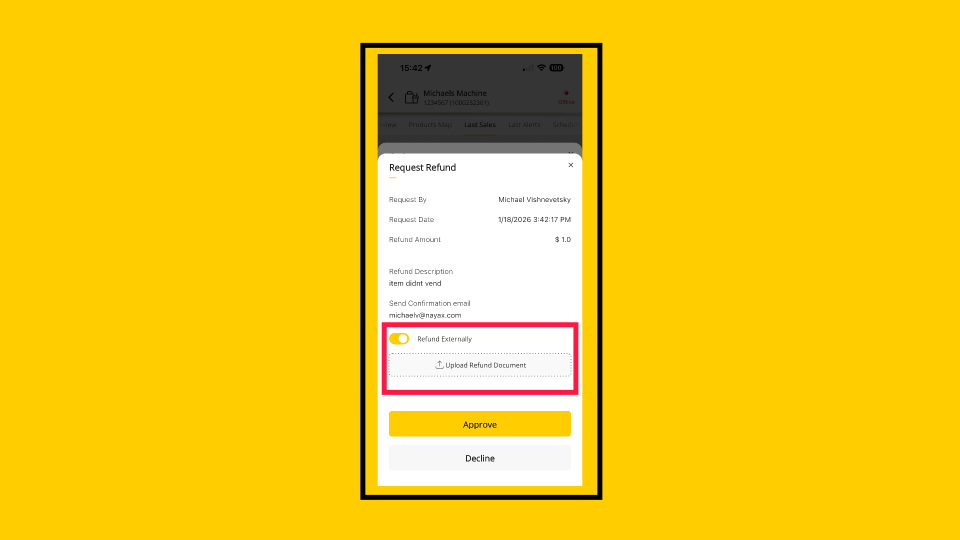
01:42: This feature shows the order has been refunded via a third-party system, like the client's bank. It informs staff and prevents duplicate refunds in Nayax's system. By selecting this feature, you can upload an existing image or take a new photo as proof of the refund.
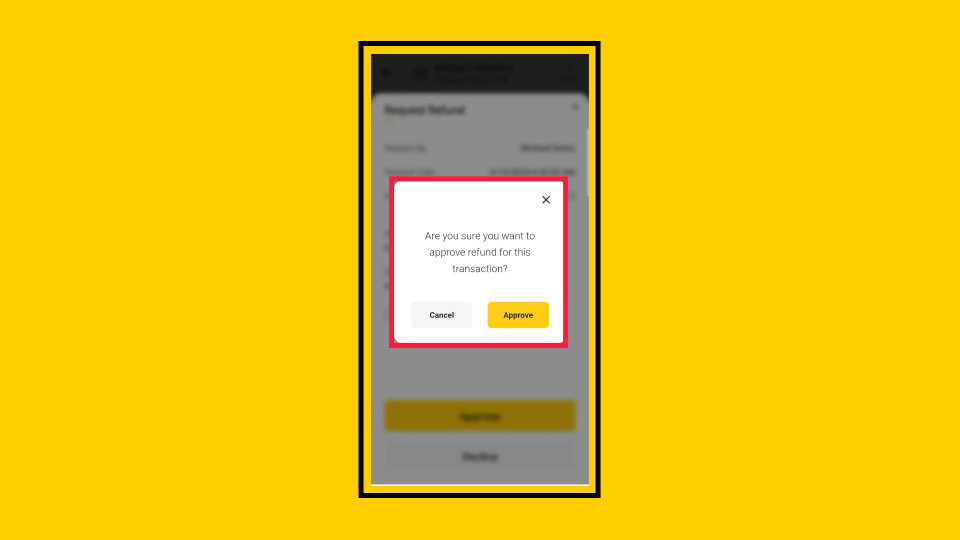
01:58: Tapping the Approve button will initiate a full or partial refund of the transaction, based on your request.
02:05: If you choose to decline the refund request, please provide a reason and then tap "Decline." Tapping the Decline button will cancel the refund request and prevent it from being processed.
Open MoMa App
Image AttachedOpen the MoMa app on your mobile device.

Tap Machine
Image AttachedThe Machines dashboard opens by default, showing all machines linked to your operator account.
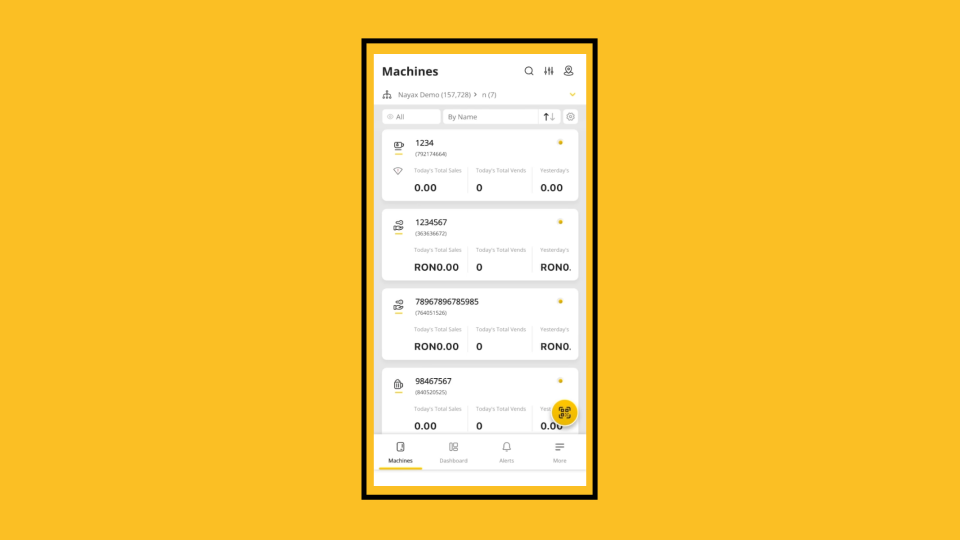
Search Machines
Image Attached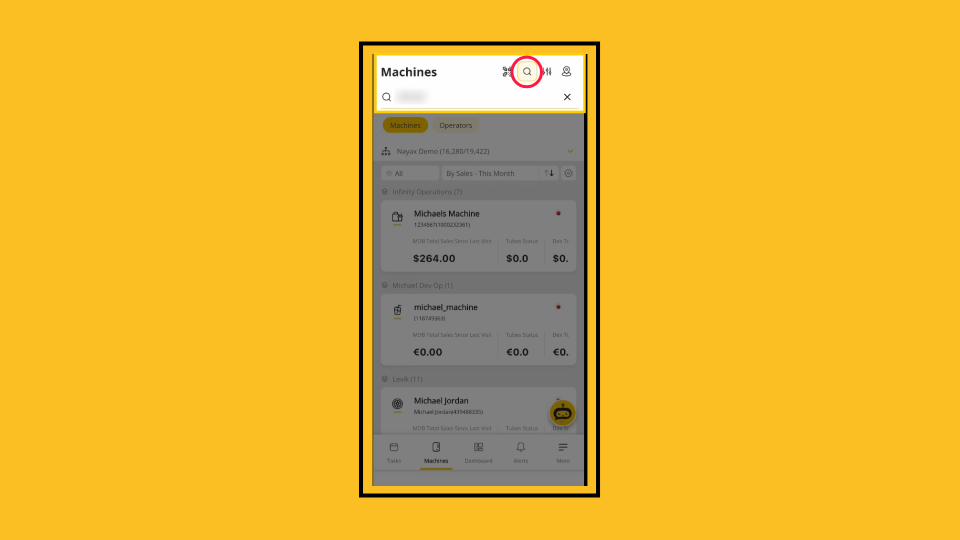
Last Sales
Image Attached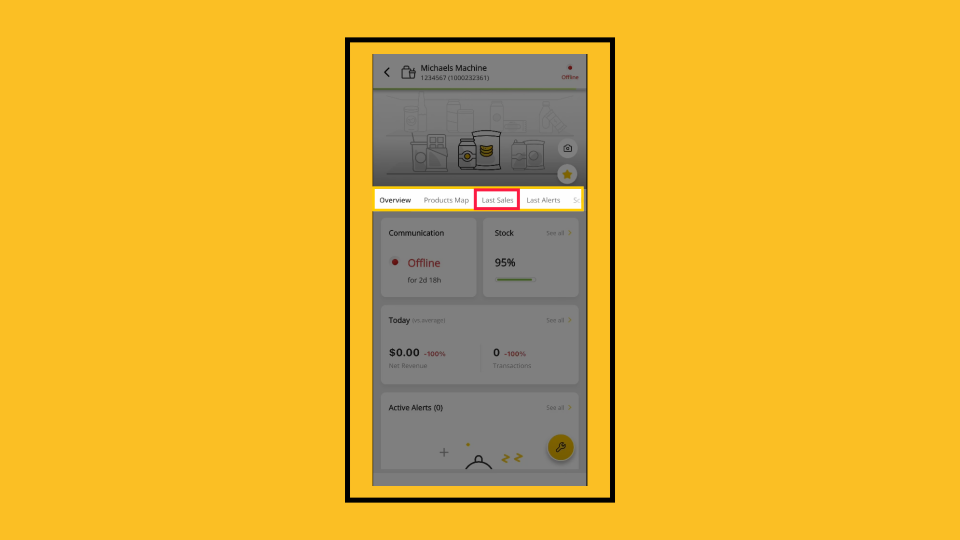
Filter Transaction Search
Image Attached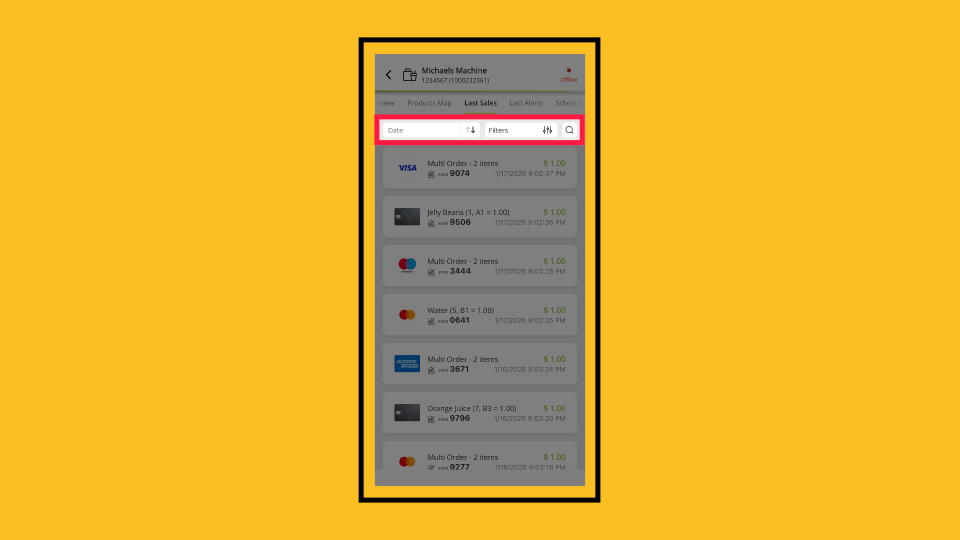
Locate Transaction
Image Attached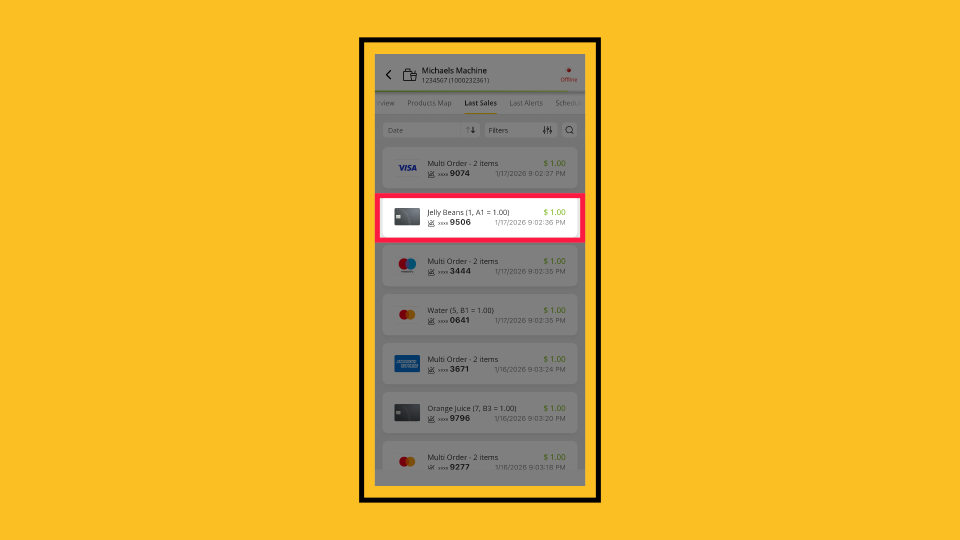
View Transaction
Image Attached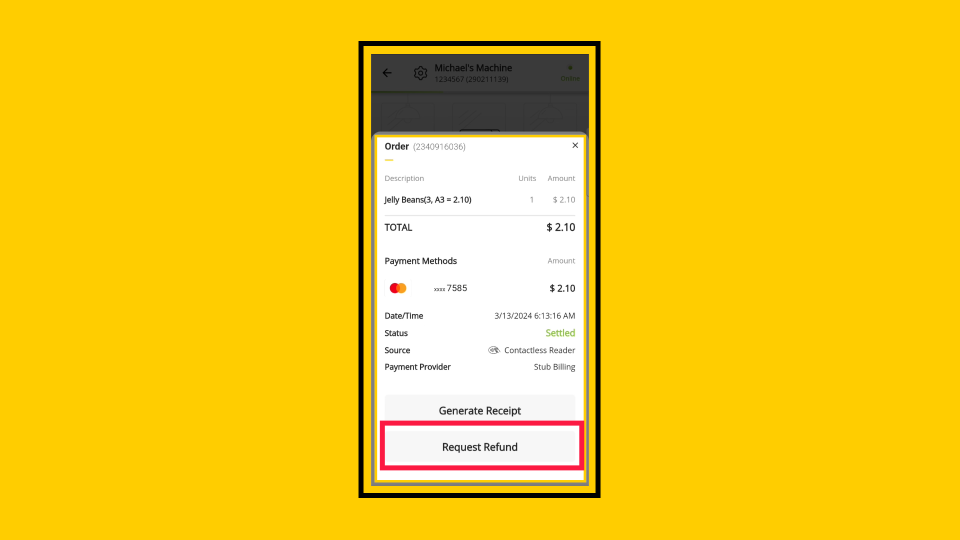
Refund Request
Image Attached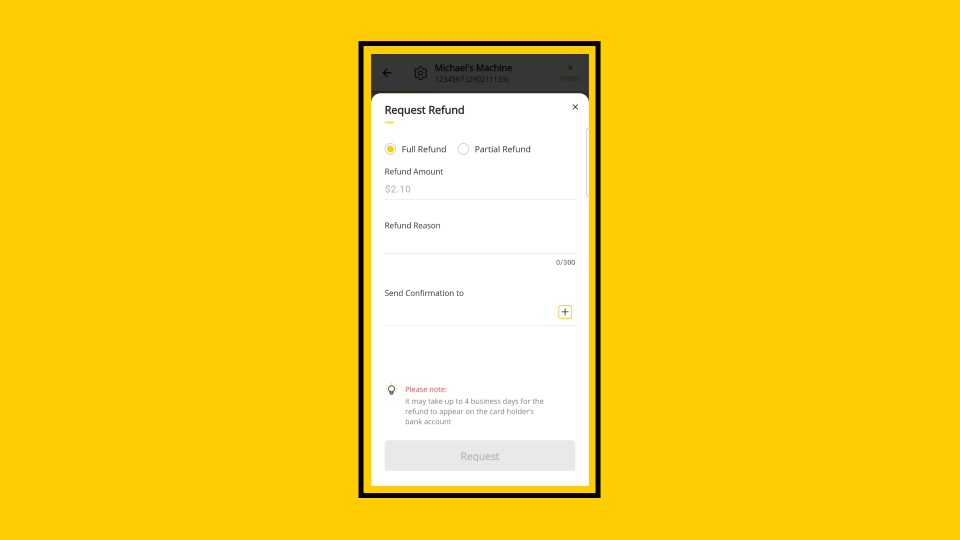
Type of Refund
Image AttachedSelect the refund type: Full Refund or Partial Refund.
Partial Refund - Returns part of the payment. The transaction remains active for the remaining balance.
Refund Amount
Image AttachedIn the Refund Amount field, confirm or enter the amount to refund.
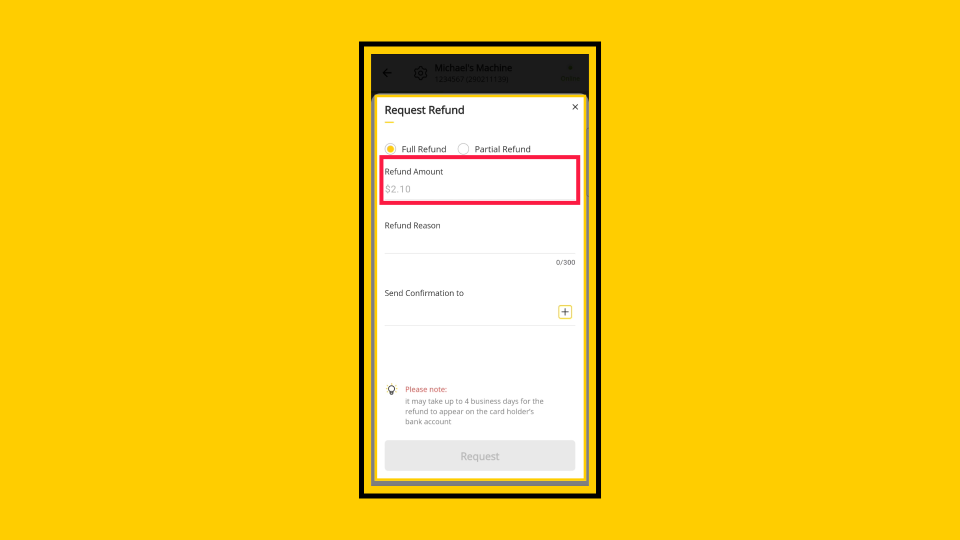
Appears for Selected Refund
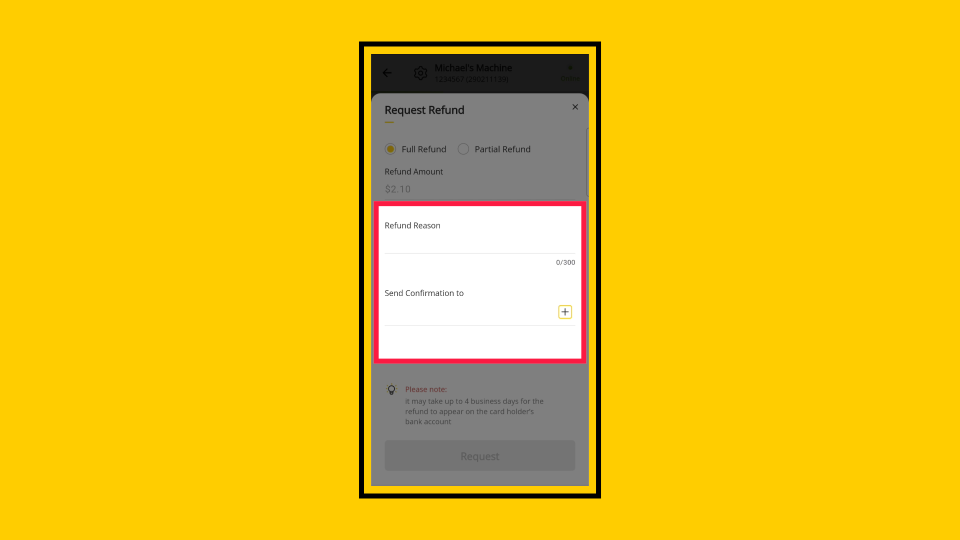
Image AttachedIn the Refund Reason field, type a reason for the refund (up to 300 characters).
In the Send Confirmation to field, add the email address where the refund confirmation should be sent. Tap + to add additional recipients.
Request Refund
Image AttachedTap Request to submit the refund request.
Overview Approve or Decline Refund
Image AttachedThe next stage presents the transaction details, payment method, and additional information on the Transaction Details screen. Tap Approve/Decline Refund.
Approve or Decline
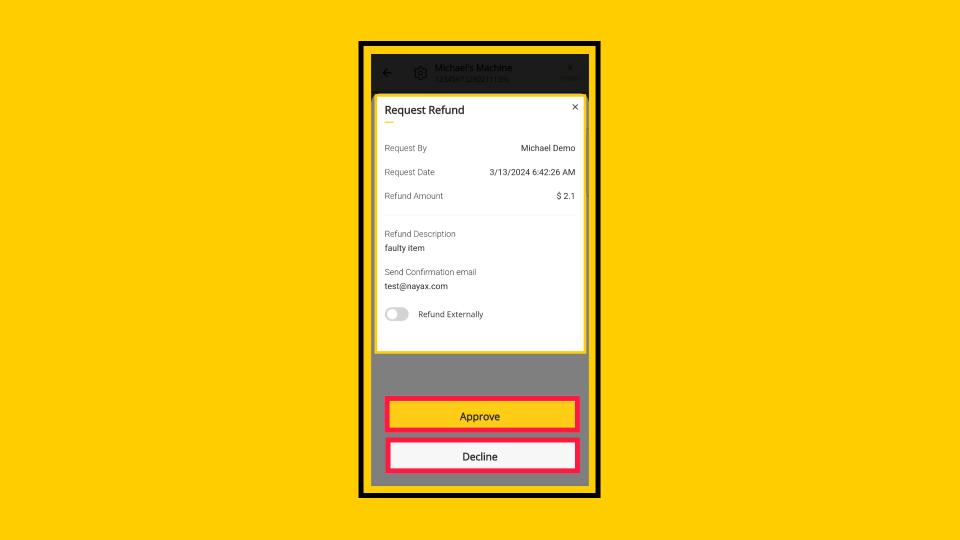
Image AttachedReview the refund request details: Request By, Request Date, Refund Amount, Refund Description, and Send Confirmation email.
Refund Externally
Image AttachedOptional: If the refund was already processed through a third-party system (such as the customer's bank), enable the Refund Externally toggle and upload a photo or document as proof.
Approve Refund
Image Attached-
Tap Approve to process the refund, or Decline to reject the request.
If approving: A confirmation dialog appears. Tap Approve to confirm. The full or partial refund is initiated based on the original request.
✅What you should see: The transaction status updates and a refund confirmation is sent to the email address(es) specified in the request.✓ Refund ProcessedThe refund has been submitted and approved. A confirmation email has been sent to the recipient(s) specified in the request. The cardholder's bank account will reflect the refund within up to 4 business days.
Decline Refund
Image AttachedIf declining: A Decline Refund dialog appears. Enter a Decline Reason (required, up to 300 characters), then tap Decline to cancel the refund request.
If the request was declined, the transaction remains in its original state, and no funds are returned.
Thank you!
Did you find this article helpful?