
How to Find and Manage Cards on the Go | MoMa
Find any card in the MoMa app quickly. Search by name, mobile number, employee ID, or card ID to view details, balance, and transaction history on your phone.
Prerequisites
Before You Start
- You have Operator access in MoMa.
- The MoMa app is installed on your mobile device (iOS or Android).
- You know at least one of the following for the cardholder: name, mobile number, employee/user identity, card unique identifier, or card ID.
- Cards Management is available in MoMa version 1.0.1151 and later.
Video Guide
00:00: Learn how to manage cards in the MoMa app, from finding and editing card details to
00:04: updating credit and reviewing card statistics.
00:08: Open the MoMa app on your mobile device.
00:11: From the default machine screen, tap on the More tab from the navigation bar.
00:15: Tap Cards Management from the menu options.
00:19: The Card Management screen opens, and you can review the Card Statistics panel at the
00:23: bottom to see totals for all Prepaid, Discount, and Technician cards, including card
00:28: status, total credit, and transactions.
00:31: To search for a card,
00:32: tap the card type field to filter the card list options.
00:36: Choose the type of card you're looking for: Prepaid, Discount, or Technician.
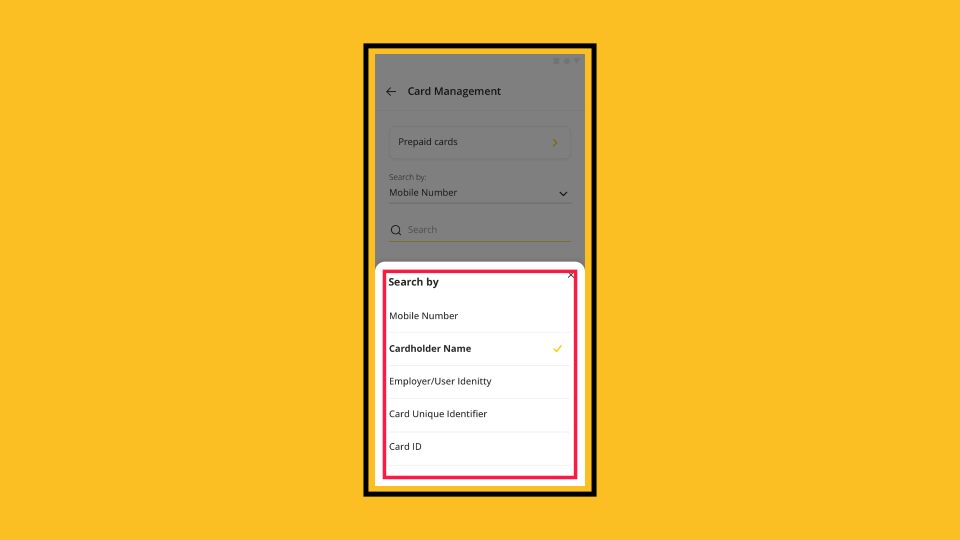
00:40: You can search for a card in several ways, including mobile number, cardholder name,
00:44: or unique card ID.
00:47: Enter your search term in the Search field. Results appear as you type. Tap the
00:51: yellow magnifying glass
00:52: if results do not appear automatically.
00:55: In the results list, tap on any card to open its full details.
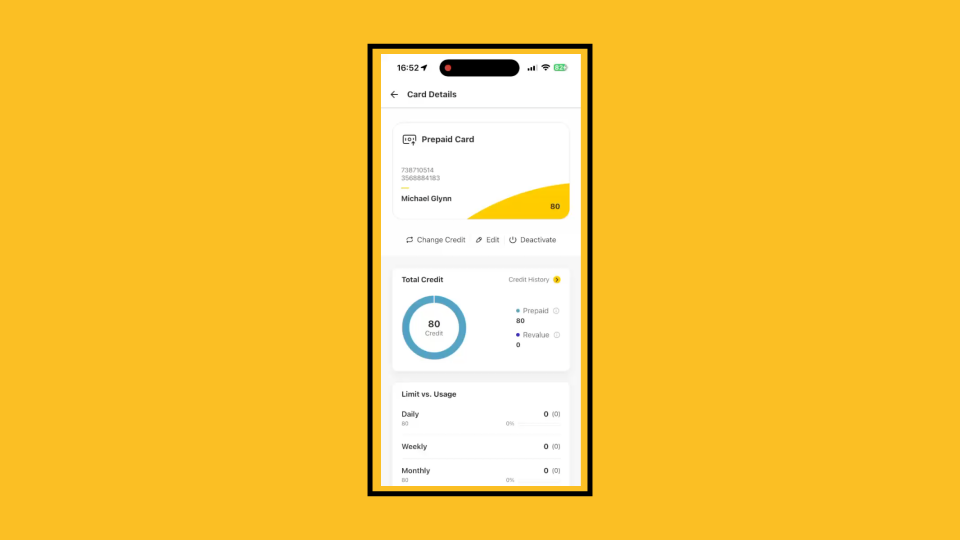
01:00: The Card Details page gives you a complete view of a card’s credit limit, usage,
01:04: recent transactions, and cardholder information.
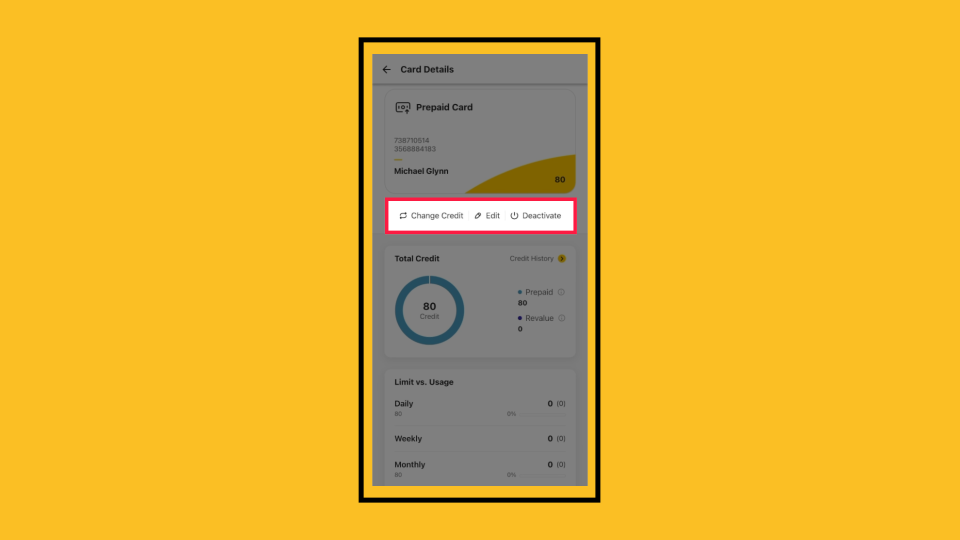
01:07: From the main Card Details page, you can change the credit, edit cardholder
01:11: information, or deactivate the card.
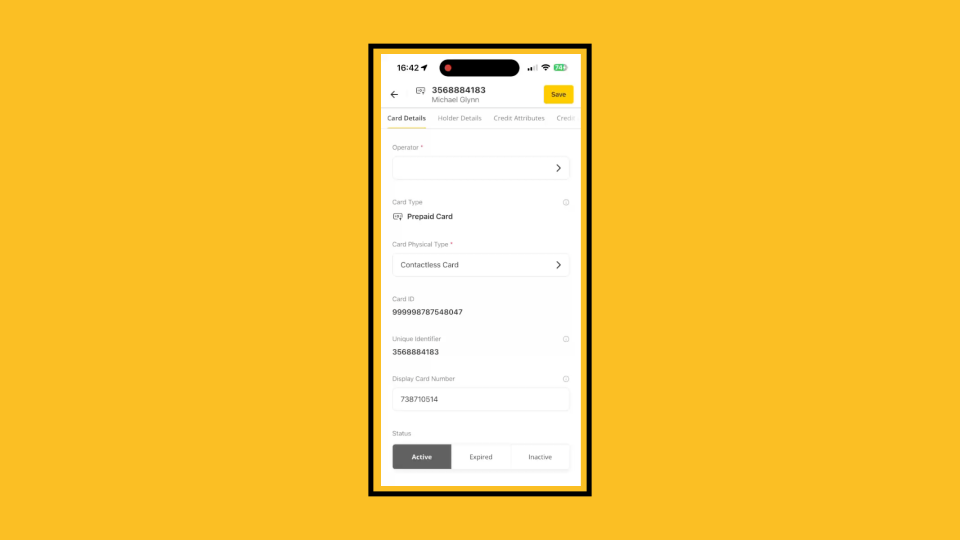
01:14: From the edit screen, you can update cardholder details,
01:16: adjust discounts, modify technician permissions, set credit attributes and limits,
01:21: apply group or location restrictions, and define expiry dates.
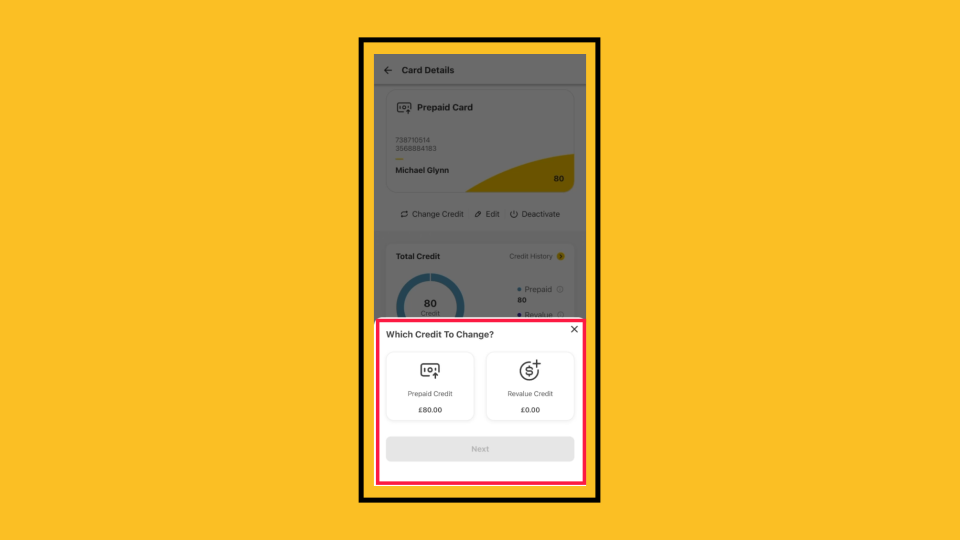
01:26: Update all the cardholders’ information or credit by following the simple
01:30: on‑screen prompts in your MoMa app.
Open MoMa App
Image AttachedOpen the MoMa app on your mobile device. The Machines screen opens by default.

More Tab
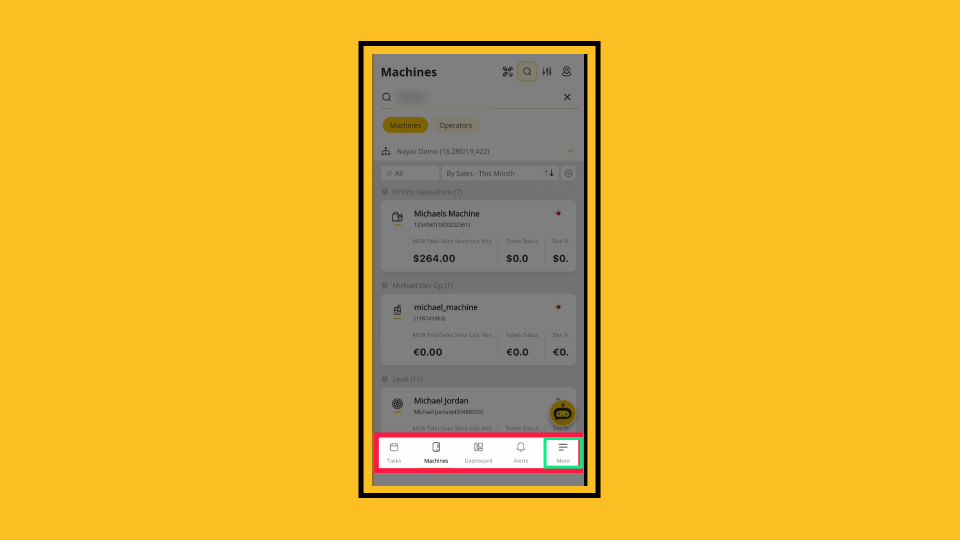
Image AttachedFrom the default machine screen, tap on the More tab from the navigation bar.
More Menu
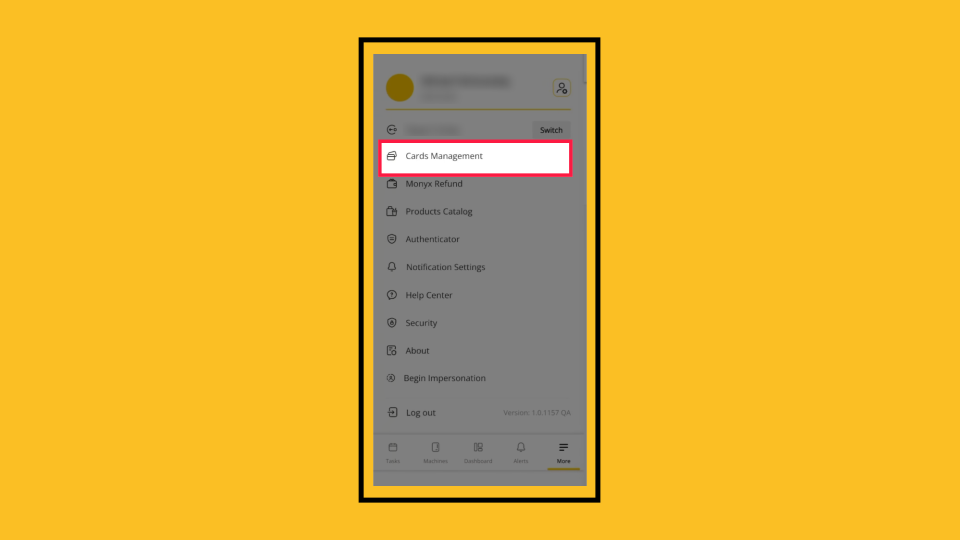
Image AttachedFrom the More menu, tap Cards Management. It appears at the top of the list, directly below your operator name.
Card Statistics
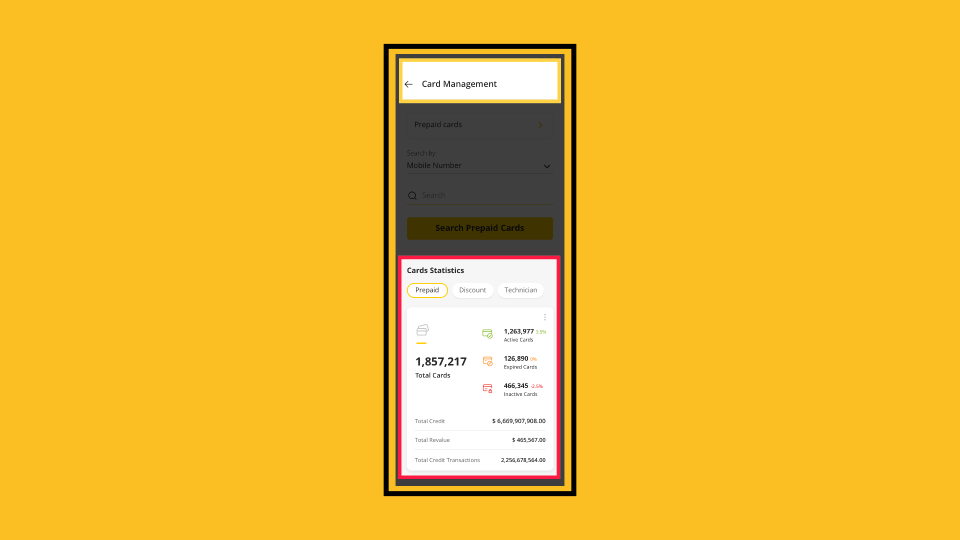
Image AttachedThe Card Management screen opens, and you can review the Card Statistics panel at the bottom to see totals for all Prepaid, Discount, and Technician cards, including card status, total credit, and transactions.
Card Management Options
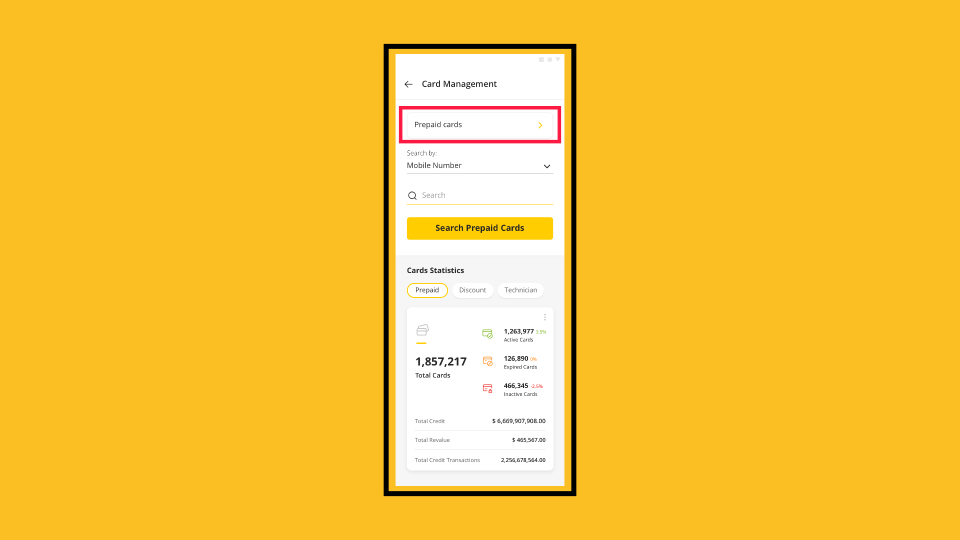
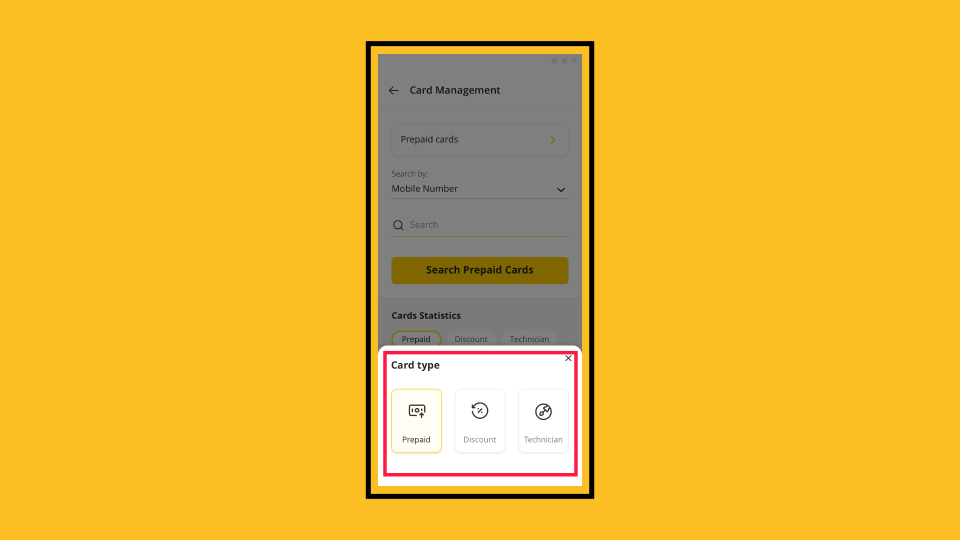
Image AttachedTo search for a card, tap the card type field to filter the card list options.
Card Filter Options
Image AttachedChoose the type of card you're looking for: Prepaid, Discount, or Technician.
Card Search Options
Image Attached
Which search method should you use?
|
Search by |
Best when you have… |
Example |
|
Cardholder Name |
The cardholder's first or last name |
|
|
Mobile Number |
The cardholder's registered phone number |
|
|
Employer/User Identity |
An internal employee or user ID from your system |
|
|
Card Unique Identifier |
The card's unique identifier (from the card number encoded on the card magnetic stripe or your records) |
|
|
Card ID |
The internal Card ID visible number printed on the card |
|
Card Search Results
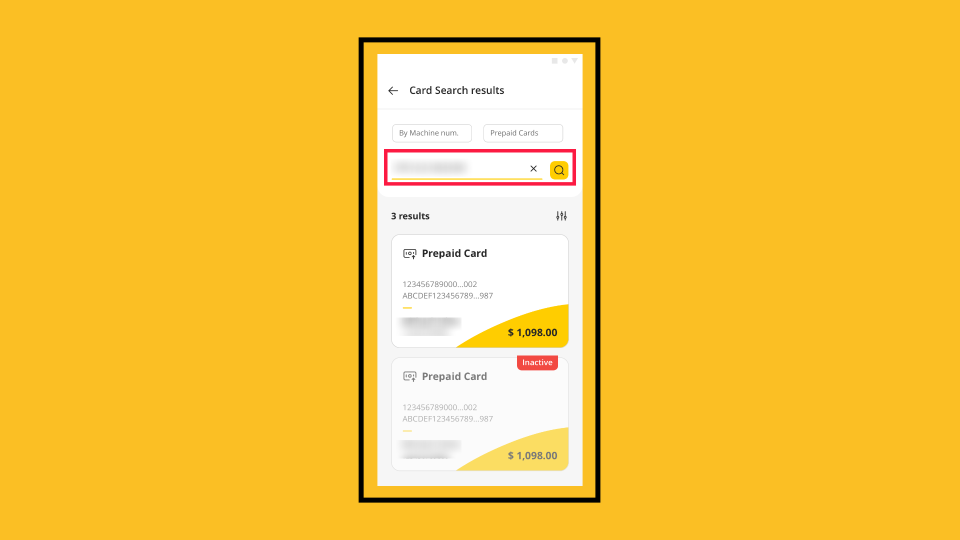
Image AttachedEnter your search term in the Search field. Results appear as you type.
Tap the yellow magnifying glass if results do not appear automatically.
Reading your search results
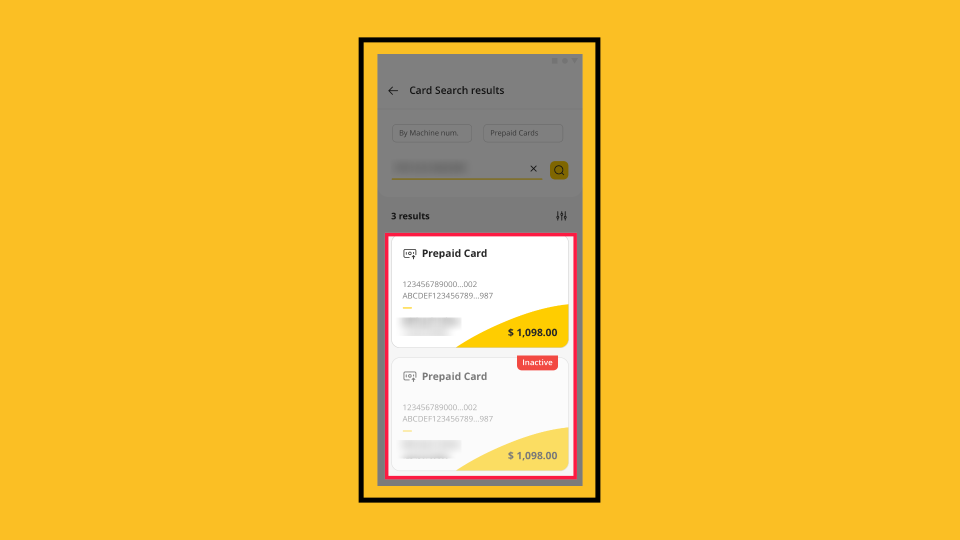
Each result shows the card type, card numbers, cardholder name, and current balance. Cards are color-coded by status:
|
● Active card Card is enabled and can be used for purchases. |
● Inactive card Card exists but has been deactivated. Tap to view details and reactivate if needed. |
If your search returns zero results: check that you have the correct card type selected, then try a different Search by option (for example, switch from Mobile Number to Cardholder Name).
Tap Card to Open
Image AttachedTap any card in the results list to open its full Card Details screen.
Card Details
Image AttachedThe Card Details page gives you a complete view of a card’s credit limit, usage, recent transactions, and cardholder information.
Card Details Overview
Image AttachedFrom the main Card Details page, you can:
|
Change credit |
Top up or reduce a cardholder's prepaid balance. |
|
Edit cardholder details |
Update name, contact info, limits, or permissions. |
|
View credit and transaction history |
See every credit change and purchase made with the card. |
|
Deactivate the card |
Disable the card from the Card Details screen. |
Edit Cardholder Limitations
Image AttachedThe Card Details screen shows the cardholder's name, number, balance, limits, and usage; adjust discounts, technician permissions, credit attributes, apply restrictions, and set expiry dates.
Change Credit
Image AttachedUpdate all the cardholders’ information or credit by following the simple on‑screen prompts in your MoMa app, and that's it. Everything you need to manage a card is right here in your Nayax MoMa app.
Thank you!
Did you find this article helpful?