
How to Enable 'Catalog Mode' Parameter | Administration
This guide explains how to enable Catalog Mode in Retail Core. Enabling this feature allows POS Presets to be configured, providing flexible layouts and faster checkout options.
Video Guide
00:00: Enable Catalog Mode in Retail Core to configure POS Presets for faster, tailored checkout experiences.
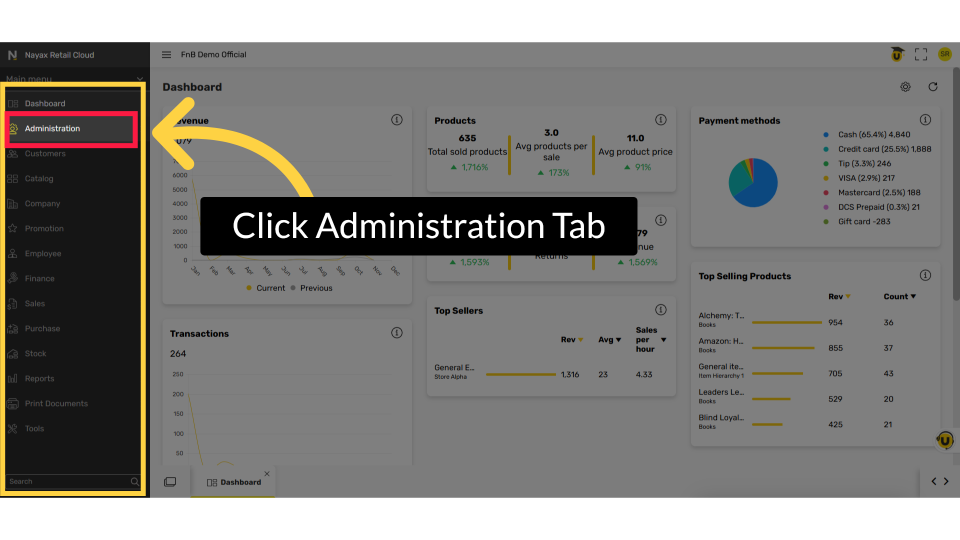
00:07: On the dashboard of your Retail Core platform, click the Administration tab from the side menu.
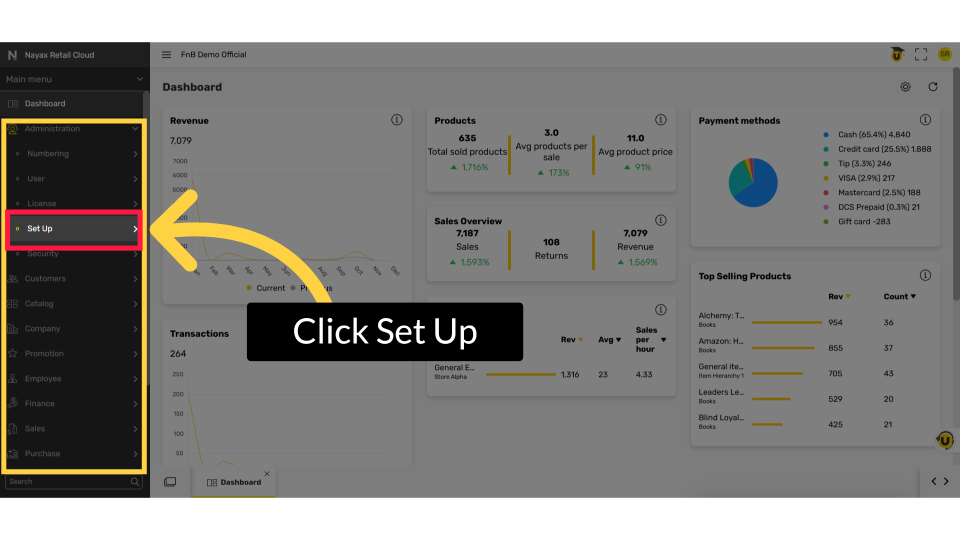
00:13: In the sub-menu click on setup tab.
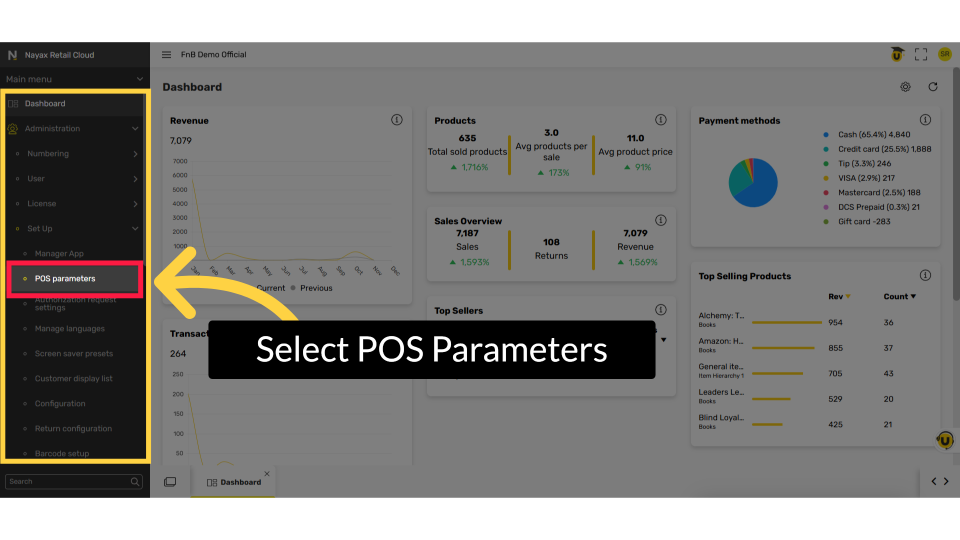
00:15: In the sub-menu, click the POS parameters tab.
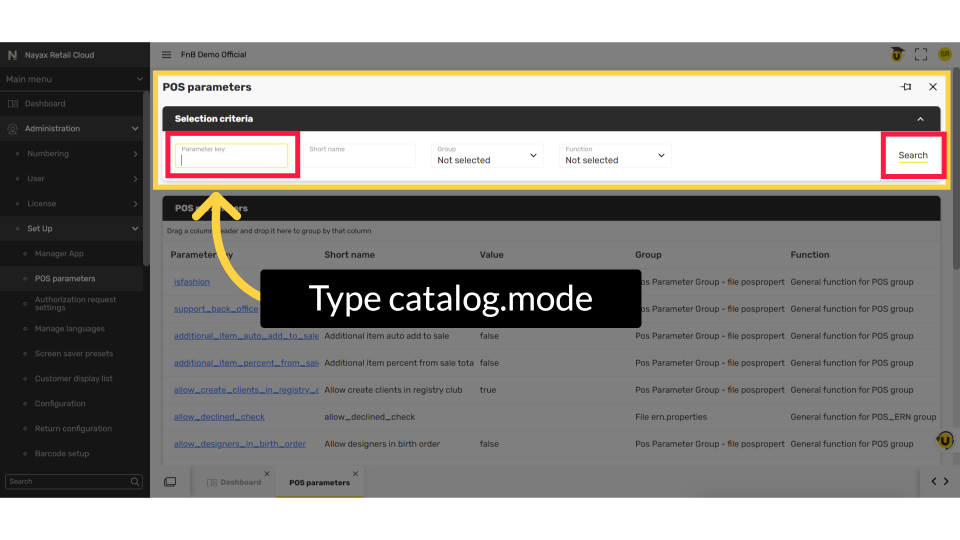
00:18: The Parameter page will open. In the parameter key field, type the key-specific parameter you want to modify. For this feature type, "catalog.mode". Then click search.
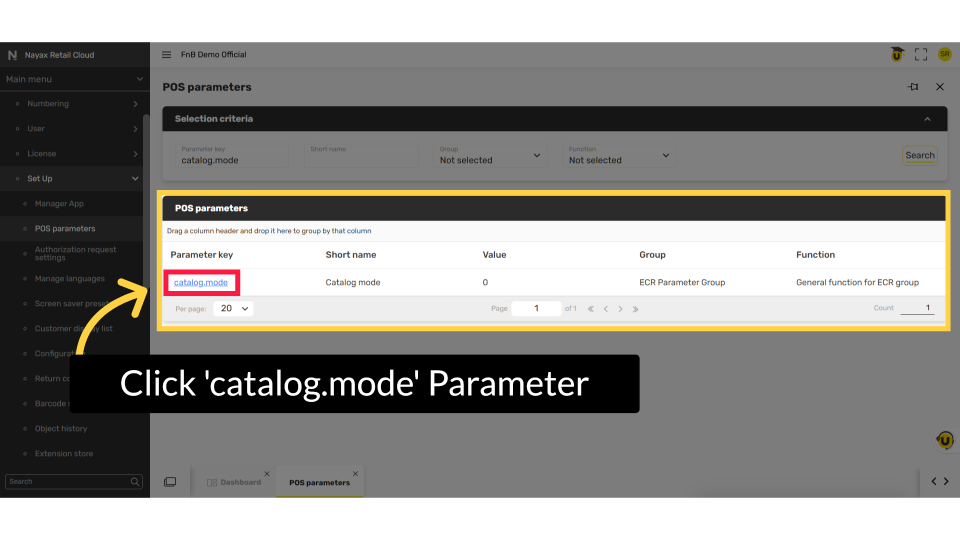
00:29: Click the highlighted parameter "catalog.mode" to edit.
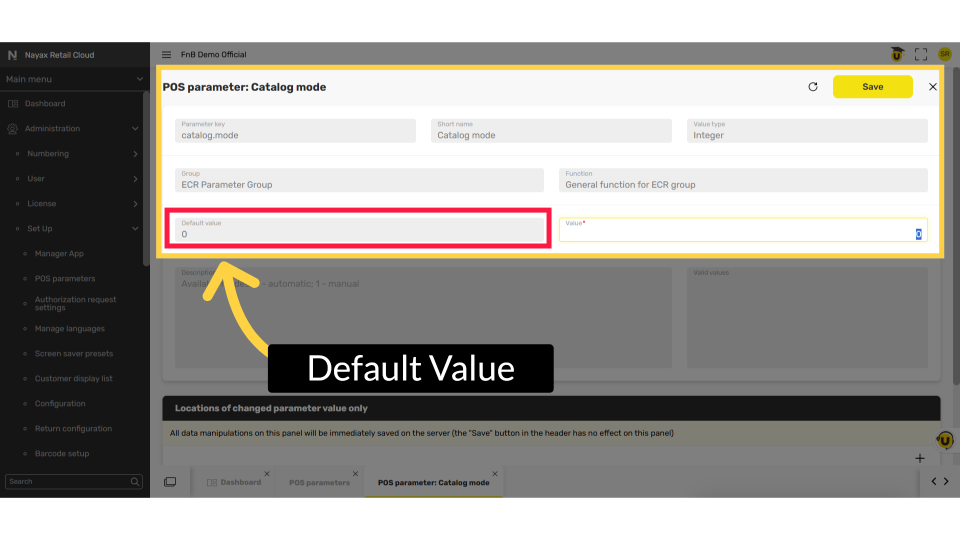
00:32: The parameter window opens. The value field is set by default and is disabled for all users.
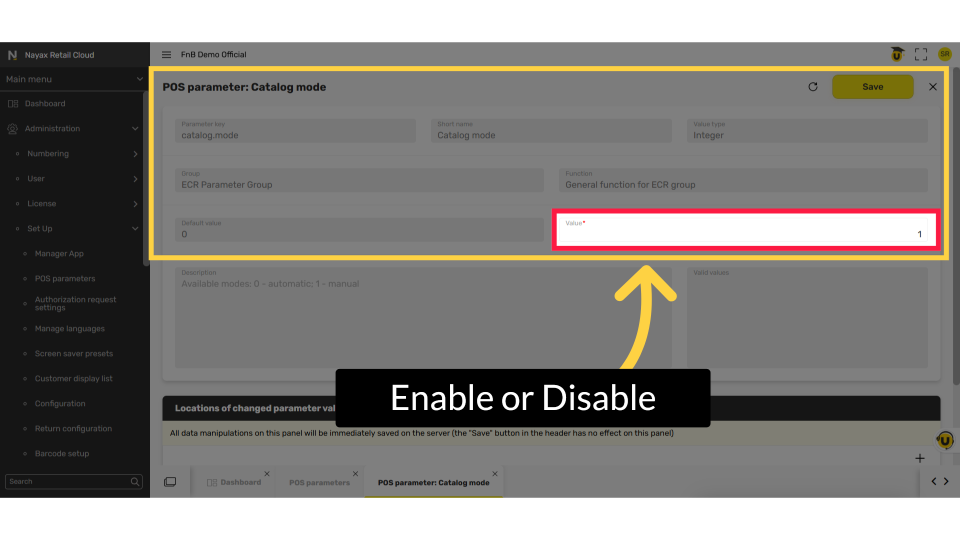
00:39: Enter 1 to enable or 0 to disable this parameter.
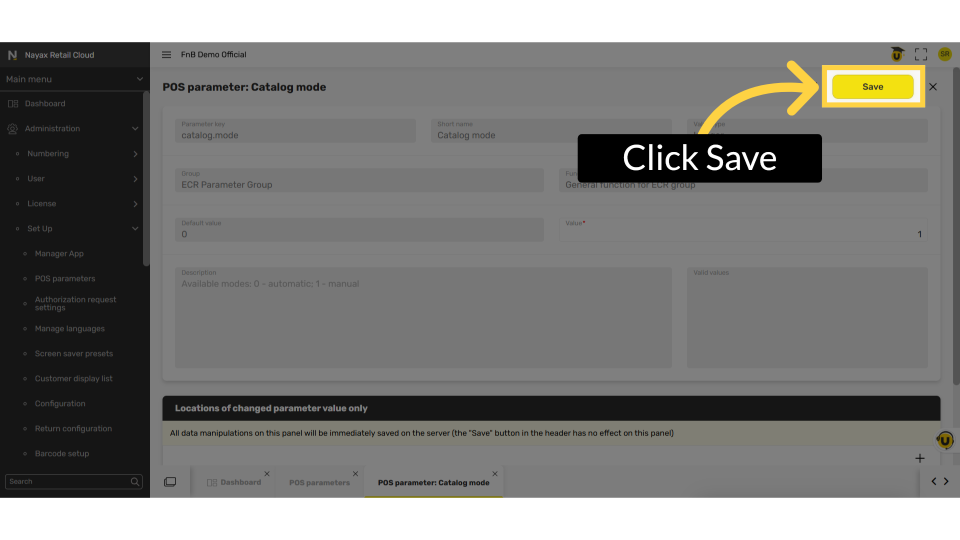
00:43: Click "Save" to apply and save your changes.
00:00: This guide shows you how to enable Per Store Trading Day mode and automate
00:04: daily open and close processes for your stores in Retail Core.
00:08: On the dashboard of your Retail Core platform, click the Company tab.
00:12: In the sub-menu, go to the Locations tab.
00:16: Click on the Arrow as highlighted in red on the visual of the company, you need to
00:20: add a positive and a list of stores will appear below.
00:24: Click on the store that you wish to enable or disable 'Per Store Trading Day Mode'
00:28: for the POS.
00:30: In the store settings section, scroll down to the 'Trading Day Mode' field and click
00:34: to open the drop-down menu.
00:36: Select per store to set the trading day mode to operate on a per store basis,
00:40: enabling the start day and end day shifts to be triggered from any device.
00:46: Click Save to apply and store your settings in Retail Core.
00:49: Please note that changes take effect after the day is closed. To
00:53: apply them immediately, close the day on the device and update
00:56: the catalog on the POS.
Click Administration Tab
Image AttachedOn the dashboard of your Retail Core platform, click the Administration tab from the side menu.
Click Set Up
Image AttachedIn the sub-menu click on setup tab.
Select POS Parameters
Image AttachedIn the setup sub-menu, click on the POS parameters tab.
Type Parameter Key
Image AttachedThe Parameter page will open. In the parameter key field, type the key-specific parameter you want to modify. For this feature, type in exactly 'catalog.mode' and click Search.
Click 'catalog.mode' Parameter
Image AttachedThe catalog mode parameter will appear in the table. Click on the catalog.mode highlighted parameter to edit.
Choose Value Field
Image AttachedThe parameter window opens. The value field is set by default and is disabled for all users.
Enable or Disable
Image AttachedEnter 1 to enable or 0 to disable this parameter.
Click Save
Image AttachedClick "Save" to apply and save your changes.
Thank you!
Did you find this article helpful?