
How to View an EV Charging Per Period Report | Reports
Learn how to generate EV charging session reports for specific periods, listing charges by Charge Point Operator (CPO), initiating sessions, and utilizing enhanced filters.
Video Guide
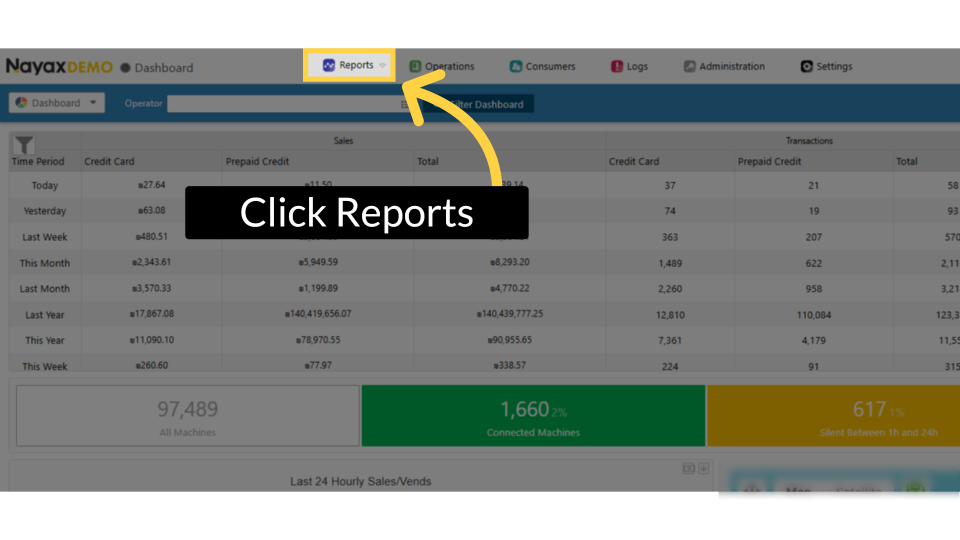
Click Reports
Image AttachedOn the Dashboard of your Nayax Energy Core management suite click on the Reports tab.
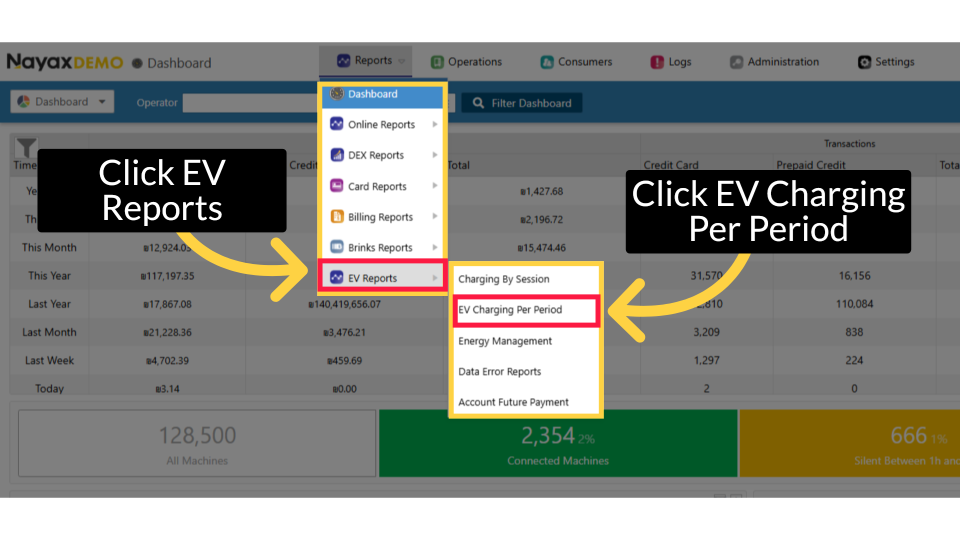
Click EV Reports
Image AttachedClick EV Reports and then click on EV Transaction Per Period from the Sub menu as highlighted.
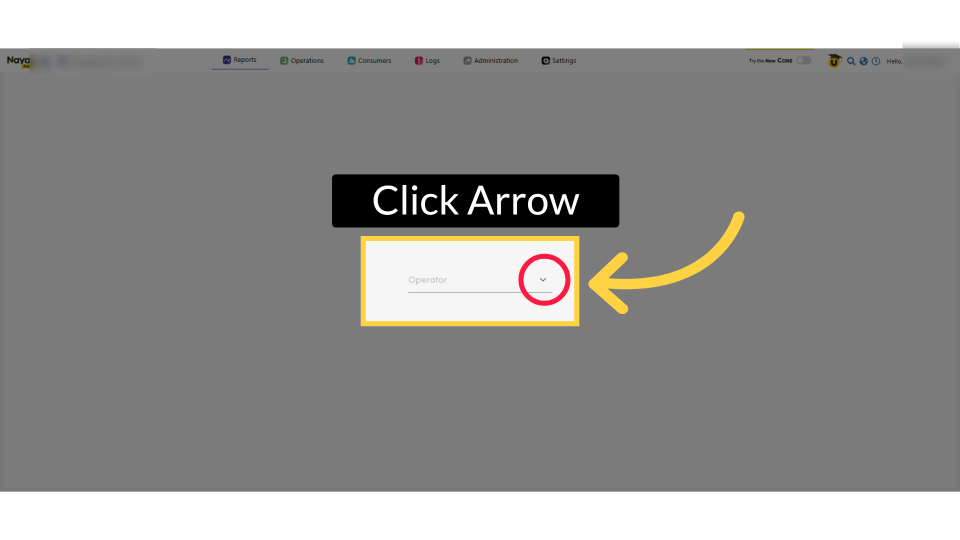
Click Arrow
Image AttachedClick on the Arrow as highlighted to select your operator from the menu.
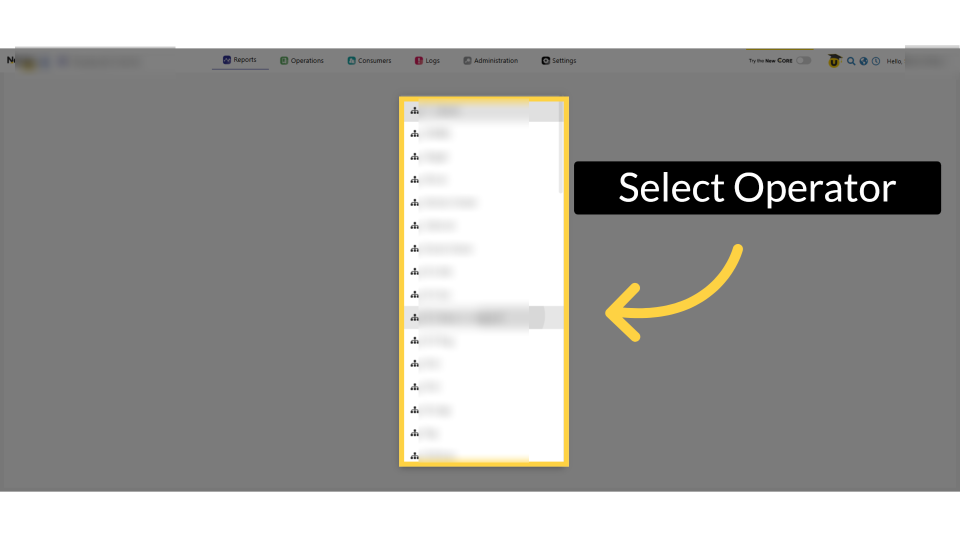
Select Operator
Image AttachedClick on the Operator to view the EV session report.
Set Filters & View Report
Image Attached
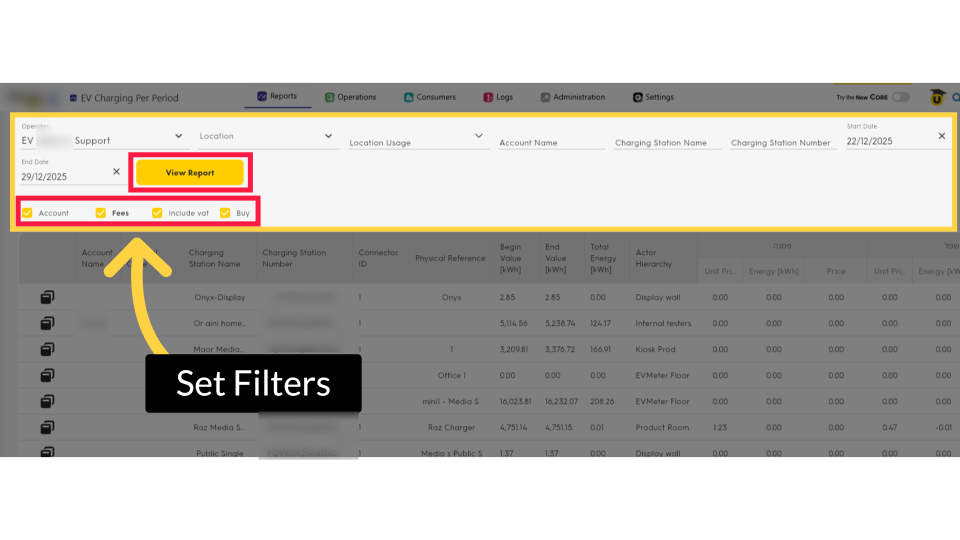
Select the checkboxes to set the filters to generate a report for a specific date range, usage location, or other options that match the per-period report you want to view.
Once ready to view the report, click the View Report button as highlighted.
Pro TIp!
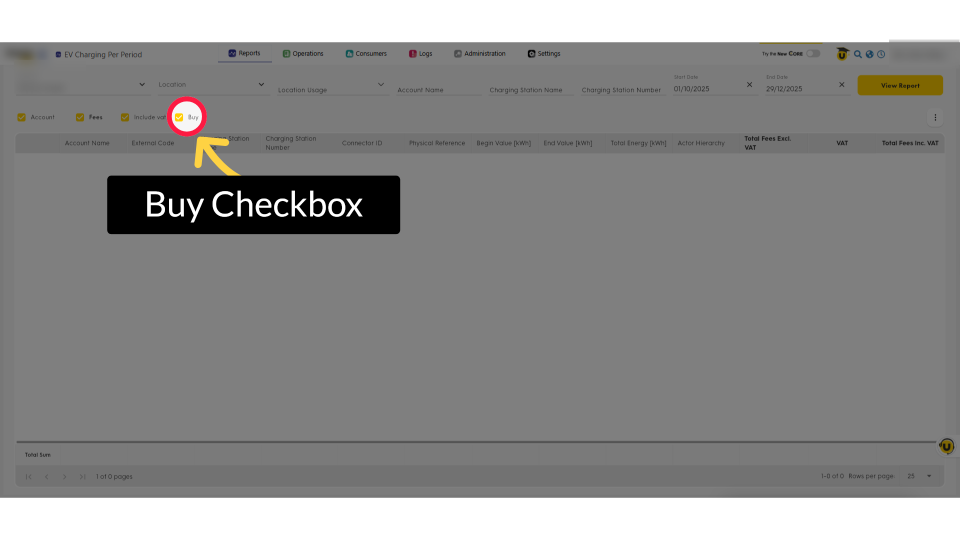
Image AttachedPro tip: The Buy checkbox is to include specific financial columns in your report, such as Utility Energy Cost and Energy Income.
Sessions Displayed
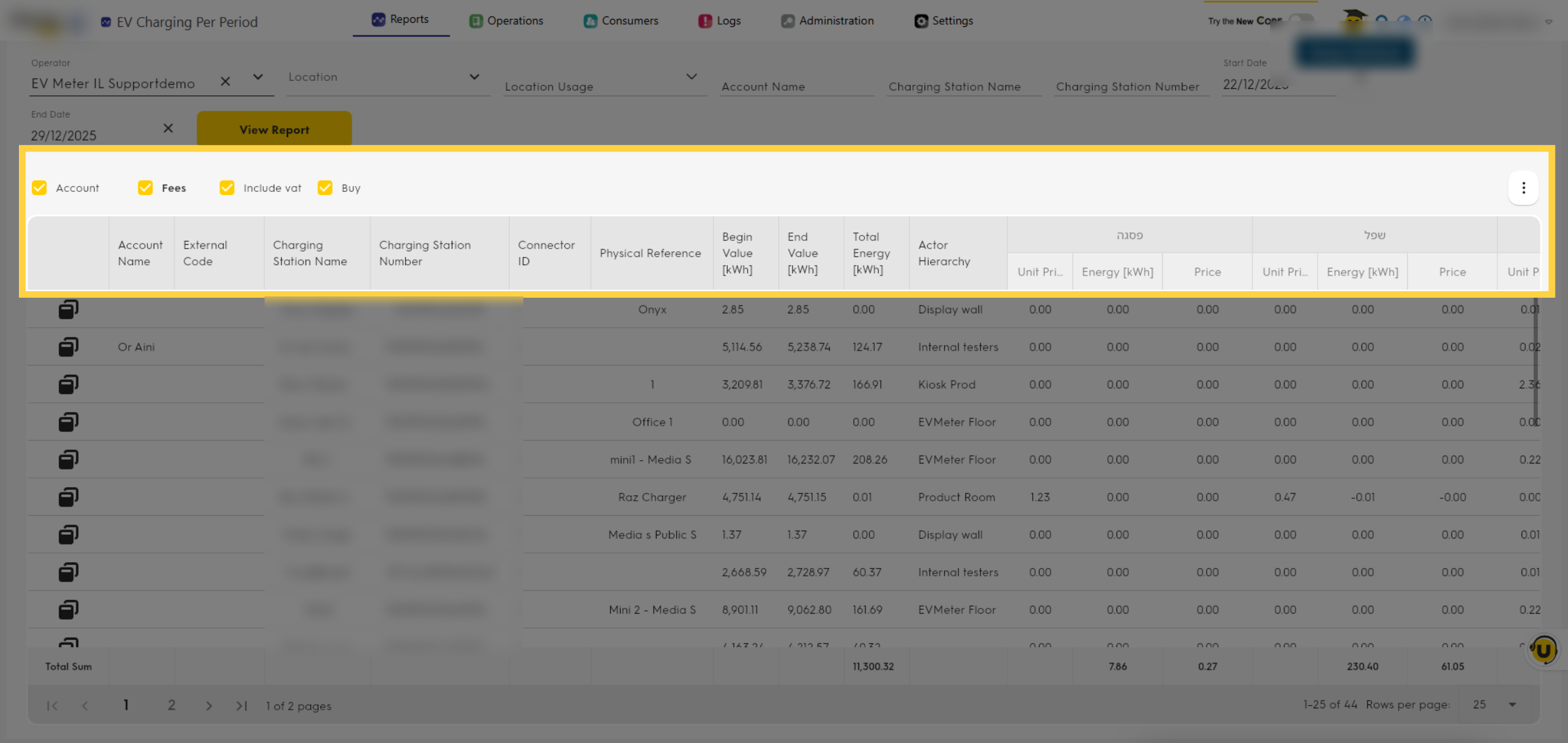
Image AttachedThe report page will open, displaying a table of the charging sessions per period for this operator.
Click Charger Icon
Image Attached
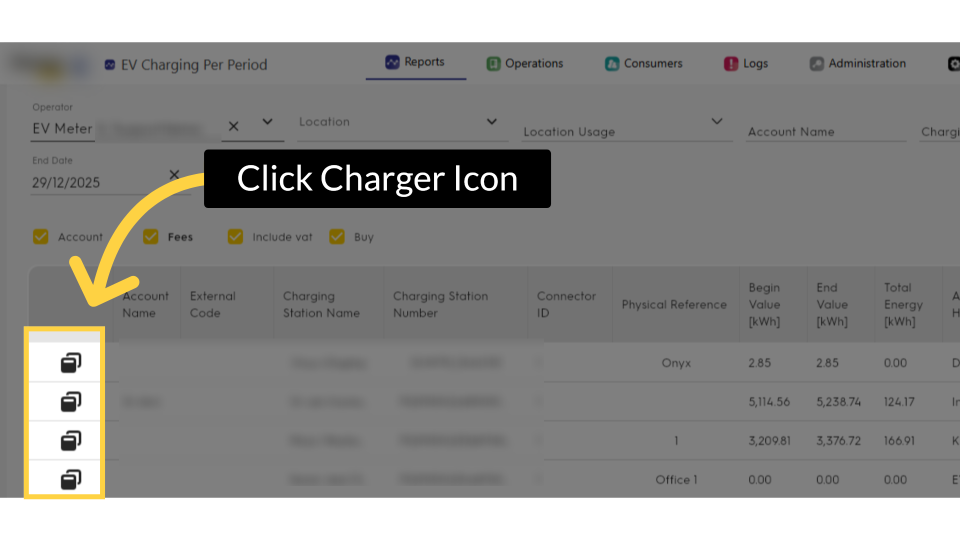
To view a specific charging station, click the Charger Icon to open it and view the individual station.
Charging Station Sessions
Image Attached
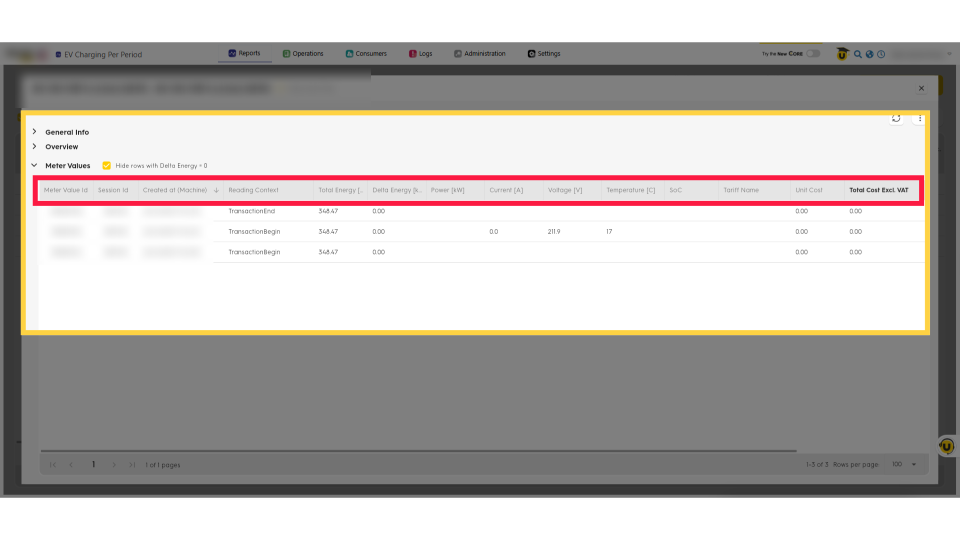
A table will open to display the sessions for this individual charger.
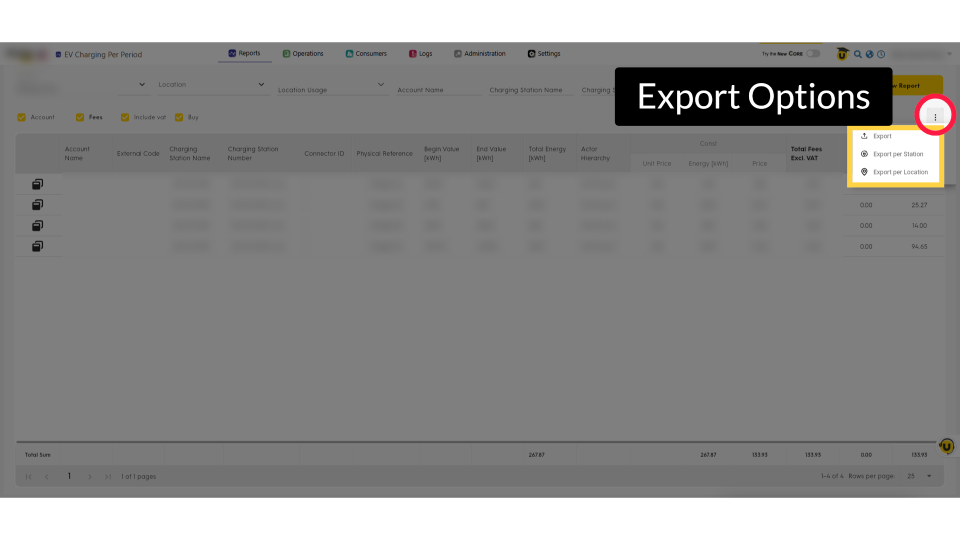
Export Options
Image Attached
Click on the three dots as highlighted in RED to Export button to download the data to your device.
Thank you!
Did you find this article helpful?