
How to Generate a Receipt | MoMa
This guide will walk you through generating receipts in the MoMa app.
Video Guide
00:01: This step-by-step guide will walk you through generating receipts in the MoMa app.
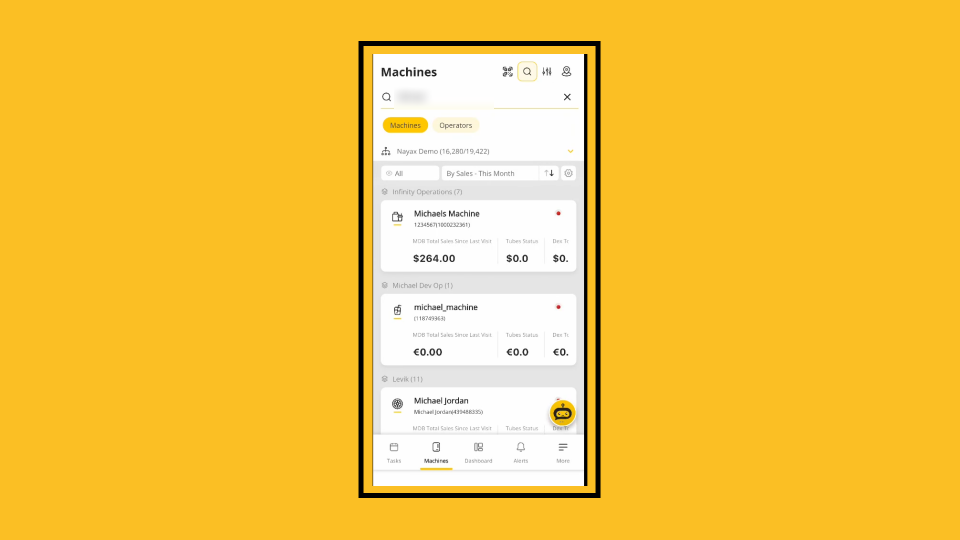
00:05: On this dashboard of your MoMa app, search for and select the Machine you wish to generate a receipt for.
00:12: To search, click on the Magnifying Glass Icon. You can search by operator name, machine ID, or machine name.
00:18: In the Machine Overview, tap the Last Sales Tab.
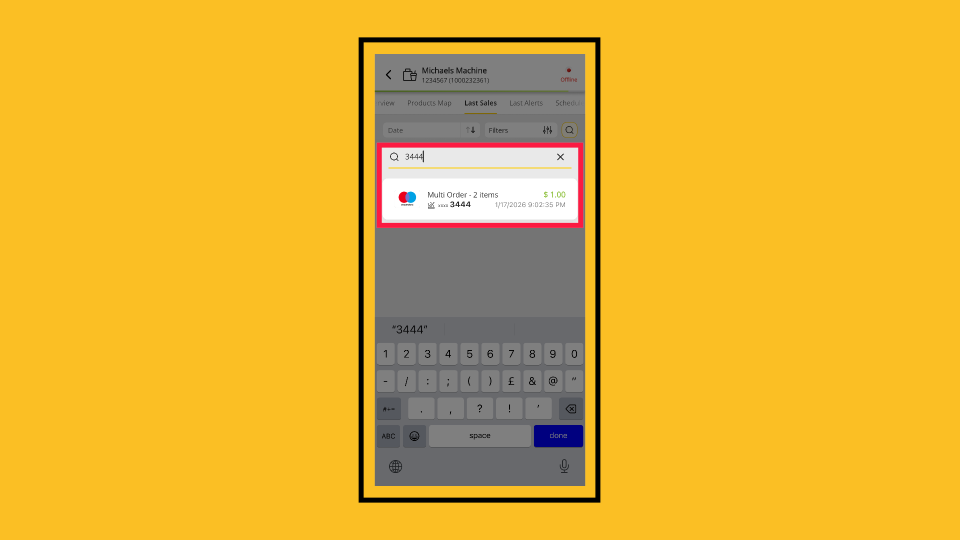
00:22: Locate the relevant transaction using the filters or the search icon.
00:26: Once found, tap to access the transaction screen to generate a receipt.
00:31: Receipts can be downloaded or sent via PDF email.
00:35: You can enable both toggles to download the receipt as a PDF and send it directly by email. This ensures easy access to a digital copy and a convenient email option for record-keeping.
00:47: To email a receipt, add the recipient's email or several emails.
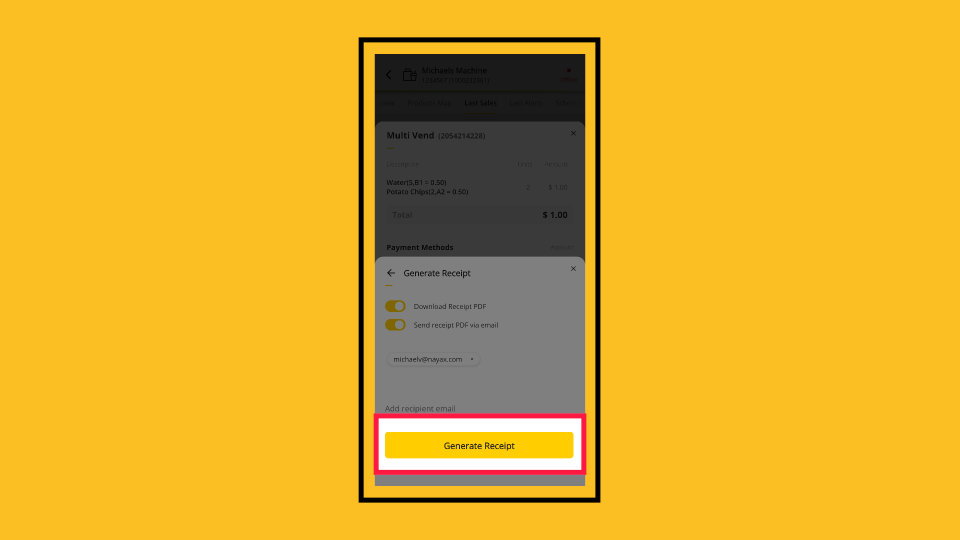
00:52: Once ready to proceed, tap Generate Receipt, and the receipt will be downloaded as a PDF or emailed, depending on your preferences.
Tap Machine
Image AttachedOn this dashboard of your MoMa app, search for and select the Machine you wish to generate a receipt for.
Last Sales
Image Attached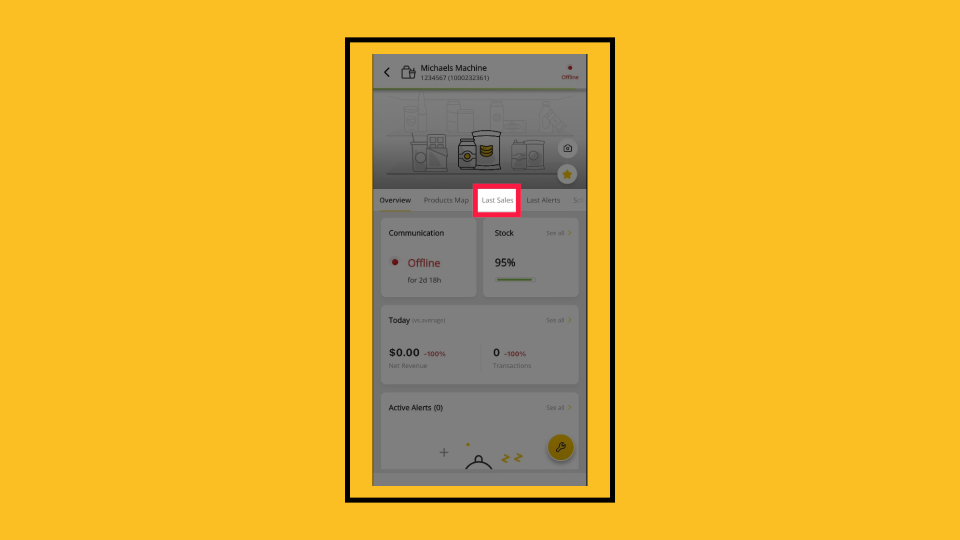
Last Sales
Image AttachedLocate Transaction
Image Attached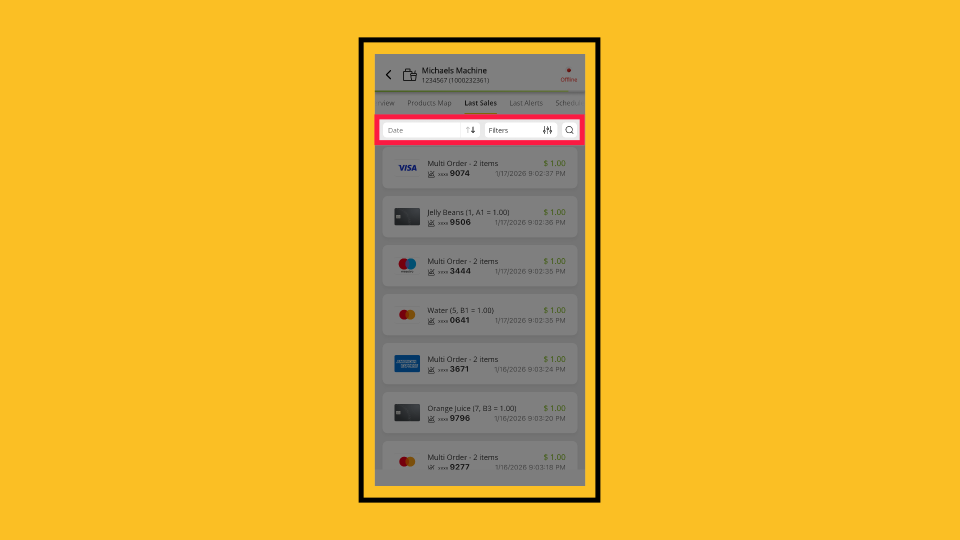
View Transaction
Image AttachedOnce found, tap to access the transaction screen to generate a receipt.
Generate Receipt Screen
Image Attached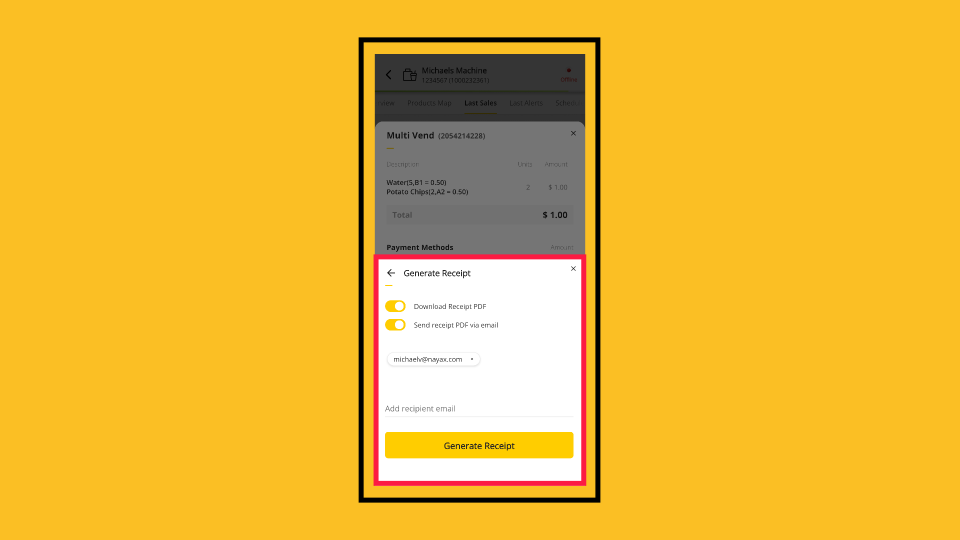
Receipt Options
Image Attached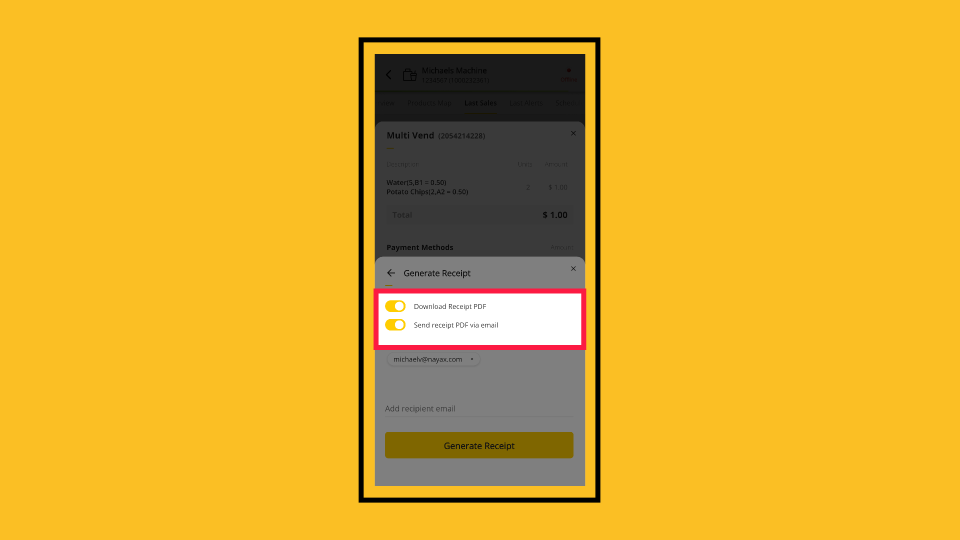
Email Receipt
Image Attached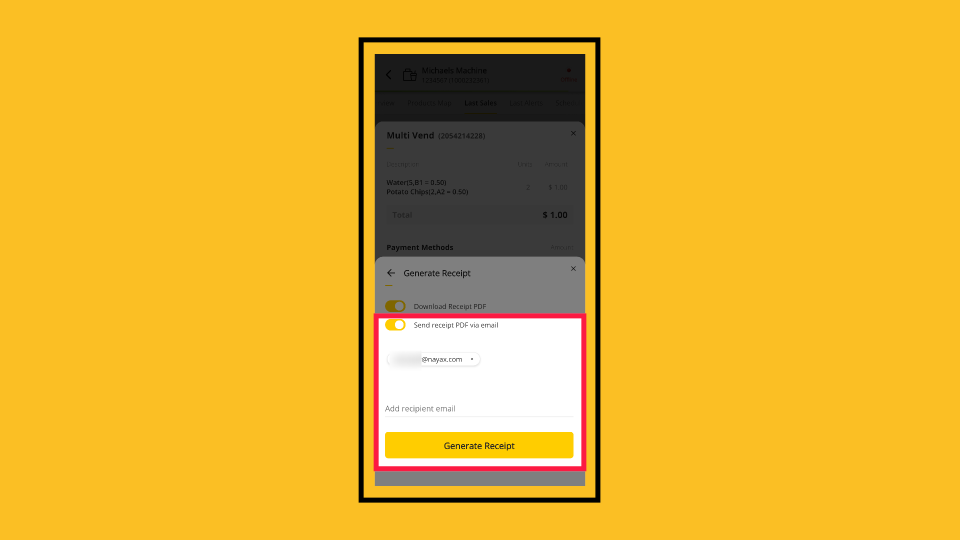
Generate Receipt
Image AttachedOnce ready to proceed, tap Generate Receipt, and the receipt will be downloaded as a PDF or emailed, depending on your preferences.
Thank you!
Did you find this article helpful?