
Overview of the Main Screens in MoMa | MoMa
Get oriented in MoMa. Learn the five main screens, what each one does, and how to navigate between them so you know where everything lives before diving in.
Video Guide
00:01: MoMa has a lot of features. Before you start configuring, take a few minutes to
00:05: understand the five main screens
00:07: so you always know where to go.
00:09: Open the MoMa app on your mobile device.
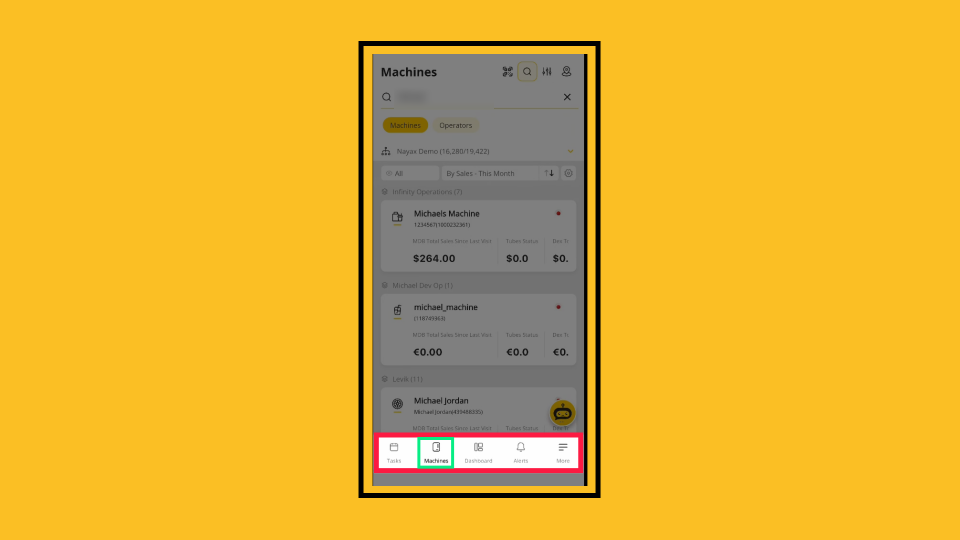
00:12: The Machines Tab of your MoMa app will open,
00:14: displaying your machine list. Search, filter, and tap any machine to manage it. This
00:19: is where you’ll spend most of your time.
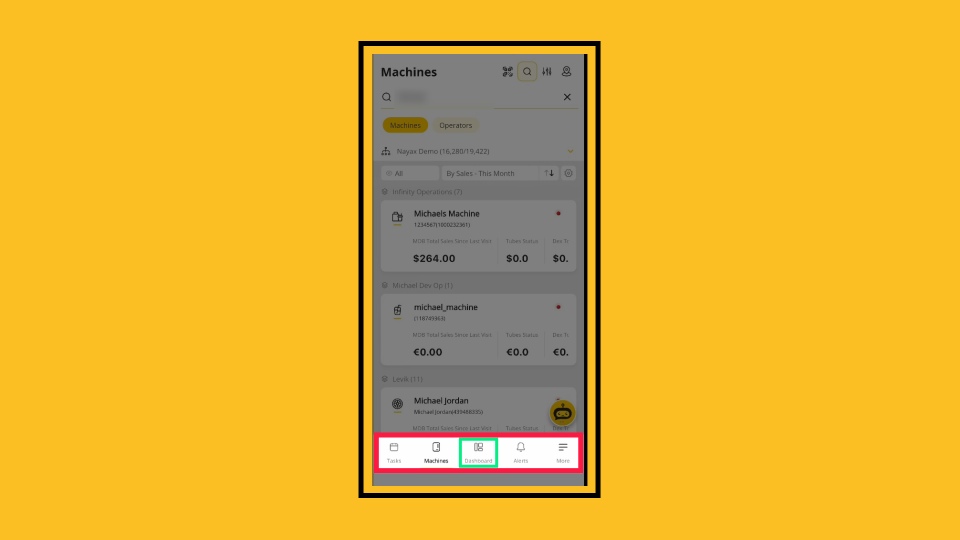
00:22: The dashboard of your MoMa app is a customizable overview of your entire operation.
00:26: Add widgets to track sales, alerts, product performance, and profitability.
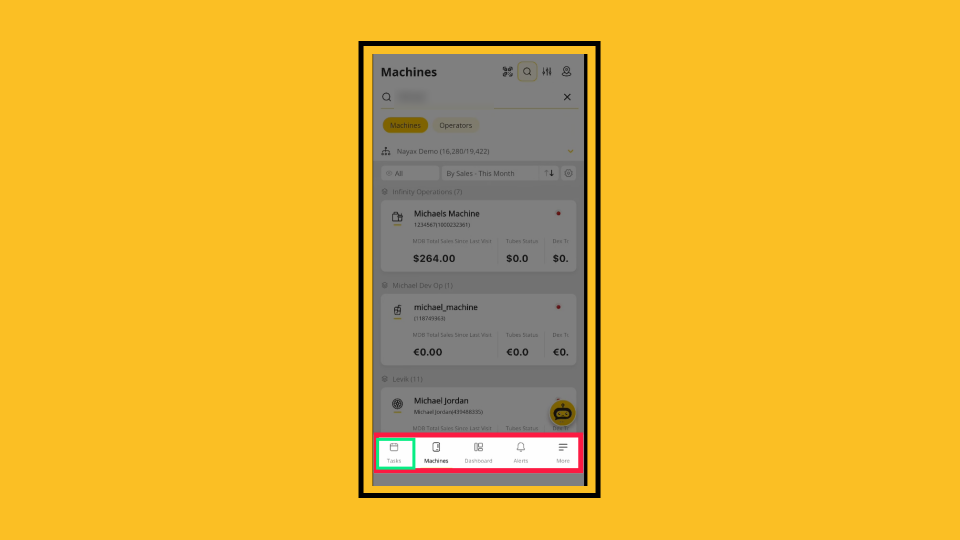
00:32: Tasks is your to-do list for route visits, product switches, and machine maintenance.
00:37: The alerts tab provides real-time notifications about machine issues: low stock,
00:41: communication problems, and device errors.
00:45: The More tab gives access to settings,
00:46: notification preferences, the authenticator, route planning, and your user profile.
00:52: In a machine, you’ll see tabs across the top, the tabs for this Machine. The
00:56: Overview page displays communication status, stock level, today’s sales, and active
01:01: alerts at a glance.
01:03: The Products Map page displays your planogram and product map. Manage bins, prices,
01:07: and stock.
01:08: The Last Sales page displays your transaction history, allows you to search and
01:12: filter, and lets you process refunds.
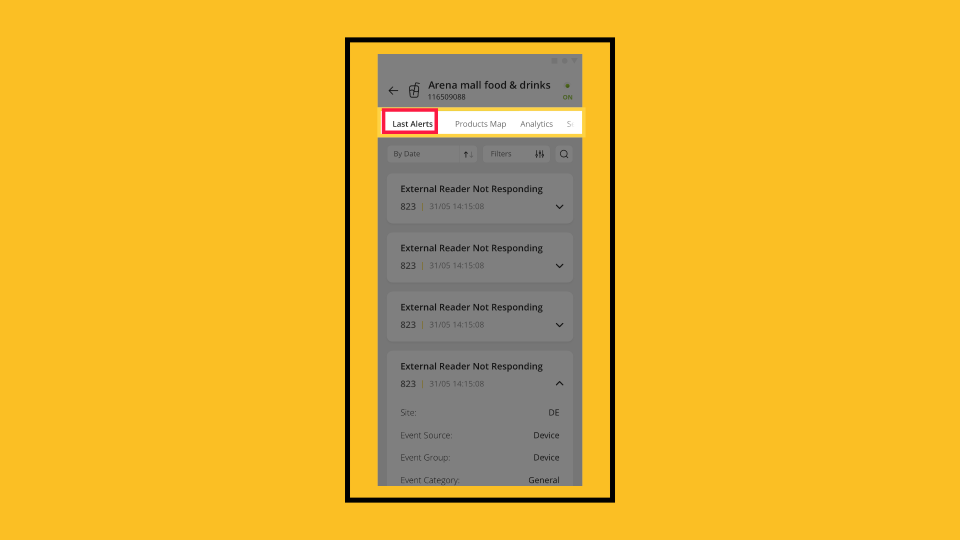
01:15: The Last Alerts page displays your recent alerts for this specific machine.
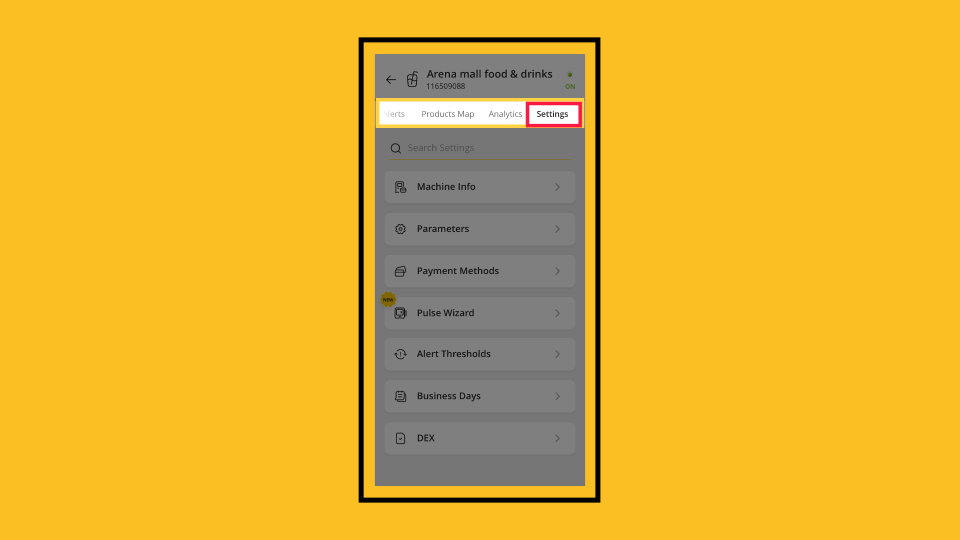
01:20: The settings page lists Machine info, parameters, alert thresholds, and device
01:24: configuration.
Open MoMa App
Image AttachedOpen the MoMa app on your mobile device.
Machines Tab
Image AttachedThe Machines Tab of your MoMa app will open, displaying your machine list. Search, filter, and tap any machine to manage it. This is where you’ll spend most of your time.
Tasks Tab
Image AttachedTasks is your to-do list for route visits, product switches, and machine maintenance.
Dashboard Tab
Image AttachedThe dashboard of your MoMa app is a customizable overview of your entire operation. Add widgets to track sales, alerts, product performance, and profitability.
Alerts Tab
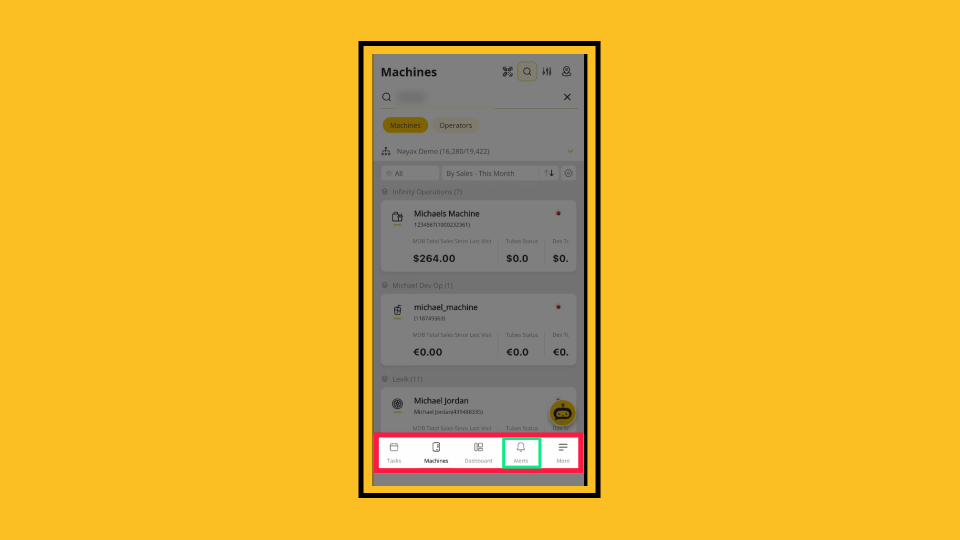
Image AttachedThe alerts tab provides real-time notifications about machine issues: low stock, communication problems, and device errors.
More Tab
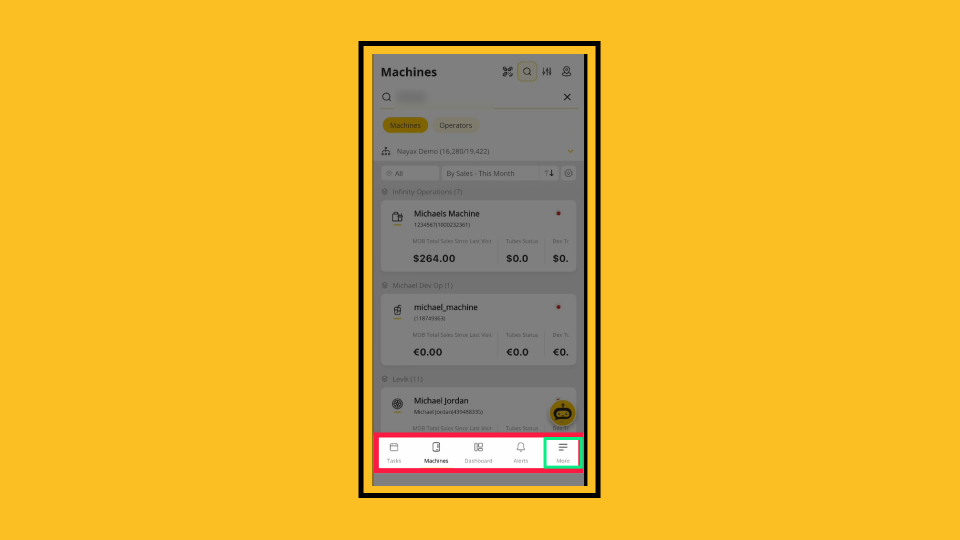
Image AttachedThe More tab gives access to settings, notification preferences, the authenticator, route planning, and your user profile.
Machine Page
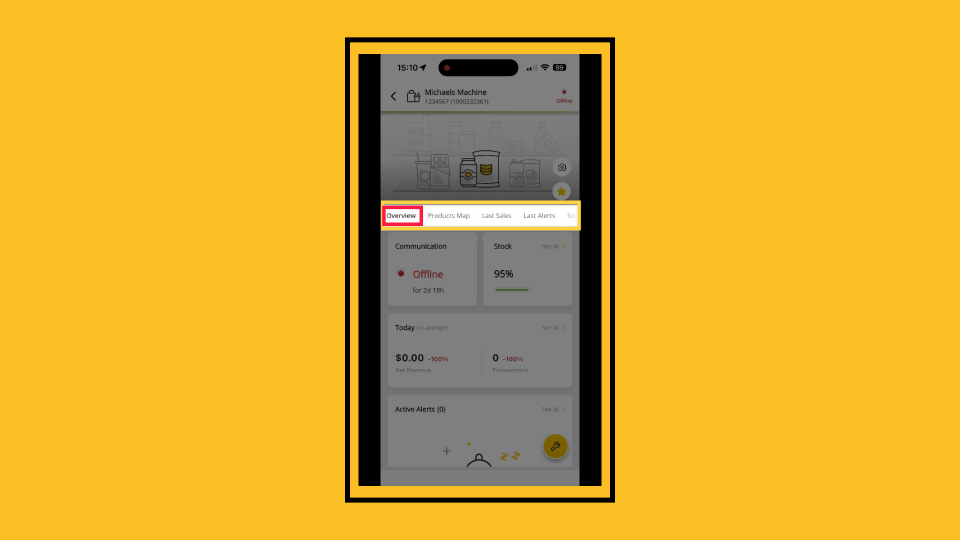
Image AttachedIn a machine, you’ll see tabs across the top, the tabs for this Machine. The Overview page displays communication status, stock level, today’s sales, and active alerts at a glance.
Products Maps
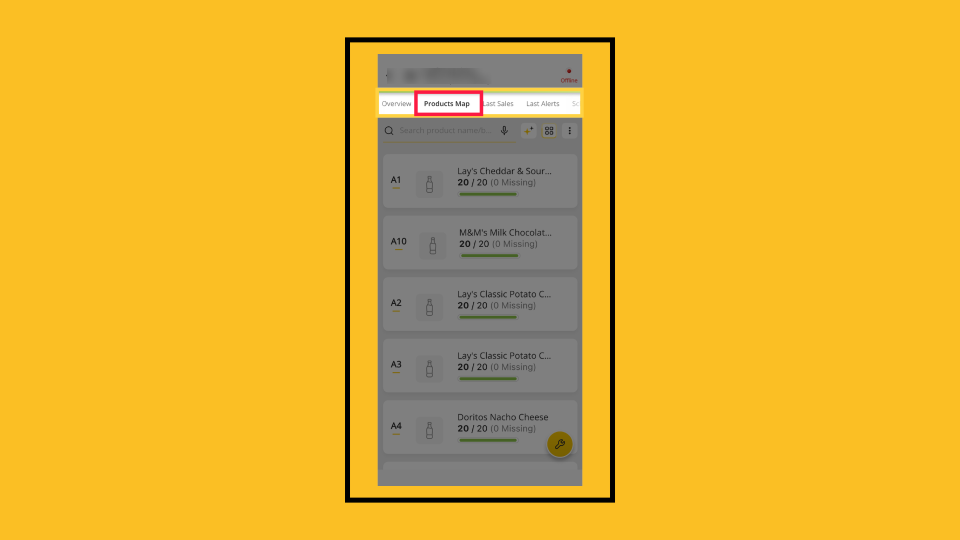
Image AttachedThe Products Map page displays your planogram and product map. Manage bins, prices, and stock.
Last Alerts
Image AttachedThe Last Alerts page displays your recent alerts for this specific machine.
Settings
Image AttachedThe settings page lists Machine info, parameters, alert thresholds, and device configuration.
These screens form the foundation of MoMA and will be the primary areas you’ll use to manage and maintain your devices.
Thank you!
Did you find this article helpful?