
How to View, Manage and Edit Employees | Employees
1
Video Guide
2
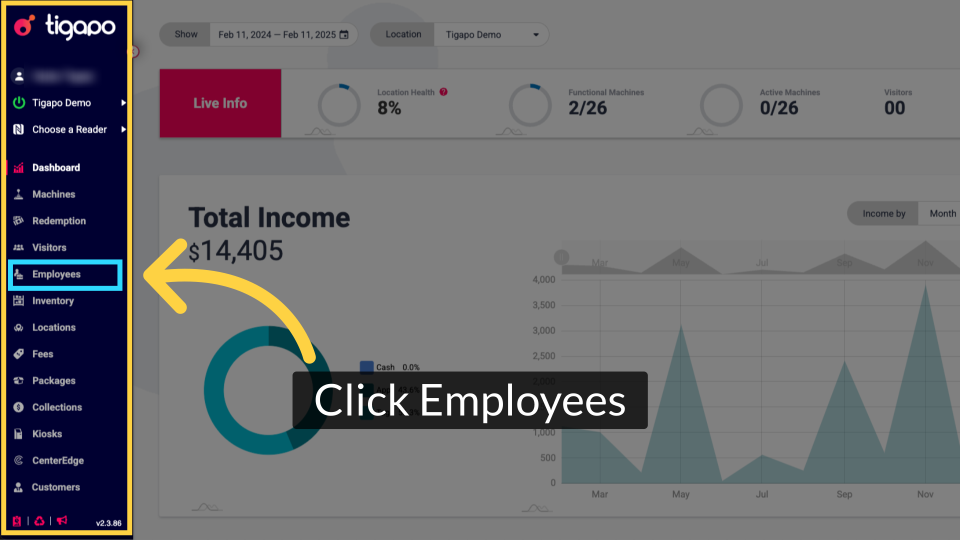
Click Employees
Image AttachedFrom the tigapo homepage, click on Employees page in the side menu.
3
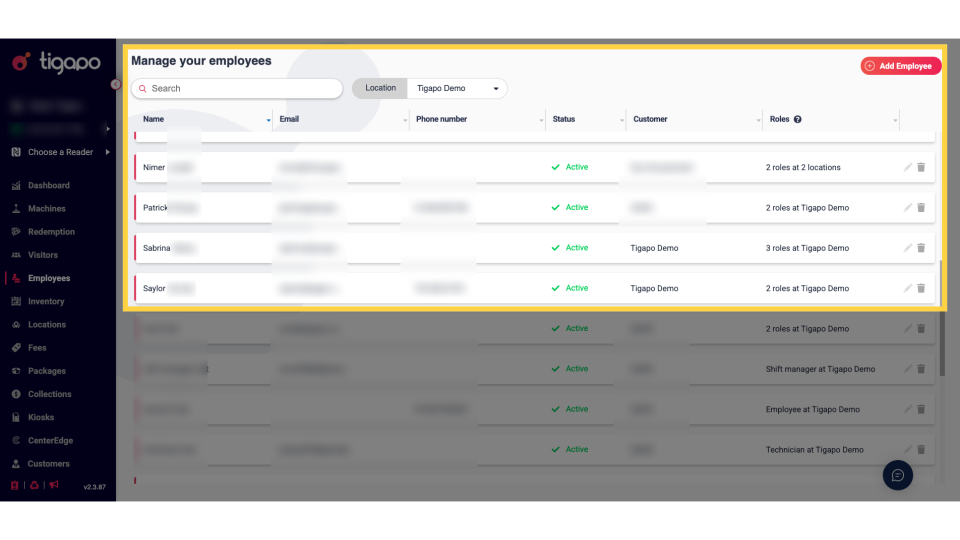
Employees Page
Image AttachedHere you can view, manage, edit, set roles and permissions or delete employees by location.
4
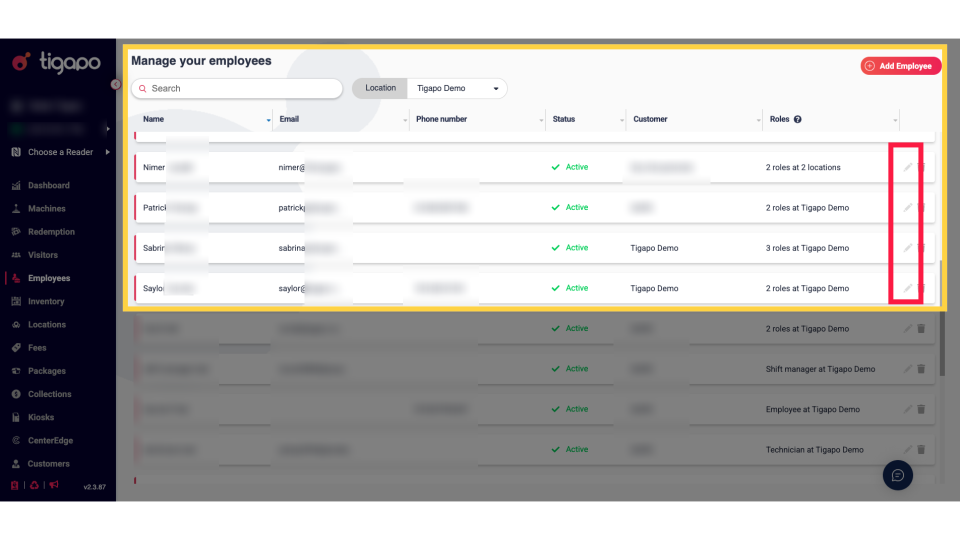
Edit Employee Button
Image AttachedTo view, manage or edit an employee click on the pencil Icon as highlighted in RED on the visual located on each employee row.
5
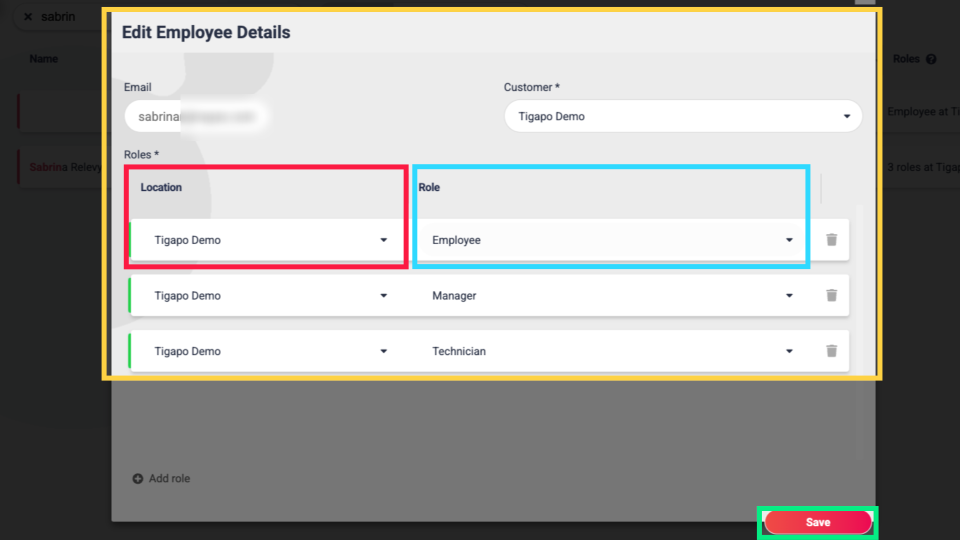
Edit Employee Role or Location
Image AttachedThe employee card will open and in this section you can view and or edit the employee location as highlighted in red or their role as highlighted in blue on the visual. Click save to save your changes.
6
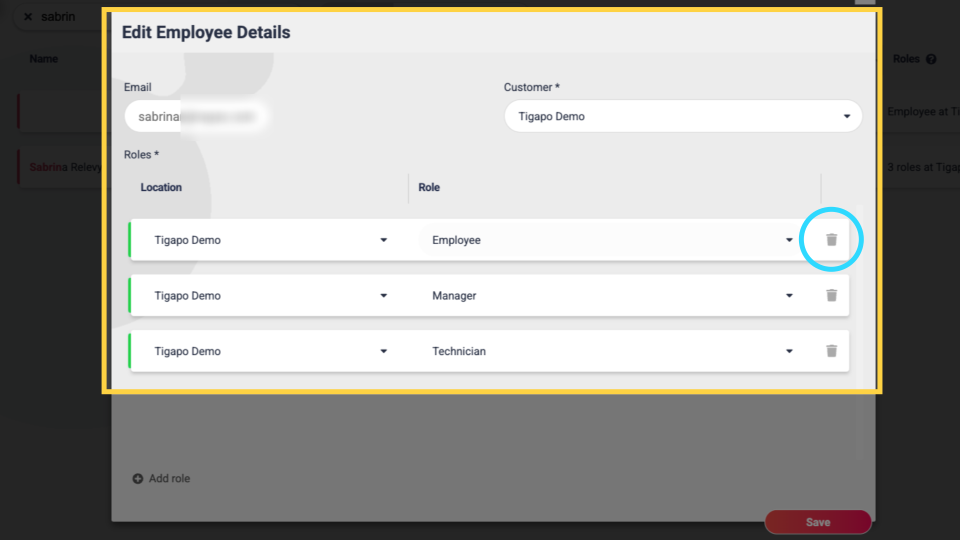
Delete Employee Role
Image AttachedClick on the Trash icon as highlighted to delete the role of the employee. Click save to save your changes.
7
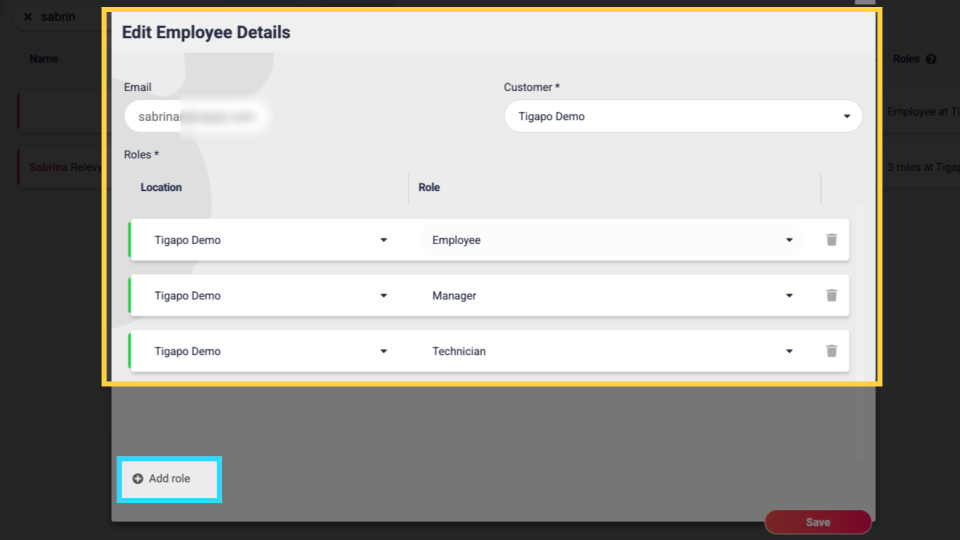
Add Employee Role
Image AttachedClick Add role button as highlighted to assign an additional role and permission to this employee. Click save to save your changes.
Thank you!
Did you find this article helpful?