
How to Upgrade Device Firmware | MoMa
This step-by-step guide will take you through the process of upgrading your Nayax device firmware using the MoMa app!
Why update your firmware?
Check the Release Note Hub for the latest firmware version and a full list of what's included.
Prerequisites: Before You Start
How to Upgrade Device Firmware | MoMa
Keep your Nayax devices up to date by pushing a firmware upgrade directly from the MoMa app.
- You have Operator access for the machine you want to update.
- You know the target firmware version to apply (confirm with your Nayax contact if unsure).
- The device is online and not processing a transaction at the time of the update.
Video Guide
00:01: This guide will help you access the MoMa application and view your machines as displayed in Nayax Core.
00:06: Open the MoMa app on your mobile device.
00:09: The dashboard of your MoMa app will open, displaying the Machines linked to your operator. On this dashboard, search for and select the Machine you wish to upgrade the firmware for.
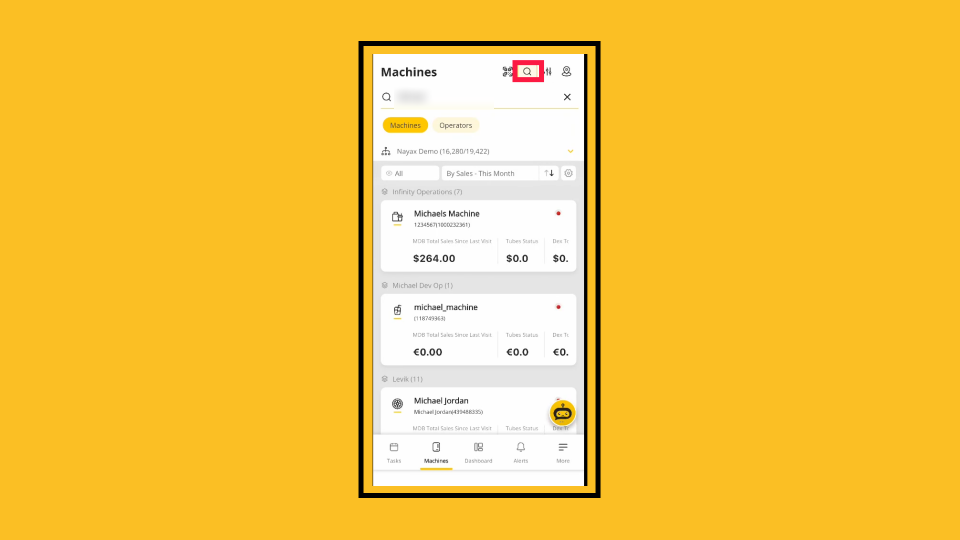
00:19: To search, click on the Magnifying Glass Icon. You can search by operator name, machine ID, or machine name.
00:26: Tap on the machine you wish to upgrade the firmware for once you have located it.
00:31: In the Machine Overview, click the tool icon to access the settings menu.
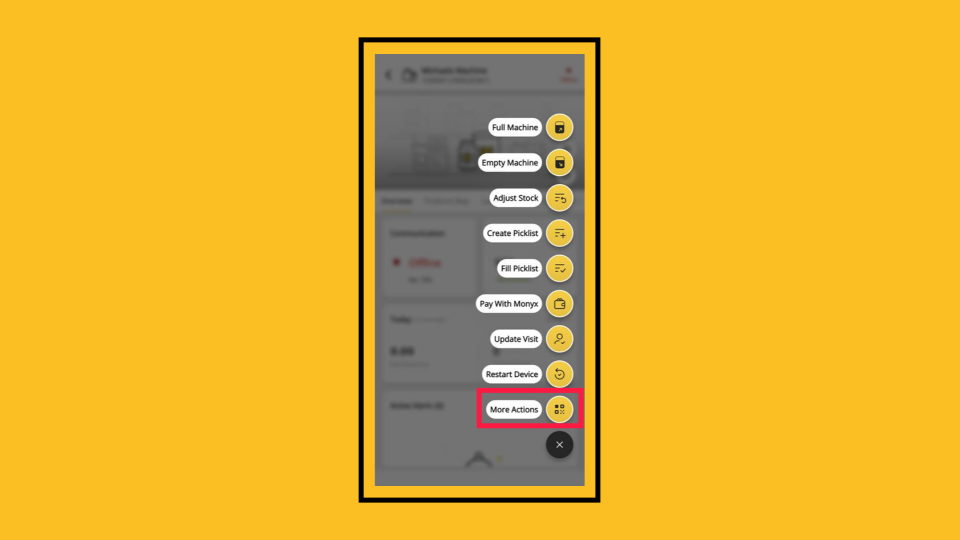
00:36: In the Machine additional settings menu, scroll down and tap on More Actions.
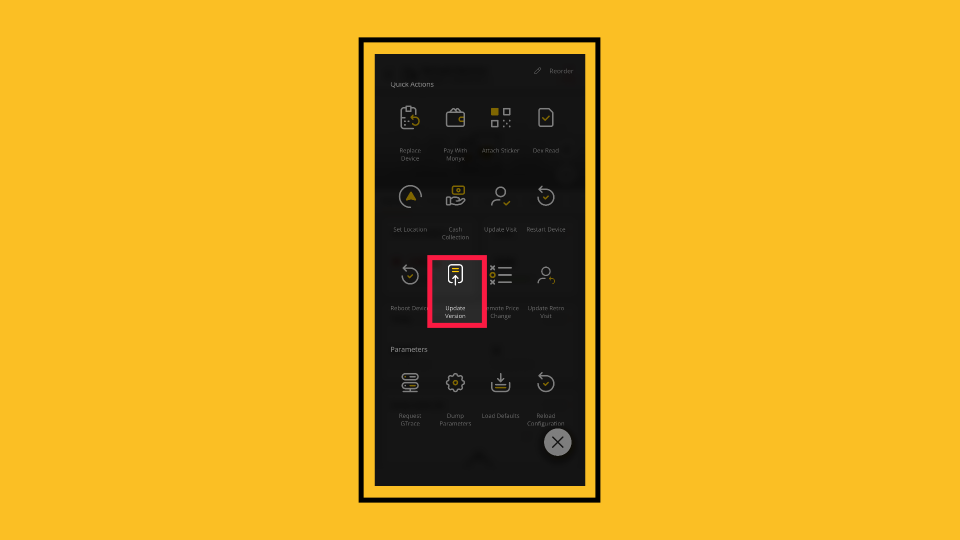
00:41: The additional action page will open. Scroll down and tap on the Update Version tab as highlighted.
00:47: Select or search for the main firmware version.
00:50: Then, select or search for the POS firmware version.
00:54: Select or search the POS firmware version.
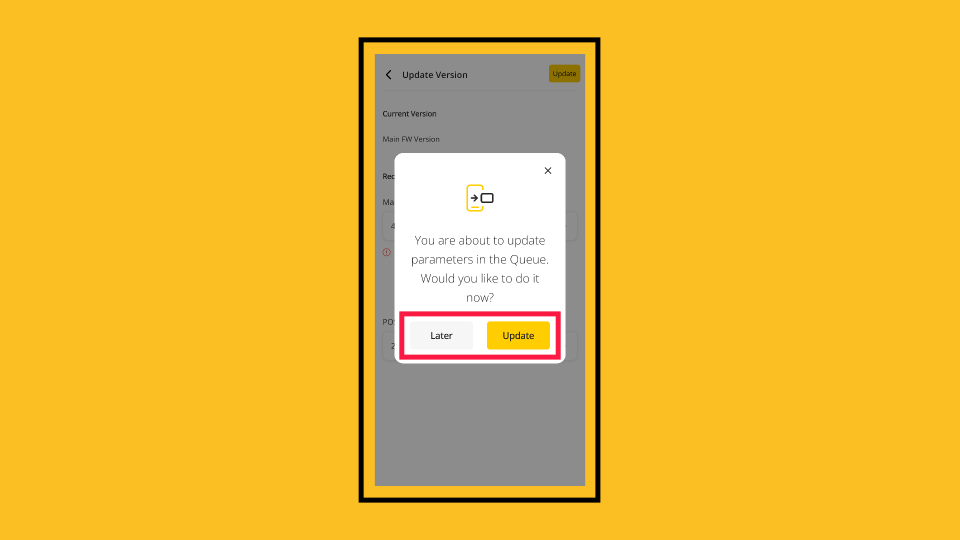
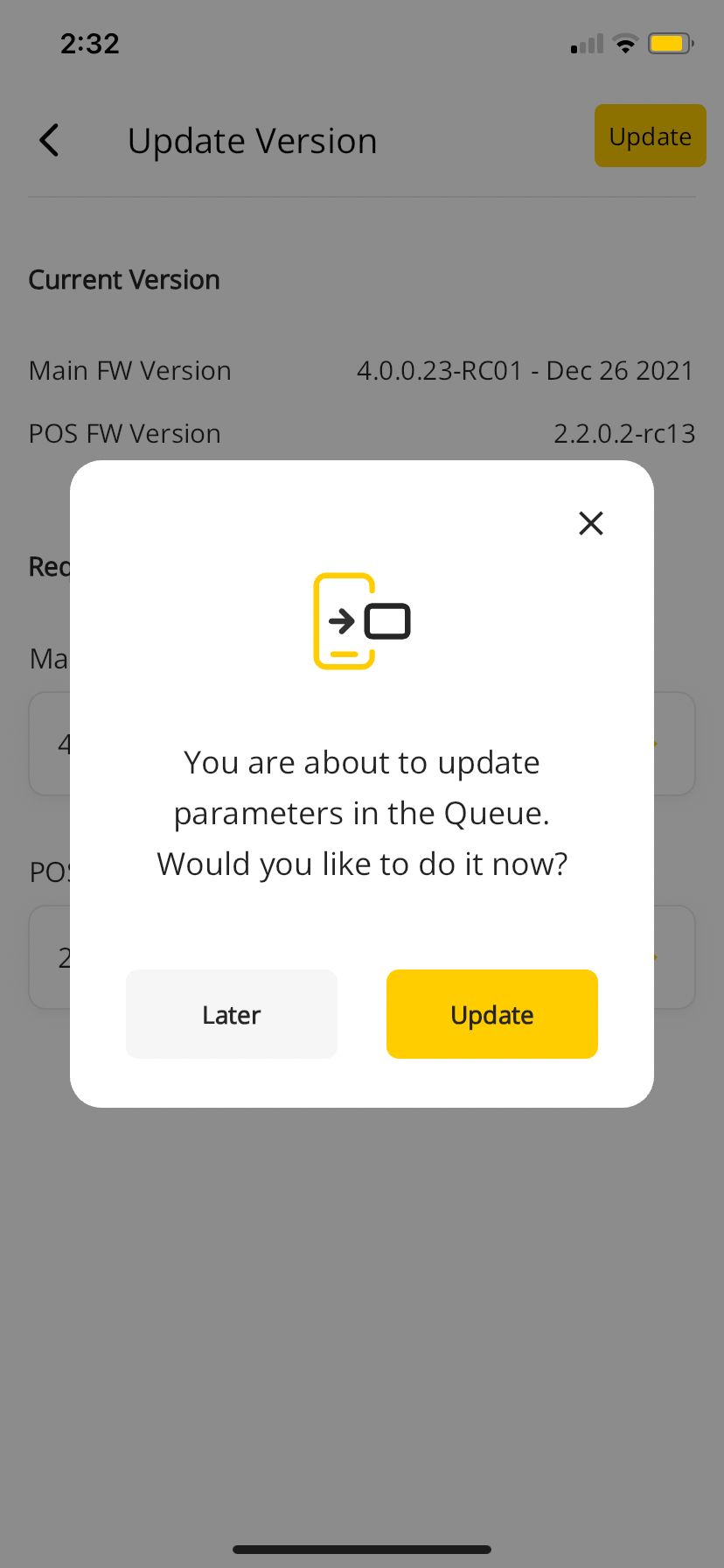
00:57: A pop-up will appear to confirm that your firmware will be updated immediately. You can click the 'Update' button to update immediately, or the 'Later' button to schedule the update for a later time.
01:09: If you select "Update Immediately," a confirmation message will appear, indicating that your new version has been successfully updated. Close the message, and your device's firmware version is now updated.
Open MoMa App
Image AttachedOpen the MoMa app on your mobile device.

Tap Machine
Image AttachedThe dashboard of your MoMa app will open, displaying the Machines linked to your operator. On this dashboard, search for and select the Machine you wish to upgrade the firmware for.
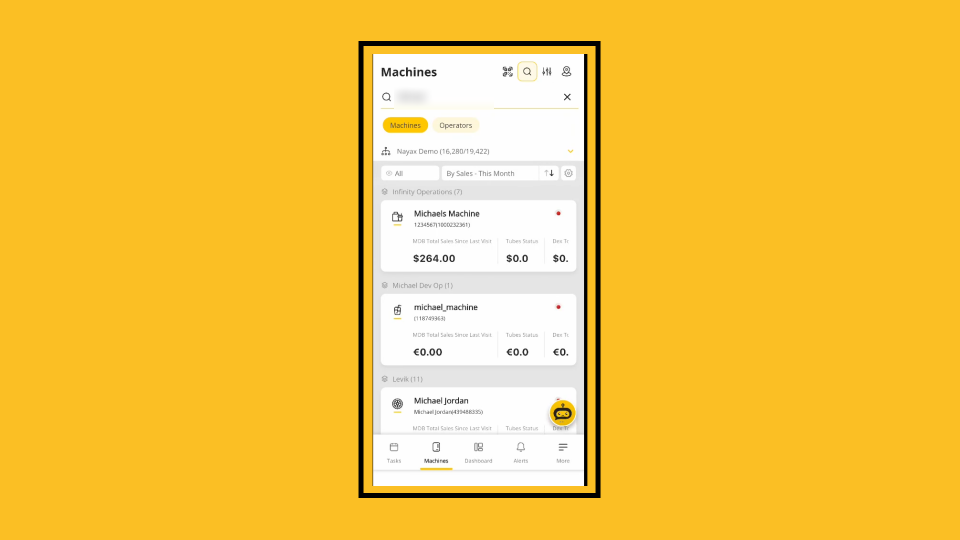
Search Machines
Image AttachedTap the search (magnifying glass) icon and search by operator name, machine ID, or machine name.
Tap Machine
Image Attached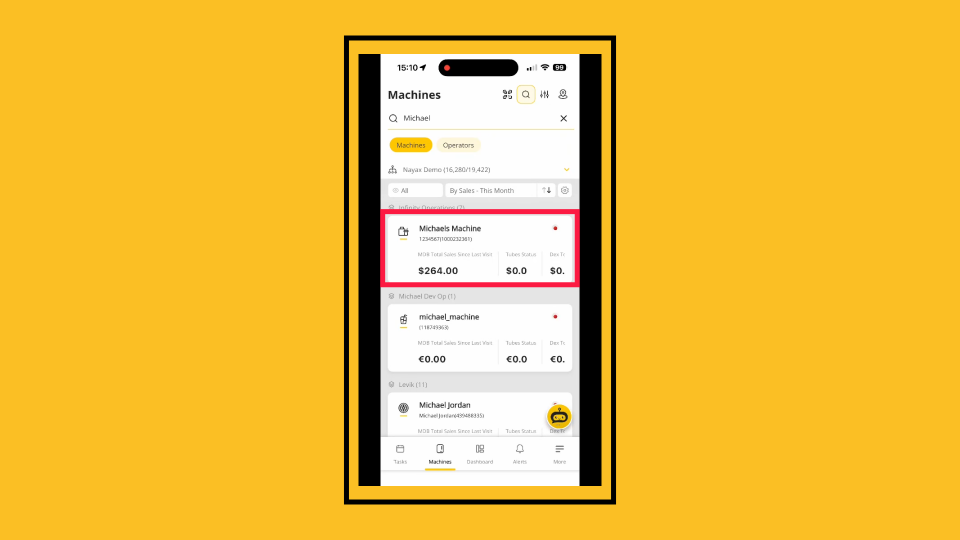
Tap Tool Icon
Image Attached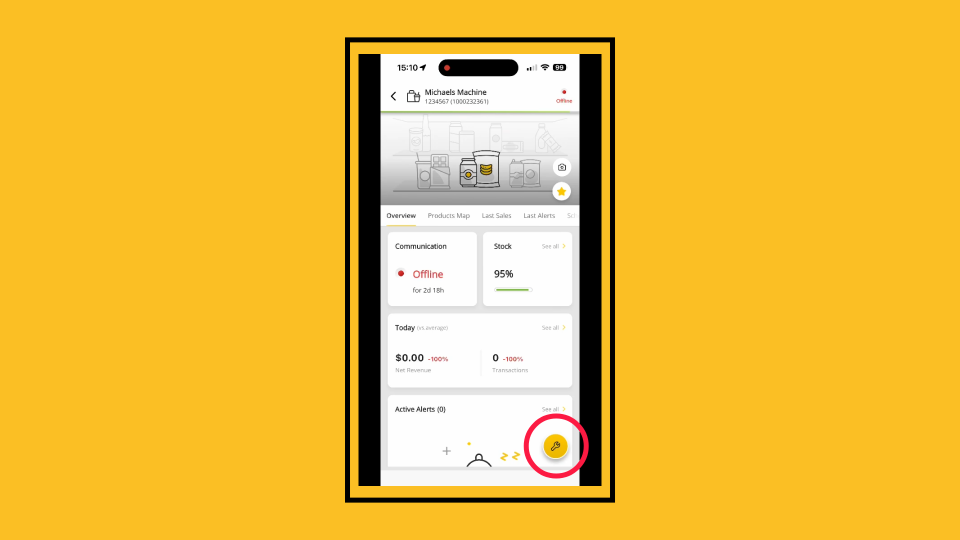
More Actions
Image AttachedIn the Machine additional settings menu, scroll down and tap on More Actions.
Update Version
Image AttachedThe additional action page will open. Scroll down and tap on the Update Version tab as highlighted.
Select Firmware Version
Image Attached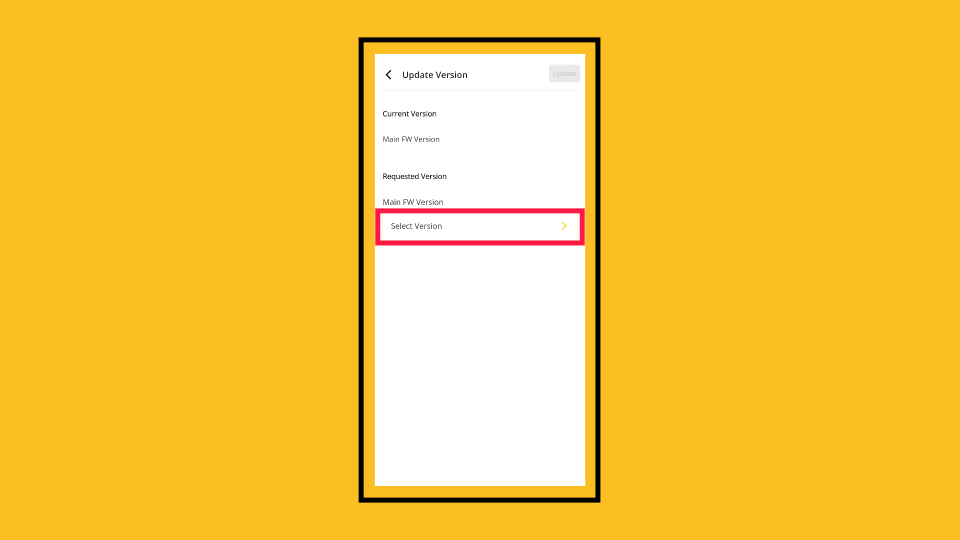
Select POS FW Version
Image Attached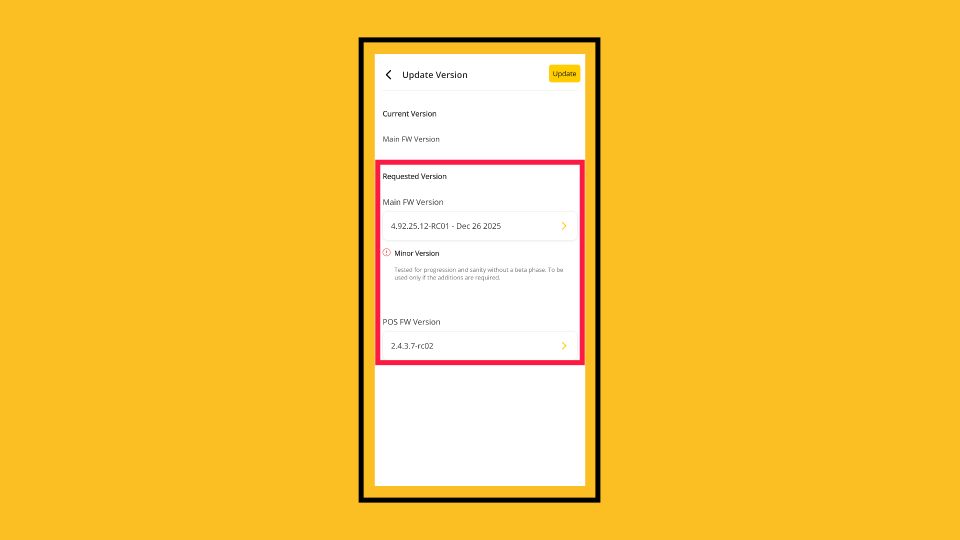
Update Version
Image Attached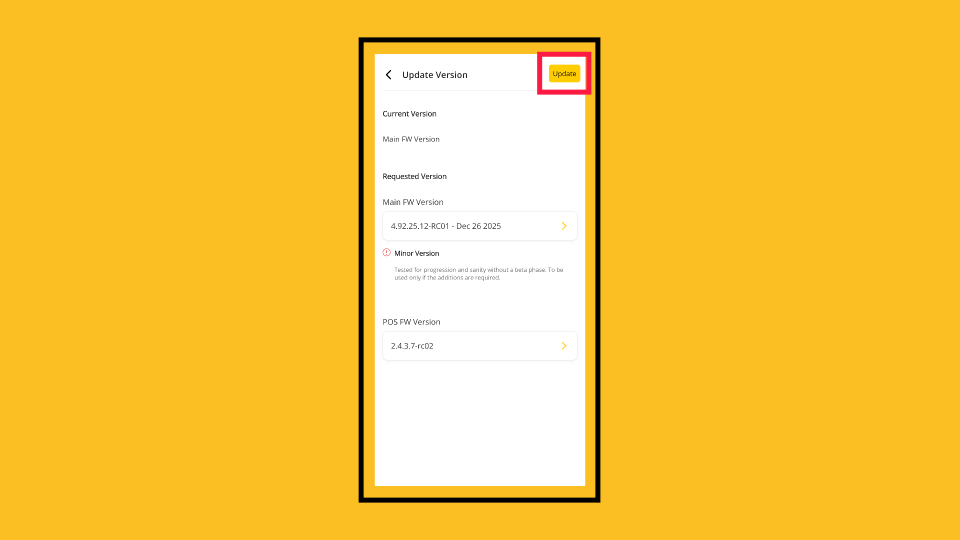
Select Update Now or Later
Image AttachedA pop-up will appear to confirm that your firmware will be updated immediately. You can click the 'Update' button to update immediately, or the 'Later' button to schedule the update for a later time.
New Version Saved
Image AttachedIf you select "Update Immediately," a confirmation message will appear, indicating that your new version has been successfully updated. Close the message, and your device's firmware version is now updated.
Completed Successfully
Image Attached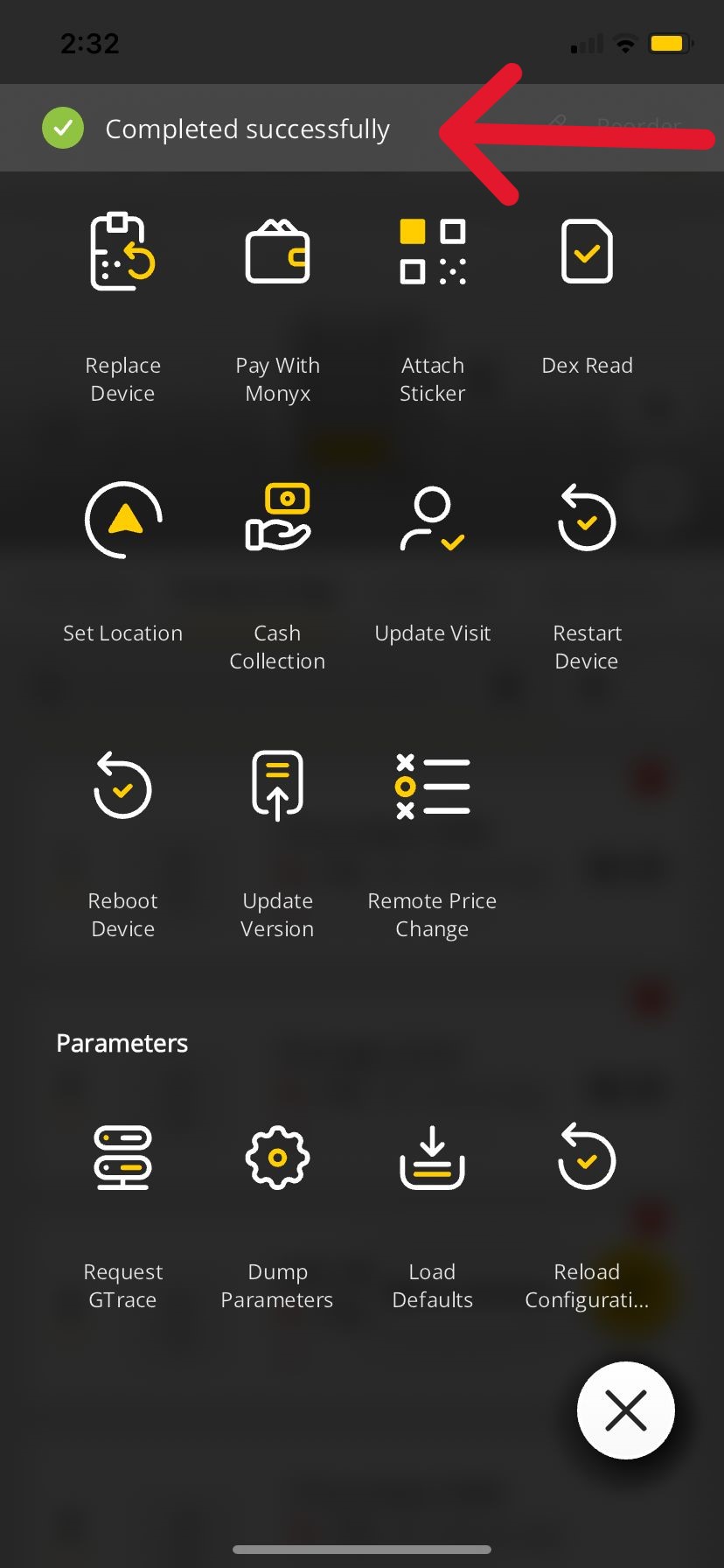
Thank you!
Did you find this article helpful?