
How to Update Machine Attributes Parameters | Operations
Learn how to add attributes, which are the parameters that define key functions on your device, ensuring your system is configured correctly.
Video Guide
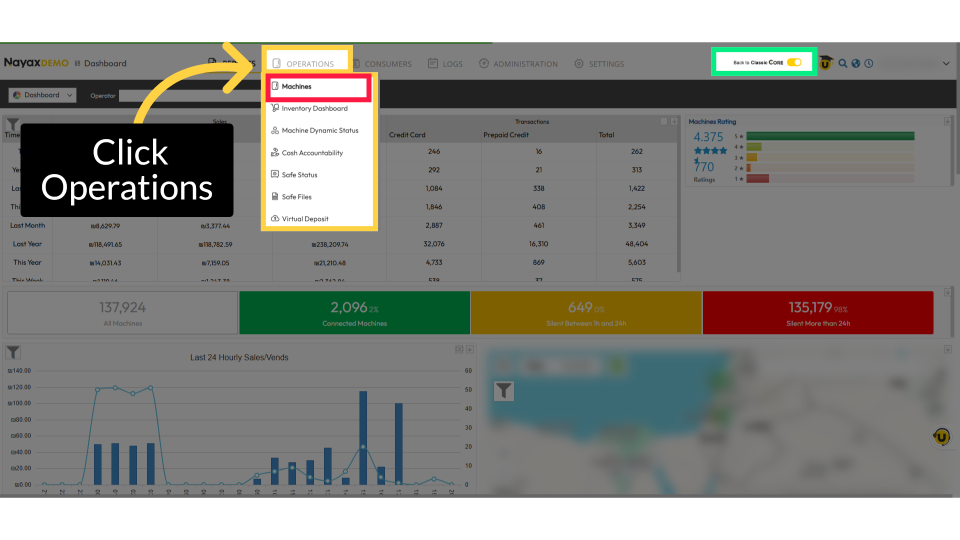
Click Operations Tab
Image AttachedThis guide is on Nayax New Core as highlighted in GREEN. On the dashboard of your New Nayax Core platform, click on the Operations tab. Next, click on Machines from the drop-down menu.
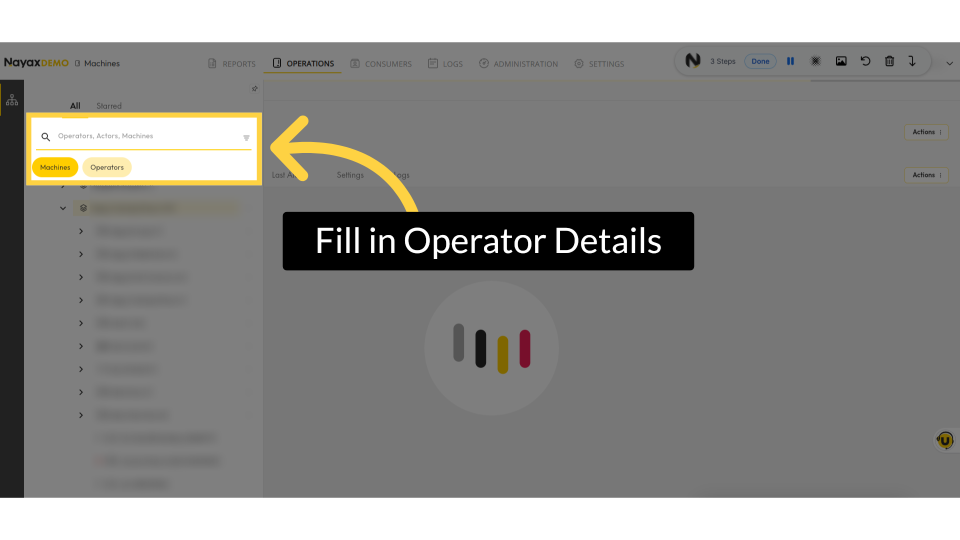
Fill in Operator Details
Image AttachedPlease enter your operator or machine name to locate your machine.
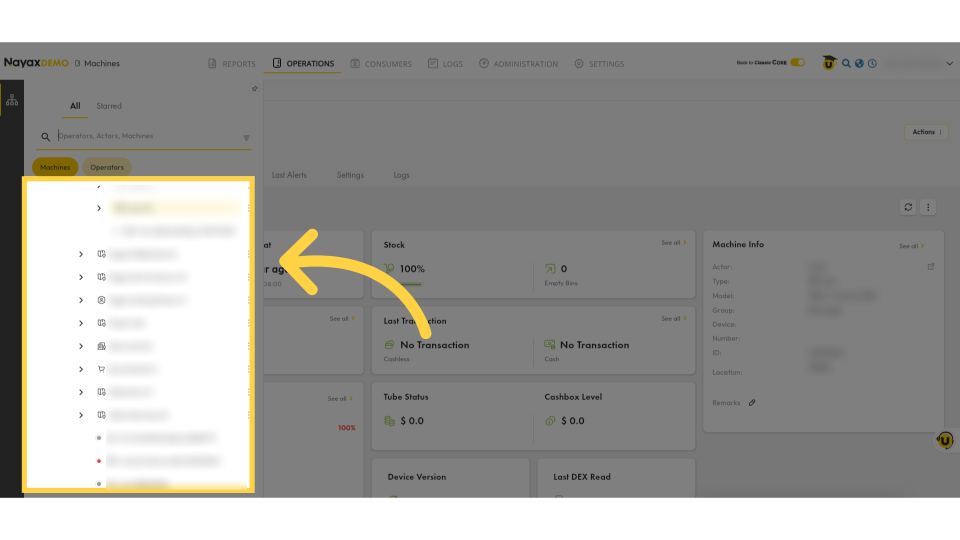
Locate Machine in Hierarchy
Image Attached
Locate and click on the machine from the hierarchy.
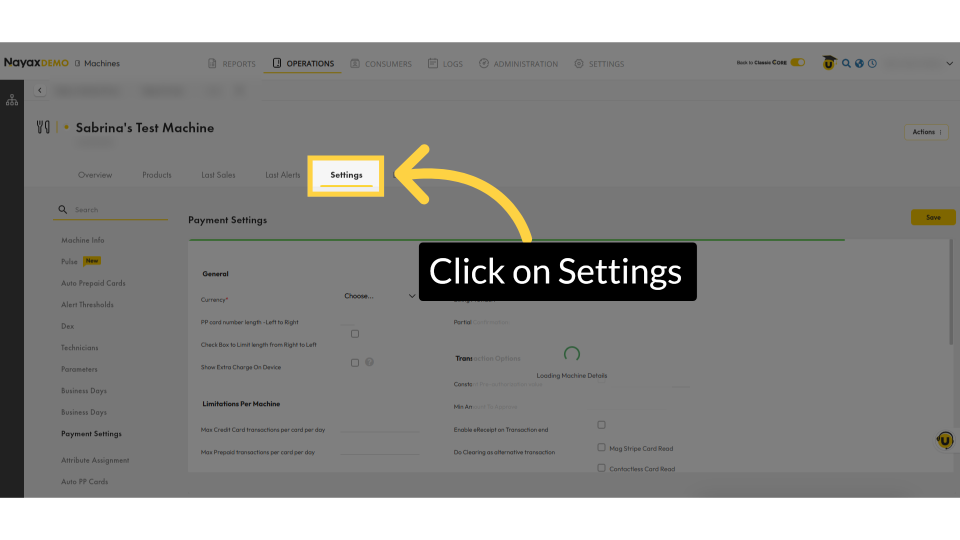
Click Settings
Image Attached
In the main section, click the settings tab.
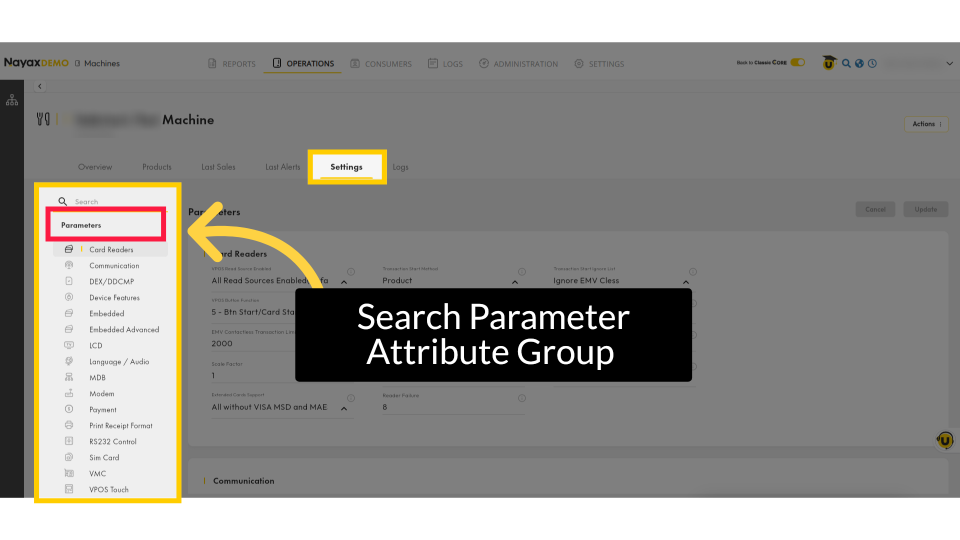
Search Parameter Attribute Group
Image AttachedIn the side menu, scroll and click on "Parameters." Then, you can either search for the attribute group or scroll to find it.
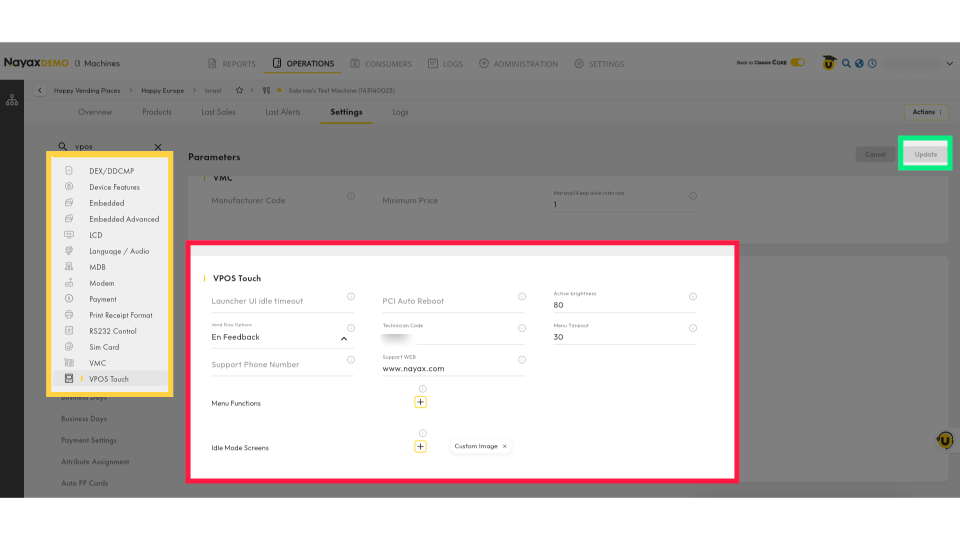
Enable Attribute
Image Attached
Once you have located the Attribute, make your parameter edits specific to your preferences. When ready to proceed, click the update button highlighted in GREEN.
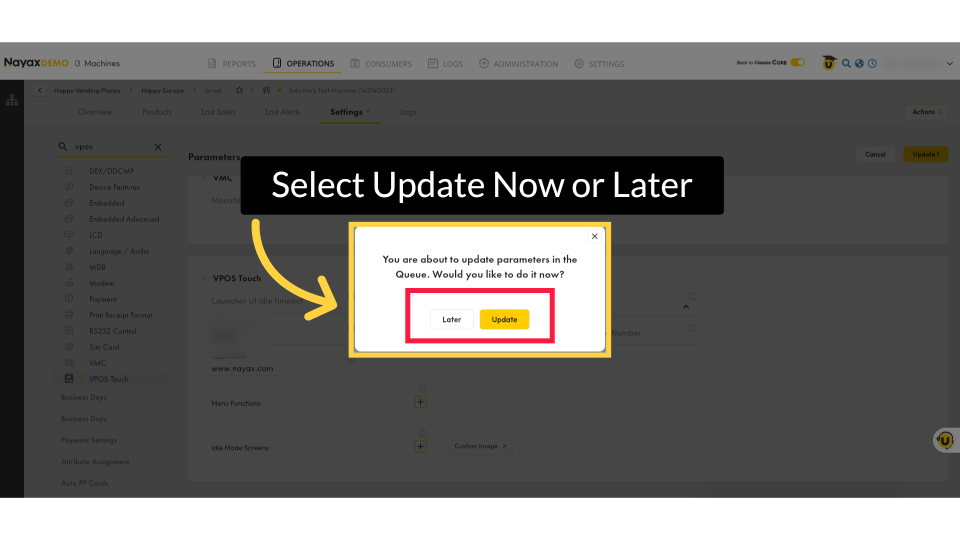
Select Update Now or Later
Image Attached
A pop-up confirmation will appear for you to confirm that your parameters will be updated to apply your settings immediately. You can click the 'Update' button to update immediately, or the 'Later' button to schedule the update for a later time.
Note: A machine restart is required.
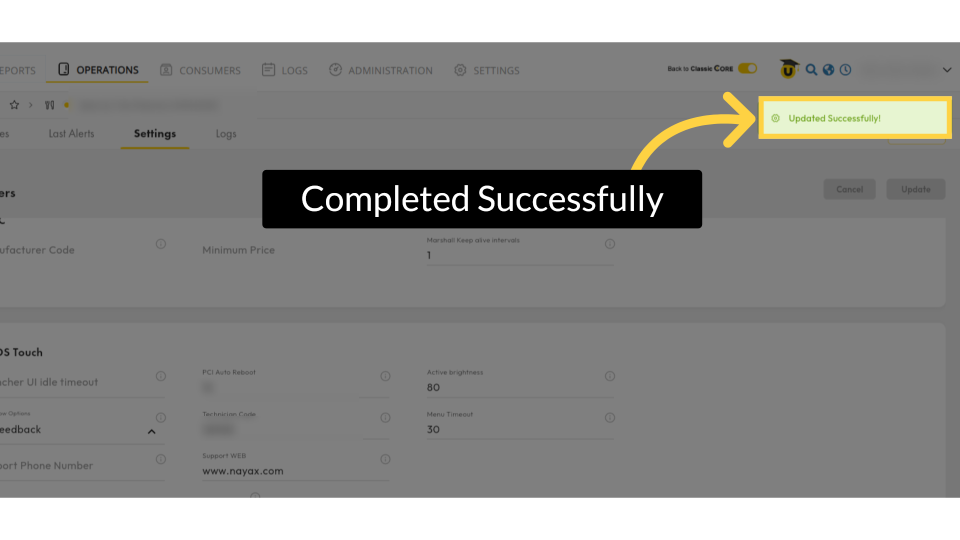
Completed Successfully
Image AttachedA confirmation that your payment method will appear as a 'Completed Successfully' message.
Thank you!
Did you find this article helpful?