
How to Import Catalog | Nova Market
If you add or edit your catalog on the Nayax Retail Core, Follow this guide to update the catalog to be active on your Nova device.
Video Guide
Access Admin Mode
On your device, click 6 times on the Nayax logo at the top corner of the screen.
Enter Password
Enter the password needed to access the admin mode.
If you do not know this password, please contact customer support.
Open Menu
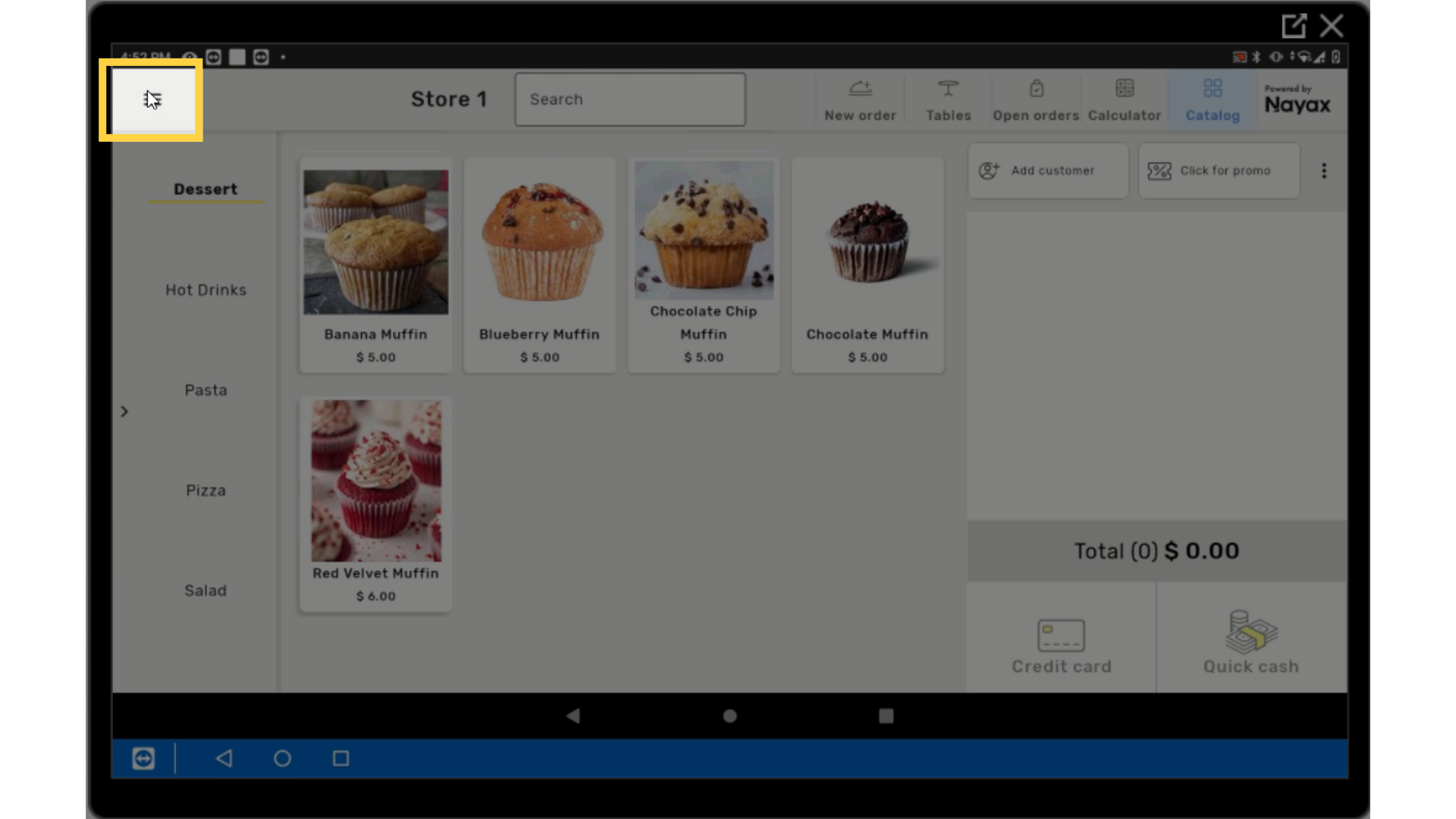
Image AttachedOn your device, click the three lines on the top right of the screen to reveal the menu.
Click ECR Management
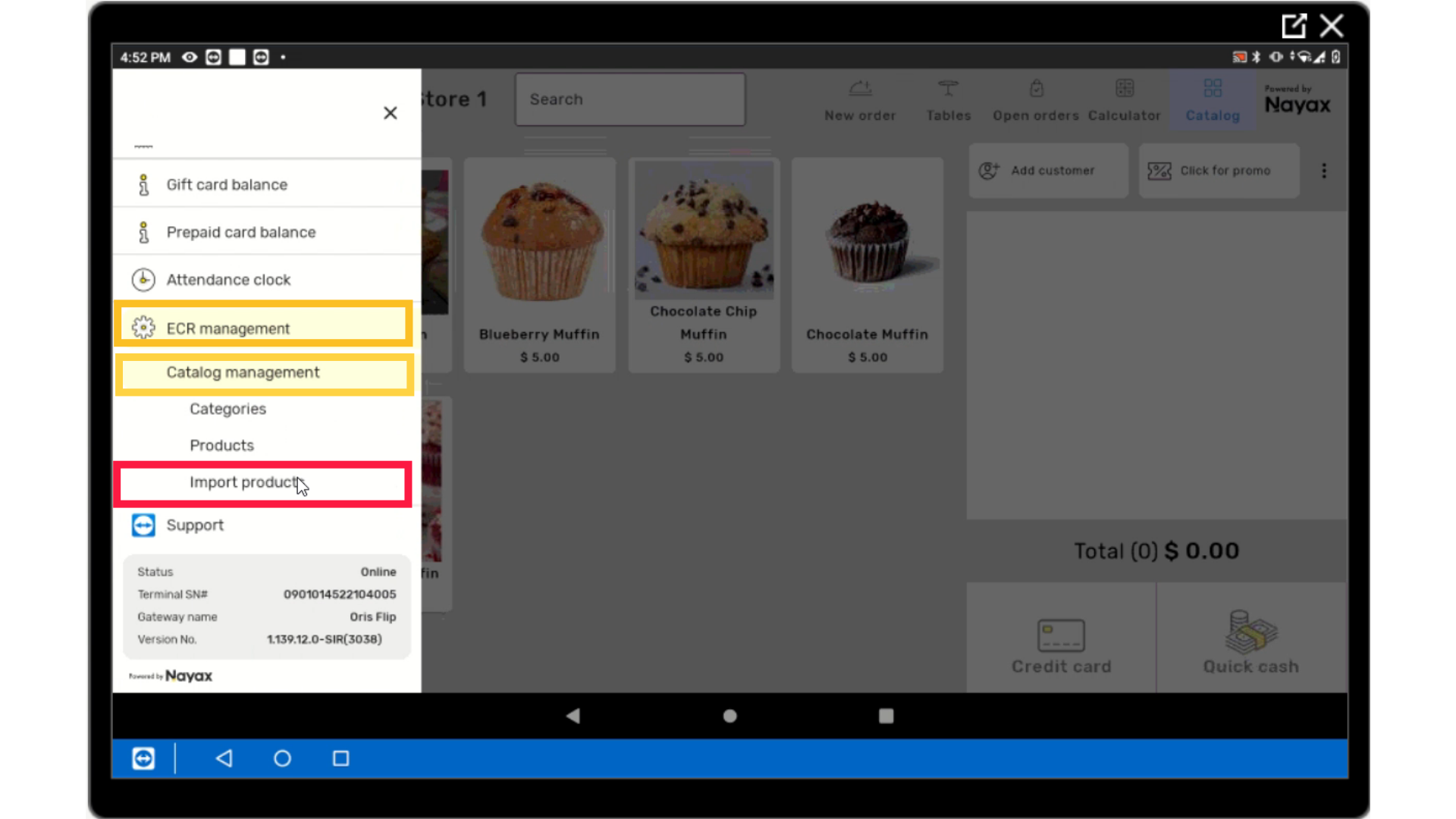
Image AttachedGo to ECR Management.
Click Catalog Management
In the sub-menu tap on Catalog Management.
Click Import Products
Click on Import products as highlighted in RED on the visual.
Select Import Option and Click Yes
Image Attached
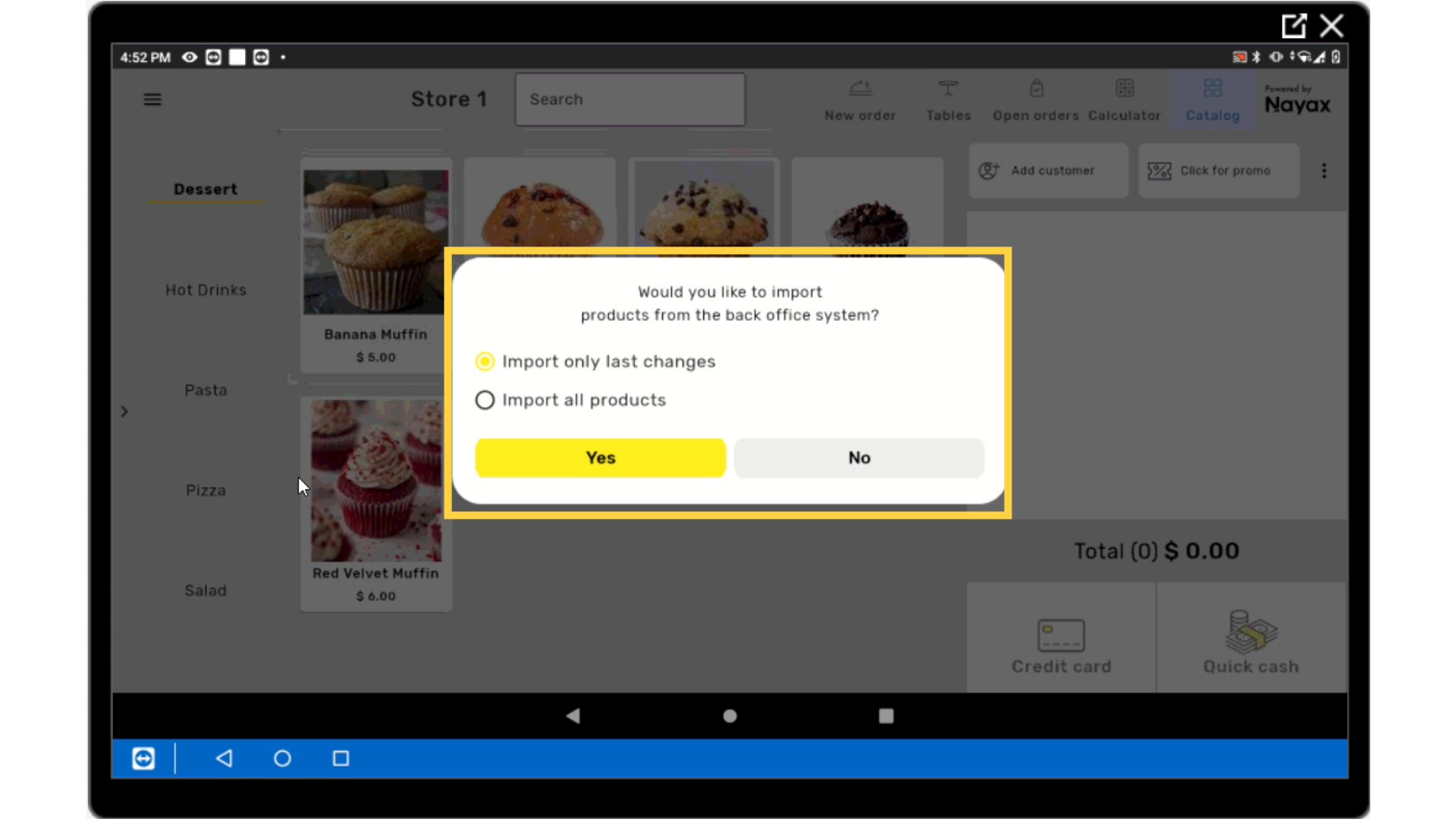
You will see two options: Import Last Changes or Import All Products. Choose the option that best fits your needs.
Click Yes to proceed, and the screen will display the progress of the import until it is completed.
Importing Catalog
This screen will display the progress of the import until it is completed.
Click Ok
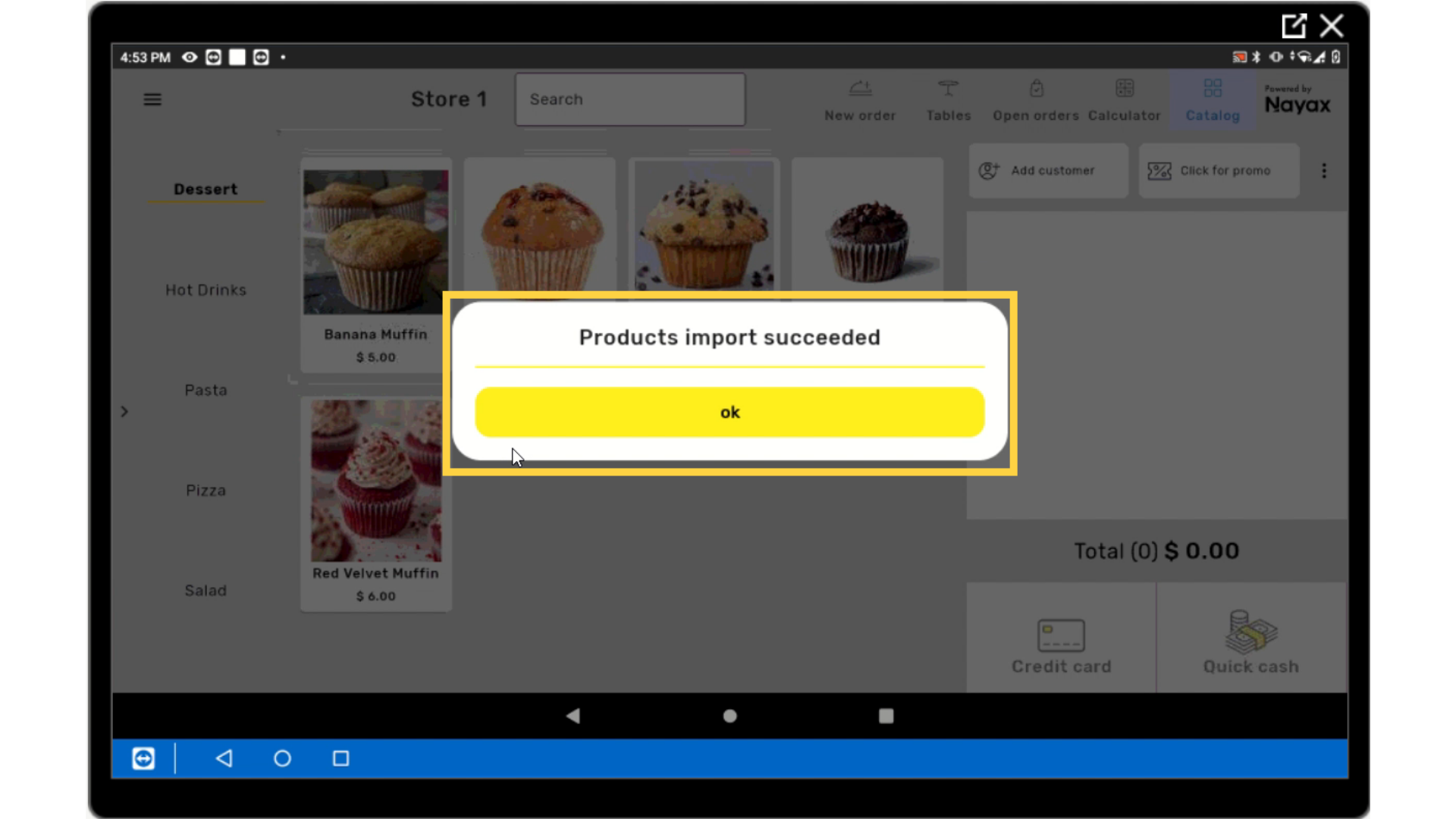
Image AttachedA pop-up screen will appear once completed, tap ok and that's it! Your catalog will be imported based on your selected option.
Thank you!
Did you find this article helpful?