
How to Generate Sales and Modifiers Report | Reports
Video Guide
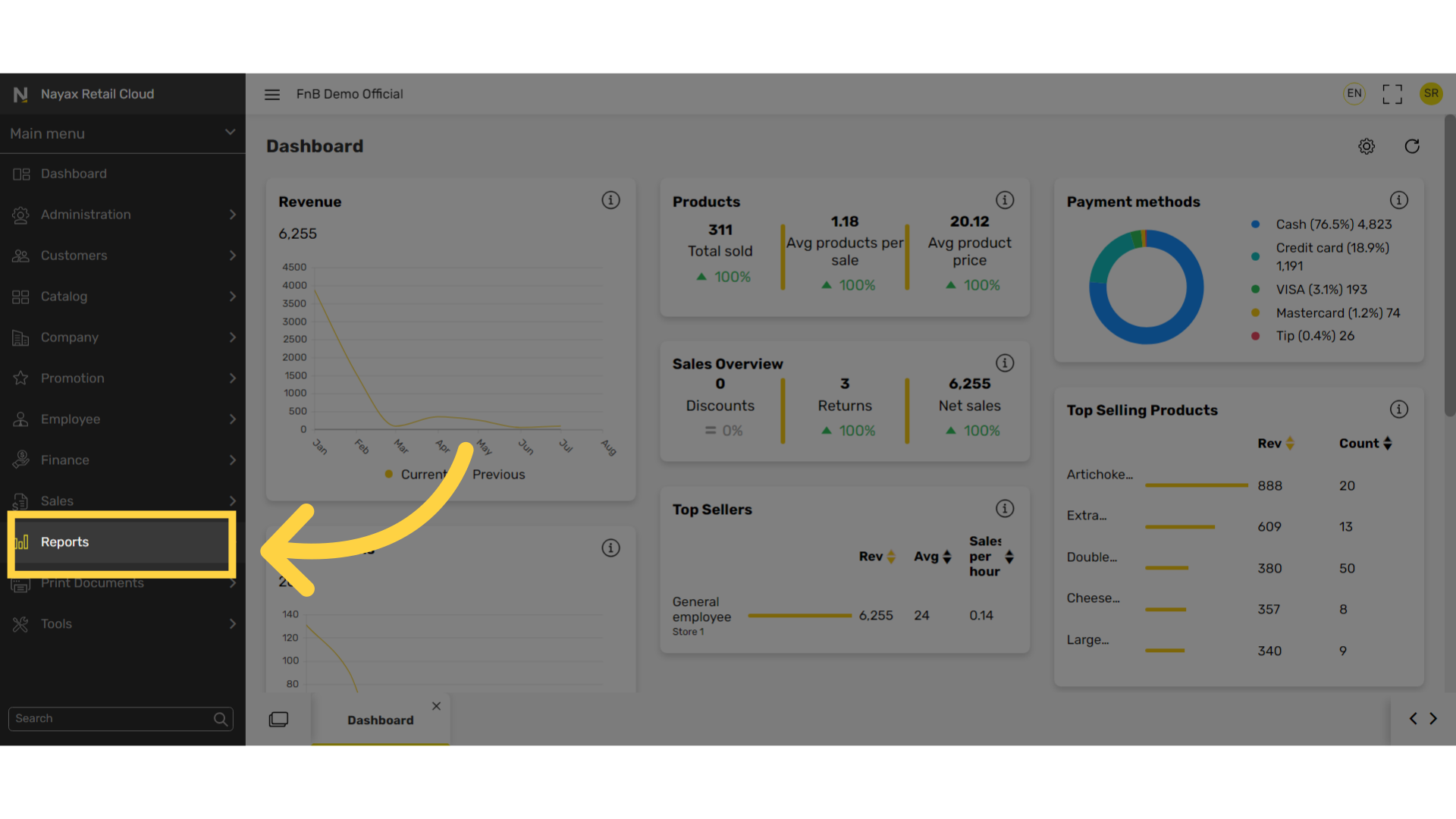
Click Reports Tab
Image AttachedOn the dashboard of your Retail Core management suite click the Reports tab.
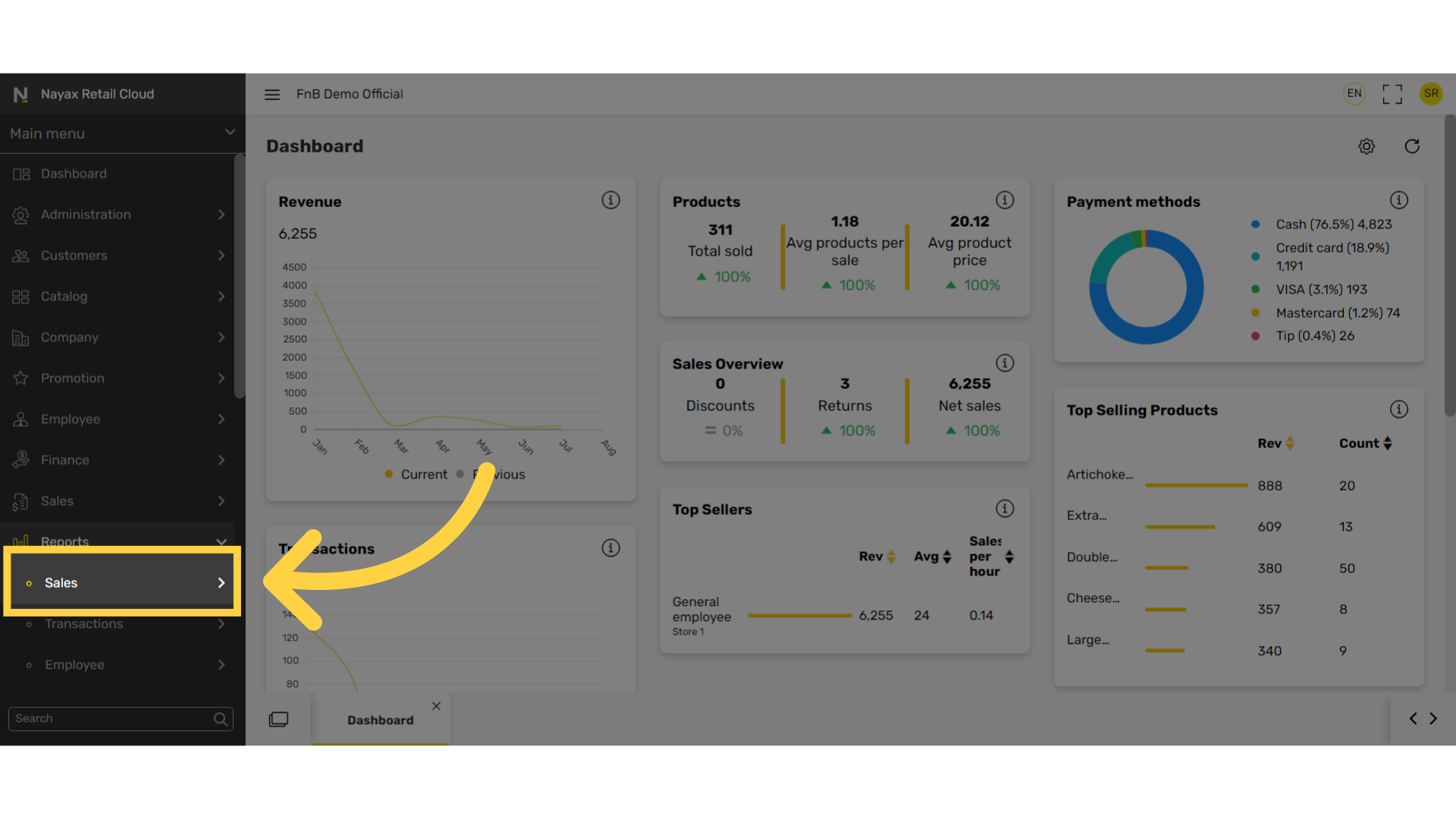
Click Sales
Image AttachedIn the sub-menu, go to Sales.
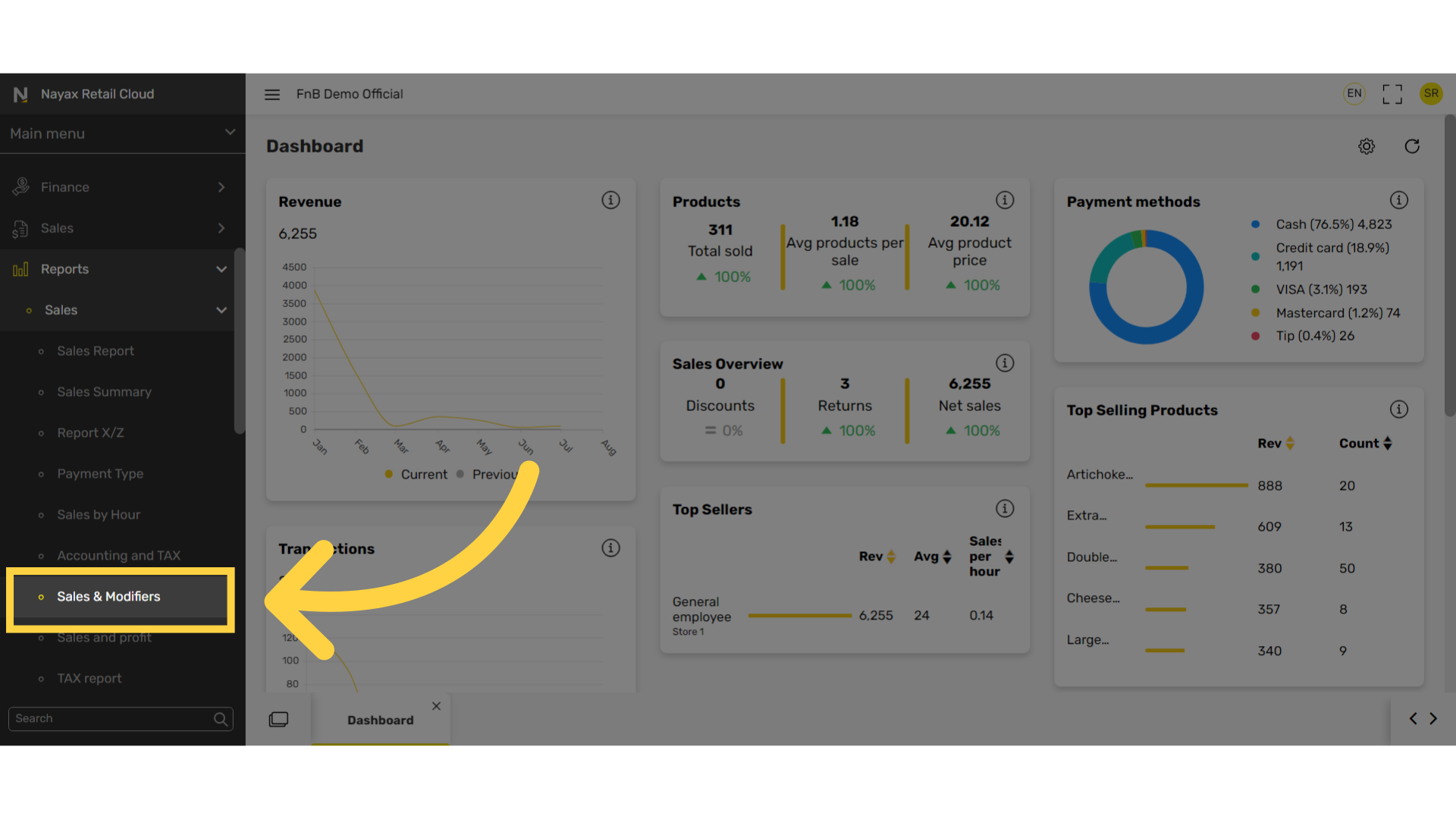
Click Sales and Modifiers
Image AttachedIn the sub-menu, go to Sales and Modifiers.
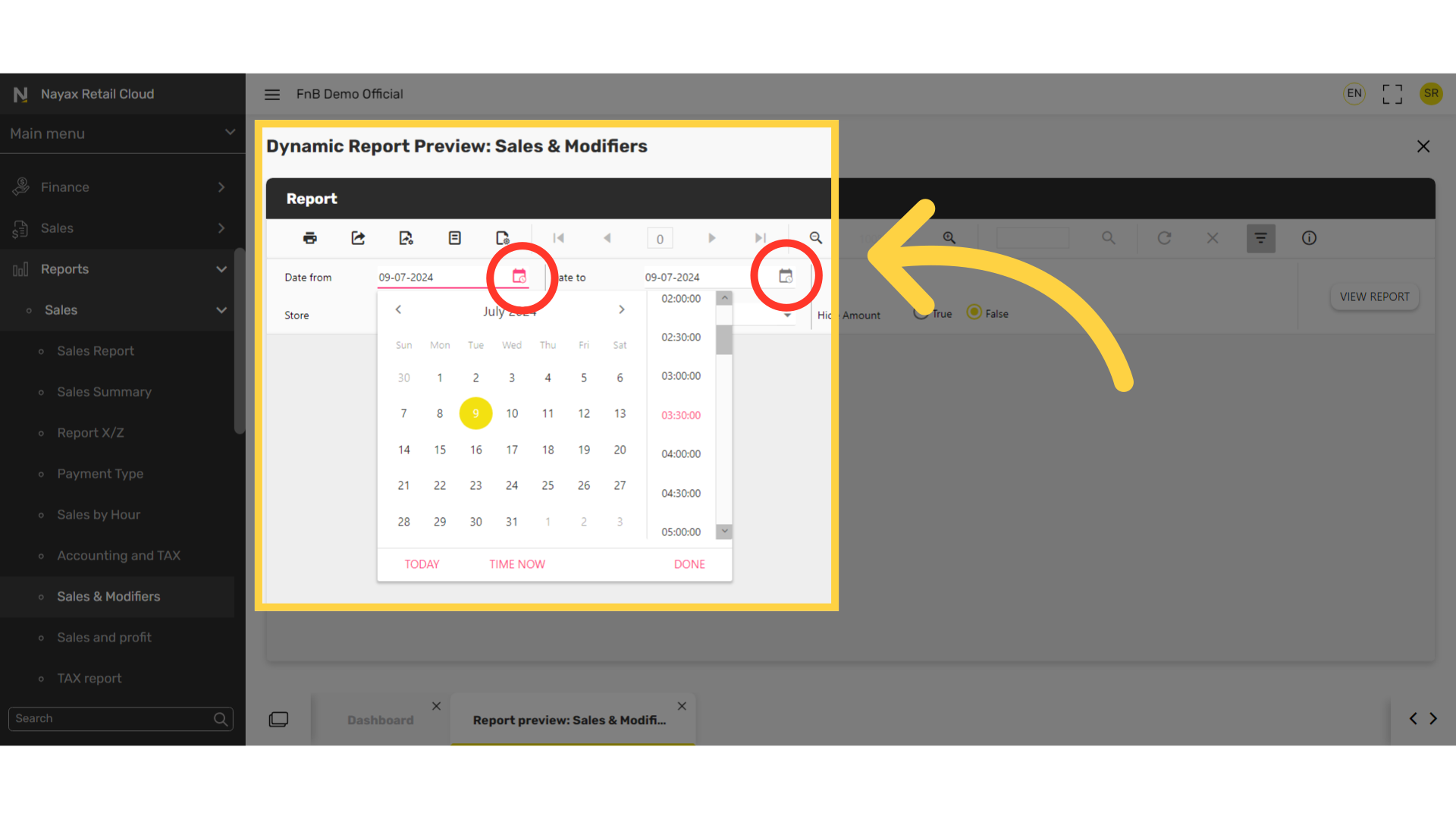
Set Dates Range
Image AttachedSet start and end date range for the reports.
Pro Tip: You can also click on the calendar icon as highlighted in RED on the visual.
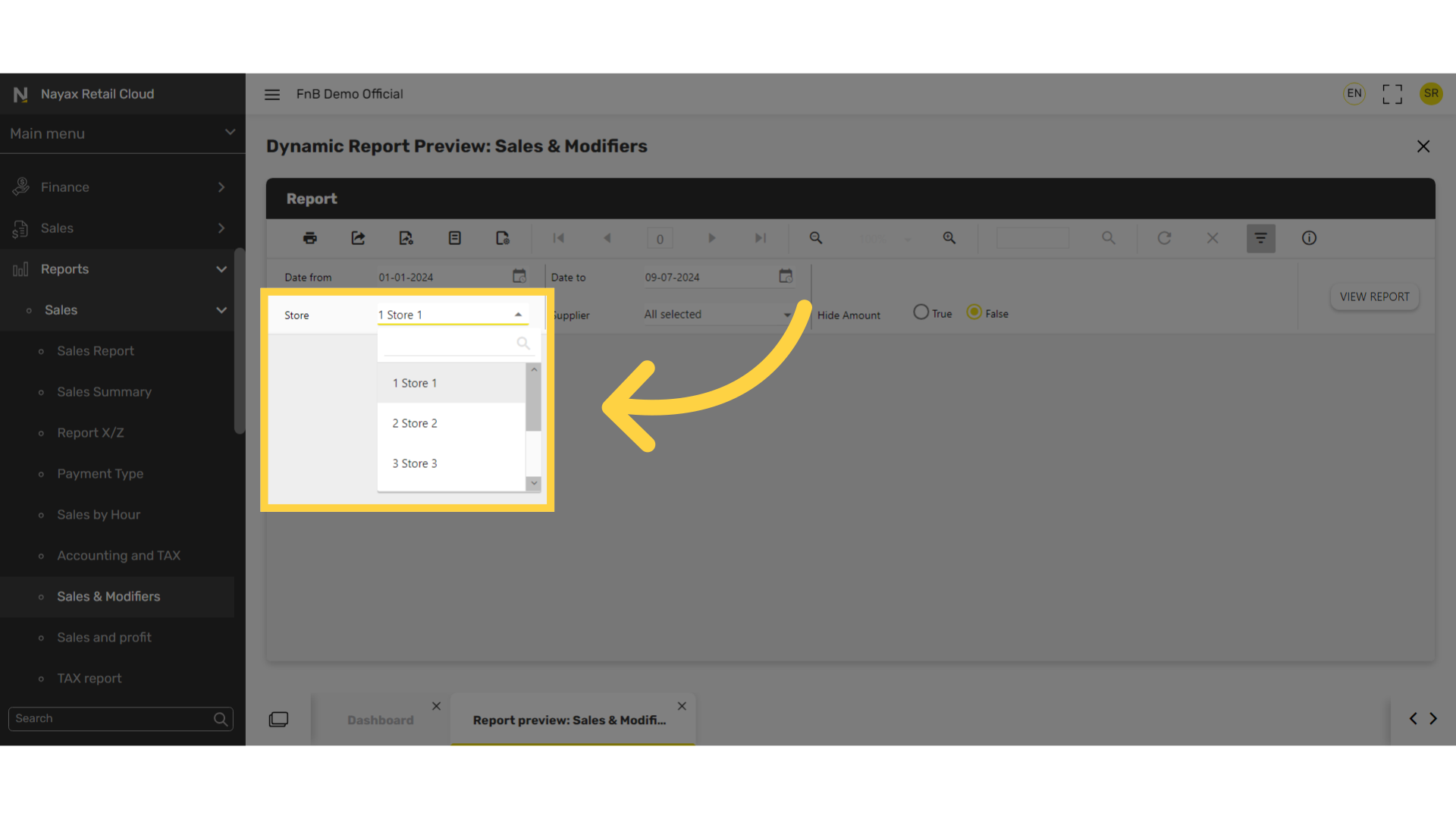
Select Store
Image AttachedClick on Store to have included in the report.
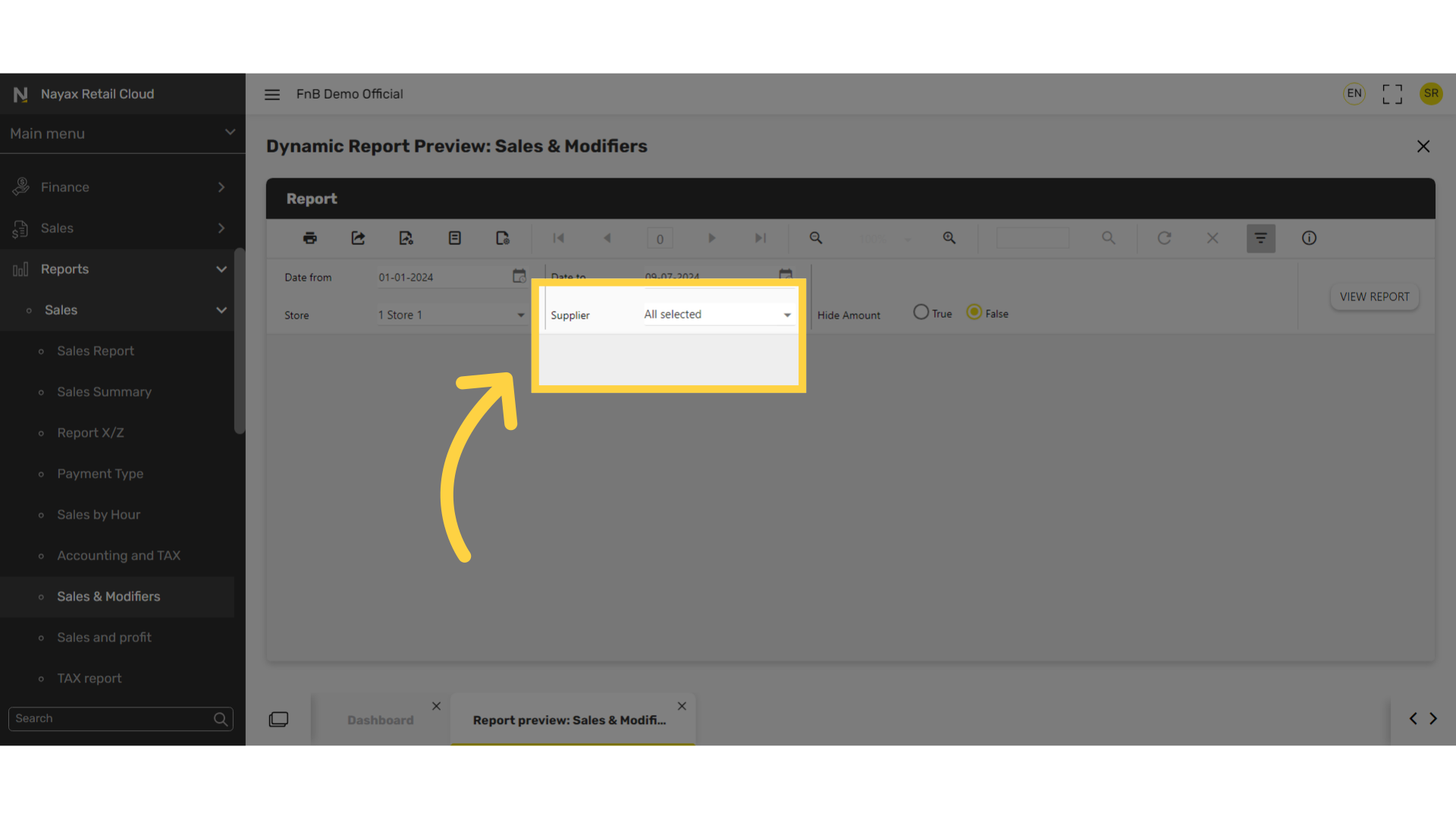
Select Supplier
Image AttachedSelect the supplier from the drop down menu.
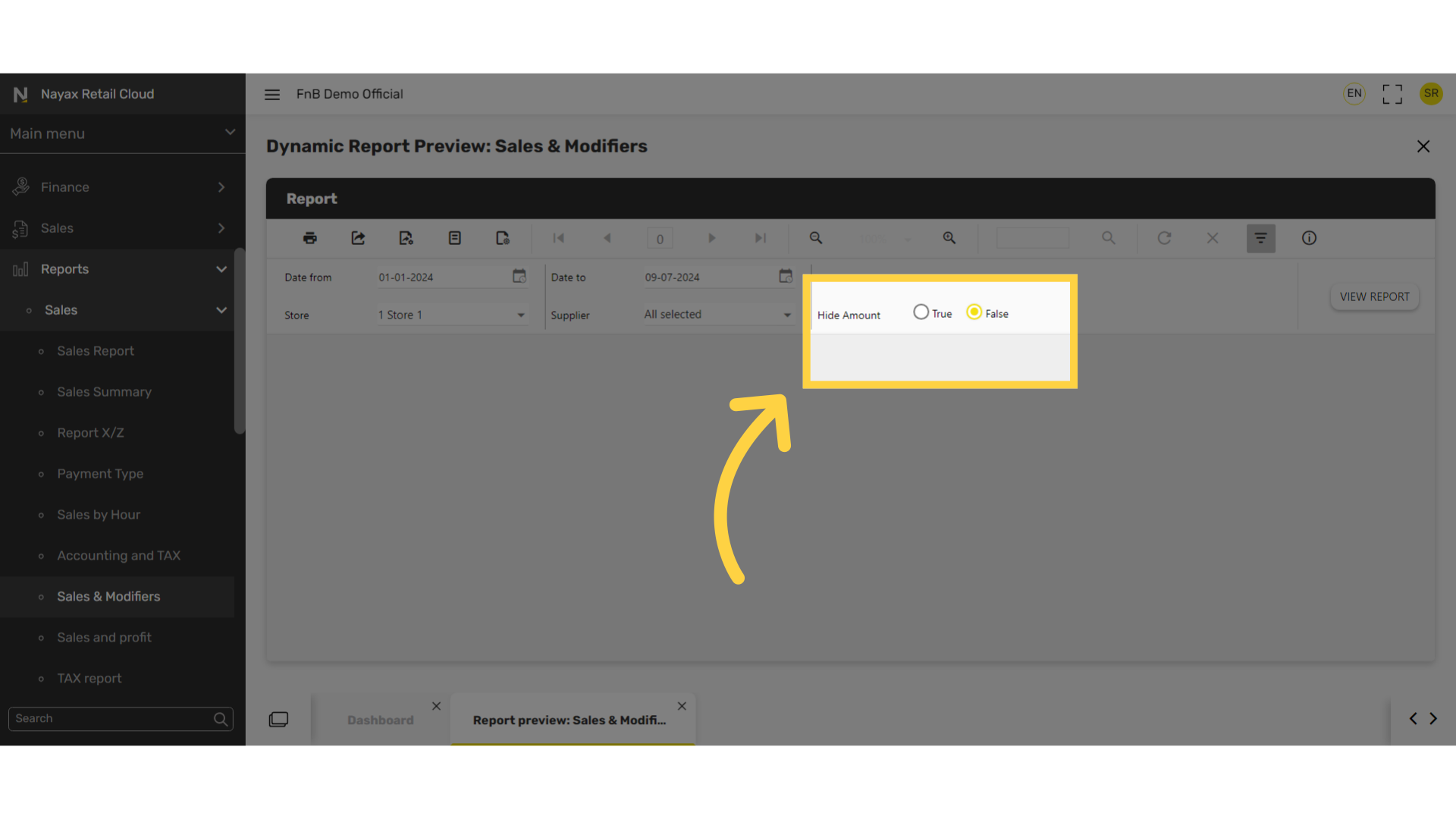
Hide amount
Image AttachedHide amount option select either true or false.
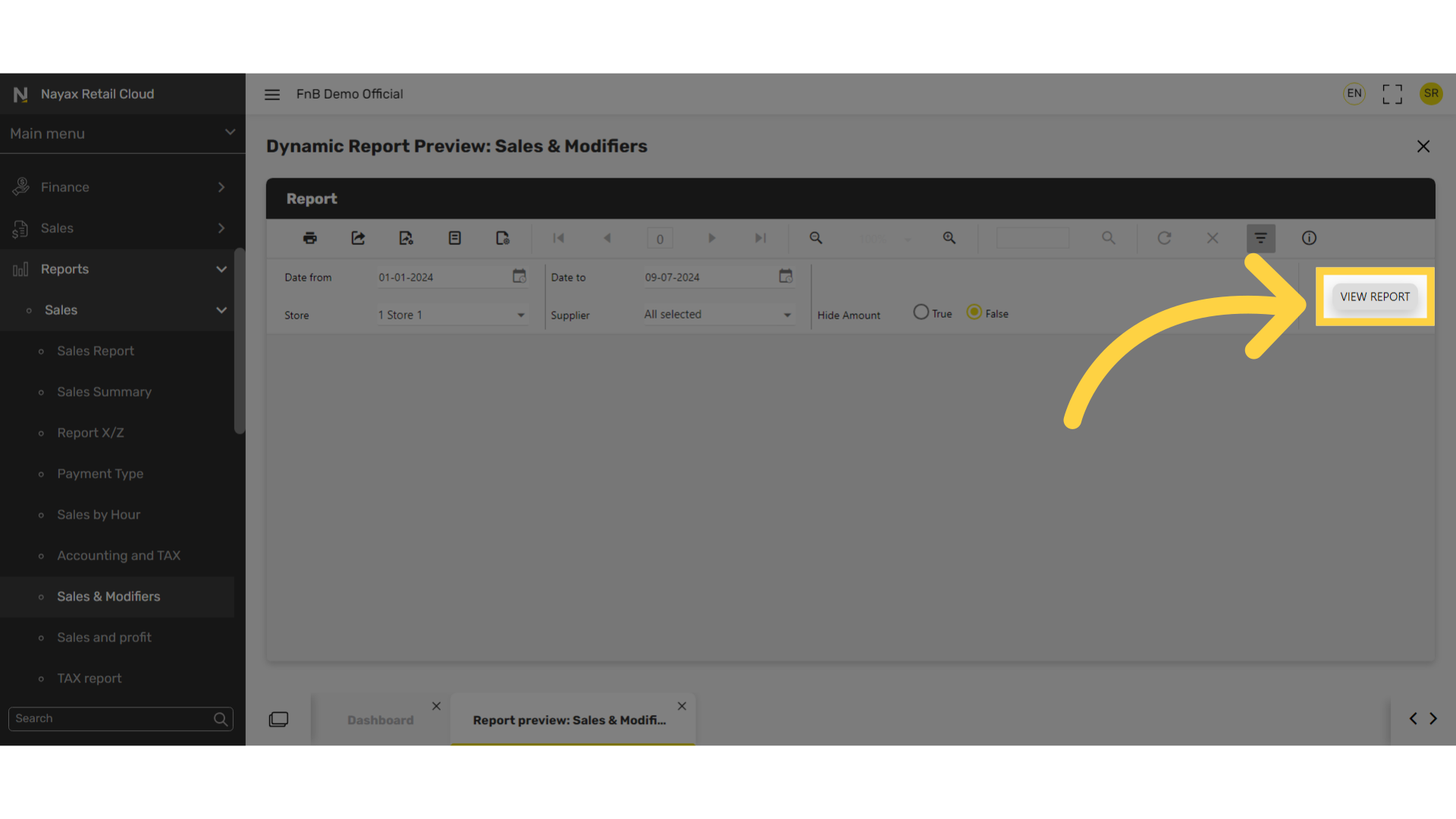
Click View Report
Image AttachedClick on View Report to the right of the screen.
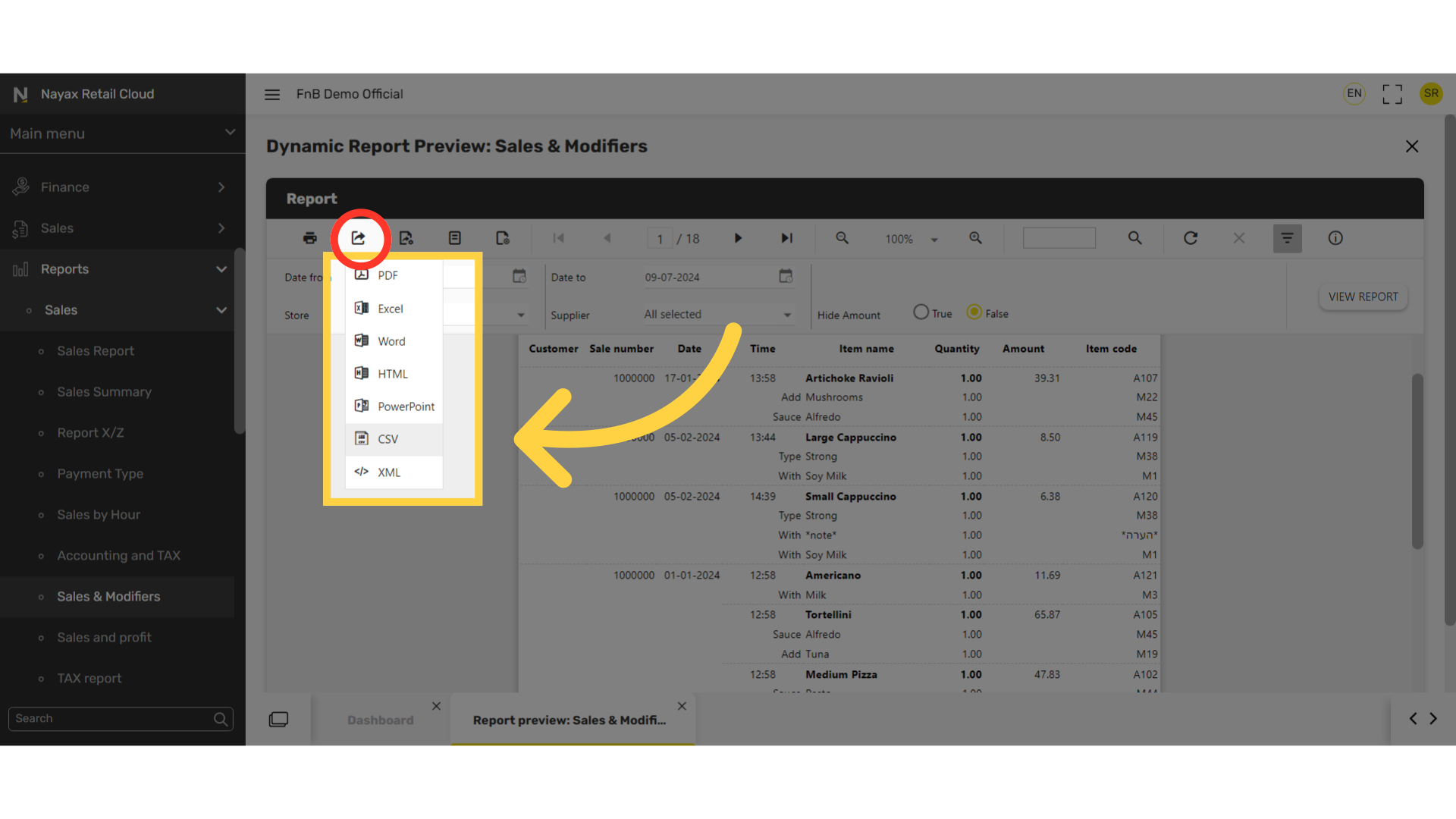
Export icon and options
Image Attached
To export the report click on the export icon highlighted here in RED on the visual and choose from the dropdown menu to download the report in your preferred format.
Thank you!
Did you find this article helpful?