
How to Generate a Product Report | Nova Market
Video guide
Access Admin Mode
On your device, click 6 times on the Nayax logo at the top corner of the screen.
Enter Password
Enter the password needed to access the admin mode.
If you do not know this password, please contact customer support.
Open Menu
On your device, click the three lines on the top right of the screen to reveal the menu.
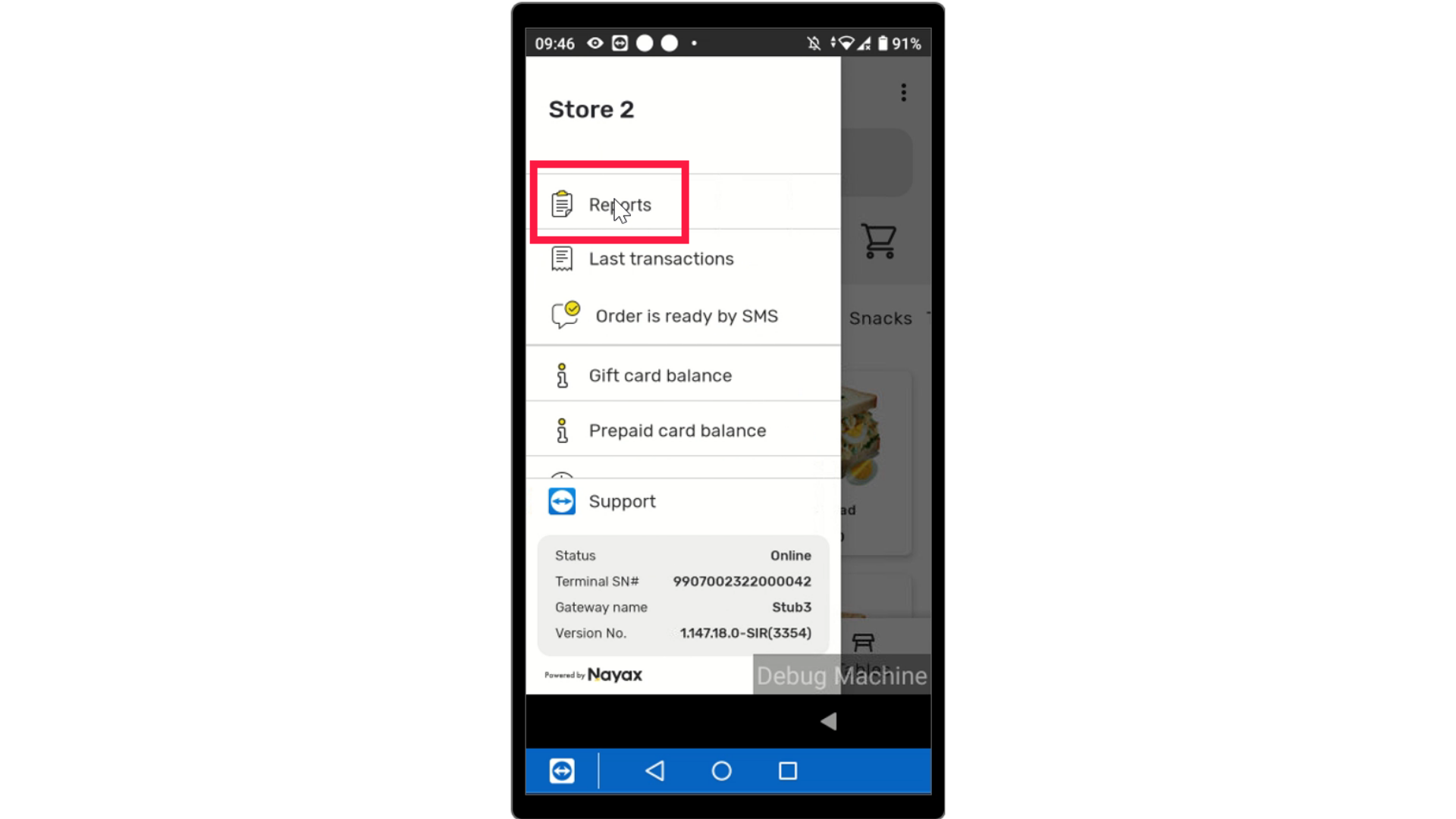
Click Reports
Image AttachedClick on Reports.
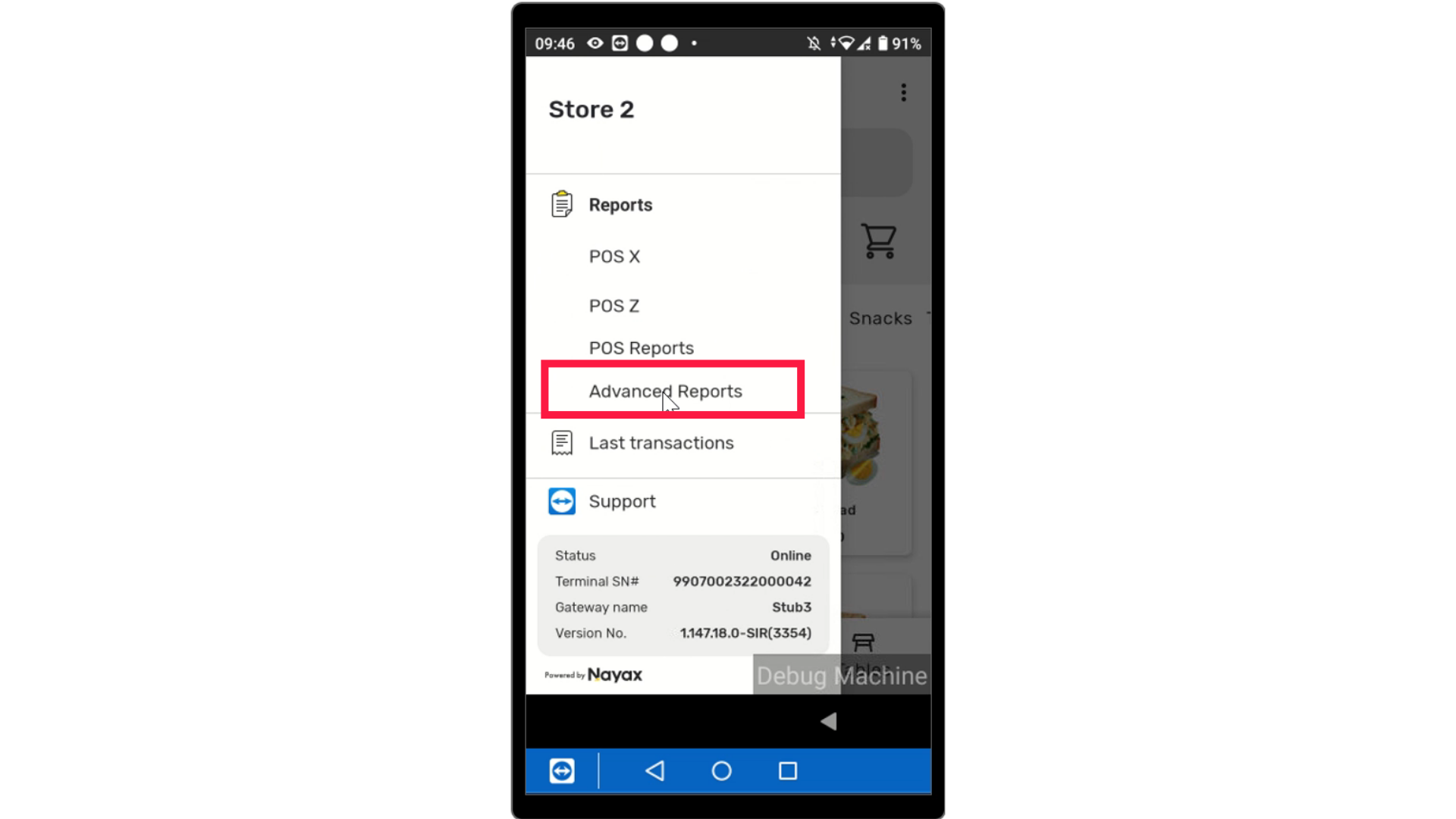
Click Advanced Reports
Image AttachedClick on Advanced Reports from the report options.
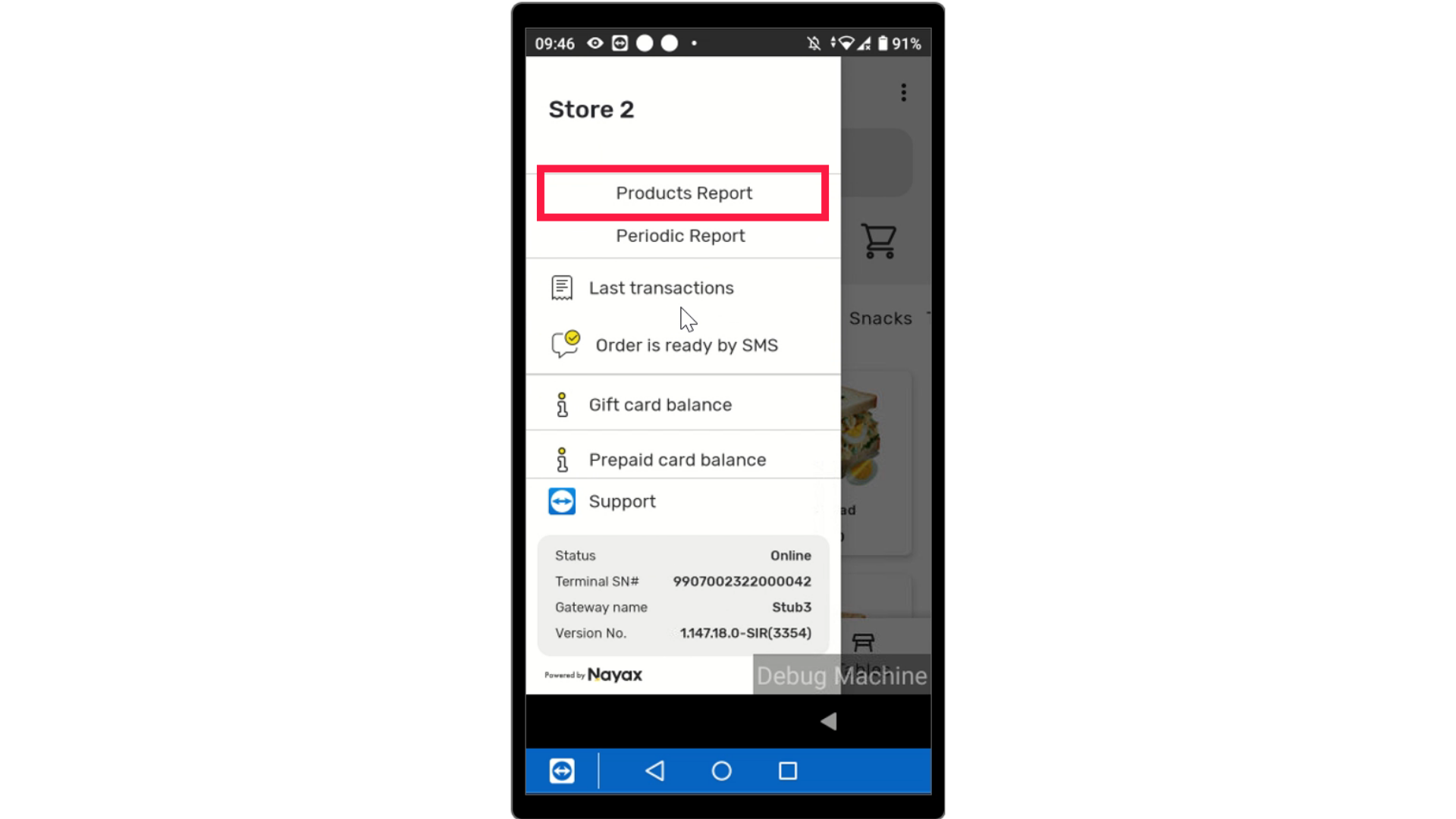
Click Product Reports
Image AttachedClick on Product Reports from options.
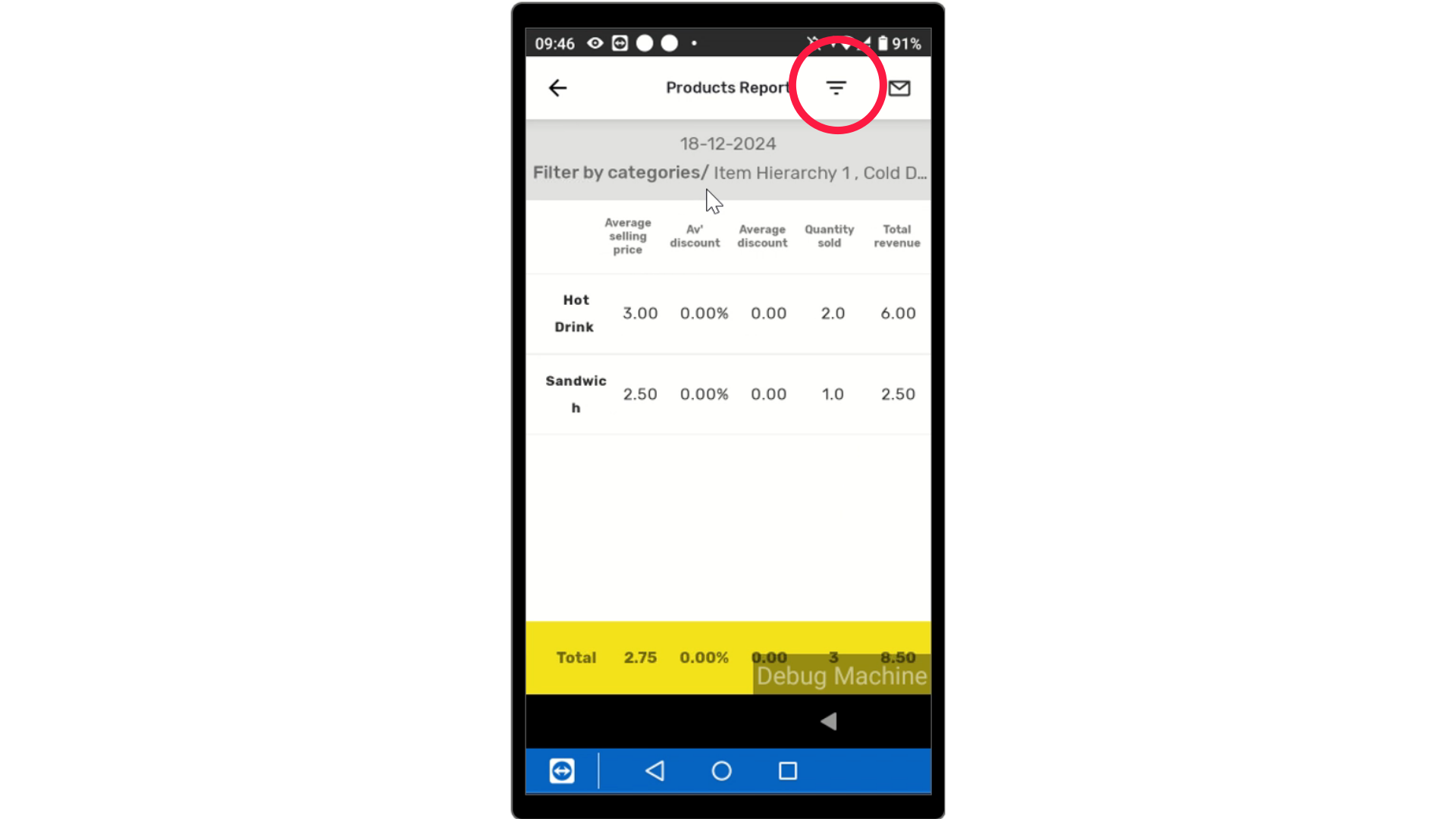
Product Report Displayed
Image AttachedThe screen will display the report. Tap the 3 lines on the right of the screen as highlighted for your filter options.
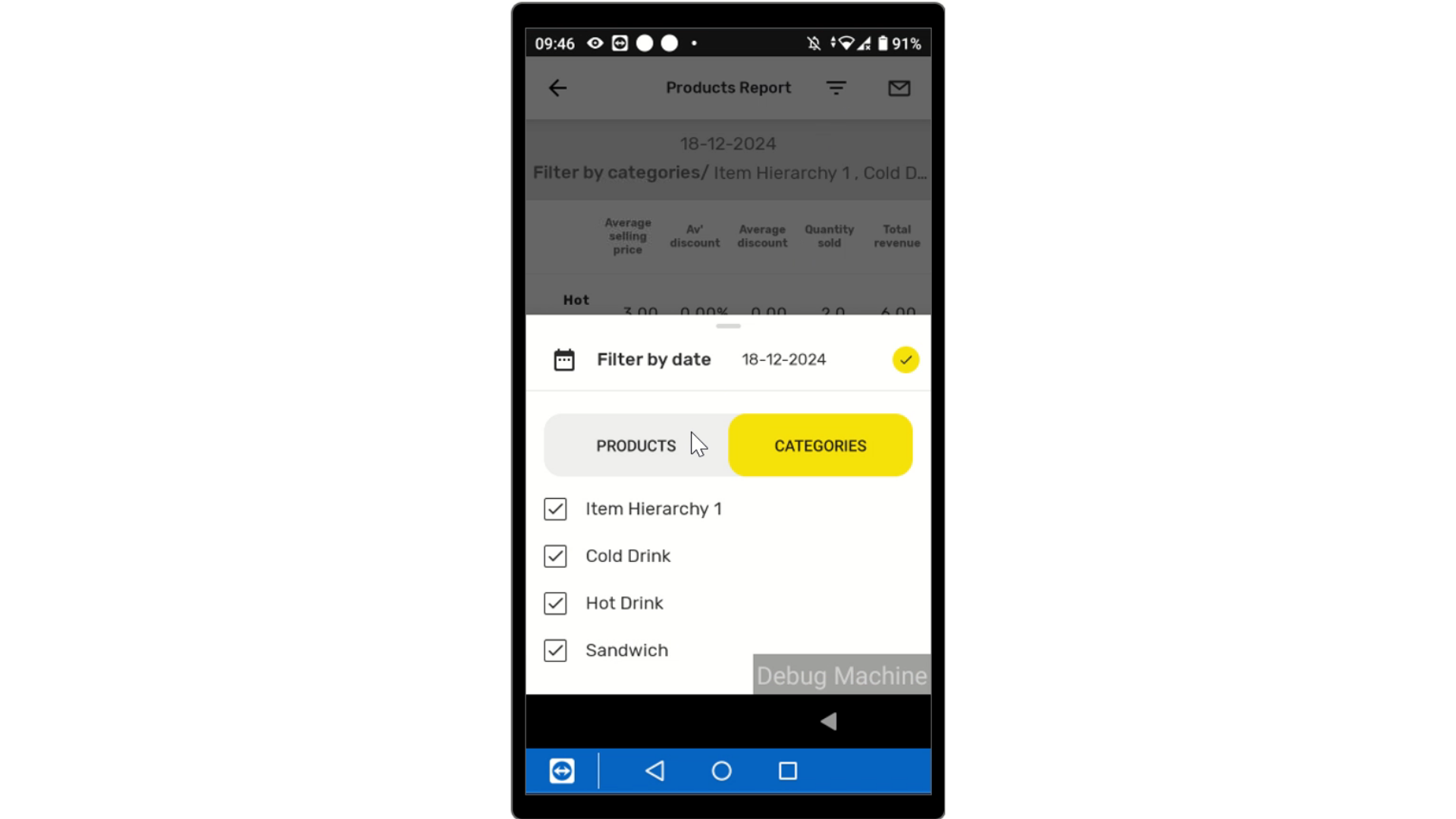
Filter Products or Categories
Image AttachedYou can filter the options via specific products or filter the options via specific categories.
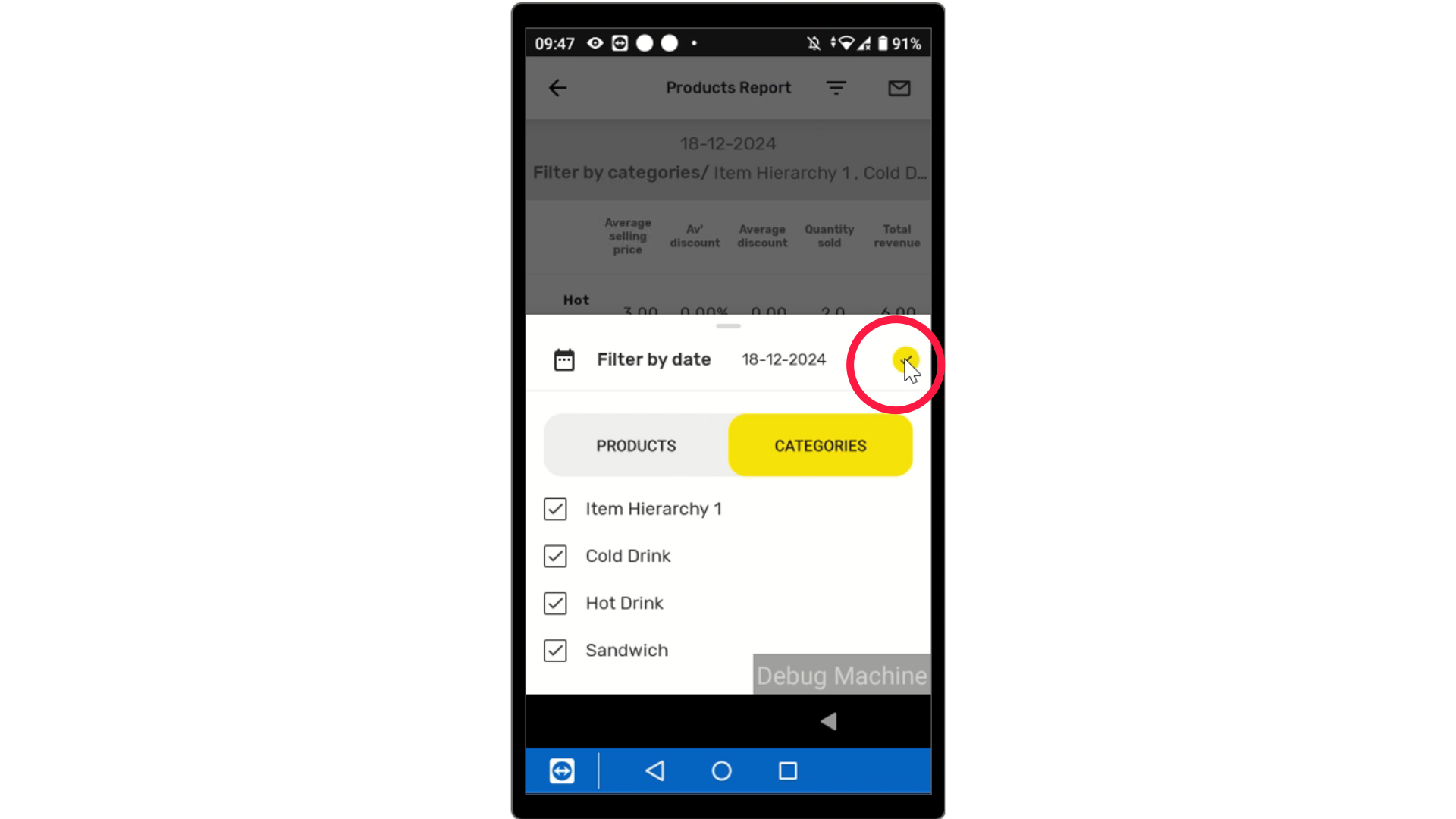
Tap Check Mark
Image AttachedTap Check Mark to view your report once you have made your preferences.
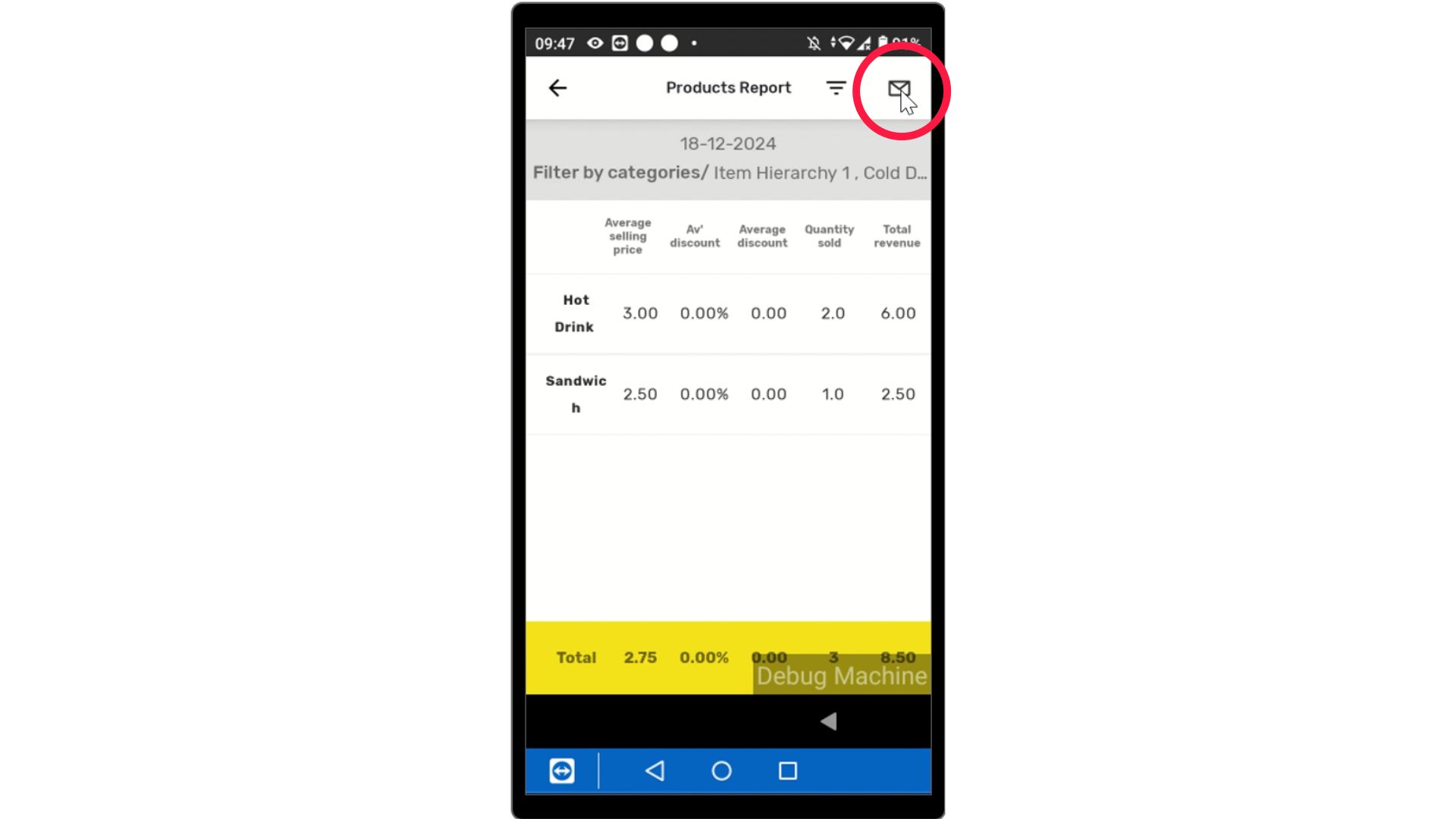
Email Icon
Image AttachedTap on the email icon as highlighted for your report to be emailed.
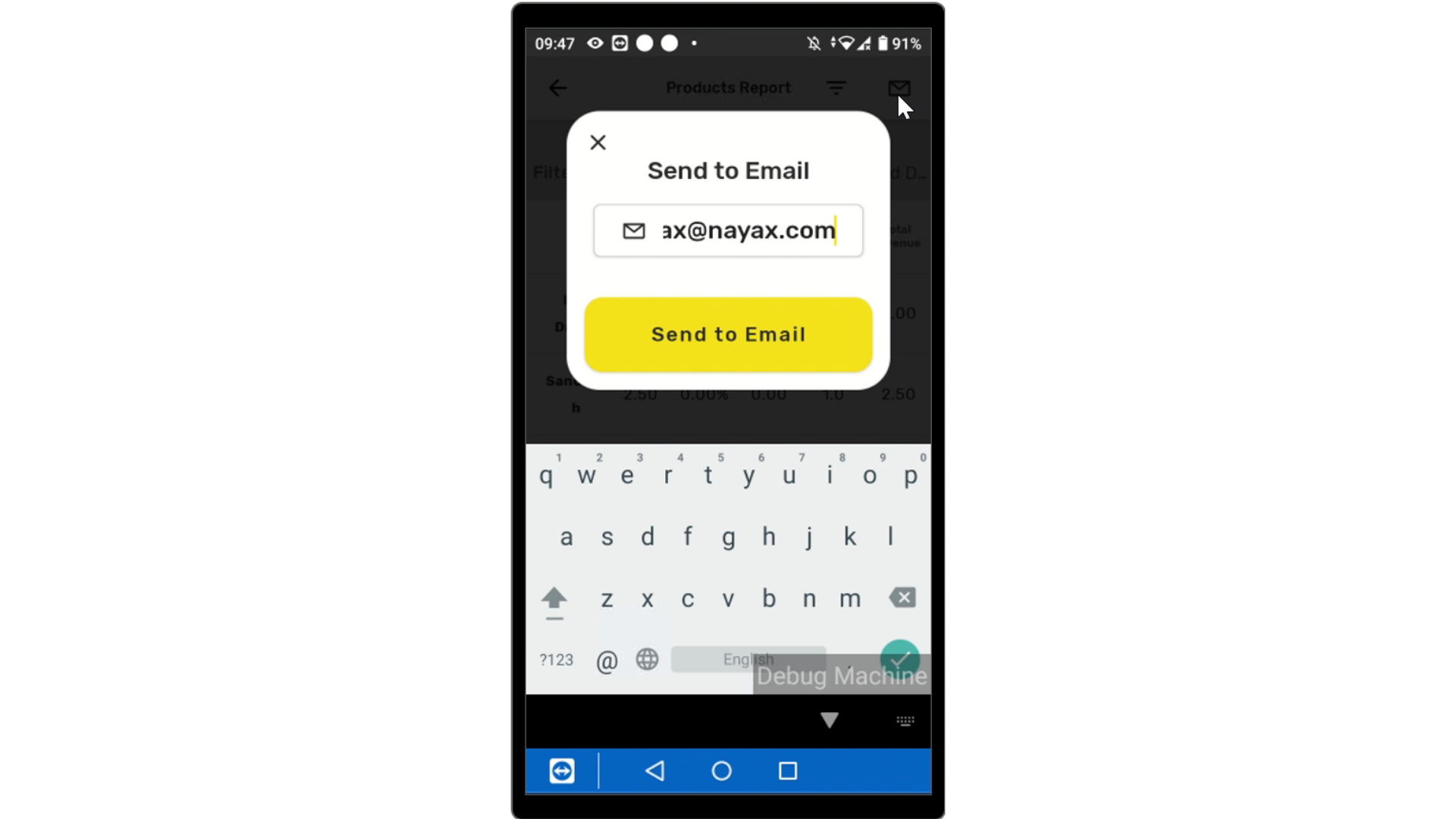
Insert your email and tap Send.
Thank you!
Did you find this article helpful?