
How to Configure an E-Receipt Functionality | Operations
This guide walks you through the process of activating and configuring E-Receipt functionality on your charging stations. Follow these steps carefully to ensure proper setup.
Video Guide
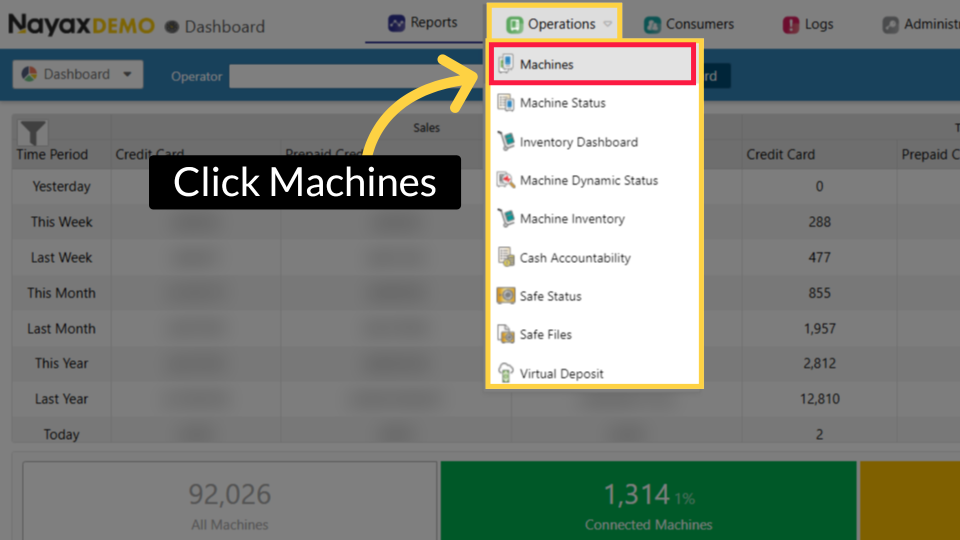
Click Operations
Image Attached
On the Dashboard of the Nayax Core platform, click on the Operations tab. Then click on "Machines" from the drop-down menu.
Fill in Charge Point Operator Details
Image Attached
Type in your Charge Point Operator name and any other fields to locate your Charging Point. Click search as highlighted in RED on the visual.
Pro Tip: You can search without typing a name of a Charge Point Operator and leaving this field blank. In this case, the data displayed will be all the CPOs (and/or sub-operators) you have permission to view
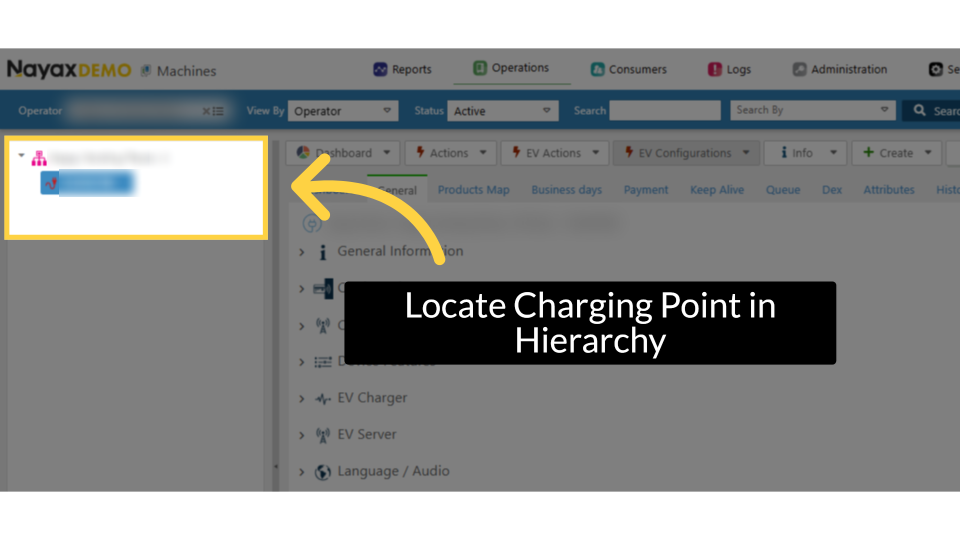
Locate Charging Point in Hierarchy
Image AttachedLocate and click on the Charging Point from the hierarchy.
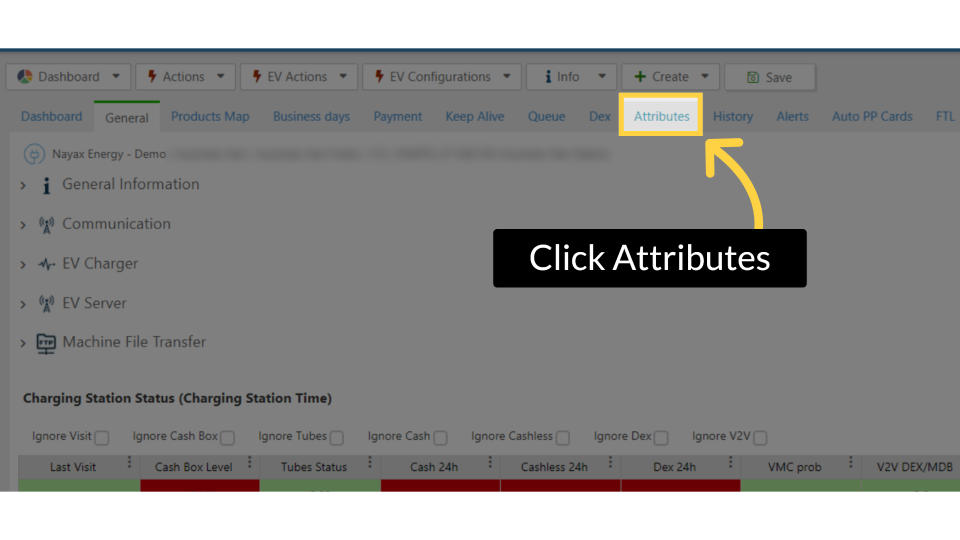
Click Attributes
Image Attached
Click on the Attributes Tab.
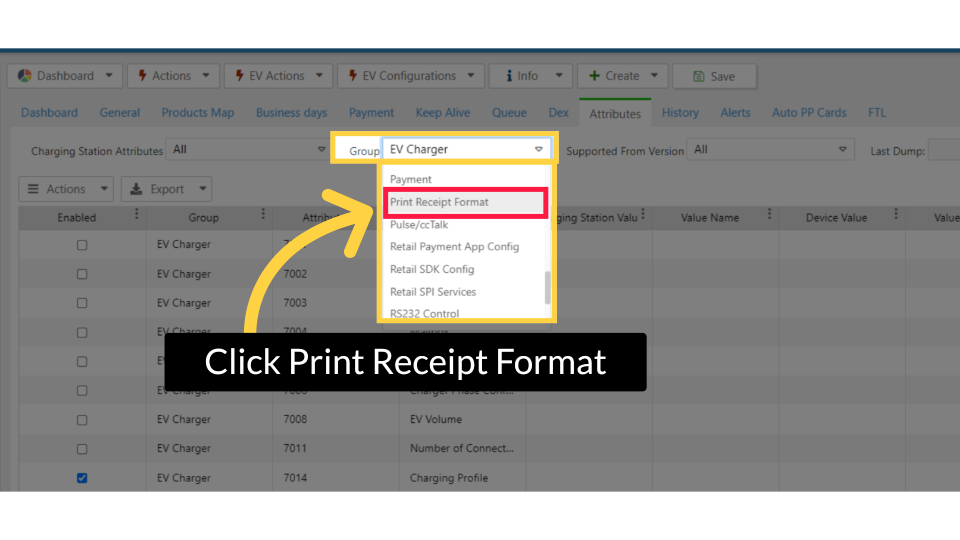
Click Print Receipt Format
Image Attached
Under the Group field, click on and select the Print Receipt Format option from the drop-down menu, as highlighted in RED.
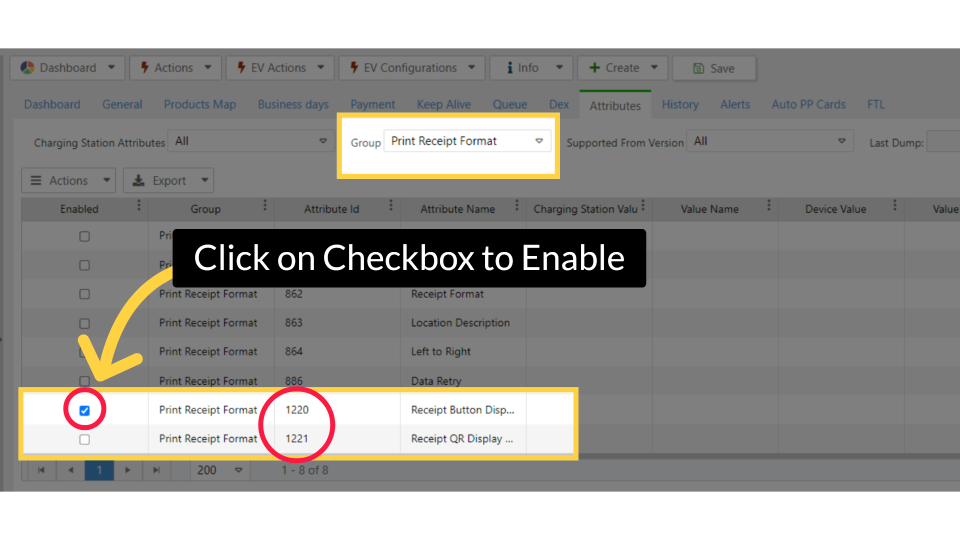
Click on Checkbox to Enable
Image Attached
Scroll search for the attributes Receipt Button Display Duration with attribute ID 1220 and Receipt QR Display Duration with attribute ID 1221 and click on the checkbox to enable these attributes as highlighted in RED.
|
Attribute ID
|
Attribute Name
|
|
1220
|
Receipt Button Display Duration
|
|
1221
|
Receipt QR Display Duration
|
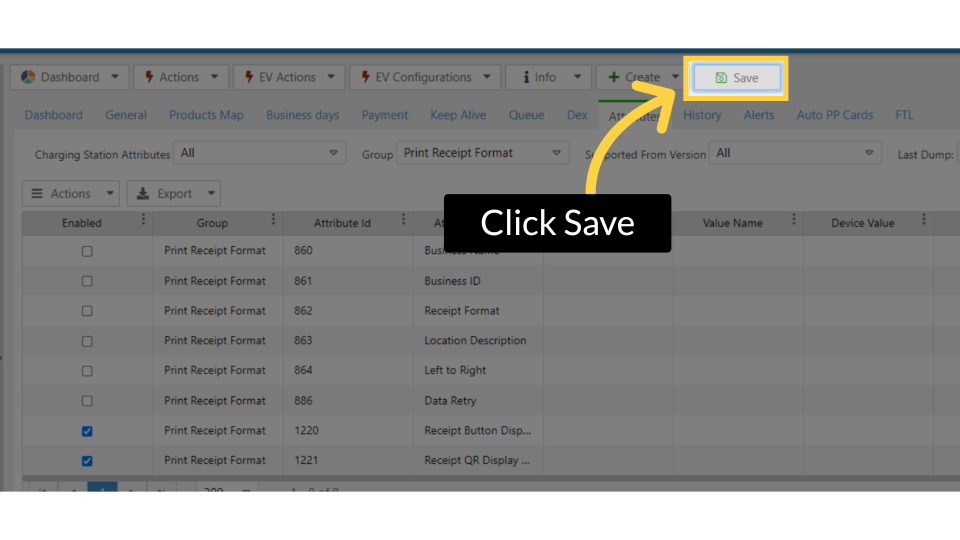
Click Save
Image Attached
Click on the save button to save your progress.
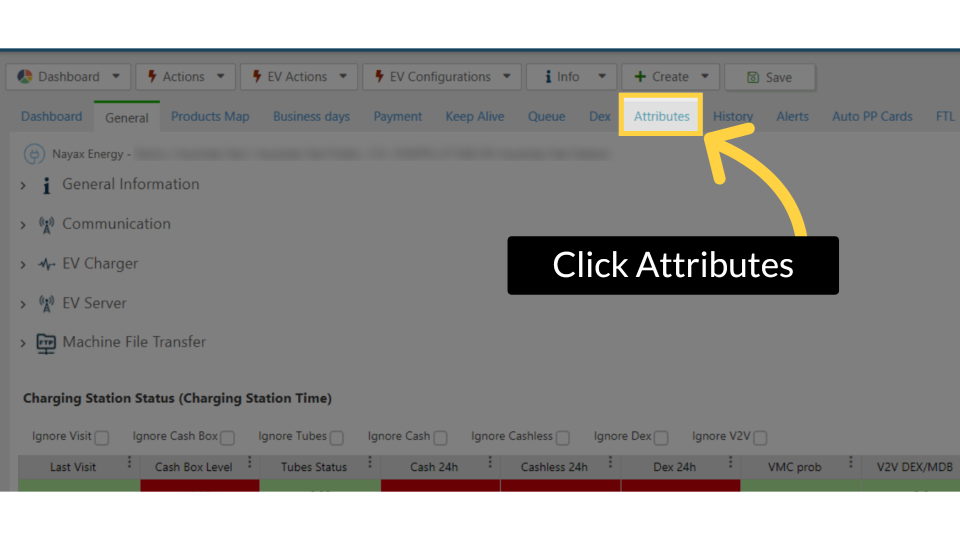
Click Attributes
Image Attached
Now, to add Attributes to the VPOS Touch Section, click on the Attributes Tab again.
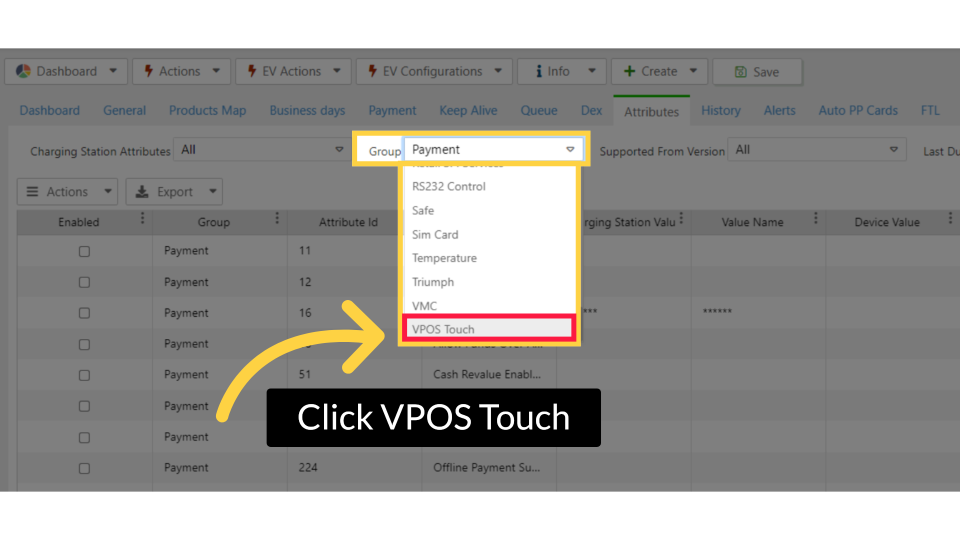
Click VPOS Touch
Image Attached
Under the Group field, click on and select the VPOS Touch option from the drop-down menu, as highlighted in RED.
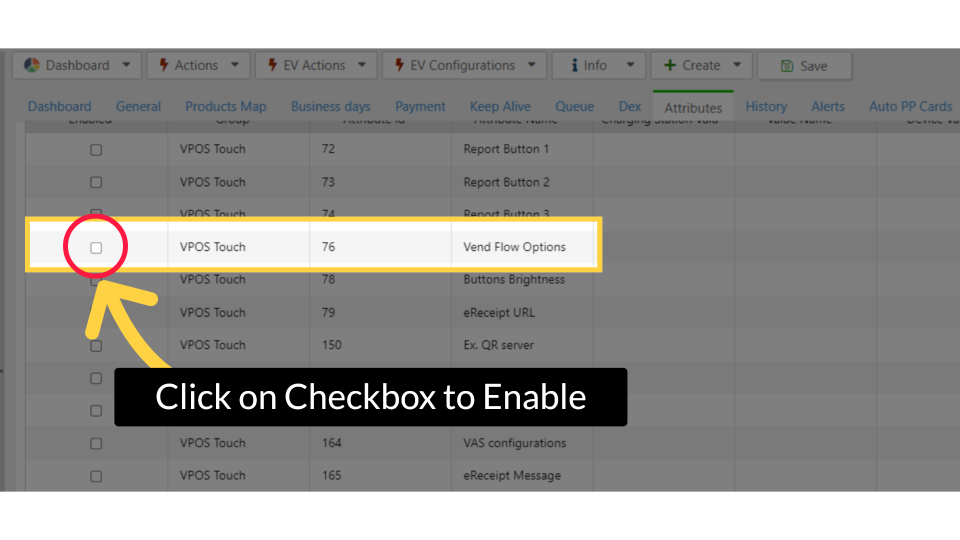
Click on Checkbox to Enable
Image Attached
Scroll down to search for the attributes 'Vend Flow Options' with attribute ID 76, and click on the checkbox to enable these attributes, as highlighted in RED.
|
Attribute ID
|
Attribute Name
|
|
76
|
Vend Flow Options
|
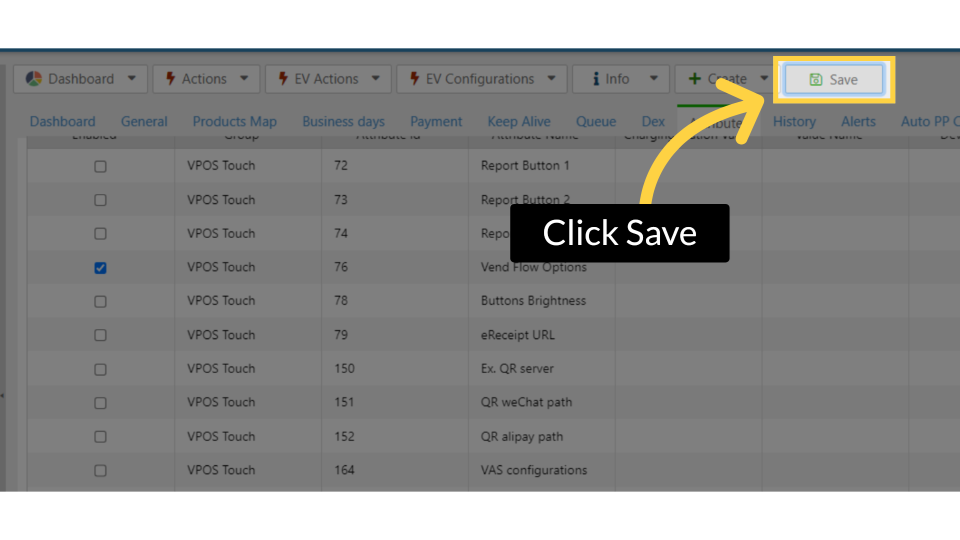
Click Save
Image Attached
Click on the save button to save your progress.
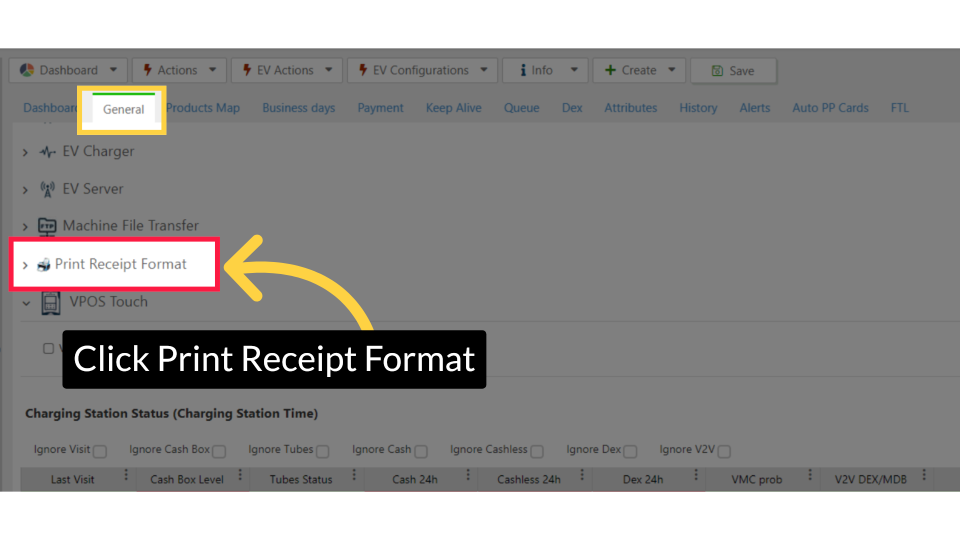
Click Print Receipt Format
Image Attached
Now we need to configure the Charging Station Settings from the General Tab and then click on the Print Receipt Format option as highlighted in RED.
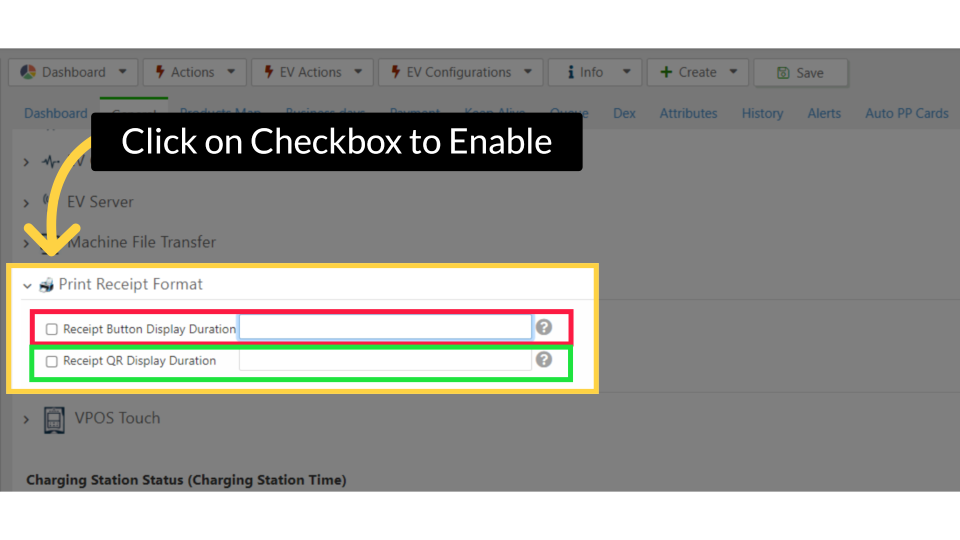
Click on Checkbox to Enable
Image Attached
For Receipt Button Display Duration as highlighted in RED on the visual enter the number of seconds you want this button to be displayed on the VPOST Touch's screen. We recommend configuring it to be visible for 15 seconds.
For Receipt QR Display Duration as highlighted in GREEN on the visual enter the number of seconds you want this button to be displayed on the VPOST Touch's screen. We recommend configuring it to be visible for 60 seconds.
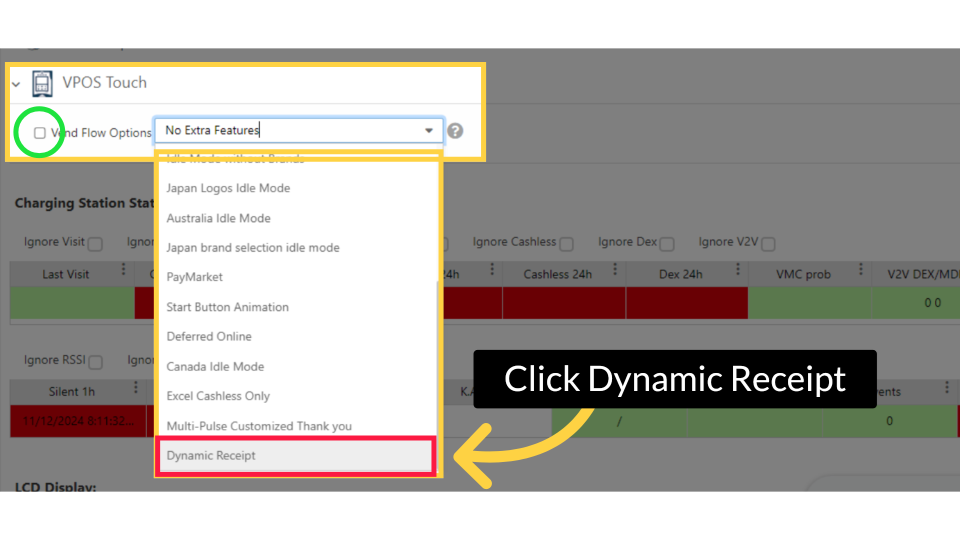
Click Dynamic Receipt
Image Attached
Still on the General Tab, click open the VPOS Touch and Vend Flow Options, choose the Dynamic Receipt option as highlighted in RED and click on the checkbox as highlighted in GREEN.
Click Save
Image Attached
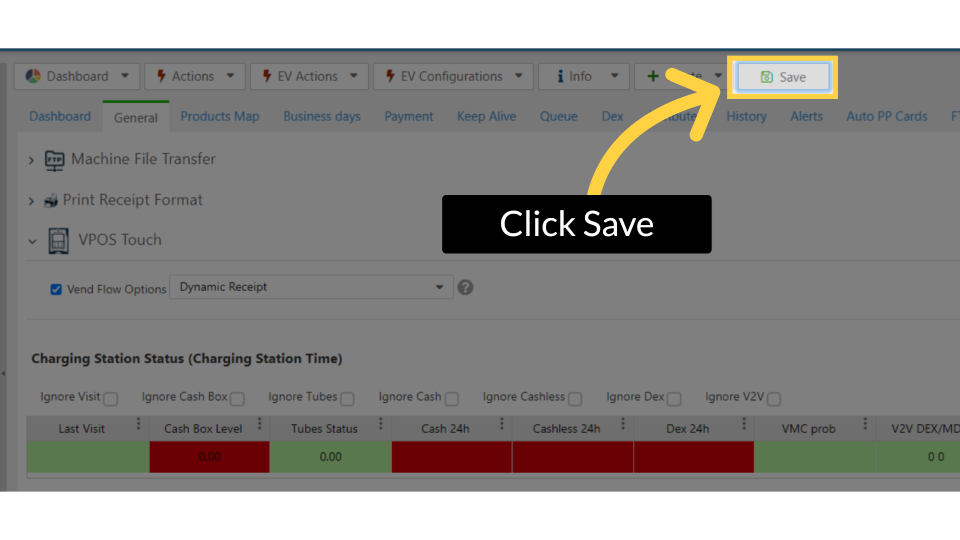
Click on the save button to save your progress.
Click Payment
Image Attached
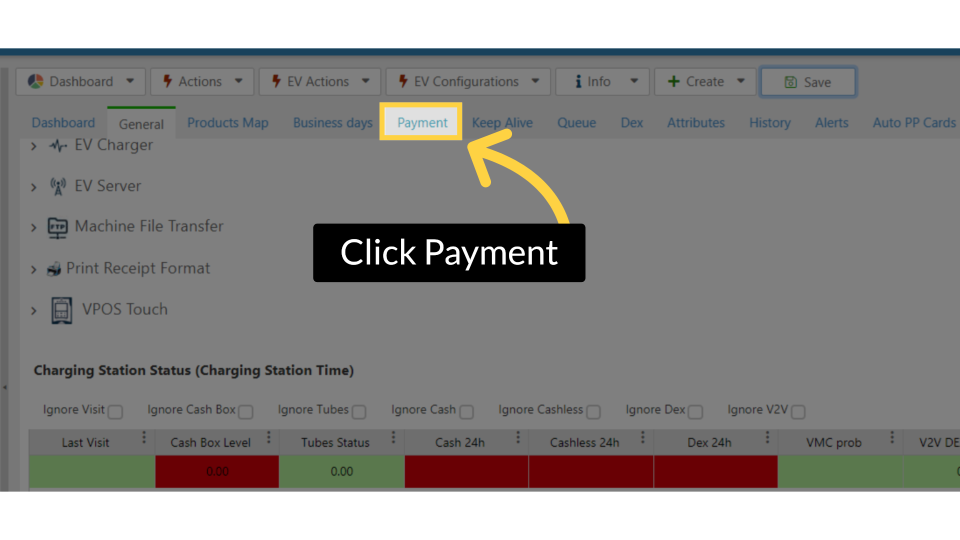
Click on the Payment Tab.
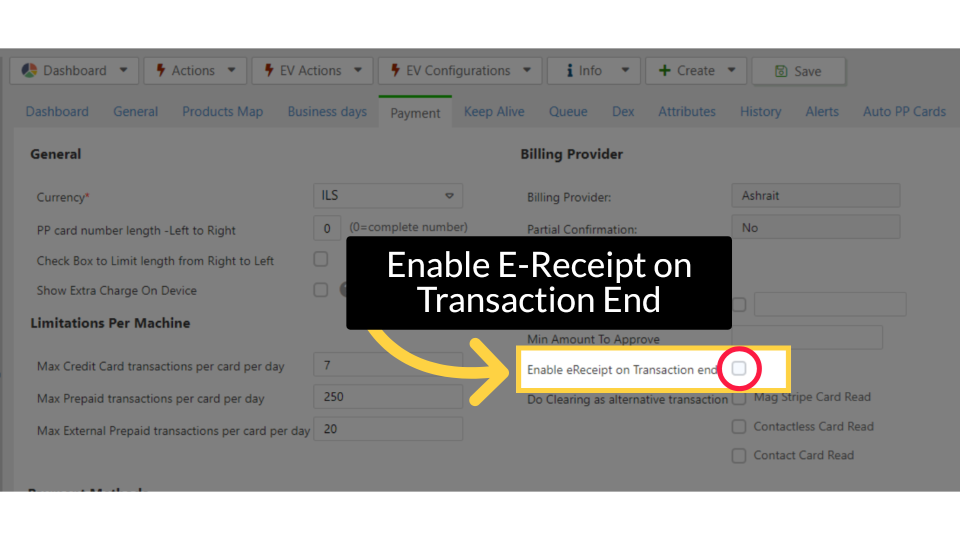
Enable E-Receipt on Transaction End
Image Attached
Locate 'Enable e-Receipt' on the Transaction end and check the box to activate, as highlighted in RED.
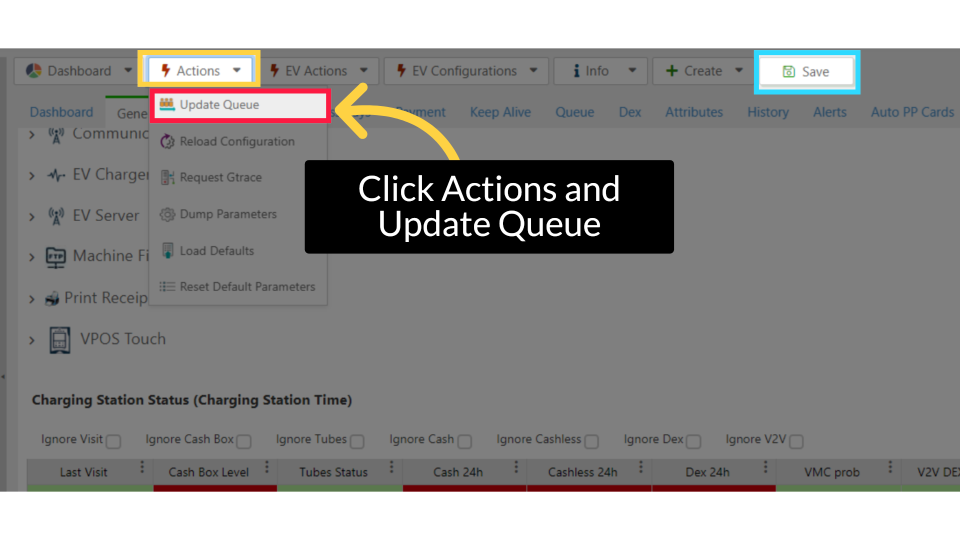
Click Actions and Update Queue
Image Attached
Then scroll to the Actions button and click Update Queue as highlighted in RED and then the click on the save button to save your changes as highlighted in BLUE.
Thank you!
Did you find this article helpful?