
How to Add Products, Update Prices, and Manage Inventory | MoMa
Add products, update prices, swap bins, and generate picklists from the product map. Keep your machines accurate and stocked without a site visit.
Video Guide
00:01: Keeping your product map up to date ensures
00:03: accurate pricing, reliable inventory tracking, and efficient restocking
00:07: all easily managed from your MoMa app.
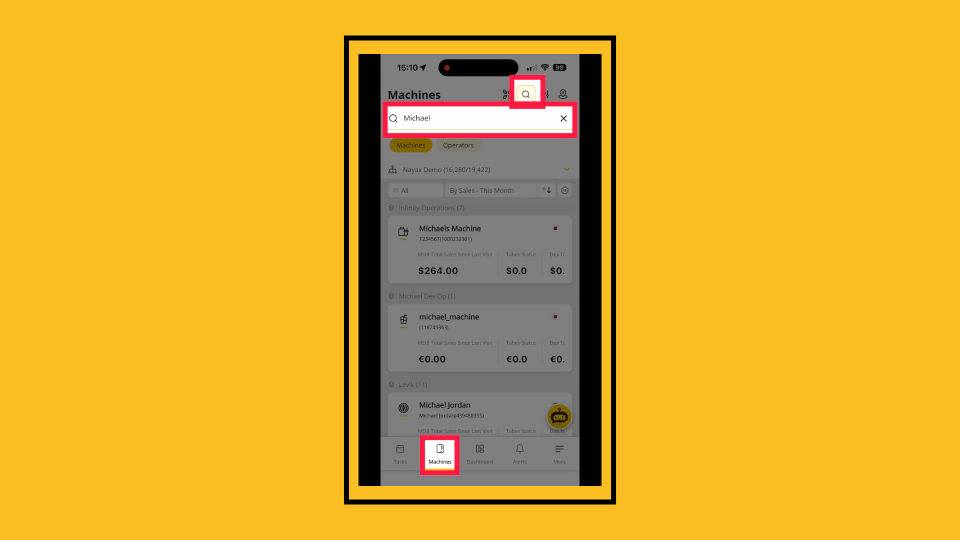
00:10: Open the MoMa app and tap Machines on the bottom navigation bar. Search for
00:15: and tap the machine you want to edit or update.
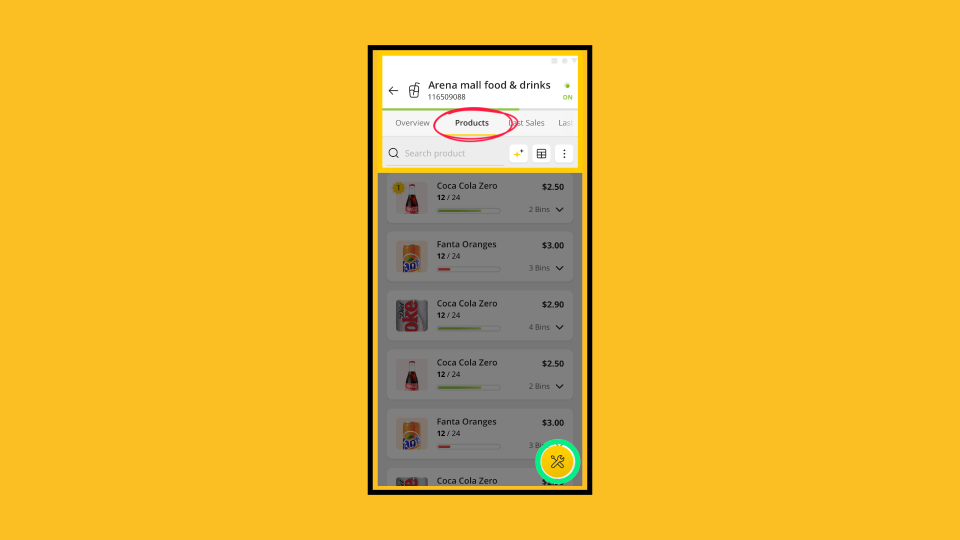
00:18: Tap the Products tab on the machine screen
00:20: and then tap the product you want to replace in the product map.
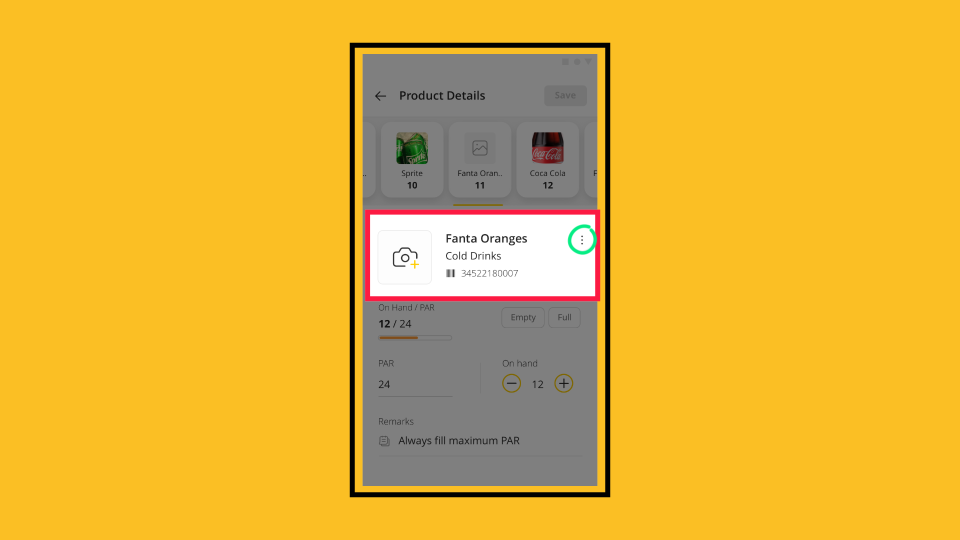
00:24: On the product screen,
00:25: tap the 3 dots to open the actions menu.
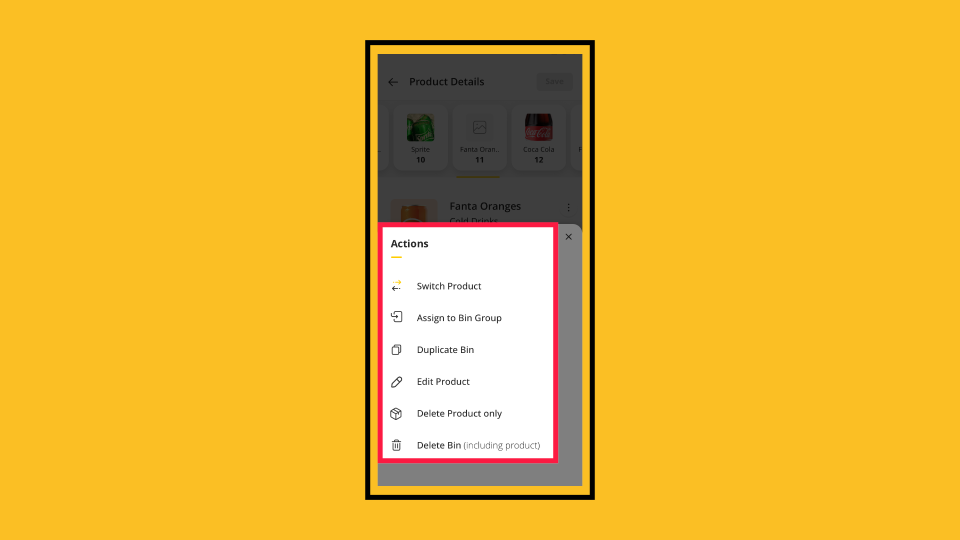
00:28: Here you can choose to switch, edit, duplicate, delete the product.
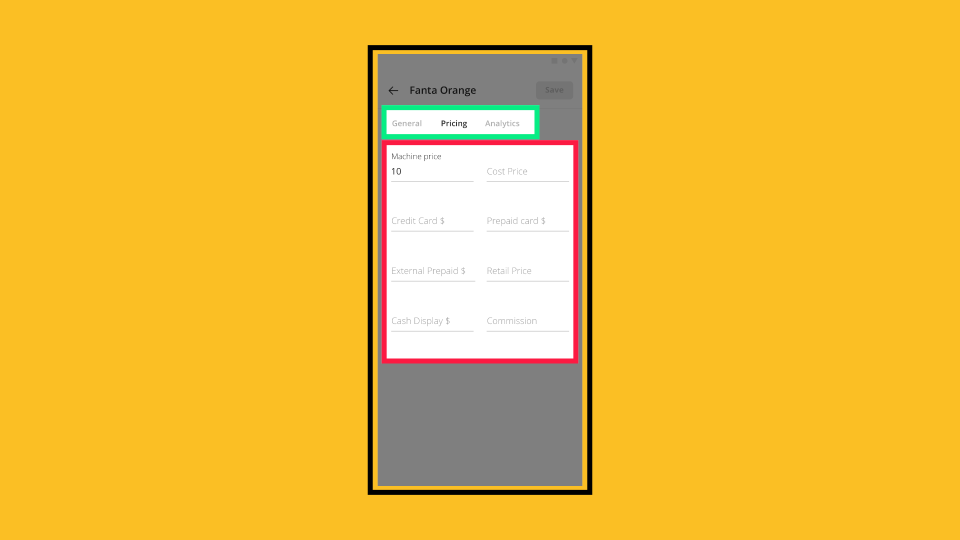
00:33: Update the price field for the relevant payment method.
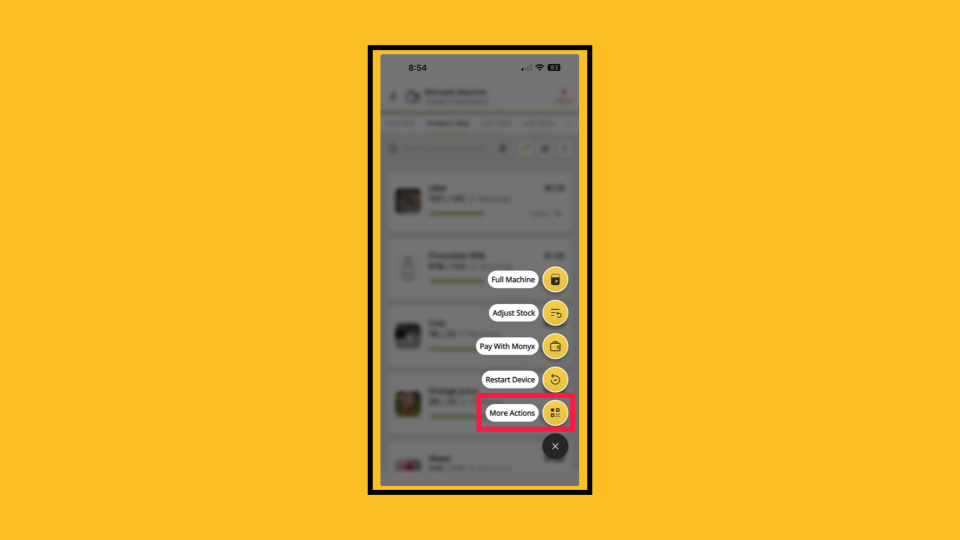
00:36: Back at the products map screen, tap the spanner icon to open the actions menu and
00:41: select more actions.
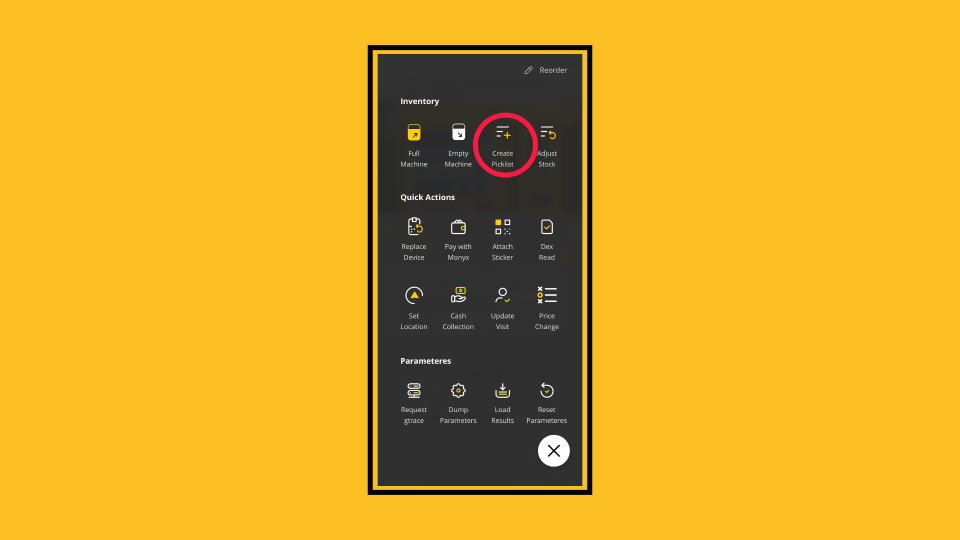
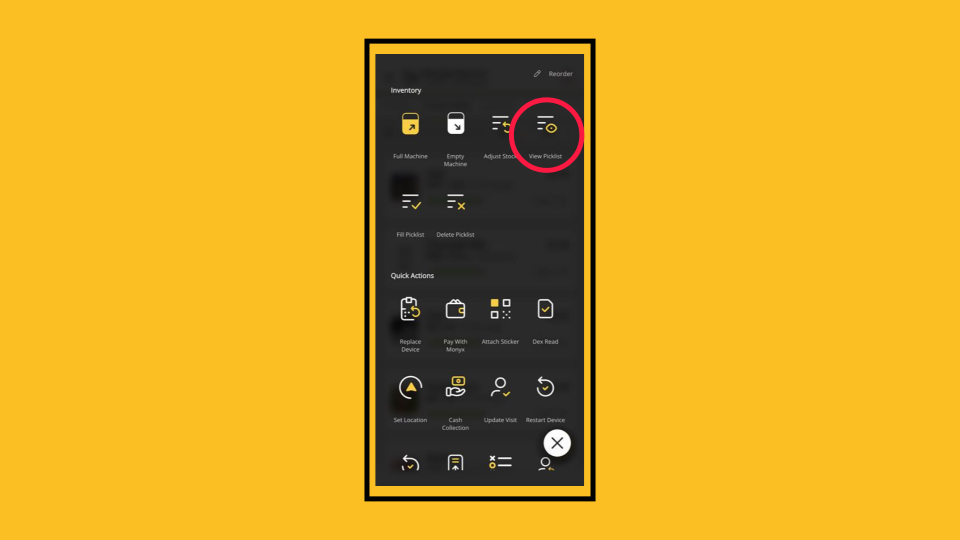
00:43: You will see the full actions menu here
00:44: you can manage many actions,
00:46: lets choose to create a Picklist.
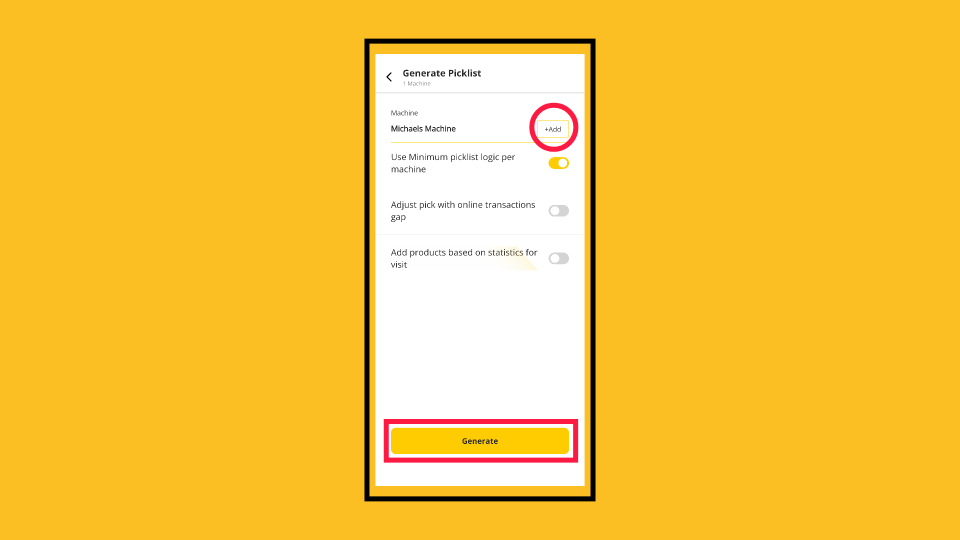
00:49: Generate a picklist by selecting one or more machines,
00:52: toggling options like Minimum Pick and Estimate Missing Products at Future Visits,
00:56: and then tapping Generate. The picklist is created automatically.
01:01: Adjust picklist quantities by opening the picklist from the Actions screen and tapping
01:05: View Picklist.
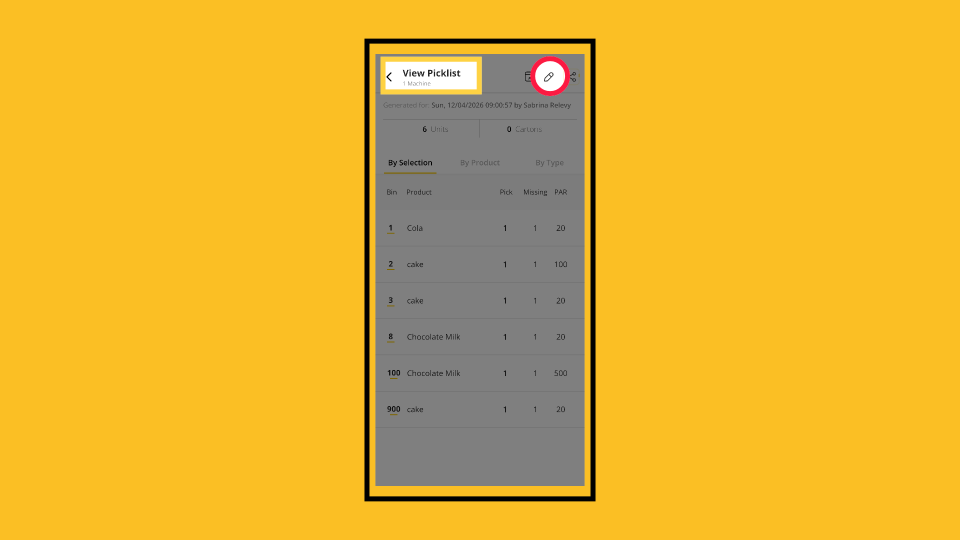
01:07: Edit pick quantities by tapping the pencil icon at the top of the screen, then
01:11: adjusting the quantity for each product as needed.
Tap Machine
Image AttachedOpen the MoMa app and tap Machines on the bottom navigation bar. Search for and tap the machine you want to edit or update.
Tap Product
Image AttachedTap the Products tab on the machine screen and then tap the product you want to replace in the product map.
Switch a Bin
Image AttachedOn the product screen, tap the 3 dots to open the actions menu.
Product Actions
Image AttachedHere you can choose to switch, edit, duplicate, delete the product.
Update Product Pricing
Image AttachedUpdate the price field for the relevant payment method.
More Actions
Image AttachedBack at the products map screen, tap the spanner icon to open the actions menu and select more actions.
FAB Actions
Image AttachedYou will see the full actions menu here you can manage many actions, lets choose to create a Picklist.
Toggle Options
Image AttachedGenerate a picklist by selecting one or more machines, toggling options like Minimum Pick and Estimate Missing Products at Future Visits, and then tapping Generate. The picklist is created automatically.
Adjust Picklist Quantities
Image AttachedAdjust picklist quantities by opening the picklist from the Actions screen and tapping View Picklist.
Adjust Picklist Quantities
Image AttachedEdit pick quantities by tapping the pencil icon at the top of the screen, then adjusting the quantity for each product as needed.
Thank you!
Did you find this article helpful?