
How to Add Machine Attributes | Operations
This guide will explain how to add one or multiple attributes to your machine through Nayax Core!
1
Video Guide
2
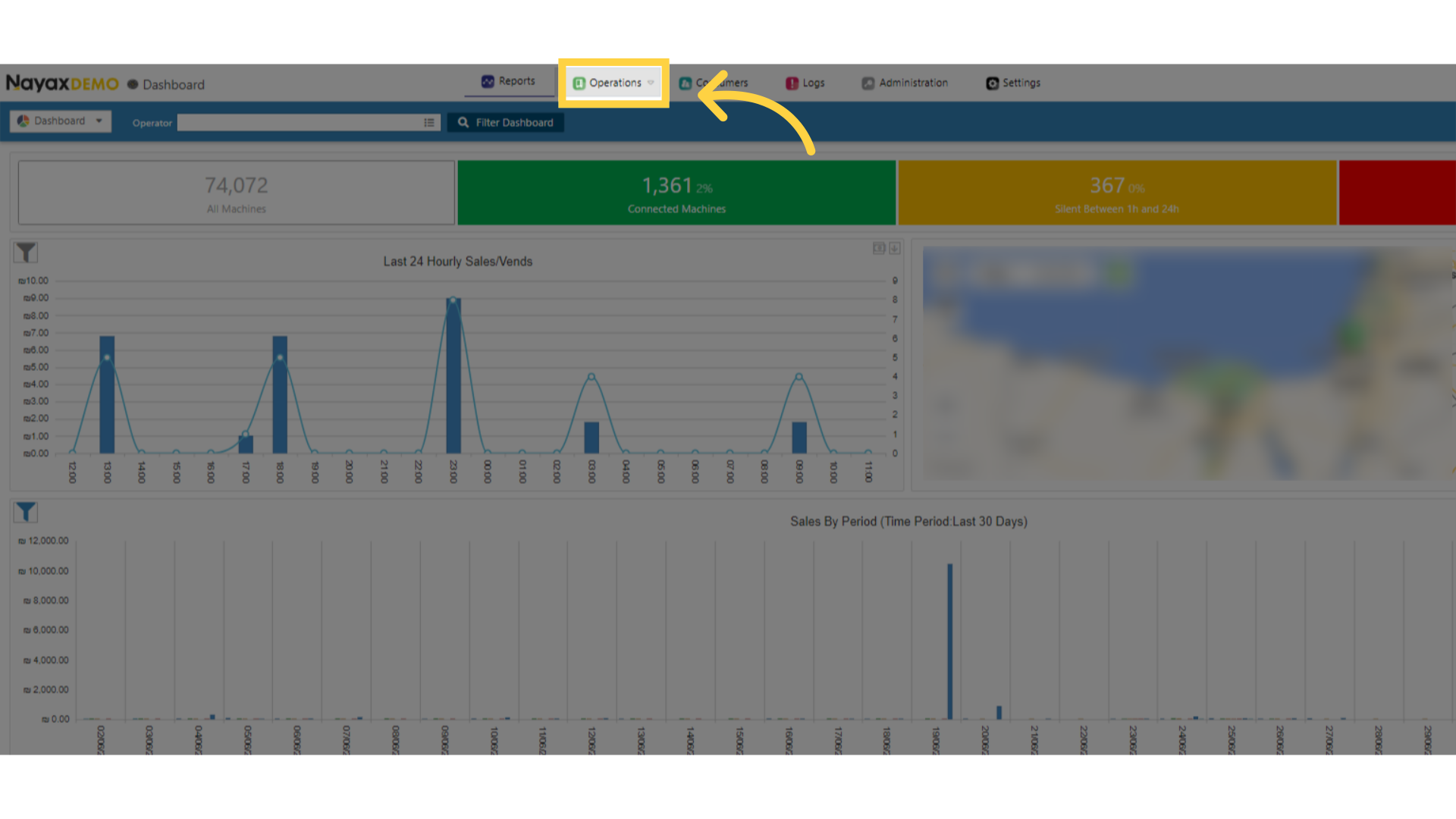
Click Operations
Image AttachedOn the dashboard of your Nayax Core management suite click on the Operations tab.
3
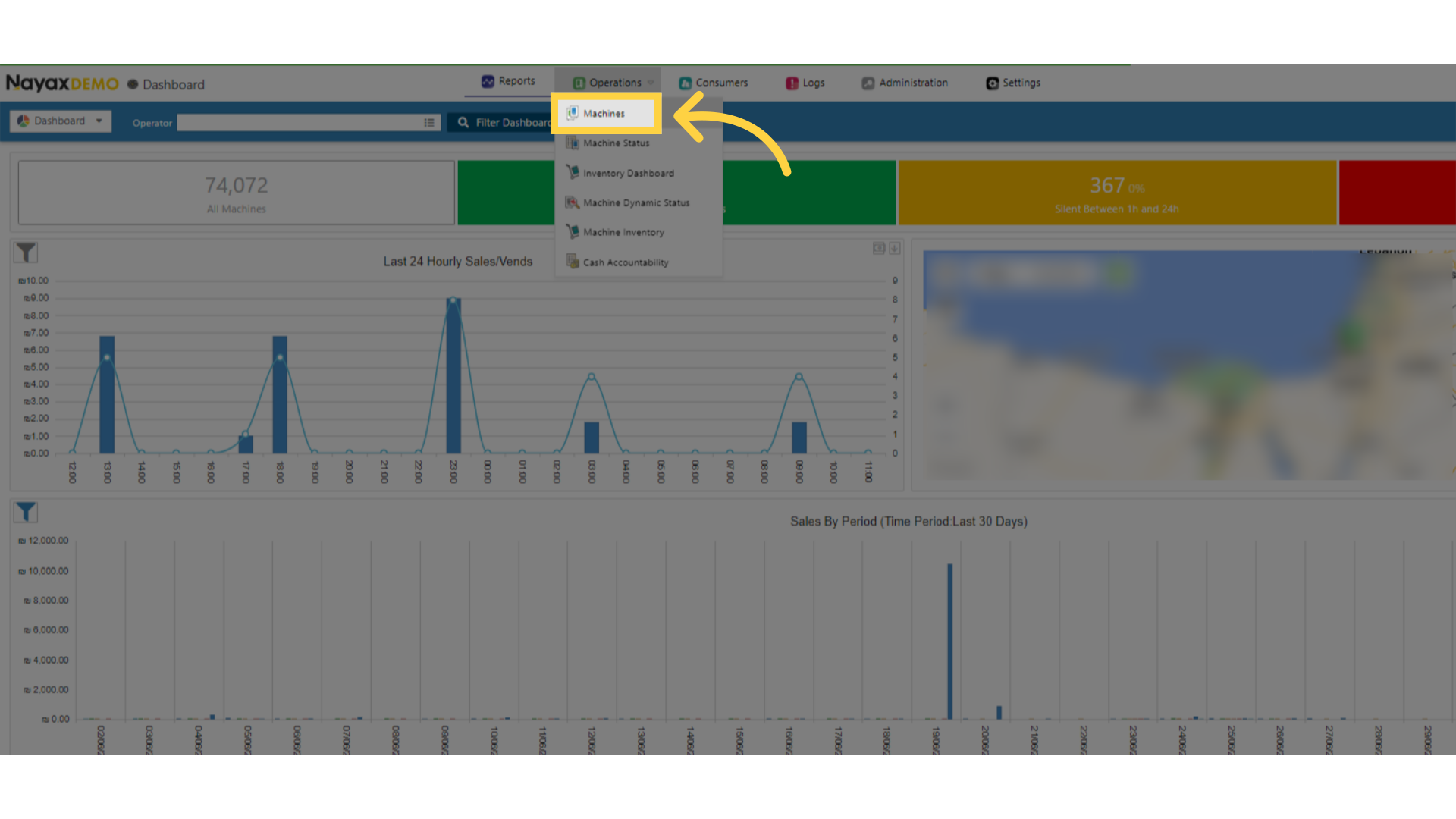
Click Machines
Image AttachedSelect the Machines Tab from the Drop Down Menu.
4
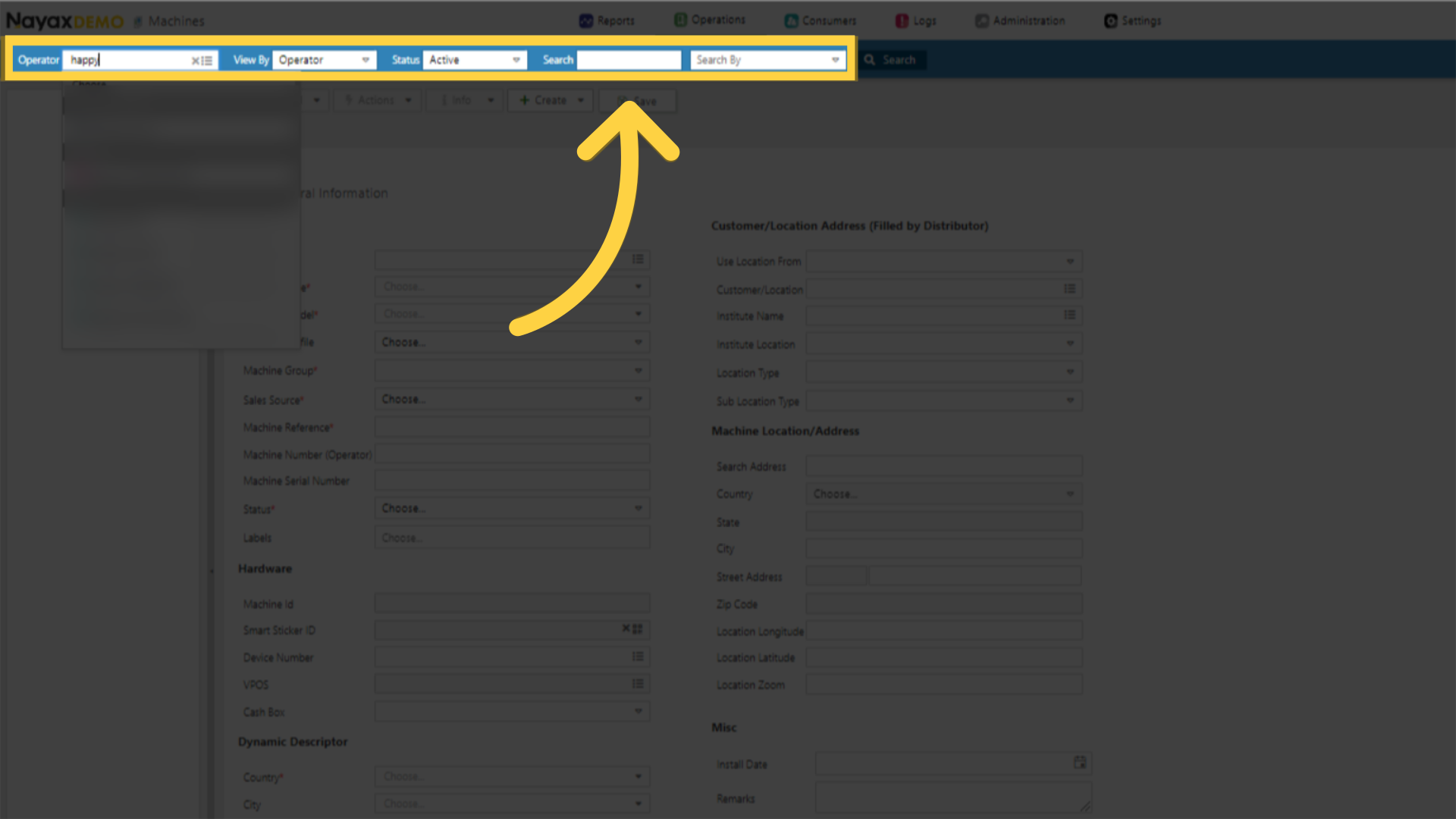
Fill in the Search Fields
Image AttachedType in the field your operators name or Machine ID in the search field.
5
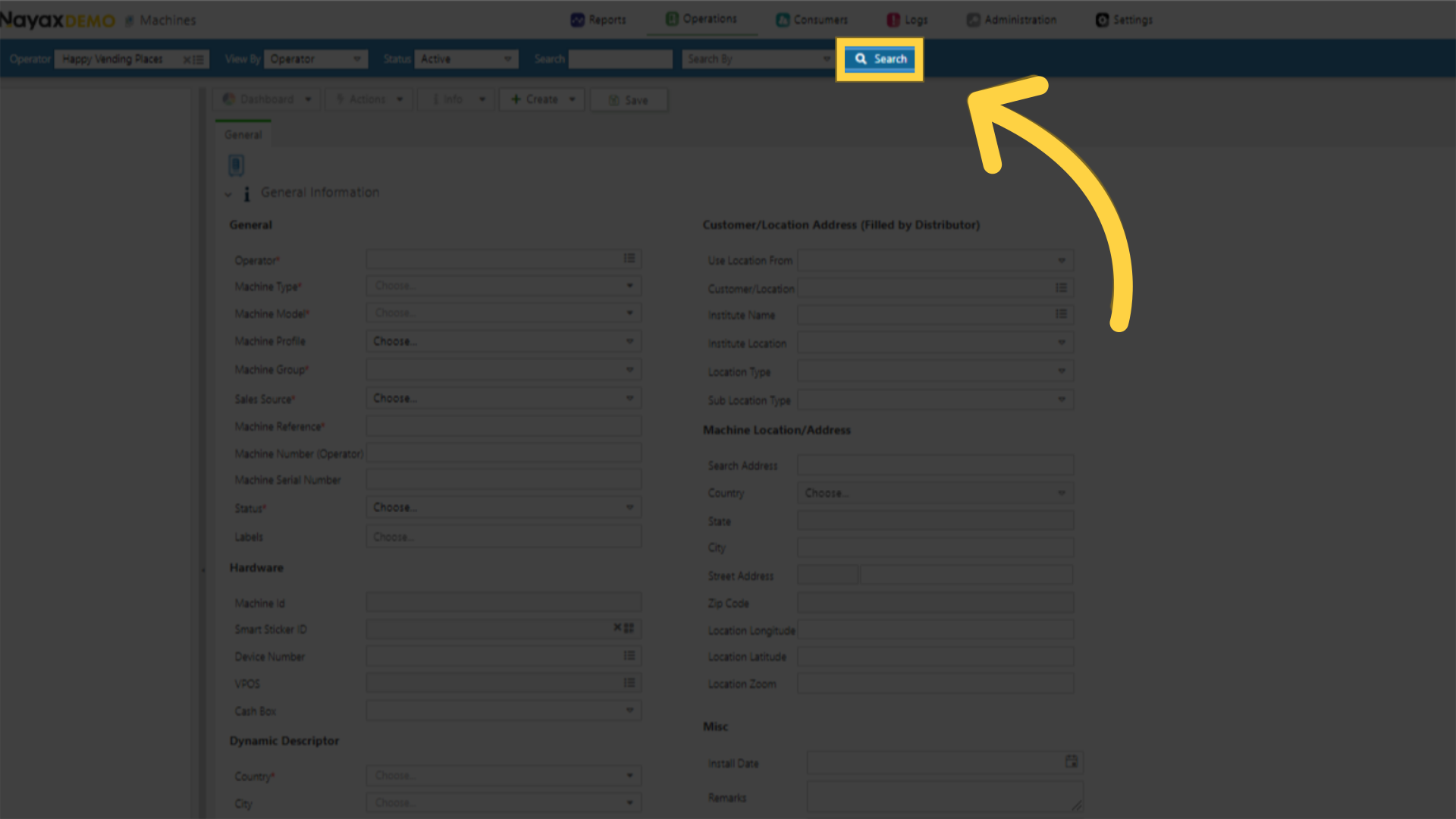
Click Search
Image AttachedClick on the search button.
6
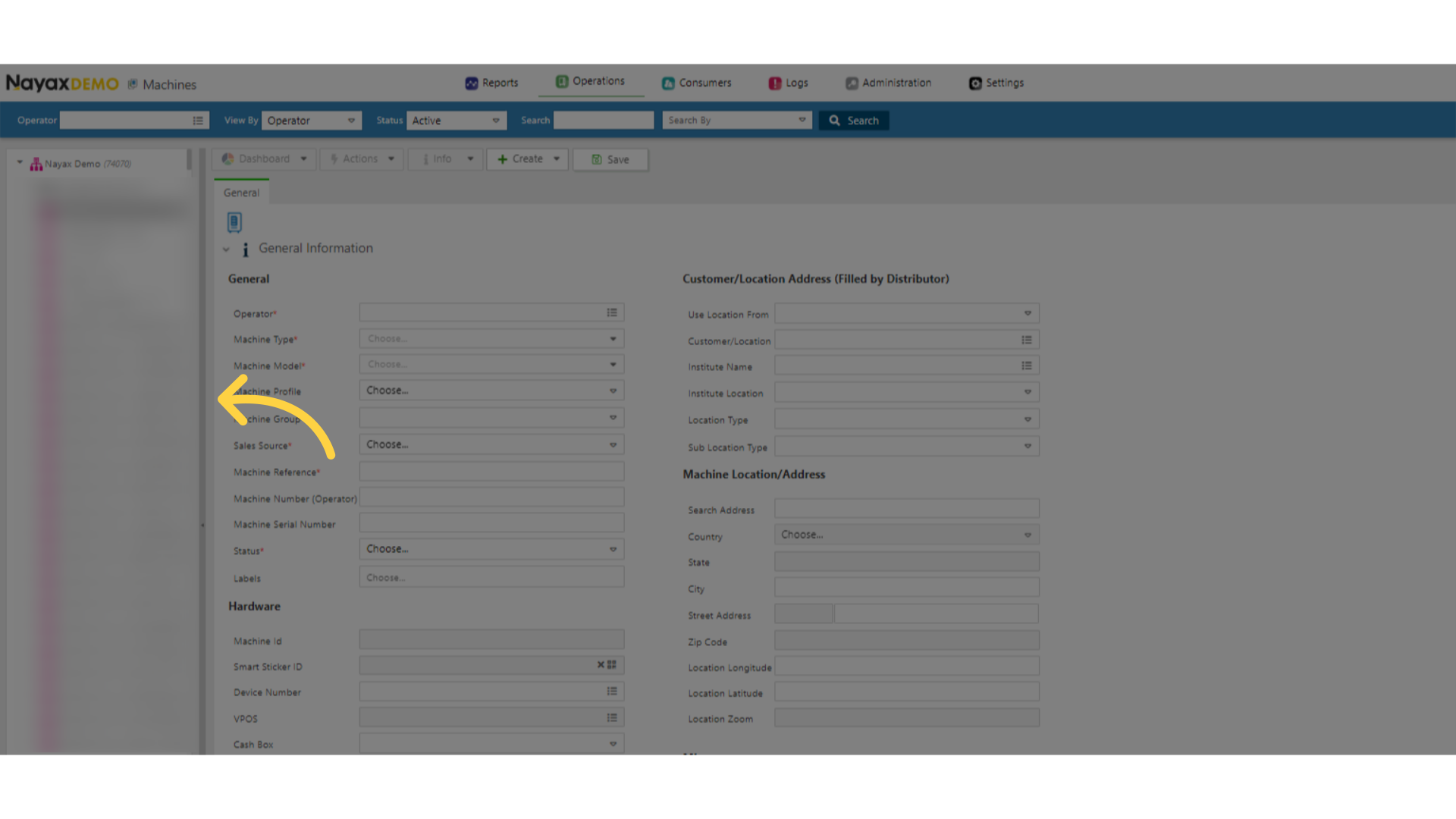
Locate your Machine
Image AttachedIn the hierarchy sidebar, locate your machine that you wish to add attributes for.
7
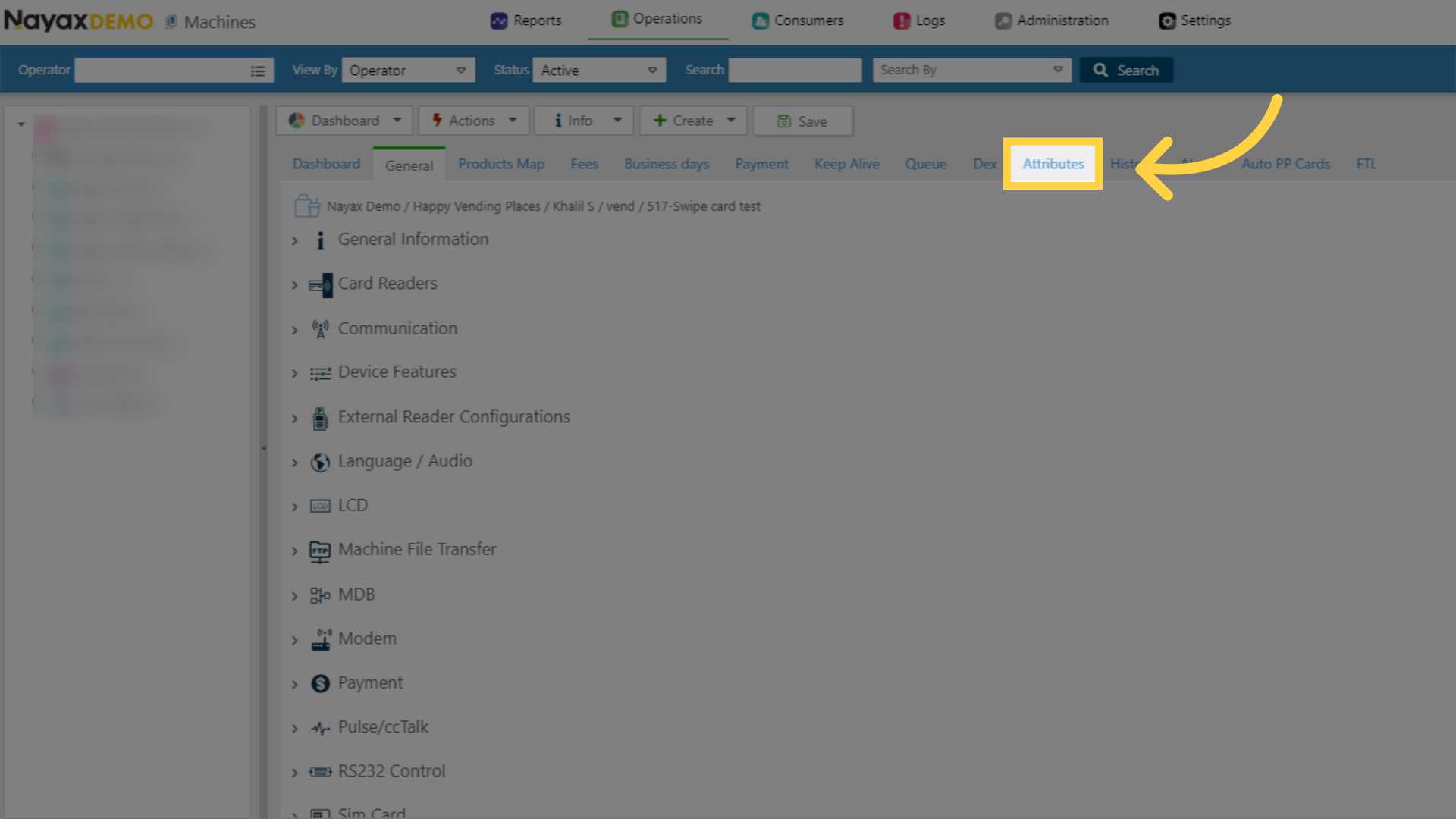
Click Attributes
Image AttachedClick on Attributes tab.
8
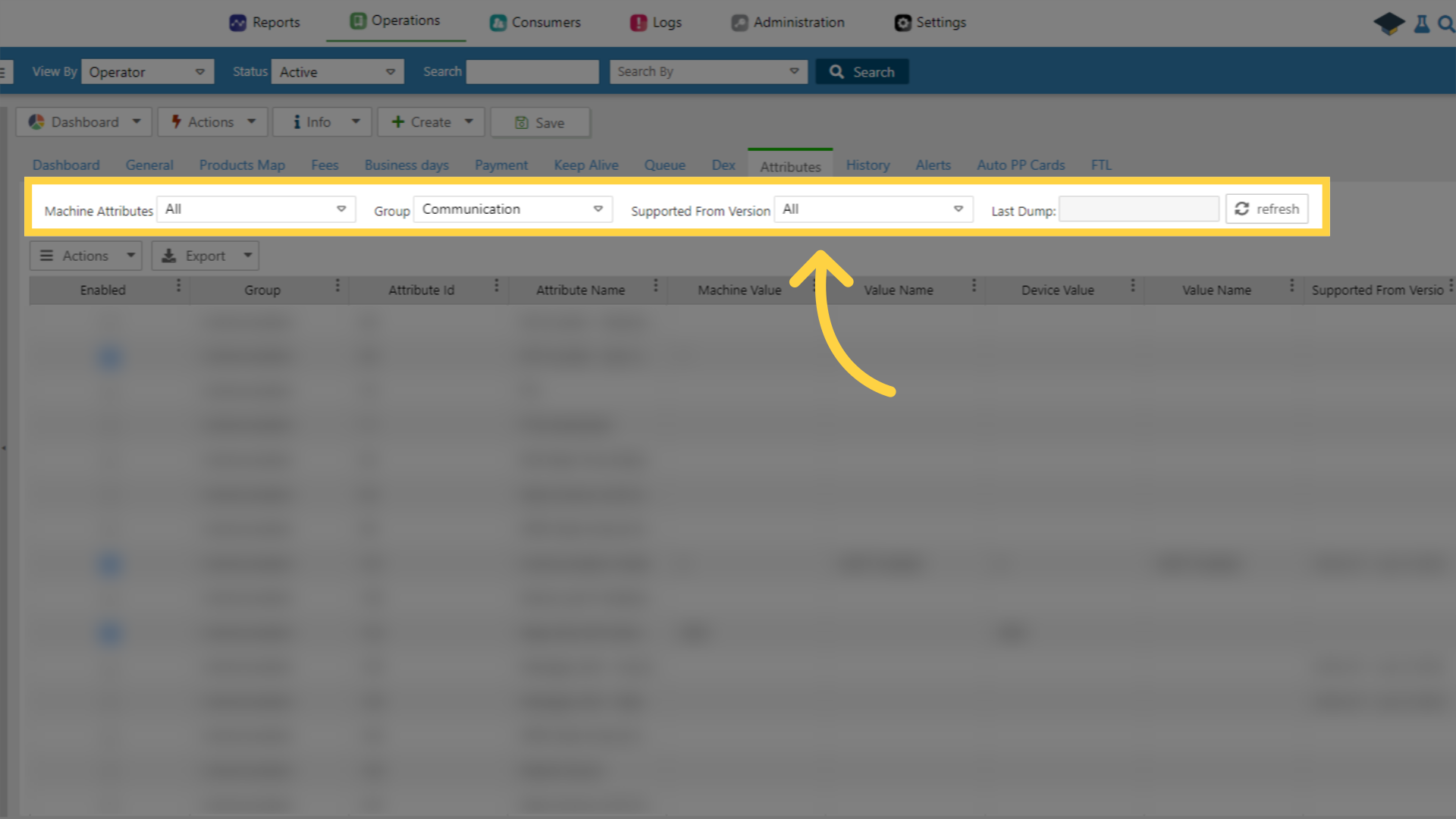
Different Filter Options
Image AttachedYou can choose any of these subjects to filter the attribute you are searching to add.
9
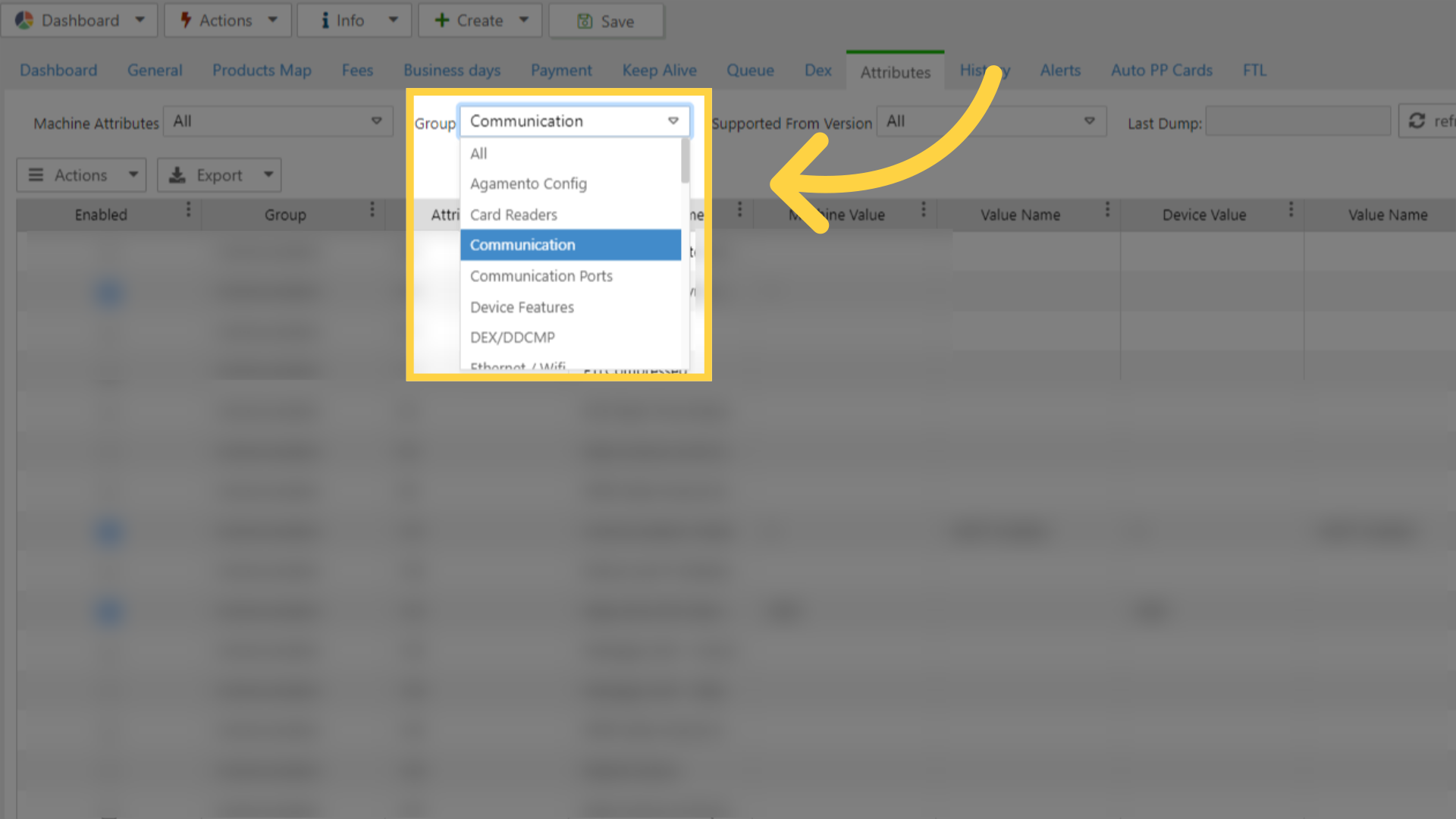
Filter the Attribute Group
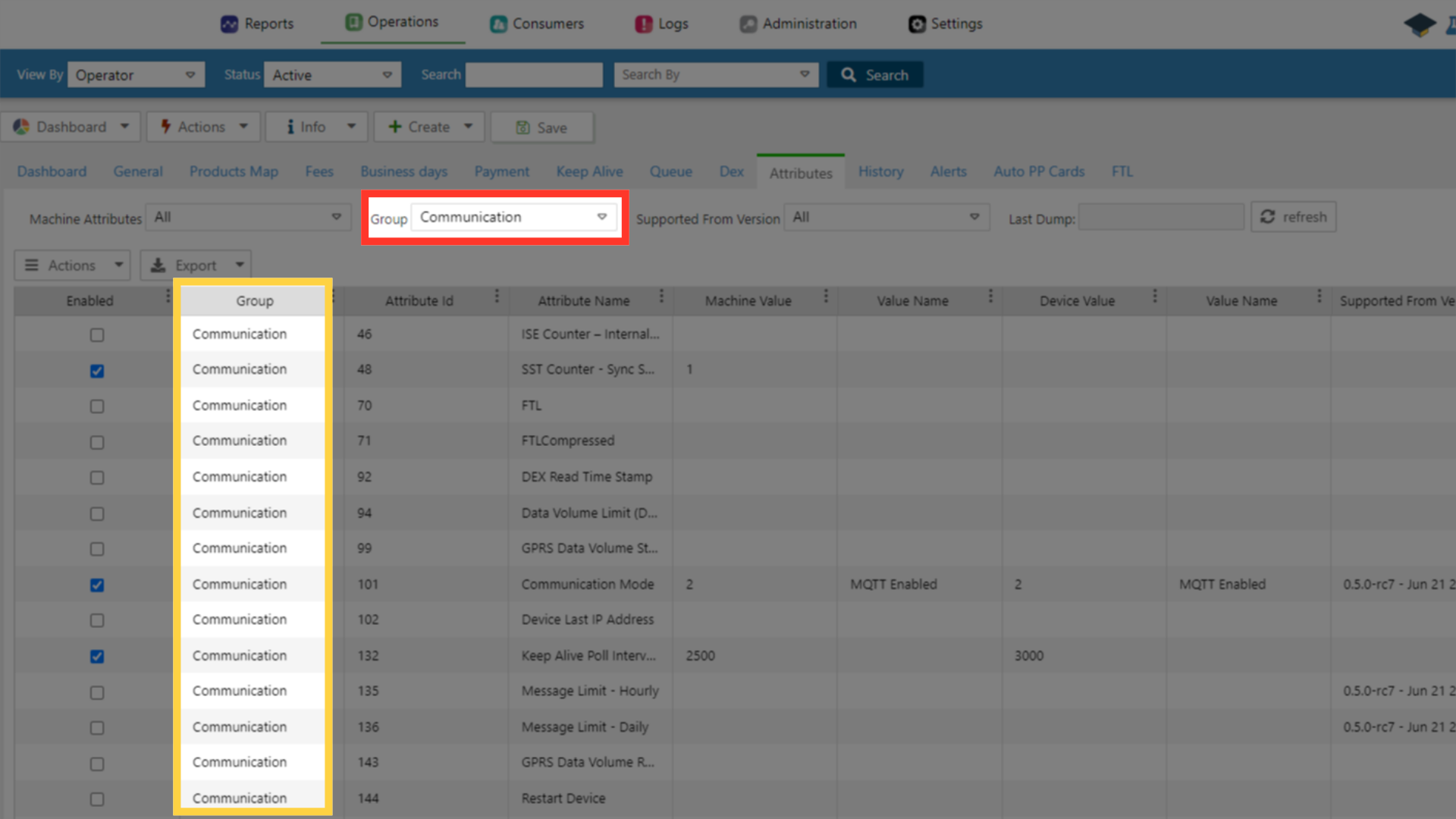
Image AttachedIn the dropdown menu, locate and filter the group that contains the attribute you want to add.
10
View what you just Filtered
Image AttachedOnce you select the specific group, the page automatically filters based on your selection.
11
Locate the Machine Attribute
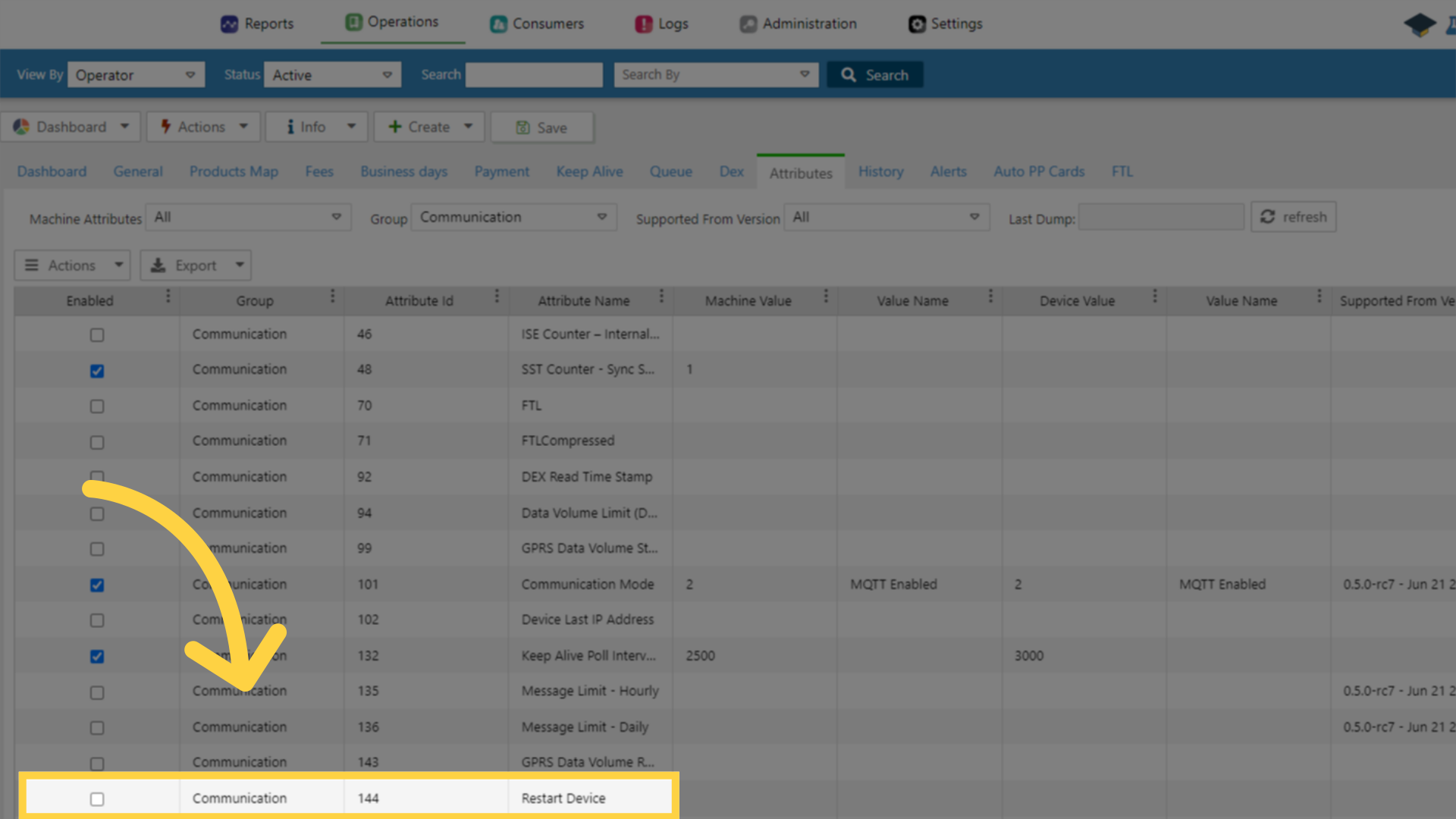
Image AttachedLocate the Machine Attribute you wish to add to your machine.
12
Click on the Checkbox
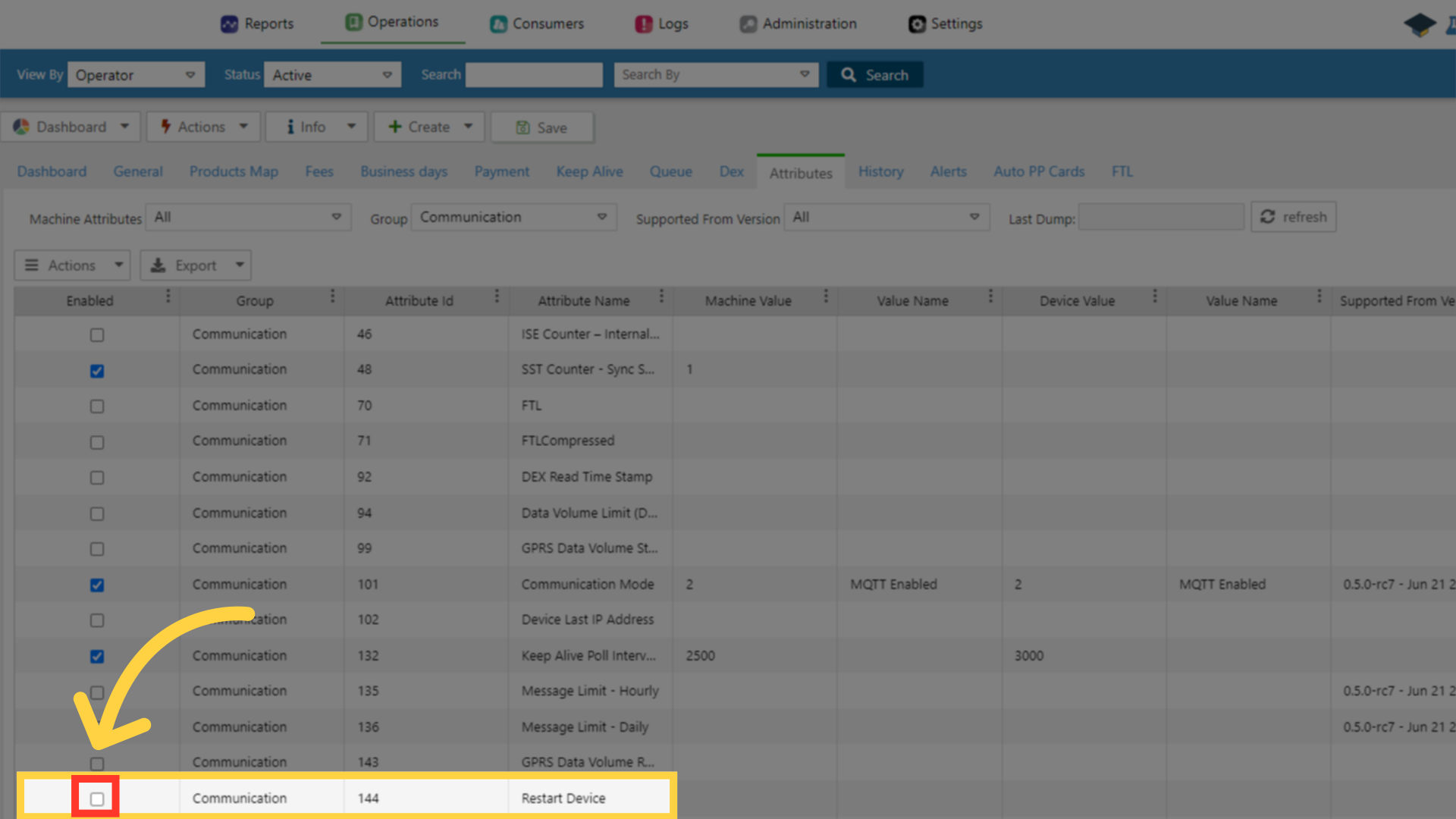
Image Attached
Click the checkbox, next to the attribute you want to add, as highlighted in RED.
Please note that you can select multiple machine attributes at once!
13
Click Save
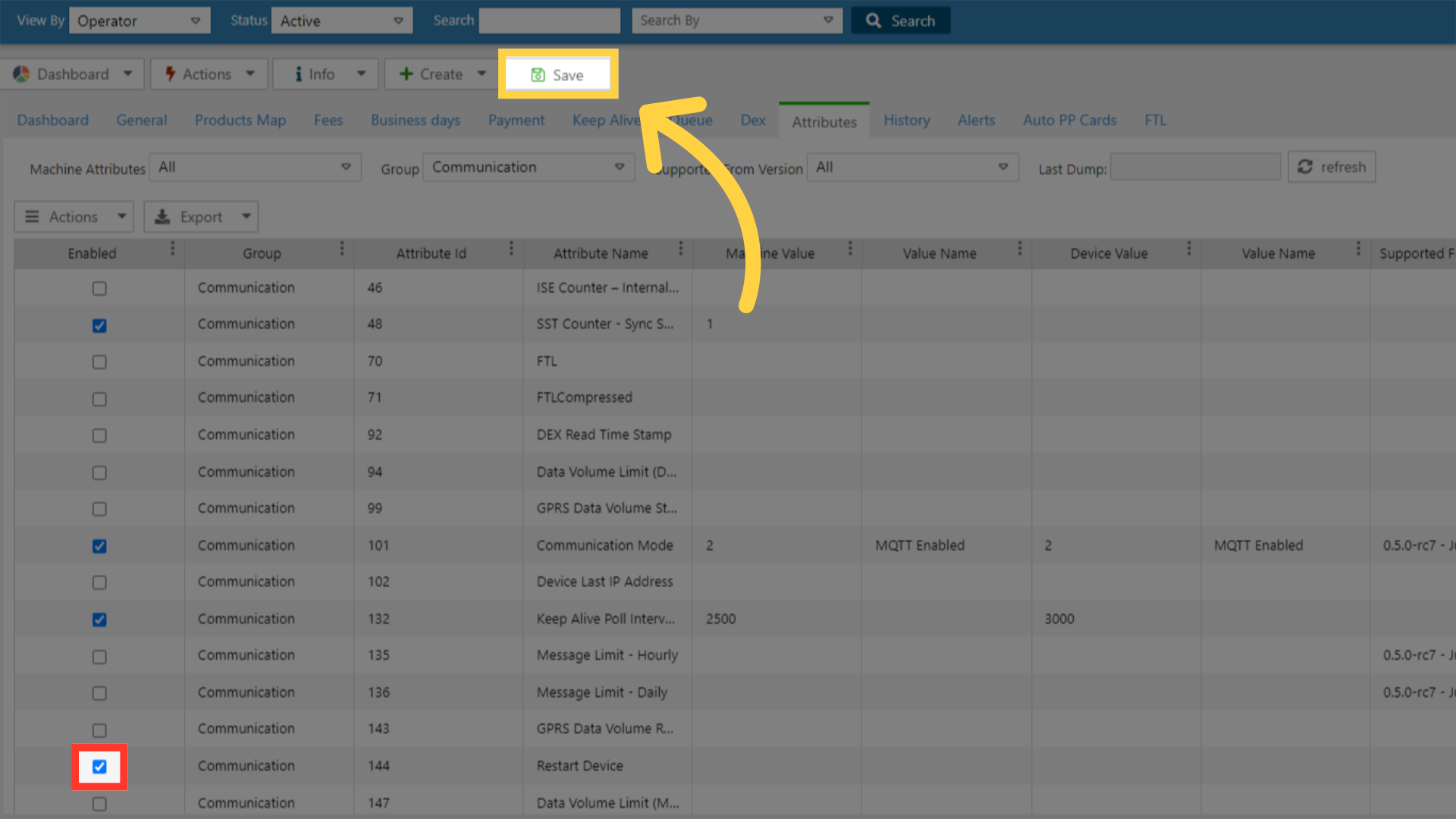
Image AttachedAfter selecting the checkbox, click the save button.
14
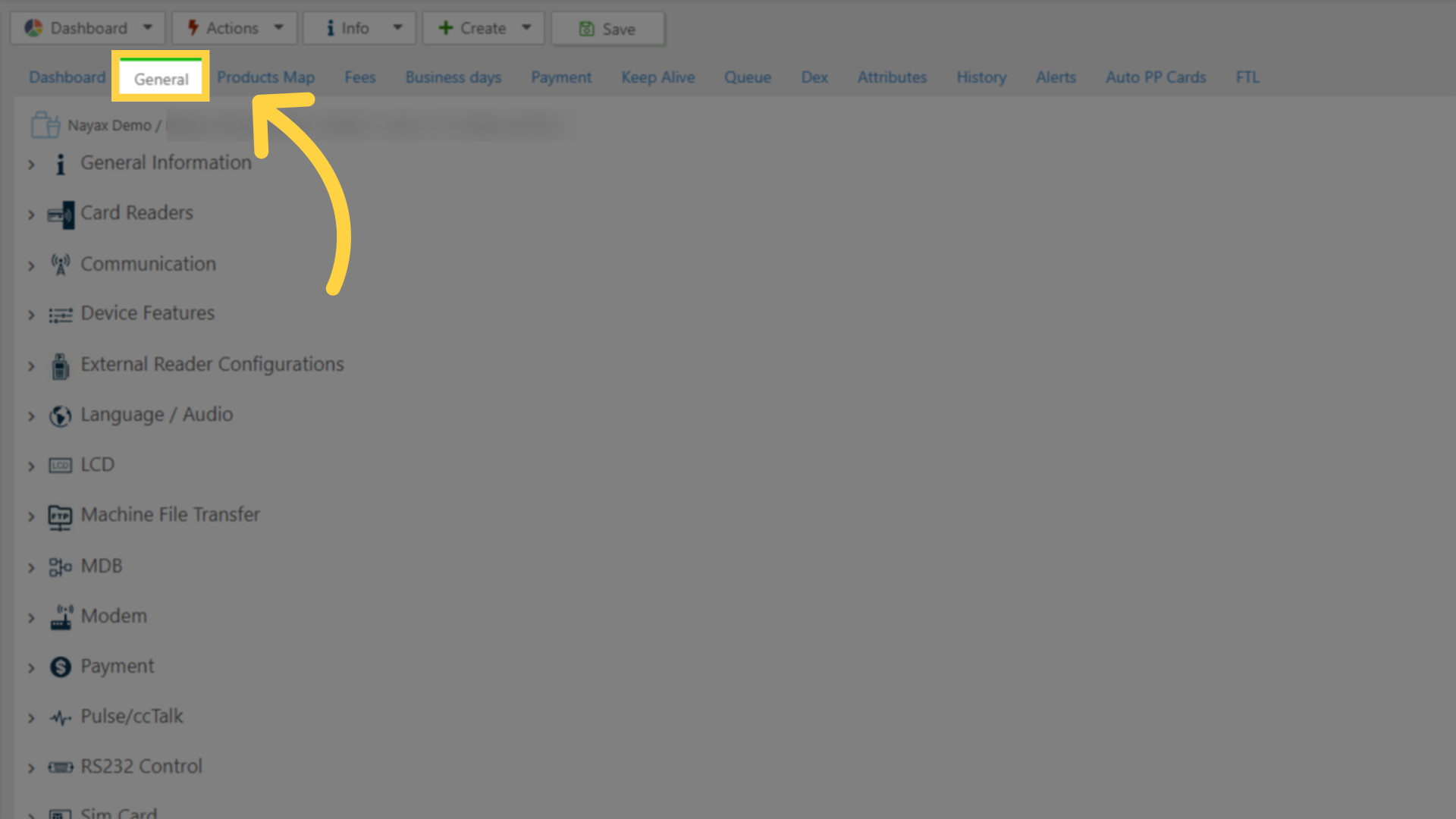
Go to General Tab of the Machine
Image AttachedGo back to the General tab of your machine.
15
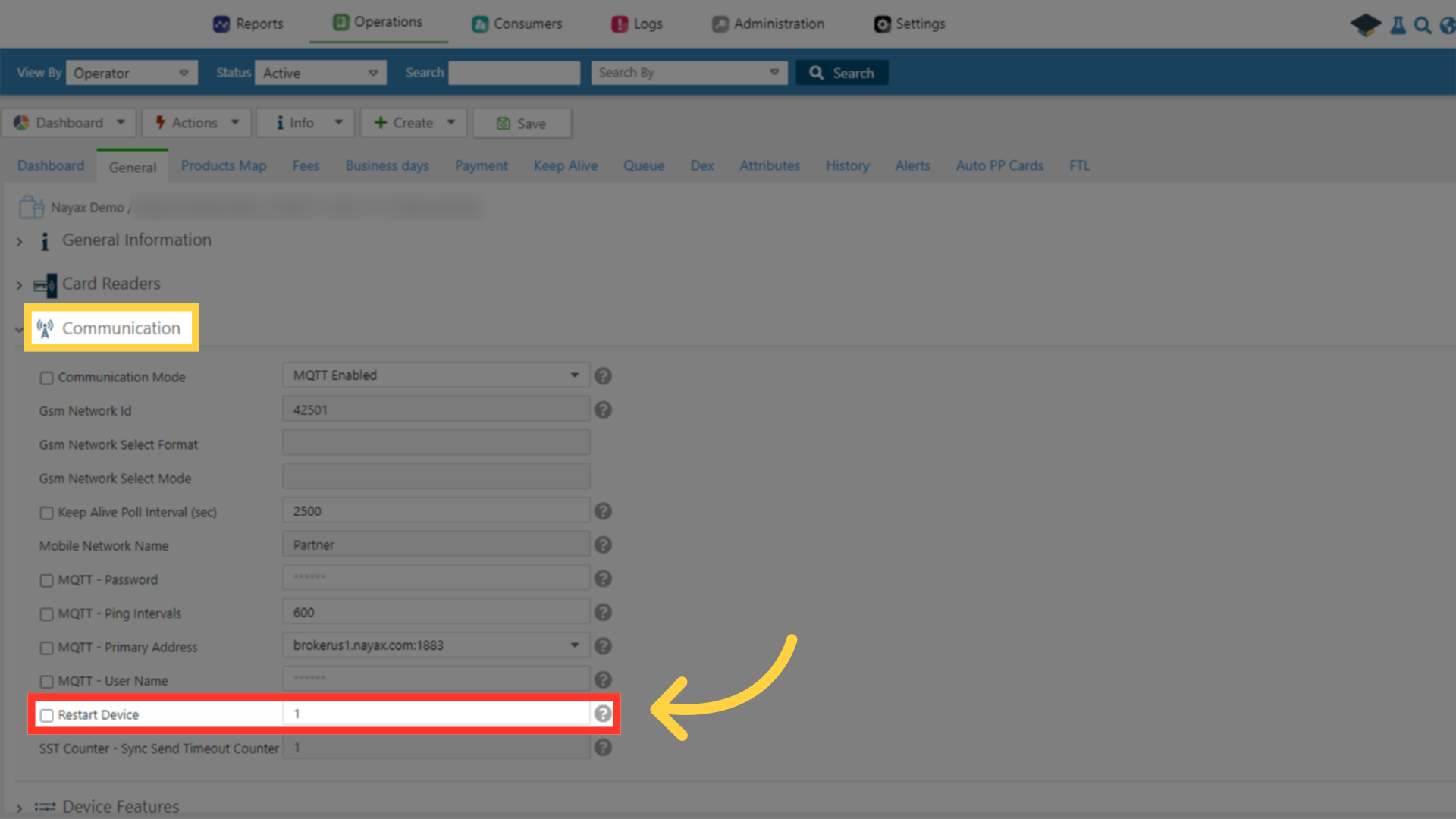
Attribute was successfully added!
Image AttachedThe machine attribute was then added in the General tab, under Communication section, as highlighted in RED.
Thank you!
Did you find this article helpful?