
How to Add, Edit, and Arrange Dashboard Widgets | MoMa
Build a Dashboard that shows what matters. Add widgets for sales, alerts, product trends, and profitability, then arrange them to match your workflow.
Video Guide
00:00: A generic dashboard wastes screen space. Customizing
00:02: it means the first thing
00:03: you see every morning is exactly what needs your attention. Learn how you can add,
00:07: remove, rearrange, and configure each one in MoMa.
00:11: Open the MoMa app on your mobile device.
00:14: The dashboard of your MoMa app will open, showcasing the machines linked to your
00:18: operator. To edit widgets tap on the dashboard in the navigation bar.
00:23: The dashboard page will open tap the Chart Icon to open the actions options.
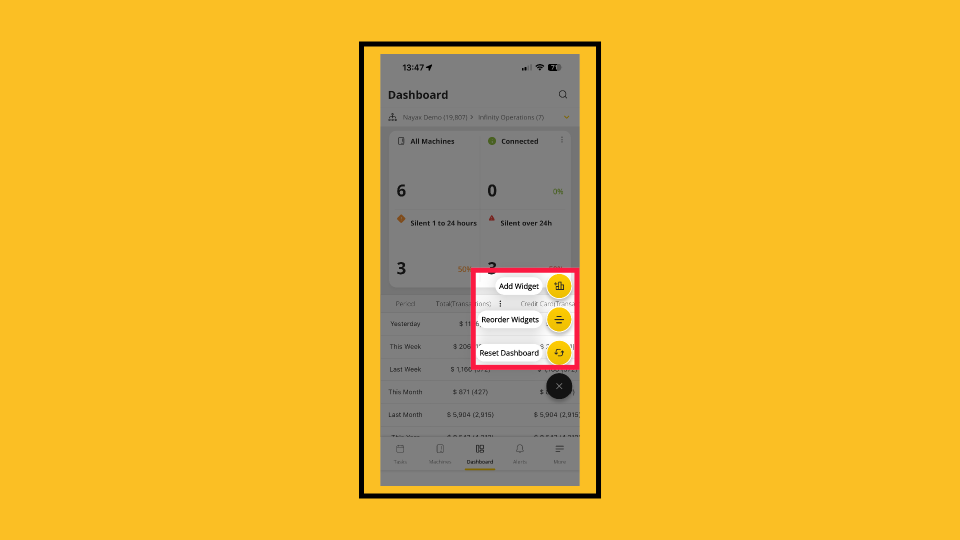
00:28: The widget action options are now open, allowing you to select the action
00:32: you wish to perform.
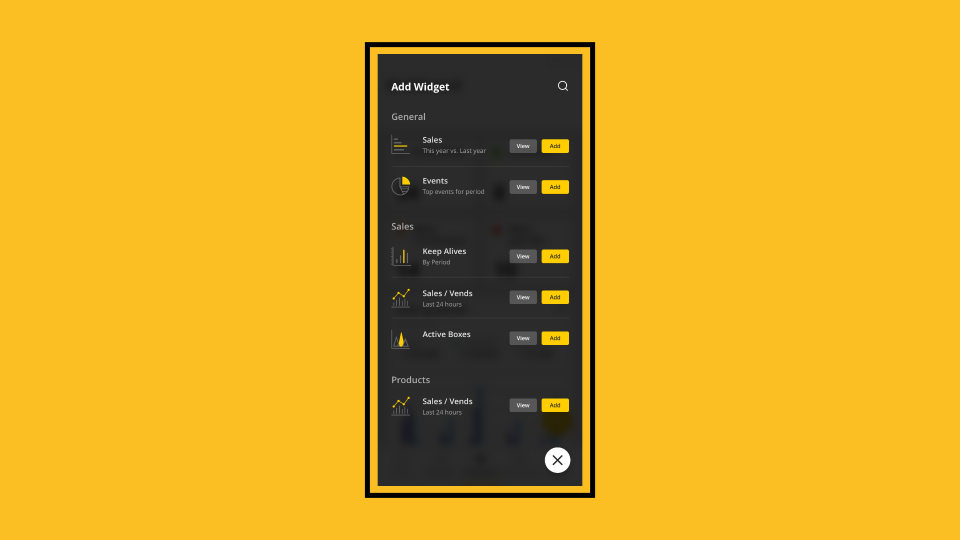
00:34: Add and configure a widget by setting options such as events and chart
00:37: type, then save your changes.
00:39: Click Learn More to explore the Key Widget feature and see what it offers.
00:44: Adding a widget will lead you to setting preferences for each new widget.
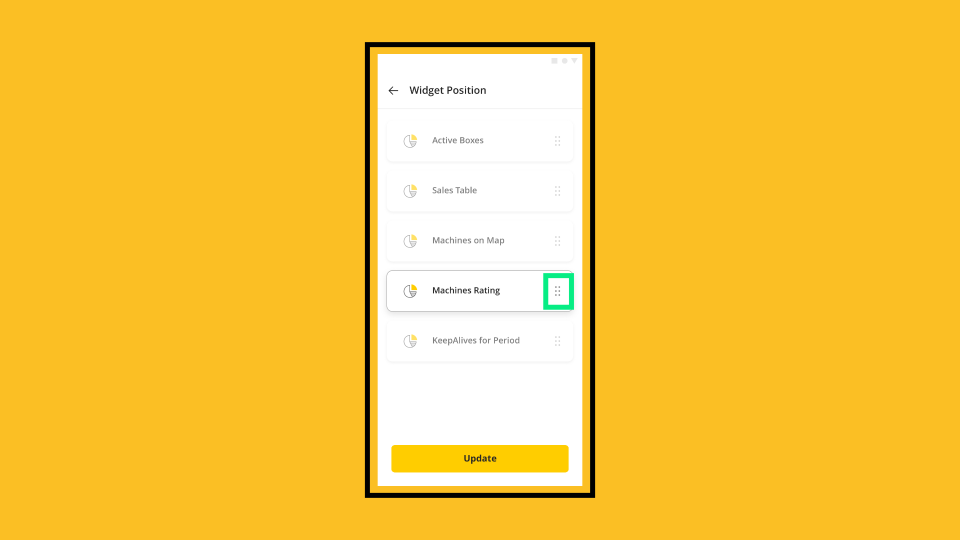
00:49: Reorder your widgets by tapping and holding the embossed row edge,
00:52: then dragging the widget to your desired position. Click Update to save your
00:56: changes.
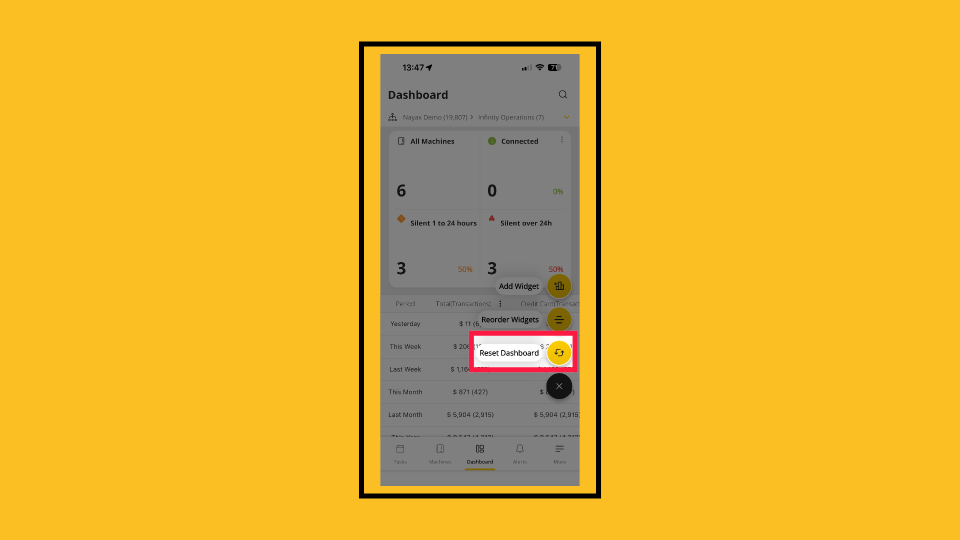
00:58: If your Dashboard is stuck loading or you want to start fresh, tap Reset Dashboard
01:02: This restores
01:03: the default layout.
01:04: Explore MoMA's other notifications available to ensure you track your machines like a pro, or click on the link to view more MoMa guides in Nayax U!
Open MoMa App
Image AttachedOpen the MoMa app on your mobile device.

Dashboard Tab
Image AttachedThe dashboard of your MoMa app will open, showcasing the machines linked to your operator. To edit widgets tap on the dashboard in the navigation bar.
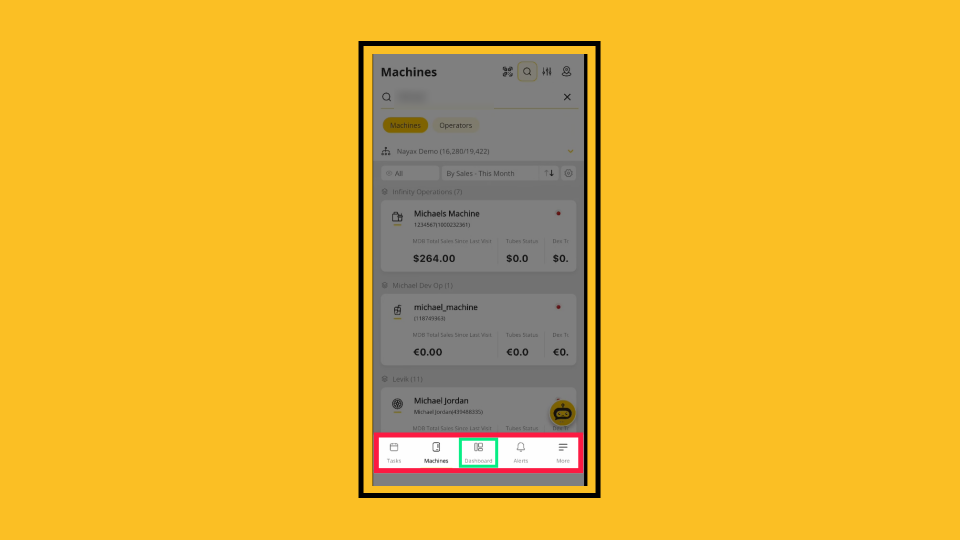
Tap Chart Icon
Image AttachedThe dashboard page will open tap the Chart Icon to open the actions options.
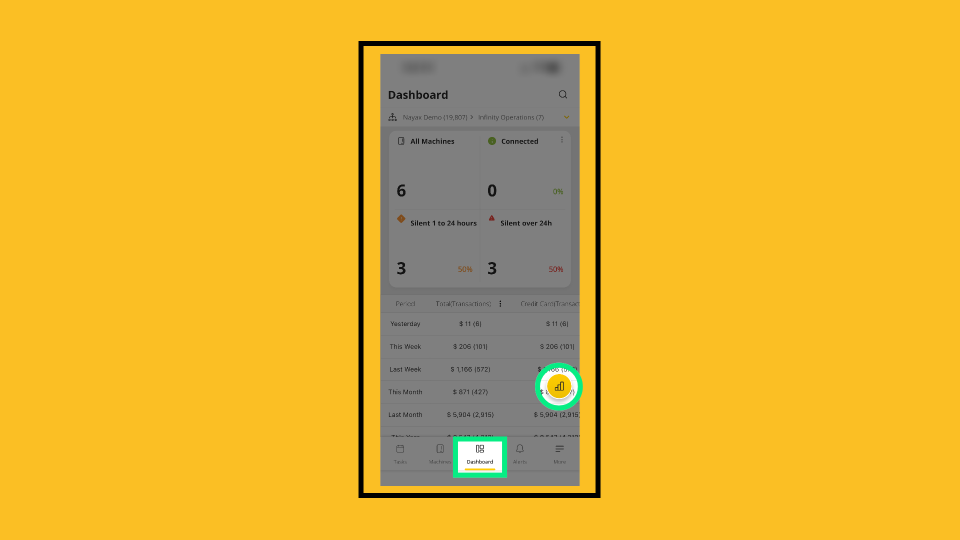
Action Options
Image AttachedThe widget action options are now open, allowing you to select the action you wish to perform.
Add Widget
Image AttachedAdd and configure a widget by setting options such as events and chart type, then save your changes.
Understand MoMa widgets and what it offers in the table below:
Key Widgets
|
Widget |
What It Shows |
Best For |
|
Sales Table |
Total sales by time range and payment method |
Daily/weekly revenue tracking |
|
Sales By Period |
Sales distribution over time (week/month/year) |
Spotting trends and seasonality |
|
Sales/Vendors |
Machine performance comparison (bar/pie chart) |
Finding top and bottom performers |
|
Sales/Vend by Products |
Product performance comparison (bar/pie chart) |
Optimizing product mix |
|
Machines Alert |
Active alerts by count, descending |
Prioritizing machine issues |
|
Active Boxes |
Connected vs. disconnected machines |
Communication monitoring |
|
Machine Rating |
Monyx Wallet user ratings |
Customer satisfaction |
|
Gross Profit |
Revenue minus cost of goods |
Profitability by machine/product |
|
Gross Margin |
Profit as percentage of revenue |
Comparing margin across locations |
Set Widget Preferences
Image AttachedAdding a widget will lead you to setting preferences for each new widget.

Reorder Widgets
Image AttachedReorder your widgets by tapping and holding the embossed row edge, then dragging the widget to your desired position. Click Update to save your changes.
Reset Dashboard
Image AttachedIf your Dashboard is stuck loading or you want to start fresh, tap Reset Dashboard This restores the default layout.
Thank you!
Did you find this article helpful?