
How to Add and Edit Existing Metrics | Catalog
Metrics are variants that allow for a more detailed organization of products.
Video Guide
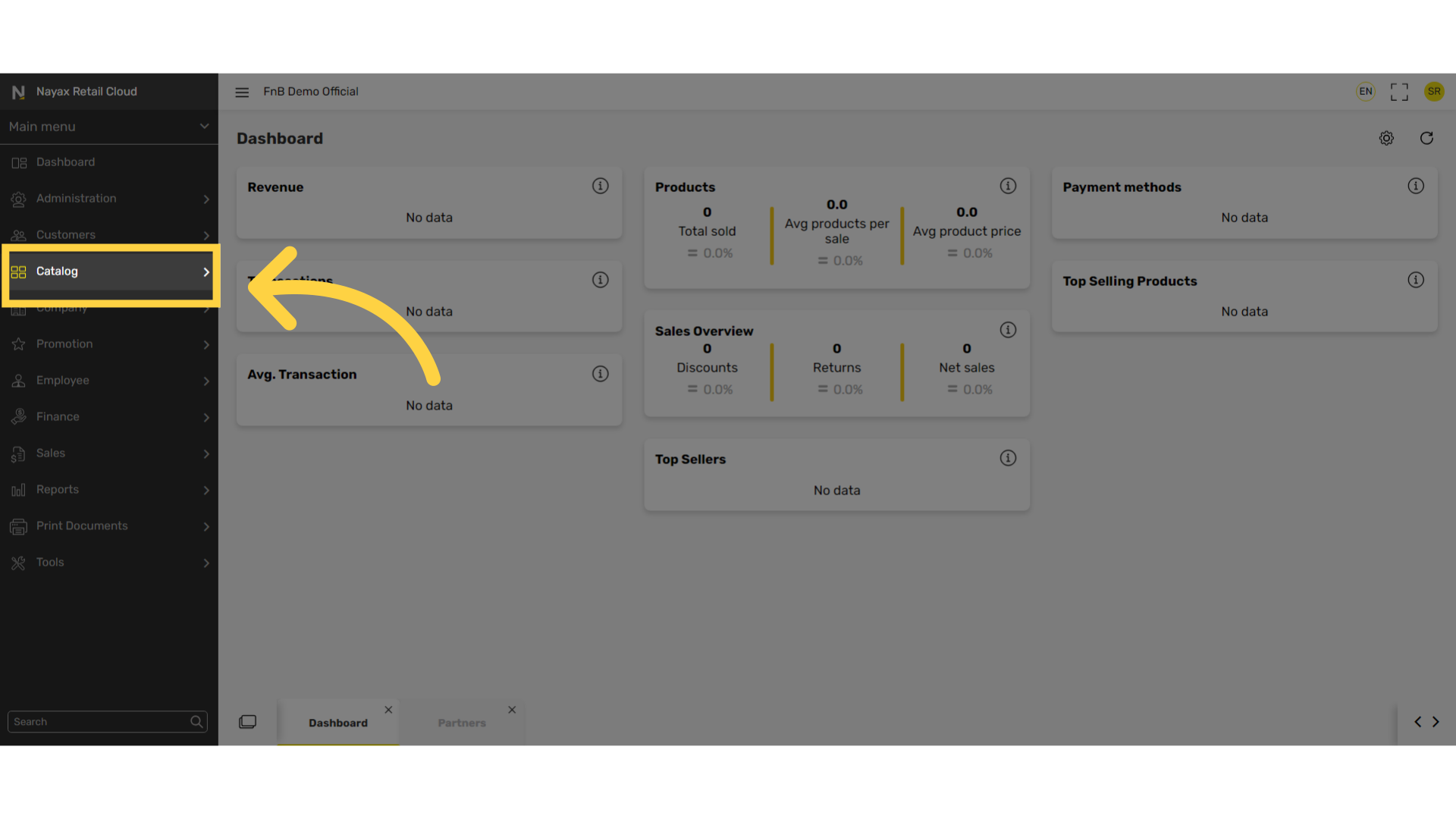
Click Catalog Tab
Image AttachedOn the dashboard of your Retail Core management suite click the Catalog tab.
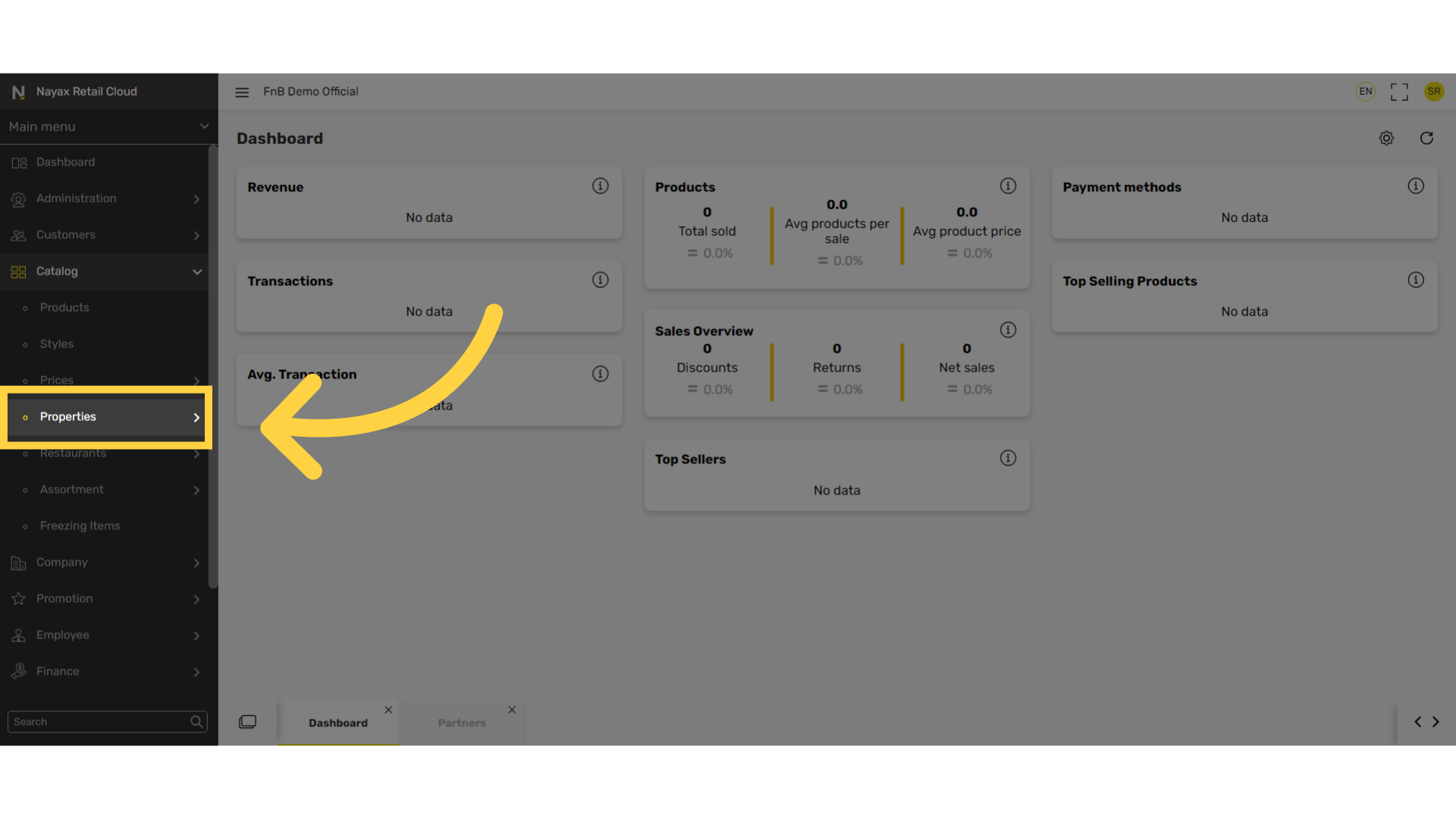
Click Properties Tab
Image AttachedIn the sub-menu click on properties tab.
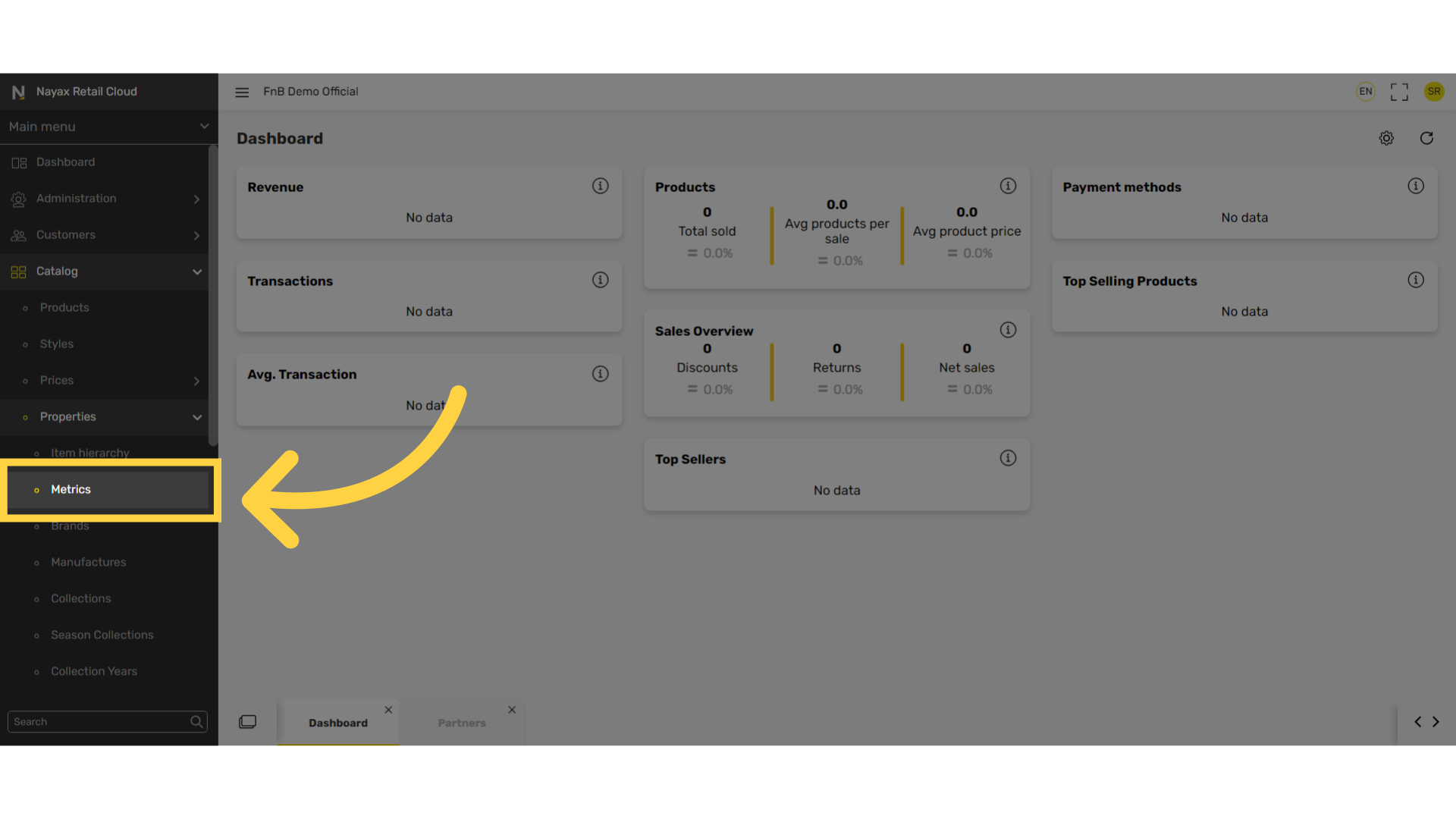
Click Metrics
Image AttachedIn the sub-menu click on Metrics.
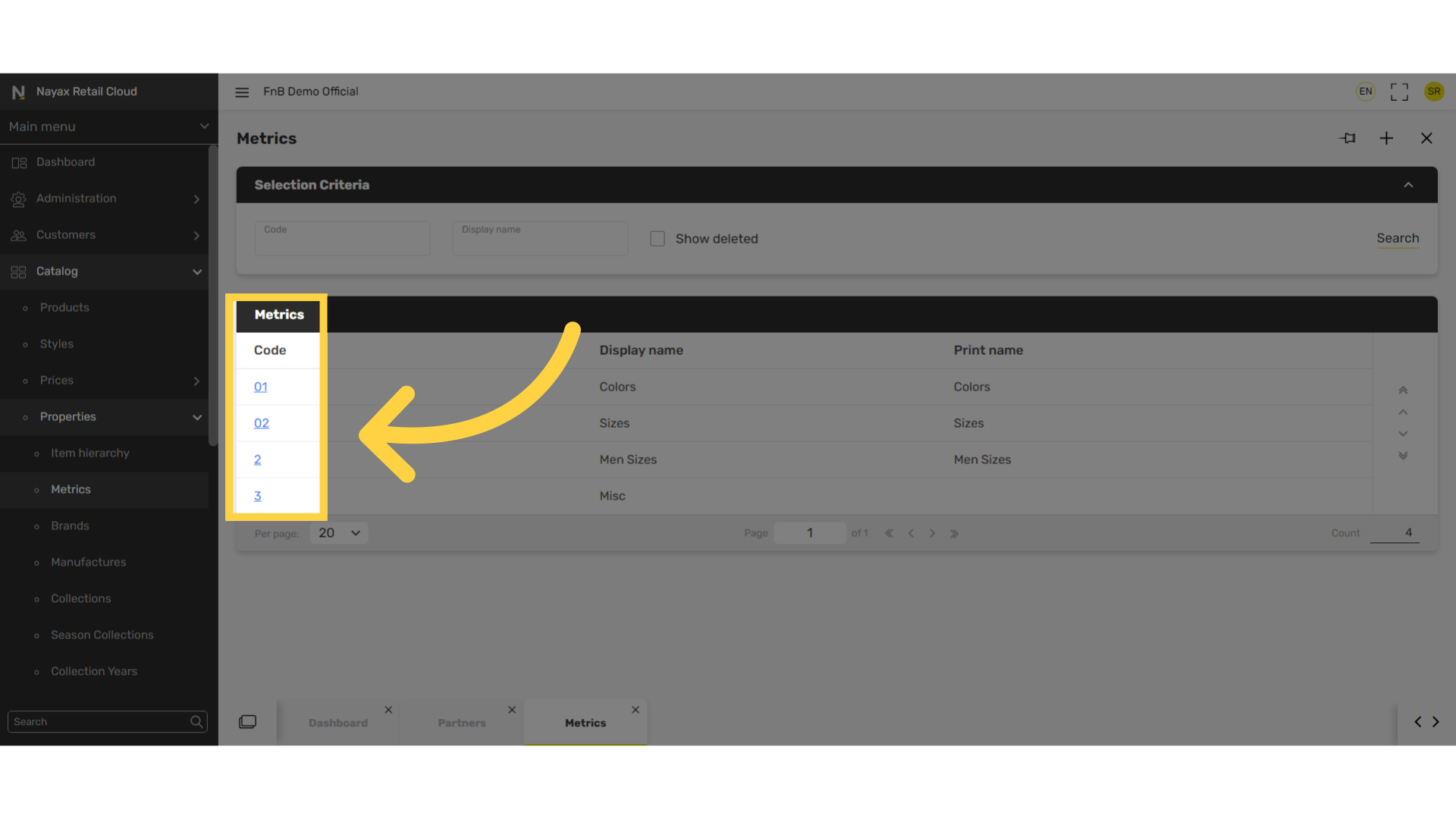
Select Metric Code
Image AttachedSelect the specific highlighted metric code you want to edit.
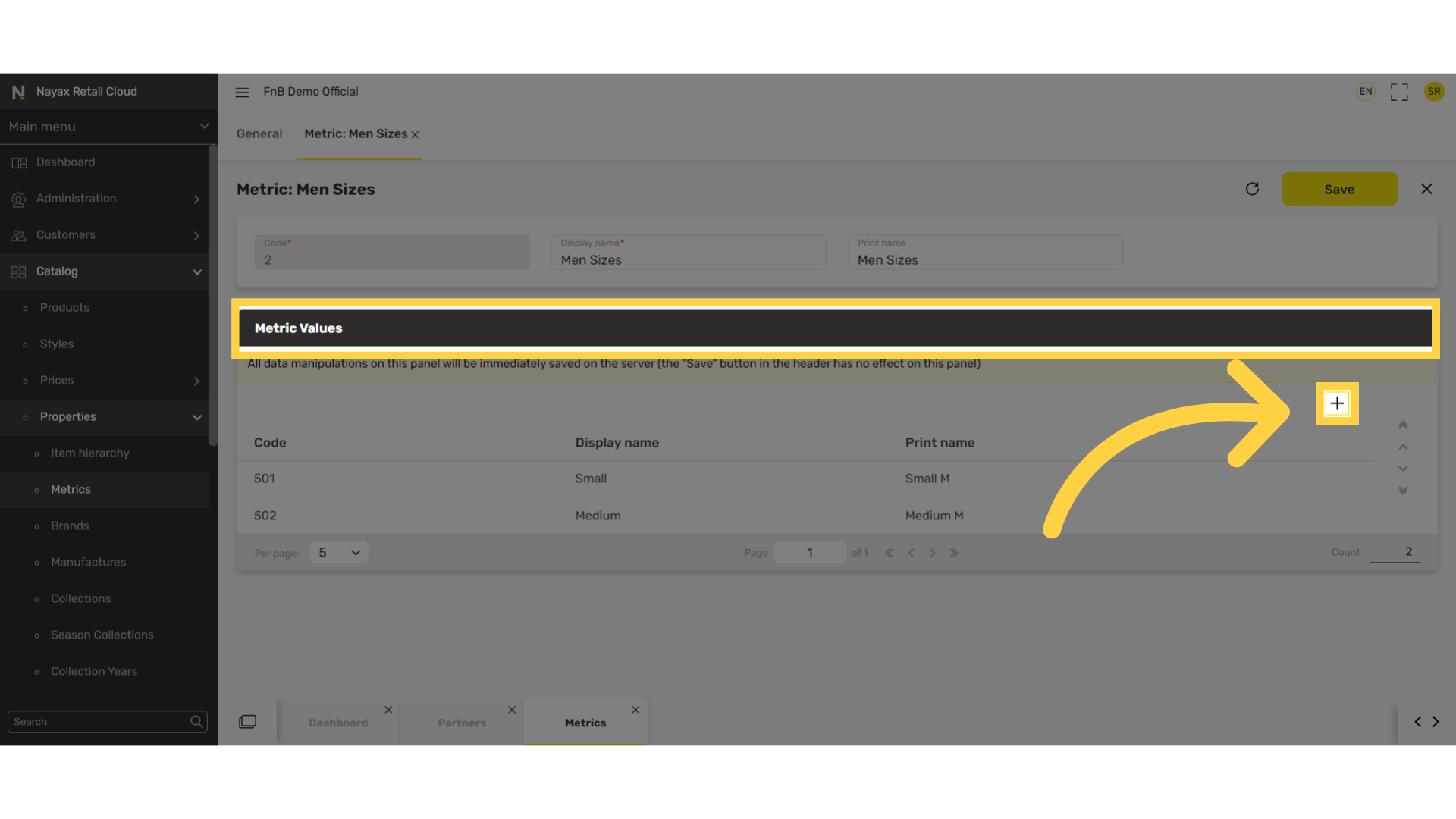
Click + Icon
Image AttachedClick on + icon under the Metric Values tab.
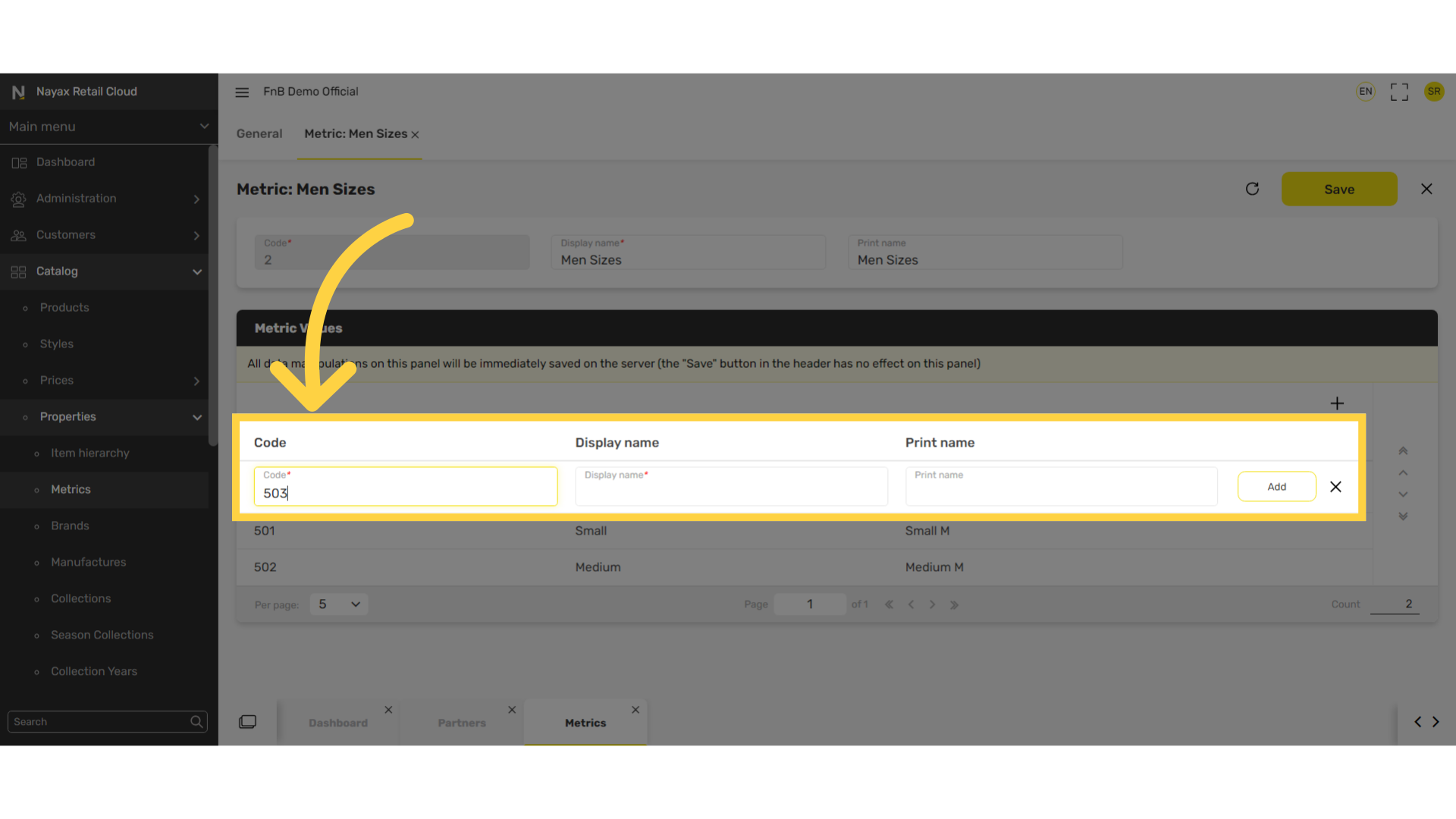
Fill in the following fields:
Image AttachedInsert code, display name, and print name.
These values are additional descriptions for the metrics.
For example: in the metric sizes, add the different size options available.
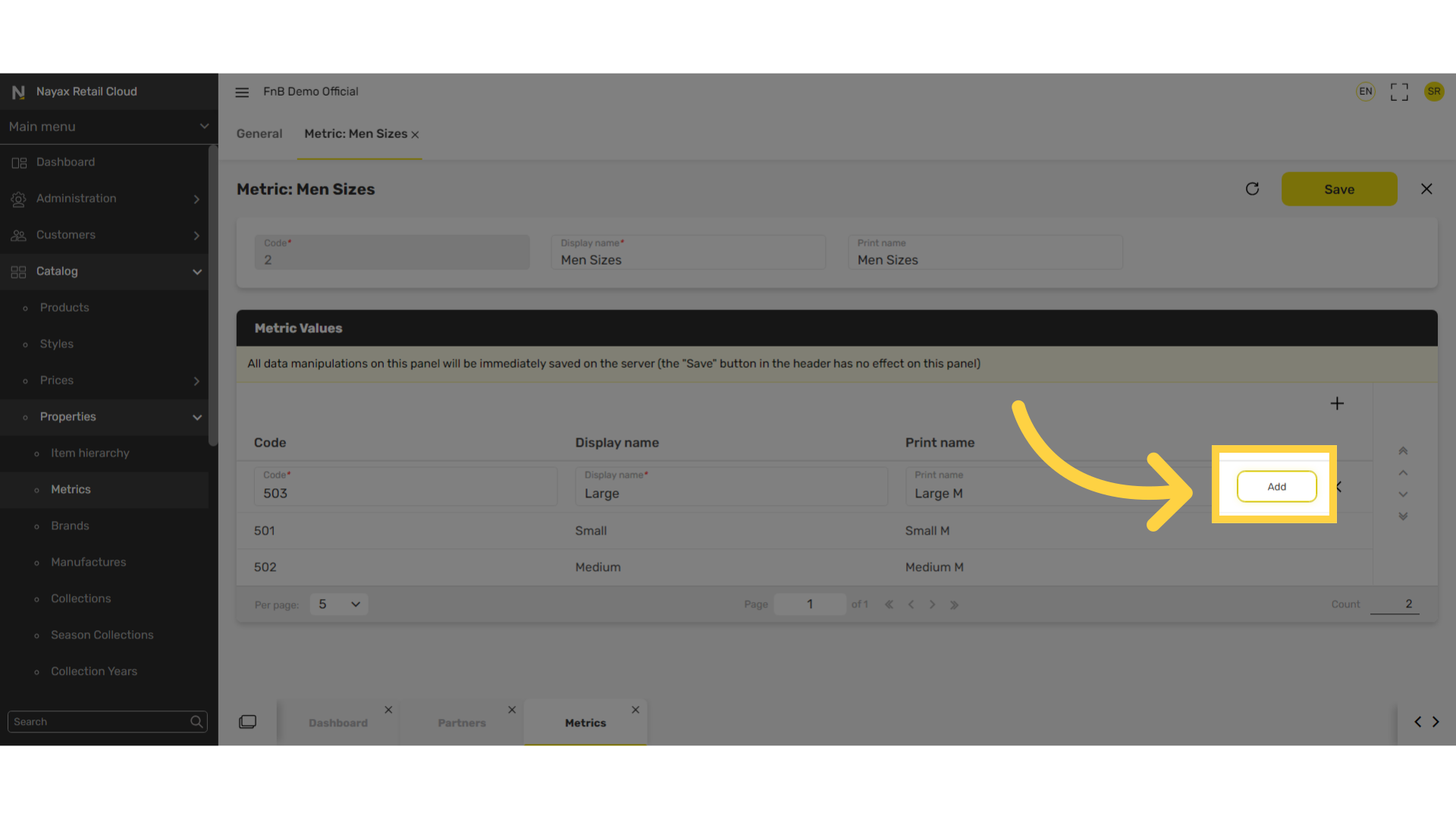
Click Add
Image AttachedClick Add and repeat to add additional metric values.
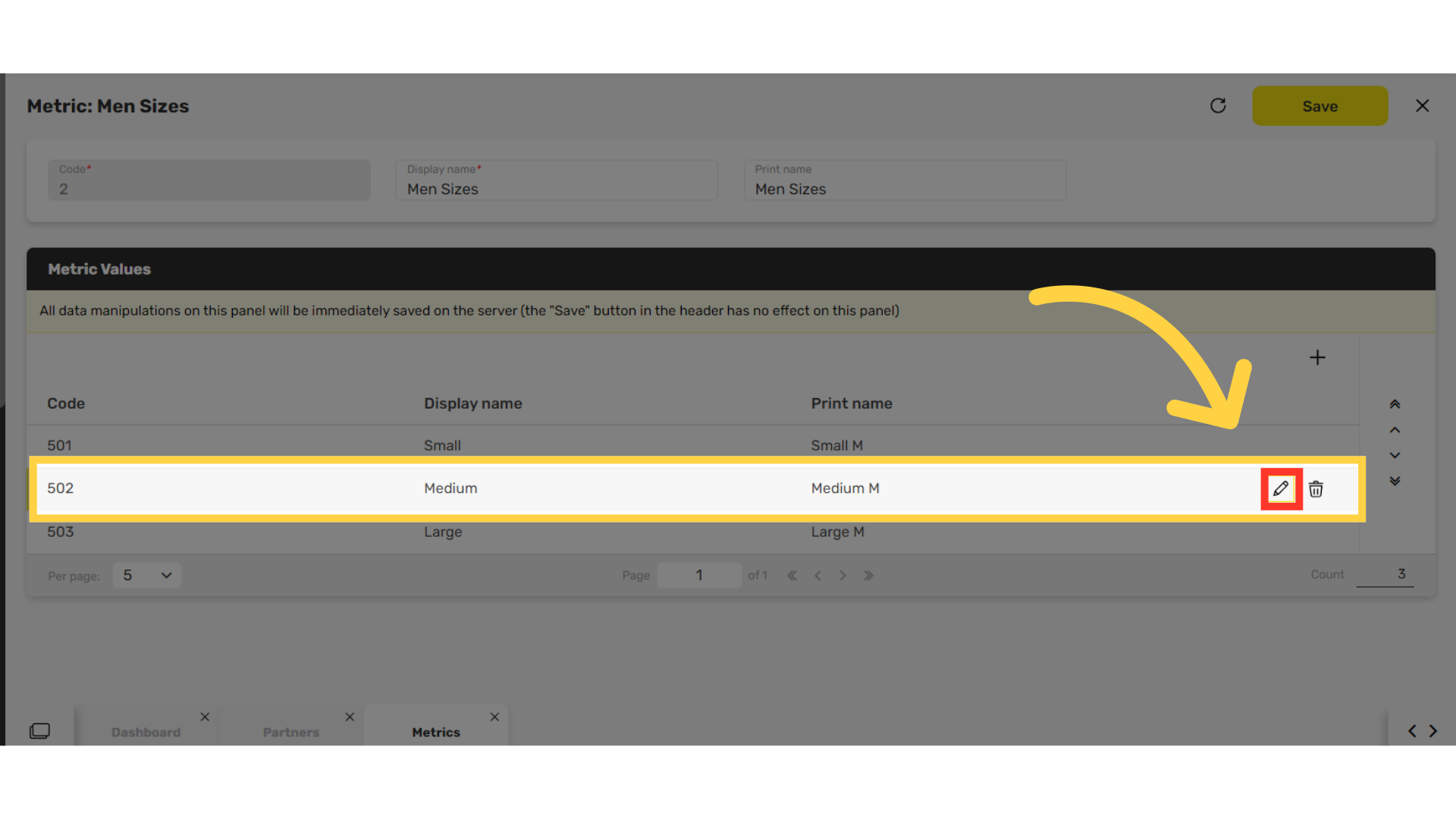
Click Pen Icon
Image Attached
Edit existing default metrics by clicking on the line you wish to edit and then click on the pen icon as highlighted in RED on the visual.
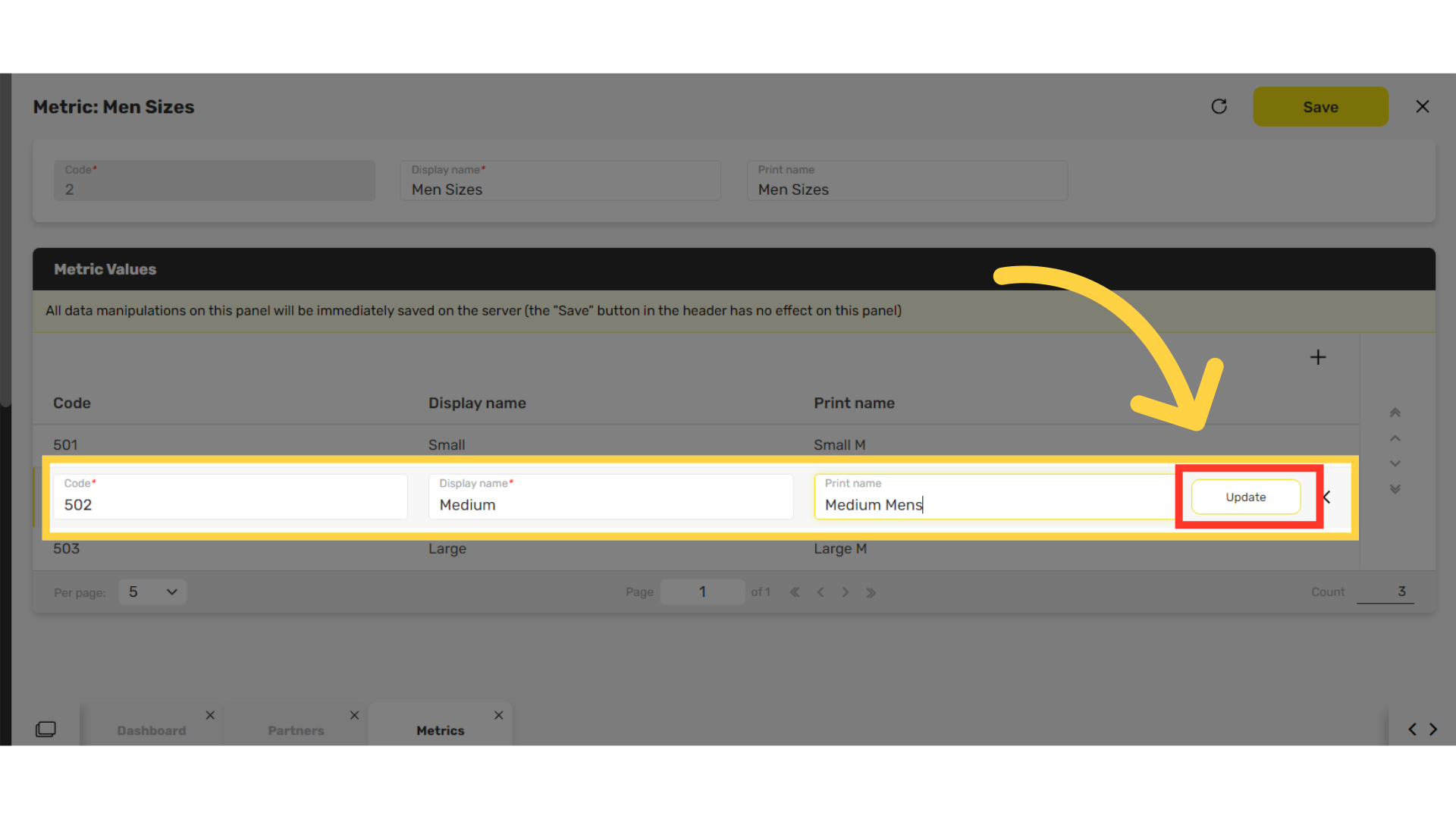
Click Update
Image Attached
Edit your choices and click on the update button highlighted in RED on the visual once finished.
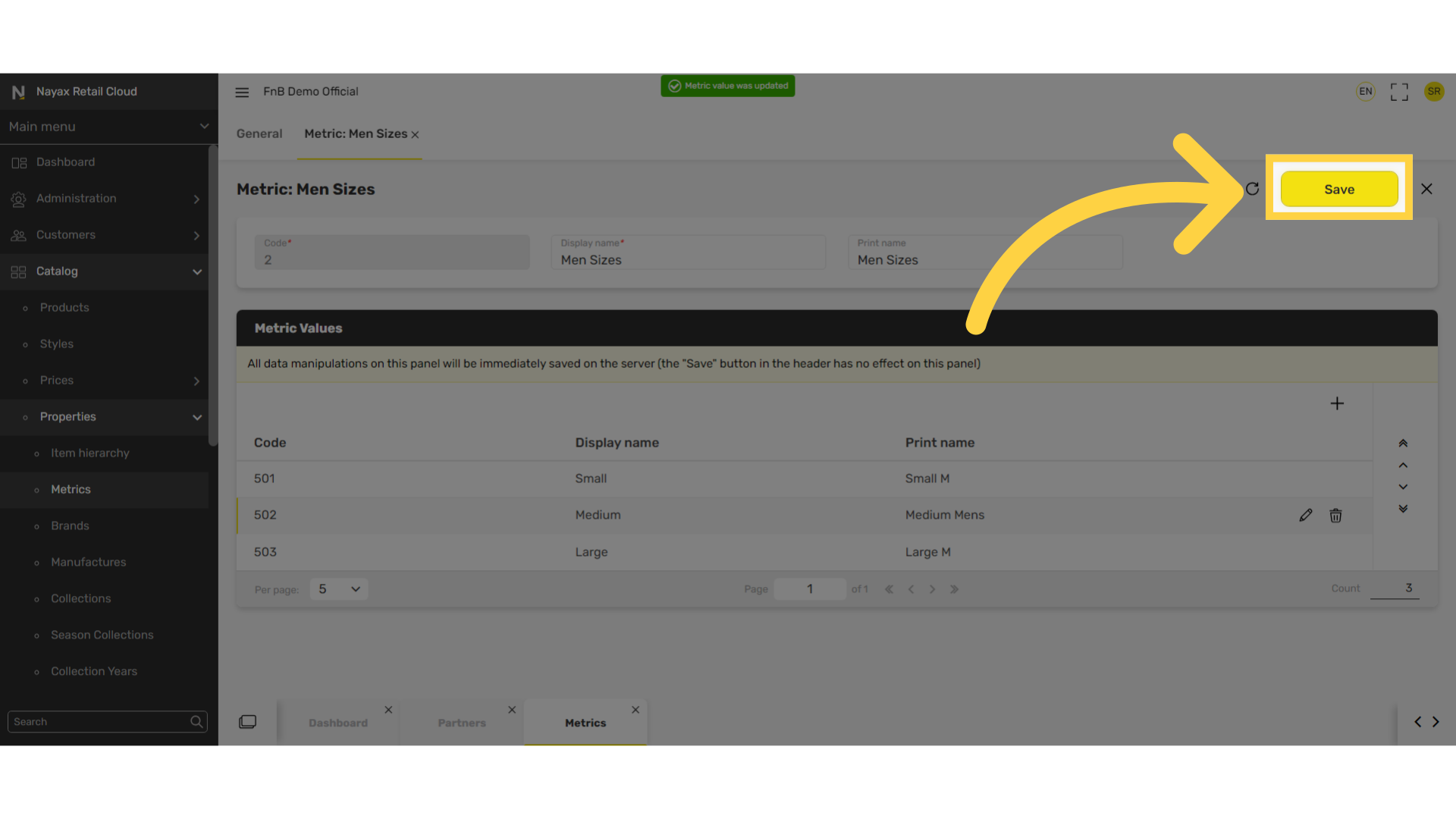
Click Save
Image AttachedDon't forget to save your changes!
Thank you!
Did you find this article helpful?