
Device General Information | Nayax Energy
Understand every field and panel on the Device General Information tab in Nayax Energy covering General, Software, Hardware, and Hardware Boards & Flash sections.
Device General Information | Nayax Energy
Reference guide to every field and panel on the Device General Information tab in the Nayax Energy platform, including General, Software, Hardware, and Hardware Boards & Flash sections.
Overview
The Device General Information tab provides a centralised view of an EV charging device registered in Nayax Energy. It is divided into four panels: General (editable configuration), Software (firmware management), Hardware (read-only identifiers), and Hardware Boards & Flash (read-only chip and flash data).
Device General Section
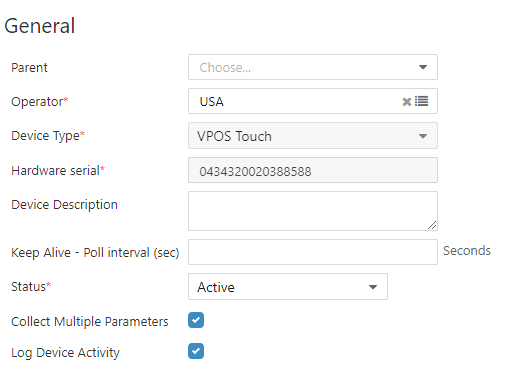
Image Attached| Field | Description |
|---|---|
| Parent | Select the parent entity this device belongs to. Use the dropdown to choose from available options. |
| Operator Required | The name of the CPO (Charge Point Operator) under which this device is located. Select from the multi-value field using the list icon. |
| Device Type Required | The hardware unit this device is connected to, for example, VPOS Touch, Amit, or Onyx. Select from the dropdown. |
| Hardware Serial Required | The unique serial number of the hardware. Enter the serial number exactly as printed on the device. |
| Device Description | Free-text field. Use to add an internal label or note for this device (optional). |
| Keep Alive — Poll Interval (sec) | The interval in seconds at which the device sends a keep-alive signal to the server. Enter a numeric value in seconds. |
| Status Required | Controls the operational status of the device. Select Active to enable the device or another status to suspend it. |
| Collect Multiple Parameters | When checked, the platform pushes multiple configuration parameters from the server to the device in a single collection cycle. |
| Log Device Activity | When checked, all activity for this device is recorded in the device log. Enable this for troubleshooting or audit purposes. |
Software Section
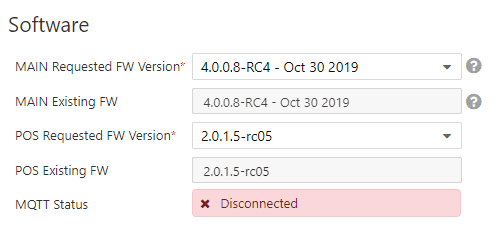
Image AttachedThe Software panel manages firmware versions for both the main board and the POS board, and displays the device's current MQTT connection status.
| Field | Description |
|---|---|
| MAIN Requested FW Version Required | Select a firmware version from the dropdown to schedule a main board firmware update. The device will apply this version on its next connection cycle. |
| MAIN Existing FW | Displays the firmware version currently installed on the device's main board. This field is read-only and updates automatically after each successful firmware push. |
| POS Requested FW Version Required | Select a POS firmware version from the dropdown to schedule a firmware update for a POS board. |
| POS Existing FW | Displays the firmware version currently installed on the POS board. Read-only; auto-updates after a successful push. |
| MQTT Status | Indicates whether the device is communicating over MQTT:
Connected - device is actively communicating via MQTT. Disconnected - device is not reachable via MQTT. Check network connectivity or device power. |
Hardware Section
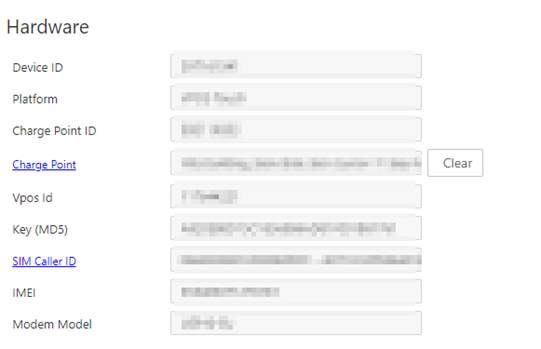
Image AttachedThe Hardware panel provides read-only identifiers populated automatically by the device. None of these fields are editable.
| Field | Description |
|---|---|
| Device ID Read-only | The unique internal identifier assigned to this device by the Nayax Energy platform. |
| Platform Read-only | The hardware platform type reported by the device. |
| Charge Point ID Read-only | The unique identifier of the charge point associated with this device. |
| Charge Point Read-only | The full charge point designation. Use the Clear button to reset this association if required. |
| Vpos Id Read-only | The VPOS identifier associated with this device. |
| Key (MD5) Read-only | An MD5 hash key used for device authentication. Auto-generated; do not modify. |
| SIM Caller ID Read-only | The phone number associated with the SIM card installed in the device (if cellular connectivity is used). |
| IMEI Read-only | The International Mobile Equipment Identity number of the device's modem. Required for cellular troubleshooting. |
| Modem Model Read-only | The model identifier of the modem installed in the device. |
Hardware Boards & Flash
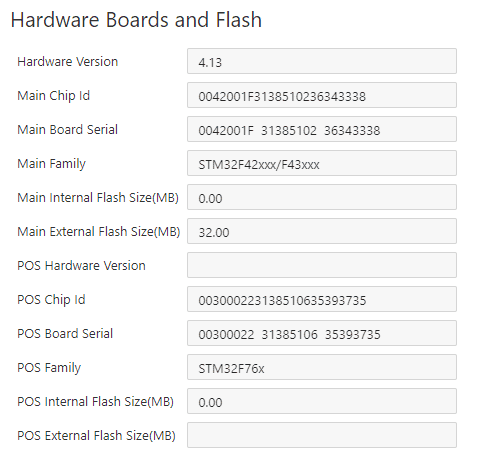
Image AttachedThe Hardware Boards & Flash panel displays detailed chip and flash memory information for both the main board and the POS board. All fields are read-only.
| Field | Description |
|---|---|
| Hardware Version Read-only | The hardware revision number of the device board (for example, 4.13). |
| Main Chip Id Read-only | The unique identifier of the main board's microcontroller chip. |
| Main Board Serial Read-only | The serial number of the main board. |
| Main Family Read-only | The microcontroller family for the main board (for example, STM32F42xxx/F43xxx). |
| Main Internal Flash Size (MB) Read-only | The size of the main board's internal flash memory in megabytes. |
| Main External Flash Size (MB) Read-only | The size of the main board's external flash memory in megabytes. |
| POS Hardware Version Read-only | The hardware revision number of the POS board. |
| POS Chip Id Read-only | The unique identifier of the POS board's microcontroller chip. |
| POS Board Serial Read-only | The serial number of the POS board. |
| POS Family Read-only | The microcontroller family for the POS board (for example, STM32F76x). |
| POS Internal Flash Size (MB) Read-only | The size of the POS board's internal flash memory in megabytes. |
| POS External Flash Size (MB) Read-only | The size of the POS board's external flash memory in megabytes. |
Support
Contact the Nayax Energy support team for the latest firmware version, release notes, or assistance with device configuration.
Troubleshooting
MQTT Status shows "Disconnected" and the device is powered on
Verify the device has an active network or cellular connection. Check that the SIM Caller ID field is populated with a valid number. If the device was recently installed, allow a few minutes for the initial connection. Contact [email protected] with the Device ID if the issue persists.
Firmware update not applied after saving
Confirm MQTT Status shows Connected before scheduling a firmware push; updates cannot be delivered to a disconnected device. After saving, wait for the next sync cycle and refresh the page. If the existing firmware version does not update, contact [email protected] with the Device ID and the target firmware version.
Hardware fields are empty after device connection
Hardware fields populate automatically on first connection. If they remain empty, verify that the Hardware Serial entered in the General panel exactly matches the serial printed on the physical device. Contact [email protected] if fields are still missing after re-checking the serial.
Thank you!
Did you find this article helpful?