
🎛️ Dashboard Map Quick Actions
Quick actions to update the charging points, to view the last alerts, last sales and more via the dashboard map.
Video Guide
Scroll to Map Widget
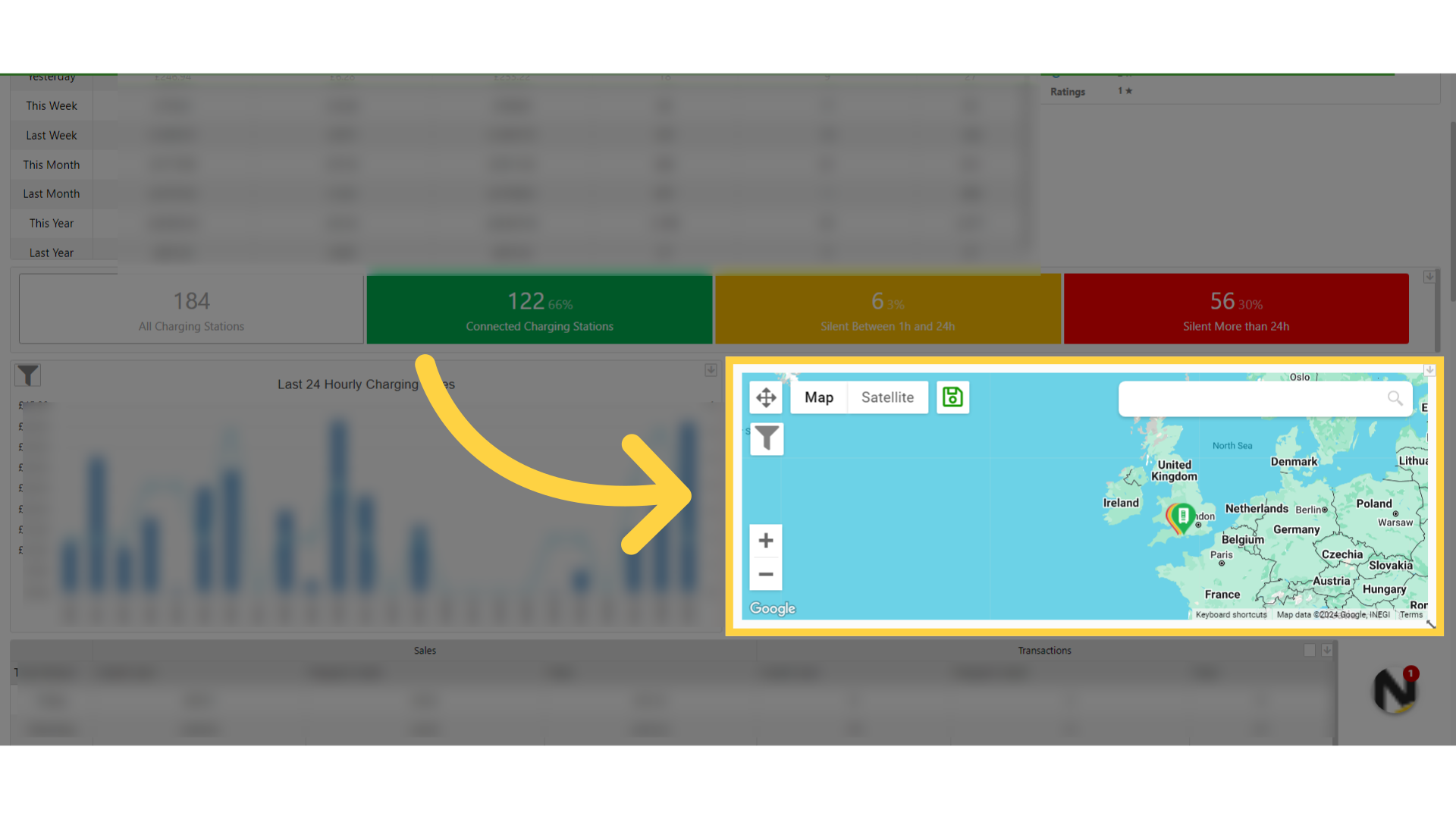
Image AttachedOn the dashboard of your Nayax Energy Core management system scroll to the Map widget.
Hovering Over an Icon
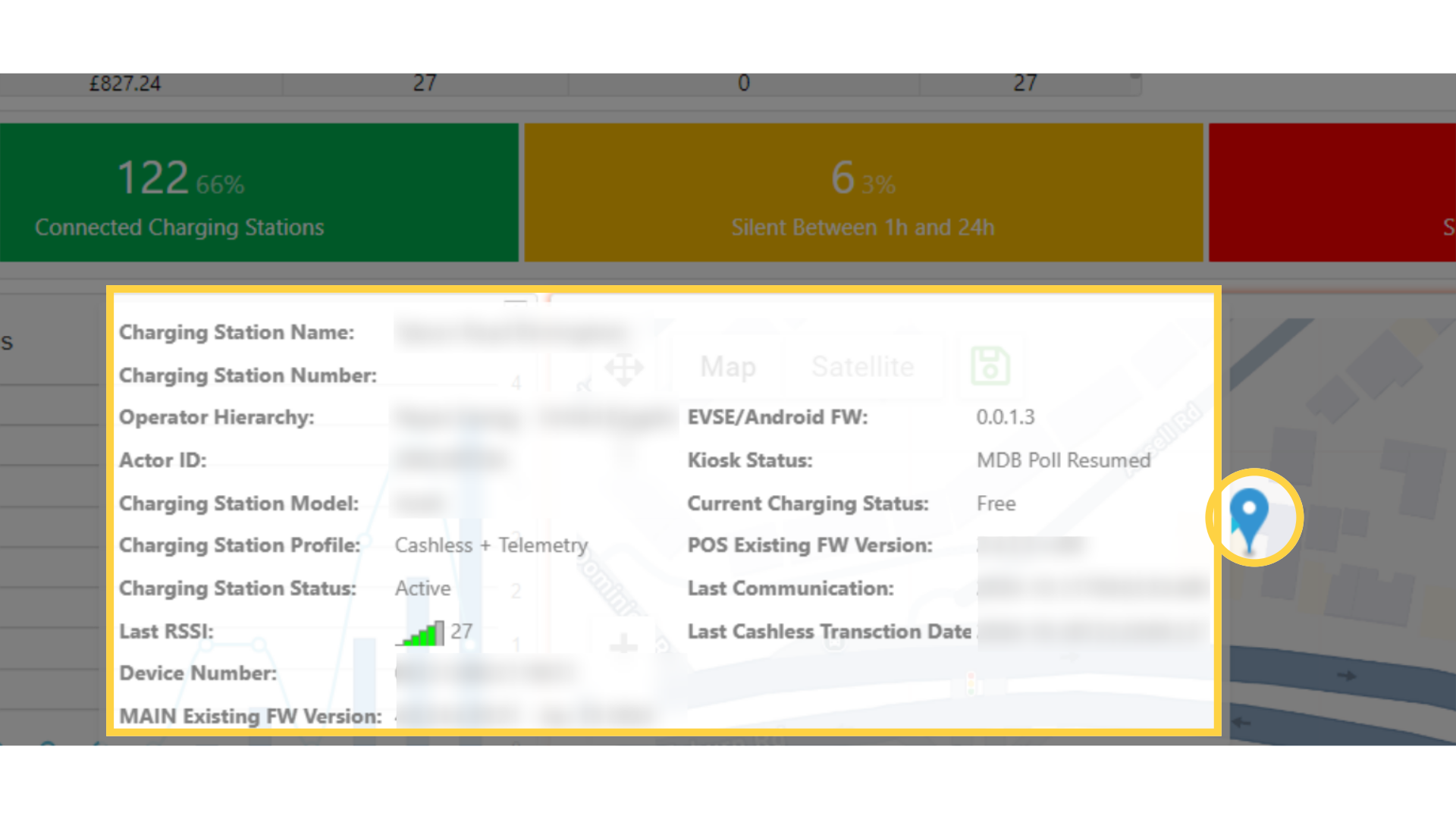
Image AttachedHovering over an icon will display additional information on this Charge Point.
Right Click Menu
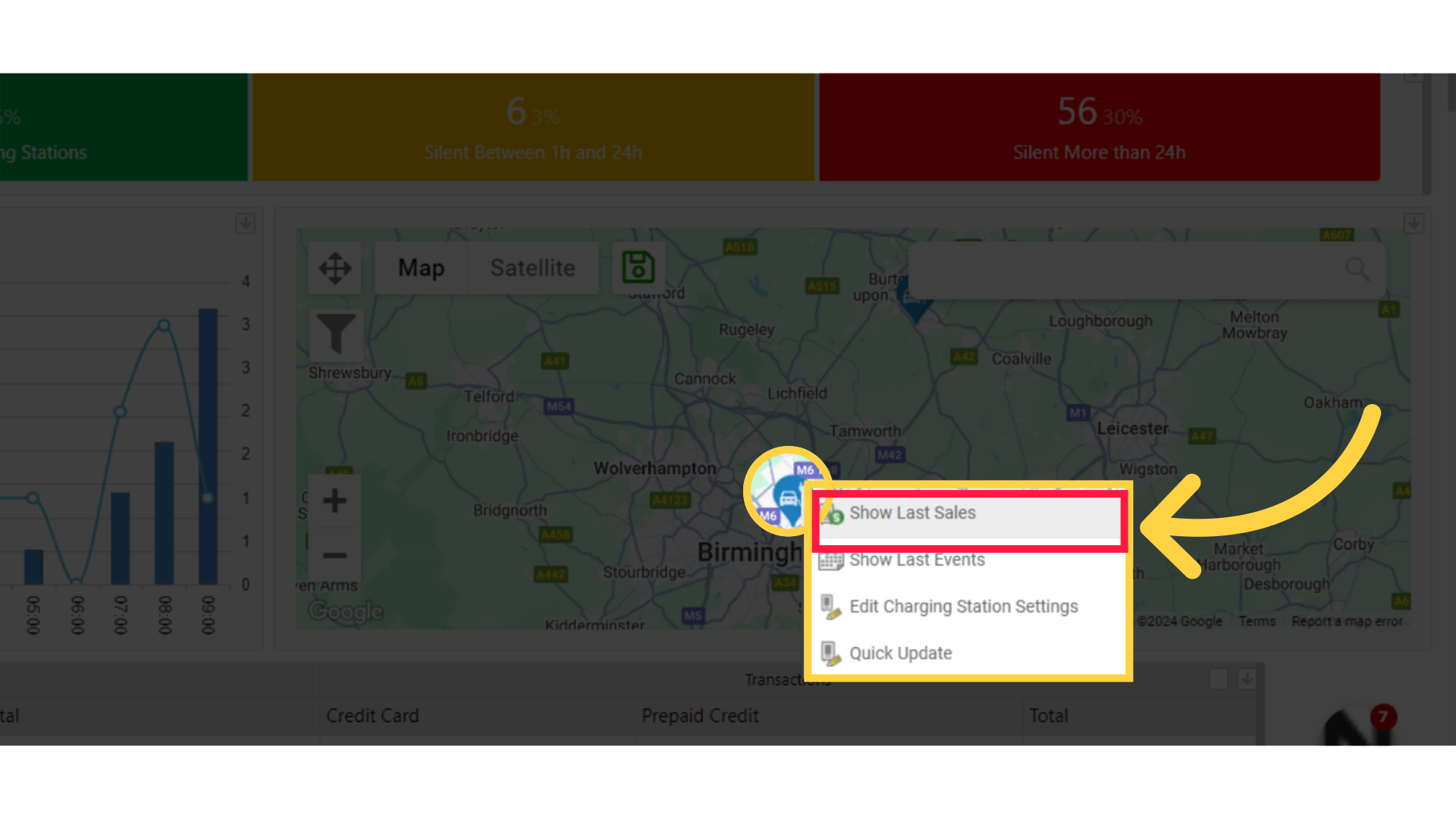
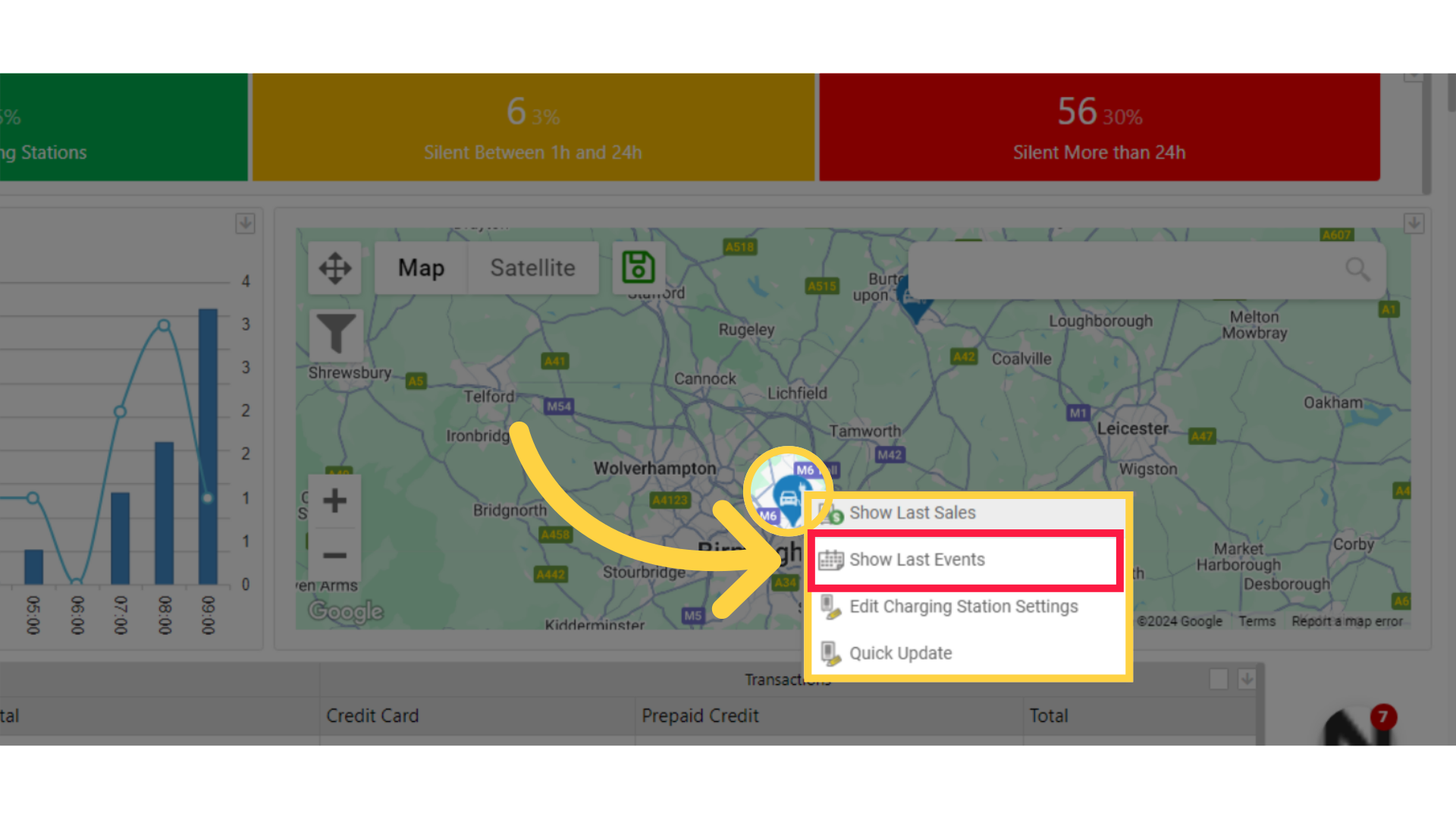
Image AttachedRight clicking on the car icon on the map Each icon represents one charge point will display the following quick actions menu.
Show Last Sales
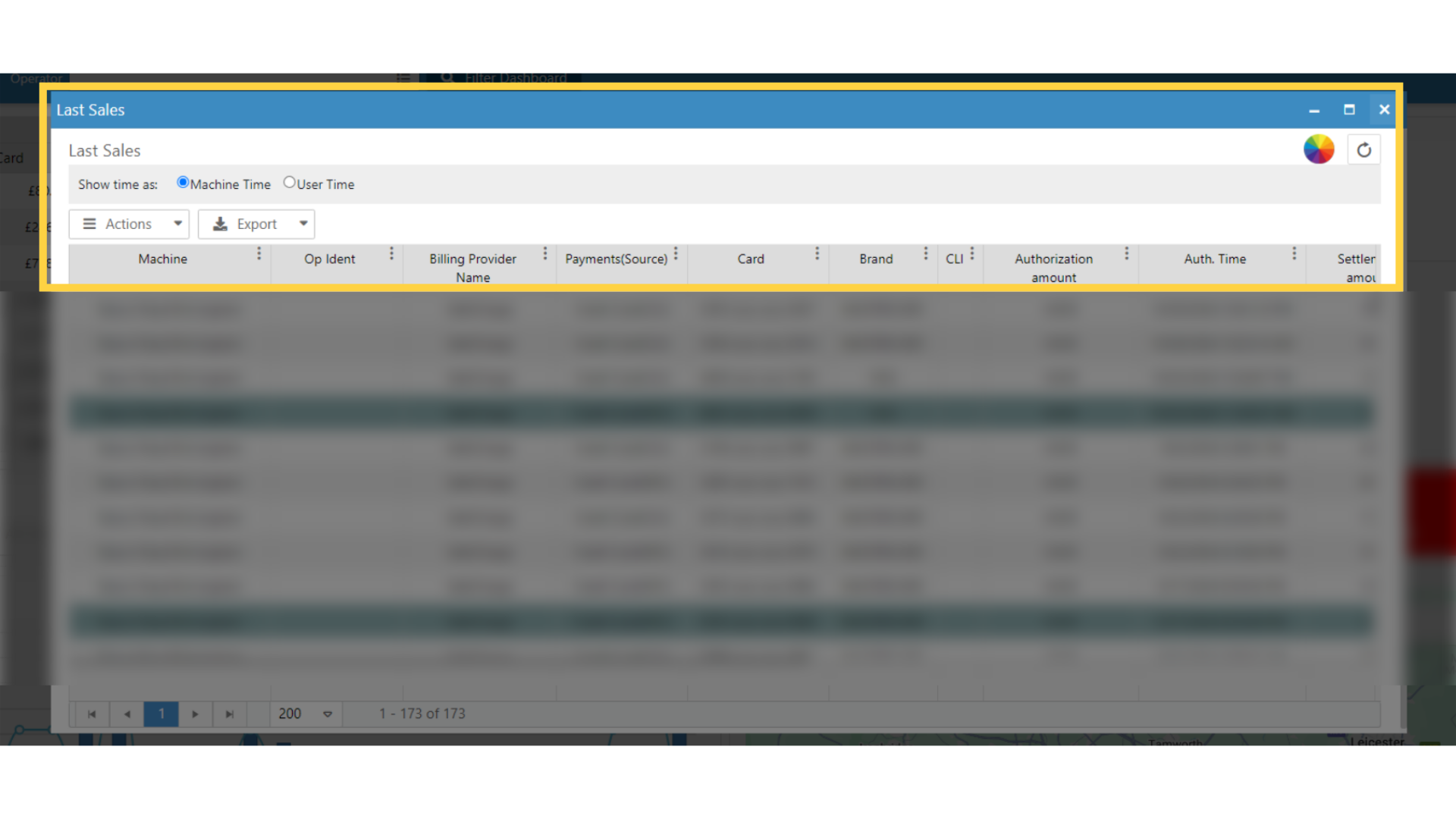
Image AttachedShow Last Sales Opens a pop-up window with the Last Sales report on this Charge Point
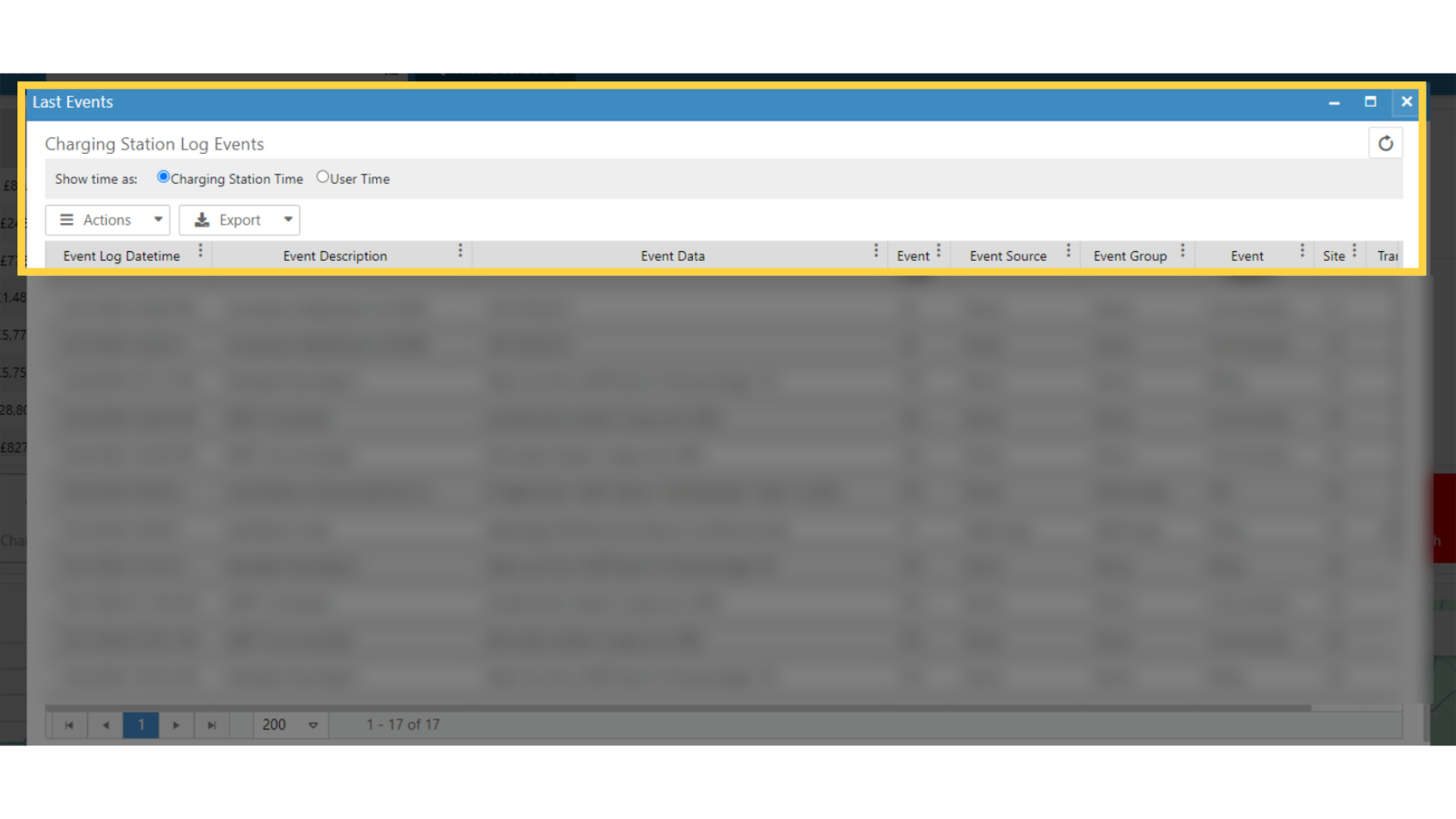
Show Last Events
Image AttachedShow Last Events Opens a pop up window with the Last Events report on this Charge Point.
Click Edit Charge Point Settings
Image AttachedRight Click on Edit Charge Point Settings
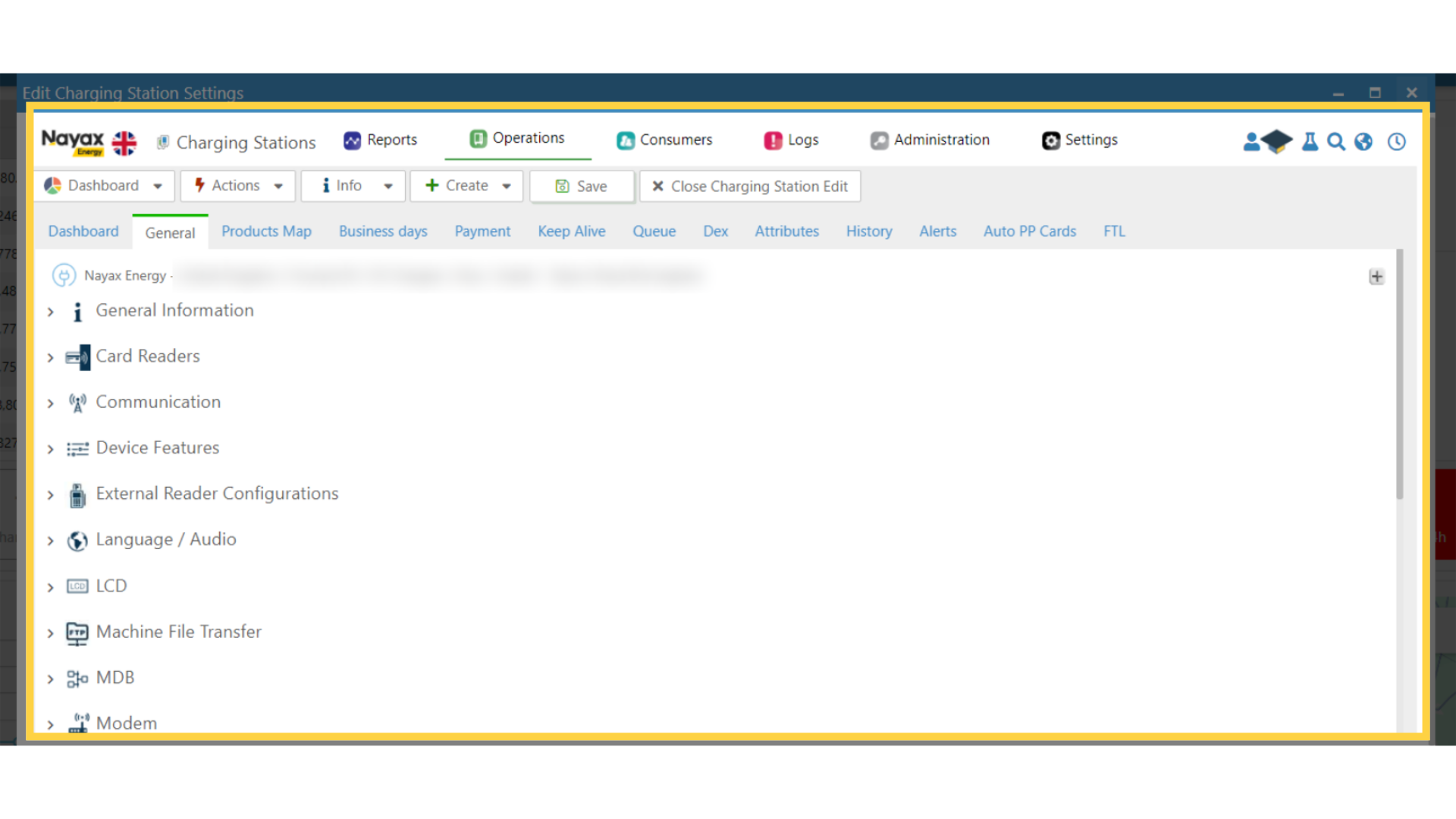
Edit Charge Point Settings
Image AttachedEdit Charge Point Settings Opens this Charge Point's page in a pop up. This pop up opens in the General tab, allowing you to quickly configure different parameters on this Charge Point.
Click Quick Update
Image AttachedRight Click on Quick Update

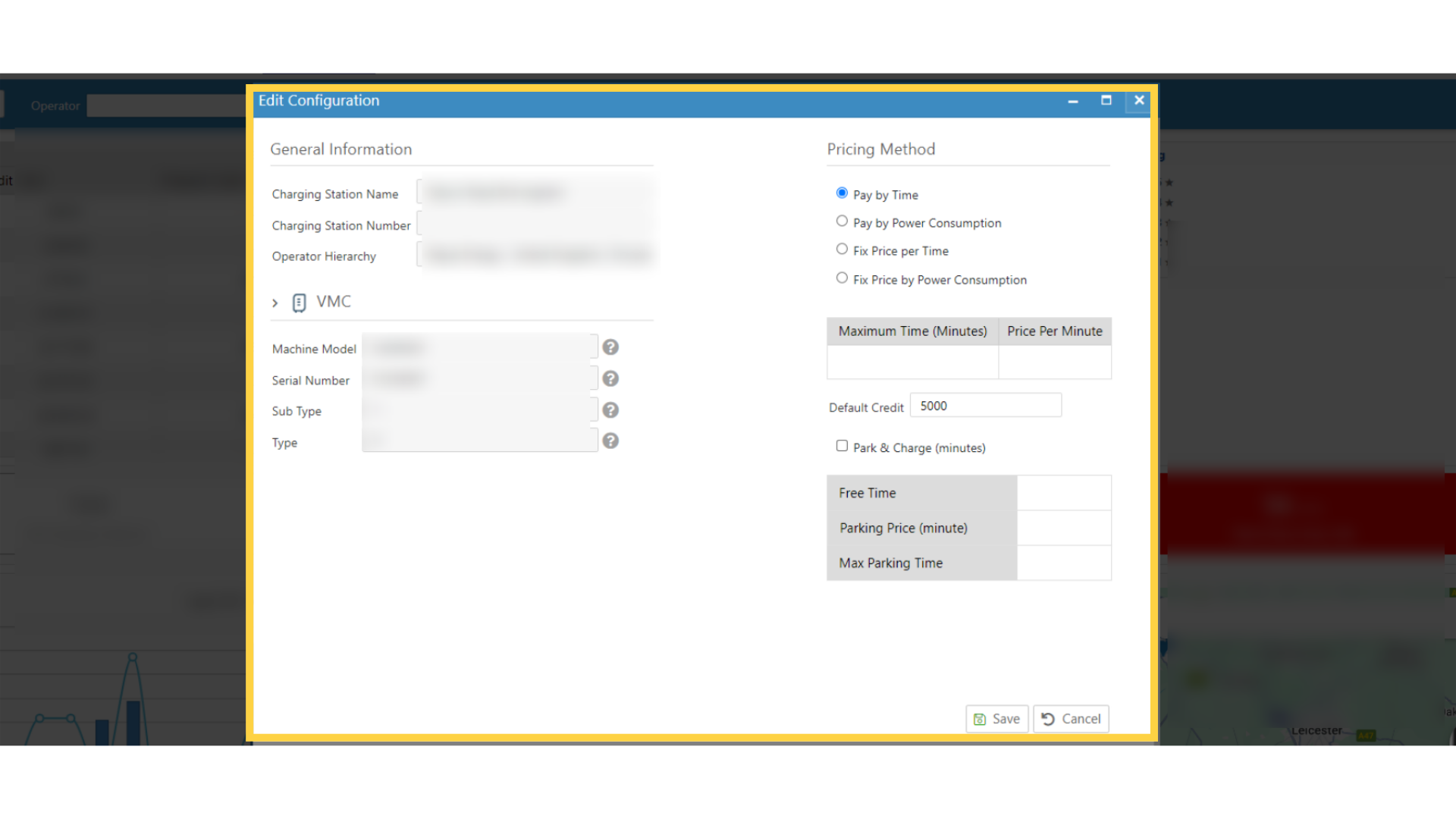
Quick Update
Image AttachedQuick Update Opens a pop-up that enables you to change prices and additional configurations such as the current phase, pricing method and more.
Click Actions
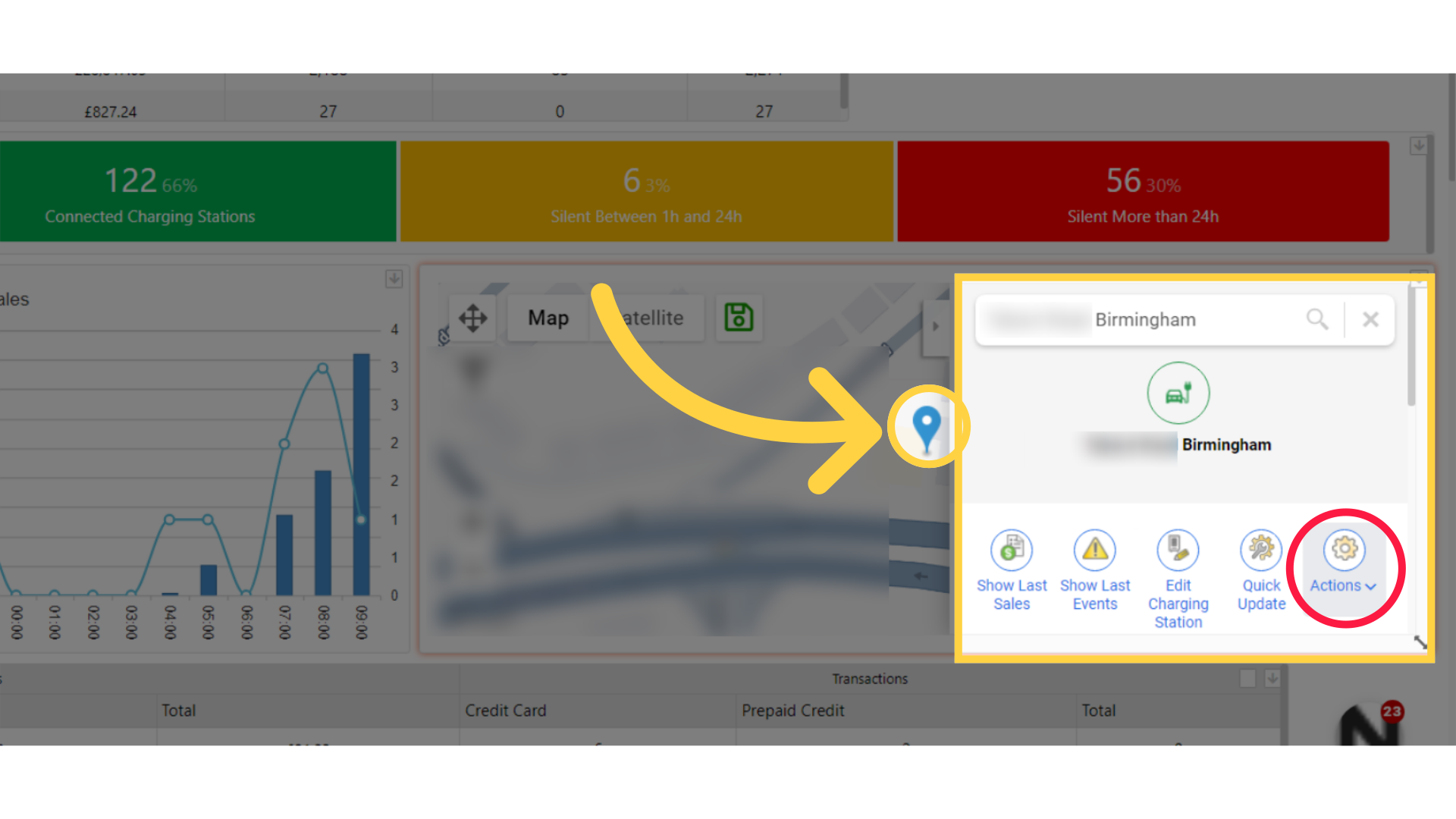
Image AttachedLeft Clicking on an icon on the map will open the following menu. Here you can also perform quick actions at your convenience, like viewing the last sales and last alerts report, editing this charge point setting, etc.
Clicking on the Action as highlight in RED on the visual will open a drop-down menu with additional actions.
Scroll Down for Sub Menu
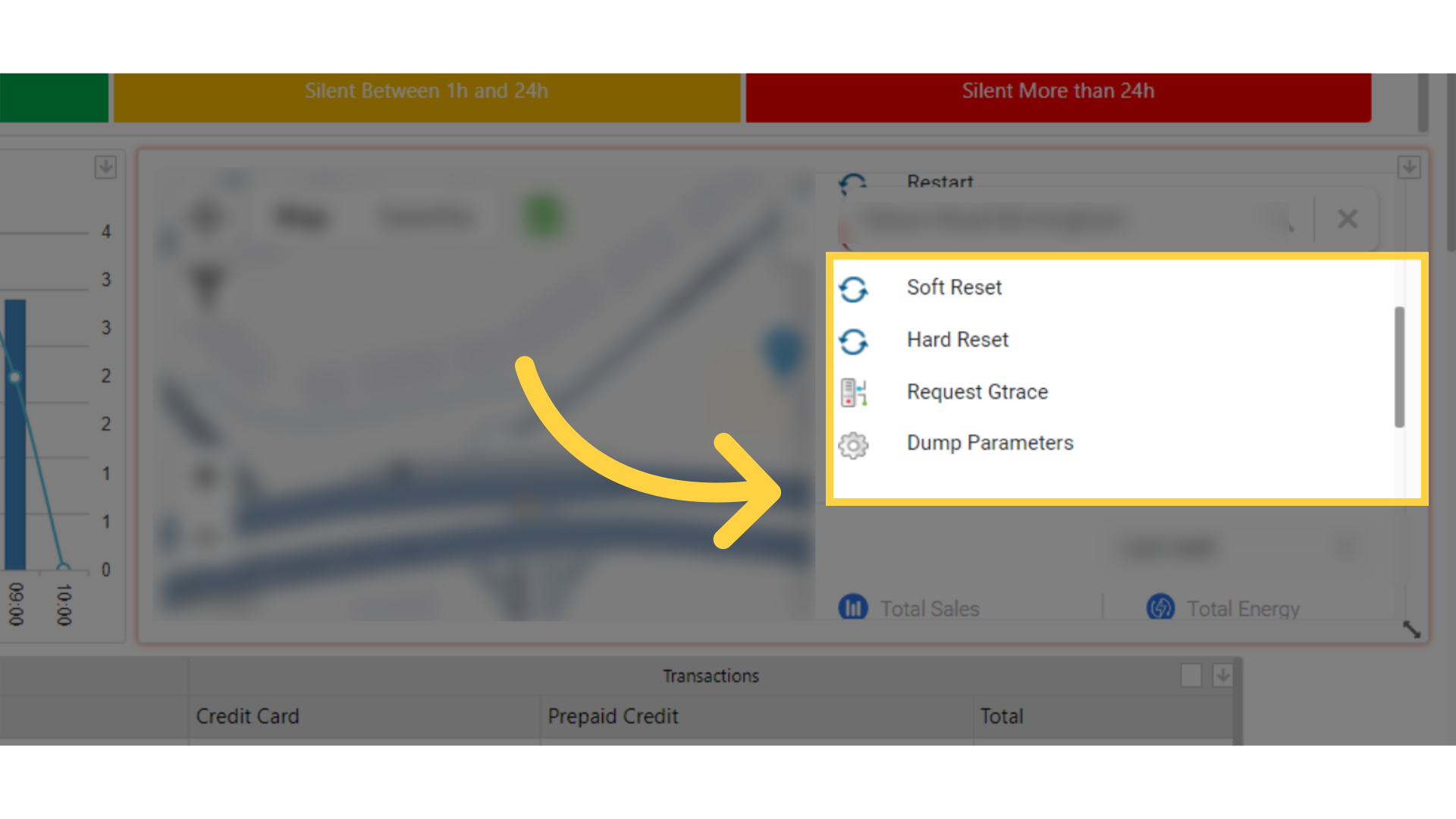
Image AttachedScroll down drop down menu for additional actions like Restart, Reboot and more.
Pro Tip! For small resolutions screens be sure to scroll down on the map widget to view these actions
Thank you!
Did you find this article helpful?