
How to Select All Machines Under an Actor | MoMa
In this guide, you’ll learn how to apply bulk actions to multiple machines at once in MoMa to quickly push changes across your fleet.
Video Guide
00:00: In this guide, you’ll learn how to apply bulk actions to multiple machines at once
00:03: in MoMa to quickly push changes across your fleet.
00:06: Open the MoMa app on your mobile device.
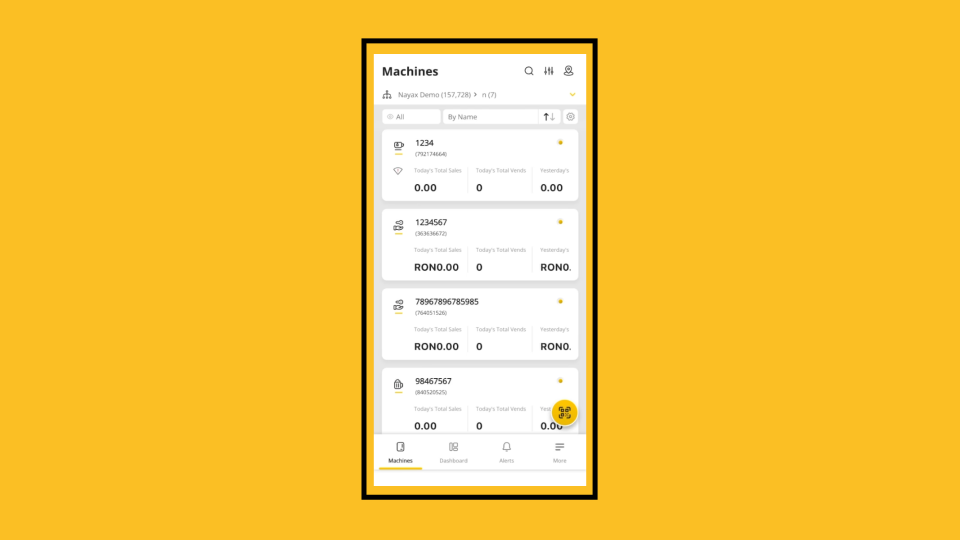
00:09: The Machines list opens by default, showing all machines linked to your operator
00:14: account.
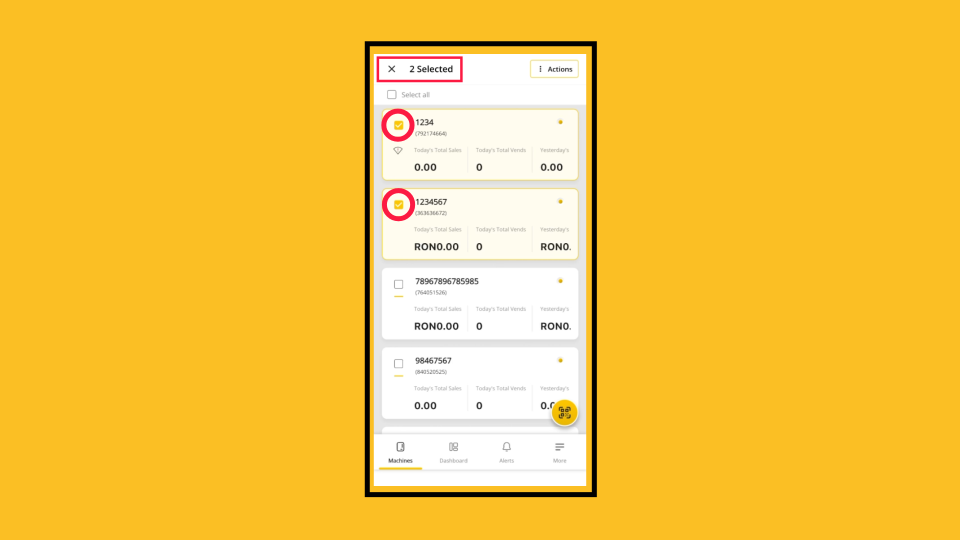
00:15: Long-press any machine in the list to enter selection mode. You'll see checkboxes appear
00:19: on every row, along
00:21: with a selected counter at the top. You
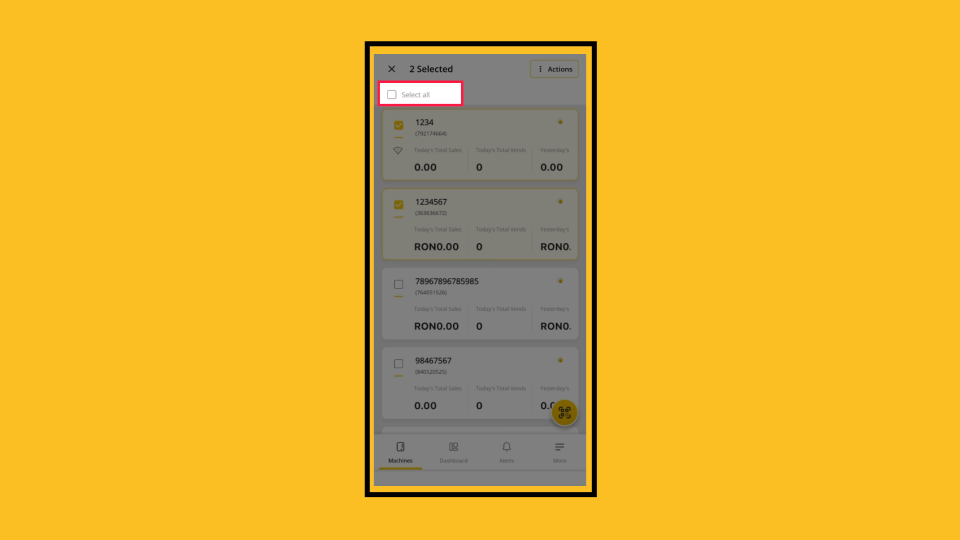
00:23: can also tap Select all to include every machine at once.
00:28: You can also tap Select all to include every machine at once.
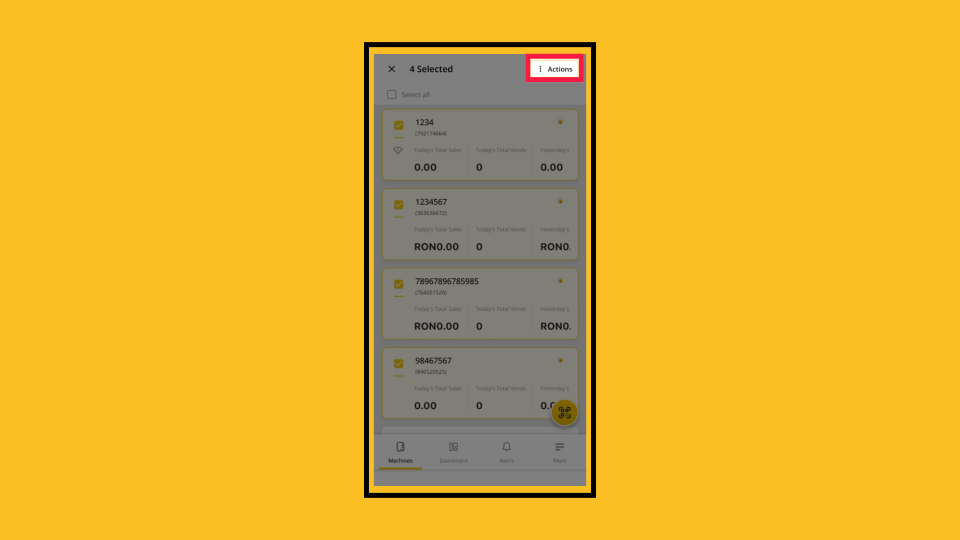
00:32: That's it! When you're ready, tap the Actions button in the top-right corner to continue.
00:36: continue.
Open MoMa App
Image AttachedOpen the MoMa app on your mobile device.

Machines List
Image AttachedThe Machines list opens by default, showing all machines linked to your operator account.
Select Multiple Machines
Image AttachedLong-press any machine in the list to enter selection mode. You'll see checkboxes appear on every row, along with a selected counter at the top. You can also tap Select all to include every machine at once.
Select All Machines
Image AttachedYou can also tap Select all to include every machine at once.
Tap Actions
Image AttachedThat's it! With your machines selected, tap Actions. You can now run any of the following across your entire selection: Remote Price Change, Update Attributes, Restart, Picklist, and more.
Tool Tip: This is especially useful for pushing an update to all machines at a specific location, or to all machines managed by a specific team, in a single step, with no machine-by-machine selection.
Thank you!
Did you find this article helpful?