
How to Add & Reorder Machine KPIs | MoMa
Customize the KPIs displayed on your Machines screen. Choose the metrics that matter to your operation and arrange them in your preferred order.
Video Guide
00:00: The default machine list may not display the metrics that matter most to you. By
00:03: customizing KPIs,
00:05: you can ensure that the data you need is readily visible.
00:07: Learn how to showcase KPI indicators for each machine in MoMa.
00:12: Open the MoMa app on your mobile device.
00:15: The dashboard of your MoMa app will open, displaying the Machines linked to your
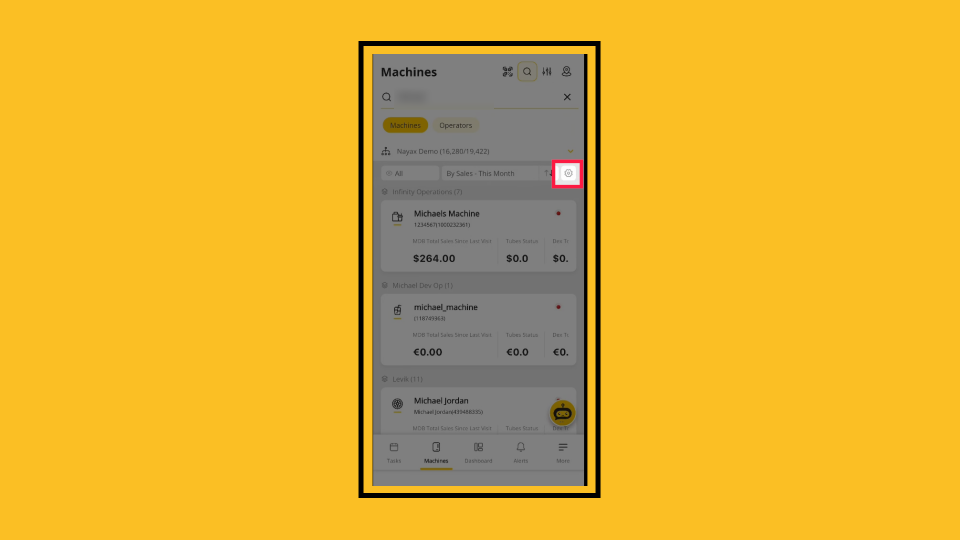
00:19: operator. Tap the gear icon in the top-right corner.
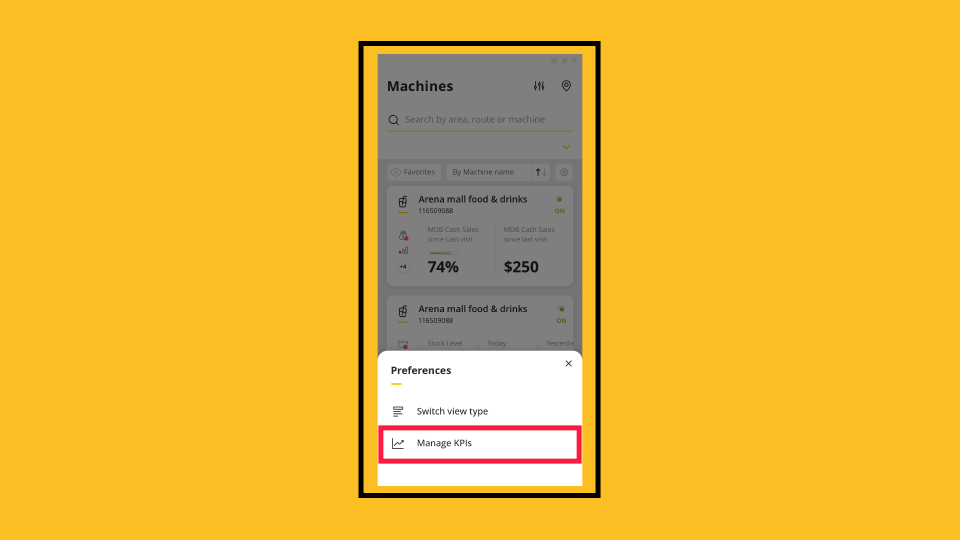
00:23: The screen preferences panel opens, tap KPIs.
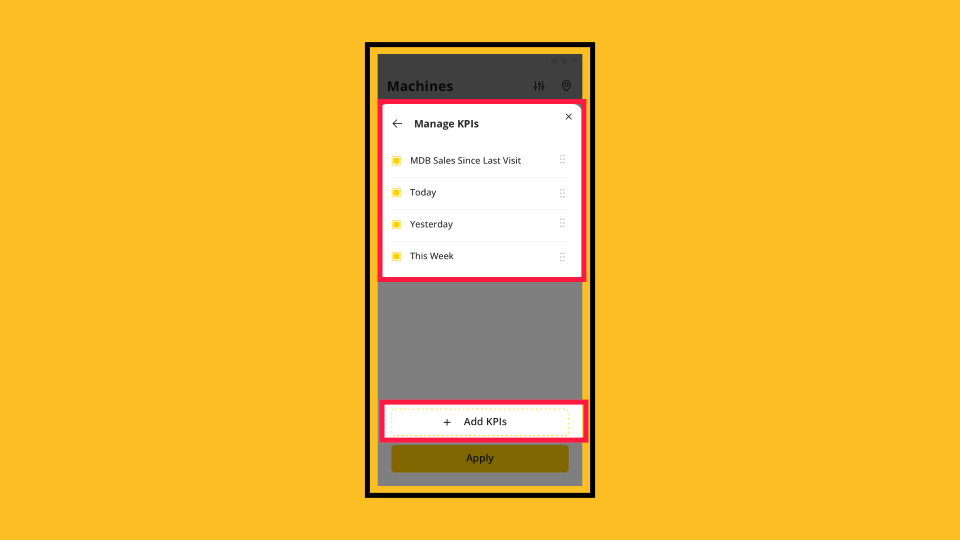
00:27: Customize your KPIs by dragging and dropping them to change the order,
00:31: unchecking any KPIs you want to remove, or tapping Add KPIs to select additional
00:36: indicators from the list.
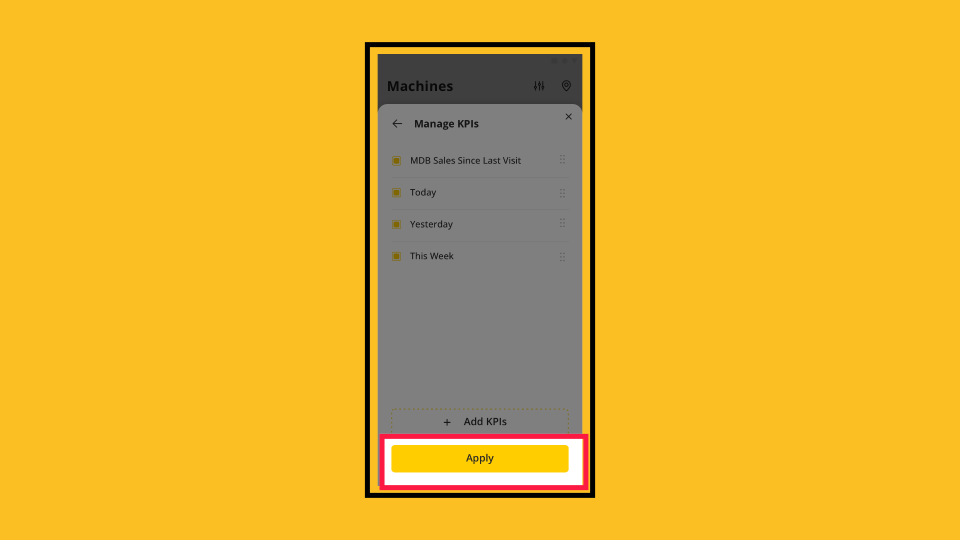
00:39: Tap apply to close the panel and your changes apply immediately.
00:43: You can also change how machines are displayed.
00:46: Change
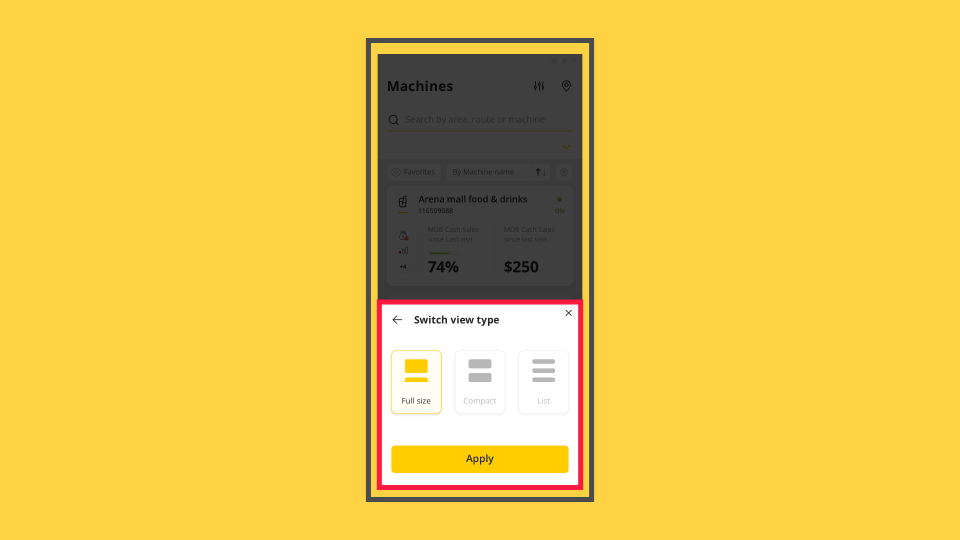
00:46: the machine view mode by selecting Full Size
00:48: for detailed monitoring with large cards, Compact for a balanced view of several
00:52: machines, or List view to quickly scan many machines at once.
00:55: Click Apply to save your preference.
00:58: Explore MoMa's other notifications available to ensure you track your machines like a pro, or click on the link to view more MoMa guides in Nayax U!
Open MoMa App
Image AttachedOpen the MoMa app on your mobile device.

Tap Gear Icon
Image AttachedThe dashboard of your MoMa app will open, displaying the Machines linked to your operator. Tap the gear icon in the top-right corner.
Manage KPIs
Image AttachedThe screen preferences panel opens, tap KPIs.
Customize KPIs
Image AttachedCustomize your KPIs by dragging and dropping them to change the order, unchecking any KPIs you want to remove, or tapping Add KPIs to select additional indicators from the list.
Tap Apply
Image AttachedTap apply to close the panel and your changes apply immediately.
Available View Modes
Image AttachedYou can also change how machines are displayed.
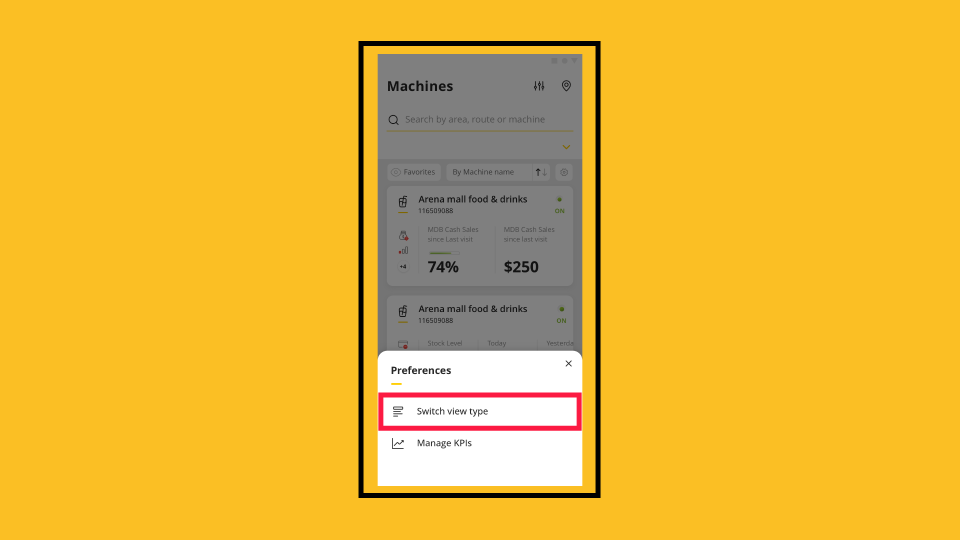
Switch View Modes
Image AttachedChange the machine view mode by selecting Full Size for detailed monitoring with large cards, Compact for a balanced view of several machines, or List view to quickly scan many machines at once. Click Apply to save your preference.
Thank you!
Did you find this article helpful?