
How to Find the Machine You Need | MoMa
Find any machine in seconds using search, filters, map view, or QR scan. No more scrolling through long lists go straight to the machine that needs attention.
Video Guide
00:00: Managing many machines requires quickly locating the right one. Scrolling through
00:03: lists is time-consuming. Discover how MoMa provides four effective methods to find a
00:08: machine.
00:09: Open the MoMa app on your mobile device.
00:12: The dashboard of your MoMa app will open, displaying the Machines linked to your
00:16: operator.
00:18: To search, click on the Magnifying Glass Icon. You can search by operator name, machine ID, or machine name.
00:25: Tap the result to open the machine.
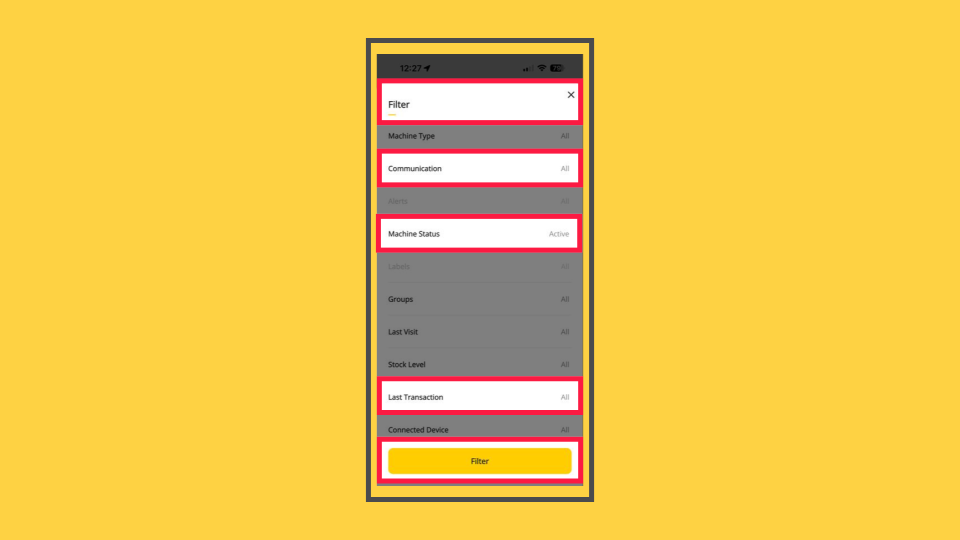
00:28: Tap the filter icon at the top of the Machines screen.
00:31: You can filter by sales volume for a selected period, by Communication status (showing
00:36: only online or offline machines), or by Operator or Sub-operator, narrowing the search to
00:41: a specific hierarchy level among others.
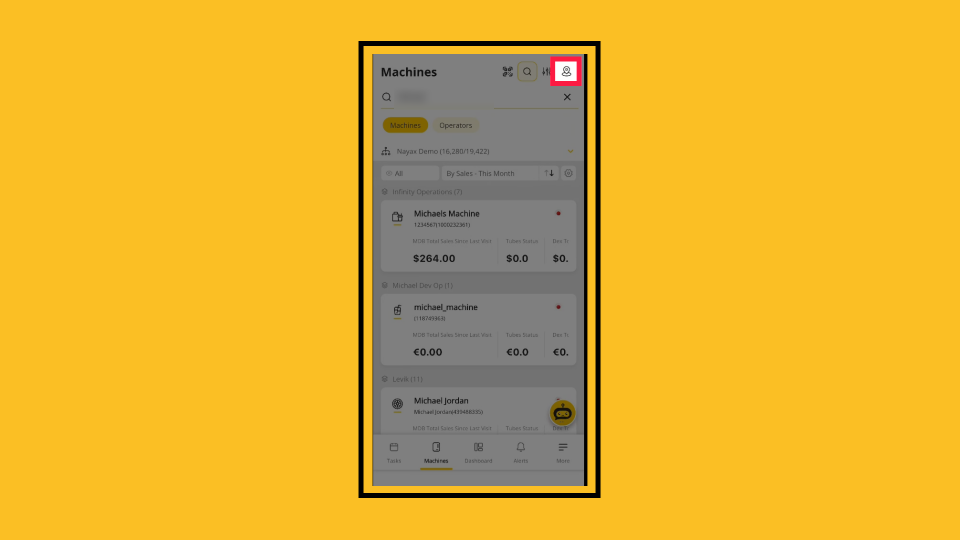
00:44: Tap the map icon to switch to a geographic view.
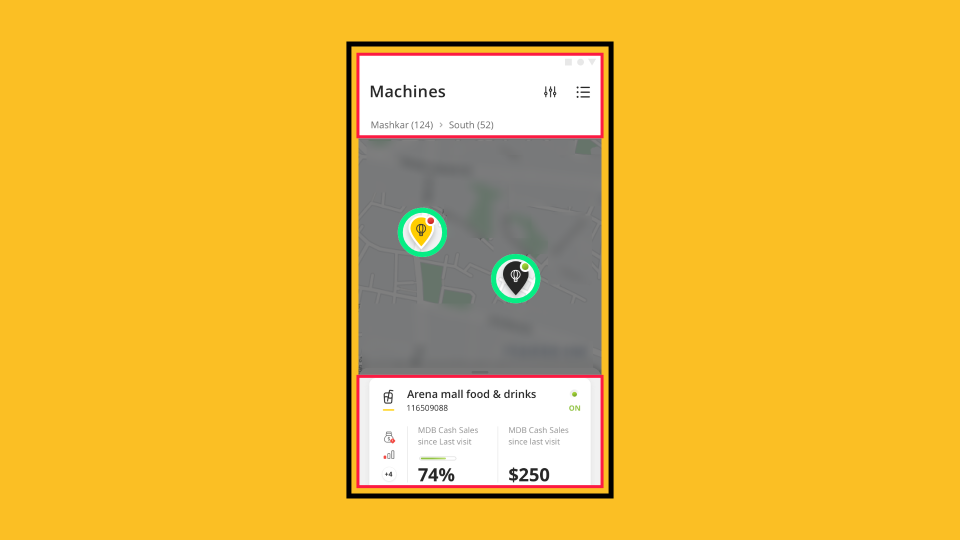
00:48: Pins represent your machines. Tap any pin to see the machine’s name, status, and
00:52: sales summary. Tap again to open the full machine screen.
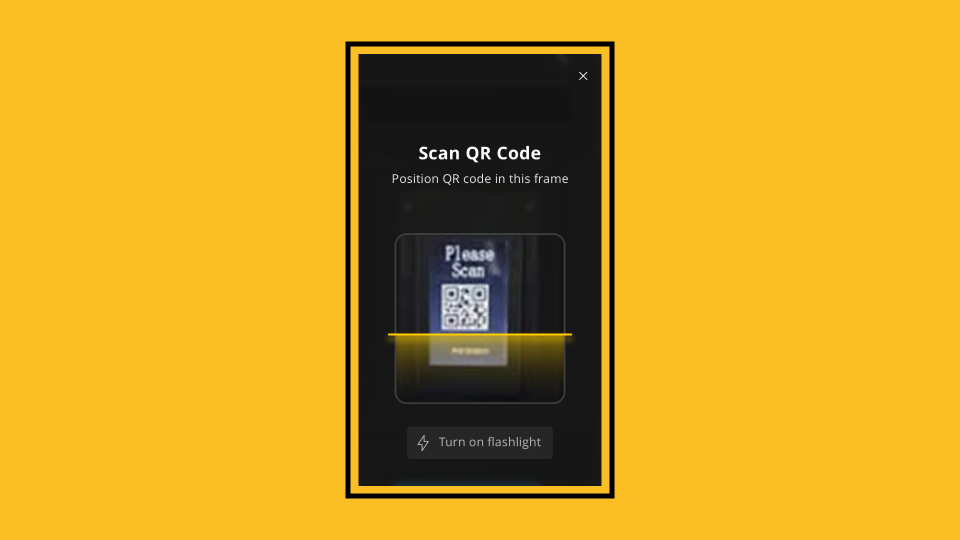
00:56: If you’re standing in front of the machine, tap the FAB QR Code button and scan the
01:00: Monyx Sticker on the machine.
01:02: MoMa opens the machine’s screen instantly.
01:05: Pro Tip: QR scanning is the fastest method when you’re on-site. Use it during route visits
01:10: to jump directly to each machine.
01:13: Explore MoMA's other notifications available to ensure you track your machines like a pro, or click on the link to view more MoMa guides in Nayax U!
00:01: Learn to configure alerts and notifications in MoMa to track activities and thresholds across your machines.
00:08: From your MoMa app, in the search field, search and select the specific machine to set alerts for.
00:14: From the machines listed under your operator, select the Machine you want to set alerts for.
00:20: The selected machine page will open in the overview tab, swipe along the tabs to settings.
00:26: On the Settings page to set alerts, tap "Alerts Thresholds," as highlighted.
00:32: Select from the several alert categories: Stock Level, Cash Level, DEX, Communication, and other options depending on your settings.
00:40: Selecting any of the options will give you several fields to set thresholds for receiving alerts. Toggle on to view threshold options and set alerts.
00:49: You can also set it based on the severity categories A to E.
00:54: The threshold alerts can be set to a specific percentage level, ranging from 100% full to 0% empty.
01:02: Alternatively, set thresholds from the other available options, ensuring the value you enter uses the correct unit required for that alert, such as percentage from Par, Time in days/hours, or Amount.
01:14: Once you have set your alerts, tap 'Notification Subscription' below category settings to set the alert communication.
01:22: The subscription alert page will open. Toggle to subscribe and set the communication alert.
01:29: View the communication channels available. MoMA defaults to push notifications once subscribed, but email and SMS are also available options. Choose your preferred method.
01:40: Set the 'Send On' option, which allows you to choose when you want notifications to arrive: 'all day', 'working hours', or 'non-working hours'. Please note: This option is only available if you have defined business days for the machine.
01:53: When set, tap 'Save' to save the communication notifications.
01:58: Returning to the previous screen, to save the alert thresholds, tap on 'Save'.
02:03: Now, when an alert threshold is met, a notification is sent. Alerts can also be viewed on the MoMa machines' overview screen and active alerts dashboard.
02:13: Explore MoMA's other notifications available to ensure you track your machines like a pro, or click on the link to view more MoMa guides in Nayax U!
Open MoMa App
Image AttachedOpen the MoMa app on your mobile device.

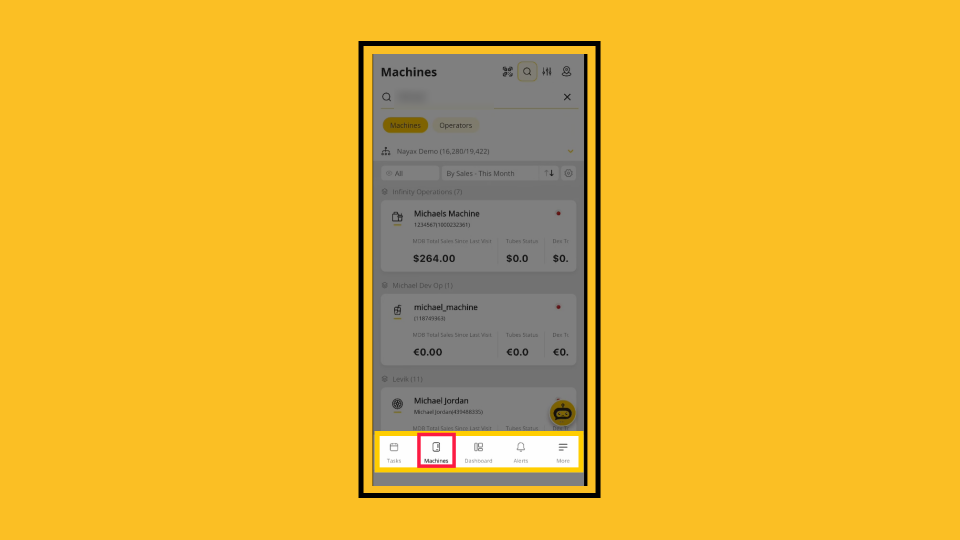
Tap Machine
Image AttachedThe dashboard of your MoMa app will open, displaying the Machines linked to your operator.
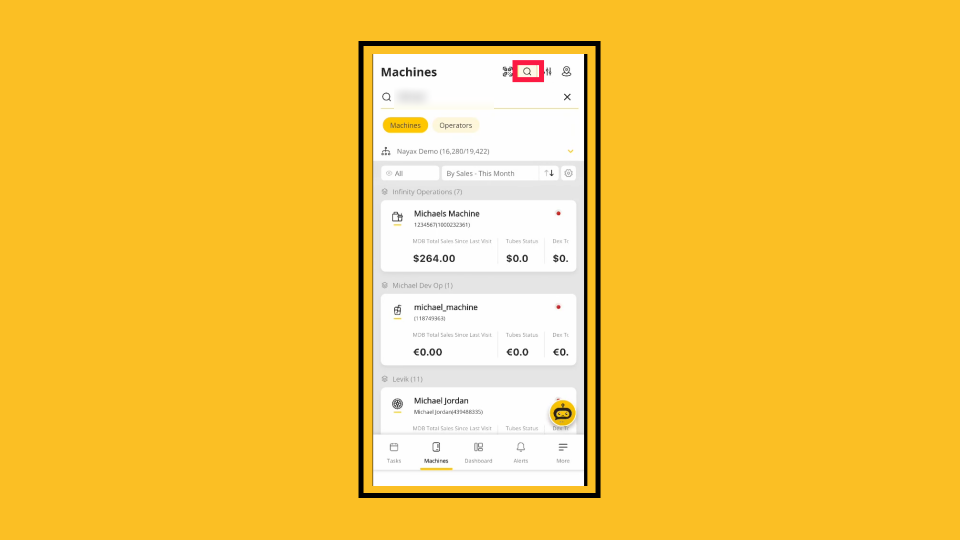
Search Machines
Image AttachedTo search, click on the Magnifying Glass Icon. You can search by operator name, machine ID, or machine name.
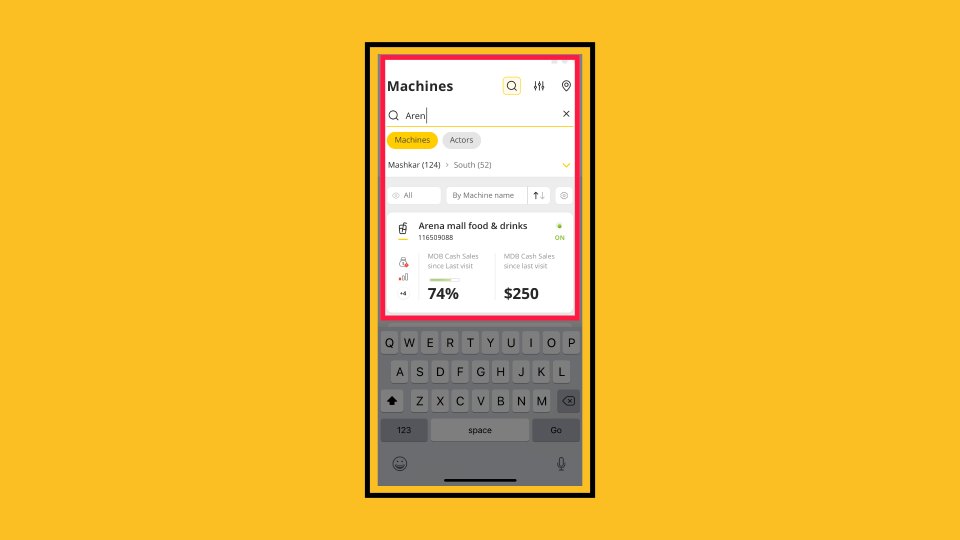
Tap Machine
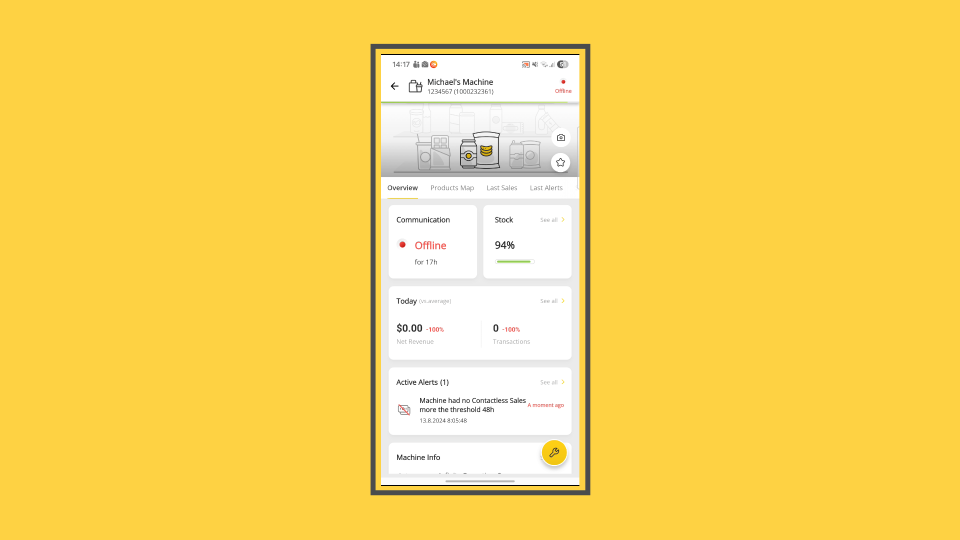
Image AttachedTap the result to open the machine.
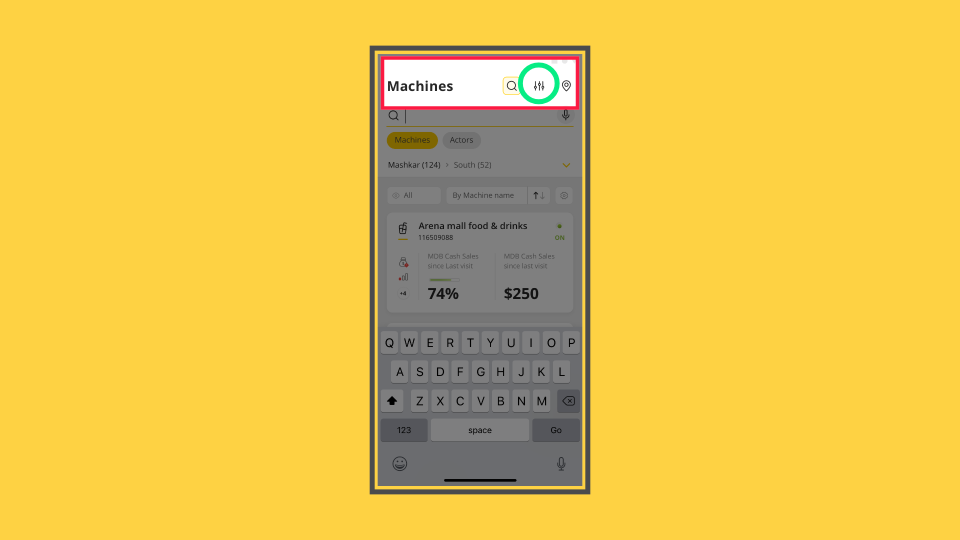
Use Filters
Image AttachedTap the filter icon at the top of the Machines screen.
Filter By
Image AttachedYou can filter by sales volume for a selected period, by Communication status (showing only online or offline machines), or by Operator or Sub-operator, narrowing the search to a specific hierarchy level among others.
Map View
Image AttachedTap the map icon to switch to a geographic view.
Map View
Image AttachedPins represent your machines. Tap any pin to see the machine’s name, status, and sales summary. Tap again to open the full machine screen.
QR Code Scan
Image AttachedIf you’re standing in front of the machine, tap the QR Code button and scan the Monyx Sticker on the machine. MoMa opens the machine’s screen instantly.
Pro Tip
Image AttachedPro Tip: QR scanning is the fastest method when you’re on-site. Use it during route visits to jump directly to each machine.
Thank you!
Did you find this article helpful?