
How to View a Smart Charging Station Profile | Operations
Learn how to view a Charging Station Profile and review the charging station's history, as well as view real-time active schedules received.
Video Guide
00:00: Learn how to view a Charging Station Profile and review the charging station's history, as well as view real-time active schedules received.
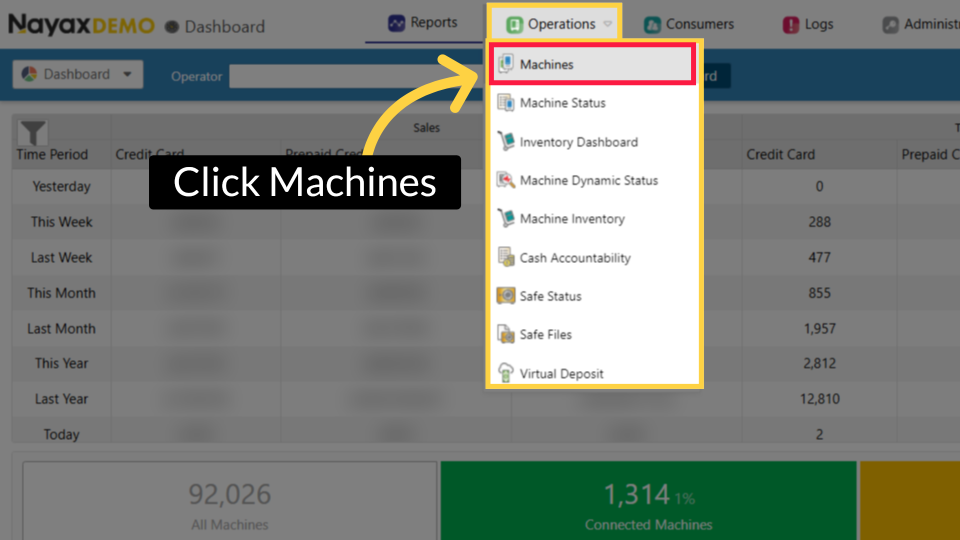
00:08: On the Dashboard of the Nayax Core platform, click on the Operations tab. Then
00:12: click on "Machines" from the drop-down menu.
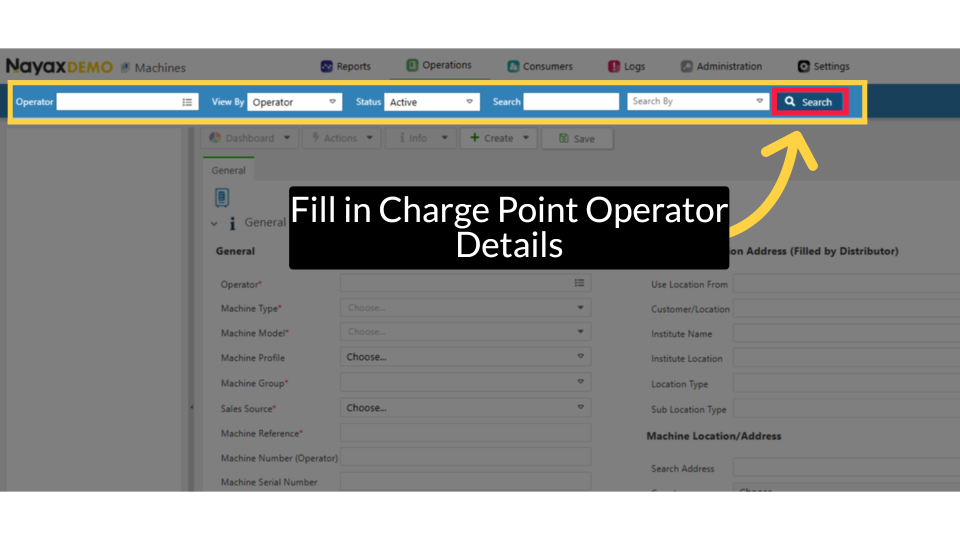
00:15: Type in your chargepoint operator name and any other fields to locate your charging
00:19: Point. Click search as highlighted.
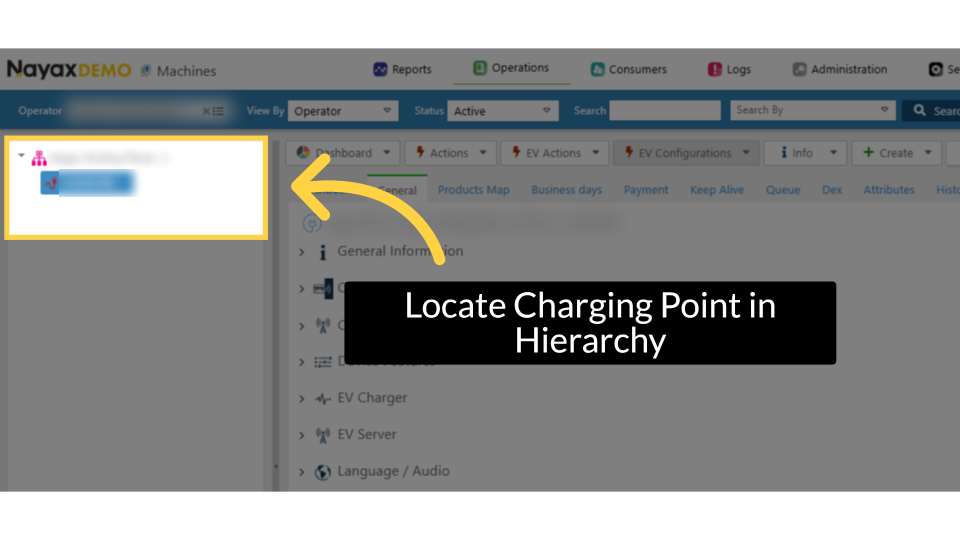
00:22: Locate and click on the Charging Point from the hierarchy.
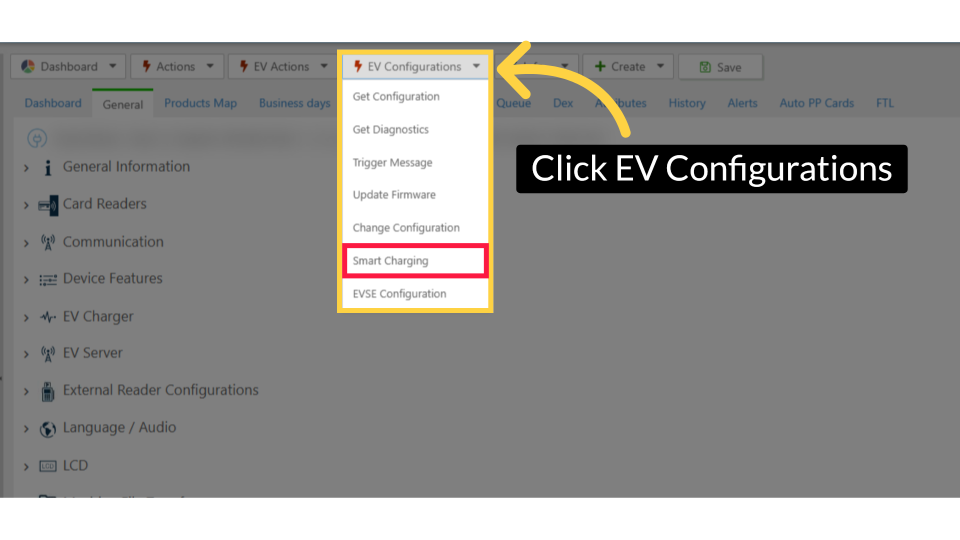
00:25: Click the EV Configurations tab, then select Smart Charging from the drop-down menu.
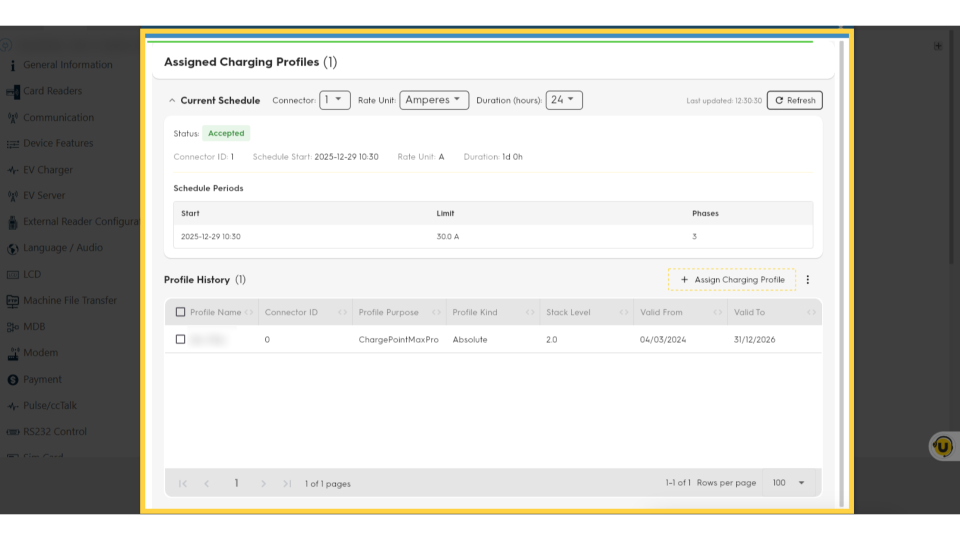
00:31: The Charging Station Profile will open, displaying the charging station's history, which includes real-time active schedules received.
Click Machines
Image AttachedOn the Dashboard of the Nayax Core platform, click on the Operations tab. Then click on "Machines" from the drop-down menu.
Fill Charge Point Operator
Image AttachedType in your Charge Point Operator name and any other fields to locate your Charging Point. Click search as highlighted.
Locate Charging Point in Hierarchy
Image AttachedLocate and click on the Charging Point from the hierarchy.
Click EV Configurations Tab
Image AttachedClick the EV Configurations tab, then select Smart Charging from the drop-down menu.
Charging Station Profile
Image AttachedThe Charging Station page will open, showcasing the profile of the charging station, which includes real-time active schedules received.
Thank you!
Did you find this article helpful?