
How to Generate a Counter Status Report | Reports
The Counter Status report enables you to generate sales by the DEX times based on your business needs.
Video Guide
00:00: Learn how to efficiently generate a Counter Status Report in Nayax
00:04: Core.
00:05: On the dashboard of your NYX core management Suite, click on the reports Tab and
00:09: select decks reports from the drop-down menu in the sub menu, click on counter
00:13: status.
00:14: Type in your operator details and any other fields to obtain the desired reports,
00:19: then press View Report button as highlighted in RED.
00:23: Pro tip: The default for this report is transactions done today.
00:26: Choose a different time interval from the drop-down menu as highlighted in
00:30: GREEN.
00:31: You will view the report on counter status according to your search parameters.
00:36: Click on the Export button to export the data into a PDF or Excel
00:40: format for easy sharing and review.
00:00: Learn how to efficiently generate a Counter Status Report in Nayax
00:04: Core.
00:05: On the dashboard of your NYX core management Suite, click on the reports Tab and
00:09: select decks reports from the drop-down menu in the sub menu, click on counter
00:13: status.
00:14: Type in your operator details and any other fields to obtain the desired reports,
00:19: then press View Report button as highlighted in RED.
00:23: Pro tip: The default for this report is transactions done today.
00:26: Choose a different time interval from the drop-down menu as highlighted in
00:30: GREEN.
00:31: You will view the report on counter status according to your search parameters.
00:36: Click on the Export button to export the data into a PDF or Excel
00:40: format for easy sharing and review.
00:00: This guide will walk you through generating a Sales by Price report in Nayax Core.
00:04: On the dashboard of your NYX core management Suite, click the reports tab.
00:08: Then click on card reports tab from the drop-down menu.
00:11: Then click on the sales by Price table from the sub menu, as highlighted in red.
00:16: Type in your operator details and any other fields to obtain the desired reports,
00:20: then press View Report button as highlighted in RED.
00:24: Pro tip: The default for this report is transactions done today.
00:27: Choose a different time interval from this drop-down menu as highlighted
00:31: in GREEN on the visual.
00:33: You will view the report on sales by price according to your search parameters.
00:38: Click on the Export button to export the data into a PDF or Excel
00:42: format for easy sharing and review.
00:00: This guide will walk you through generating a Sales by Price report in Nayax Core.
00:04: On the dashboard of your NYX core management Suite, click the reports tab.
00:08: Then click on card reports tab from the drop-down menu.
00:11: Then click on the sales by Price table from the sub menu, as highlighted in red.
00:16: Type in your operator details and any other fields to obtain the desired reports,
00:20: then press View Report button as highlighted in RED.
00:24: Pro tip: The default for this report is transactions done today.
00:27: Choose a different time interval from this drop-down menu as highlighted
00:31: in GREEN on the visual.
00:33: You will view the report on sales by price according to your search parameters.
00:38: Click on the Export button to export the data into a PDF or Excel
00:42: format for easy sharing and review.
Click Reports Tab
Image Attached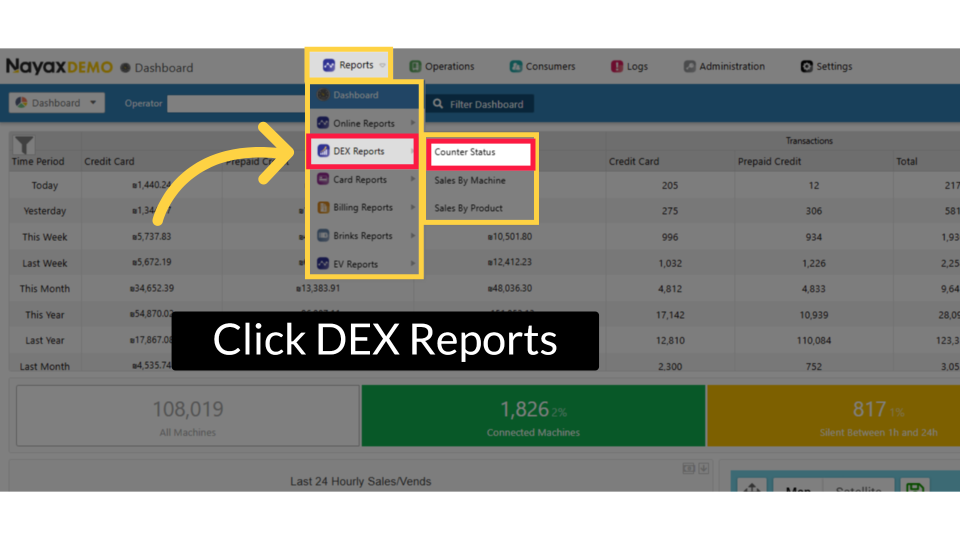
Fill in Fields
Image Attached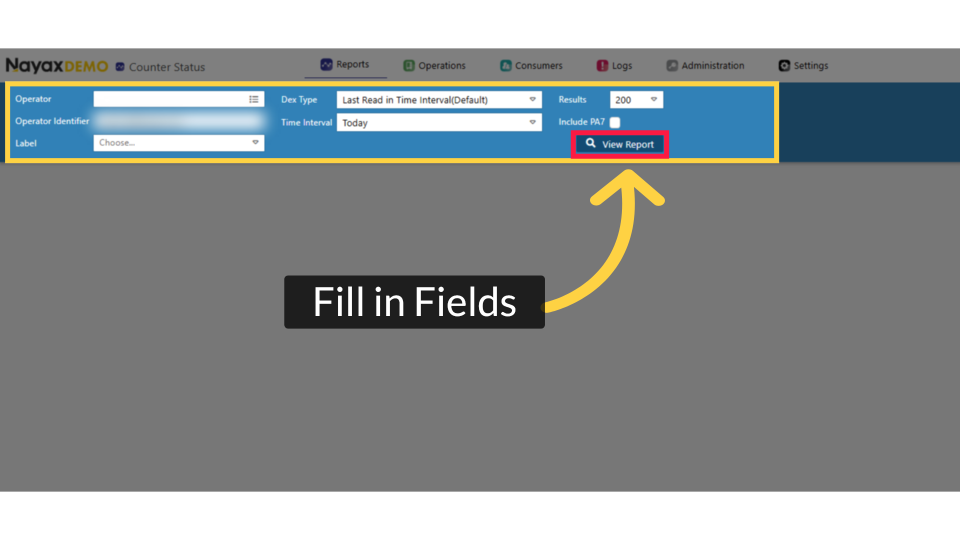
Set Time Interval
Image Attached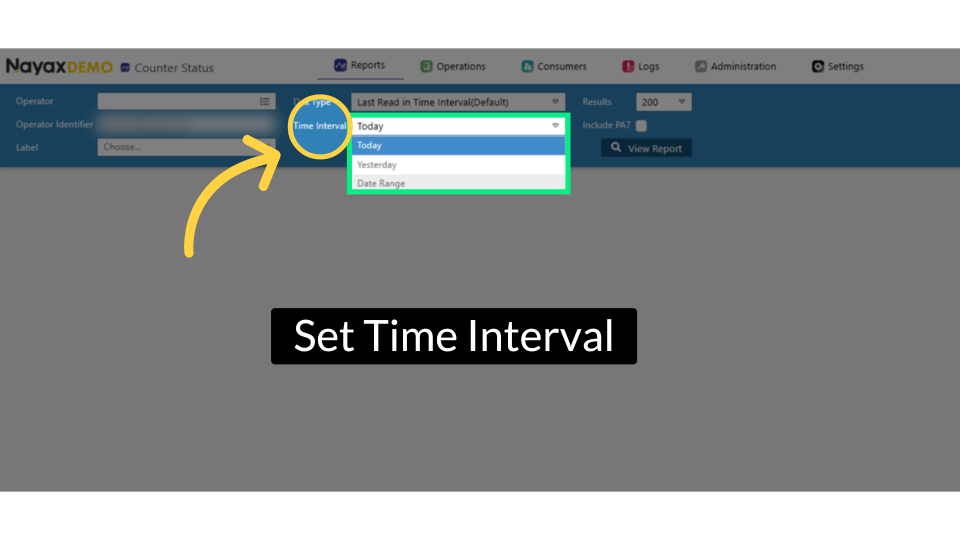
Report Displayed
Image Attached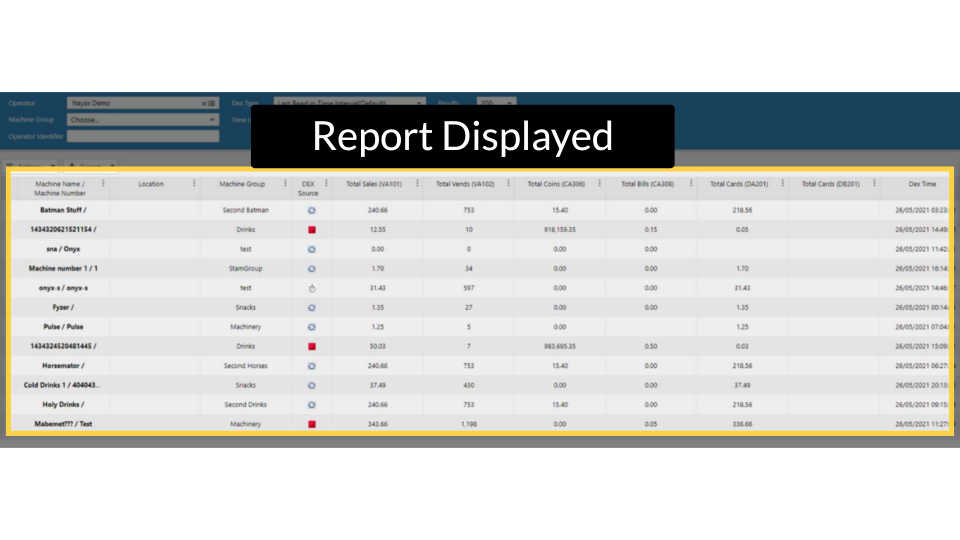
Export Options
Image Attached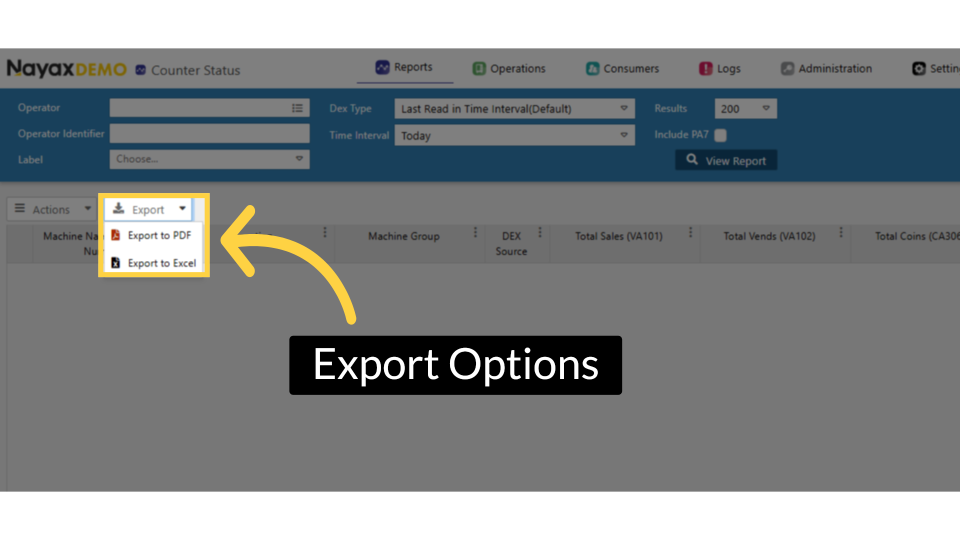
Thank you!
Did you find this article helpful?