
How to Print Coupons | Promotion
Video Guide
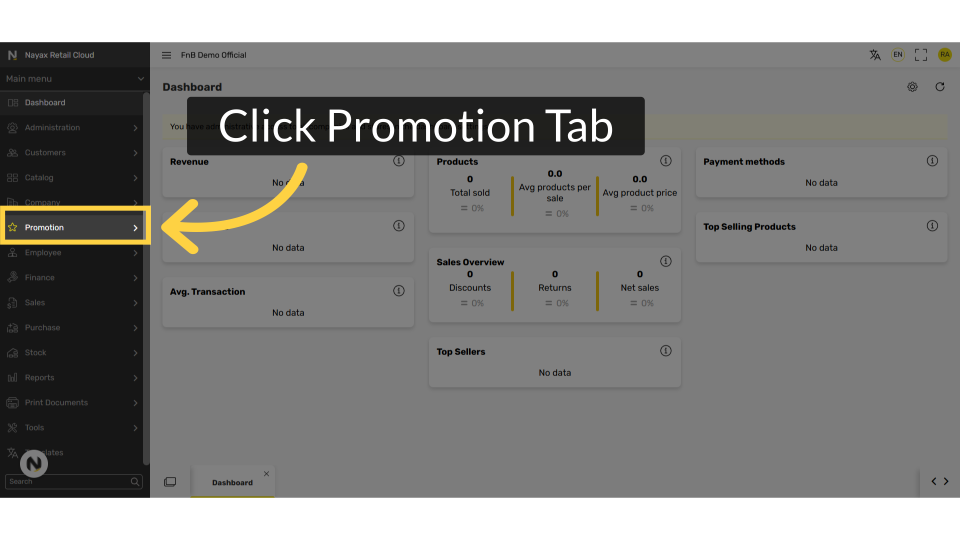
Click Promotion Tab
Image AttachedFrom the dashboard of your Retail Core management suite click on the Promotion tab from the side menu.
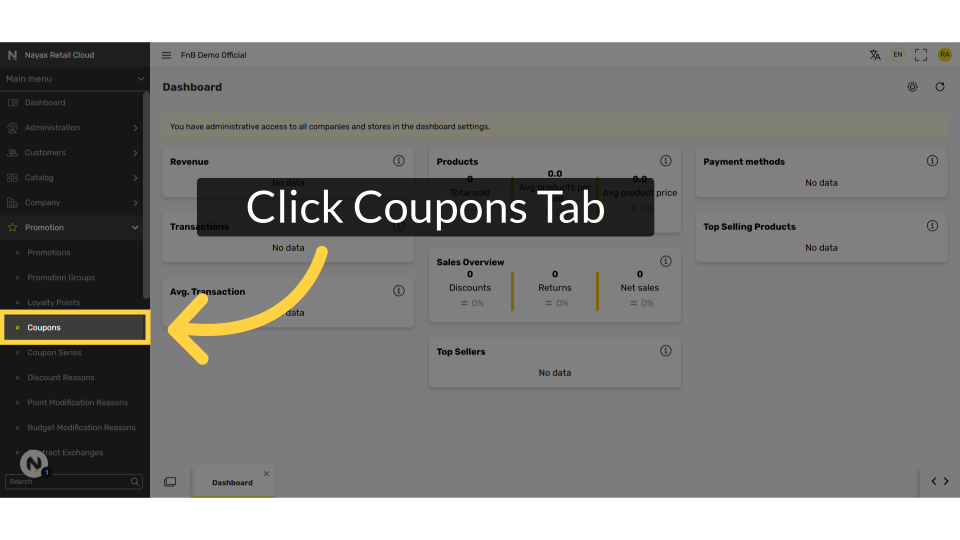
Click Coupons Tab
Image AttachedIn the sub menu under Promotion, go to Coupons. This will present all the coupons created.
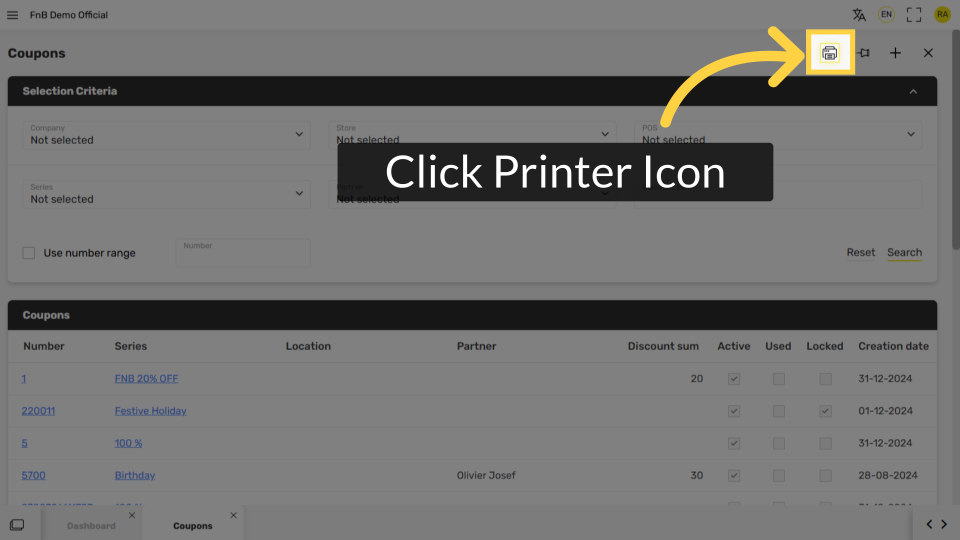
Click Printer Icon
Image AttachedClick the printer icon at the top right of the screen.
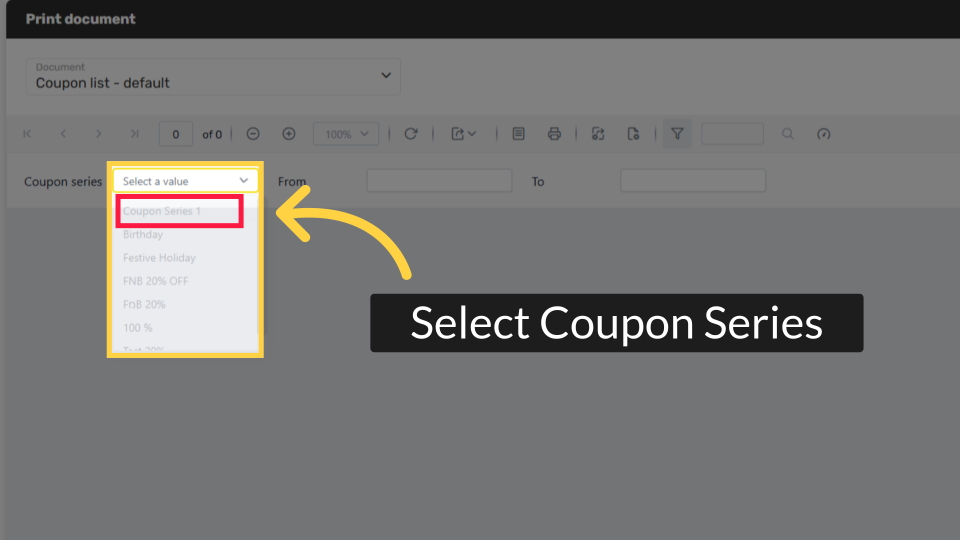
Select Coupon Series
Image AttachedSelect the coupon series you wish to print.
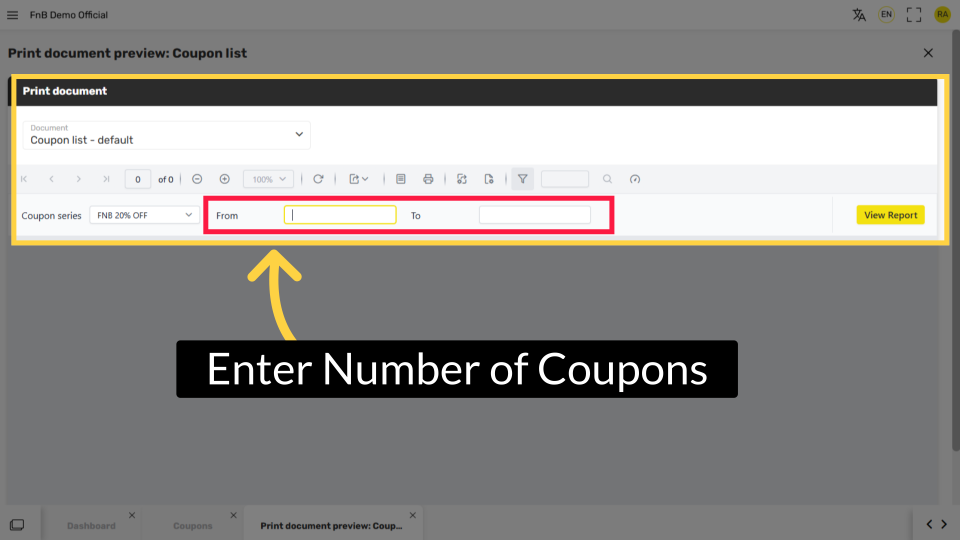
Enter Number of Coupons
Image AttachedType in the numerical number of coupons you want to print.
Ex. If the coupon series is from 1001-1100 and you wish to print them all, enter those coupon numbers. If you wish to print only 50 coupons, enter from 1001-1050.
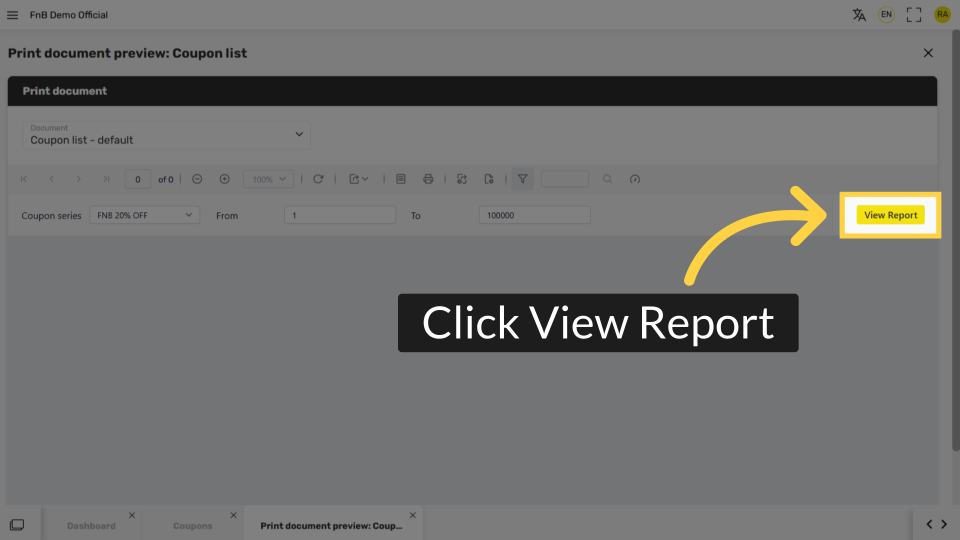
Click View Report
Image AttachedClick View Report.
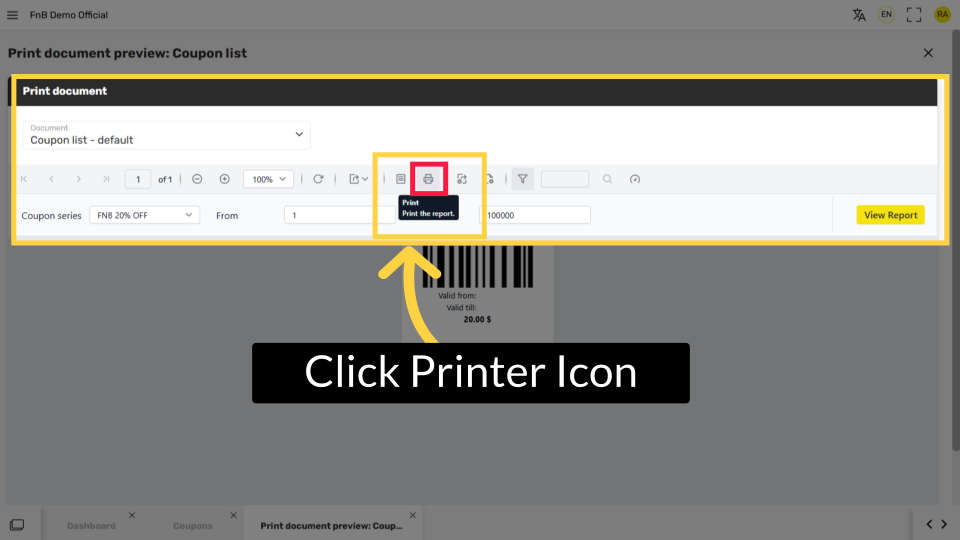
Click Printer Icon
Image AttachedClick the printer icon to the left side of the screen above the Coupon series field.
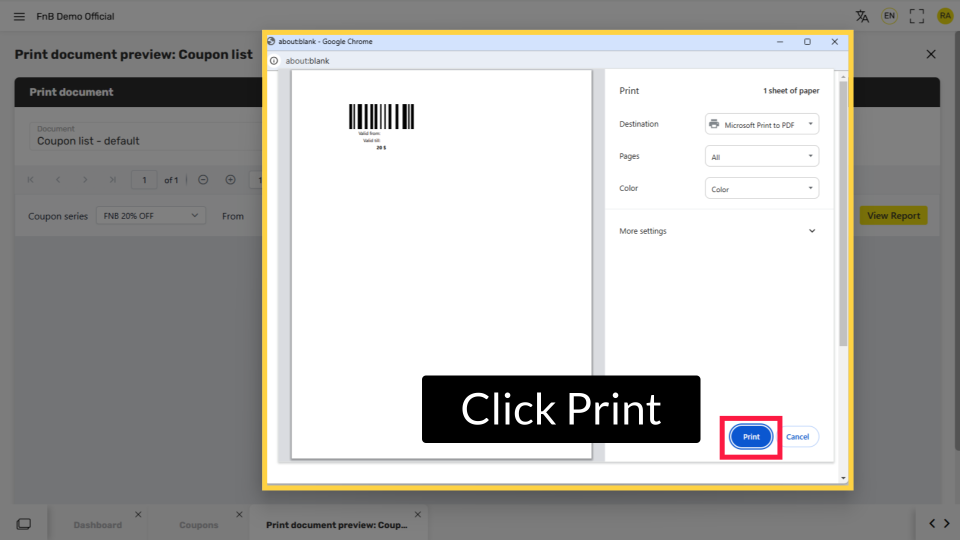
The coupons will print on regular A4 paper.
Click Print
Image AttachedMake sure your printer is online and connected. Click Print.
Thank you!
Did you find this article helpful?